


Docker has transformed the way modern applications are built and deployed, but one of the most confusing parts for many developers is understanding how networking actually works inside Docker. When you launch containers, it’s easy to think of them as lightweight, isolated units that simply run code, yet behind the scenes Docker is setting up complex virtual networking structures that determine how each container communicates with others, with the host system, and with the outside world.
Many beginners assume that containers magically discover each other or that port mapping is nothing more than exposing a number, but the truth is that Docker networking involves namespaces, virtual Ethernet devices, bridges, routing tables, DNS resolution, and NAT rules that all work together to create a predictable communication environment.
Whether you’re running a simple two-container setup or a multi-service microservice architecture, understanding these core networking concepts is essential to avoiding connection errors, debugging service failures, and designing scalable systems. In this guide, we will break down what actually happens when Docker creates networks, assigns IP addresses, connects containers through virtual switches, forwards traffic from the host to the container, and enables containers to discover each other using built-in DNS.
We will explore why some containers can talk freely while others remain isolated, why custom bridge networks behave differently from the default one, and how port publishing allows external clients to reach services running inside containers. By the end of this introduction, you will not only understand the foundational principles that power Docker networking but also gain the confidence to design, troubleshoot, and optimize container communication patterns in real-world applications without treating Docker as a mysterious black box.

Docker networking is the system of virtual interfaces, bridges, routing tables, DNS servers, and isolation rules that allow containers to communicate with:
Think of Docker networking as a mini, software-defined network that runs on your machine and automatically wires up containers when they start.
Every container runs inside its own Linux network namespace a completely separate networking stack with:
This is what isolates containers from each other by default.
Each container gets a “virtual cable” connecting it to Docker’s networking system.
It’s like plugging a laptop (the container) into a virtual switch.
Docker’s default network (called bridge) works like a home Wi-Fi router:
172.17.0.x)If you don’t define a network, containers join this one automatically.
Containers on the same user-defined bridge network can talk using DNS service names.
Example using Docker Compose:
services:
  api:
    image: myapi
  db:
    image: postgres
The api container can reach the database simply by calling:
postgres://db:5432
No IP addresses needed. Docker handles DNS internally.
Why this works:
All services share a custom bridge network, and Docker’s built-in DNS resolves their names.
A container can reach the host machine using:
gateway address of the bridge networkhost.docker.internalExample:
curl http://host.docker.internal:8000
Docker uses NAT (network address translation) on the host to forward packets to the internet.
It’s the same mechanism a home router uses.
Containers can publish ports using:
docker run -p 8080:80 nginx
This means:
So you can visit:
http://localhost:8080
Without publishing the port, the container is reachable only from inside its Docker network
| Network Type | What It Does | When to Use |
|---|---|---|
| bridge (default) | Containers share a virtual switch | Most local development |
| host | Containers share host’s network | When you need raw network performance |
| none | No networking at all | Security isolation |
| overlay | Multi-host communication (Swarm) | Distributed systems / microservices |
| macvlan | Containers get real LAN IPs | When containers must appear as physical devices |
For most developers, custom bridge networks are the sweet spot.
Let’s create an isolated bridge network and connect containers to it:
docker network create mynet
Run two containers:
docker run -d --name c1 --network mynet alpine sleep infinity
docker run -d --name c2 --network mynet alpine sleep infinity
Test connectivity:
docker exec c1 ping -c 1 c2
Docker’s DNS automatically resolves c2 → its IP address.
Check: Are they on the same network?
docker network inspect <network>
Verify port binding:
docker ps
Look for 0.0.0.0:8080->80/tcp.
Make sure you’re using a user-defined network.
DNS doesn’t work on the default bridge.

Understanding these basics will help you confidently architect microservices, debug networking issues, and design production-ready containerized systems.

In the modern era of cloud computing, networks form the backbone of virtually every application and service, enabling resources to communicate, share data, and deliver functionality efficiently and securely. As organizations migrate to cloud platforms, traditional physical networking concepts such as routers, switches, and firewalls are increasingly being replaced by software-defined networking models that offer flexibility, scalability, and automation.
A virtual network is a fundamental concept in this paradigm, providing a logically isolated environment in the cloud where resources such as virtual machines, databases, storage, and containers can interact safely. Virtual networks allow administrators to define IP address ranges, subnets, routing policies, gateways, and security rules in a controlled and consistent manner. By segmenting workloads into subnets, organizations can enforce isolation, improve security, and optimize network performance. Gateways connect these virtual networks to the internet, other virtual networks, or on-premises environments, enabling hybrid and multi-cloud architectures while maintaining control over traffic flows.
Routing tables determine the path that data packets take, ensuring efficient and secure communication between resources both inside and outside the virtual network. These core components subnets, gateways, and routing together provide a foundation for building highly available, resilient, and scalable cloud infrastructure.
Virtual networks are also essential for implementing security best practices, allowing teams to restrict access to sensitive resources, apply network security groups, and monitor traffic for anomalies. Automation and Infrastructure as Code further enhance virtual network management, as tools like Terraform, CloudFormation, and Azure Resource Manager allow engineers to define networks programmatically, track changes in version control, and deploy environments repeatedly without manual intervention. With VNets, organizations can design multi-tier architectures, separate public-facing services from private back-end systems, and establish secure communication channels for microservices and containerized workloads.
Advanced networking features, such as VNet peering, VPN gateways, and private endpoints, enable organizations to connect multiple cloud regions, integrate with on-premises data centers, and maintain low-latency, high-throughput connections. For developers and DevOps teams, mastering virtual networks is critical for deploying applications that are not only functional but also secure, efficient, and maintainable.
Understanding the principles of IP addressing, subnetting, routing, and gateways empowers teams to design networks that scale with organizational needs, optimize traffic flow, and reduce potential points of failure. Virtual networks also play a key role in supporting compliance, as properly segmented and monitored environments can help meet regulatory requirements and protect sensitive data.
By learning to leverage VNets effectively, cloud architects can create robust infrastructure capable of supporting high-demand applications, distributed systems, and hybrid cloud solutions. The flexibility of virtual networks allows teams to experiment, innovate, and iterate on application deployments without the constraints of physical hardware. Furthermore, VNets facilitate automation pipelines, continuous integration and deployment workflows, and rapid provisioning of test and production environments. For students, professionals, and organizations adopting cloud technologies, understanding virtual networks is a foundational skill that enables them to harness the full potential of cloud platforms.
As cloud computing continues to evolve, virtual networks remain a critical component in designing, deploying, and maintaining secure, scalable, and resilient applications. Mastery of VNets is essential for anyone aiming to succeed in modern IT, DevOps, or cloud architecture roles. From simple web applications to enterprise-grade systems, the principles of subnets, gateways, and routing provide the guidance necessary to build effective, reliable, and secure networks.
Virtual networks bridge the gap between traditional networking concepts and the flexibility of cloud infrastructure, empowering teams to deploy and manage workloads with confidence. As organizations continue to adopt hybrid, multi-cloud, and containerized architectures, the role of VNets in ensuring connectivity, security, and scalability becomes even more significant.
Ultimately, understanding virtual networks equips teams with the knowledge required to design infrastructure that is repeatable, auditable, and optimized for performance. By combining virtual networks with automation tools and best practices, organizations can achieve operational excellence, minimize risks, and accelerate innovation in the cloud era.

A virtual network is a software-defined network that allows cloud resources to communicate with each other in a logically isolated environment. Unlike traditional physical networks, VNets are flexible, scalable, and fully managed by the cloud provider. They allow administrators to control IP address ranges, segmentation, and security policies, making it possible to replicate on-premises network designs in the cloud.
VNets serve multiple purposes: they provide private communication between resources, isolate workloads for security, and enable connectivity to on-premises networks or the internet when necessary. To fully understand VNets, it’s important to grasp how subnets, gateways, and routing work together to move traffic within and outside the network.
A subnet is a subdivision of a virtual network’s IP address range. Subnets are used to group resources logically and control traffic flow. By splitting a VNet into multiple subnets, administrators can isolate workloads, enforce security policies, and improve performance.
For example, a common design for a multi-tier application includes:
Each subnet can have its own network security rules, allowing precise control over which resources can communicate with each other and which traffic can enter or leave the network.
A gateway is a device or service that allows traffic to move between networks. In cloud environments, gateways enable VNets to connect to the internet, other VNets, or on-premises networks. There are several types of gateways:
Gateways are essential for hybrid cloud setups, remote access, and scenarios where resources in different networks need to communicate securely.
Routing determines how network traffic flows from one subnet or network to another. In VNets, routing is managed through route tables, which specify destination IP ranges and the next hop for packets. Default routes typically allow communication within the VNet and access to the internet through gateways.
Advanced routing techniques allow administrators to:
Without proper routing, even well-designed VNets cannot communicate effectively, leading to connectivity issues or security gaps.
Subnets, gateways, and routing work together to form a secure, flexible, and scalable virtual network. Subnets isolate resources and organize workloads, gateways provide connectivity to other networks, and routing ensures traffic flows efficiently to its intended destination. Understanding these concepts is critical for anyone designing cloud infrastructure, whether it’s for a simple web application, a multi-tier system, or a hybrid cloud environment.
For example, when deploying a blog server in a cloud VNet, the web server might reside in a public subnet with an internet gateway, while the database sits in a private subnet. Routing rules ensure that only the web server can communicate with the database, and outbound internet access is restricted to controlled paths. This architecture improves security, maintainability, and scalability.

Virtual networks are a foundational element of cloud architecture. By mastering subnets, gateways, and routing, cloud engineers and DevOps teams can design networks that are secure, efficient, and scalable. These core concepts empower organizations to build multi-tier applications, connect resources across environments, and enforce best practices in security and traffic management. Whether you are deploying your first cloud VM, building enterprise applications, or preparing for a career in cloud networking, understanding VNets is an essential step toward success in the modern IT landscape.

Infrastructure as Code has fundamentally changed the way organizations build, deploy, and manage modern IT infrastructure, enabling teams to automate complex workflows, reduce human error, and achieve consistency across environments. Among the tools that have transformed this space, HashiCorp has emerged as a leader by offering a suite of open-source and enterprise solutions designed to simplify infrastructure provisioning, security, service discovery, and workload orchestration.
Tools like Terraform, Vault, Consul, Nomad, Packer, and Vagrant provide a cohesive ecosystem that allows developers and operations teams to adopt consistent practices regardless of the underlying cloud provider or on-premises infrastructure. Terraform, in particular, has gained widespread adoption for its ability to define cloud resources declaratively, allowing teams to version control infrastructure, collaborate efficiently, and automate deployments in a repeatable manner.
Vault addresses critical security challenges by managing secrets, encryption keys, and access policies, reducing the risk of exposed credentials and ensuring compliance with modern security standards. Consul offers robust service discovery and service mesh capabilities, enabling distributed applications to communicate reliably and securely.
Nomad simplifies workload orchestration by allowing both containerized and non-containerized applications to be scheduled and managed at scale with minimal operational overhead. Packer automates the creation of machine images, ensuring consistency across environments and eliminating manual image-building processes, while Vagrant streamlines local development environments to match production configurations closely.
Together, these tools embody the principles of automation, repeatability, and flexibility that modern DevOps teams require. This project focuses on using Terraform to provision a Linux virtual machine on a cloud provider and deploy a basic blog server, illustrating the practical application of Infrastructure as Code. By leveraging declarative configurations, modular design, and cloud-init scripts, the project demonstrates how infrastructure can be deployed reliably and efficiently, with minimal manual intervention.
The Linux VM serves as a stable foundation for hosting web content, while Terraform ensures that every aspect of the infrastructure from networking and security to compute resources is defined as code. This approach not only reduces the risk of misconfiguration but also provides an auditable, version-controlled record of infrastructure changes. Additionally, this project introduces key concepts such as state management, variable configuration, output definitions, and resource dependencies, all of which are essential for scalable and maintainable infrastructure.
Through this implementation, learners gain hands-on experience with cloud provisioning, automation workflows, and the integration of infrastructure tools into real-world scenarios. Furthermore, it highlights best practices in designing reusable modules, separating configuration from code, and adopting principles that support continuous integration and continuous deployment.
The practical example of hosting a blog demonstrates the end-to-end workflow of creating a VM, installing necessary software, and making content accessible over the web, emphasizing the tangible benefits of Infrastructure as Code. By completing this project, users understand how HashiCorp tools empower teams to operate more efficiently, respond to change quickly, and maintain high standards of reliability and security.
Ultimately, this introduction establishes the foundation for exploring more advanced topics in infrastructure automation, multi-cloud deployment, and enterprise-grade DevOps practices, making it clear why HashiCorp has become indispensable in modern IT operations and why teams around the world trust its tools to streamline workflows, secure systems, and enable scalable, repeatable infrastructure management.

HashiCorp offers a collection of tools, each solving a specific challenge in the infrastructure automation lifecycle.
This integrated ecosystem allows DevOps teams to adopt a consistent workflow across development, testing, and production reducing friction and improving reliability.
HashiCorp tools dramatically reduce cloud lock-in. With Terraform, the same code structure can be applied across AWS, Azure, GCP, and even private data centers. This gives teams freedom to choose the best cloud services for their needs.
Terraform’s declarative language (HCL) ensures that infrastructure is predictable and version-controlled. Teams can deploy, track, and roll back changes with confidence, much like software code.
Vault has become the industry standard for secret management. Its dynamic secrets, PKI, and encryption-as-a-service solve major security challenges for applications and infrastructure. DevOps engineers appreciate that it eliminates hard-coded credentials and reduces security risks.
Consul simplifies networking for microservices-based architectures. With service discovery, health checks, and a built-in service mesh, it ensures applications can find and communicate with each other securely and reliably.
Unlike Kubernetes, Nomad is simple to operate and can run both containerized and non-containerized workloads. Its low resource footprint and single-binary design make it ideal for teams wanting less operational overhead.
Packer eliminates manual image building, while Terraform automates provisioning, Vault automates secret handling, and Consul automates service connectivity. For DevOps teams, automation equals speed and repeatability.
HashiCorp tools are widely used, well-documented, and supported by a massive community. Tutorials, modules, and integrations are readily available, accelerating learning and real-world adoption.
Organizations use HashiCorp tools for:
Whether you’re a startup deploying your first cloud application or a large enterprise managing hundreds of services, HashiCorp tools scale effortlessly with your needs.

HashiCorp has revolutionized how DevOps teams build, deploy, and secure modern infrastructure. By offering tools that prioritize automation, security, flexibility, and simplicity, HashiCorp empowers organizations to operate efficiently across any cloud or platform. Its solutions streamline workflows from development to production, allowing teams to deliver faster, reduce risk, and maintain consistent environments. As cloud adoption accelerates, HashiCorp continues to be a cornerstone of DevOps infrastructure worldwide loved for its power, elegance, and ability to turn complexity into clarity.

Infrastructure as Code (IaC) has become an essential practice in modern cloud computing, allowing teams to automate, standardize, and scale their environments with minimal manual intervention. Terraform, a powerful and provider-agnostic IaC tool, simplifies the process of defining and deploying infrastructure across multiple cloud platforms using clear, declarative configuration files.
In this project, the goal is to provision a Linux virtual machine on a cloud provider and automatically configure it to serve a simple blog website, demonstrating how effortless and consistent infrastructure deployment becomes when powered by Terraform. By writing reusable modules, organized variables, and efficiently structured resource blocks, users can create a fully functional environment that launches a server, installs required software, and hosts a basic web page with minimal effort.
This approach highlights the importance of automation in reducing human error, improving deployment speed, and ensuring predictable outcomes. The Linux VM serves as a stable and lightweight foundation for the blog, while Terraform orchestrates networking, security, compute resources, and initialization scripts seamlessly.
Through this project, learners gain valuable hands-on experience with cloud provisioning, infrastructure planning, and real-world configuration workflows. It also reinforces best practices such as maintaining version-controlled infrastructure, enabling easy replication across development, testing, and production environments.
Ultimately, this introduction demonstrates how combining Terraform with a Linux-based server delivers a reliable, scalable, and efficient method for hosting web content, and it lays the groundwork for more advanced automation, CI/CD integration, and multi-tier architectures in future projects.

terraform-blog/
│
├── main.tf
├── variables.tf
├── outputs.tf
└── user_data.sh
main.tfterraform {
required_version = ">= 1.5"
required_providers {
aws = {
source = "hashicorp/aws"
version = "~> 5.0"
}
}
}
provider "aws" {
region = var.region
}
# --- Create Key Pair (for SSH) ---
resource "aws_key_pair" "blog_key" {
key_name = var.key_name
public_key = file(var.public_key_path)
}
# --- Create Security Group ---
resource "aws_security_group" "blog_sg" {
name = "blog-sg"
description = "Allow HTTP and SSH"
ingress {
description = "SSH"
from_port = 22
to_port = 22
protocol = "tcp"
cidr_blocks = ["0.0.0.0/0"]
}
ingress {
description = "HTTP"
from_port = 80
to_port = 80
protocol = "tcp"
cidr_blocks = ["0.0.0.0/0"]
}
egress {
from_port = 0
to_port = 0
protocol = "-1"
cidr_blocks = ["0.0.0.0/0"]
}
}
# --- Create EC2 Instance ---
resource "aws_instance" "blog_server" {
ami = var.ami_id
instance_type = var.instance_type
key_name = aws_key_pair.blog_key.key_name
security_groups = [
aws_security_group.blog_sg.name
]
user_data = file("user_data.sh") # installs Nginx + blog
tags = {
Name = "blog-server"
}
}
variables.tfvariable "region" {
description = "AWS region to deploy"
default = "us-east-1"
}
variable "instance_type" {
description = "EC2 instance size"
default = "t2.micro"
}
variable "ami_id" {
description = "AMI ID for Ubuntu"
# Latest Ubuntu 22.04 for us-east-1 — adjust for your region
default = "ami-0fc5d935ebf8bc3bc"
}
variable "key_name" {
description = "SSH key name"
default = "blog-key"
}
variable "public_key_path" {
description = "Path to your public SSH key"
default = "~/.ssh/id_rsa.pub"
}
outputs.tfoutput "public_ip" {
value = aws_instance.blog_server.public_ip
}
output "blog_url" {
value = "http://${aws_instance.blog_server.public_ip}"
}
user_data.sh (installs Nginx + blog)#!/bin/bash
apt update -y
apt install -y nginx
cat <<EOF >/var/www/html/index.html
<html>
<head>
<title>My Terraform Blog</title>
</head>
<body>
<h1>Welcome to My Blog!</h1>
<p>This Linux VM was provisioned using Terraform 🤖</p>
</body>
</html>
EOF
systemctl enable nginx
systemctl start nginx
~/.ssh/id_rsa.pub)terraform init
terraform plan
terraform apply -auto-approve
Terraform prints:
blog_url = http://XX.XX.XX.XX
Open it in your browser you should see your Terraform-built blog.
You now have:

In conclusion, this project demonstrates the efficiency and reliability that Infrastructure as Code brings to modern cloud deployments through the use of Terraform. By provisioning a Linux virtual machine on a cloud provider and automatically configuring it to host a functional blog, the project showcases how automated workflows can replace time-consuming manual setup and reduce the risk of configuration errors.
Terraform’s declarative approach enables clear, repeatable, and scalable infrastructure management, making it easy to adjust resources, reproduce environments, or extend the architecture as needs evolve. The successful deployment of a fully operational web server illustrates not only the power of automation but also the flexibility of combining Linux’s stability with Terraform’s orchestration capabilities.
Overall, this project provides a strong foundation for understanding cloud automation practices and paves the way for more advanced implementations, including multi-tier applications, CI/CD pipelines, and enterprise-grade infrastructure design.

VirtualBox has become one of the most widely used virtualization tools for running multiple operating systems on a single computer. For beginners and professionals alike, it provides a powerful, flexible, and cost-free way to explore technology without affecting the main system. Whether someone wants to learn Linux, test software, build a cybersecurity lab, or simulate server environments, VirtualBox offers endless possibilities.
However, despite its simplicity and user-friendly design, users often encounter errors that can interrupt their workflow and cause confusion. These errors range from basic configuration issues to deeper system-level problems that involve BIOS settings, drivers, or hardware compatibility. For newcomers, these problems can feel overwhelming, especially when the error messages appear technical or unclear.
Many users struggle with boot failures, virtualization errors, unresponsive VMs, and hardware acceleration issues without knowing what caused them.
The good news is that most VirtualBox errors have straightforward solutions, once you understand why they occur in the first place. Virtualization technology relies on specific system features such as CPU virtualization support, memory allocation, and hardware extensions and when these features are misconfigured, errors appear.
VirtualBox is also sensitive to conflicts with other software, especially programs like Hyper-V, Docker, and Windows Subsystem for Linux, which can interfere with virtualization functions. Additionally, issues can arise from incorrectly attached ISO files, outdated VirtualBox versions, or mismatched graphics settings.
Beginners often assume these problems indicate something is wrong with their computer, when in reality, simple adjustments can restore full functionality.
Understanding why VirtualBox behaves a certain way can help users avoid unnecessary frustration and save valuable time. Troubleshooting becomes easier when users recognize the common patterns behind VirtualBox errors and how they relate to system settings. Learning how to fix these issues not only improves the VirtualBox experience but also deepens your overall understanding of virtualization.
As you explore different virtual machines, you will become more familiar with hardware allocation, storage options, and virtual networking principles.
By addressing common frustrations, users can spend more time learning, experimenting, and building useful virtual environments. Having the right guidance makes troubleshooting far less intimidating and turns VirtualBox into a powerful educational tool. Knowing how to fix basic errors boosts confidence and encourages further exploration into more advanced topics like snapshots, cloning, and multi-VM setups.
In many cases, a single setting such as enabling VT-x in BIOS or adjusting display options can instantly resolve problems that seem complicated at first glance.
This introduction aims to prepare beginners for the most common issues they might encounter when using VirtualBox for the first time. By becoming aware of these challenges ahead of time, users can approach virtualization with a smoother and more productive experience. Each error discussed in the full guide highlights a typical scenario encountered by many people across different operating systems.
The goal is not only to provide solutions but also to help users understand the underlying causes behind each problem.
Once users grasp these concepts, they can prevent similar issues from happening in the future and troubleshoot with confidence. VirtualBox is a versatile tool, and mastering its common errors is the first step toward using it like an expert. With the right troubleshooting knowledge, anyone can build stable virtual machines that operate reliably for testing, learning, or professional development.
As more people explore virtualization in education, development, and cybersecurity, understanding these common errors becomes increasingly valuable. This knowledge empowers users to maintain efficient setups and avoid interruptions that slow down their virtual learning environments. Fixing these issues ensures that VirtualBox continues to serve as a dependable platform for experimenting with different operating systems. Errors should not discourage users but instead guide them toward developing better technical awareness and problem-solving skills.
By the end of this guide, you will know how to address the most frequent VirtualBox problems with ease and confidence. These solutions will allow you to focus on what truly matters: learning, testing, and exploring technology without limitations. VirtualBox remains one of the best tools for building safe, isolated systems for practice and experimentation. With the right understanding of common errors, beginners can unlock the full potential of virtualization and enjoy a seamless experience.
Whether you’re managing a single virtual machine or creating a multi-system lab, troubleshooting skills will always be useful.
This introduction sets the stage for a practical, easy-to-follow guide that empowers users at every skill level. Let’s explore the most common VirtualBox errors and discover the simple solutions that can get your virtual machines running smoothly again.

Your CPU supports virtualization, but it’s disabled in BIOS/UEFI, or another program is blocking it.
Also disable conflicting apps:
Your system is blocking VirtualBox kernel extensions.
Corrupted VM files, wrong settings, or permission issues.
.vdi file hasn’t movedEven if virtualization is supported, Windows Hyper-V is blocking it.
Open PowerShell as Admin → Run:
bcdedit /set hypervisorlaunchtype off
Restart PC.
Guest Additions not installed or capture settings wrong.
Inside VM → Top menu → Devices → Insert Guest Additions CD Image
Then run the installer inside the guest OS.
VirtualBox can’t find the OS installation ISO.
Incorrect graphics controller or low video memory.
Go to Settings → Display
The VDI/VHD file is duplicated in another VM.
VirtualBox adapter not installed correctly.
Unexpected shutdown, corrupted VM state, or insufficient resources.

VirtualBox is a powerful tool, but beginners often encounter errors that seem intimidating at first.
Fortunately, most issues from virtualization problems to missing boot media can be fixed quickly once you understand the cause.
By following the solutions in this guide, you can keep your VirtualBox environment stable, reliable, and ready for learning or testing new systems.
Whether you’re practicing Linux, experimenting with cybersecurity, or running a test server, troubleshooting VirtualBox becomes much easier with the right knowledge.
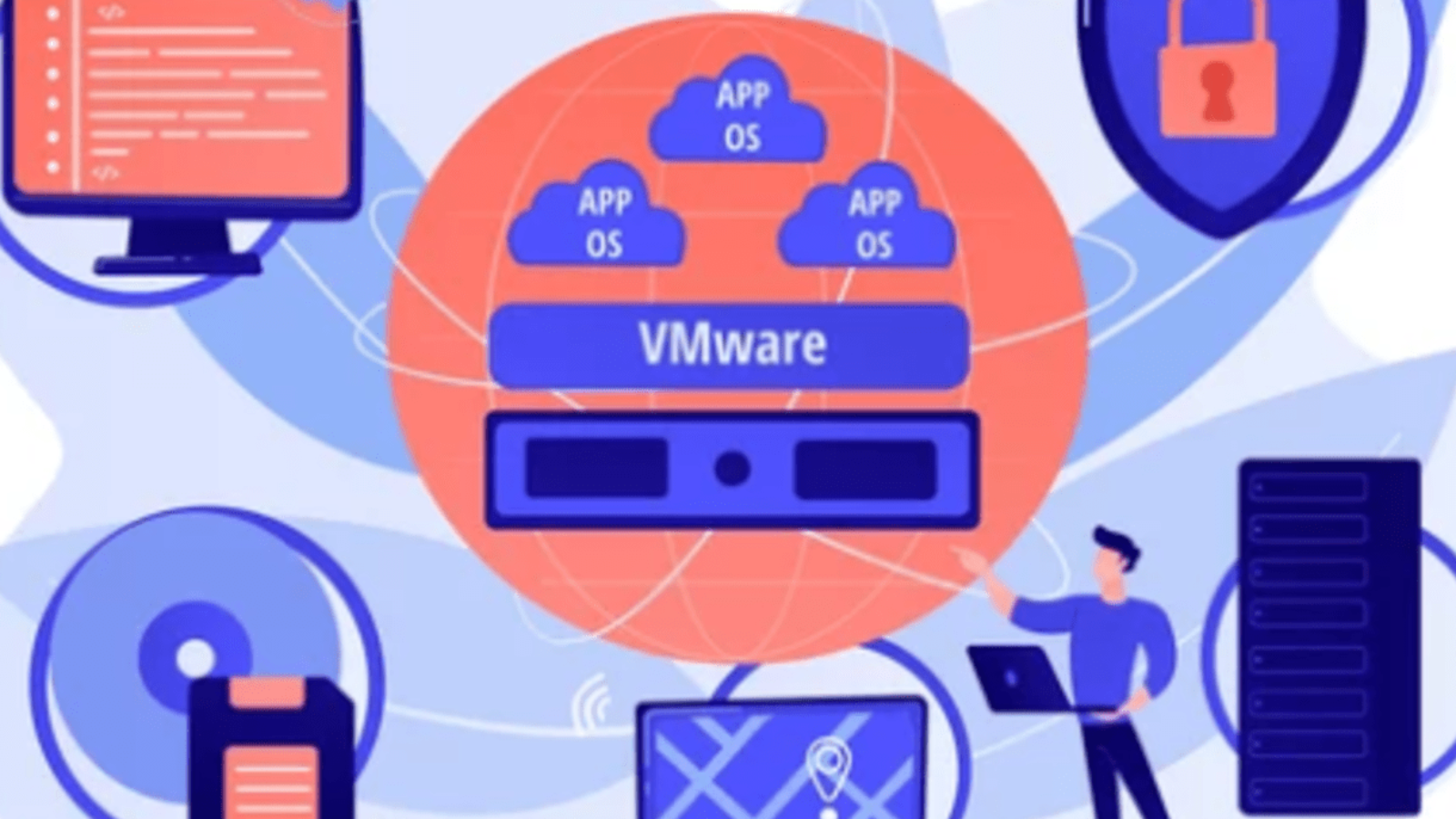
Virtualization has become one of the most important concepts in modern computing, shaping the way people learn, test, and interact with technology. As digital tools continue to evolve, the need for safe, flexible, and accessible learning environments grows stronger every day. Many beginners are curious about exploring new operating systems but feel hesitant to modify their real computer or risk losing important data.
This is where virtualization steps in, offering a solution that allows users to create a separate, fully functional computer inside their existing machine. For newcomers to the world of technology, virtualization opens doors that were once limited to advanced users or professionals with specialized equipment. It allows anyone to experiment freely, learn confidently, and explore technical concepts without fear of damaging their main system. Among the various virtualization platforms available today, VirtualBox stands out as one of the most beginner-friendly and widely accessible options.
Its simple interface, free availability, and powerful features make it a perfect starting point for those who want to understand how virtual machines work. VirtualBox gives users the ability to run multiple operating systems such as Windows, Linux, or older versions within a single host computer. This capability enables learners to practice skills, test software, and explore new environments without making any permanent changes to their device.
For students who want to understand Linux but do not want to dual-boot or partition their disk, VirtualBox offers an easy and risk-free alternative. Developers who need to test applications across different operating systems can rely on VirtualBox to provide multiple test environments at once.
Cybersecurity learners can build safe, isolated virtual labs that allow them to practice penetration testing, network simulations, and ethical hacking tools.
All of this can be done without compromising the security or stability of their primary operating system.
VirtualBox also eliminates the need for extra hardware, making it an ideal option for those who want to set up virtual servers or networks without buying additional machines. Beginners often appreciate VirtualBox’s intuitive design, which guides them through creating virtual machines without overwhelming them with complex settings.
The ability to adjust virtual hardware such as RAM, CPU cores, and storage helps users understand how real computer systems are configured. Even if mistakes occur during experimentation, VirtualBox makes it easy to delete, reset, or recreate a virtual machine in minutes. The snapshot feature is especially valuable, as it allows users to save the current state of a virtual machine and return to it whenever needed.
This means beginners can try different settings, install new software, or even break their virtual system without worrying about permanent consequences. As long as a user has a basic computer with decent memory and processor support, they can begin exploring virtualization without any financial investment.
VirtualBox’s open-source nature ensures that it remains accessible, well-documented, and continuously updated by a dedicated global community.
This widespread support makes troubleshooting, learning, and skill development easier for beginners who rely on online tutorials and guides. Because VirtualBox works on Windows, macOS, Linux, and other platforms, it offers unmatched flexibility for users with different operating systems. Its cross-platform compatibility also makes it an excellent tool for classrooms, training programs, and self-paced learners.
Virtualization with VirtualBox encourages users to build confidence in technical skills that may have previously felt too advanced or intimidating.
Over time, beginners gain a deeper understanding of system behavior, operating system installation, disk partitioning, and networking concepts. The hands-on experience provided by VirtualBox makes learning more engaging, more practical, and more effective than traditional textbook methods.
By experimenting with virtual machines, users begin to understand how software interacts with hardware, all within a controlled environment. This knowledge lays the foundation for more advanced concepts such as cloud computing, server administration, and cybersecurity practices.
In a world increasingly shaped by digital transformation, virtualization has become a skill that benefits learners in every field of technology. VirtualBox serves as a gateway into this world by offering an accessible starting point that requires no prior experience or expensive resources. Its simplicity empowers beginners to take their first steps into virtualization with confidence and curiosity. At the same time, its advanced features ensure that users can continue exploring as they grow more skilled and knowledgeable.
Whether someone wants to learn Linux, build a secure testing lab, or simply satisfy their curiosity about new operating systems, VirtualBox provides a safe path forward. It allows users to experiment without fear, practice without pressure, and learn without limits. As more people discover the benefits of virtualization, VirtualBox continues to play a vital role in making technology education more available to everyone.
Its blend of approachability and capability makes it the ideal tool for beginners who want to understand the world of virtual machines. Through VirtualBox, learners gain the freedom to explore, break, rebuild, and master technology in a way that is both practical and empowering.
Ultimately, virtualization with VirtualBox introduces beginners to a new dimension of computing one where possibilities are endless, mistakes are harmless, and learning becomes truly hands-on.
This makes VirtualBox not only a useful tool but an essential starting point for anyone stepping into the world of modern technology.

Virtualization is a technology that allows you to run multiple operating systems on one physical computer at the same time.
It works by creating a virtual environment a simulated computer that behaves like a real one.
Your computer = the host machine
The virtual machine = the guest machine
The guest machine has its own:
…even though it is still running inside your real device.
This means you can run Windows, Linux, or even older OS versions on the same computer without changing your main operating system.
Virtualization is used in almost every industry today. It helps with:
For beginners, it offers a safe, flexible, and low-cost way to learn without breaking anything on their main device.
Unlike other virtualization tools that require paid licenses, VirtualBox is 100% free and open-source.
This makes it perfect for students, hobbyists, and anyone on a budget.
VirtualBox has a simple, beginner-friendly interface.
You can create a virtual machine within minutes:
Even with no technical background, getting started is straightforward.
VirtualBox works on:
And within it, you can run:
This flexibility makes it perfect for testing, learning, or experimenting.
When you experiment inside a virtual machine, your real computer stays safe.
You can:
…with zero risk to your main system.
If something breaks, simply delete the VM or restore a snapshot.
VirtualBox allows you to create snapshots saved points of your virtual machine’s state.
If something goes wrong, you can revert to a previous snapshot instantly.
For beginners who make mistakes (everyone does!), this feature is extremely helpful.
VirtualBox doesn’t require a powerful system.
A computer with:
…is usually enough to run a lightweight VM like Ubuntu.
This makes virtualization accessible to almost everyone.
VirtualBox is widely used in training labs because it lets learners:
All without needing expensive hardware.
Because VirtualBox is open-source and extremely popular, millions of users share:
Whenever beginners get stuck, help is easy to find.
With VirtualBox, beginners can explore a wide range of learning opportunities:
VirtualBox becomes your personal learning playground safe, flexible, and customizable.
While VirtualBox is excellent for learning, it has a few limitations:
For most beginners, these limitations barely matter, since VirtualBox is aimed at learning, testing, and experimenting.

Virtualization is a powerful technology that has become essential in today’s digital world. VirtualBox makes this technology accessible to everyone especially beginners. It offers a free, safe, and flexible way to explore new operating systems, practice technical skills, and build virtual environments without needing complex hardware or advanced knowledge.
Whether you’re a student learning Linux, a developer testing applications, or simply someone curious about technology, VirtualBox is the perfect starting point. With its ease of use and powerful features, it opens the door to endless learning opportunities in the world of computing.

VirtualBox has become one of the most widely used tools for virtualization, offering a simple yet powerful way to run multiple operating systems on a single computer.
In a world where learning, testing, and experimenting with technology has become essential, VirtualBox provides a safe, flexible, and accessible environment for beginners and professionals alike.
It allows users to explore new systems without altering or damaging their real machine, making it ideal for students who want to learn Linux, developers who need multiple test environments, and IT professionals who build virtual labs.
As technology continues to evolve, the need for virtual spaces where we can practice, test, and innovate grows stronger, and VirtualBox stands out as a free and open-source solution capable of meeting those needs.
This software enables users to create virtual machines that behave just like physical computers, complete with their own storage, memory, and operating systems.
Through its intuitive interface and straightforward setup, VirtualBox opens the door for anyone to experiment with different operating systems such as Ubuntu, Debian, Windows, and more, all from within a single host computer.
It offers an efficient way to simulate real-world environments, making it easier to study networking, cybersecurity, programming, or server administration without the cost or complexity of extra hardware.
For beginners who are curious about Linux, VirtualBox removes the fear of breaking their system by providing a controlled environment where mistakes are harmless and easily reversible.
Educators also rely on VirtualBox to prepare virtual classrooms, giving students hands-on experience without needing multiple physical machines. Developers use it to test applications across different versions of Windows and Linux without constantly reinstalling operating systems. Cybersecurity learners appreciate the ability to build isolated labs that pose no risk to their host system, even when practicing vulnerable machines or penetration testing tools. The snapshot feature allows users to save the exact state of a virtual machine and restore it whenever needed, making experimentation smoother and more forgiving.
VirtualBox supports various hardware configurations, enabling users to allocate RAM, CPU cores, and disk space based on their needs and system capabilities. Its cross-platform compatibility makes it accessible on Windows, macOS, Linux, and Solaris, giving almost anyone the opportunity to explore virtualization.
Additionally, its open-source nature encourages community support, continuous improvement, and a wealth of resources for troubleshooting and learning.
As digital skills become crucial across all fields, tools like VirtualBox empower people to develop confidence and competence in a safe, user-friendly environment. It has become an essential platform for building virtual networks, practicing server deployments, or simply discovering how different operating systems function. The ability to switch between multiple virtual systems without restarting the computer saves time and increases productivity.
VirtualBox also promotes innovation by offering a space where new ideas can be tested quickly and efficiently. Its flexibility, ease of use, and powerful features make it suitable for everything from personal experimentation to professional IT training. In a world where knowledge and adaptability are key, VirtualBox provides a pathway for continuous growth and exploration in computing. By offering a full virtual environment, it transforms any computer into a versatile tool capable of hosting countless learning opportunities.
Whether someone aims to build technical skills, explore new software, or practice system administration, VirtualBox provides the perfect platform. It empowers users to push boundaries, solve problems, and understand technology at a deeper level without fear of damaging their main system. VirtualBox has therefore become more than just a virtualization tool it is a gateway to learning, experimentation, and innovation for people at all levels.
Its reliability and accessibility make it an ideal choice for anyone who wants to explore the digital world with confidence and creativity. With VirtualBox, the barriers to learning and technological exploration become smaller, giving users the freedom to try new things without limitations. As virtualization continues to shape the future of computing, VirtualBox remains a foundational tool for those who want to grow alongside advancing technology.
Its combination of simplicity and power makes it one of the best starting points for anyone stepping into the world of virtual machines. Ultimately, VirtualBox serves as a bridge between curiosity and practical experience, allowing users to transform their computer into a dynamic and versatile digital workspace.

VirtualBox is a free and open-source virtualization software developed by Oracle. It allows you to run multiple operating systems at the same time on a single physical computer.
Think of it like having a computer inside your computer.
The extra operating system you install is called a Virtual Machine (VM), and it behaves just like a real computer with its own memory, storage, and applications.
Your main computer is called the host system.
The operating system you install inside VirtualBox is called the guest system.
VirtualBox uses part of your computer’s hardware (CPU, RAM, and disk space) to run these guest systems without affecting your main OS.
VirtualBox is popular because it is:
You get powerful virtualization features without paying anything.
You don’t need deep technical knowledge to install or use it.
You can safely learn:
…without damaging your main OS.
If something goes wrong inside the VM, your main computer stays safe.
VirtualBox runs on:
And it can host almost any OS inside it.
Here are some practical things beginners and professionals use VirtualBox for:
Try Linux, run a second Windows version, or experiment with macOS (where legally allowed).
Run Kali Linux, Metasploitable, Parrot OS, and more without risking your real machine.
Need Windows XP or Windows 7? VM makes it possible.
Install:
and practice real IT skills.
Developers can test apps across multiple OS platforms easily.
Before installing it, make sure your PC meets these basic requirements:
Most modern computers already support these features.
That’s it you now have a virtual computer running inside your main system.
For most users, especially beginners, these limitations are minor.
VirtualBox is perfect for:
If you want to experiment without breaking your system, VirtualBox is made for you.

VirtualBox is one of the easiest and safest ways to explore new operating systems, test software, and build virtual environments all without affecting your main computer. Its free and open-source nature makes it accessible to everyone, and its simplicity makes it the perfect starting point for beginners entering the world of virtualization. Whether you want to learn Linux, practice cybersecurity, develop multi-platform software, or simply run another OS for fun, VirtualBox gives you the freedom to do it all.

Python has quickly become the backbone of modern DevOps practices, emerging as the go-to language for automation, cloud operations, CI/CD pipelines, and large-scale infrastructure management.
As DevOps transforms how organizations build, deploy, and maintain software, engineers increasingly rely on tools that allow them to move fast while keeping systems stable and predictable. Python fits perfectly into this workflow because it is simple to read, easy to learn, and powerful enough to automate almost every part of the development and operations lifecycle. Its clean syntax makes collaboration smoother,
and its extensive standard library lets engineers write effective scripts without needing dozens of external tools.
Whether you’re provisioning servers, validating deployment configurations, or integrating with APIs from AWS, Azure, Kubernetes, and GitHub, Python provides a consistent and reliable foundation that works across platforms and environments. In a field where automation is essential, Python’s ability to handle repetitive tasks with minimal code has made it invaluable for increasing speed and reducing human error.
Its thriving ecosystem offers libraries for everything from monitoring systems and parsing logs
to building dashboards, managing containers, and implementing security checks in DevSecOps workflows.
Because so many DevOps tools from Ansible to Kubernetes operators use Python under the hood,
engineers can extend, customize, or replace these tools without switching languages.
Python also integrates seamlessly into CI/CD pipelines, allowing teams to automate testing, code quality checks, release processes, and deployment logic. The language’s readability ensures that scripts remain maintainable, even in fast-moving environments where requirements and infrastructure frequently change. Python’s strong community support means solutions, tutorials, and reusable modules are never hard to find, saving DevOps teams countless hours and avoiding reinventing the wheel.
Its flexibility makes it equally useful for small one-off scripts and full-scale automation systems.
Because it works well across Linux, macOS, and Windows, Python is ideal for hybrid and cloud-native environments where consistency matters. The rise of containerization and Kubernetes has only expanded Python’s relevance, giving engineers powerful APIs and libraries for managing clusters and orchestrating deployments.
From monitoring microservices to scaling infrastructure automatically, Python remains the language DevOps engineers turn to when reliability and speed are required. Its blend of simplicity, power, and community support has made it not just popular, but essential in today’s fast-paced DevOps ecosystem.

One of Python’s greatest strengths is its simplicity. Its syntax is clear, minimal, and close to natural language.
This matters in DevOps because:
A YAML file, a Bash script, and a Python script often appear side-by-side in DevOps workflows. Python reduces cognitive load and makes automation easier even for those new to coding.
DevOps is built on automation CI/CD, infrastructure provisioning, monitoring, deployment, backups, patching, and more.
Python excels at automation because it offers:
Whether you’re automating a build pipeline, cleaning log files, or integrating with cloud APIs, Python gets the job done with fewer lines of code.
Cloud = automation.
And Python has first-class libraries for almost every cloud platform:
With Python, a DevOps engineer can:
Infrastructure as Code (IaC) tools like Ansible are also written in Python, making it a natural extension language for custom modules.
CI/CD systems like GitHub Actions, GitLab CI, Jenkins, CircleCI, and Bitbucket Pipelines often require custom logic. Python is incredibly effective at creating:
Python scripts run easily inside pipeline containers and are portable across Linux, Windows, and macOS.
Modern DevOps is deeply tied to Docker and Kubernetes.
Python provides:
docker-py)It’s also the ideal language for writing small containerized microservices used in DevOps automation.
Monitoring is mission-critical, and Python makes it easy to build:
Python’s text-processing power and API integrations make it a natural choice for building custom monitoring workflows.
Security is a core part of DevOps today.
Python dominates DevSecOps because it powers tools like:
Security teams rely on Python due to its speed, flexibility, and accessible syntax.
Python’s global community means DevOps engineers benefit from:
If you have a DevOps problem, someone has almost certainly solved it in Python.
Python adapts to every area of DevOps:
| DevOps Area | How Python Helps |
|---|---|
| Automation | Scripting, task runners |
| CI/CD | Validation, custom pipeline steps |
| Cloud | AWS/GCP/Azure APIs |
| IaC | Ansible modules, Terraform helpers |
| Containers | Docker/Kubernetes automation |
| Monitoring | Alerts, log parsers, exporters |
| Security | Scanners, policy tools, audits |
One language, multiple use cases that’s the real power of Python.

Python didn’t become the top DevOps language by accident.
It became dominant because it solves the practical problems DevOps engineers face daily automation, cloud, scaling, monitoring, and reliability.
If you’re starting your DevOps journey or expanding your skill set, learning Python will give you an immediate advantage. It’s the glue that holds modern DevOps together.

Python has become one of the most popular and beginner-friendly programming languages in the world,
thanks to its simple syntax and wide range of real-world applications.
Whether you’re interested in data science, web development, automation, or even artificial intelligence,
Python offers an accessible entry point that allows complete newcomers to start building immediately.
But despite its friendly reputation, many beginners still feel overwhelmed when they first decide to learn it.
There are countless tutorials, courses, videos, and books available,
and without a clear plan, it’s easy to get lost, lose motivation, or jump between topics without real progress.
This is exactly why a structured, day-by-day learning roadmap can make all the difference. A roadmap gives you direction, removes decision fatigue, and ensures you build skills in the right order. It also encourages consistency, which is the single most important factor in learning to code. You don’t need to be a math expert or a computer science major to start learning Python, and you certainly don’t need expensive software or complicated tools.
All you need is curiosity, a computer, and a willingness to practice a little each day.
The good news is that Python rewards beginners quickly by allowing you to write useful programs early on. Within just a few days, you can automate small tasks, create simple scripts, or build text-based games.
Within a few weeks, you can work with data, interact with APIs, and structure full mini-projects on your own. This 30-day roadmap is designed specifically for absolute beginners who want real progress,
clear milestones, practical exercises, and a balance between theory and hands-on coding.
It breaks the learning process into manageable steps so you never feel lost or stuck. Each day builds on the previous one, slowly expanding your confidence and skills. By following this plan, you’ll not only learn Python but also learn how to think like a programmer. You’ll understand how to solve problems logically, break tasks into pieces, and write clean, reusable code. You’ll gain experience using common tools and libraries that developers rely on every day. And you’ll finish the month with a project you can proudly share with others or add to your portfolio.
Whether your goal is a new career, a hobby, or a stepping stone into AI and data science,
Python is one of the best investments you can make in your future skills. This introduction marks the beginning of your coding journey, and the roadmap ahead will guide you step by step toward becoming a confident Python programmer. So take a deep breath, open your editor, and get ready to start learning.
Your 30-day adventure with Python begins now.

Thirty days is long enough to build real skills but short enough to stay motivated.
By the end, you’ll be able to:
.py fileWrite small programs like:
for loopswhile loopsTry:
Generate multiplication tables, sum numbers, print patterns.
Pick one:
math, random, datetimeIdeas:
Build something:
try, except, finallyExplore useful beginner-friendly libraries:
requests (web requests)json (data)os (system tasks)Ideas:
Options:
Pick something small but meaningful.
Break it into steps:
Write a clear README including:
Once you’ve completed the roadmap, here’s where to go next:


Networking can feel intimidating at first, especially when you start encountering terms like IP addresses, subnet masks, CIDR notation, and of course, subnetting. Many beginners immediately assume subnetting is a complicated math problem, something only network engineers can understand, but that’s far from the truth. At its core, subnetting is simply a way to organize a network into smaller, more manageable parts. Imagine a huge apartment building filled with hundreds of people, all trying to communicate at once it would be chaotic, noisy, and confusing.
Now imagine dividing that building into floors or sections, so that each group of people has its own space to interact, while still being part of the same building. Suddenly, everything becomes more organized, efficient, and easier to manage. That’s exactly what subnetting does for computer networks. A network is a collection of devices like computers, phones, printers, cameras, and other smart devices, all of which need to communicate. If every device is lumped together in one large network, traffic becomes overwhelming, security becomes difficult, and managing growth is a nightmare. Subnetting divides the network into smaller groups, called subnets, so each group can communicate efficiently, operate securely, and remain easy to control.
It allows network administrators to limit traffic within a subnet, protect sensitive devices, isolate security systems from general users, and plan for future growth without chaos. You can think of subnetting as organizing a city into neighborhoods, each with streets and houses. Each device has its own “house number” called an IP address, and subnetting determines which “street” or subnet each device belongs to. This structured approach reduces confusion, enhances performance, and improves security.
Even though technical terms like subnet masks and CIDR notation may seem intimidating, understanding the concept does not require memorizing complicated binary math. It’s simply about splitting a large network into smaller, logical networks that are easier to manage, more efficient, and more secure. In this blog, we will explore subnetting in the simplest way possible, using real-world analogies and plain language so that by the end, you will realize it is not a frightening, technical concept, but rather a smart, practical strategy to organize and control networks, whether in a small home setup or a large enterprise environment. Once you grasp this concept, everything about networking from IP addresses to VLANs starts to make more sense, and subnetting becomes a logical, almost intuitive step in understanding how devices communicate with one another efficiently.

Subnetting means dividing a big network into smaller, more manageable pieces.
Think of it like taking a large neighborhood and dividing it into smaller streets:
Nothing “fancy” happens you’re just creating smaller groups inside a large group.
Subnetting solves very practical problems.
Imagine a school with 600 devices:
If all these devices lived on one giant network, it’d be chaotic like stuffing an entire city into one street.
Subnetting helps separate them into neat groups.
In a network, some messages are sent to everyone on the same subnet.
If thousands of devices are in one subnet, the traffic gets noisy and slows things down.
Smaller subnets = fewer devices yelling at each other = faster network.
Subnetting lets you control who talks to whom.
Example:
You can put office staff on one subnet and security cameras on another.
Even though they share the same building, they can’t directly access each other unless allowed.
It’s like having different rooms in a house still part of the same home, but separated for safety.
Let’s imagine a giant apartment building:
When you want to find someone, you first go to the correct floor (subnet), then to the right apartment (device).
Without subnetting, the building would have one massive floor with thousands of apartments — confusing and hard to manage.
Subnetting simply adds structure.
Every device on a network has an IP address, which is like a home address.
An IP address has two parts:
Subnetting changes the dividing line between the “street” and the “house.”
Instead of one big street with tons of houses…
you make several smaller streets with fewer houses each.
That’s it. That’s subnetting.
Imagine you run a small business with:
Instead of dumping all 100 devices into one bucket, you can create:
Now each group is tidy, controlled, and isolated.
You’ve probably seen things like 255.255.255.0 or /24.
These are just labels that describe how big the subnet is.
Think of them like:
You don’t need to understand the numbers yet just know they describe how subdivided the network is.

Subnetting is the process of splitting a large network into smaller, more organized, and more secure mini-networks.
That’s all!