


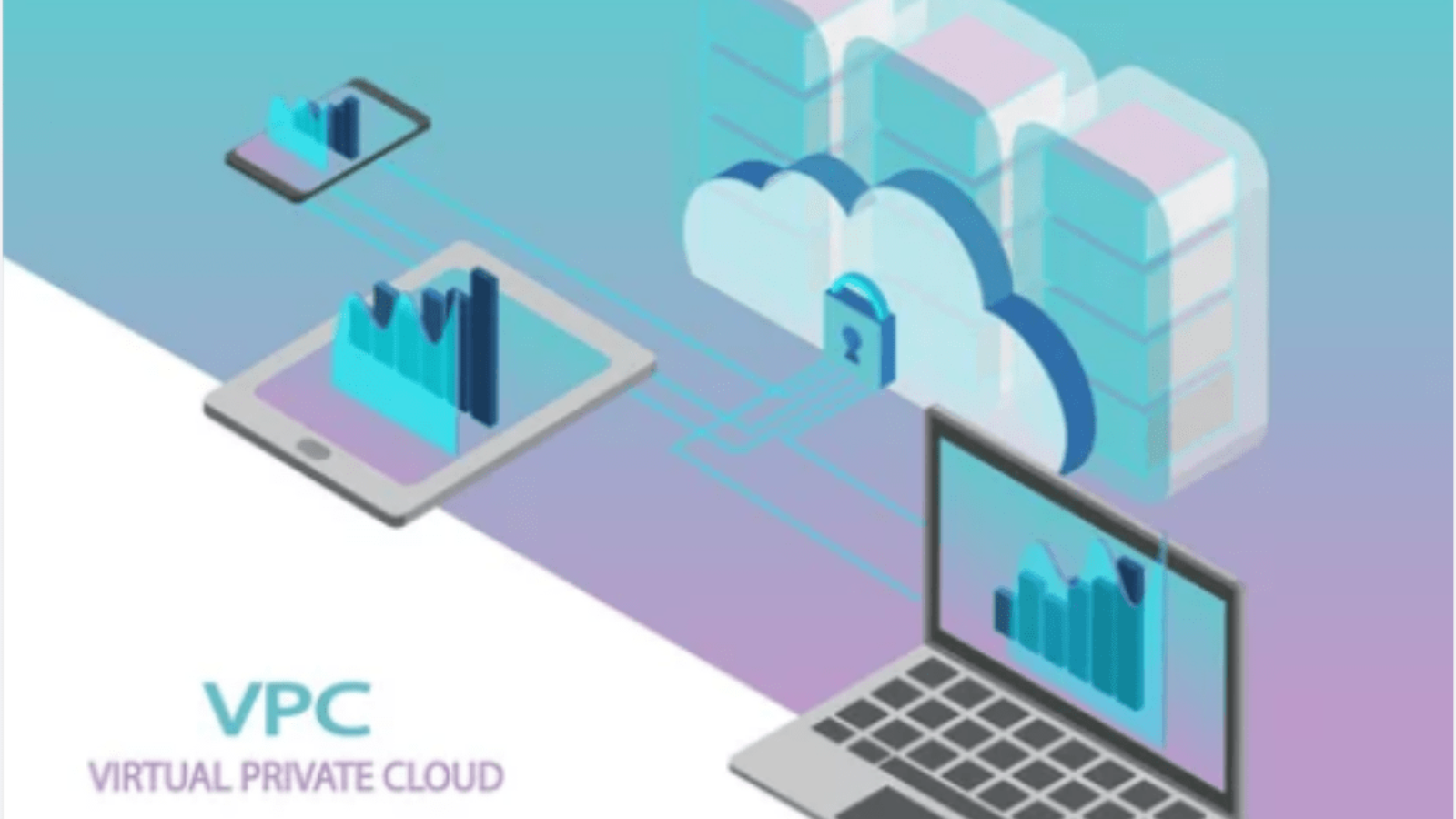
In modern cloud architectures, ensuring secure and efficient communication between services is critical. One of the most effective ways to do this within AWS is by using VPC (Virtual Private Cloud) Endpoint services. This guide will walk you through the process of setting up an end-to-end VPC endpoint service, enabling private and secure communication between your VPC and AWS services or other VPCs.
Start by explaining what a VPC Endpoint Service is, the types of VPC endpoints (Interface and Gateway), and the use cases for implementing them. Include a basic explanation of the VPC endpoint’s role in connecting resources securely without requiring access over the public internet.

Discuss the benefits of using VPC endpoints, such as improved security (private connections), lower data transfer costs, and better performance due to reduced internet exposure.
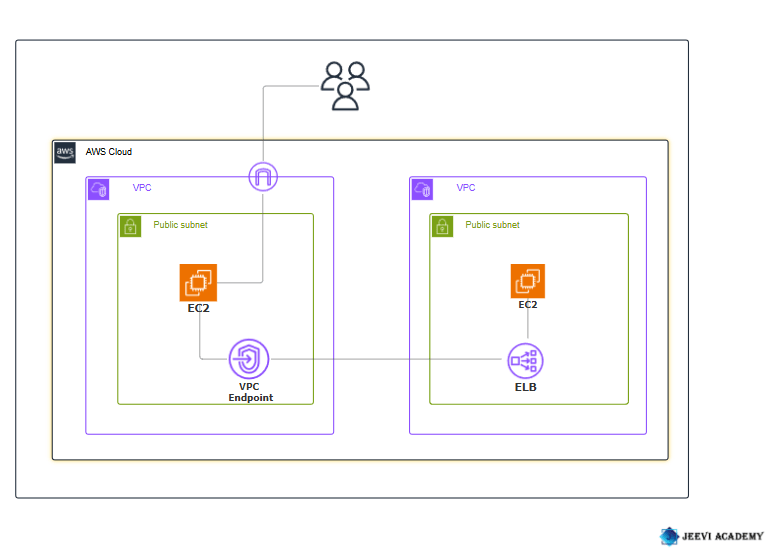
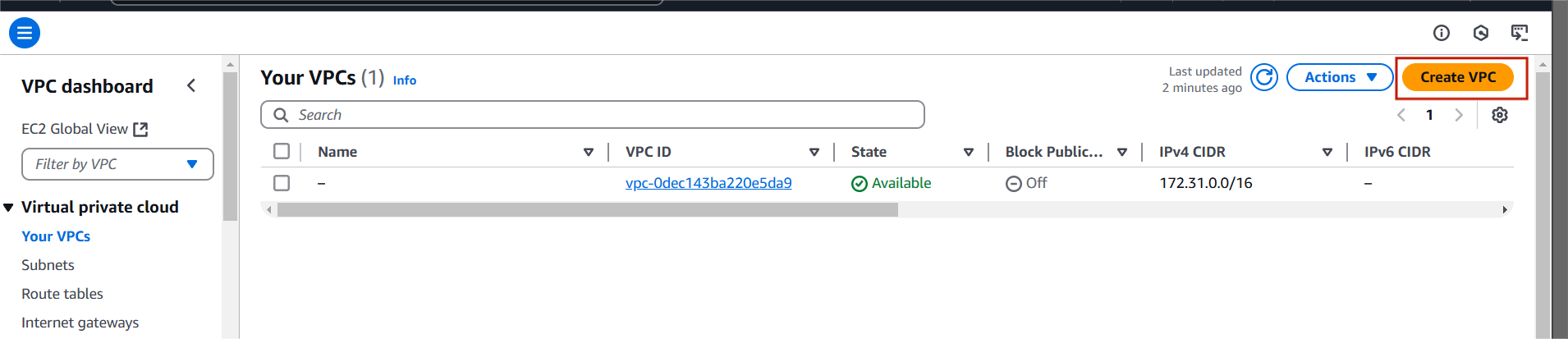
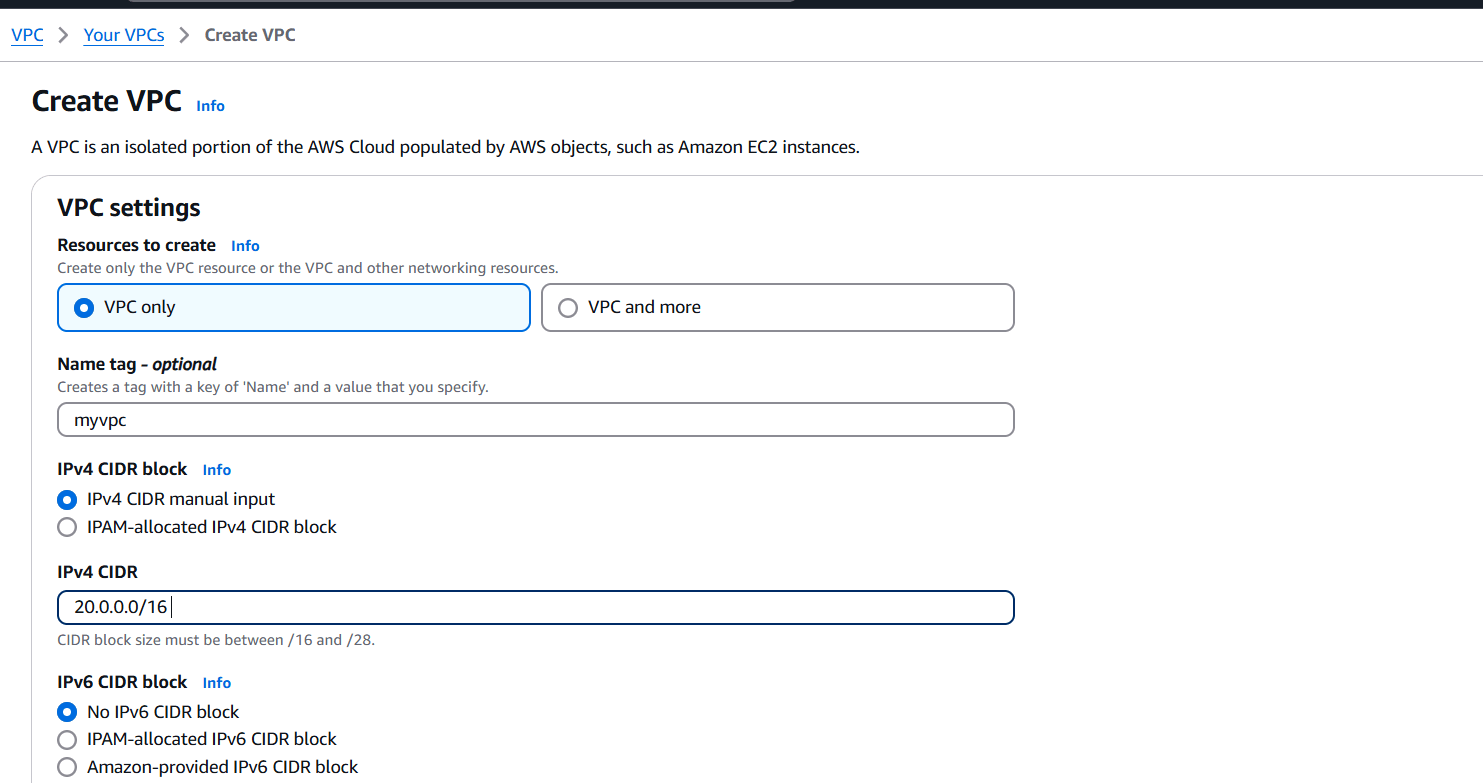
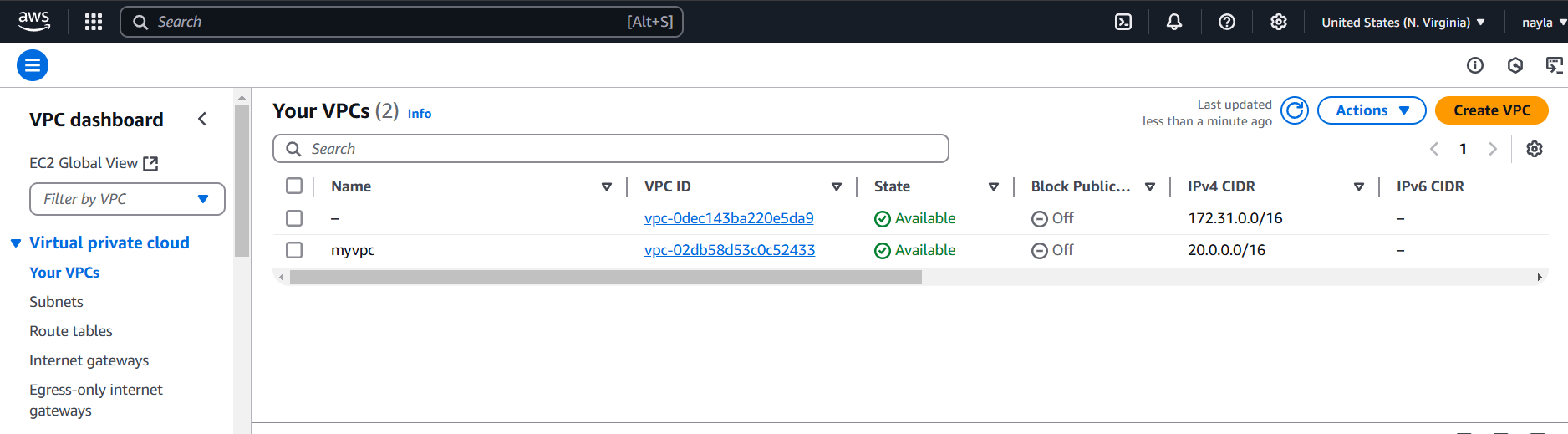
STEP 1: Navigate the VPC and Click on create VPC.
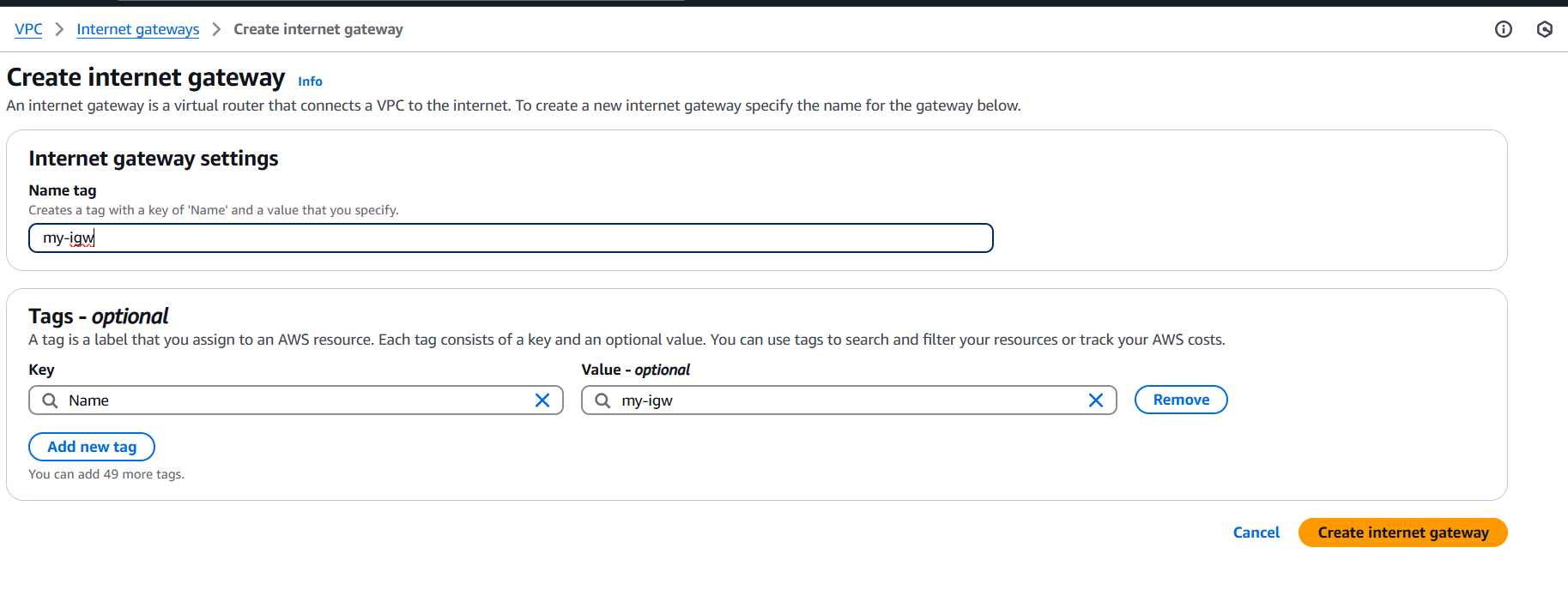
STEP 2: Click on Internet gateway and create internet gateway.
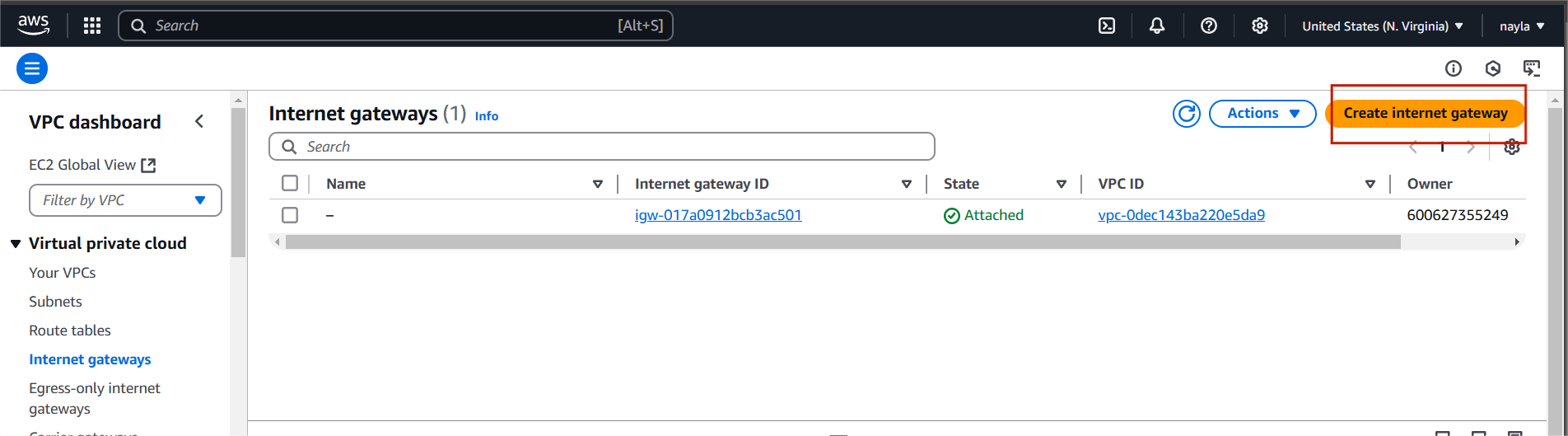
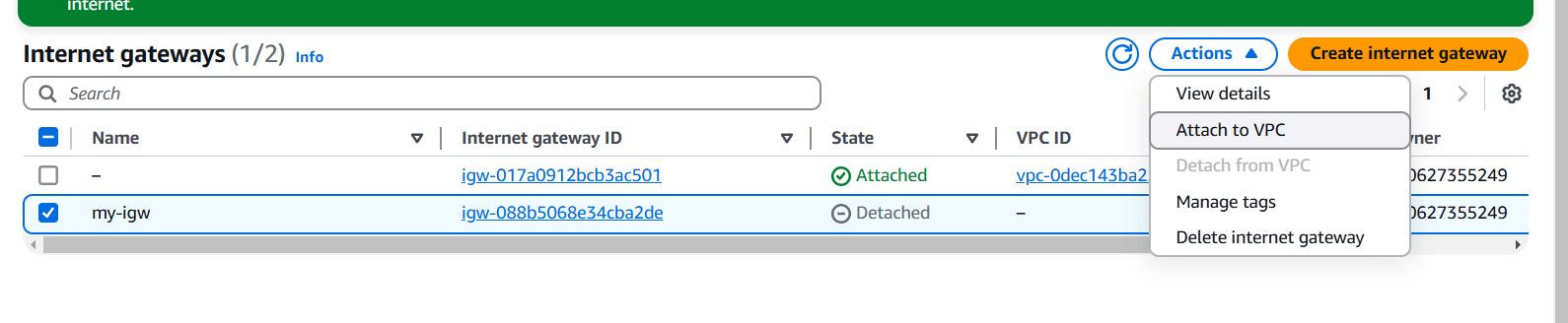
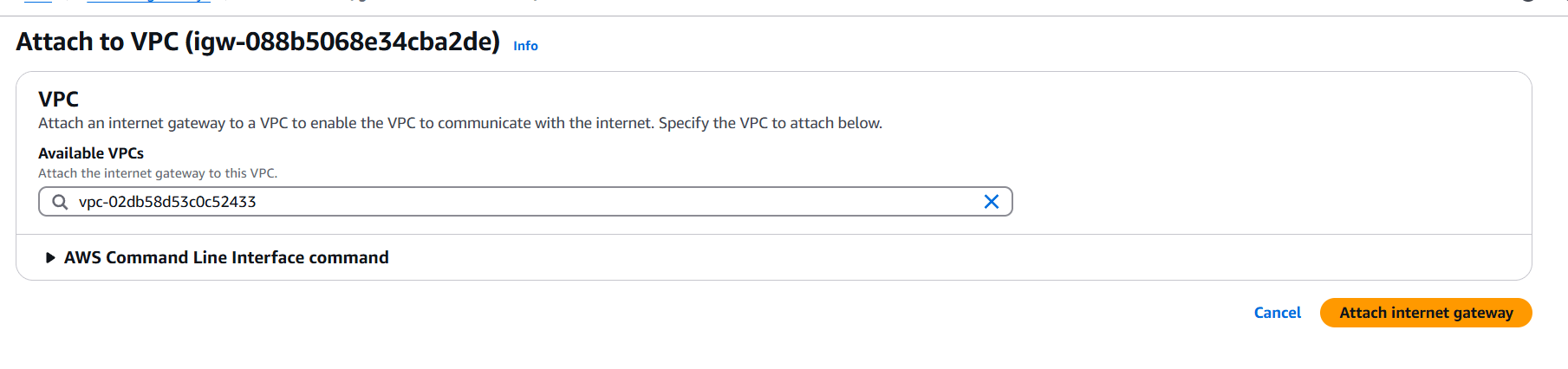
STEP 3: Click on your created internet gateway and attach to your created VPC.
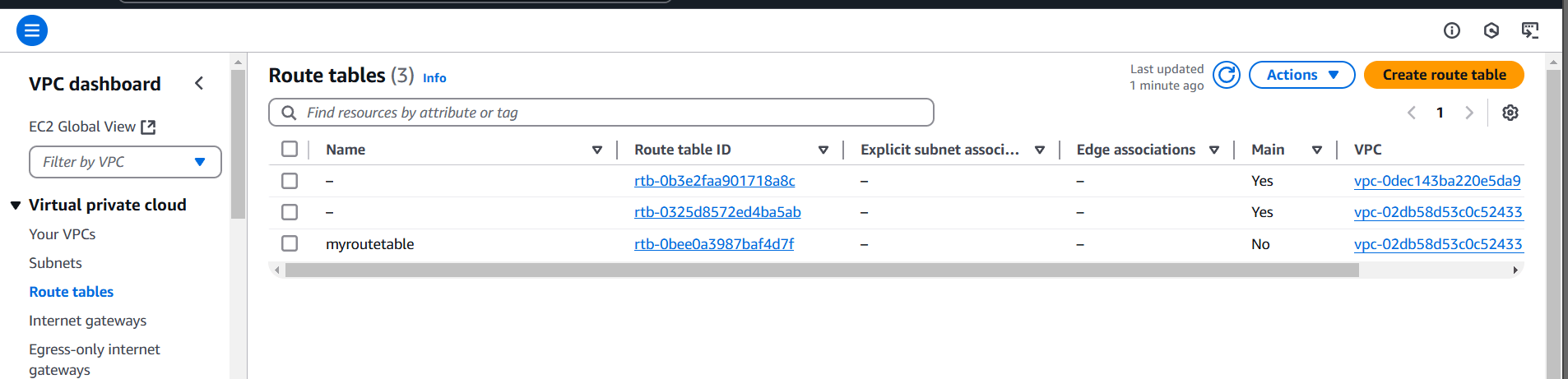
STEP 4: Next, Click on rout tables and Click on create route tables.
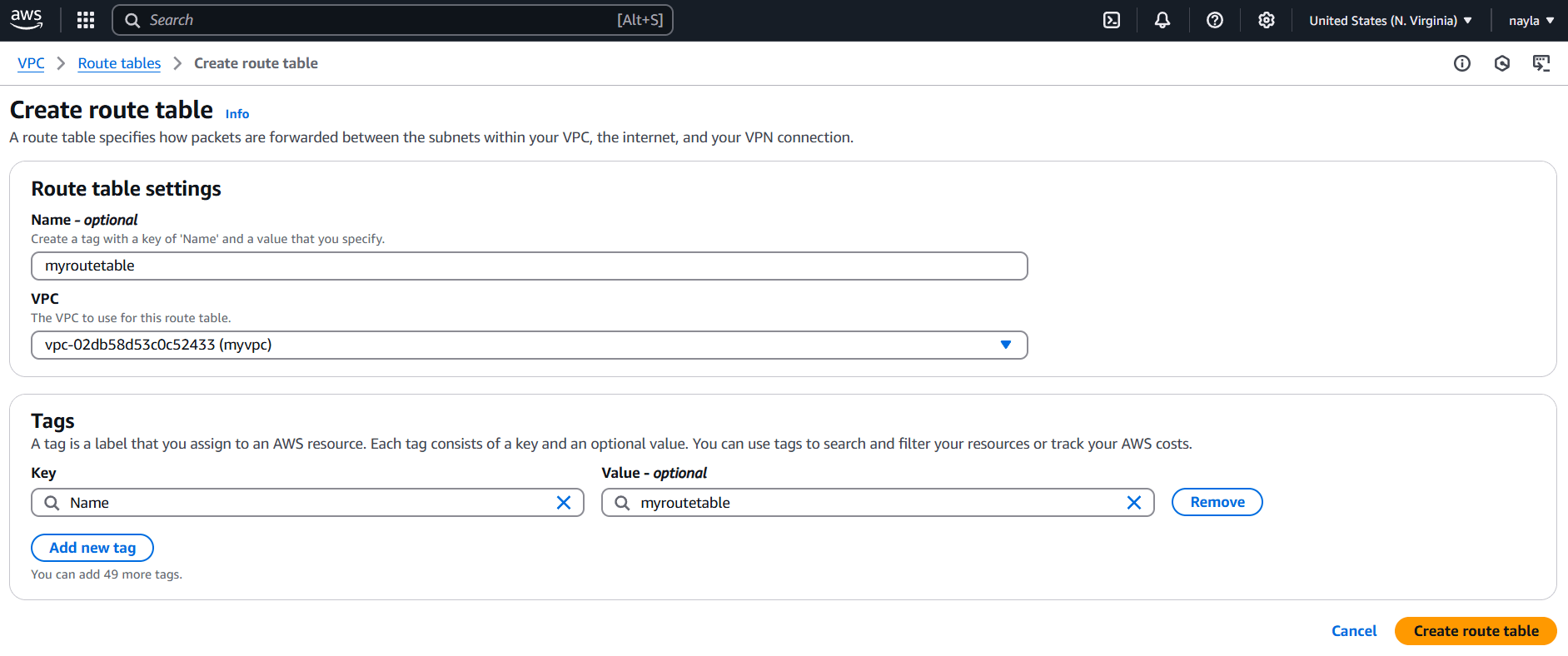
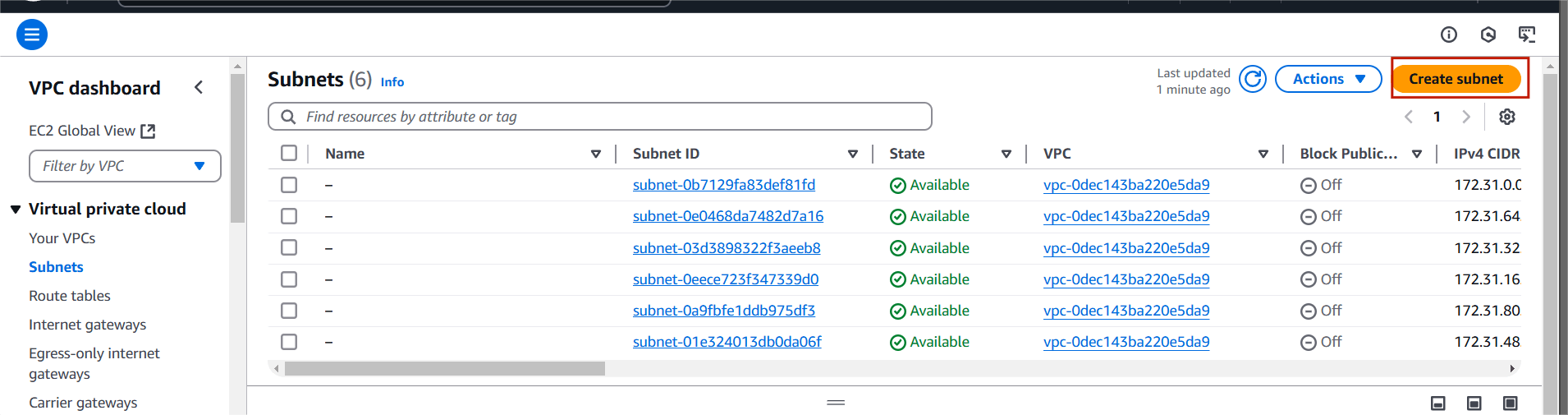
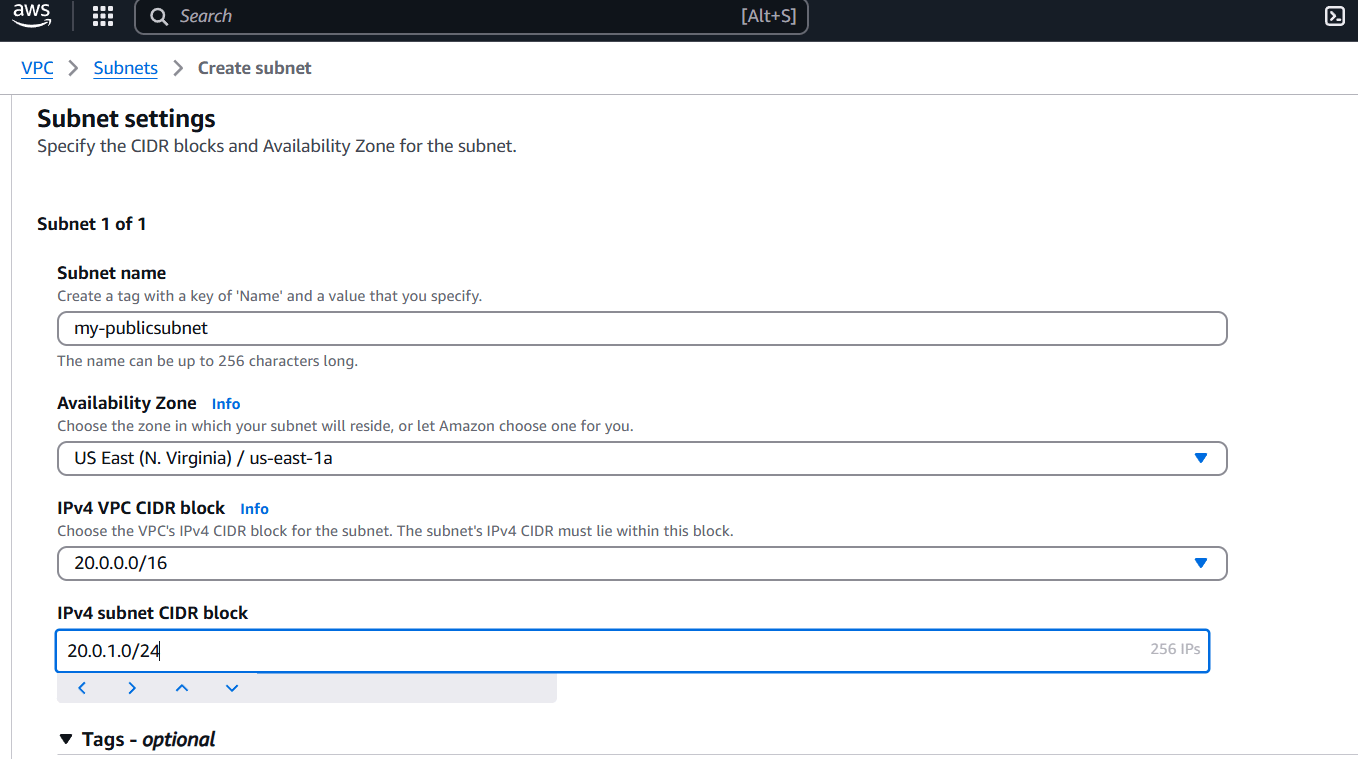
STEP 5: Next, create subnet.
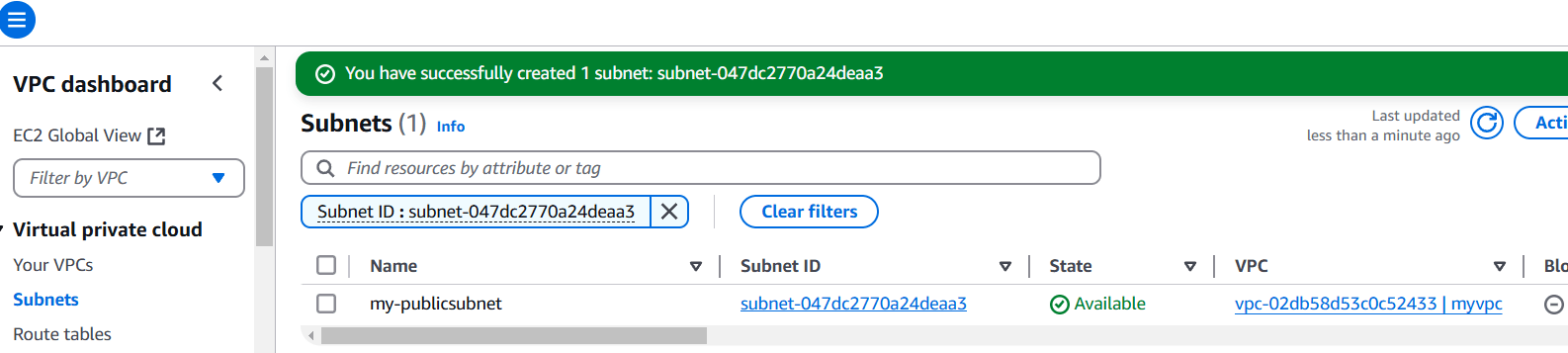
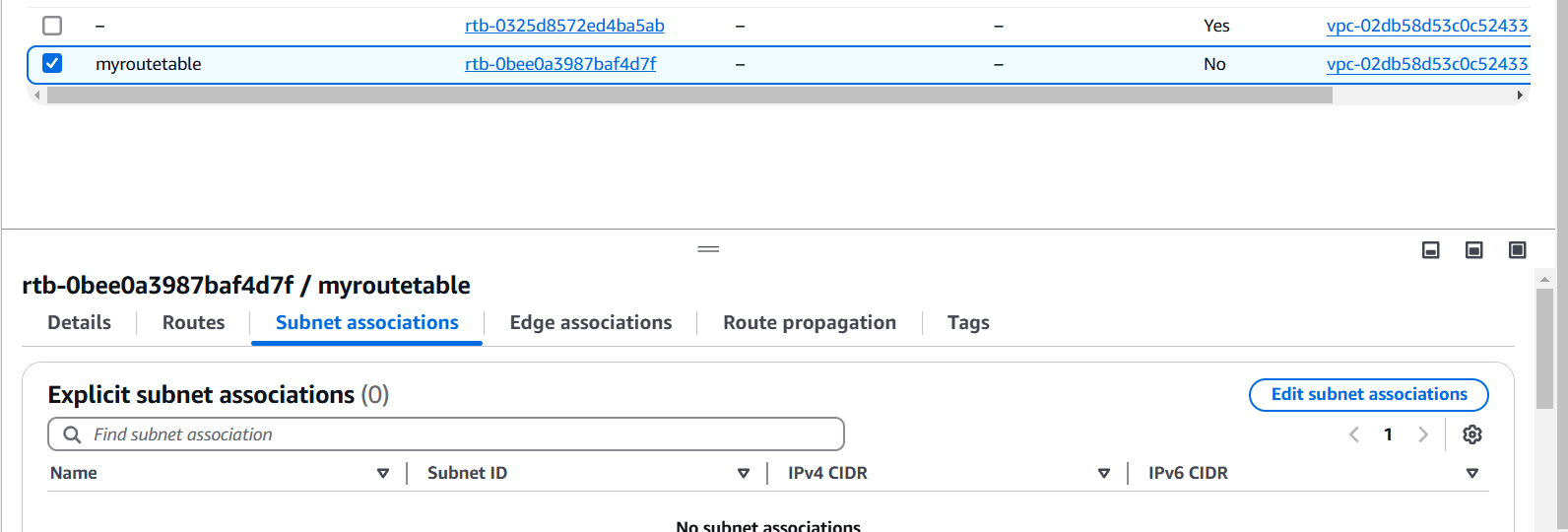
STEP 6: Go to your created route table.
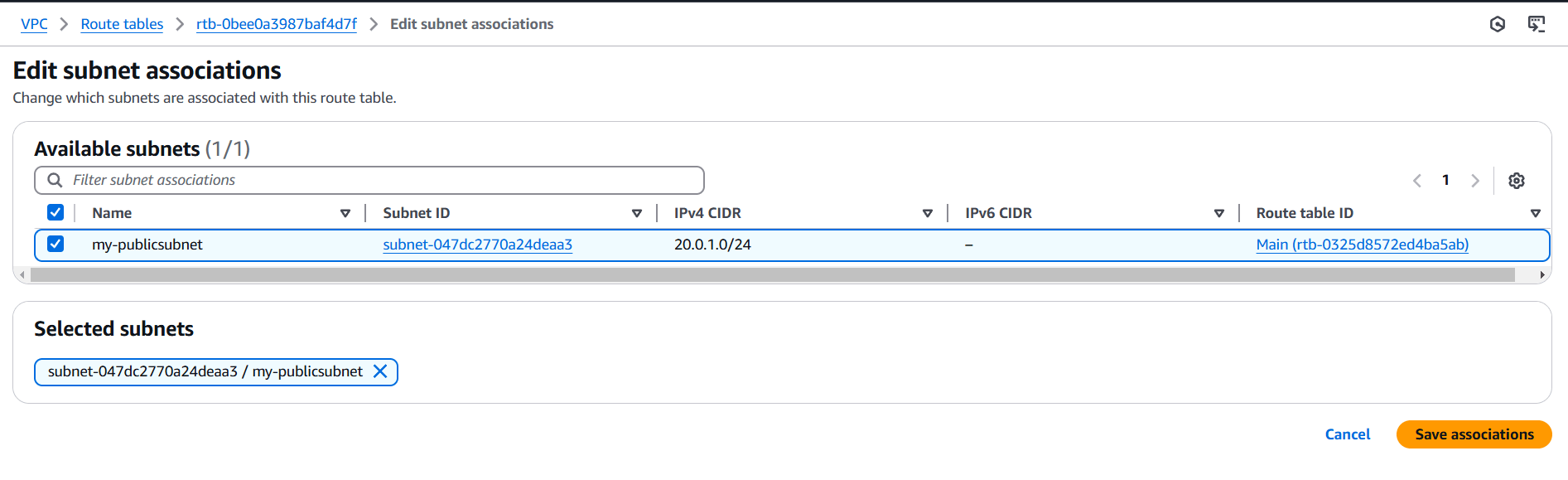
STEP 7: Now, Navigate the EC2 instance and click on create instance.
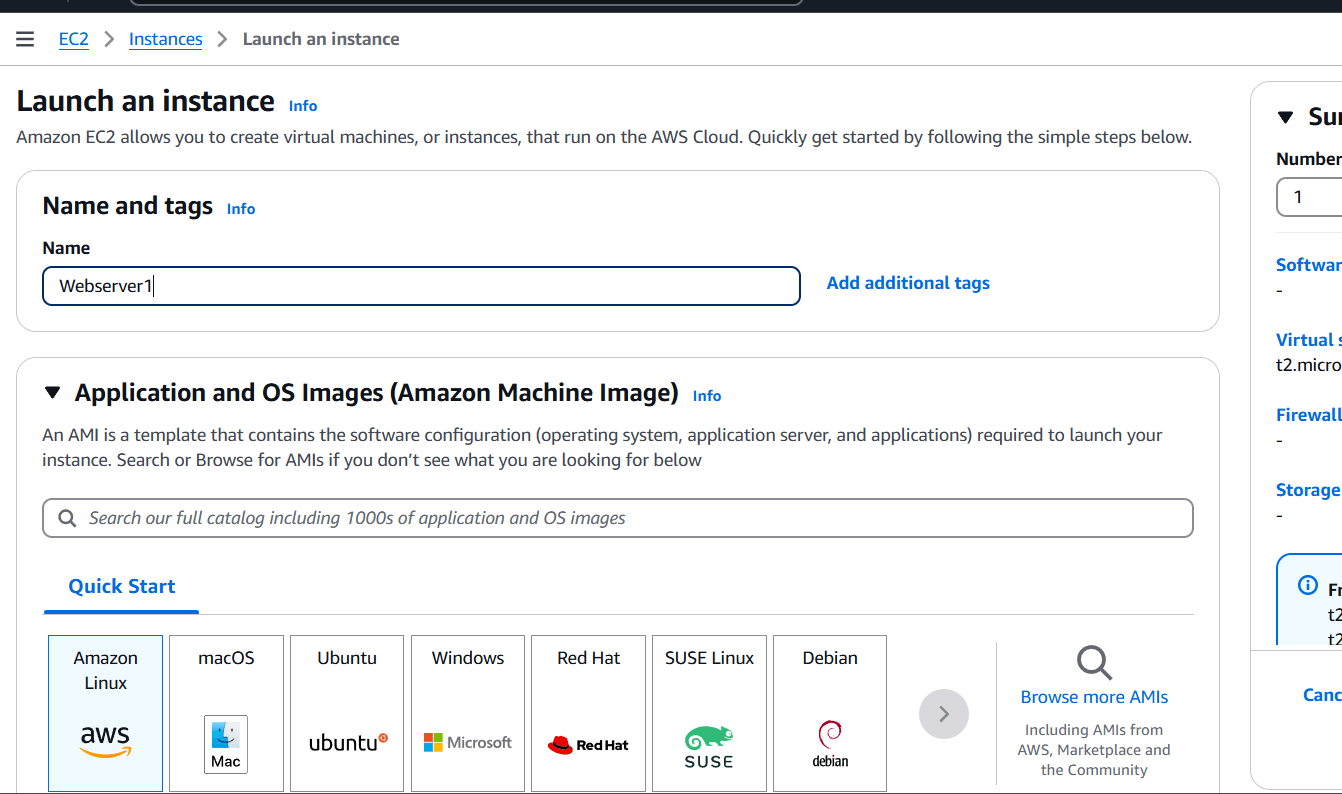
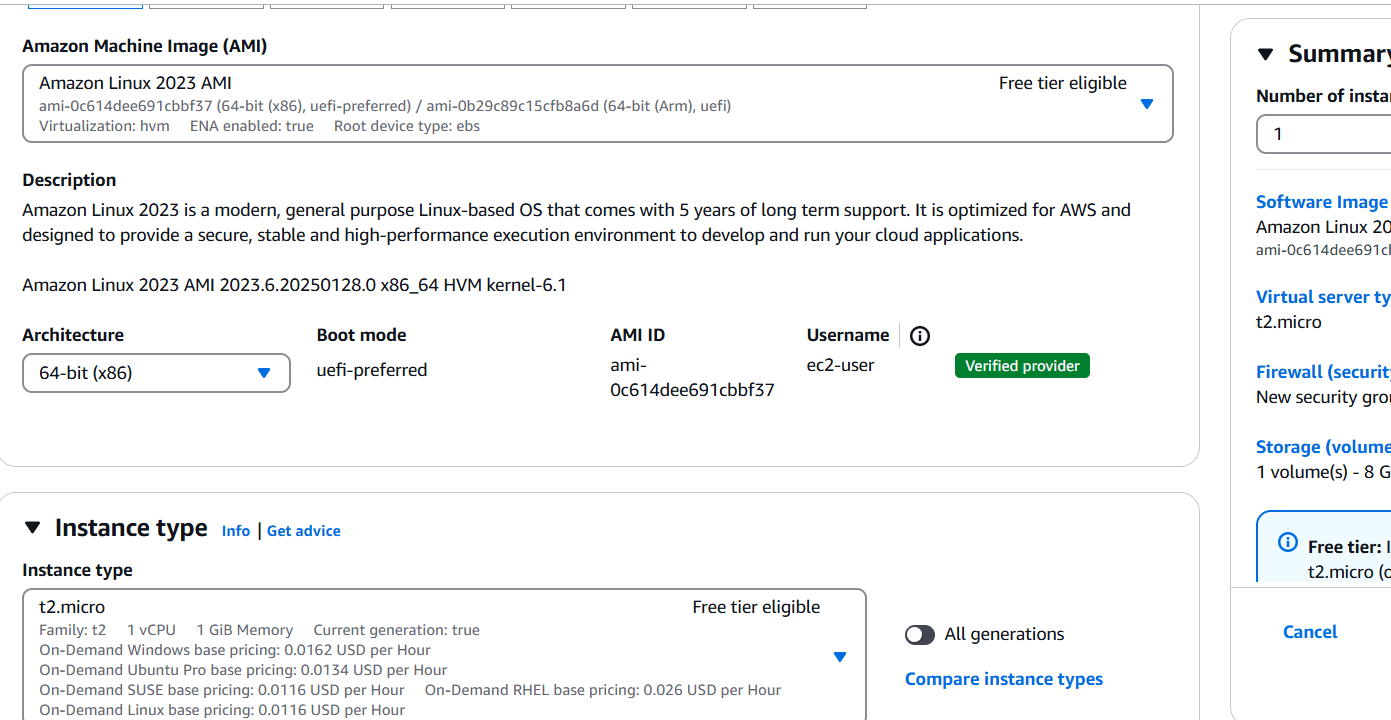
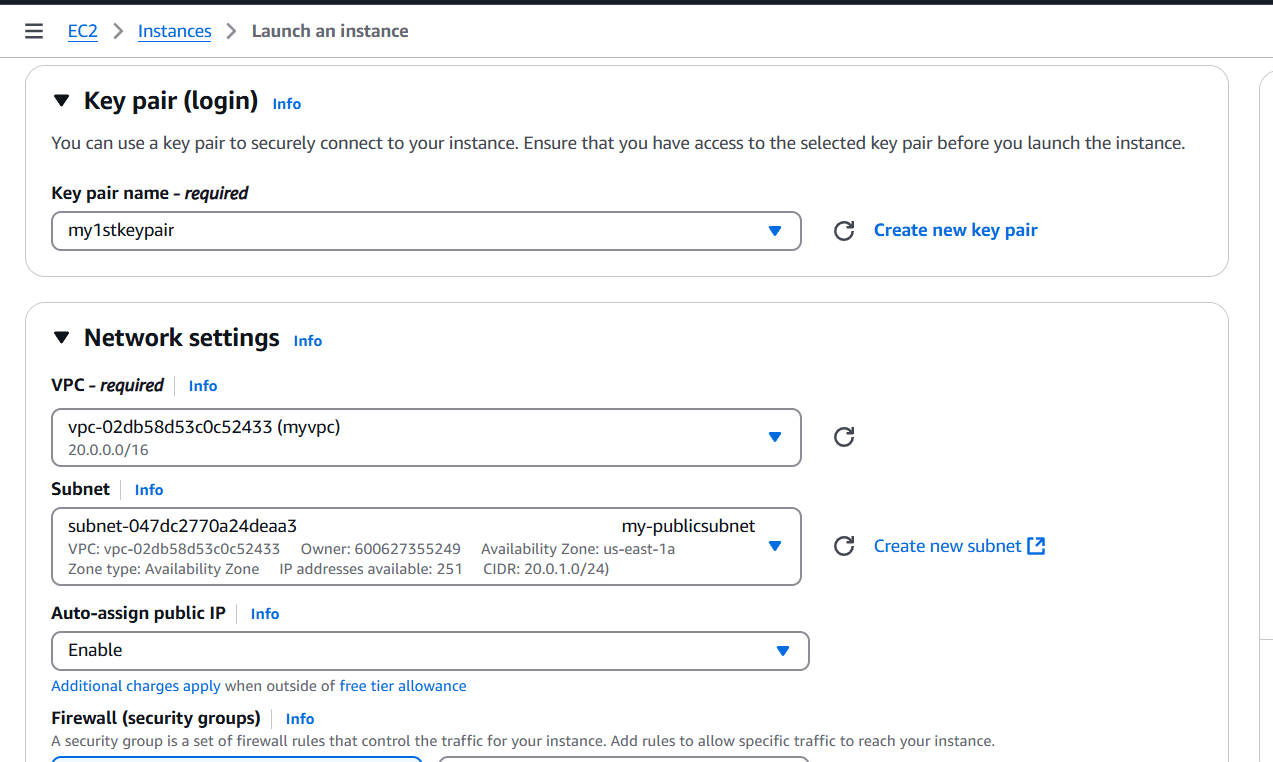
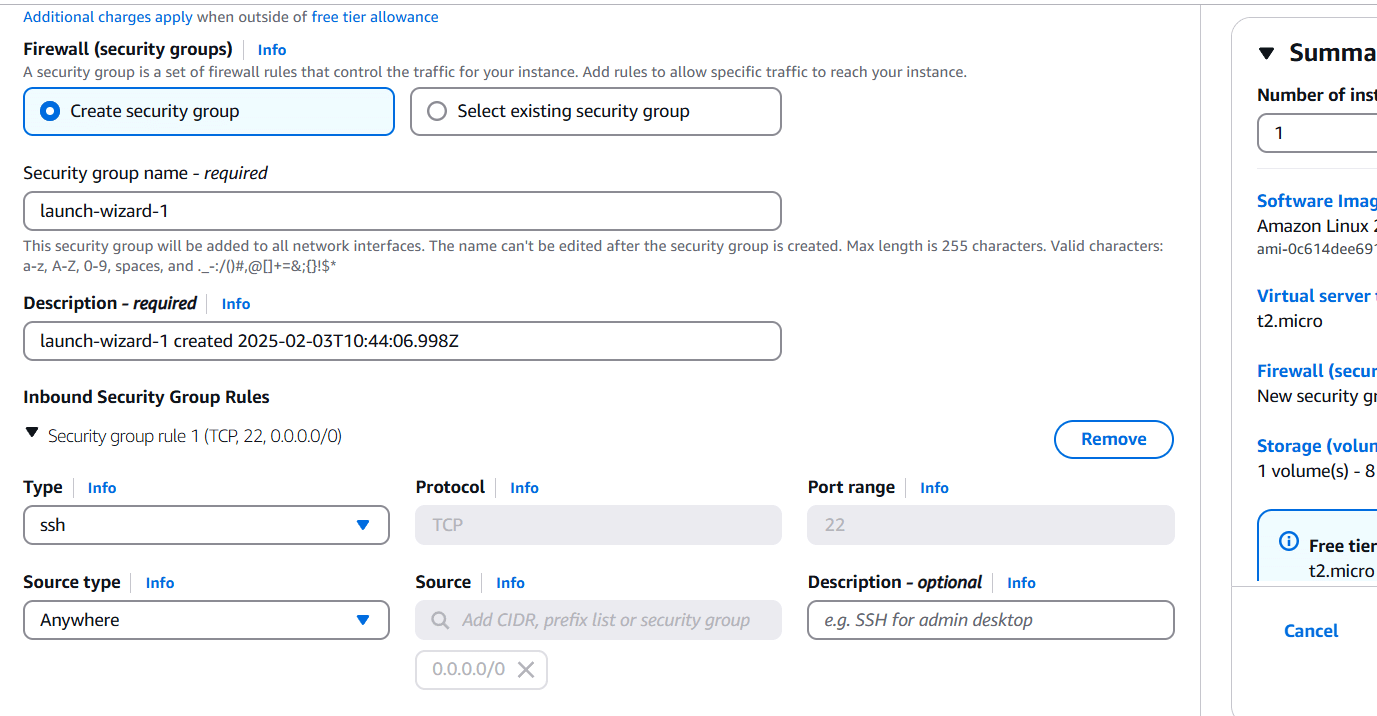
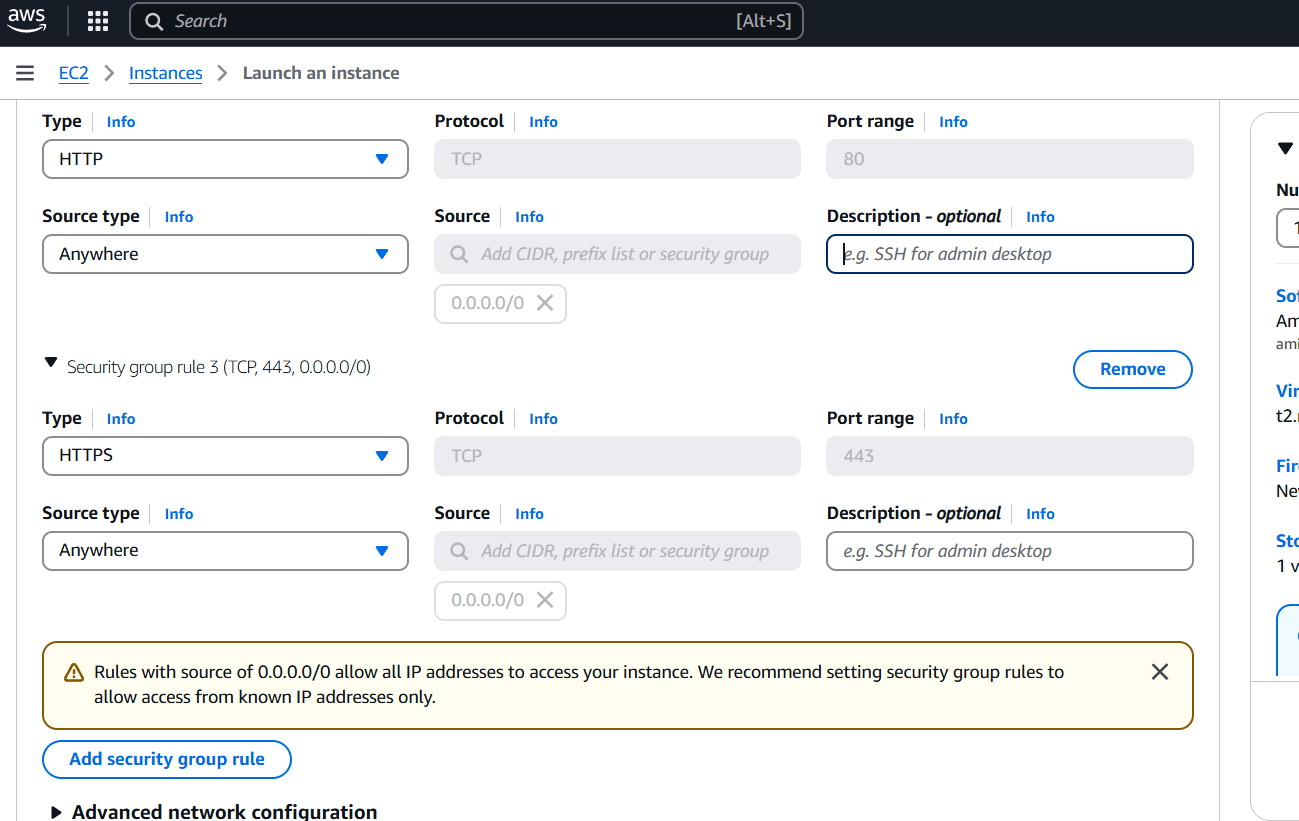
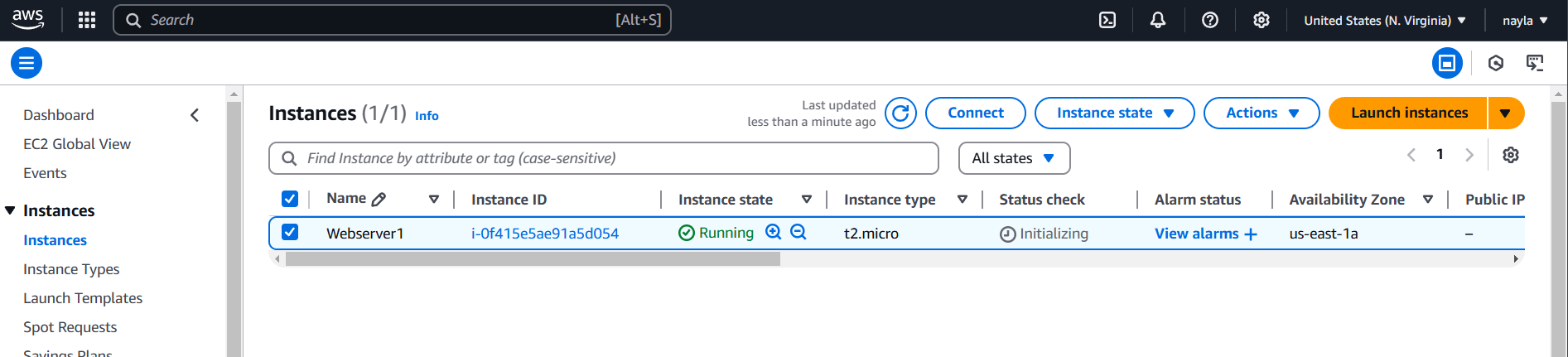
STEP 8: Now you created network load balancer.
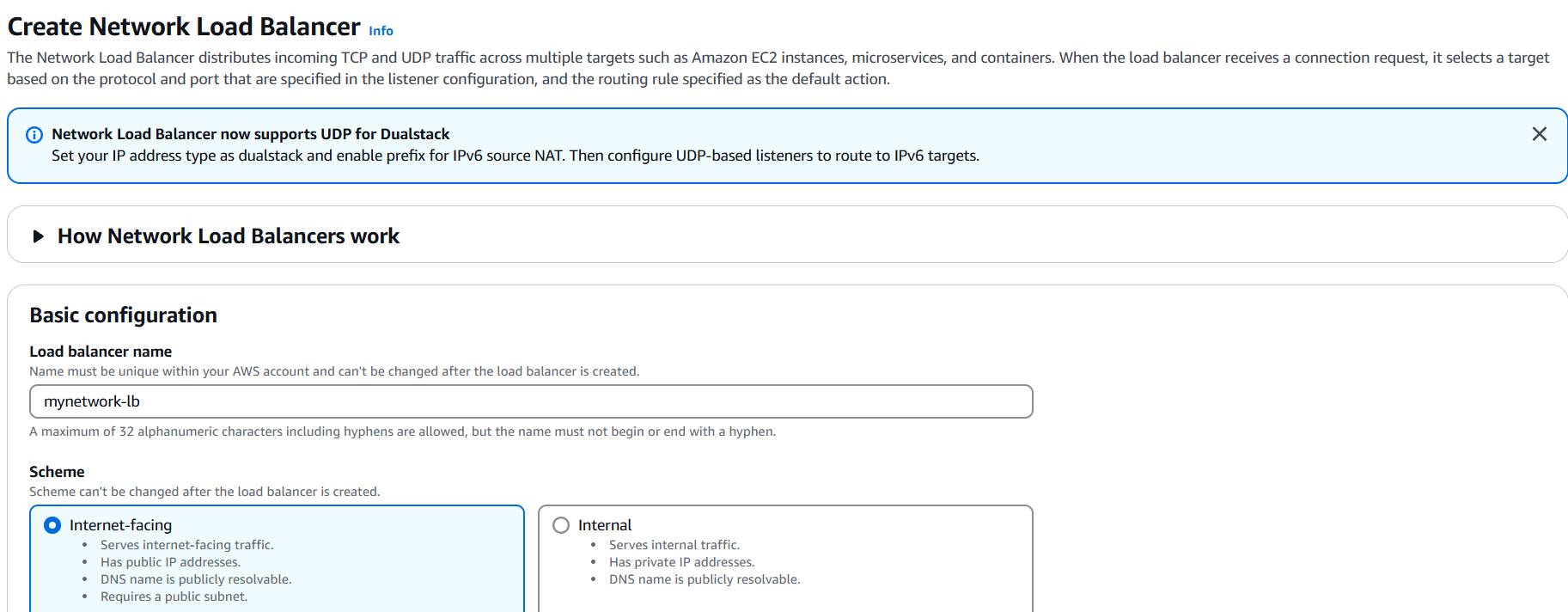
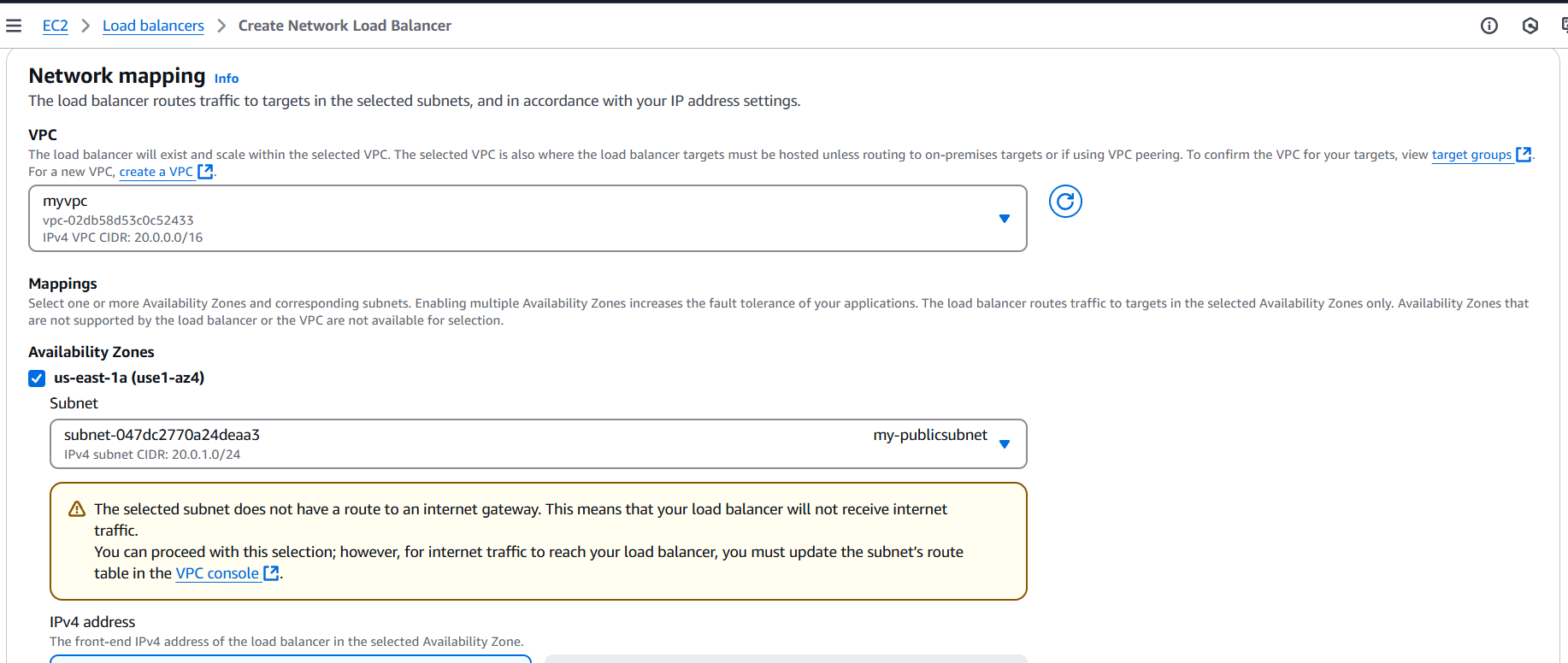
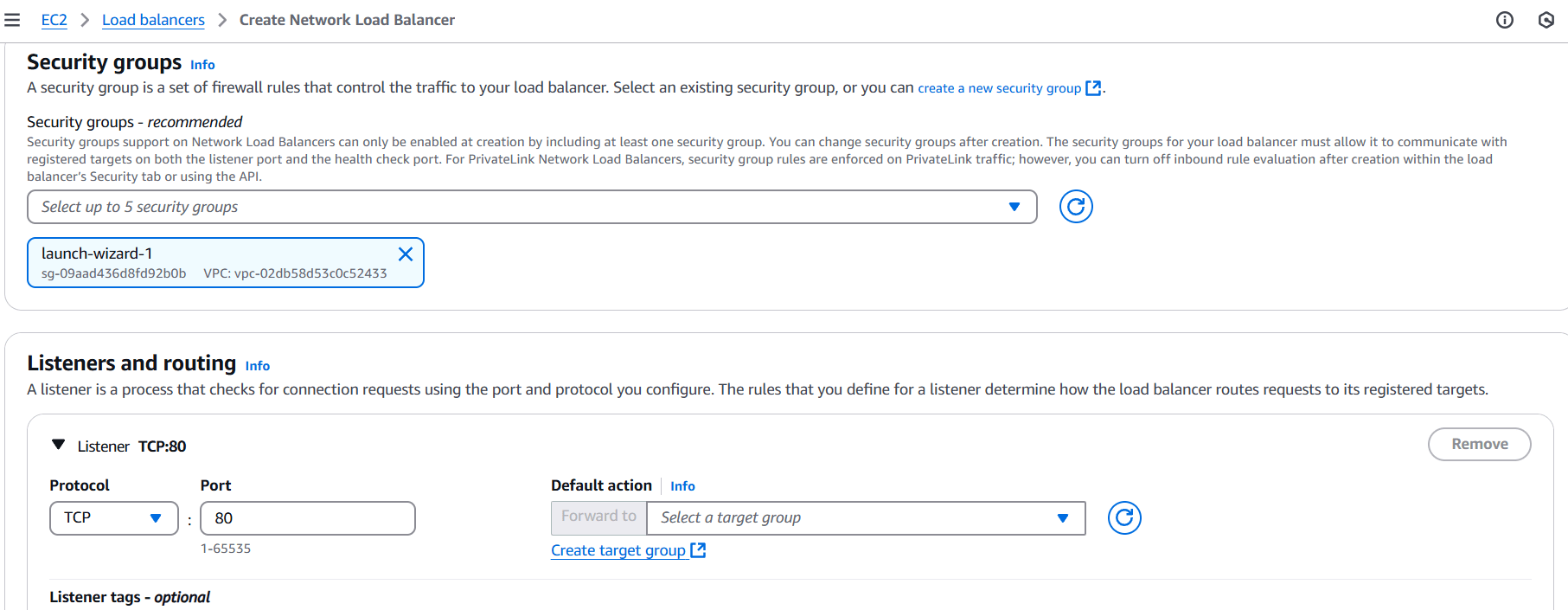
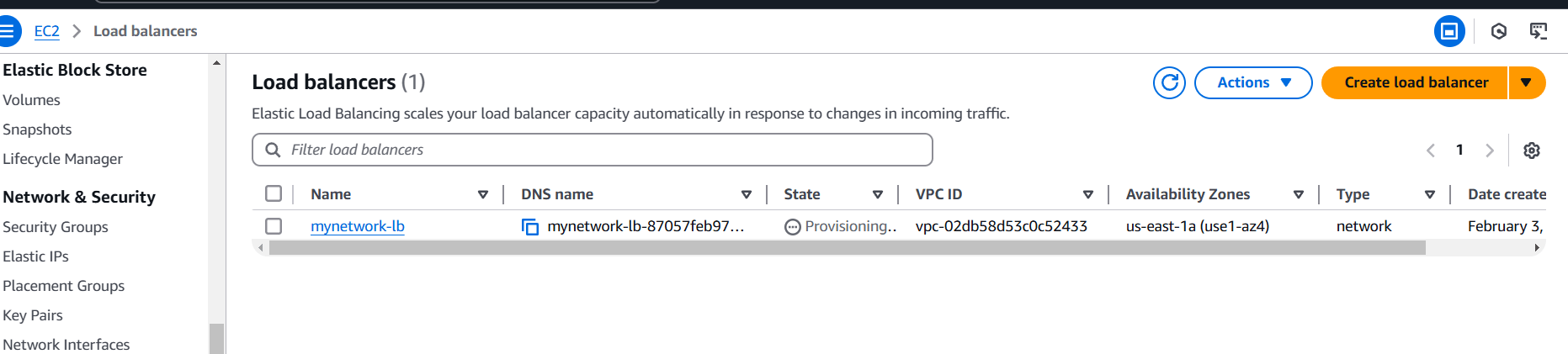
STEP 9: Now, you go to create customer VPC.
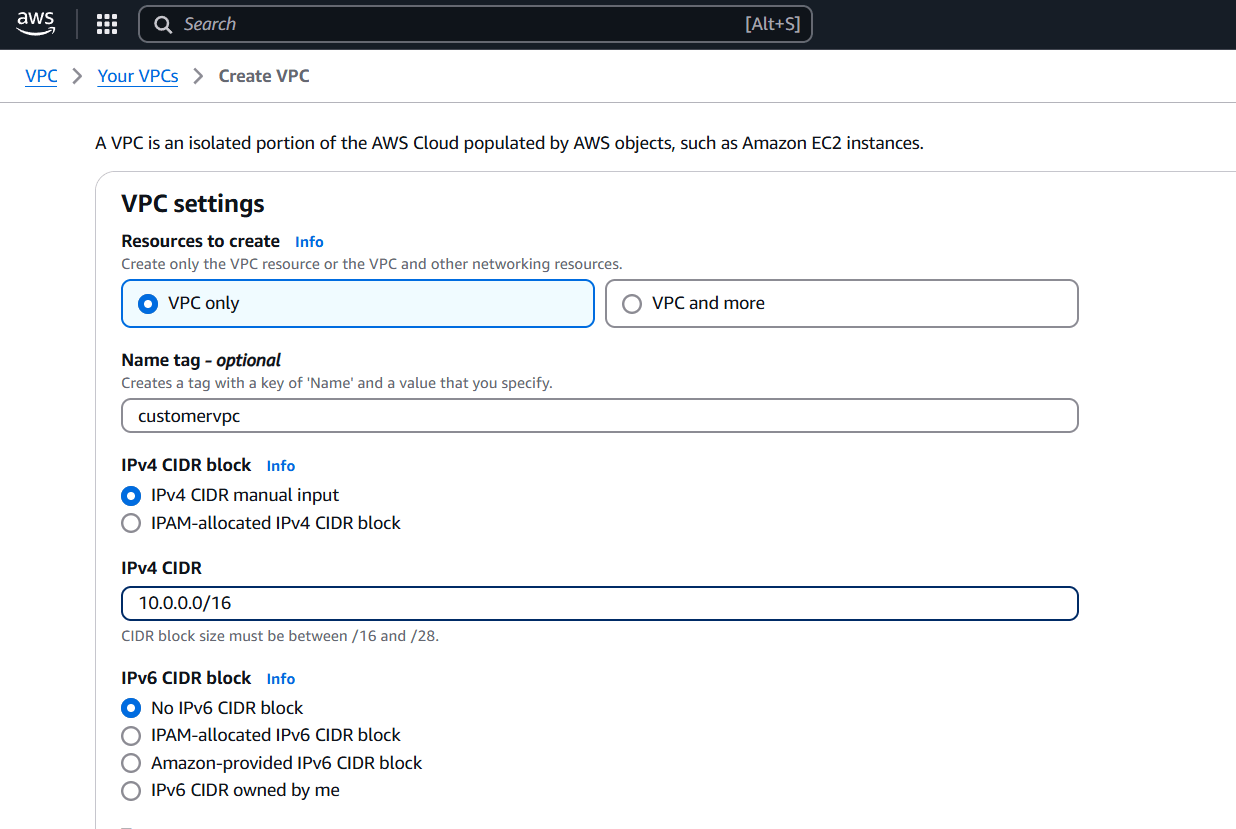
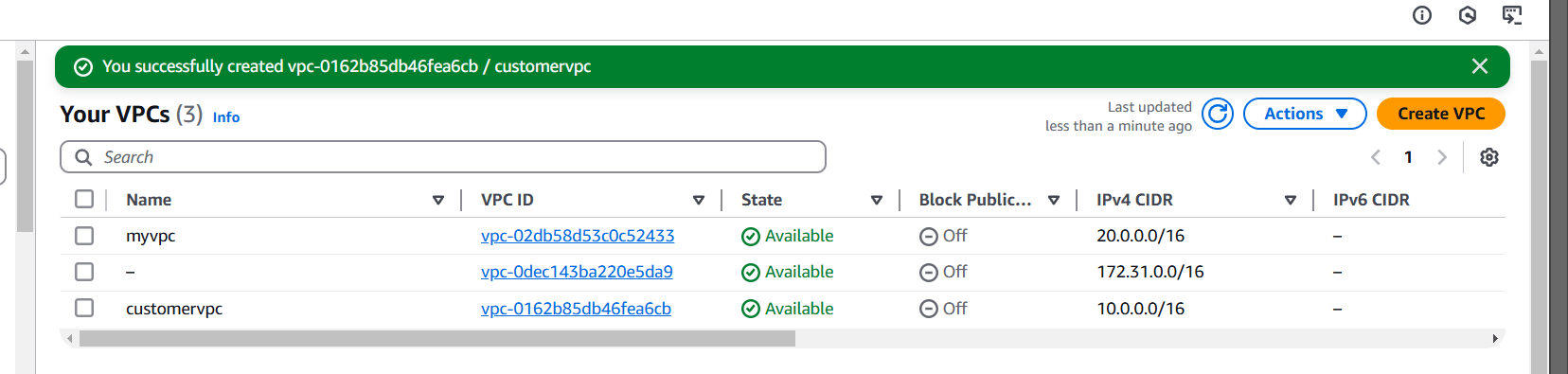
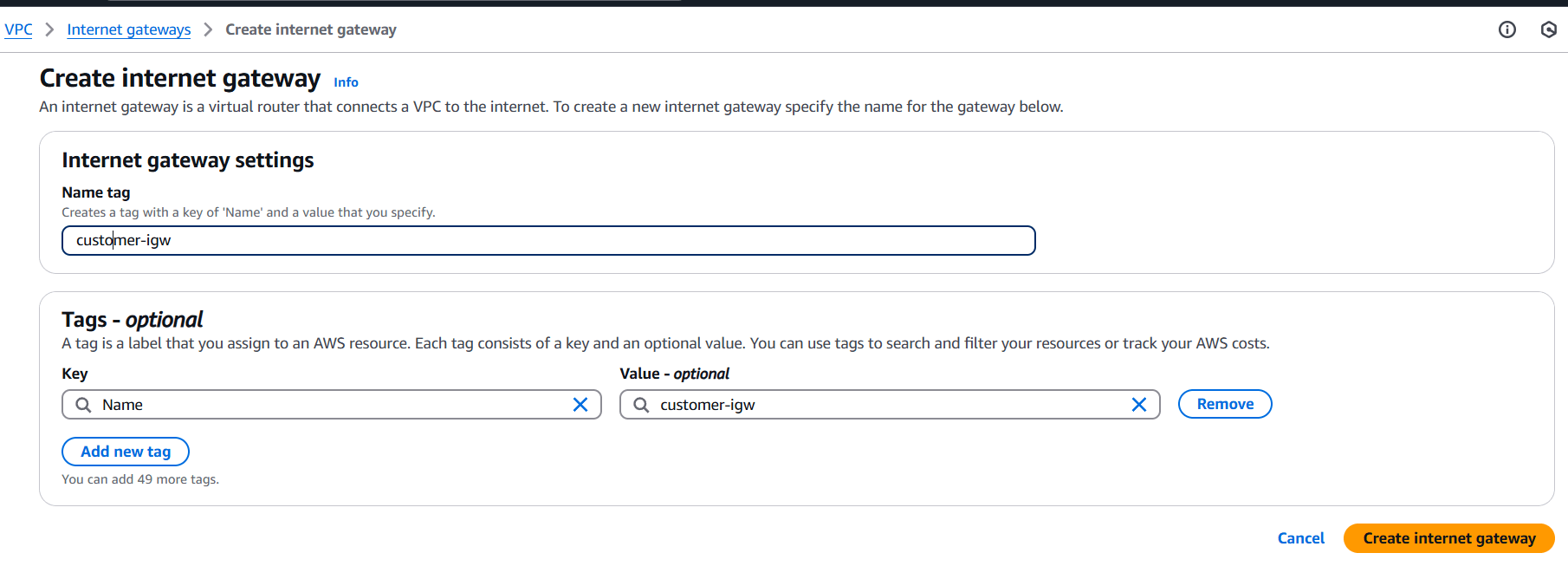
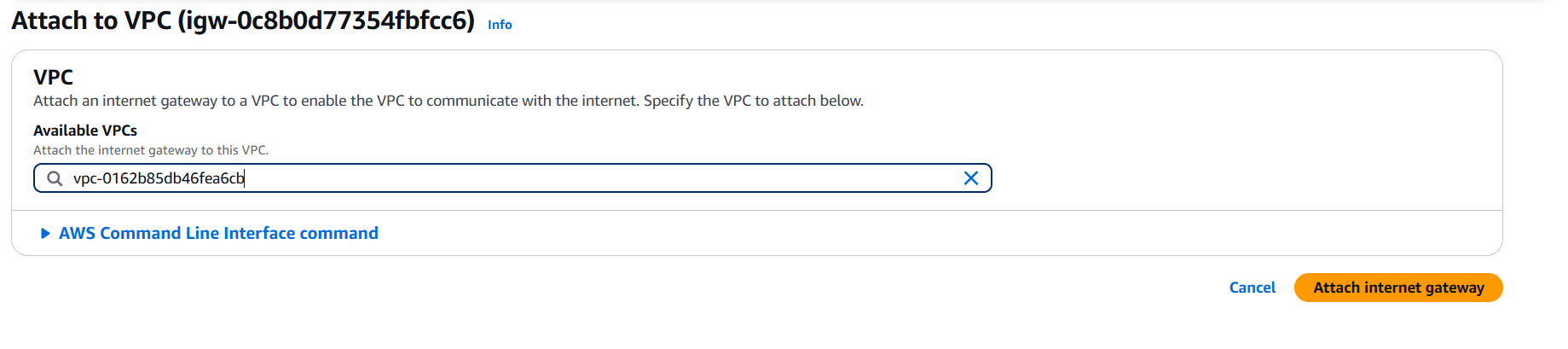
STEP 10: Create customer IGW and attach your created customer VPC.
STEP 11: Create subnet and enter the name.
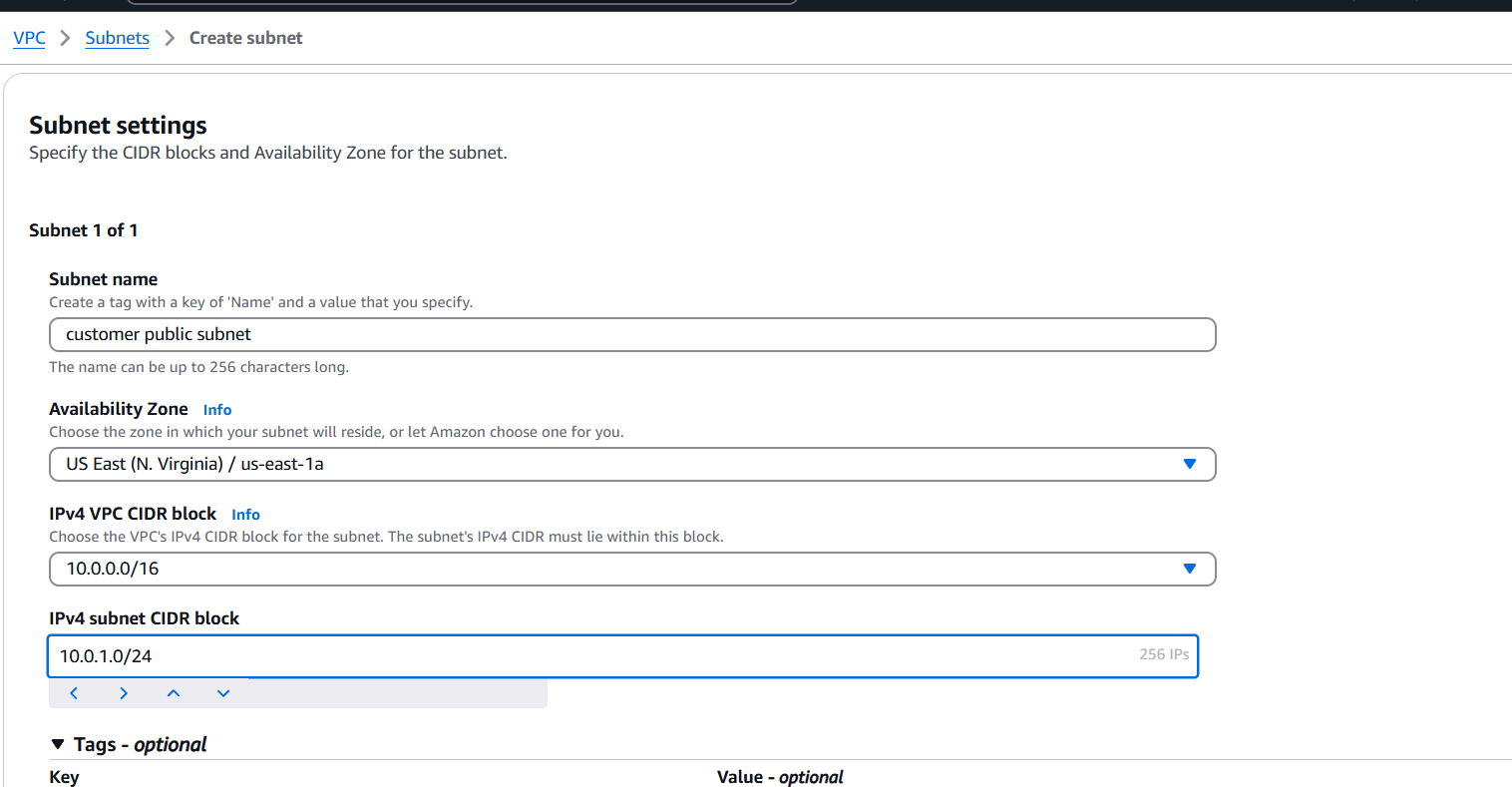
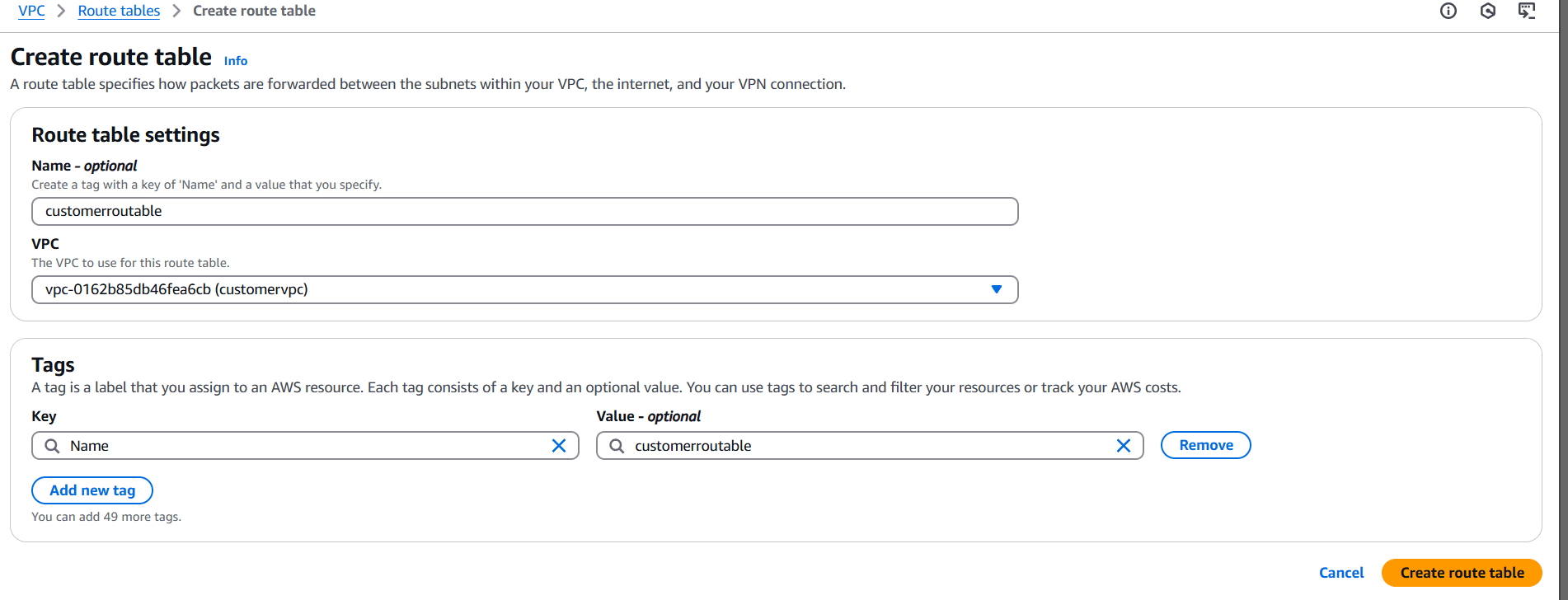
STEP 12: Create route table.
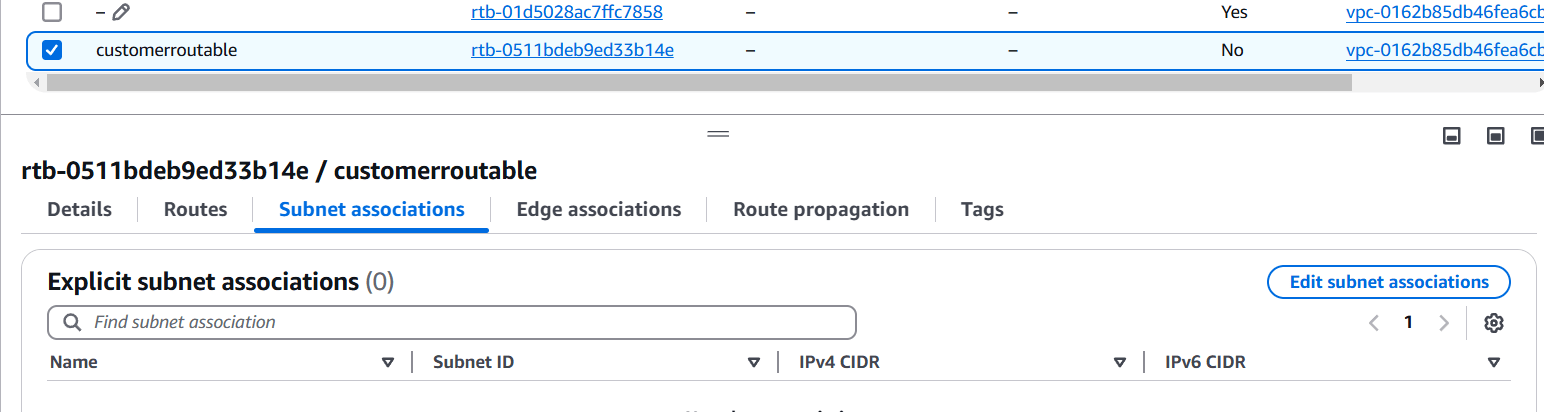
STEP 13: Select your created route table.
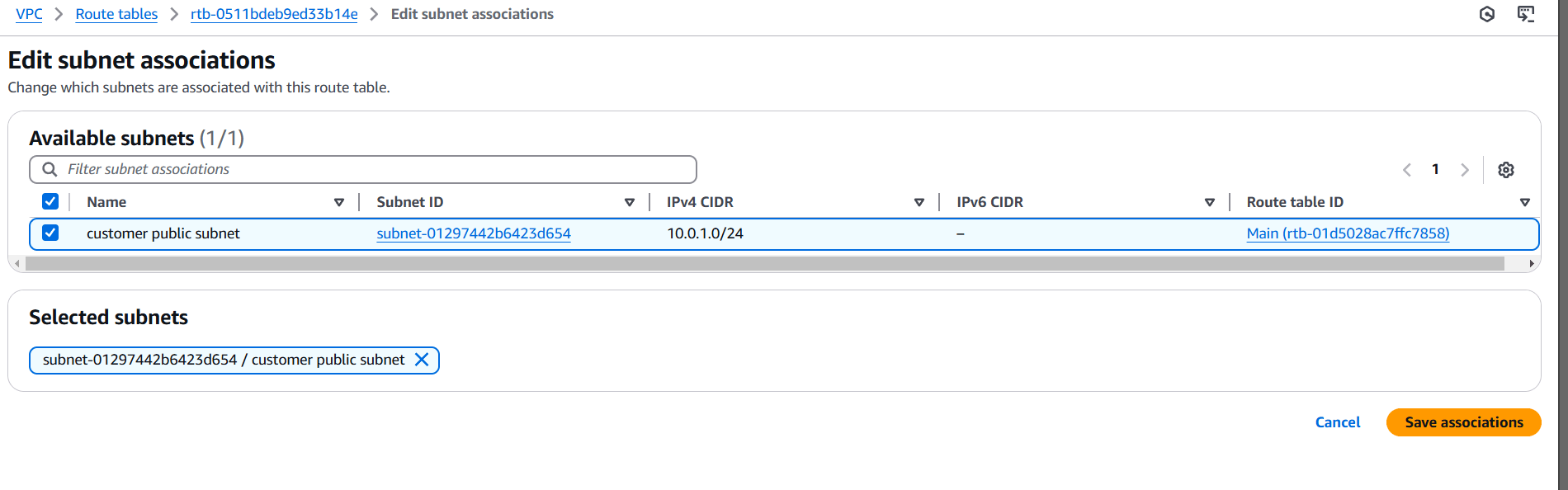
STEP 14: Create instance.
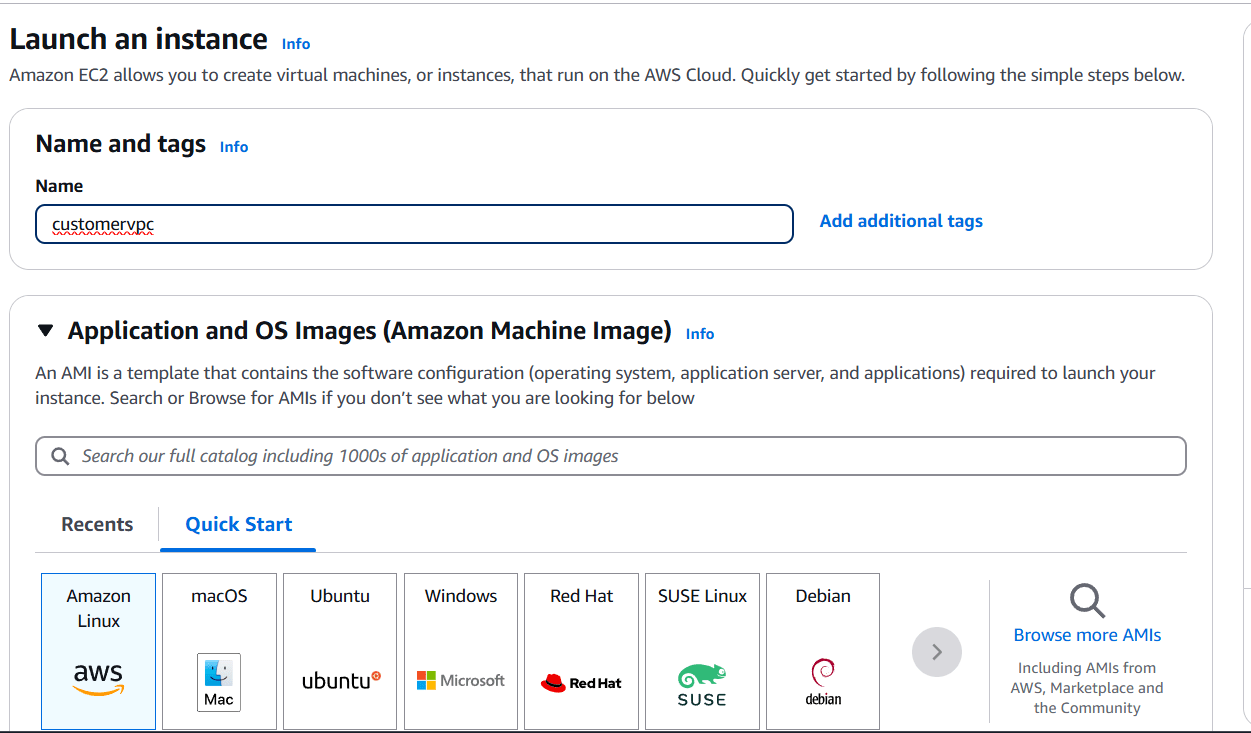
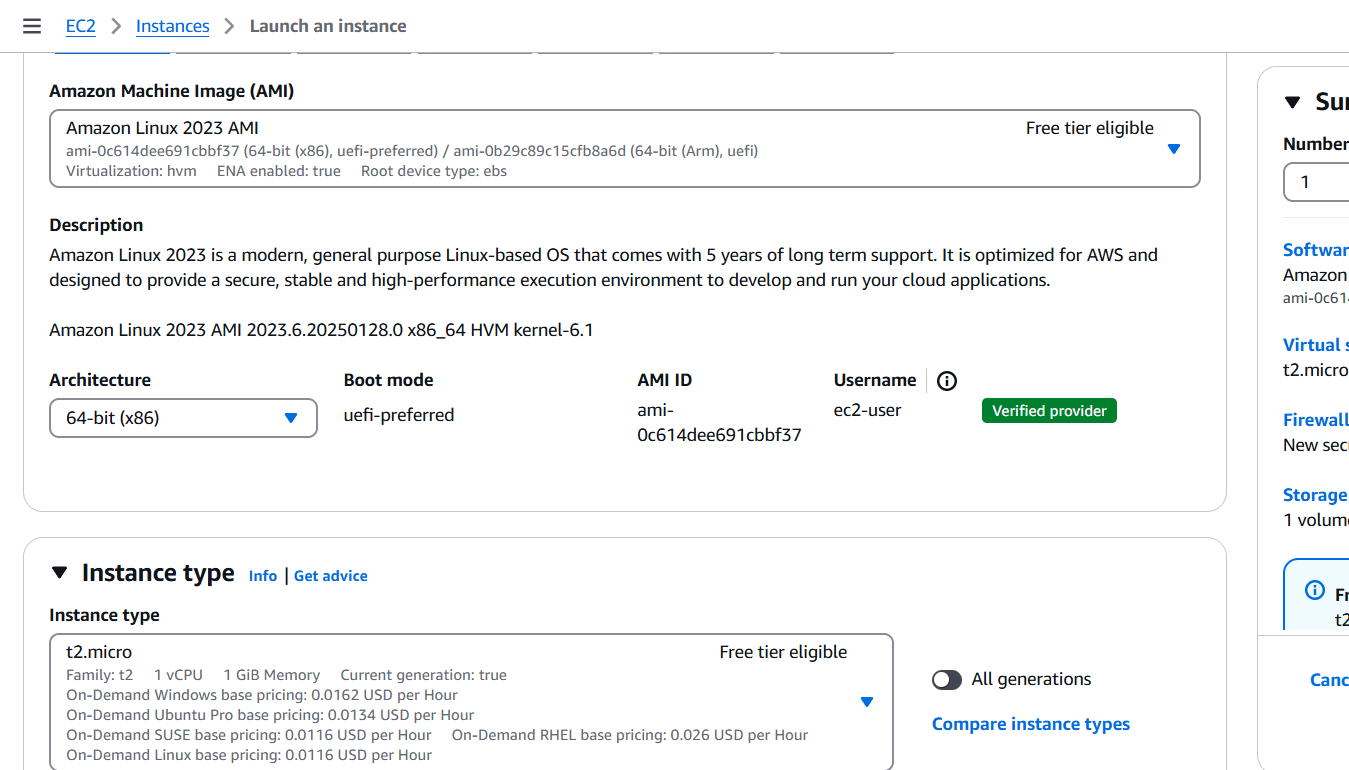
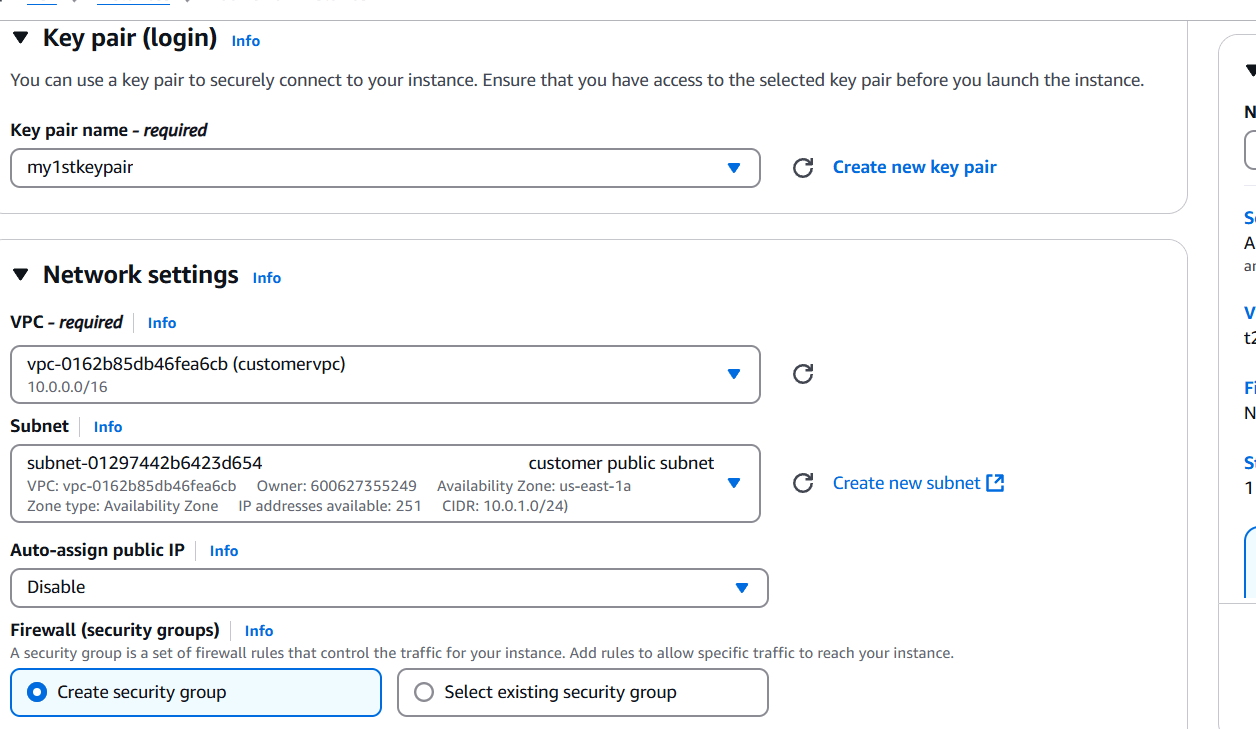
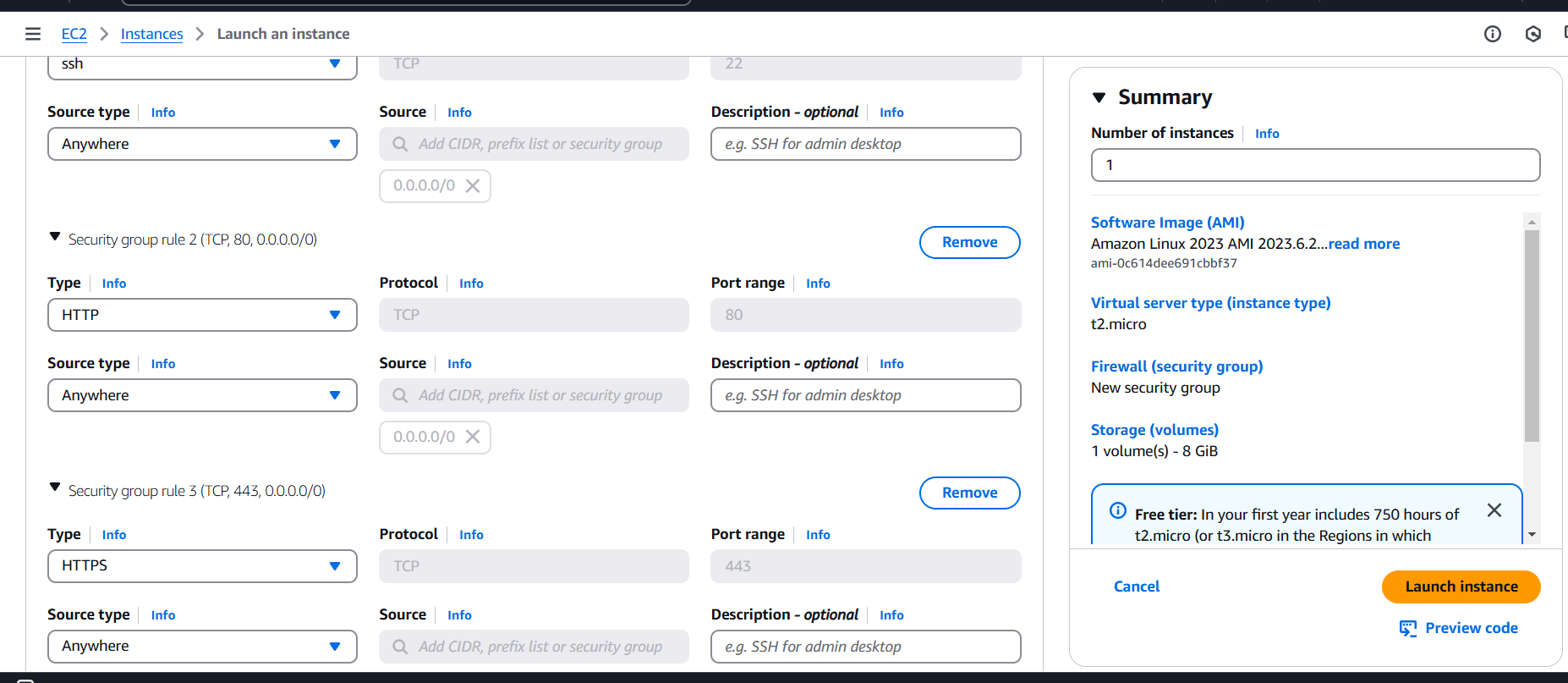
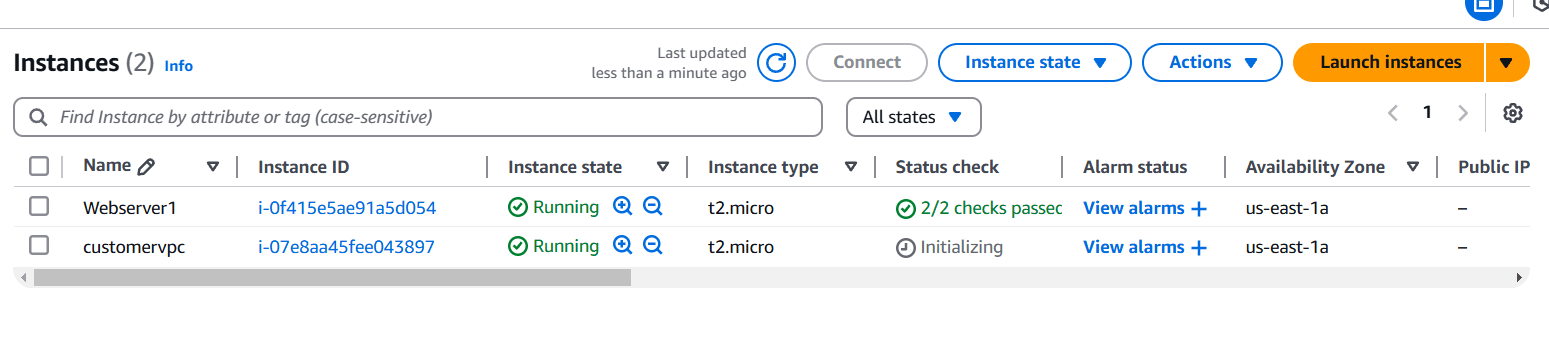
STEP 15: Create VPC End point.
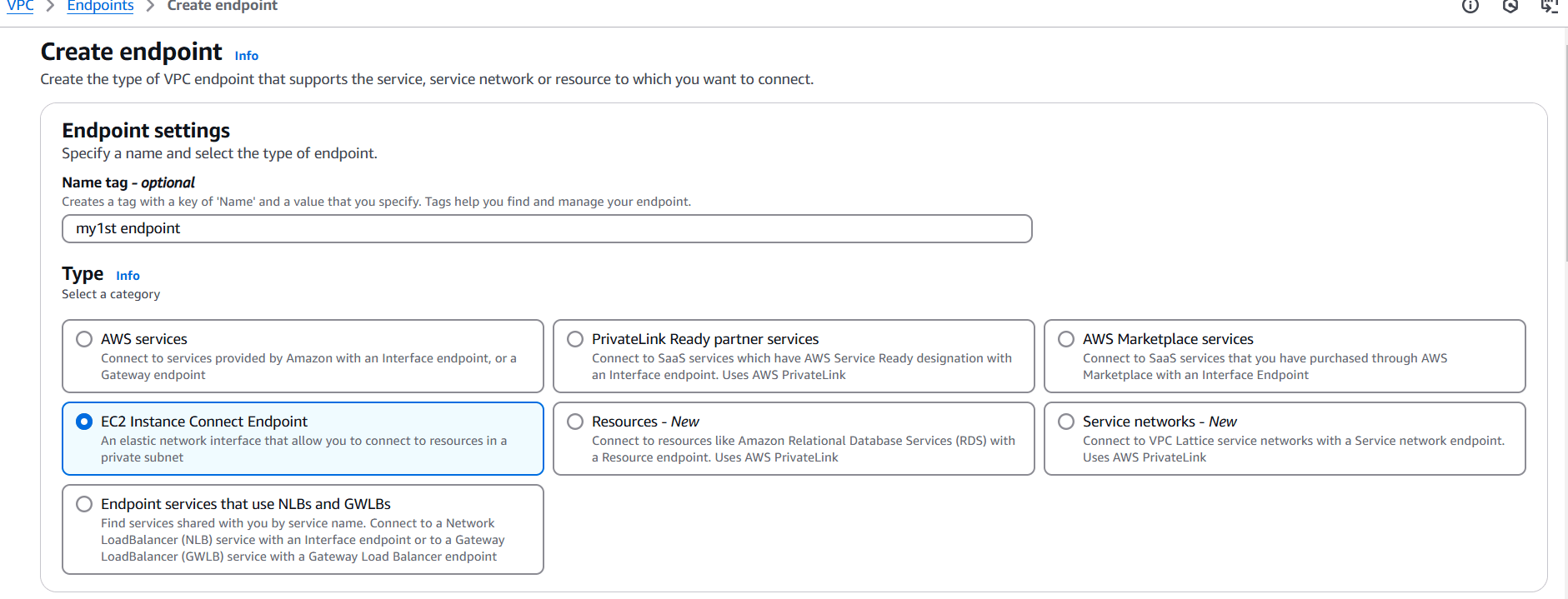
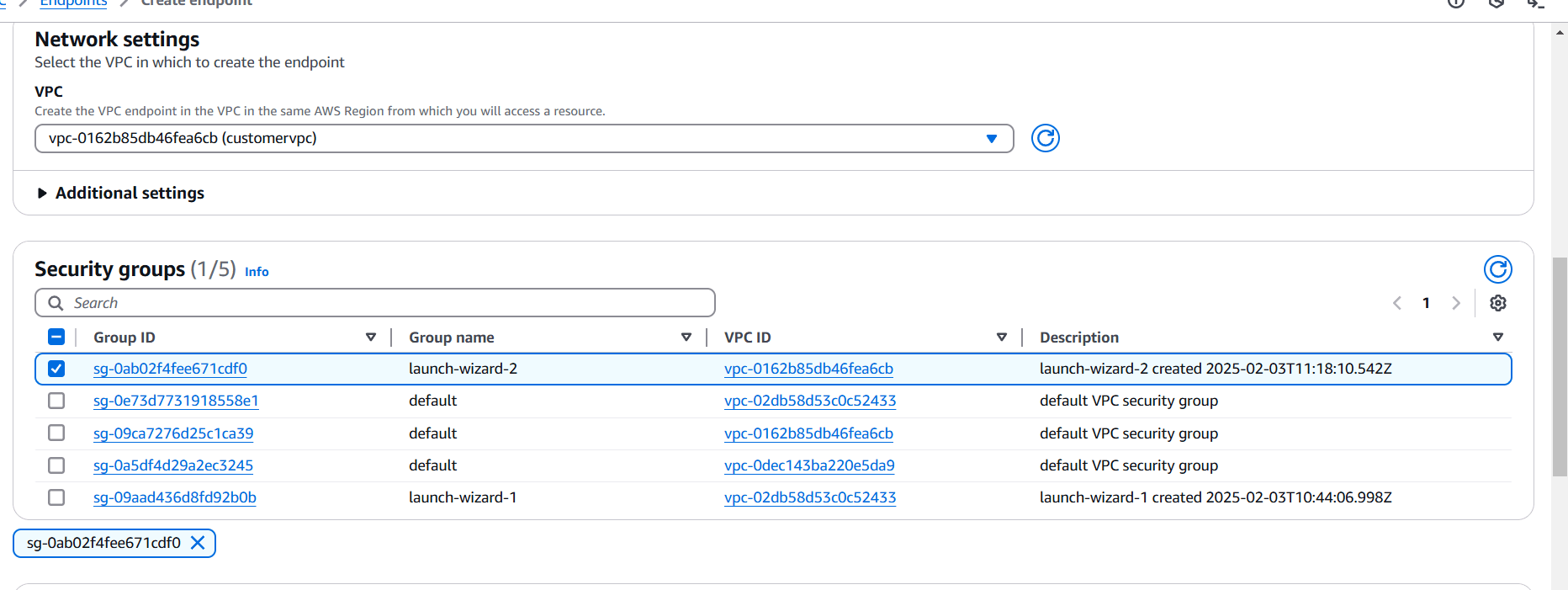
After creating the VPC Endpoint and configuring routing and security, test the connection to ensure that traffic from the consumer VPC can reach the service through the VPC Endpoint:
curl, wget, or any application to make a request to the private endpoint.
Implementing a VPC endpoint service in AWS is an essential step for optimizing security and performance when connecting your VPC to AWS resources or other VPCs. By following this step-by-step guide, you’ll be able to create a secure, private connection for your services with ease.

An AWS AMI (Amazon Machine Image) is a pre-configured template used to create virtual machines (or instances) in Amazon Web Services (AWS). It contains the operating system, software, and configuration settings required to launch and run a specific environment on AWS.

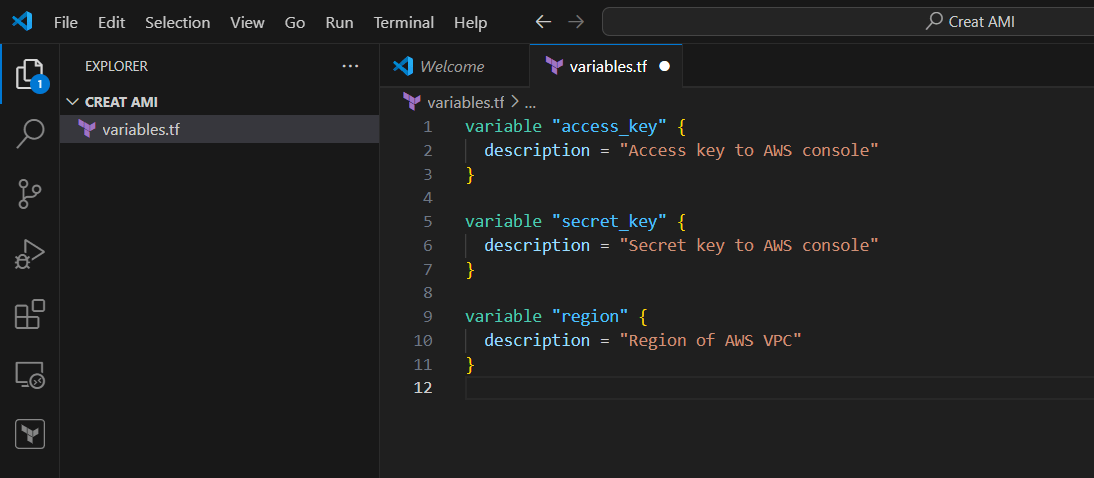
STEP 1: Go vscode Select your folder and create variables.tf file.
variable "access_key" {
  description = "Access key to AWS console"
}

variable "secret_key" {
  description = "Secret key to AWS console"
}

variable "region" {
  description = "Region of AWS VPC"
}
STEP 2: Enter the file and save it.
STEP 3: Create the file terraform.tfvars
region      = "us-east-1"
access_key  = "<YOUR AWS CONSOLE ACCESS ID>"
secret_key  = "<YOUR AWS CONSOLE SECRET KEY>"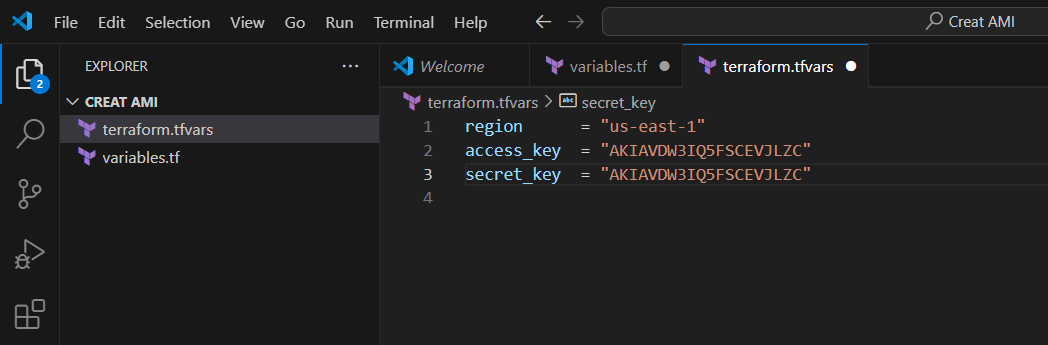
STEP 4: Enter the terraform script and save the file.
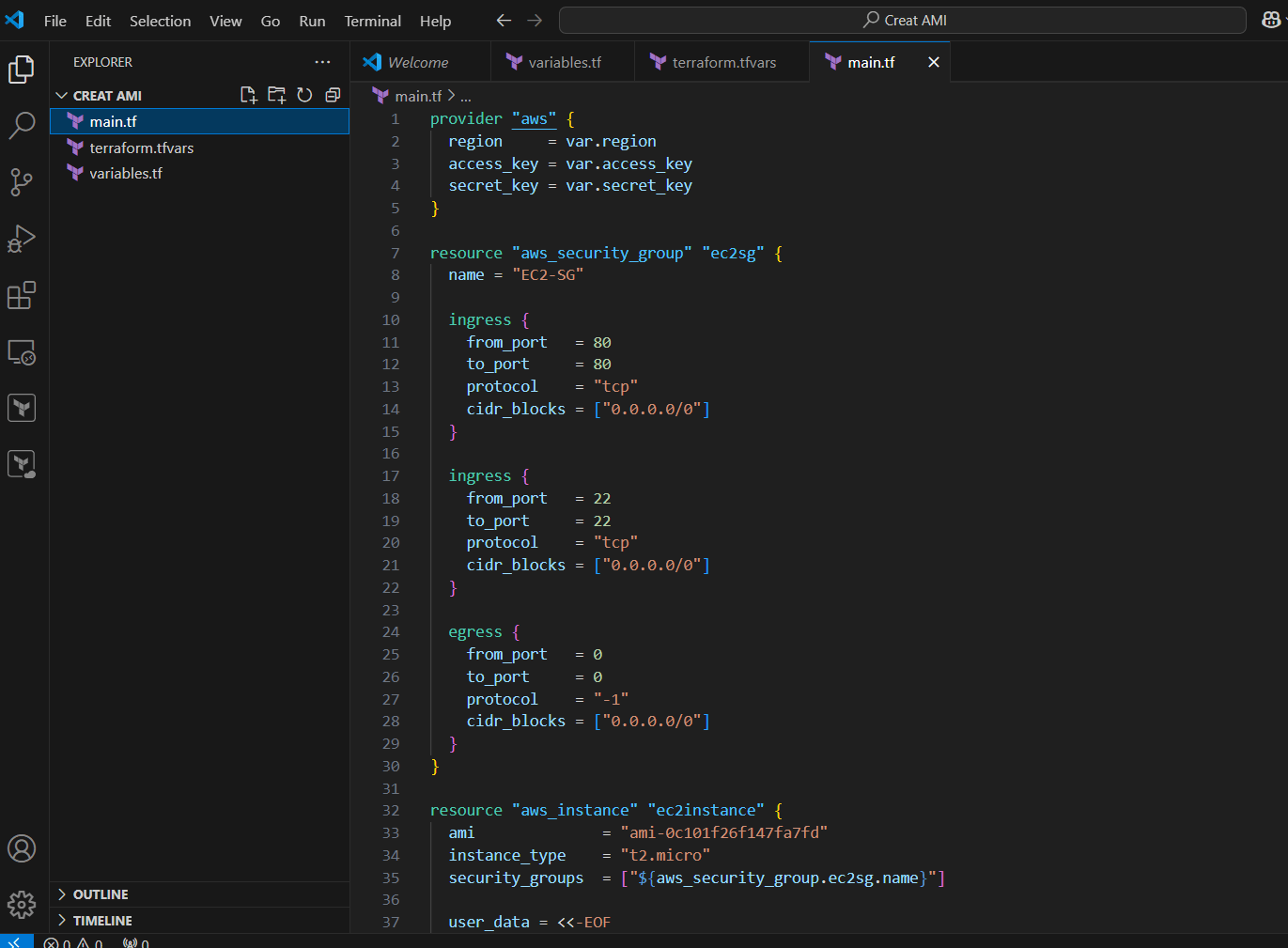
STEP 5: Create main.tf file and enter the following command save the file.
provider "aws" {
  region     = var.region
  access_key = var.access_key
  secret_key = var.secret_key
}

resource "aws_security_group" "ec2sg" {
  name = "EC2-SG"

  ingress {
    from_port   = 80
    to_port     = 80
    protocol    = "tcp"
    cidr_blocks = ["0.0.0.0/0"]
  }

  ingress {
    from_port   = 22
    to_port     = 22
    protocol    = "tcp"
    cidr_blocks = ["0.0.0.0/0"]
  }

  egress {
    from_port   = 0
    to_port     = 0
    protocol    = "-1"
    cidr_blocks = ["0.0.0.0/0"]
  }
}

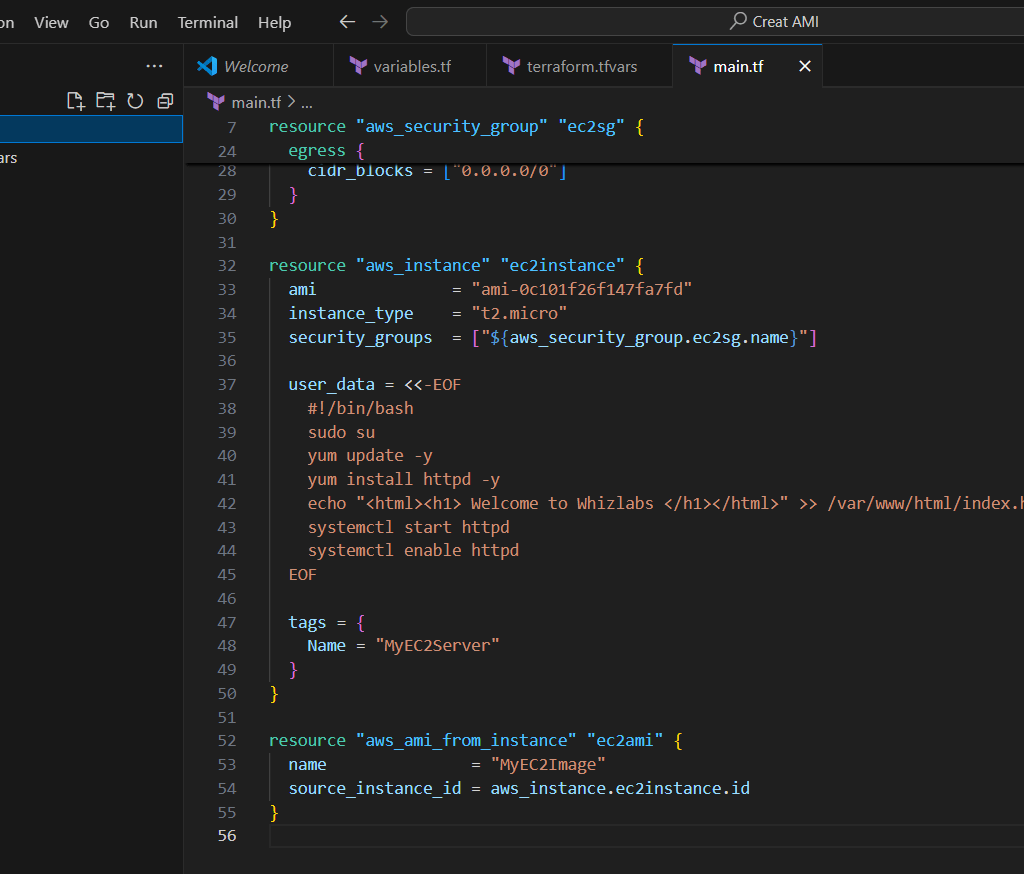
resource "aws_instance" "ec2instance" {
  ami              = "ami-0c101f26f147fa7fd"
  instance_type    = "t2.micro"
  security_groups  = ["${aws_security_group.ec2sg.name}"]

  user_data = <<-EOF
    #!/bin/bash
    sudo su
    yum update -y
    yum install httpd -y
    echo "<html><h1> Welcome to Whizlabs </h1></html>" >> /var/www/html/index.html
    systemctl start httpd
    systemctl enable httpd
  EOF

  tags = {
    Name = "MyEC2Server"
  }
}

resource "aws_ami_from_instance" "ec2ami" {
  name               = "MyEC2Image"
  source_instance_id = aws_instance.ec2instance.id
}
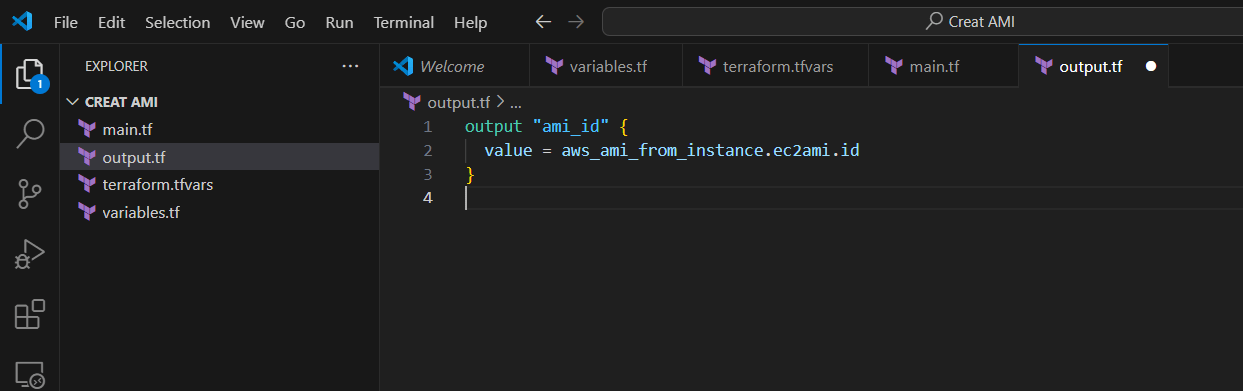
STEP 6: Create output.tf file.
output "ami_id" {
  value = aws_ami_from_instance.ec2ami.id
}
STEP 7: Go to the terminal enter the command terraform init.
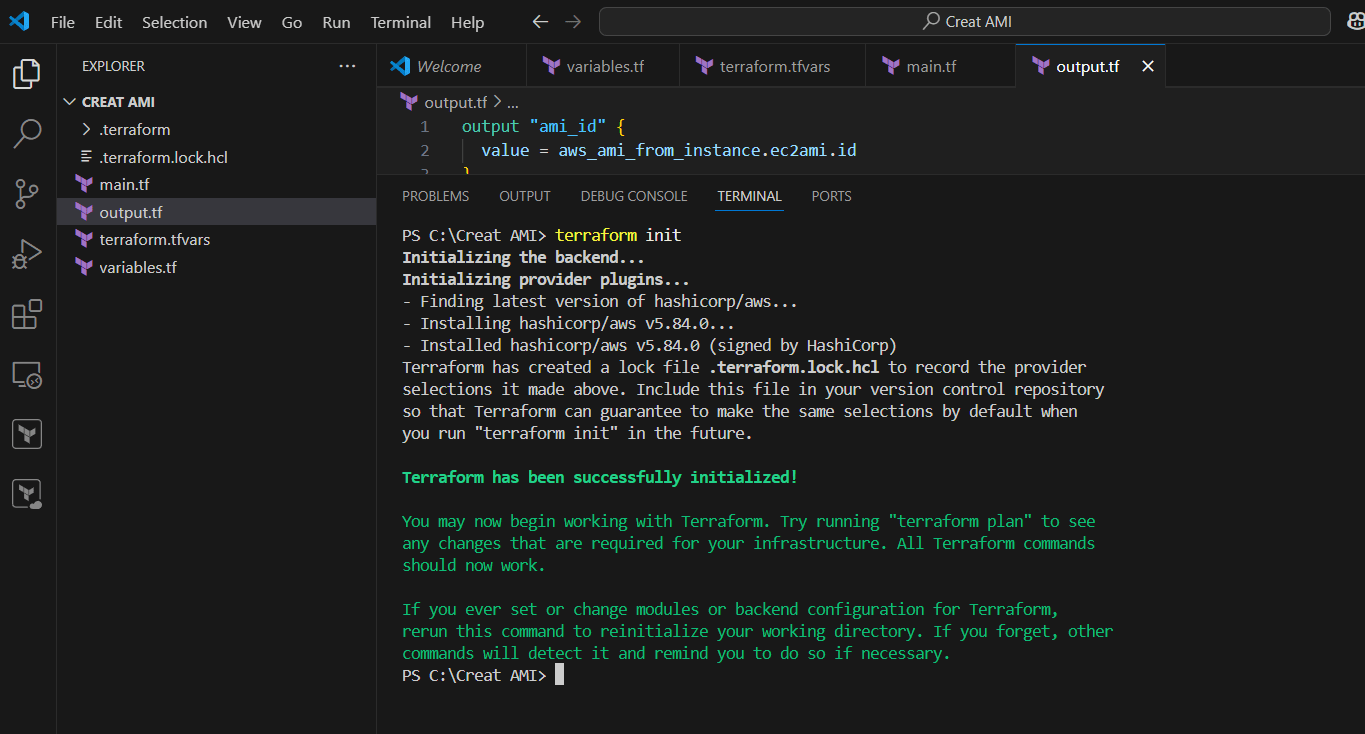
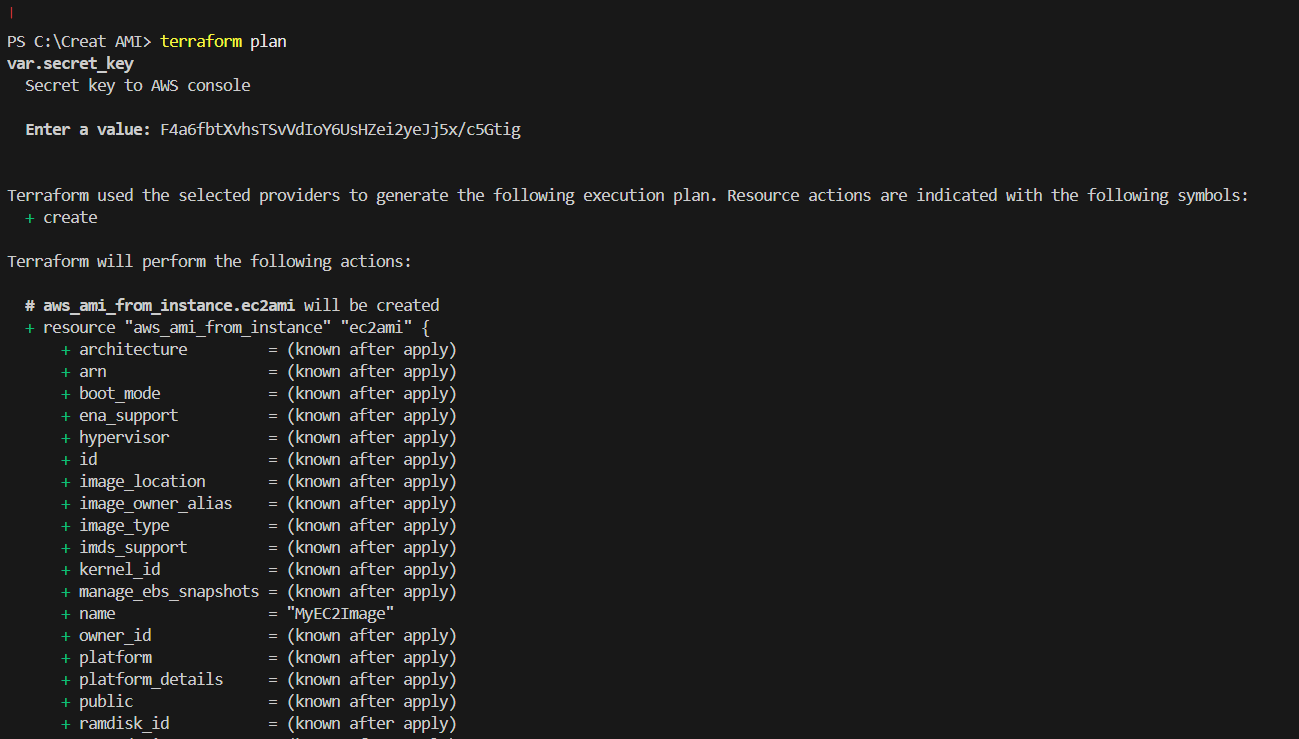
STEP 8: Enter the command terraform plan.
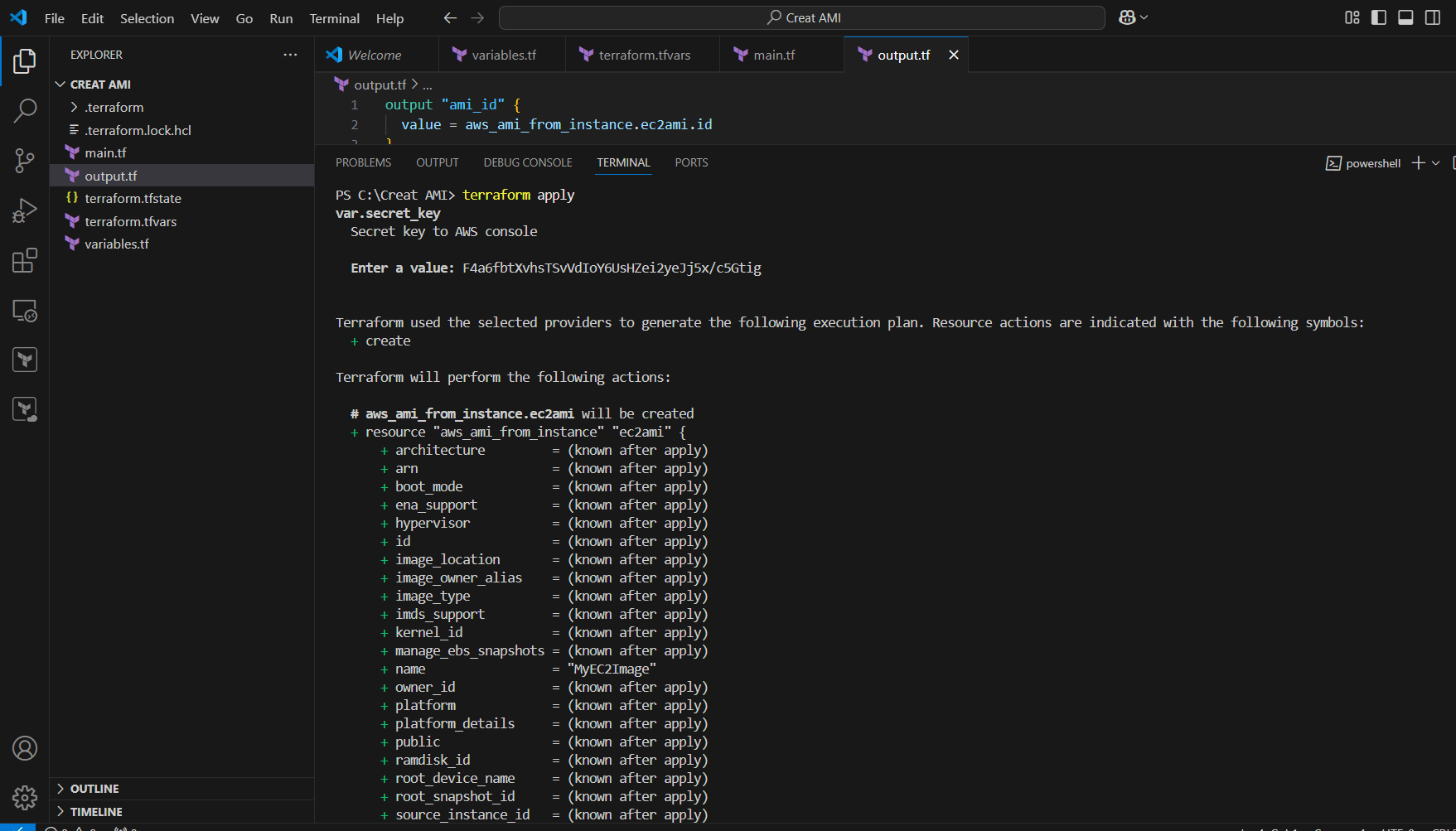
STEP 9: Enter terraform apply command.
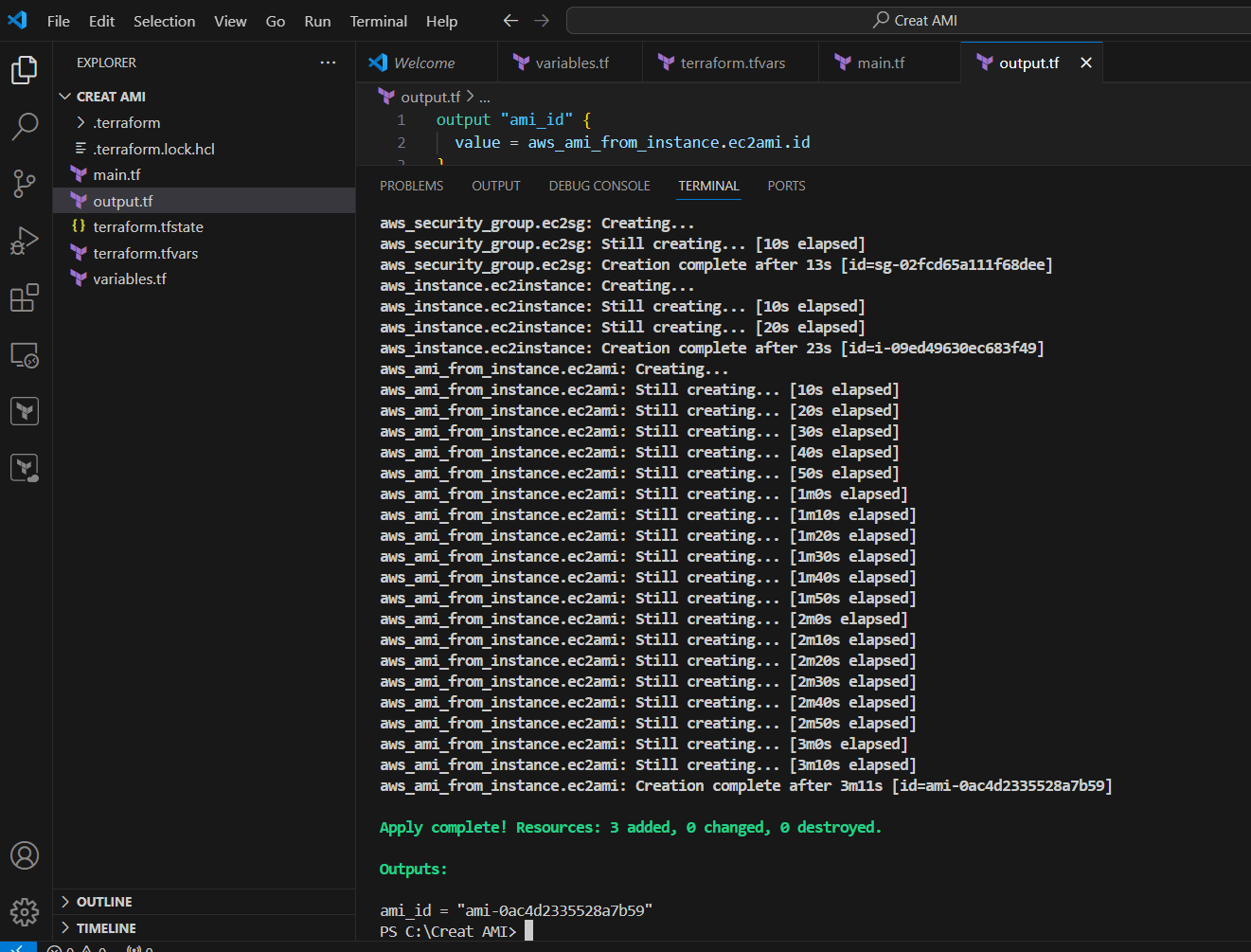
STEP 10: Go Security group and verify the Created security group.
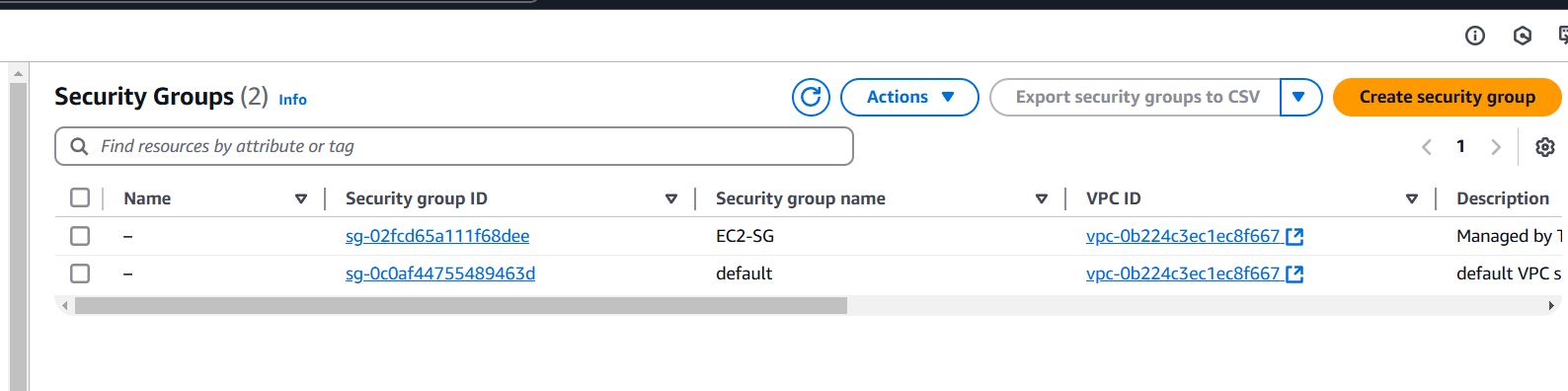
STEP 11: Next, Verify the created Instance.

STEP 12: Now, Go to verify the AMI.


In conclusion, an AWS AMI (Amazon Machine Image) is a powerful tool in Amazon Web Services that allows you to create and launch virtual machine instances quickly and consistently. It includes the operating system, software, and configurations necessary to set up an environment on AWS. AMIs are highly customizable and reusable, making them a key part of scalable, automated cloud infrastructure. They enable rapid deployment, ensure consistency across instances, and help in scaling your applications efficiently. If you’re working with AWS, understanding and utilizing AMIs can significantly streamline the management of your cloud infrastructure.
In today’s cloud-native world, Kubernetes has become the go-to platform for managing containerized applications. Amazon Elastic Kubernetes Service (EKS) provides a fully managed Kubernetes service, enabling you to easily deploy and scale containerized applications on AWS. Setting up an EKS cluster manually can be complex, but by using Infrastructure as Code (IaC) tools like Terraform, you can automate the process and ensure a repeatable, scalable solution.
In this comprehensive guide, we’ll walk you through the steps to set up an Amazon EKS cluster and install kubectl, the Kubernetes command-line tool, using Terraform. Whether you’re new to EKS or a seasoned DevOps engineer looking to streamline your infrastructure, this tutorial will give you the knowledge and tools to get up and running with Kubernetes on AWS efficiently. Let’s dive in and explore how Terraform can simplify the creation of your EKS environment, so you can focus on deploying and managing your applications with ease.

Now, Create EKS Cluster and Install Kubectl in Terraform Using VS code.
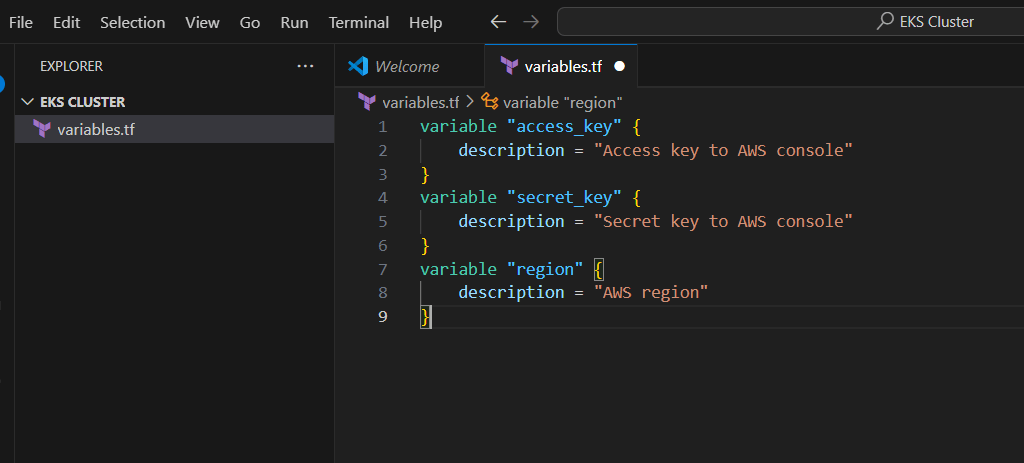
STEP1: Go to vscode open the new folder and create a variables.tf file.
variable "access_key" {
    description = "Access key to AWS console"
}
variable "secret_key" {
    description = "Secret key to AWS console"
}
variable "region" {
    description = "AWS region"
}
STEP 2: Next Create terraform.tfvars file.
region = "us-east-1"
access_key = "<YOUR AWS CONSOLE ACCESS ID>"
secret_key = "<YOUR AWS CONSOLE SECRET KEY>"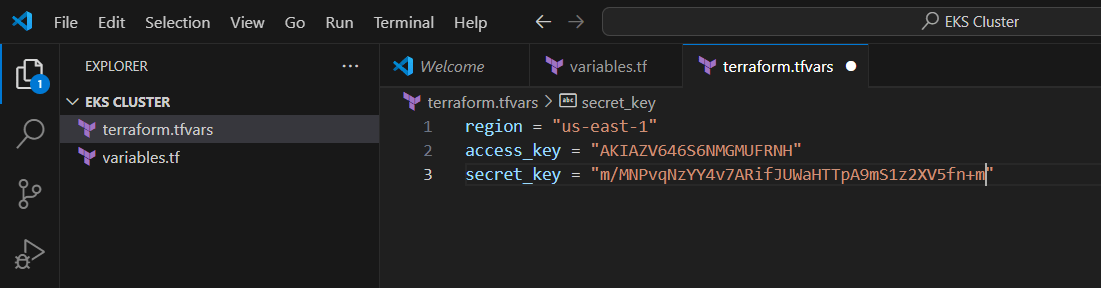
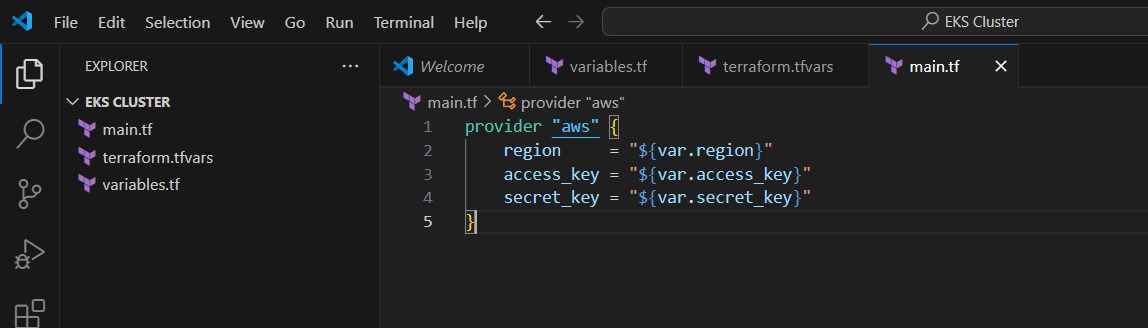
STEP 3: Create main.tf files.
provider "aws" {
    region     = "${var.region}"
    access_key = "${var.access_key}"
    secret_key = "${var.secret_key}"
}
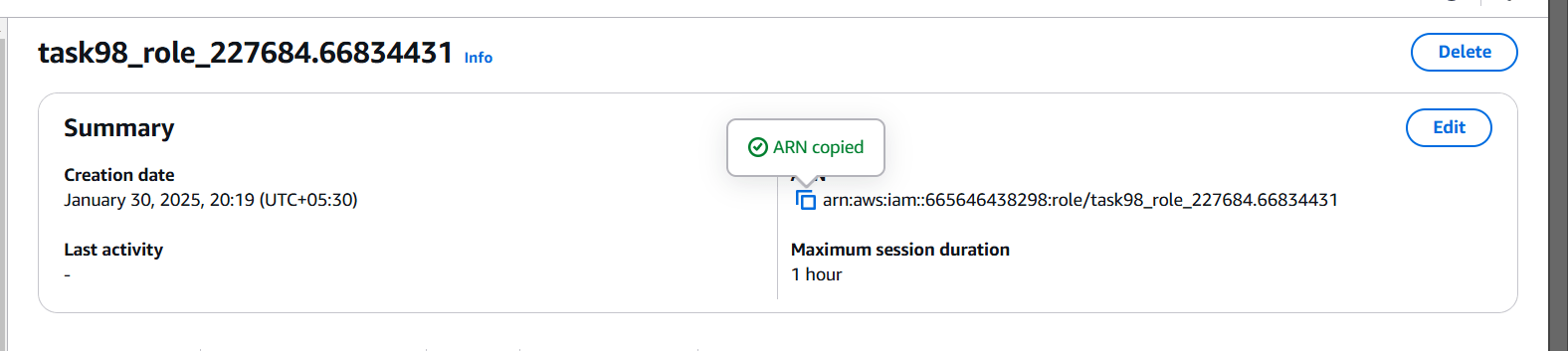
STEP 4: Copide your role arn and paste the notepad.
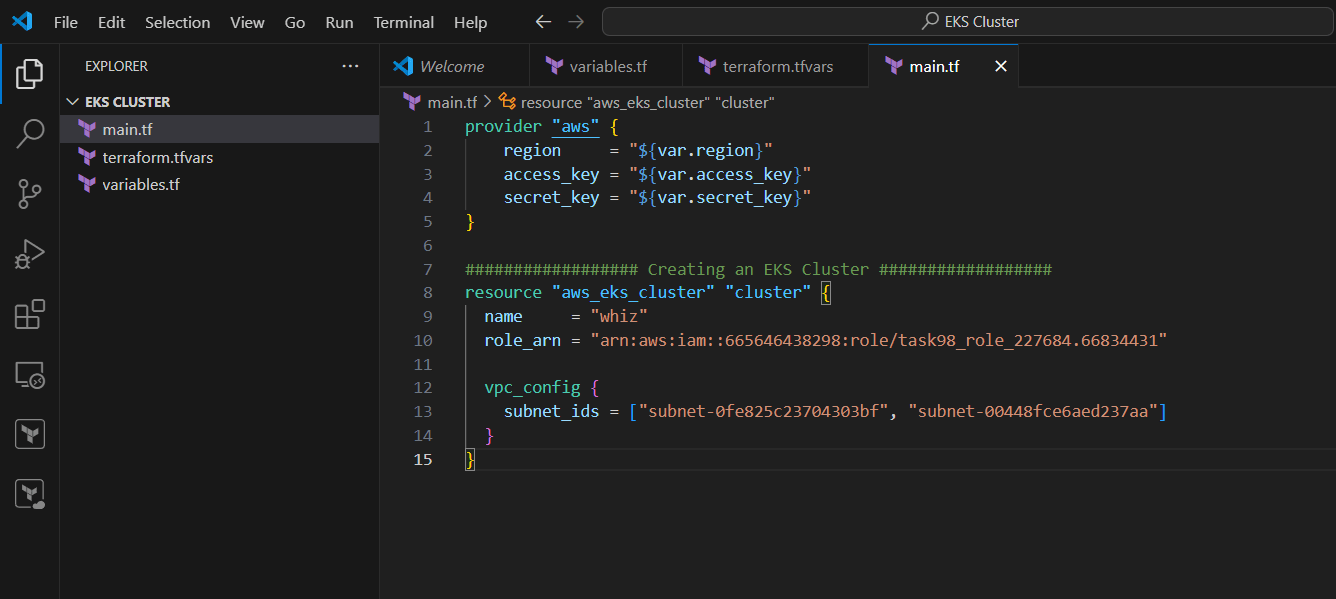
STEP 5: Now enter the Script foe creating cluster in main.tf file.
################## Creating an EKS Cluster ##################
resource "aws_eks_cluster" "cluster" {
  name     = "whiz"
  role_arn = "<YOUR_IAM_ROLE_ARN>"

  vpc_config {
    subnet_ids = ["SUBNET-ID 1", "SUBNET-ID 2"]
  }
}
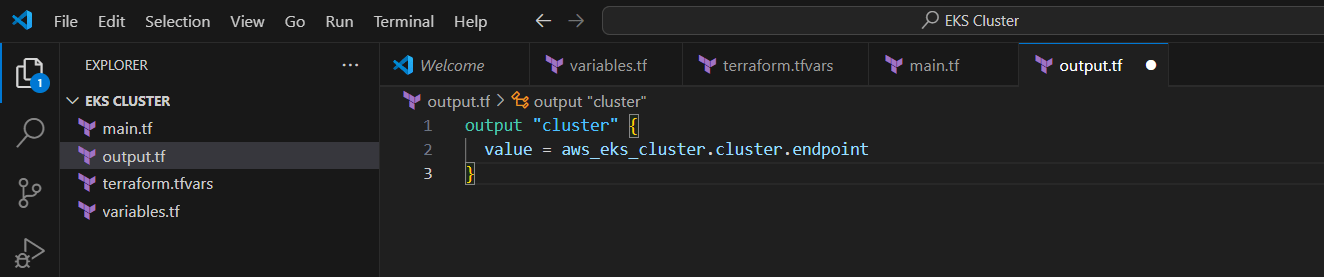
STEP 6: Next create output.tf file.
output "cluster" {
  value = aws_eks_cluster.cluster.endpoint
}
STEP 7: Now, go to the terminal, Enter trraform init command.
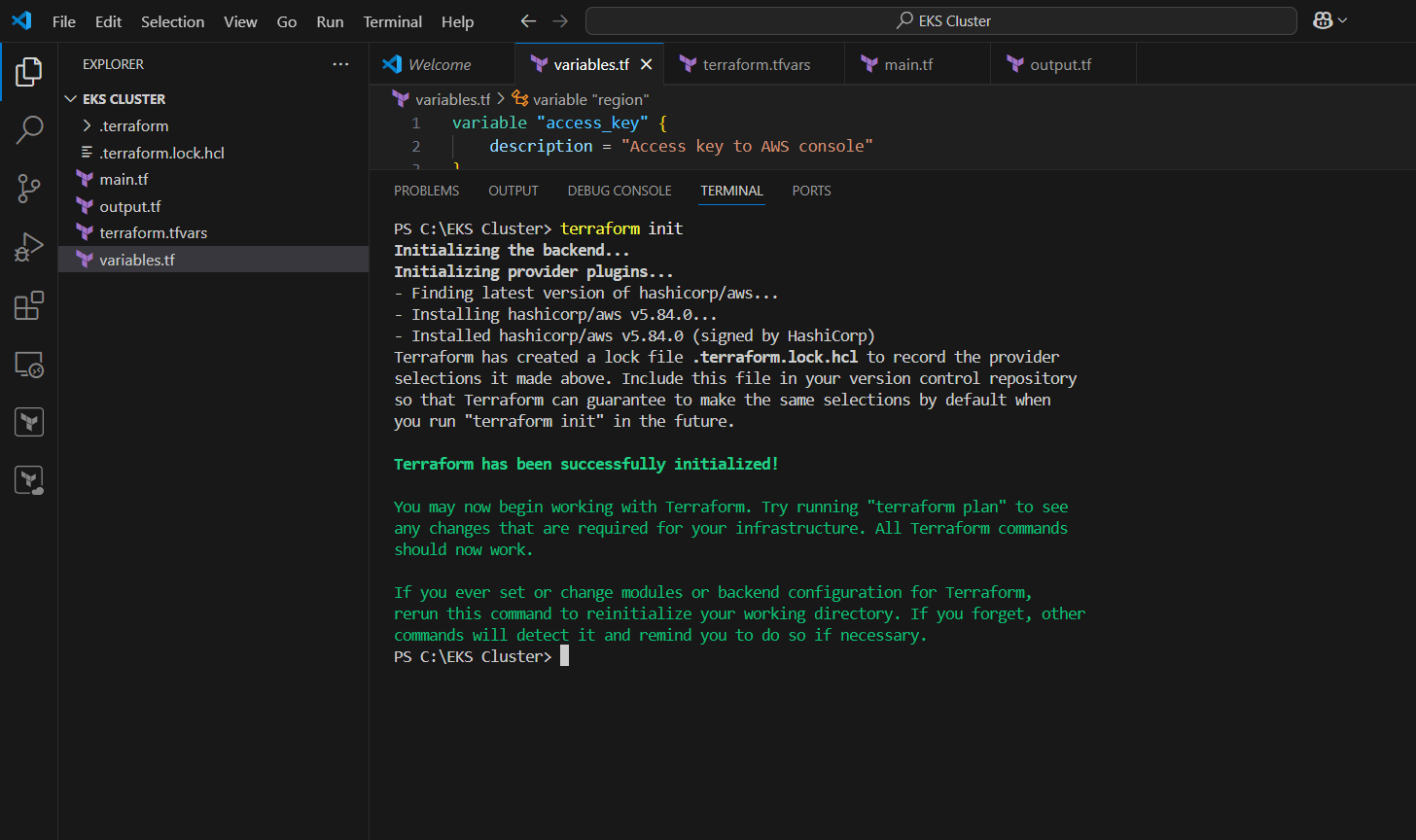
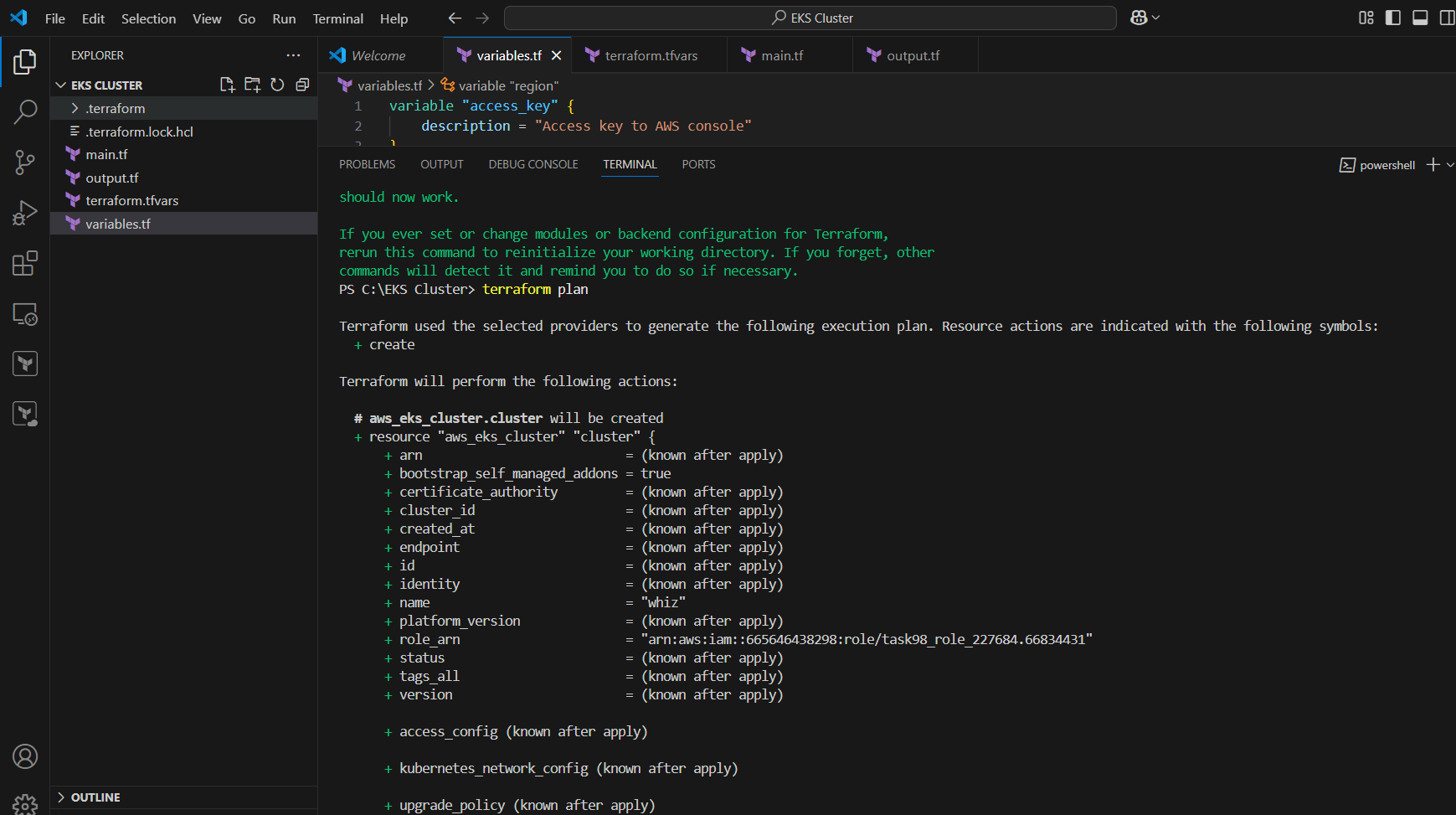
STEP 8: Enter terraform plan command.
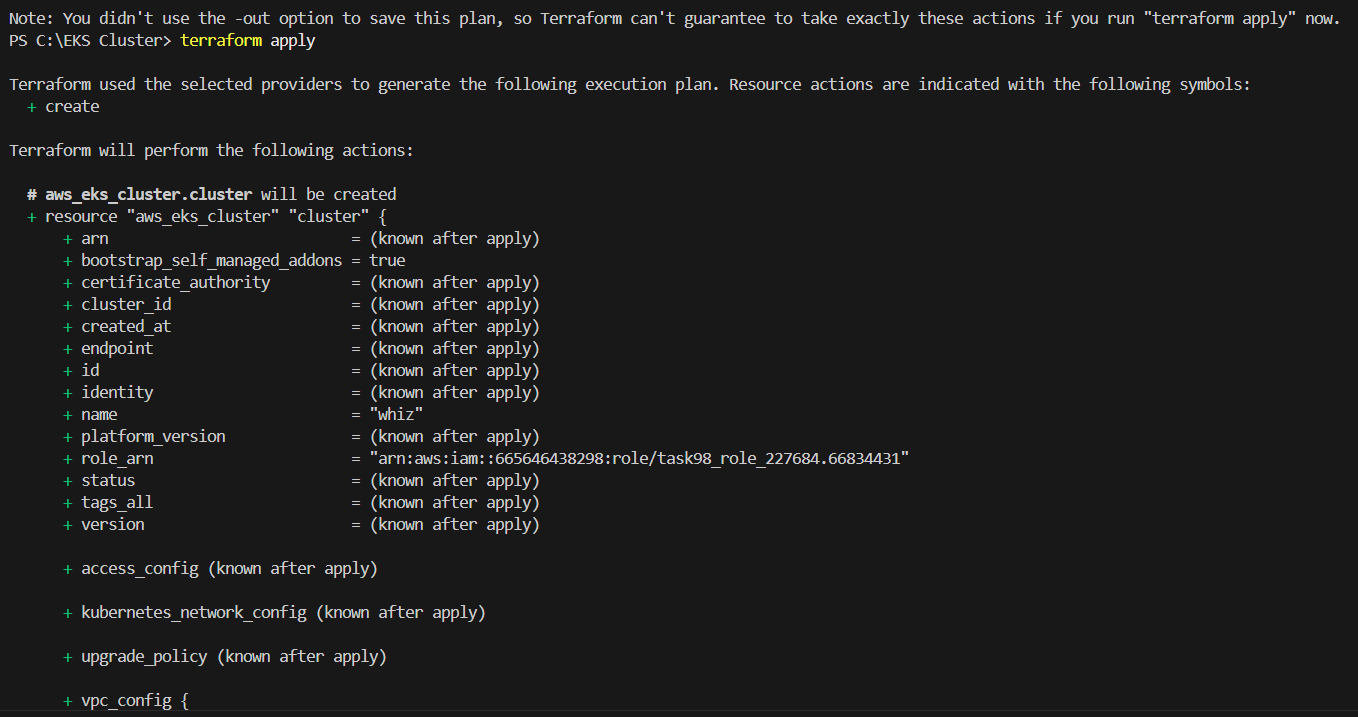
STEP 9: Enter terraform apply.
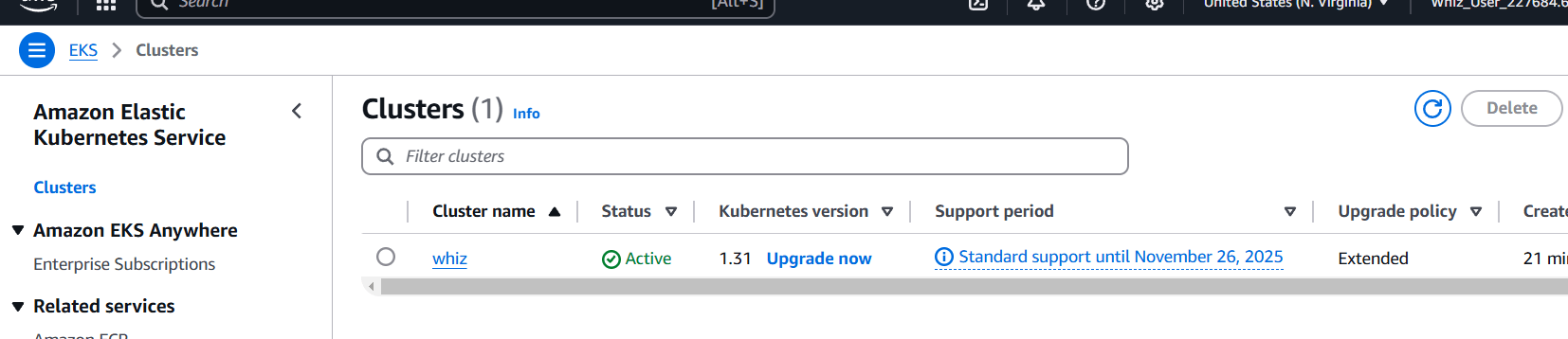
STEP 10: Go amazon EKS console verify the created cluster.
STEP 11: Click on the Cloud Shell icon on the top right AWS menu bar.
Enter the following command.
curl -o kubectl https://amazon-eks.s3.us-west-2.amazonaws.com/1.18.9/2020-11-02/bin/linux/amd64/kubectl
chmod +x ./kubectl
mkdir -p $HOME/bin && cp ./kubectl $HOME/bin/kubectl && export PATH=$PATH:$HOME/bin
kubectl version --short --client
aws eks update-kubeconfig --region us-east-1 --name whiz
kubectl get svc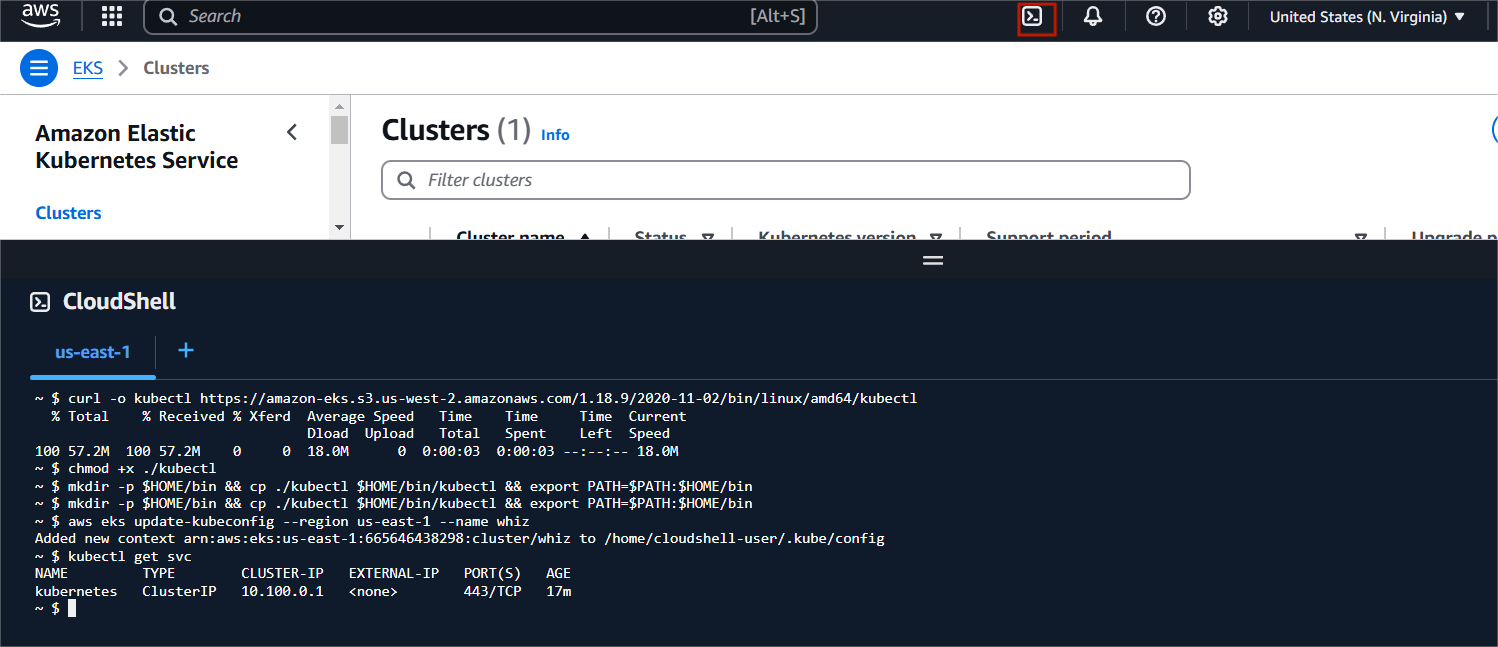

Setting up an Amazon EKS cluster and installing kubectl using Terraform is an efficient way to manage Kubernetes infrastructure on AWS. By leveraging Terraform’s Infrastructure as Code capabilities, you not only automate the setup process but also ensure a reproducible and scalable environment for your containerized applications. With the steps outlined in this guide, you’ve learned how to configure your AWS environment, create an EKS cluster, and set up kubectl for easy management of your Kubernetes workloads.
The combination of Amazon EKS and Terraform simplifies Kubernetes cluster management, reduces manual errors, and enhances operational efficiency. Whether you’re deploying microservices, managing applications, or experimenting with Kubernetes, this setup provides a solid foundation to build on. As you continue to explore and expand your Kubernetes ecosystem, using tools like Terraform will help streamline your processes and scale your infrastructure seamlessly. With the knowledge gained from this tutorial, you’re now equipped to take full advantage of EKS and kubectl in your cloud-native journey. Happy deploying!
Fingerprints and artifacts both play important roles in Jenkins workflows, making it easier to track, manage, and improve the software development and continuous integration (CI) process. Let’s break down how each of these elements enhances Jenkins workflows:
Fingerprints are unique identifiers that Jenkins assigns to various components, such as build outputs, source code, or any other items that might be part of a build process. The fingerprint typically comes from a hash of the content of a file or artifact. It ensures that every part of a build can be traced back to its origin and guarantees consistency.

How Fingerprints Enhance Jenkins Workflows:
Traceability: Fingerprints ensure that you can always trace the exact version of the code and dependencies that were used in any given build. This is critical when debugging, performing audits, or identifying issues in a particular version of software.
Consistency: With fingerprints, you can ensure that the build artifacts (e.g., JARs, WARs, etc.) are consistently the same across different Jenkins jobs and environments. If an artifact’s fingerprint doesn’t match, you know it’s not the same artifact.
Improved Dependency Management: By tracking fingerprints, you can correlate between different stages of a build, and dependencies can be tracked more precisely. This can prevent issues with mismatched or outdated dependencies.
Efficient Cache Handling: Jenkins can optimize workflows by caching specific artifacts based on their fingerprints. If the fingerprint hasn’t changed, Jenkins can skip parts of the build process (like recompiling), improving build efficiency.
Artifacts are files generated as part of the build process, such as compiled binaries, test reports, configuration files, logs, and other output files. These are often stored and archived for future reference.
How Artifacts Enhance Jenkins Workflows:
Storage for Future Use: Artifacts, once built, can be stored and reused in later stages or even in other Jenkins jobs. For instance, you might store a built .jar file as an artifact and use it in deployment stages or testing phases in a different job.
Archival for Rollback: Storing artifacts as part of your build helps in versioning. If you need to rollback to a previous version, you can retrieve the exact artifact from the build archive without rebuilding it.
Continuous Delivery/Deployment: Artifacts are essential in a CI/CD pipeline. They represent the build outputs that are deployed or tested in different environments, allowing you to automate the delivery process effectively.
Separation of Concerns: Artifacts allow you to separate the build from the deployment or testing process. This separation means that you can decouple your CI pipeline and focus on using the same artifacts for various tasks (such as deployment or performance testing), without having to rebuild them.
Together, fingerprints and artifacts streamline Jenkins workflows by ensuring that every artifact can be traced and validated. For example: You can archive a build artifact and, using its fingerprint, trace the exact code that produced it, as well as the environment it was built in. You can ensure that only the correct version of an artifact (identified by its fingerprint) is used in subsequent stages like deployment or testing. This combination creates a reliable and efficient build system where every part of the process is traceable, reducing the chances of errors and making debugging easier.
Create a Jenkins installed in ec2 server.
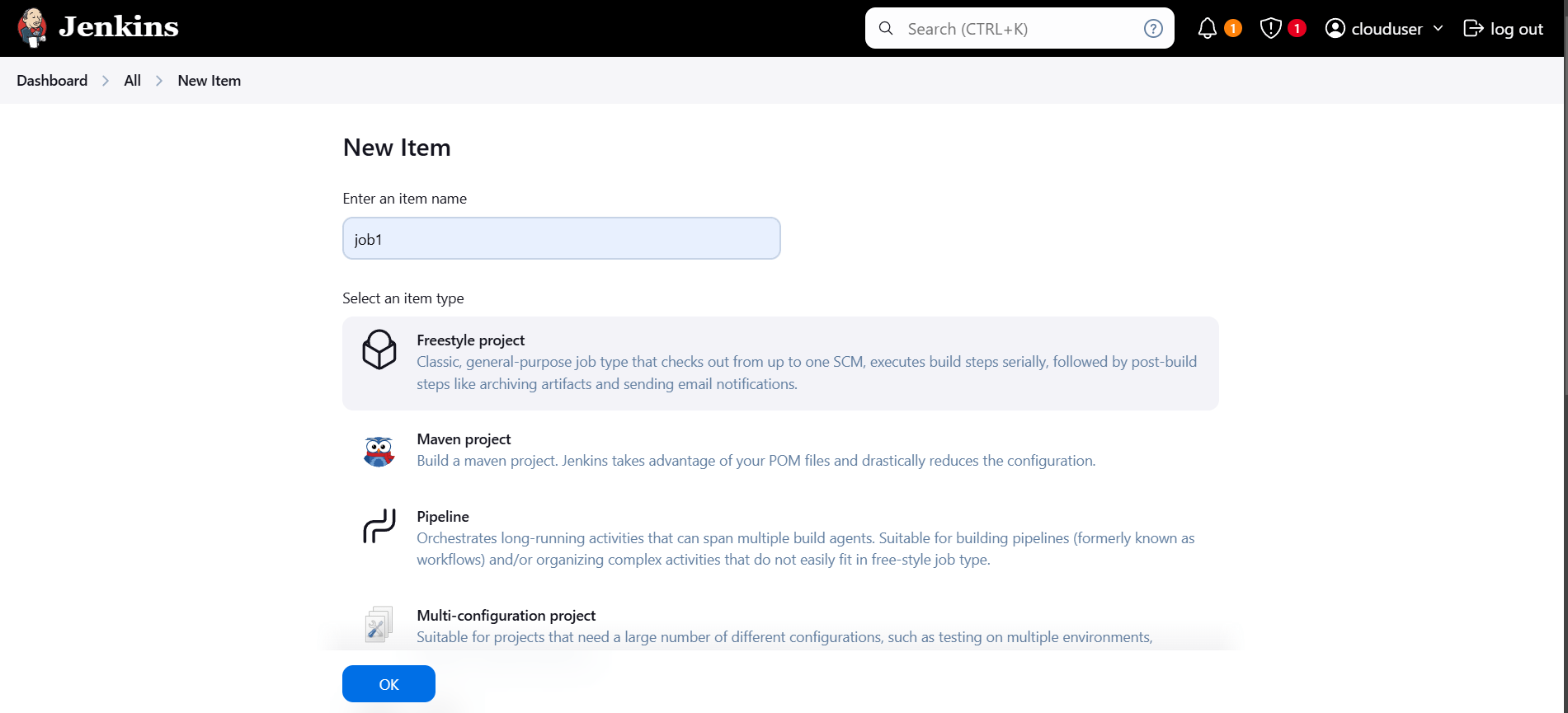
STEP 1: Go to AWS Dashboard Click on create new item.
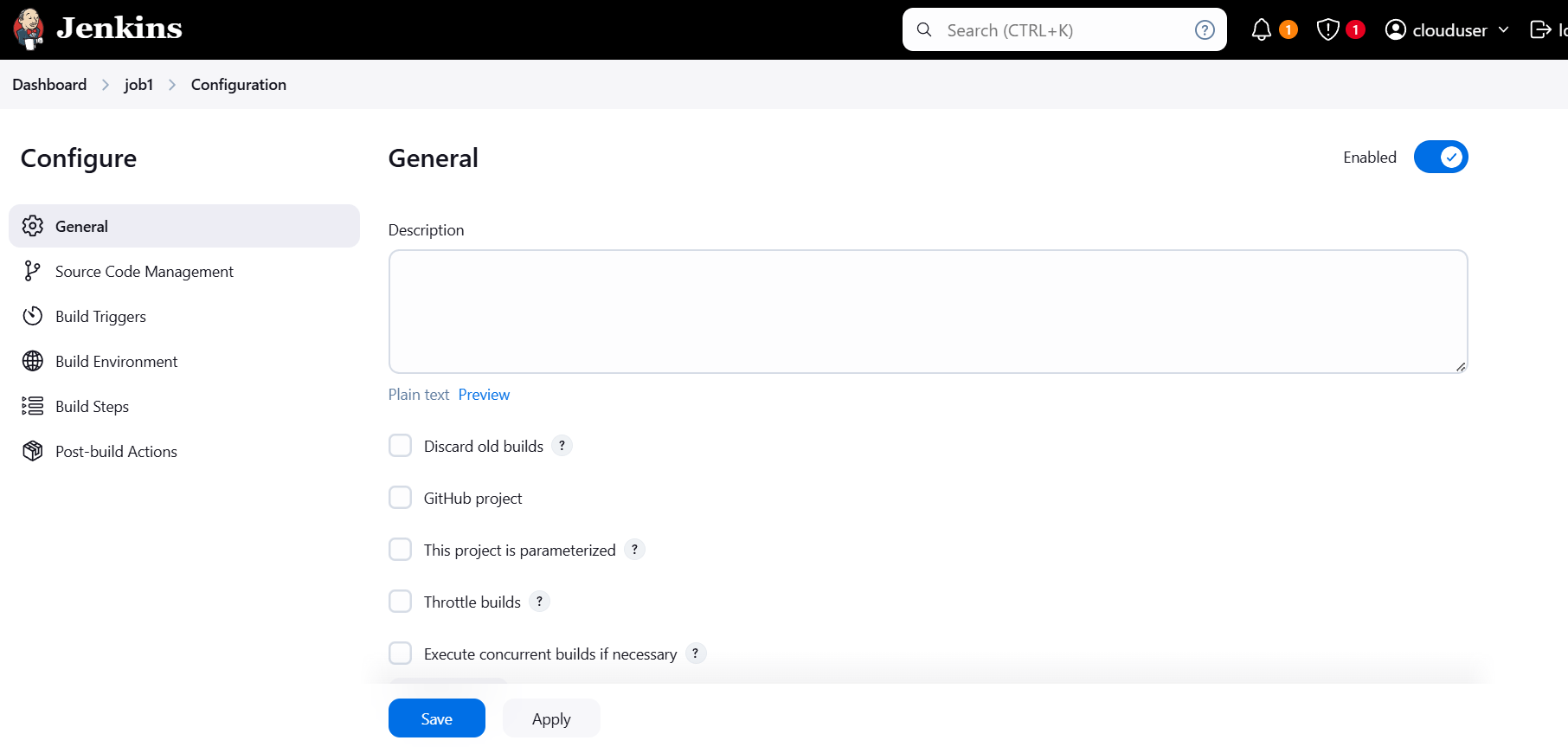
STEP 2: Configure the job.
STEP 3: Scroll down Click on Add build step under build steps.

STEP 4: Enter the following command in execute shell.
touch testarchive
tar -czvf archive01.tar.gz testarchive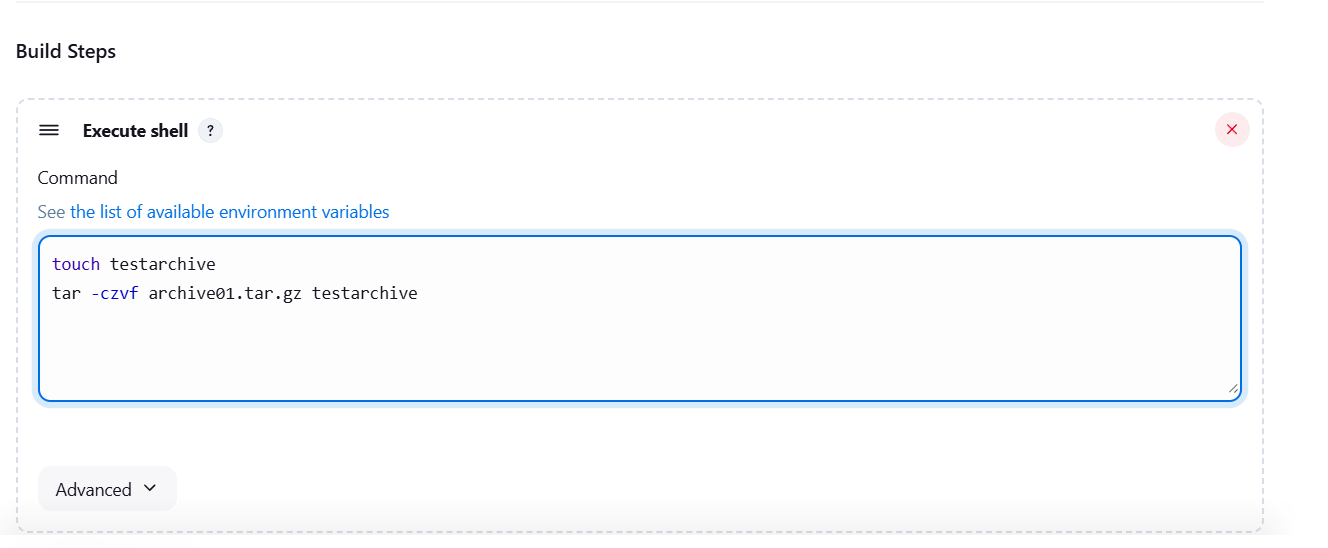
STEP 5: Click on Advance button and select archive the artifacts.
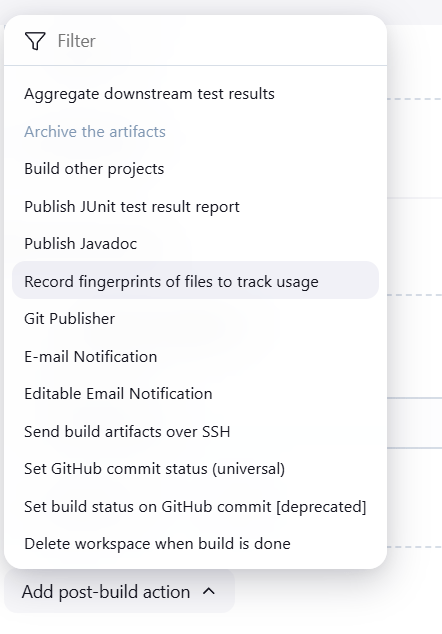
STEP 6: Enter archive the artifacts.
archive01.tar.gz 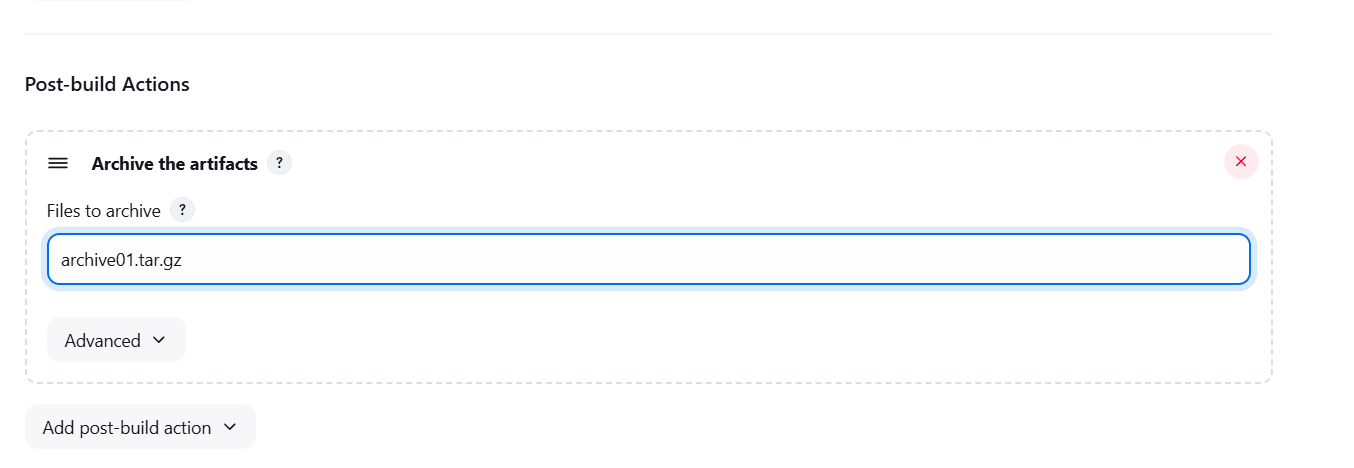
STEP 7: Click on advanced and Select fingureprint all archived artifacts.
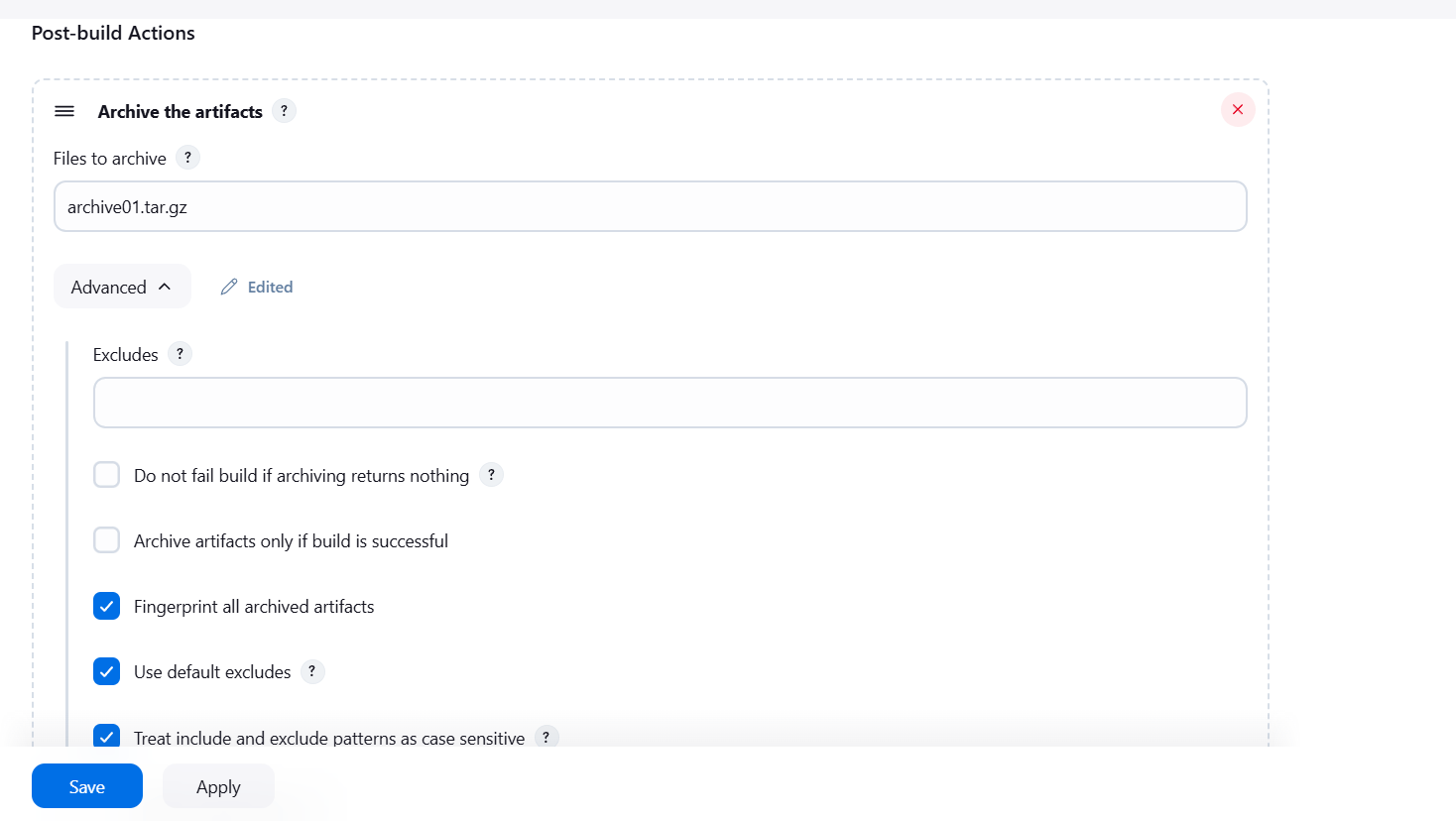
STEP 8: Click on build job.
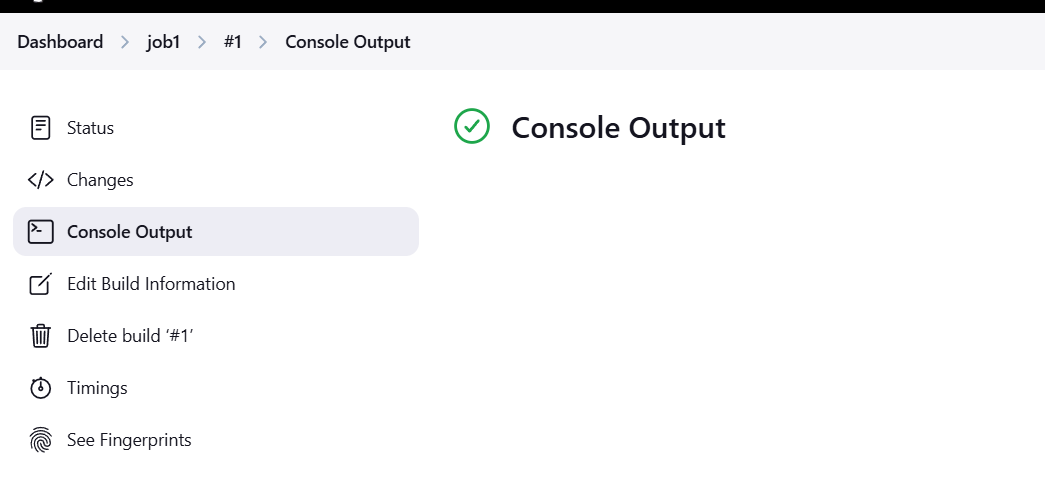
STEP 9: Click on see fingureprints.
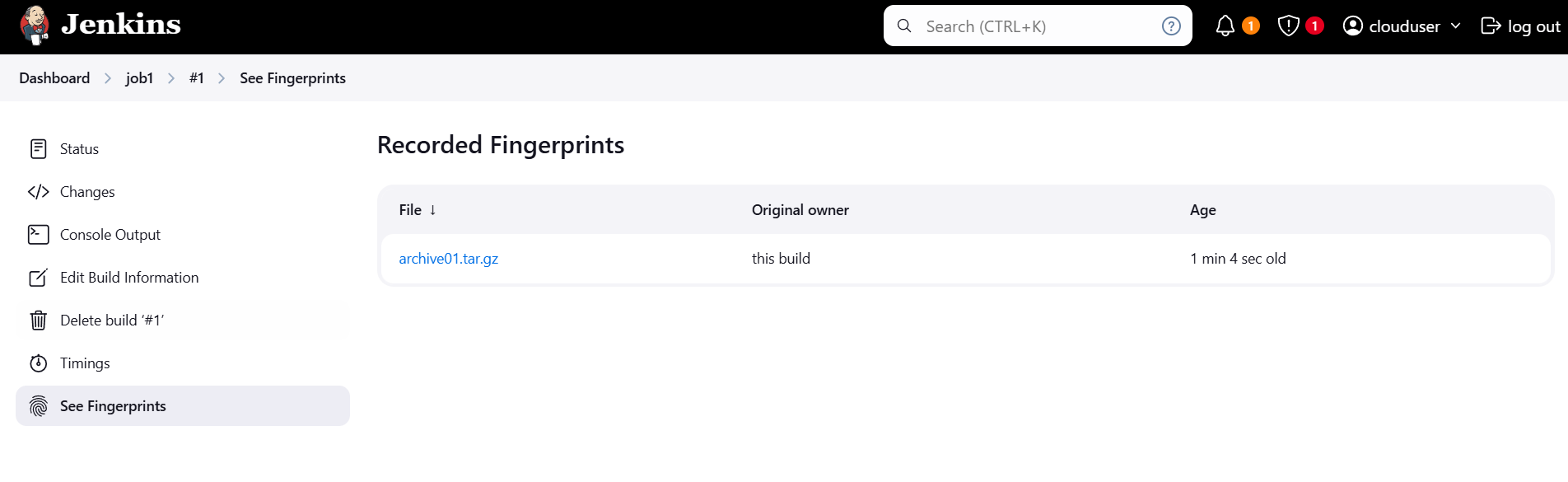
STEP 10: Click on fingureprints name.
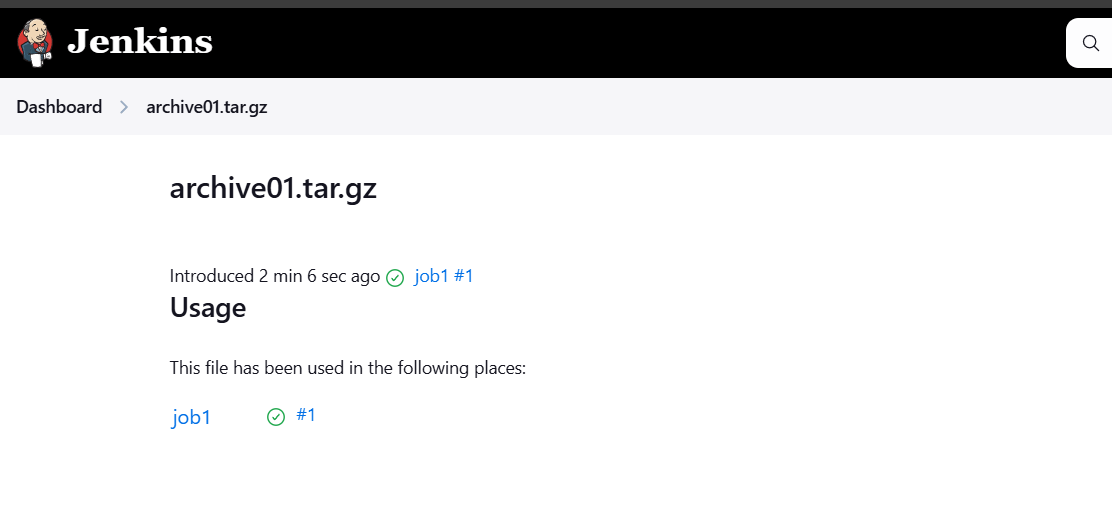
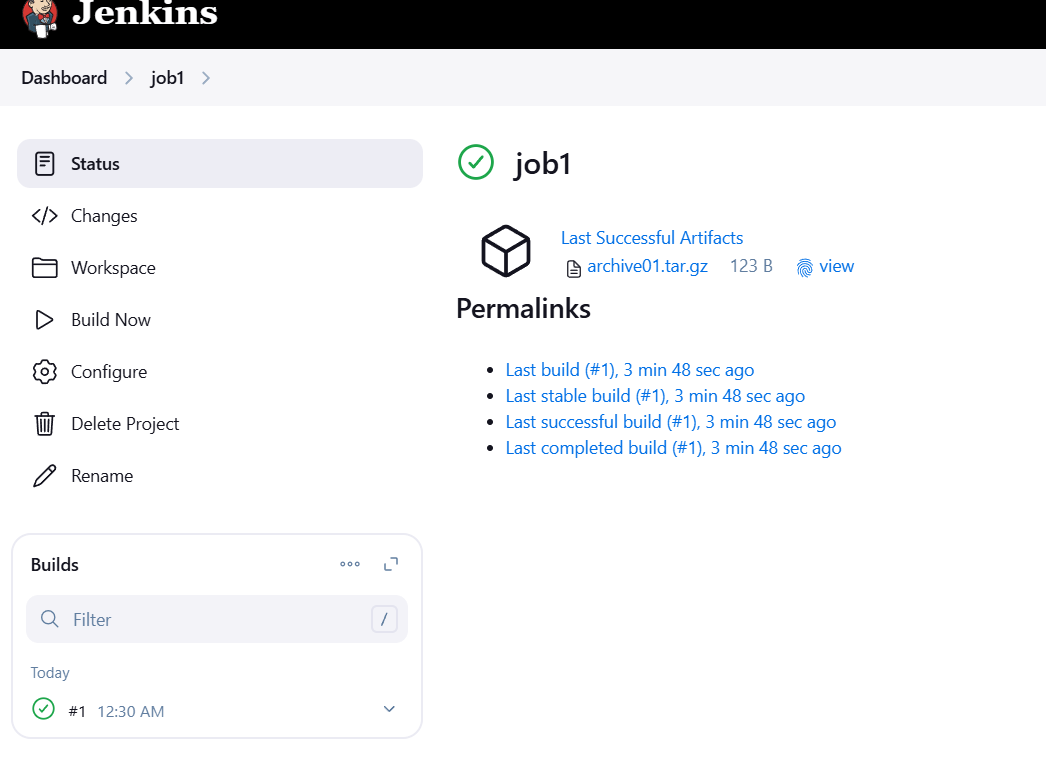
STEP 1: Go to the job configure and delete the archive artifacts.
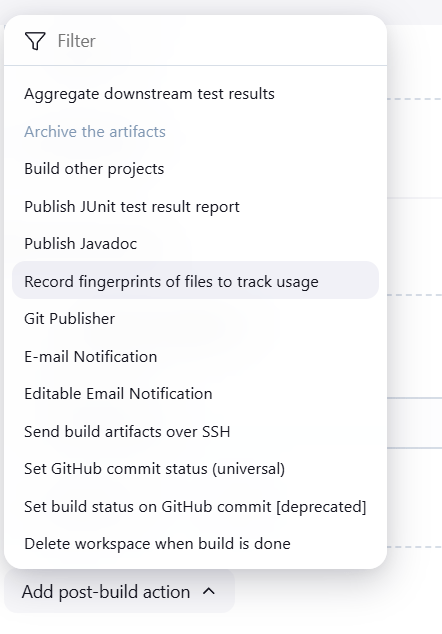
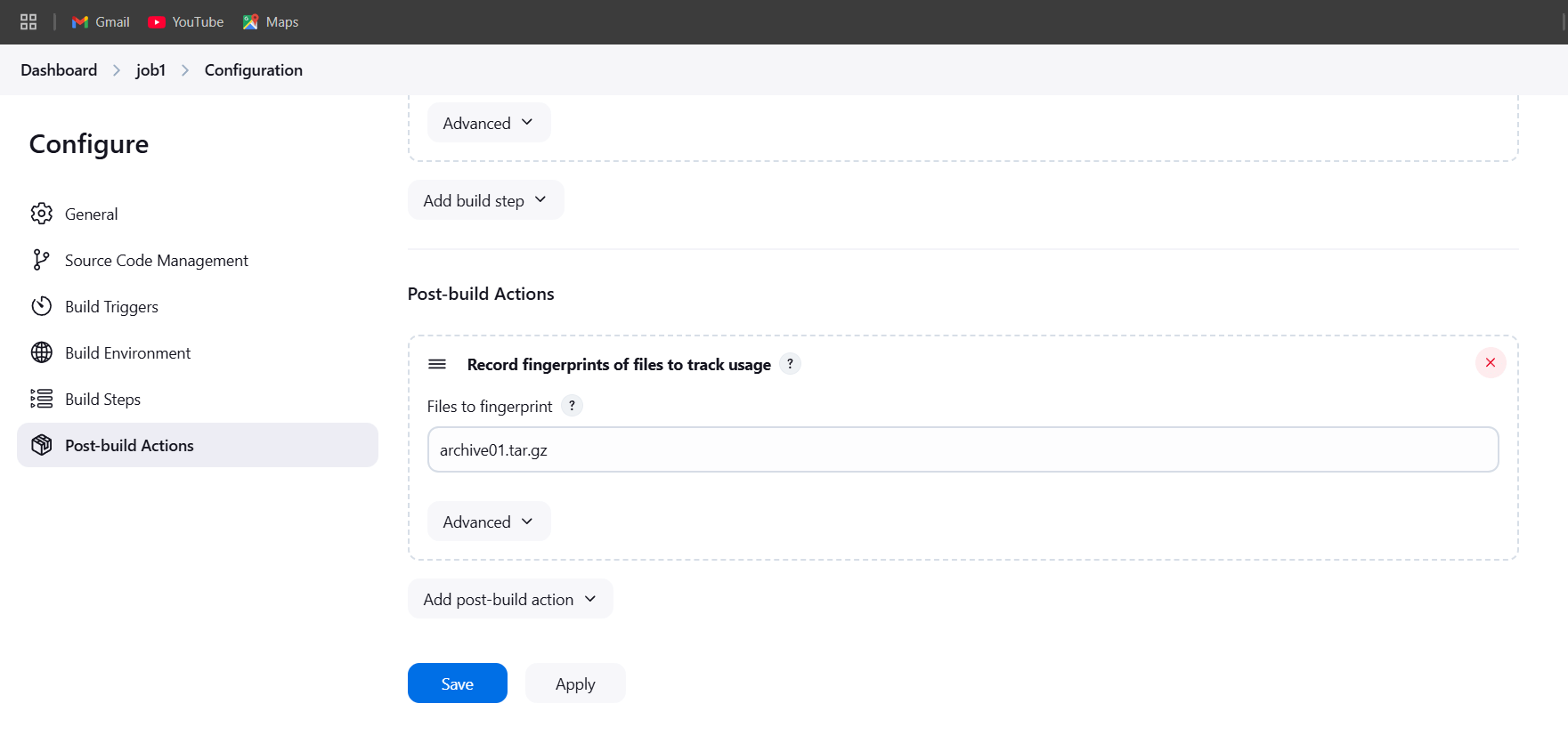
STEP 2: Select postbuild actions.
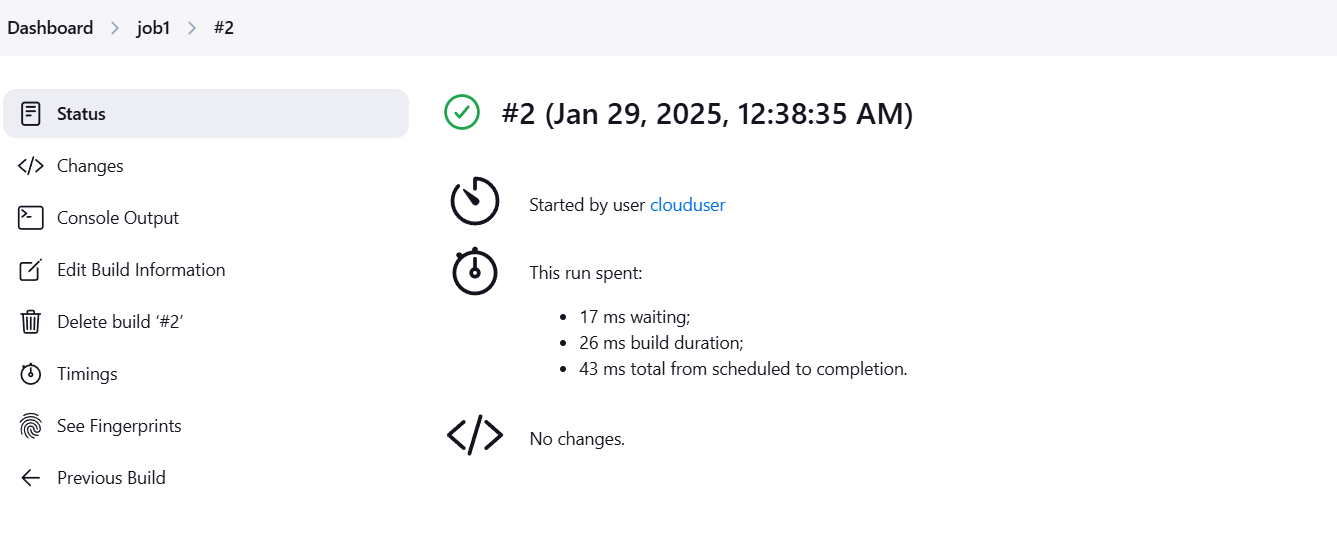
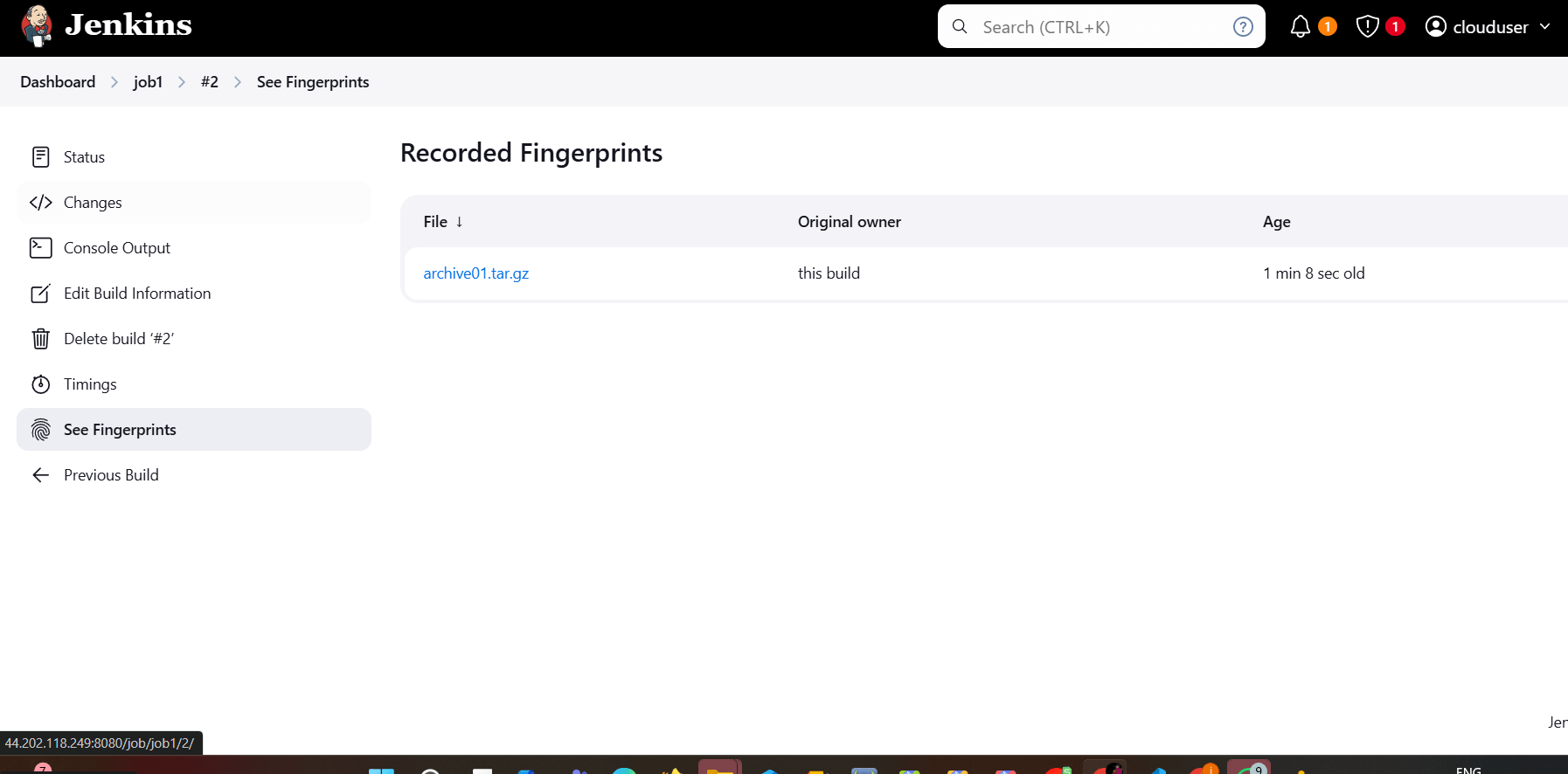
STEP 3: Now build now and click on see fingureprints.
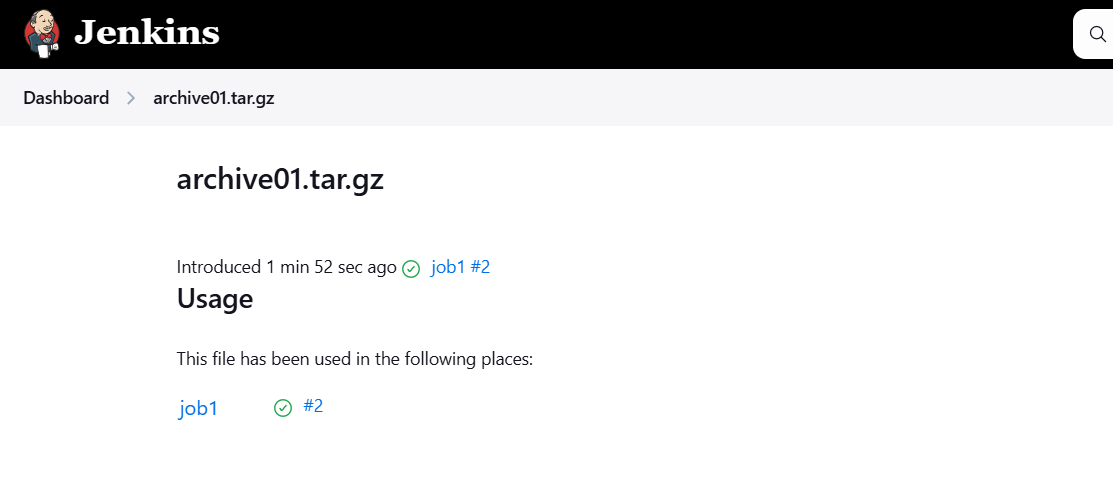

In conclusion, fingerprints and artifacts are key elements that significantly enhance Jenkins workflows by ensuring traceability, consistency, and efficiency. Fingerprints provide a unique identifier for every component, enabling precise tracking and validation of builds, dependencies, and outputs. Artifacts, on the other hand, are the tangible build outputs that can be stored, reused, and deployed across different stages of the CI/CD pipeline. By combining both, Jenkins users can establish a robust, reliable, and streamlined process where every artifact is verifiable and can be traced back to its source. This not only improves debugging, auditing, and consistency but also optimizes build performance and supports continuous delivery and deployment. Ultimately, leveraging fingerprints and artifacts helps teams maintain high-quality software while enhancing collaboration and minimizing errors across the development lifecycle.

An AWS Two-Tier Architecture is a common cloud computing design pattern that separates the application into two layers, typically a web tier and a database tier. This architecture is commonly used for applications that need to scale easily while maintaining clear separation between the user-facing elements and the backend data storage.

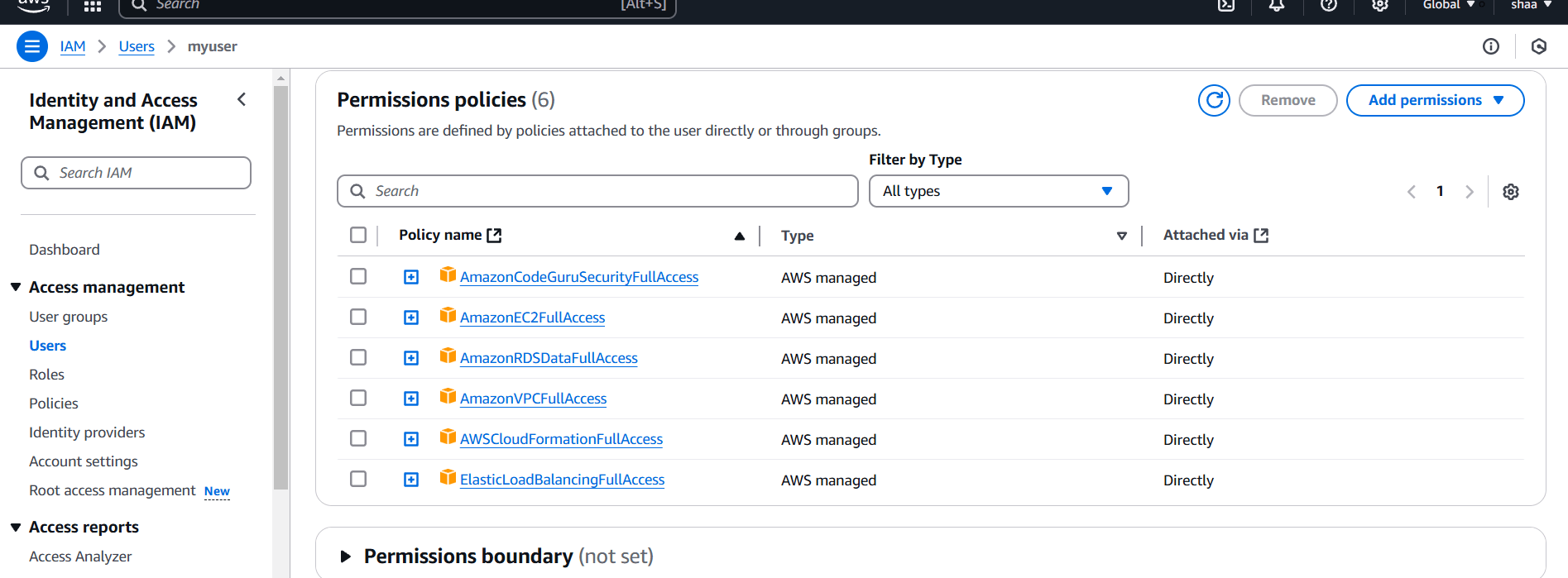
STEP 1: Go to AWS IAM console.
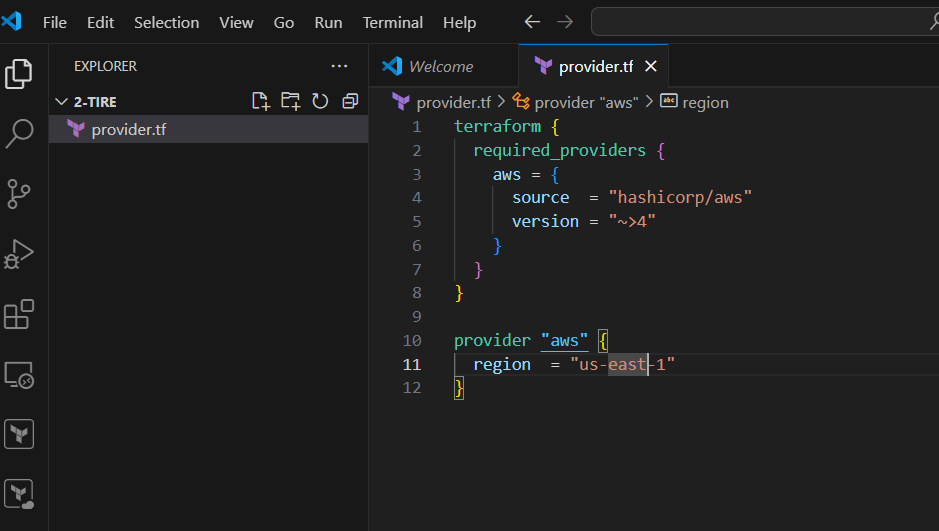
STEP 2: Create provider.tf file.
terraform {
  required_providers {
    aws = {
      source  = "hashicorp/aws"
      version = "~>4"
    }
  }
}

provider "aws" {
  region  = "us-east-1"
}
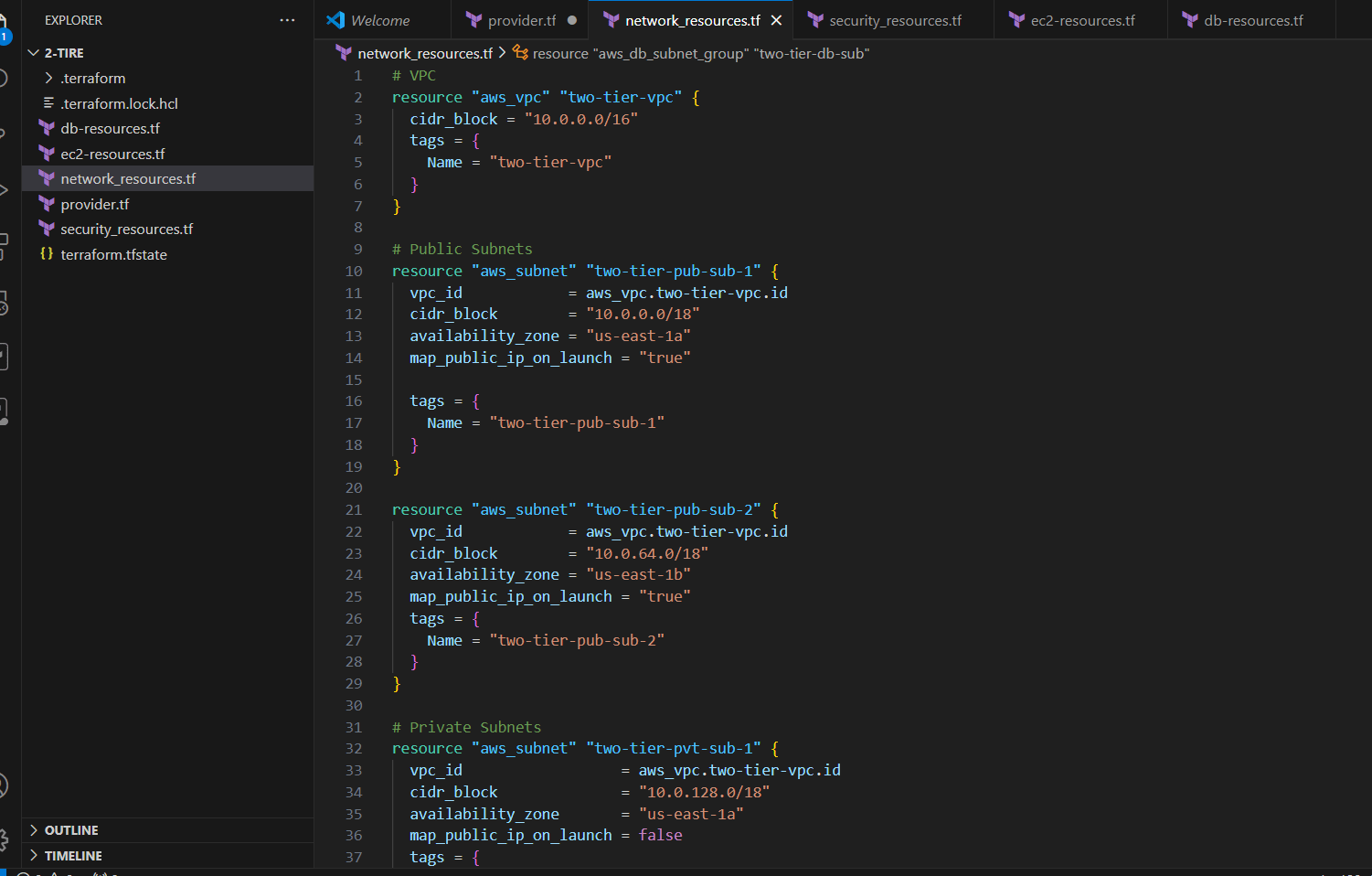
STEP 3: Create network_resources.tf file.
# VPC
resource "aws_vpc" "two-tier-vpc" {
  cidr_block = "10.0.0.0/16"
  tags = {
    Name = "two-tier-vpc"
  }
}

# Public Subnets
resource "aws_subnet" "two-tier-pub-sub-1" {
  vpc_id            = aws_vpc.two-tier-vpc.id
  cidr_block        = "10.0.0.0/18"
  availability_zone = "us-east-1a"
  map_public_ip_on_launch = "true"

  tags = {
    Name = "two-tier-pub-sub-1"
  }
}

resource "aws_subnet" "two-tier-pub-sub-2" {
  vpc_id            = aws_vpc.two-tier-vpc.id
  cidr_block        = "10.0.64.0/18"
  availability_zone = "us-east-1b"
  map_public_ip_on_launch = "true"
  tags = {
    Name = "two-tier-pub-sub-2"
  }
}

# Private Subnets
resource "aws_subnet" "two-tier-pvt-sub-1" {
  vpc_id                  = aws_vpc.two-tier-vpc.id
  cidr_block              = "10.0.128.0/18"
  availability_zone       = "us-east-1a"
  map_public_ip_on_launch = false
  tags = {
    Name = "two-tier-pvt-sub-1"
  }
}
resource "aws_subnet" "two-tier-pvt-sub-2" {
  vpc_id                  = aws_vpc.two-tier-vpc.id
  cidr_block              = "10.0.192.0/18"
  availability_zone       = "us-east-1b"
  map_public_ip_on_launch = false
  tags = {
    Name = "two-tier-pvt-sub-2"
  }
}

# Internet Gateway
resource "aws_internet_gateway" "two-tier-igw" {
  tags = {
    Name = "two-tier-igw"
  }
  vpc_id = aws_vpc.two-tier-vpc.id
}

# Route Table
resource "aws_route_table" "two-tier-rt" {
  tags = {
    Name = "two-tier-rt"
  }
  vpc_id = aws_vpc.two-tier-vpc.id
  route {
    cidr_block = "0.0.0.0/0"
    gateway_id = aws_internet_gateway.two-tier-igw.id
  }
}

# Route Table Association
resource "aws_route_table_association" "two-tier-rt-as-1" {
  subnet_id      = aws_subnet.two-tier-pub-sub-1.id
  route_table_id = aws_route_table.two-tier-rt.id
}

resource "aws_route_table_association" "two-tier-rt-as-2" {
  subnet_id      = aws_subnet.two-tier-pub-sub-2.id
  route_table_id = aws_route_table.two-tier-rt.id
}


# Create Load balancer
resource "aws_lb" "two-tier-lb" {
  name               = "two-tier-lb"
  internal           = false
  load_balancer_type = "application"
  security_groups    = [aws_security_group.two-tier-alb-sg.id]
  subnets            = [aws_subnet.two-tier-pub-sub-1.id, aws_subnet.two-tier-pub-sub-2.id]

  tags = {
    Environment = "two-tier-lb"
  }
}

resource "aws_lb_target_group" "two-tier-lb-tg" {
  name     = "two-tier-lb-tg"
  port     = 80
  protocol = "HTTP"
  vpc_id   = aws_vpc.two-tier-vpc.id
}

# Create Load Balancer listener
resource "aws_lb_listener" "two-tier-lb-listner" {
  load_balancer_arn = aws_lb.two-tier-lb.arn
  port              = "80"
  protocol          = "HTTP"
  default_action {
    type             = "forward"
    target_group_arn = aws_lb_target_group.two-tier-lb-tg.arn
  }
}

# Create Target group
resource "aws_lb_target_group" "two-tier-loadb_target" {
  name       = "target"
  depends_on = [aws_vpc.two-tier-vpc]
  port       = "80"
  protocol   = "HTTP"
  vpc_id     = aws_vpc.two-tier-vpc.id

}

resource "aws_lb_target_group_attachment" "two-tier-tg-attch-1" {
  target_group_arn = aws_lb_target_group.two-tier-loadb_target.arn
  target_id        = aws_instance.two-tier-web-server-1.id
  port             = 80
}
resource "aws_lb_target_group_attachment" "two-tier-tg-attch-2" {
  target_group_arn = aws_lb_target_group.two-tier-loadb_target.arn
  target_id        = aws_instance.two-tier-web-server-2.id
  port             = 80
}

# Subnet group database
resource "aws_db_subnet_group" "two-tier-db-sub" {
  name       = "two-tier-db-sub"
  subnet_ids = [aws_subnet.two-tier-pvt-sub-1.id, aws_subnet.two-tier-pvt-sub-2.id]
}
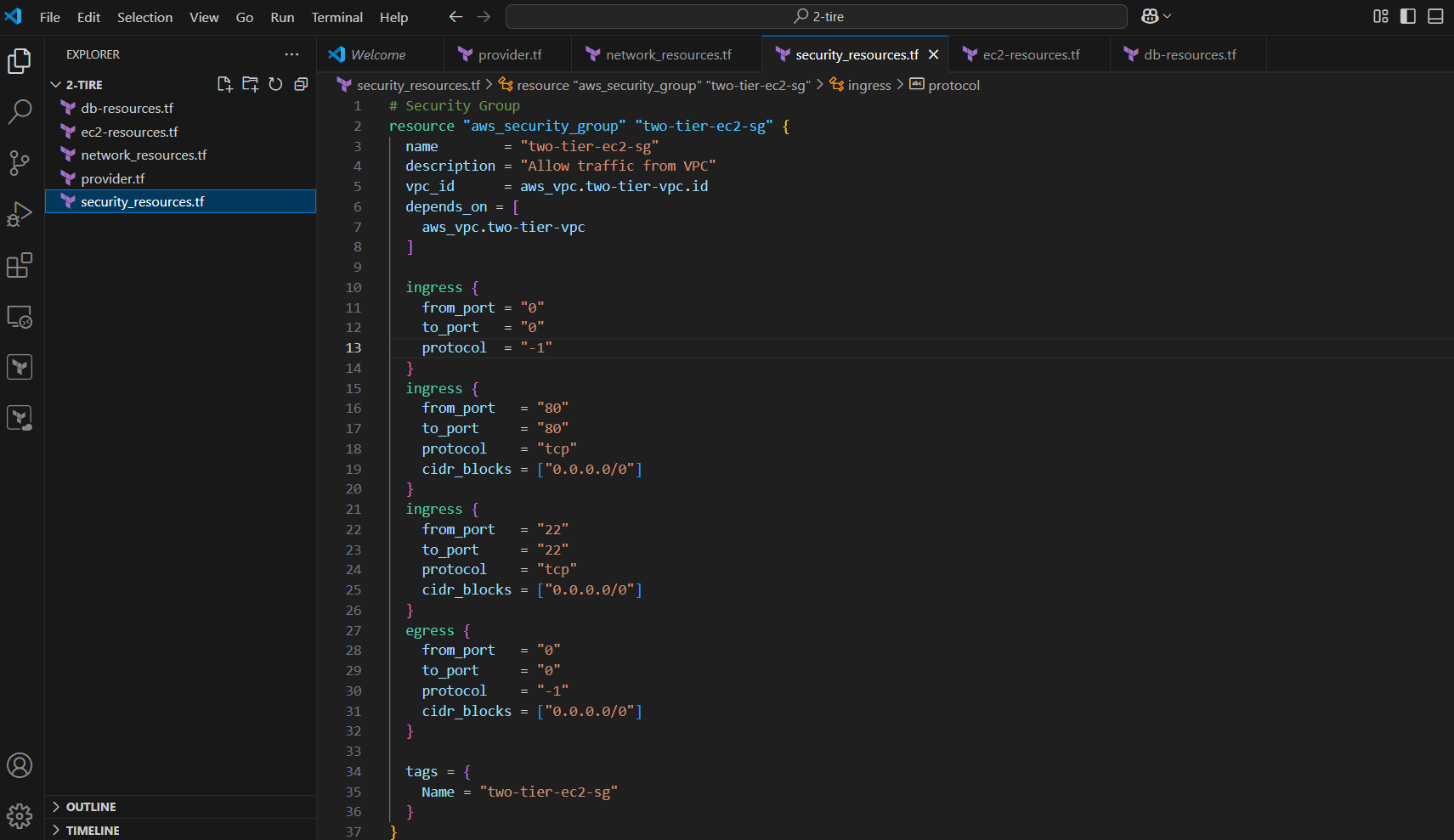
STEP 4: Create security_resources.tf file.
# Security Group
resource "aws_security_group" "two-tier-ec2-sg" {
  name        = "two-tier-ec2-sg"
  description = "Allow traffic from VPC"
  vpc_id      = aws_vpc.two-tier-vpc.id
  depends_on = [
    aws_vpc.two-tier-vpc
  ]

  ingress {
    from_port = "0"
    to_port   = "0"
    protocol  = "-1"
  }
  ingress {
    from_port   = "80"
    to_port     = "80"
    protocol    = "tcp"
    cidr_blocks = ["0.0.0.0/0"]
  }
  ingress {
    from_port   = "22"
    to_port     = "22"
    protocol    = "tcp"
    cidr_blocks = ["0.0.0.0/0"]
  }
  egress {
    from_port   = "0"
    to_port     = "0"
    protocol    = "-1"
    cidr_blocks = ["0.0.0.0/0"]
  }

  tags = {
    Name = "two-tier-ec2-sg"
  }
}

# Load balancer security group
resource "aws_security_group" "two-tier-alb-sg" {
  name        = "two-tier-alb-sg"
  description = "load balancer security group"
  vpc_id      = aws_vpc.two-tier-vpc.id
  depends_on = [
    aws_vpc.two-tier-vpc
  ]


  ingress {
    from_port   = "0"
    to_port     = "0"
    protocol    = "-1"
    cidr_blocks = ["0.0.0.0/0"]
  }
  egress {
    from_port   = "0"
    to_port     = "0"
    protocol    = "-1"
    cidr_blocks = ["0.0.0.0/0"]
  }


  tags = {
    Name = "two-tier-alb-sg"
  }
}

# Database tier Security gruop
resource "aws_security_group" "two-tier-db-sg" {
  name        = "two-tier-db-sg"
  description = "allow traffic from internet"
  vpc_id      = aws_vpc.two-tier-vpc.id

  ingress {
    from_port       = 3306
    to_port         = 3306
    protocol        = "tcp"
    security_groups = [aws_security_group.two-tier-ec2-sg.id]
    cidr_blocks     = ["0.0.0.0/0"]
  }

  ingress {
    from_port       = 22
    to_port         = 22
    protocol        = "tcp"
    security_groups = [aws_security_group.two-tier-ec2-sg.id]
    cidr_blocks     = ["10.0.0.0/16"]
  }

  egress {
    from_port   = 0
    to_port     = 0
    protocol    = "-1"
    cidr_blocks = ["0.0.0.0/0"]
  }
}
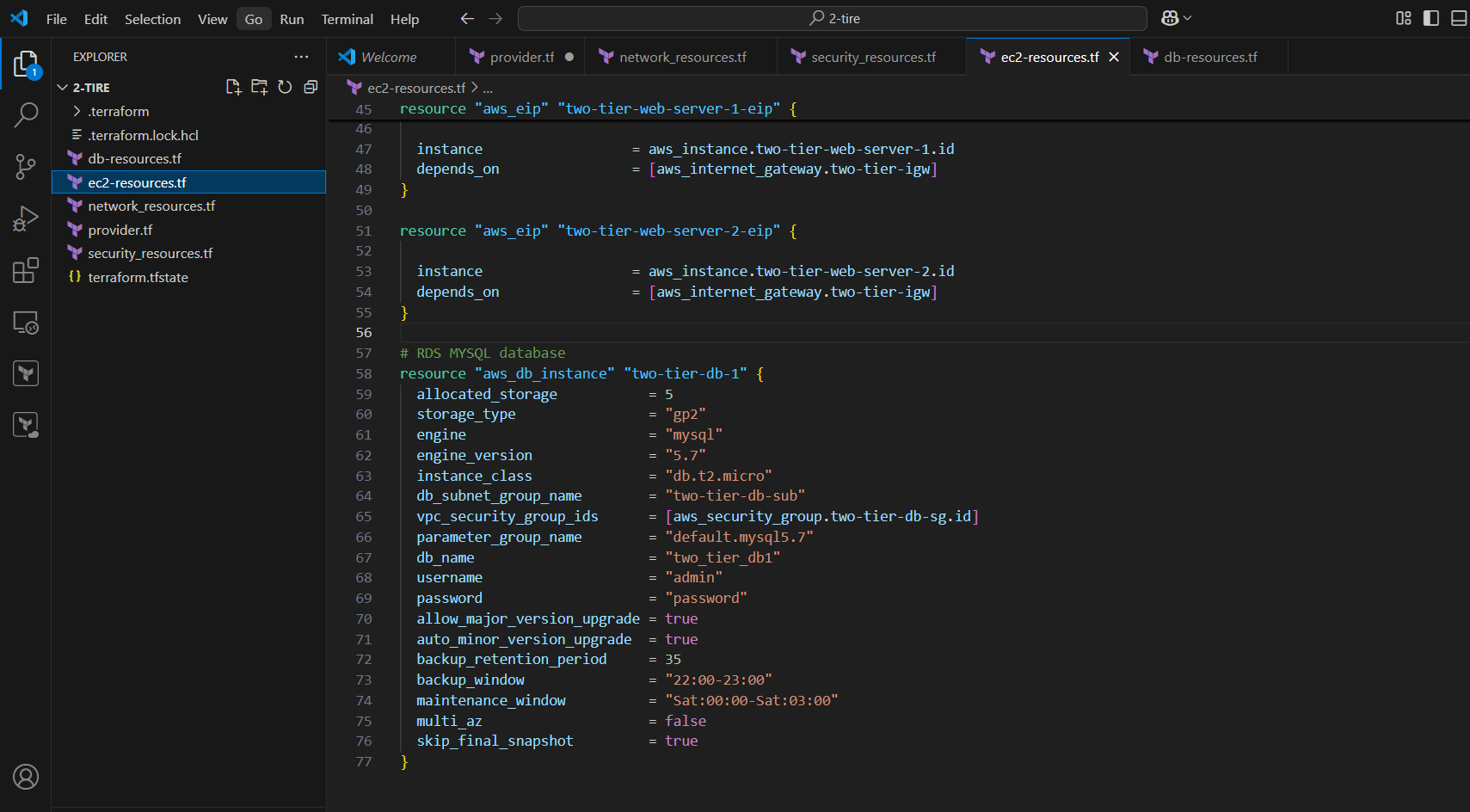
STEP 5: Create ec2-resources.tf file.
# Public subnet EC2 instance 1
resource "aws_instance" "two-tier-web-server-1" {
  ami             = "ami-0ca9fb66e076a6e32"
  instance_type   = "t2.micro"
  security_groups = [aws_security_group.two-tier-ec2-sg.id]
  subnet_id       = aws_subnet.two-tier-pub-sub-1.id
  key_name   = "two-tier-key"

  tags = {
    Name = "two-tier-web-server-1"
  }

  user_data = <<-EOF
#!/bin/bash
sudo yum update -y
sudo amazon-linux-extras install nginx1 -y
sudo systemctl enable nginx
sudo systemctl start nginx
EOF
}

# Public subnet  EC2 instance 2
resource "aws_instance" "two-tier-web-server-2" {
  ami             = "ami-0ca9fb66e076a6e32"
  instance_type   = "t2.micro"
  security_groups = [aws_security_group.two-tier-ec2-sg.id]
  subnet_id       = aws_subnet.two-tier-pub-sub-2.id
  key_name   = "two-tier-key"

  tags = {
    Name = "two-tier-web-server-2"
  }

  user_data = <<-EOF
#!/bin/bash
sudo yum update -y
sudo amazon-linux-extras install nginx1 -y
sudo systemctl enable nginx
sudo systemctl start nginx
EOF
}

#EIP

resource "aws_eip" "two-tier-web-server-1-eip" {

  instance                  = aws_instance.two-tier-web-server-1.id
  depends_on                = [aws_internet_gateway.two-tier-igw]
}

resource "aws_eip" "two-tier-web-server-2-eip" {

  instance                  = aws_instance.two-tier-web-server-2.id
  depends_on                = [aws_internet_gateway.two-tier-igw]
}
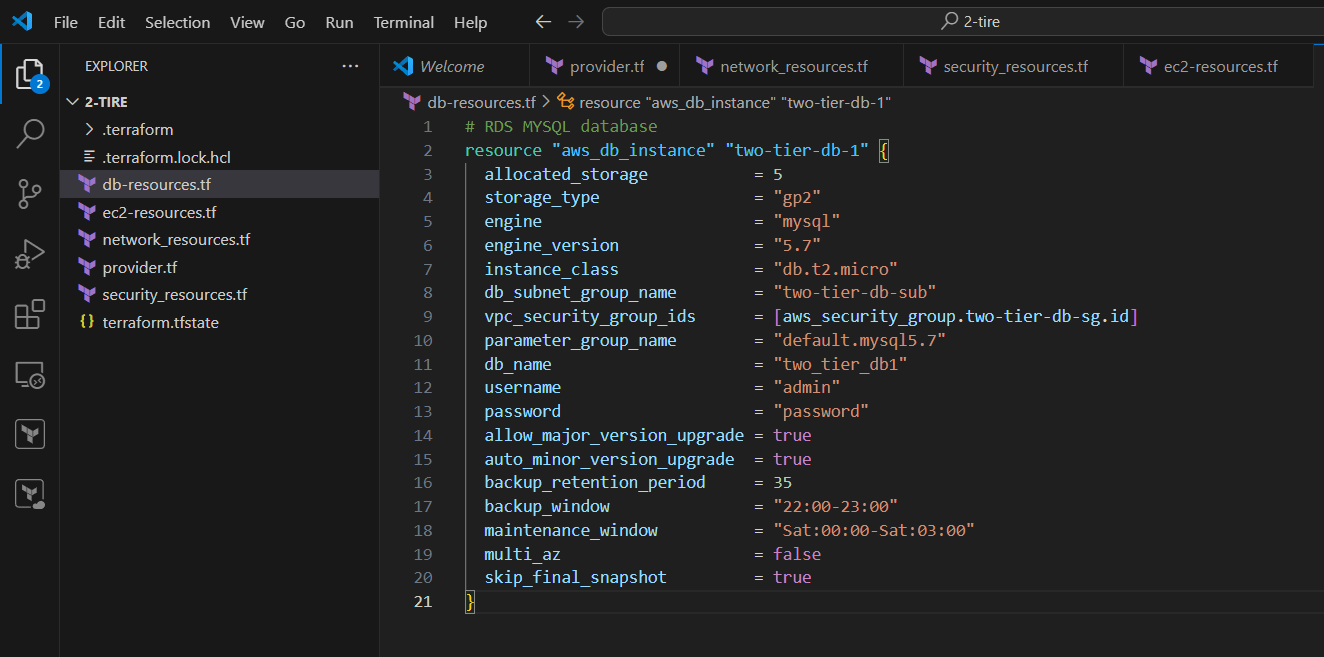
STEP 6: Create db-resources.tf file.
# RDS MYSQL database
resource "aws_db_instance" "two-tier-db-1" {
  allocated_storage           = 5
  storage_type                = "gp2"
  engine                      = "mysql"
  engine_version              = "5.7"
  instance_class              = "db.t2.micro"
  db_subnet_group_name        = "two-tier-db-sub"
  vpc_security_group_ids      = [aws_security_group.two-tier-db-sg.id]
  parameter_group_name        = "default.mysql5.7"
  db_name                     = "two_tier_db1"
  username                    = "admin"
  password                    = "password"
  allow_major_version_upgrade = true
  auto_minor_version_upgrade  = true
  backup_retention_period     = 35
  backup_window               = "22:00-23:00"
  maintenance_window          = "Sat:00:00-Sat:03:00"
  multi_az                    = false
  skip_final_snapshot         = true
}
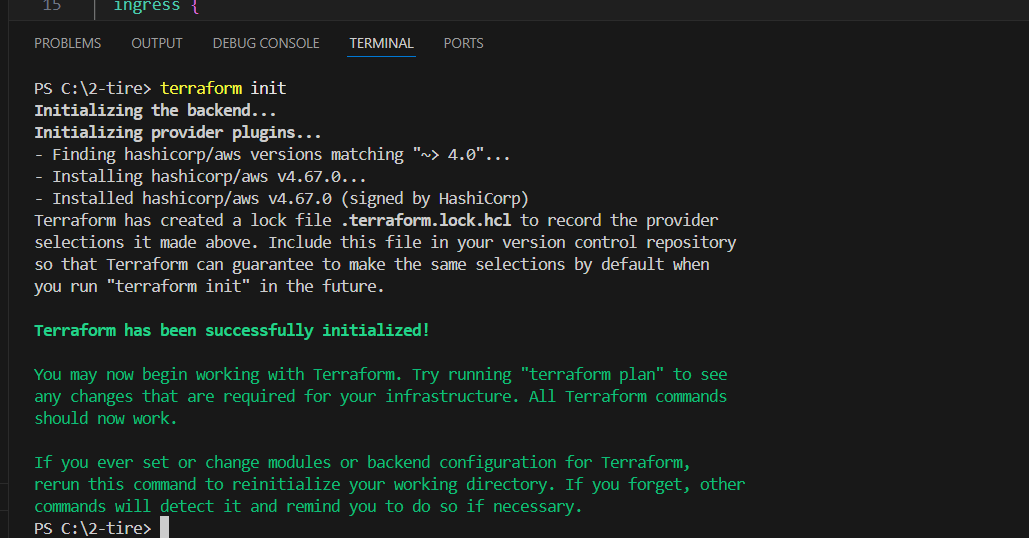
STEP 7: Go to the terminal.
STEP 8: Next, Enter the terraform plan command.
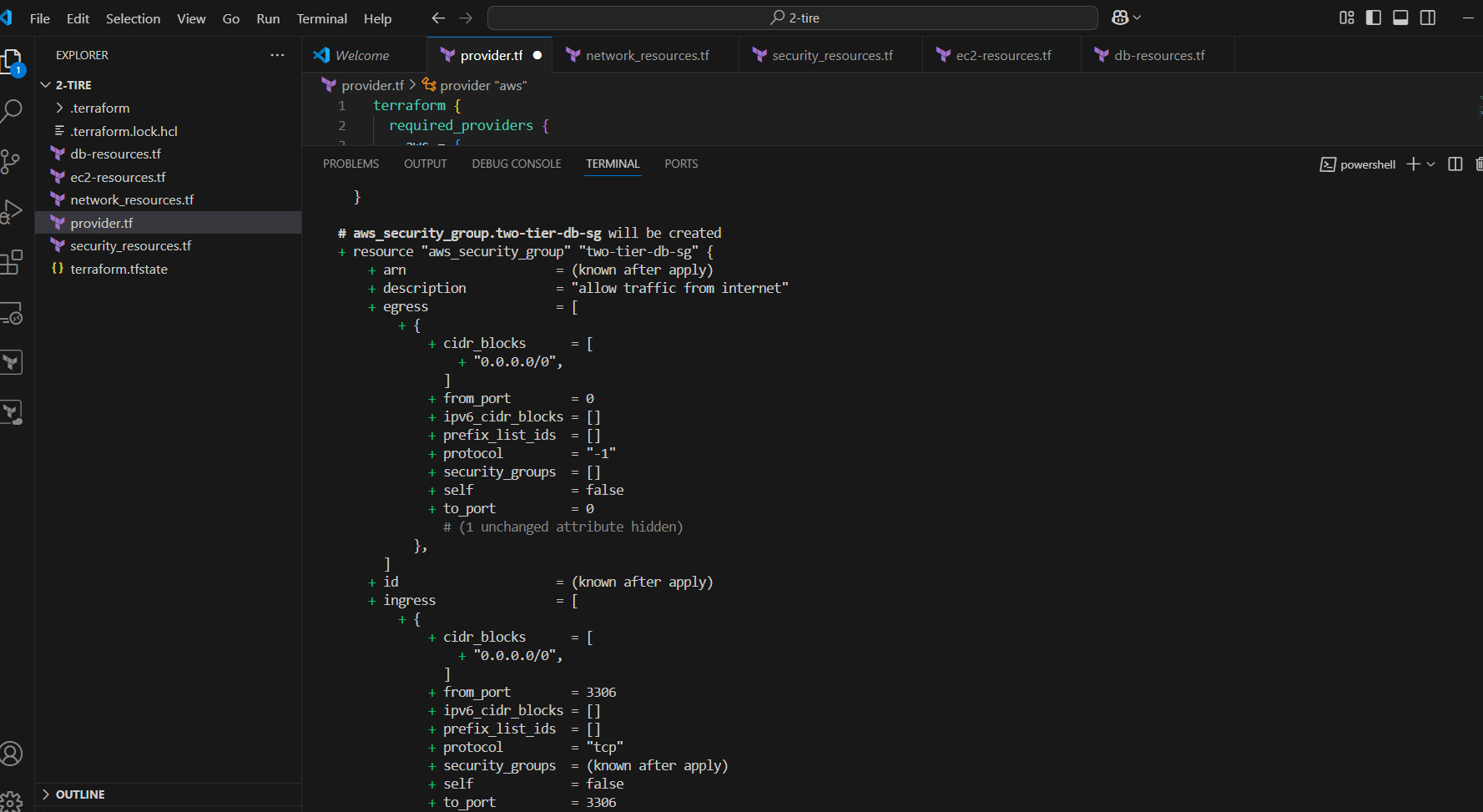
STEP 9: Enter terraform apply command.
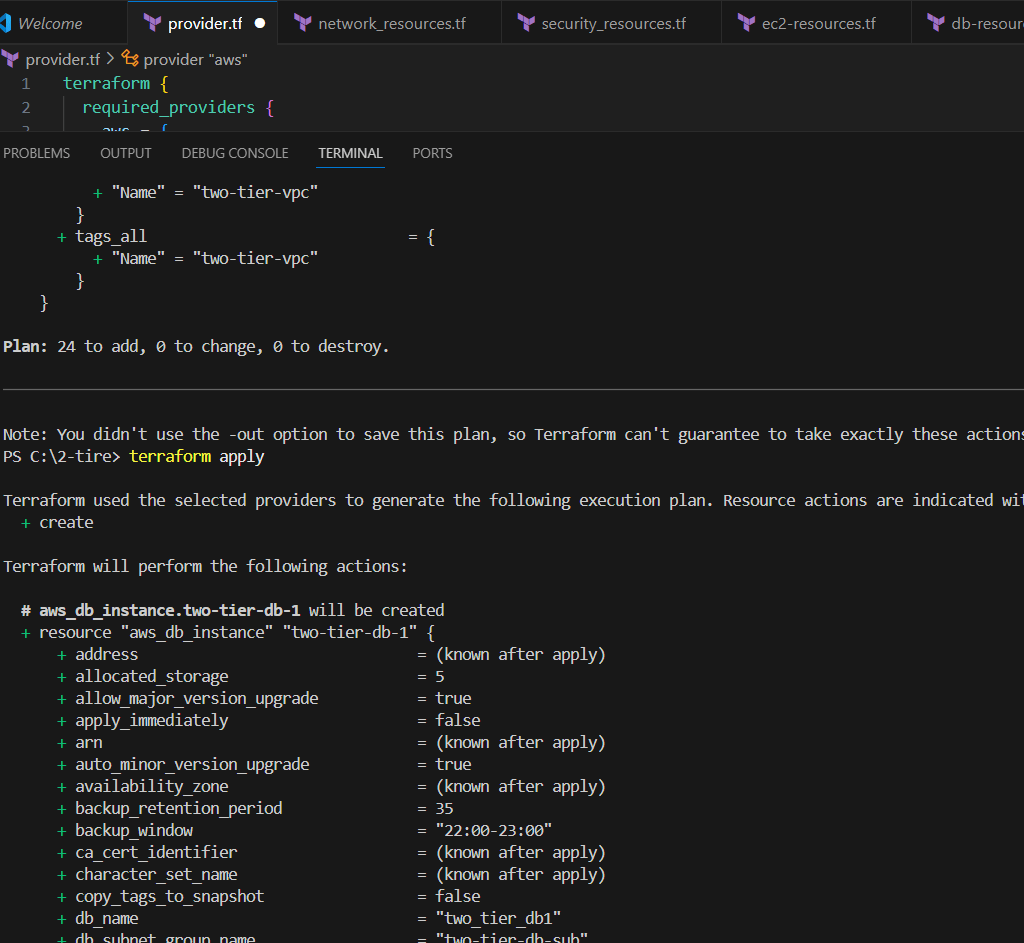
STEP 10: Now, go to AWS console.

By following this guide, you’ve successfully deployed a scalable and secure two-tier architecture on AWS using Terraform. This setup enables efficient management of resources and ensures flexibility for future expansion. Leveraging Terraform’s infrastructure-as-code capabilities not only streamlines the deployment process but also provides the consistency needed for a robust cloud environment. With this foundation in place, you can now customize and scale your architecture based on your specific requirements. Whether you’re building a simple web application or a more complex solution, Terraform and AWS offer the tools you need to grow and adapt with ease. Don’t forget to explore further Terraform modules and AWS services to enhance your architecture’s capabilities and ensure it meets your application’s evolving needs.

Jenkins is a popular open-source automation server used to automate the process of building, testing, and deploying software. Since Jenkins is often used in continuous integration/continuous delivery (CI/CD) pipelines, ensuring its security is crucial to avoid potential risks like unauthorized access to sensitive information, codebase tampering, or pipeline manipulation. Here are some important security concepts in Jenkins:

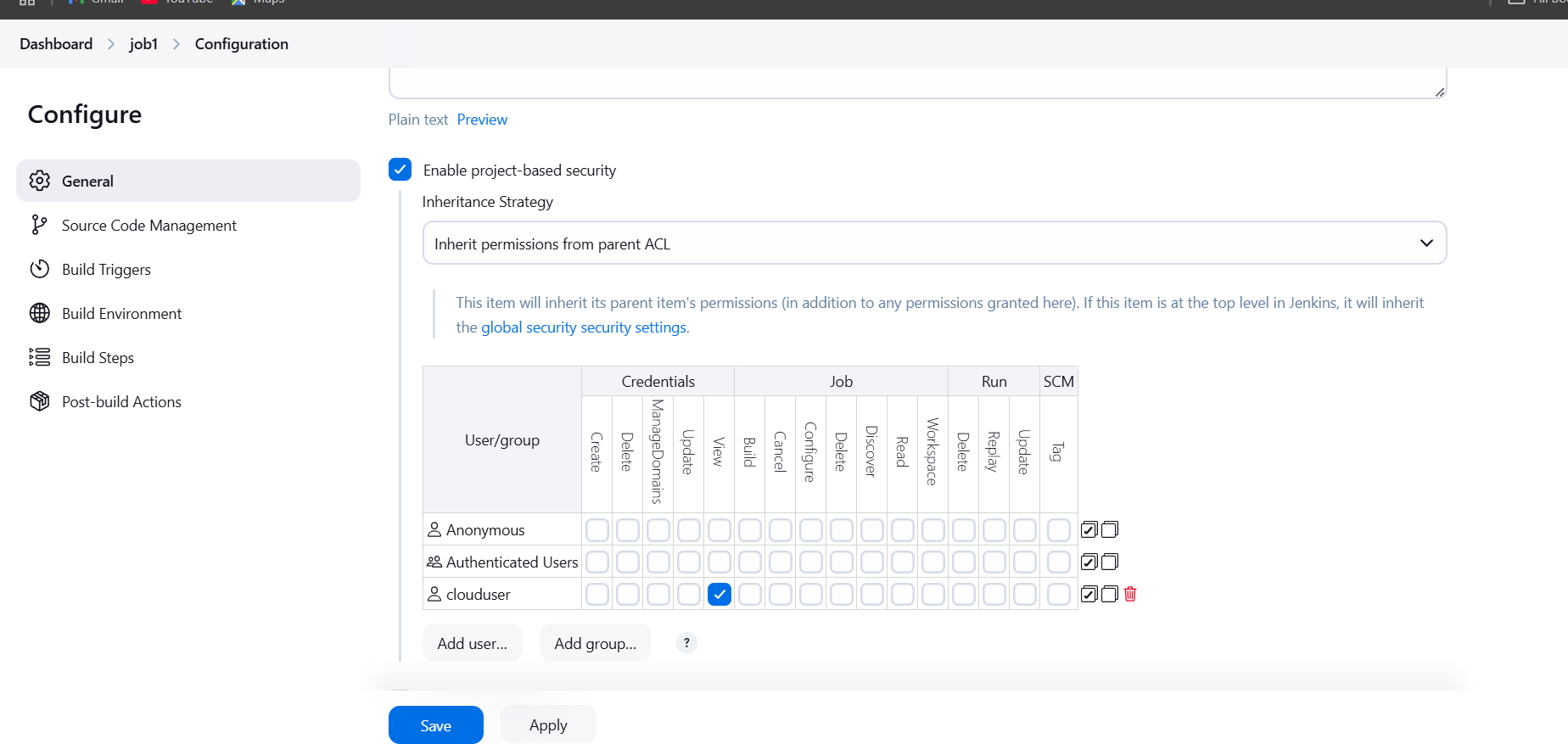
Project-based Matrix Authorization: This restricts permissions for specific jobs, not just the entire Jenkins instance, which adds an additional layer of security for sensitive projects.
Crowd or SSO: Jenkins supports using external identity management systems like Atlassian Crowd or single sign-on (SSO) integration for centralized user authentication.
Script Approval: Jenkins allows administrators to approve or block scripts running in the pipeline, such as Groovy scripts, which could potentially contain malicious code. Users need to explicitly approve certain scripts before they are allowed to run.
Secure Agents: If you use distributed agents (slave nodes), make sure to properly configure the agent security, ensuring that the master has secure communication with agents. The communication should also be encrypted using TLS.
Audit Logging: Jenkins provides a way to track all changes and actions performed in the system, such as job execution, user login, or configuration changes. It’s critical for identifying any suspicious activities or unauthorized actions.
Access Logs: Jenkins logs can be reviewed to track who accessed the system, when, and what actions were performed.
TLS/SSL Encryption: Jenkins supports enabling HTTPS for secure communication between users and the Jenkins master or between master and agents. This prevents eavesdropping on sensitive information such as credentials or pipeline outputs.
Secrets Management: Jenkins has a “Credentials Plugin” that helps manage secrets, such as API tokens or passwords, safely. These credentials can be stored in the Jenkins Credentials Store and used securely within jobs and pipelines.
Plugin Management: Jenkins allows the installation of plugins, which can sometimes introduce security vulnerabilities if not regularly updated. It’s important to maintain and update plugins to the latest secure versions.
Plugin Permission: Plugins should be audited for security and configured to ensure that they don’t introduce vulnerabilities. Certain plugins may grant escalated privileges, so care should be taken when installing them.
Disable Unnecessary Features: To reduce the attack surface, Jenkins administrators should disable features they don’t need (e.g., the Jenkins CLI or remote access API) to prevent unwanted access or malicious activities.
CSRF Protection: Jenkins includes Cross-Site Request Forgery (CSRF) protection, which helps prevent attackers from tricking authenticated users into performing actions on Jenkins without their consent.
Enable Security Settings: Features like “Enable security” in Jenkins should always be turned on, enforcing users to authenticate before using Jenkins.
Regular backups should be scheduled for Jenkins configurations, including jobs, plugins, and credentials, so that you can restore your Jenkins instance in case of an attack or failure.
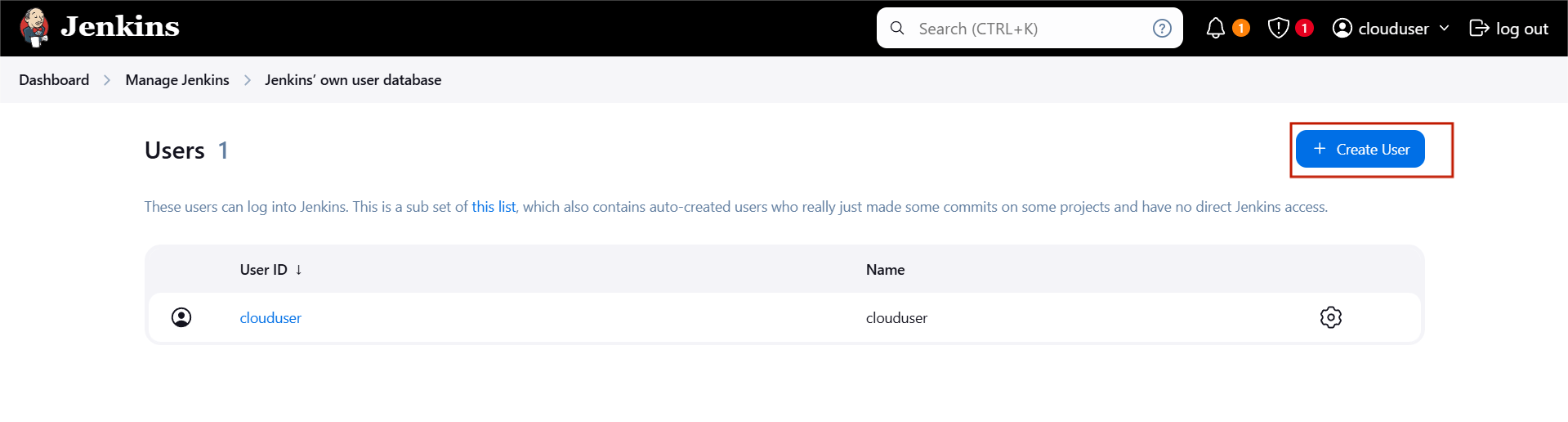
STEP 1: Create a new user on jenkins.
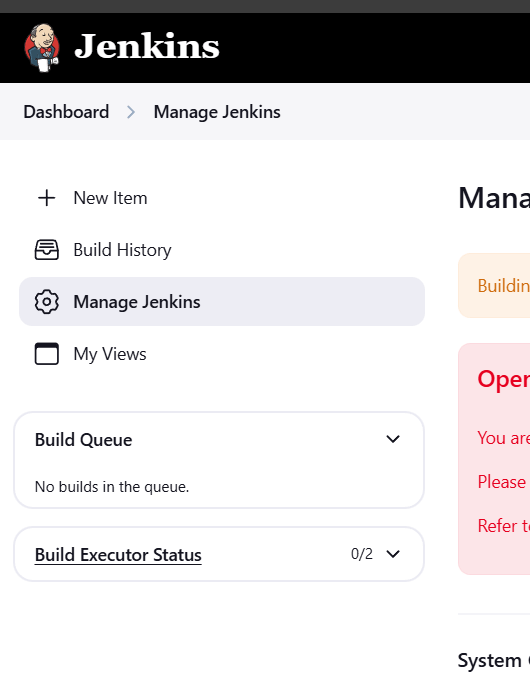
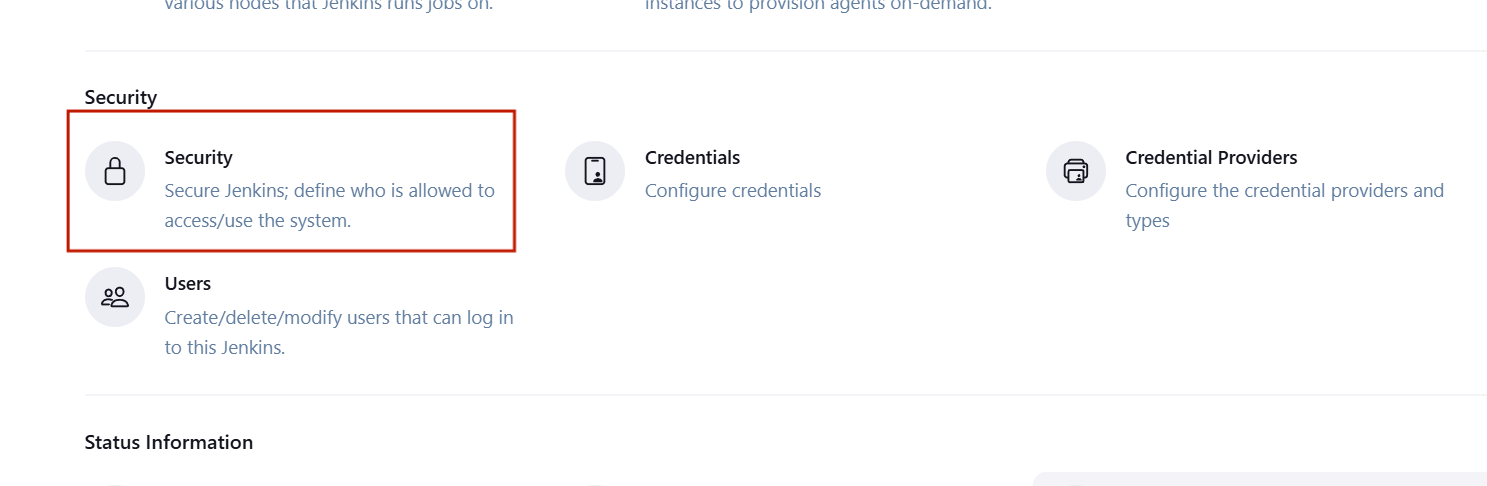
STEP 2: Click on create a user.
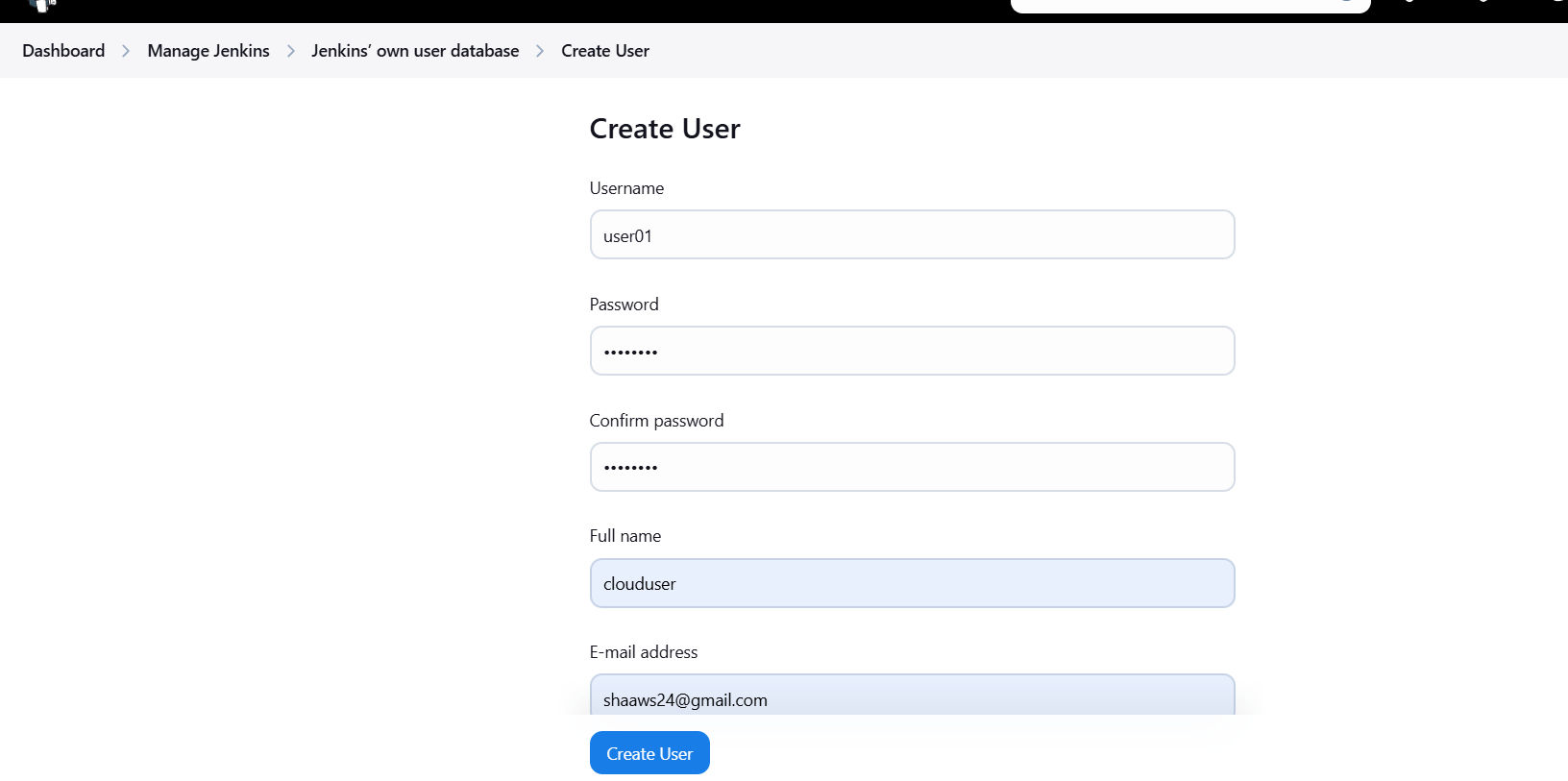
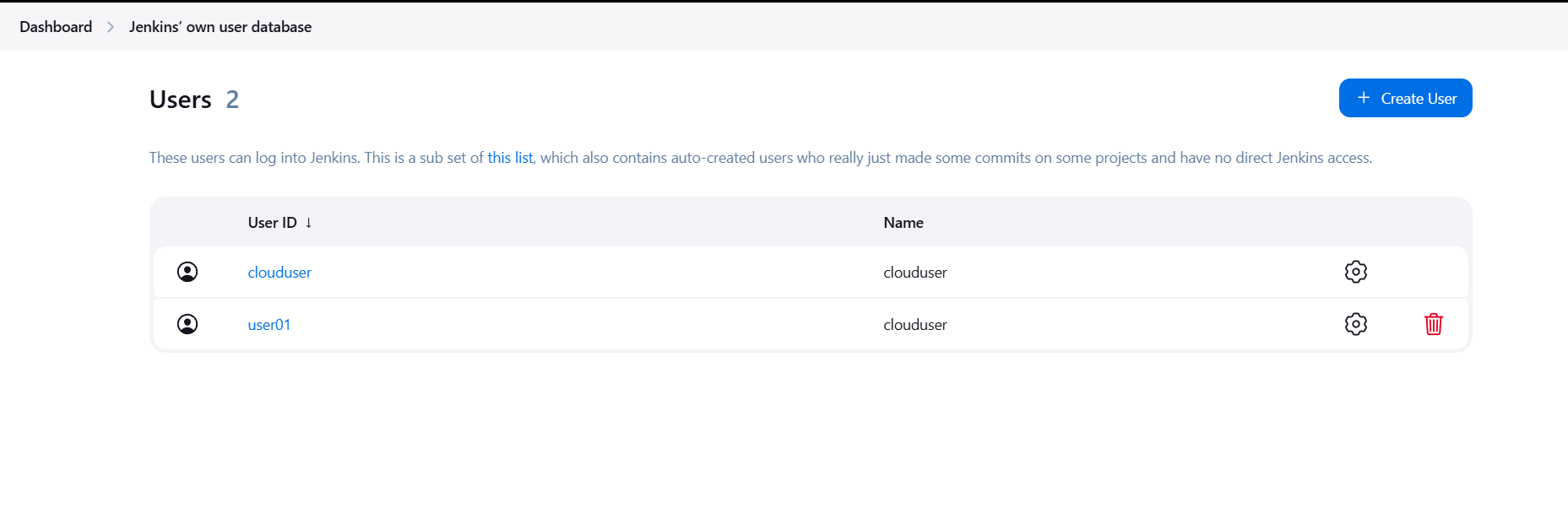
STEP 3: . You will see the user created by you.
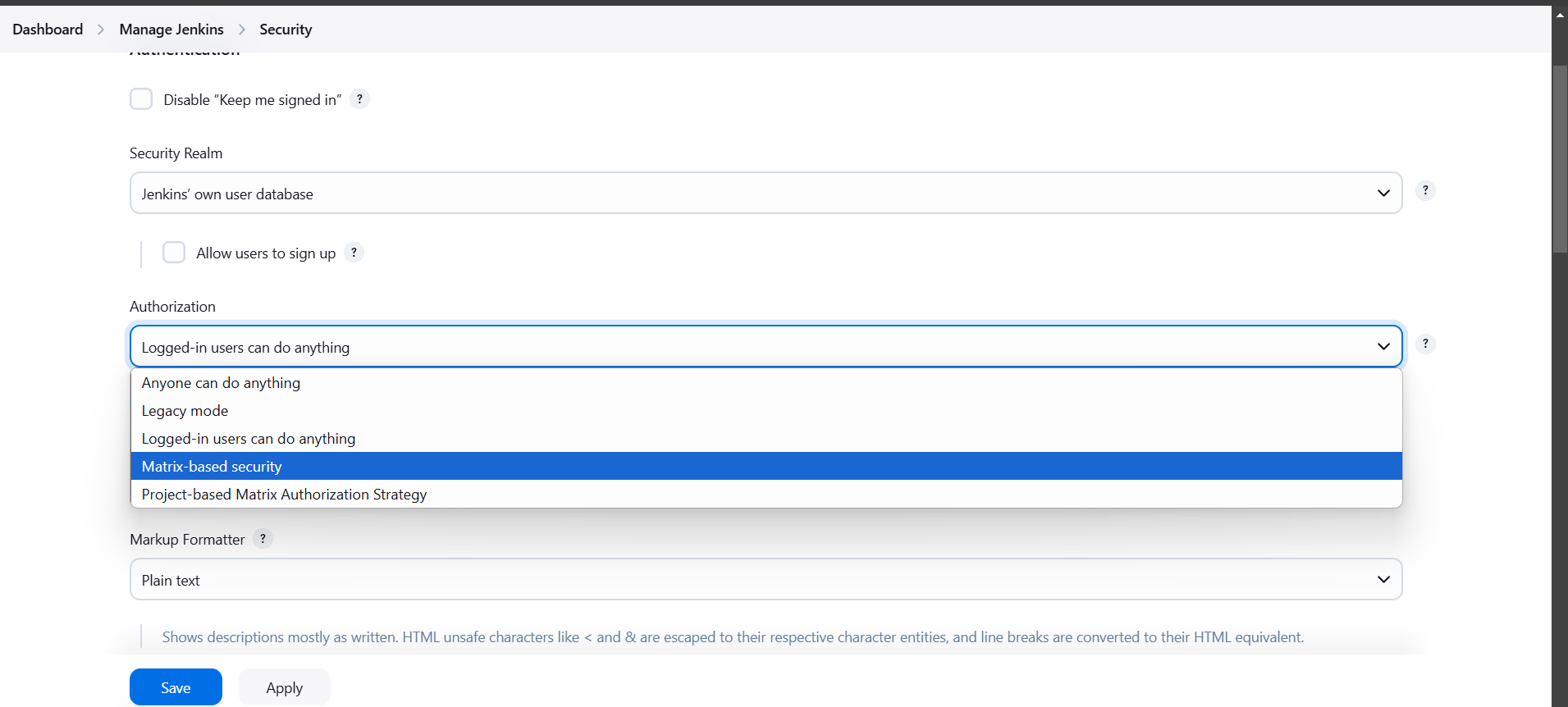
STEP 4: Configure Security for the new user.
STEP 5: Click on add user.
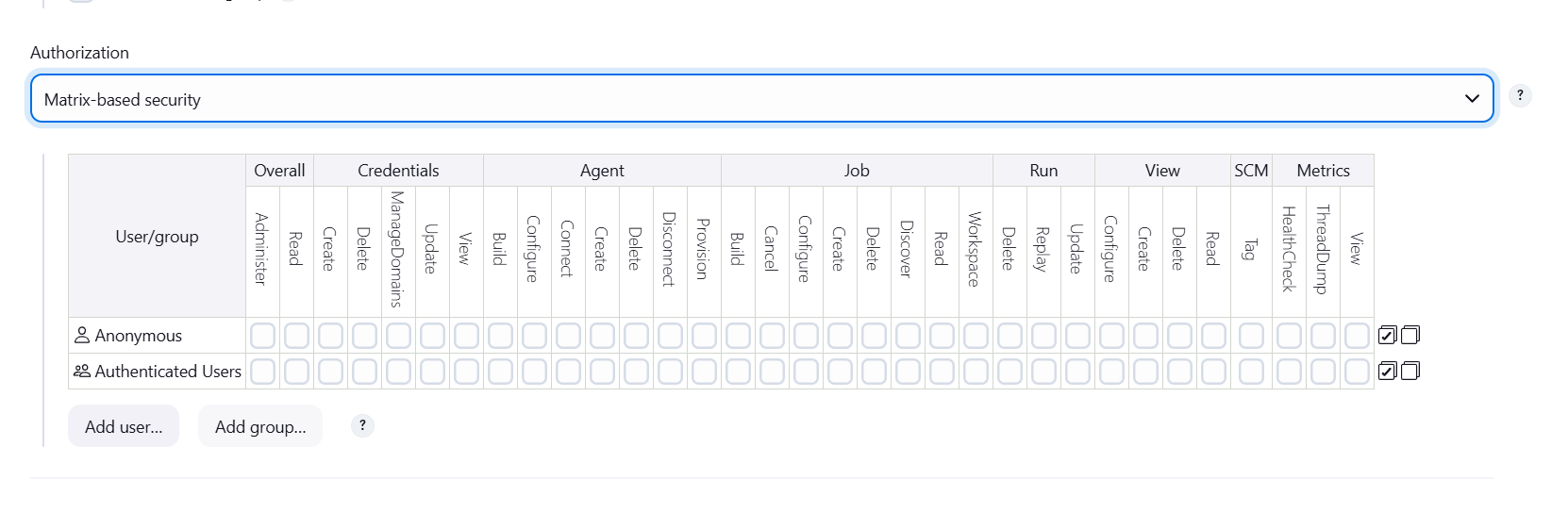
STEP 6: Enter user ID.
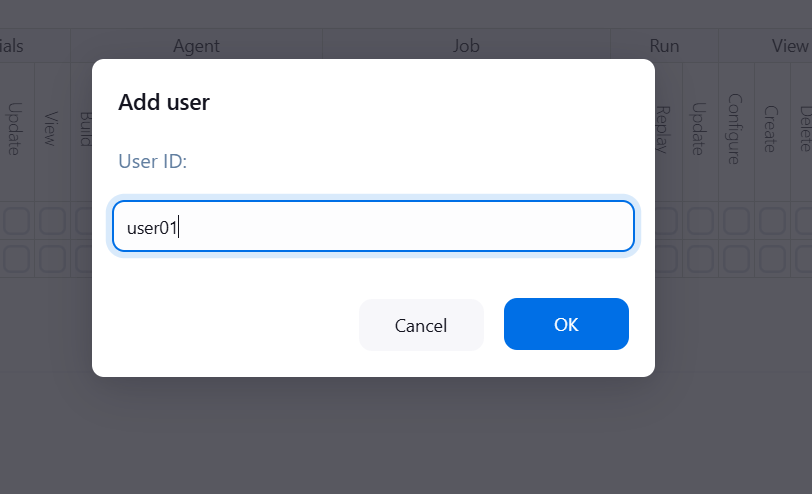
STEP 7: Add your created user.

STEP 8: Logout your Jenkins dashboard.
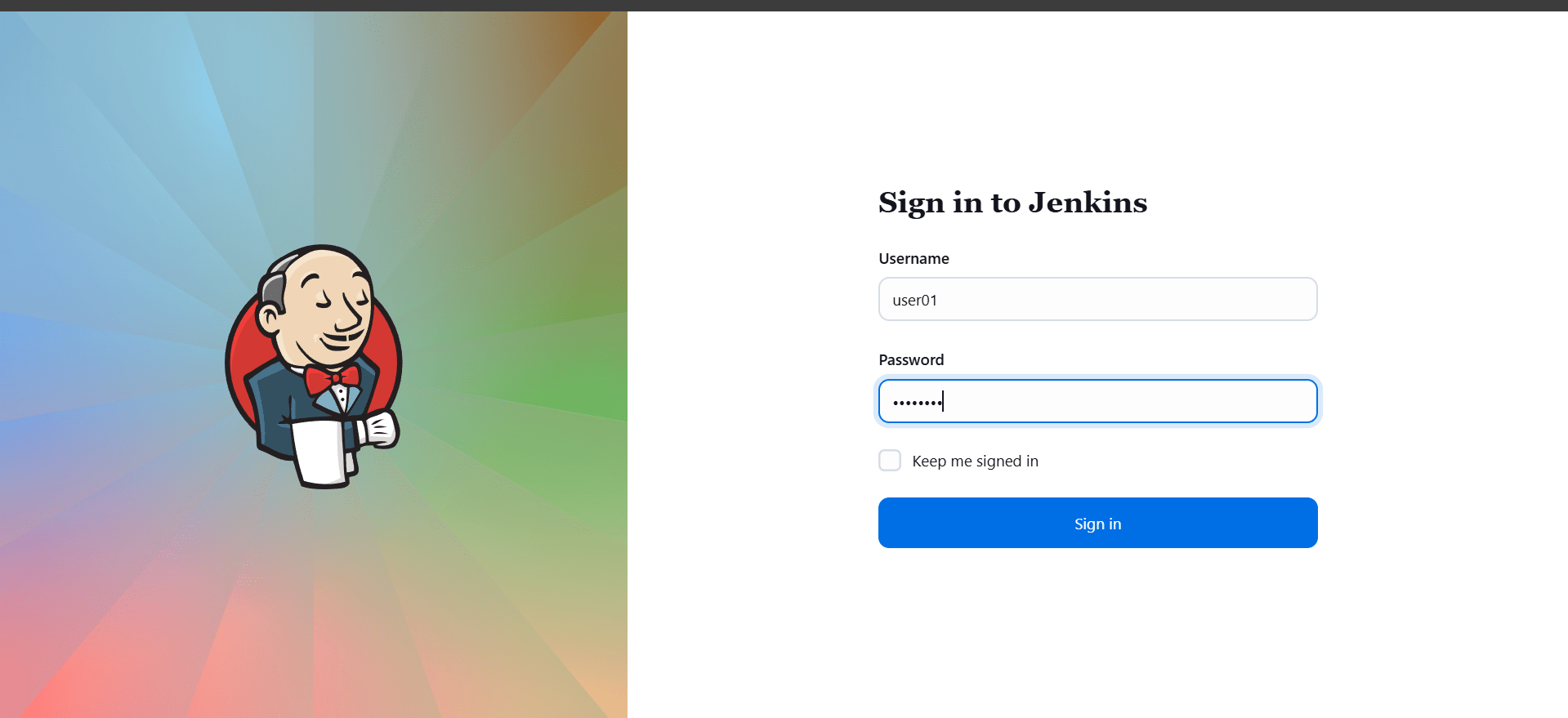
STEP 9: Now go back to the initial account and give the permission to the user01.
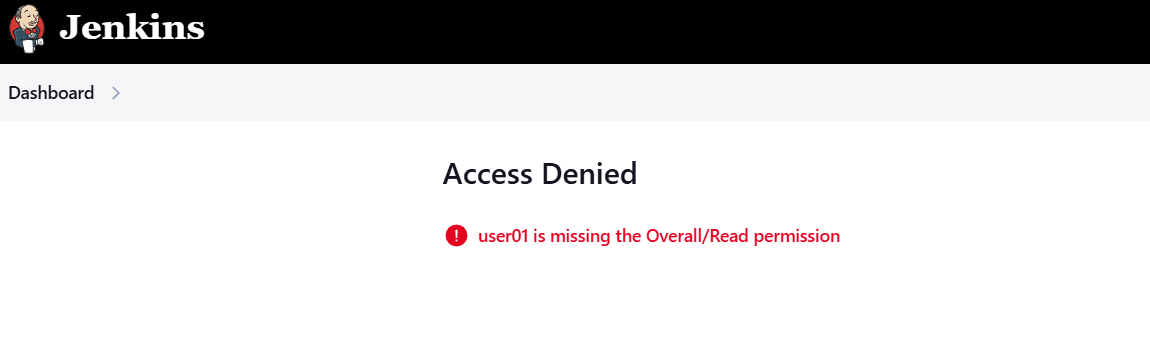
STEP 10: Click on read to your created user.
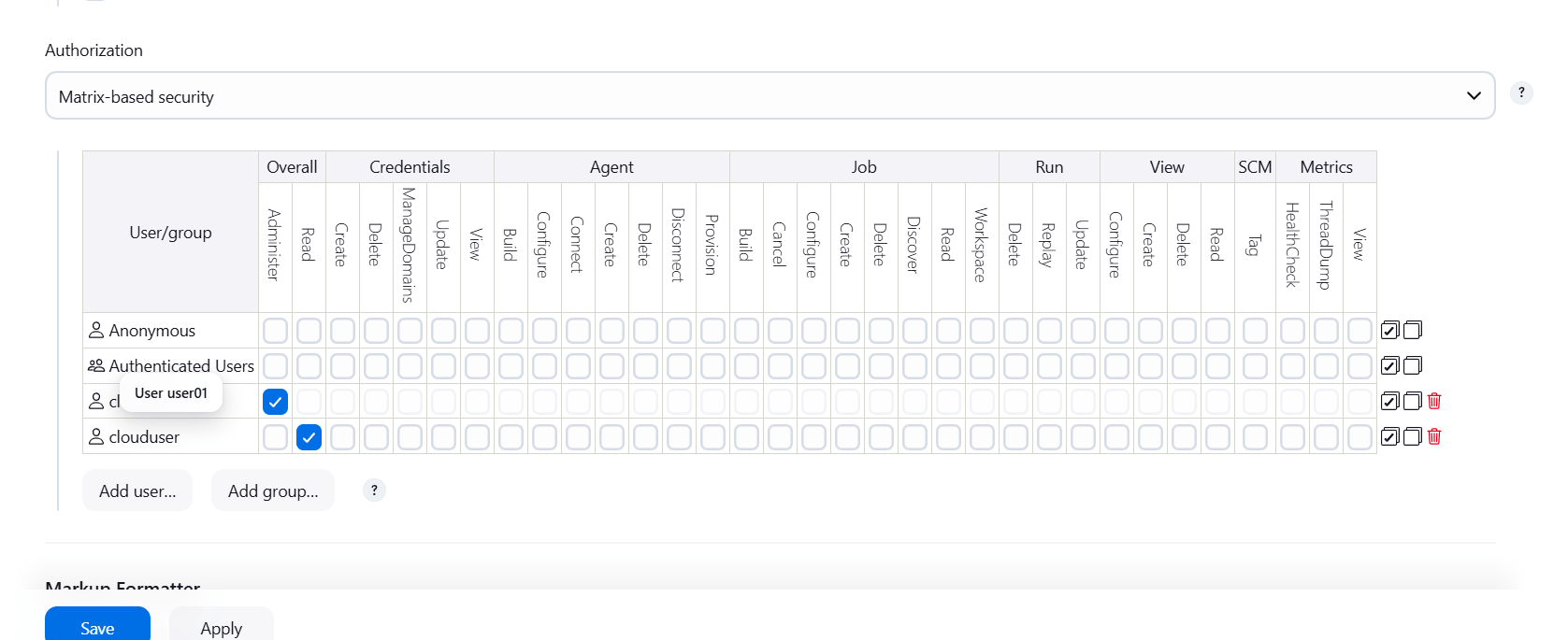
STEP 11: Now login to your created user.
Create Project–based Matrix Authorization Strategy
STEP 1:Go to manage Jenkins and Click on security.
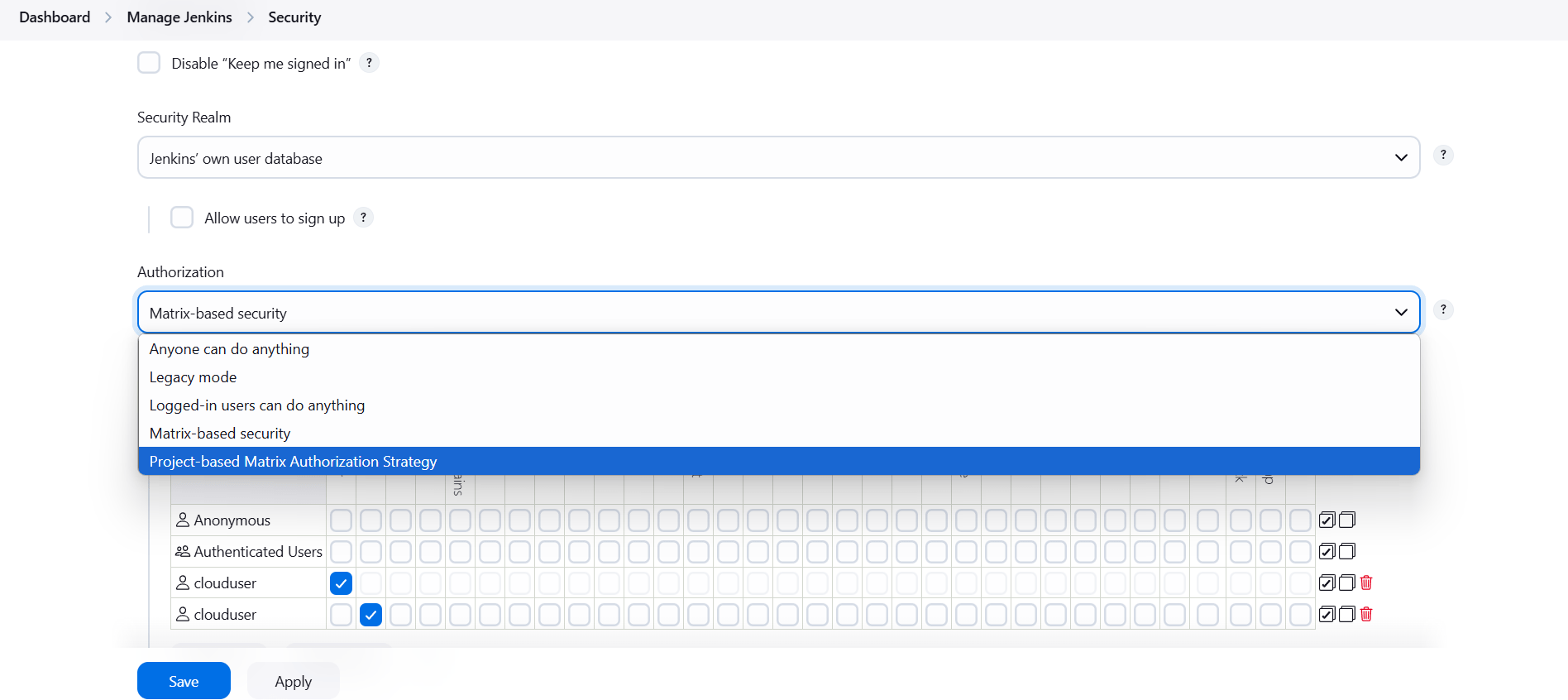
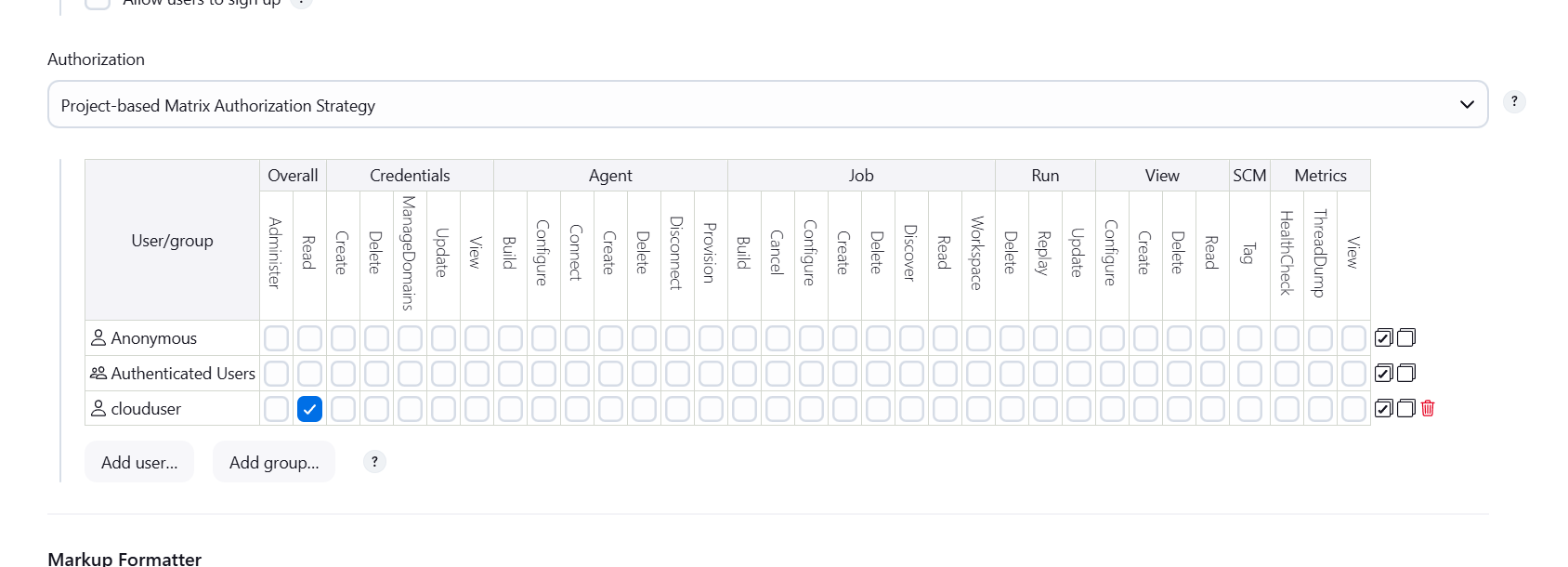
STEP 2: Click on read option.
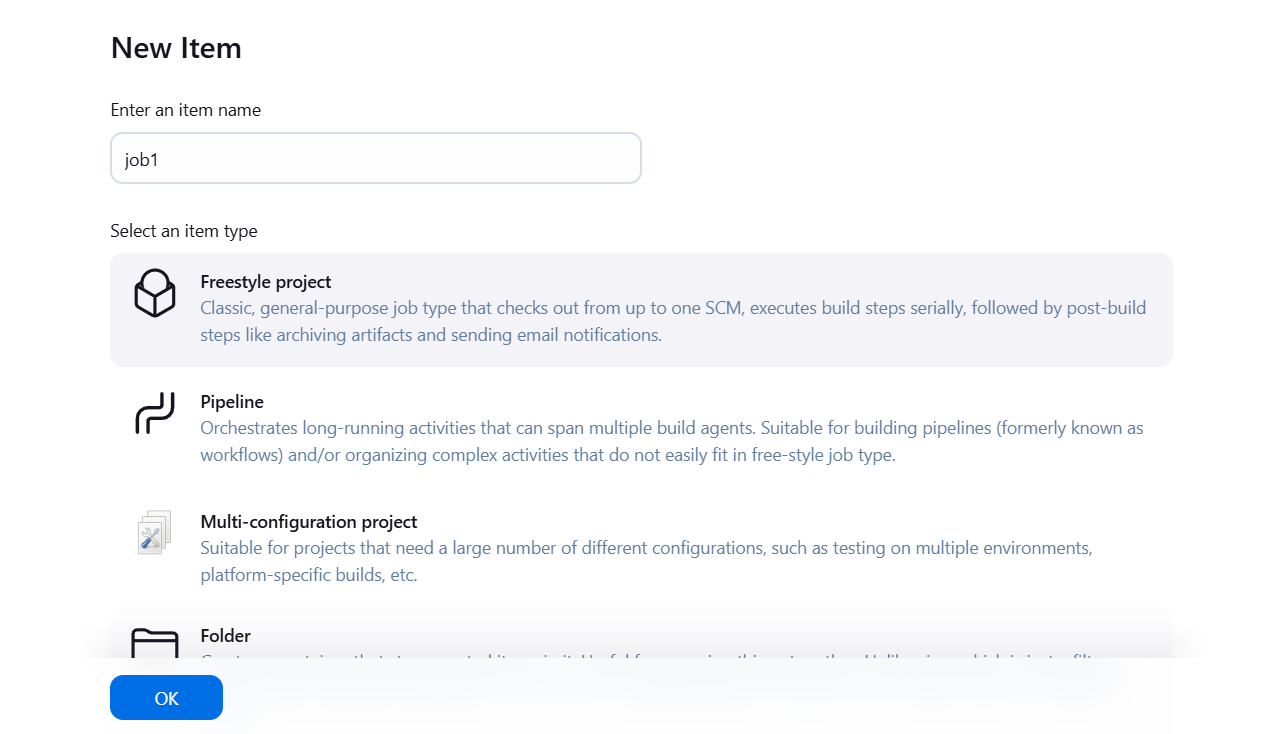
STEP 3: Create a new job.
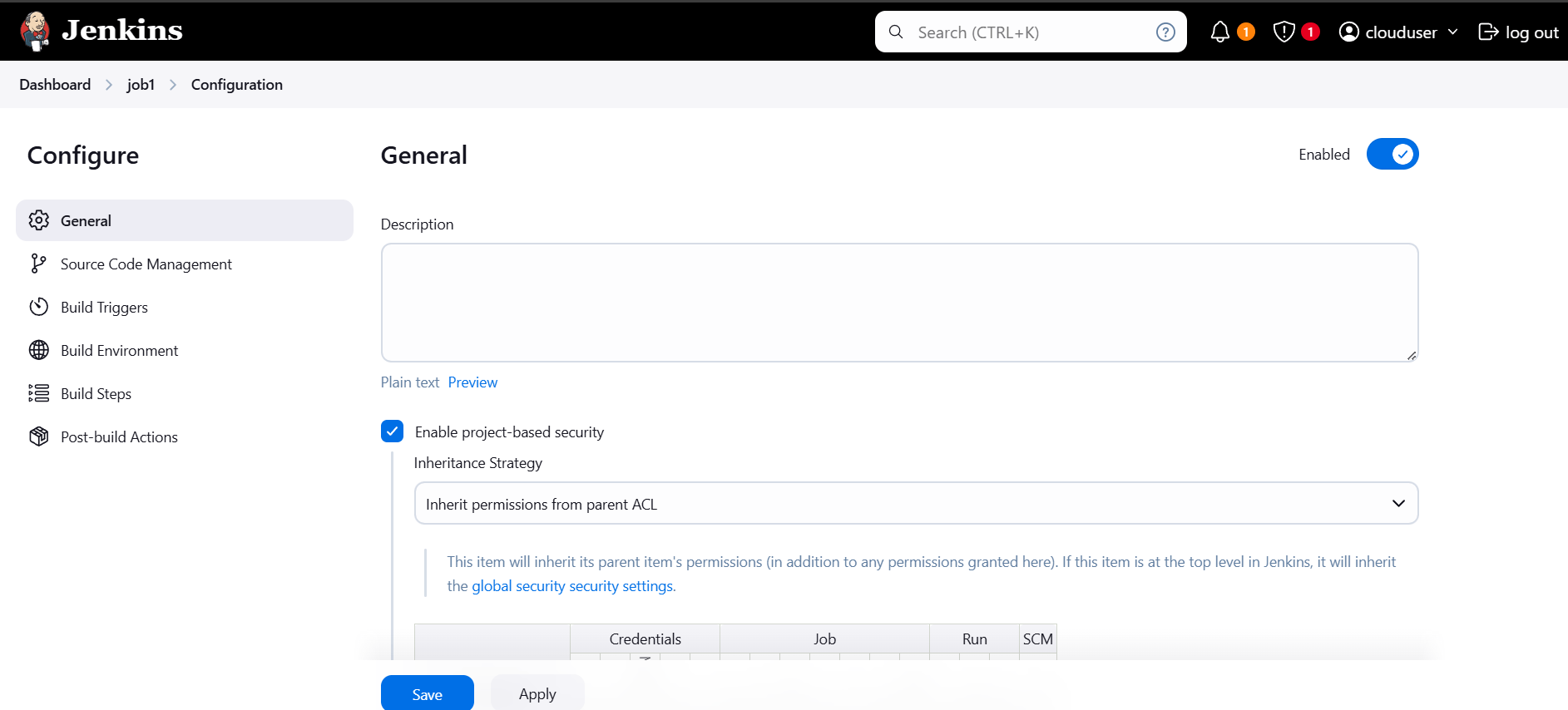
STEP 4: Enable project-based security.
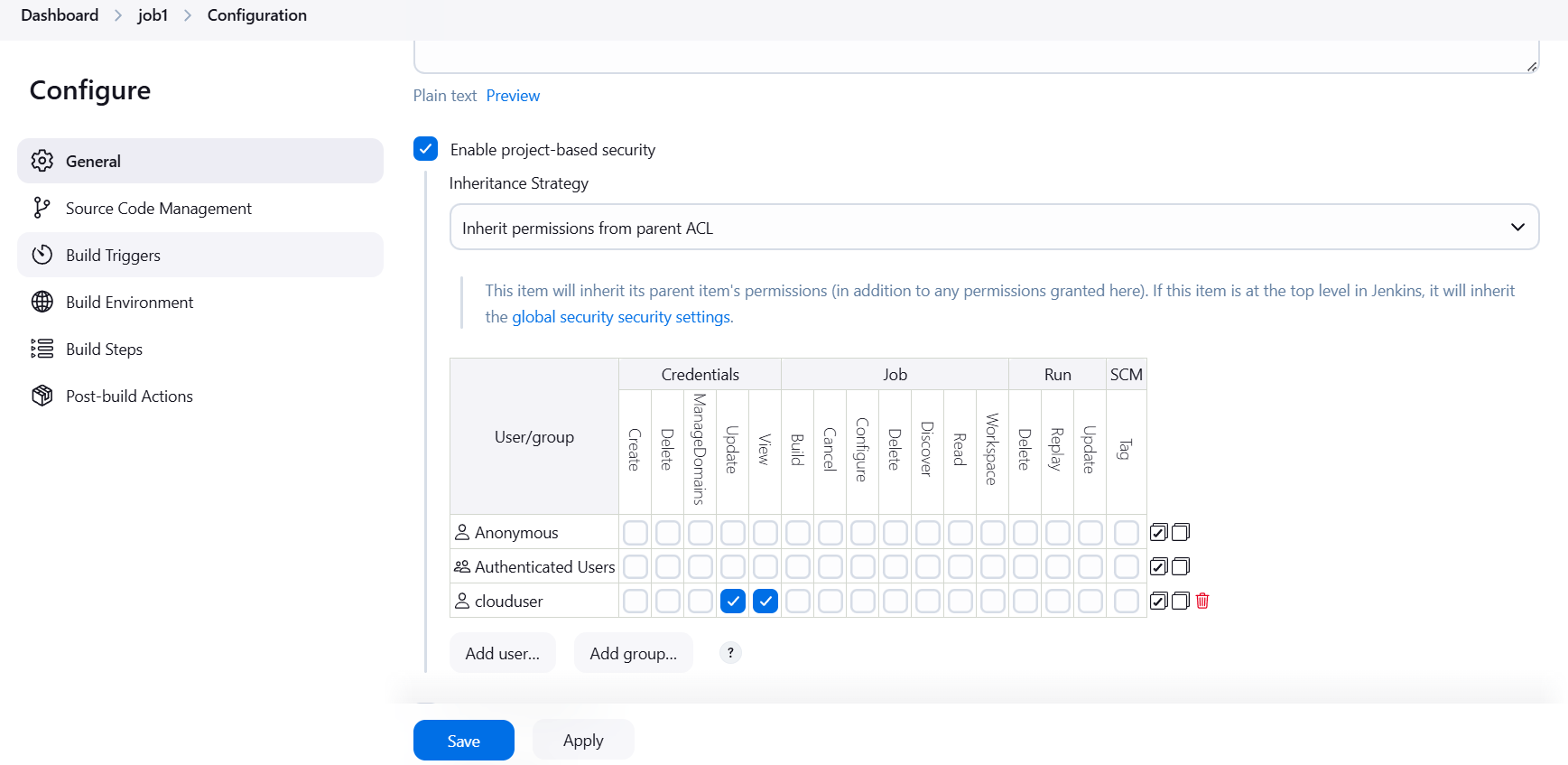
STEP 5: Click on build now.
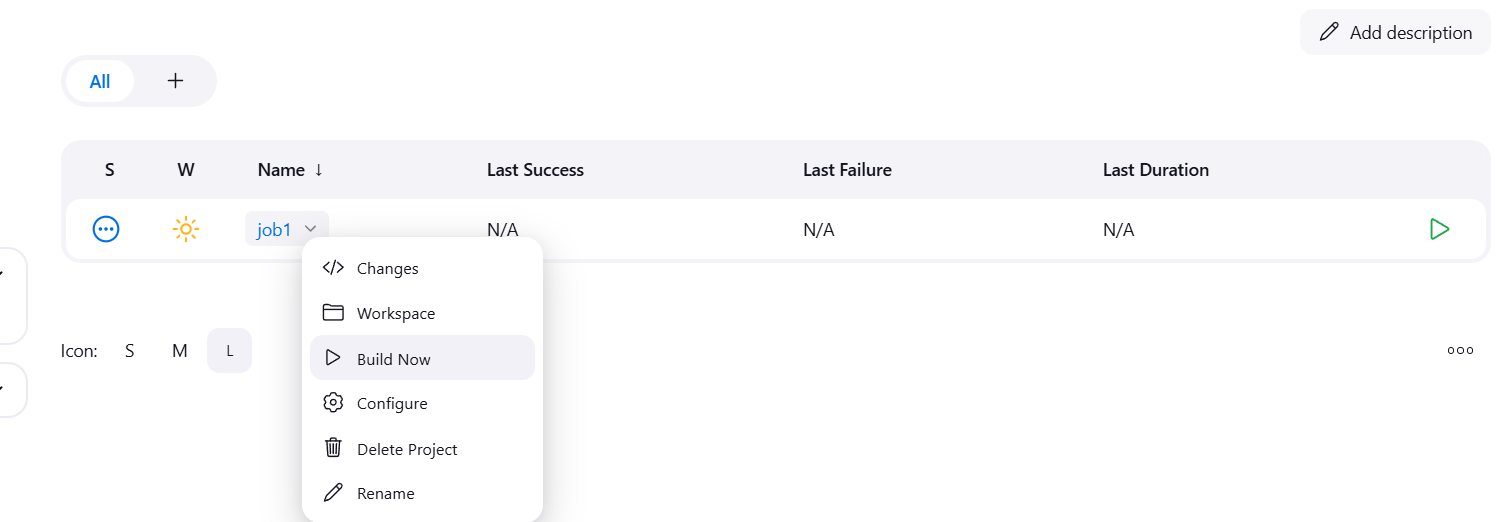
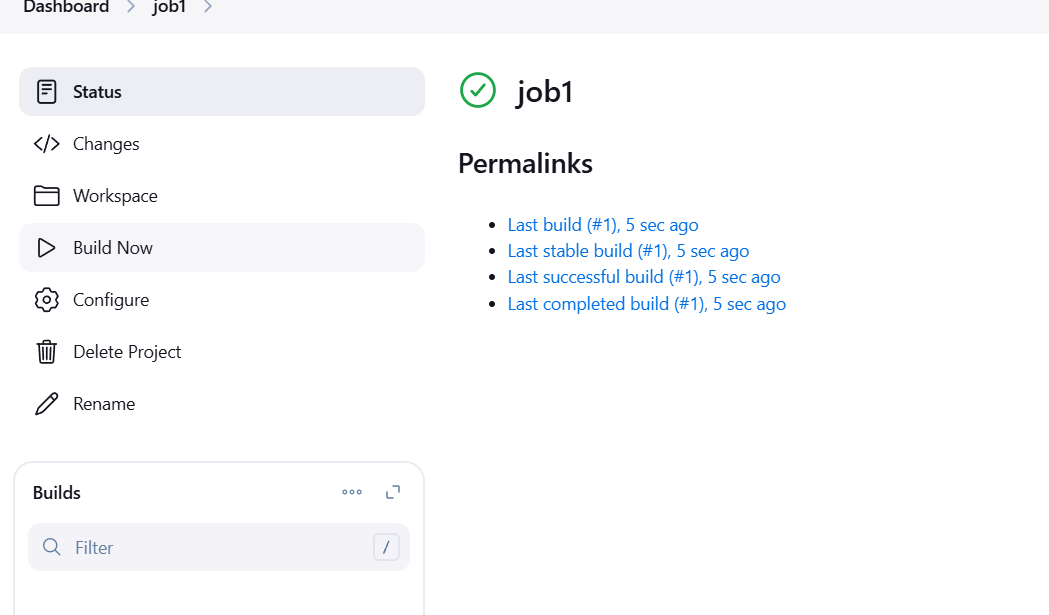

You have successfully configured the Matrix-Based Authorization Strategy, granting specific permissions to different users and groups, thereby ensuring controlled access to Jenkins resources.
You have successfully implemented the Project-Based Matrix Authorization Strategy, enabling project-specific permissions for users and groups, ensuring secure and tailored access to Jenkins jobs and pipelines.
By configuring these security practices correctly, Jenkins can be used safely to automate CI/CD processes without exposing sensitive information or opening the system to unauthorized access.

AWS Global View refers to a feature provided by Amazon Web Services (AWS) that allows you to get a unified, global perspective of your AWS resources across all regions and accounts. This feature helps you manage and monitor the global infrastructure in a centralized way, providing visibility into the health, performance, and status of your AWS services worldwide.
Global Resource Visibility: It lets you view resources and services that are spread across multiple AWS regions and accounts, helping you understand how your resources are distributed and interconnected.
Global Dashboards: Provides an overview of your AWS accounts, services, and infrastructure from a single dashboard, which can be helpful in large-scale environments where resources are spread across different geographical locations.
Unified Management: AWS Global View allows you to manage your AWS resources from a high-level view, making it easier to track your AWS usage, monitor billing and costs, and identify potential issues across your global footprint.
Compliance and Governance: Helps in ensuring that your resources adhere to compliance standards and governance policies by providing insights into resource configurations and deployments worldwide.

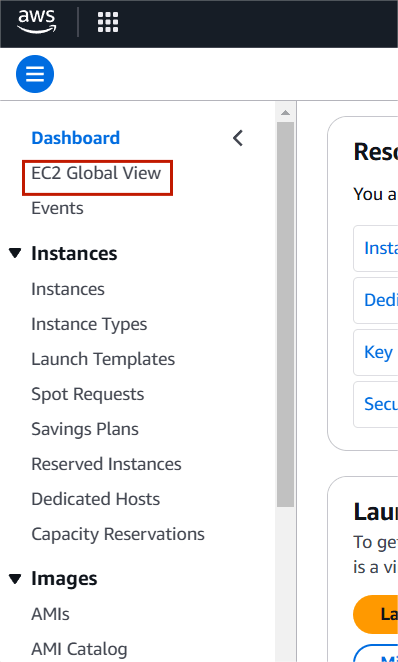
STEP 1: Go to EC2 instance, Click on EC2 Global View.
STEP 2: After Clicking on Global view you will see that all running instances in across the regions that they are running.
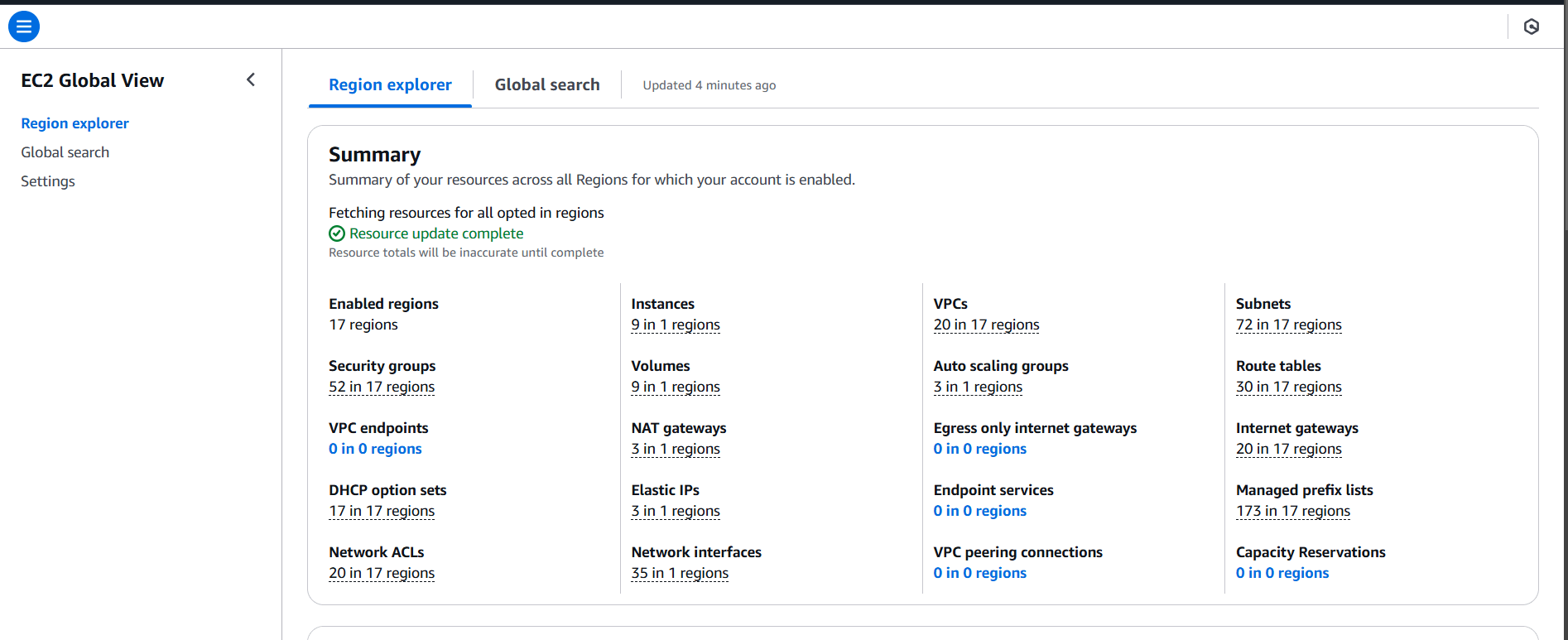
STEP 3: Click on view all.
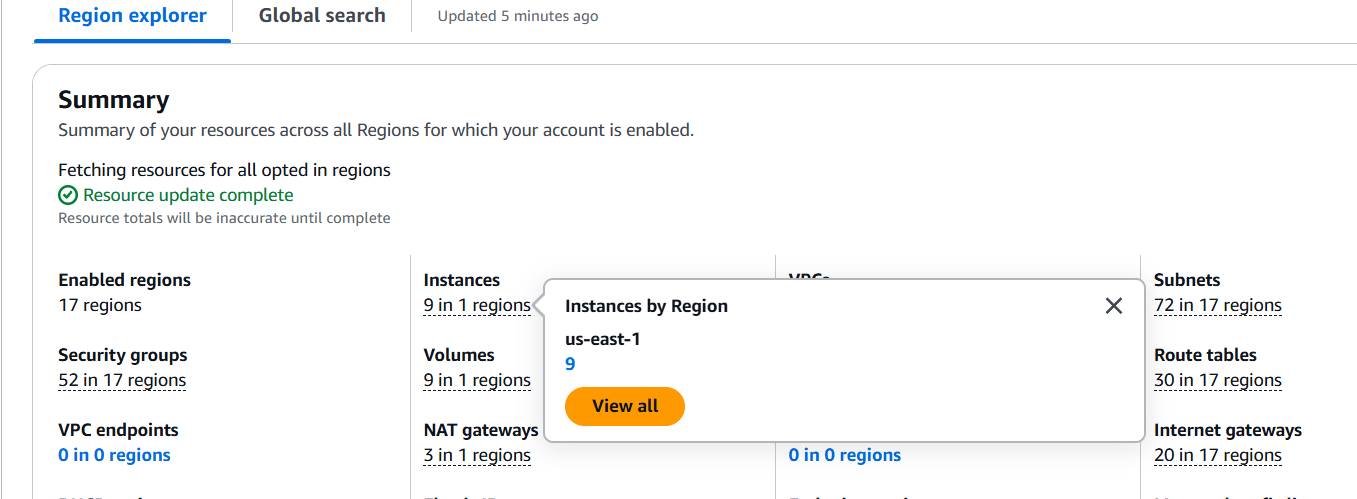
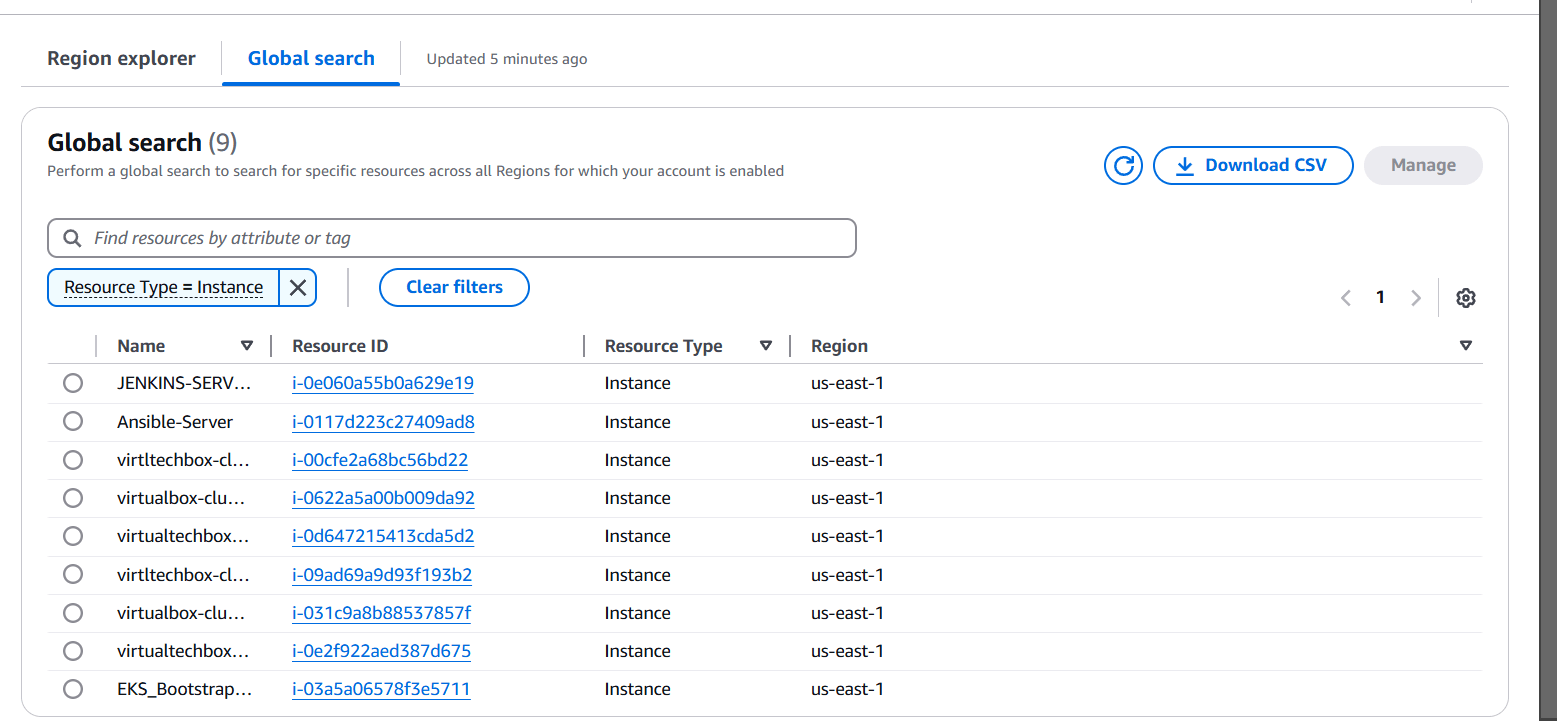
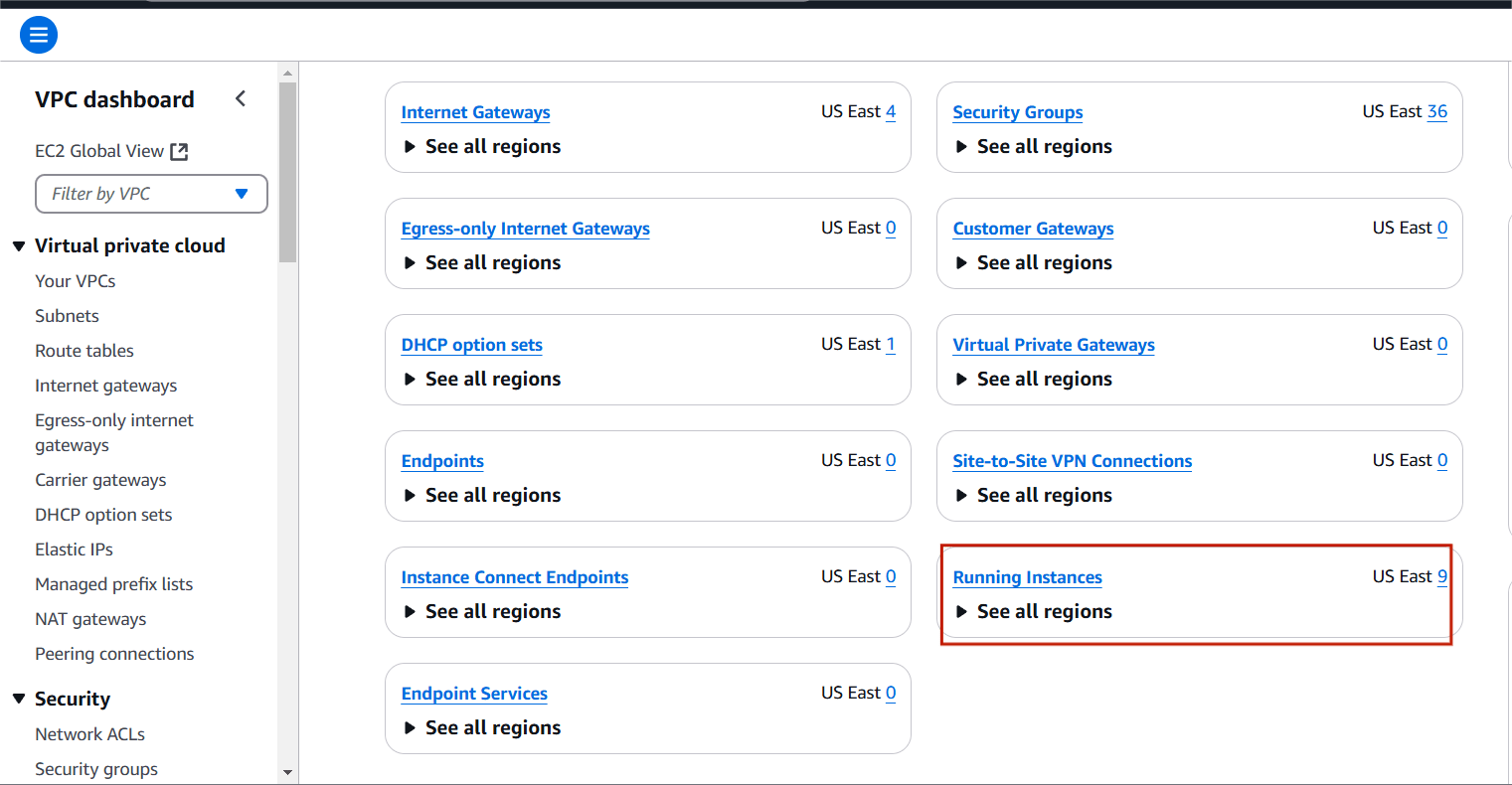
STEP 1: Go to VPC in Dashboard there you can see that ‘Running Instances’ Option.
STEP 1: Navigate the AWS Resource Groups.
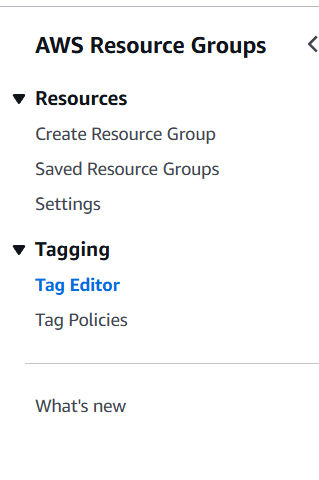
STEP 2: Select your resource type.
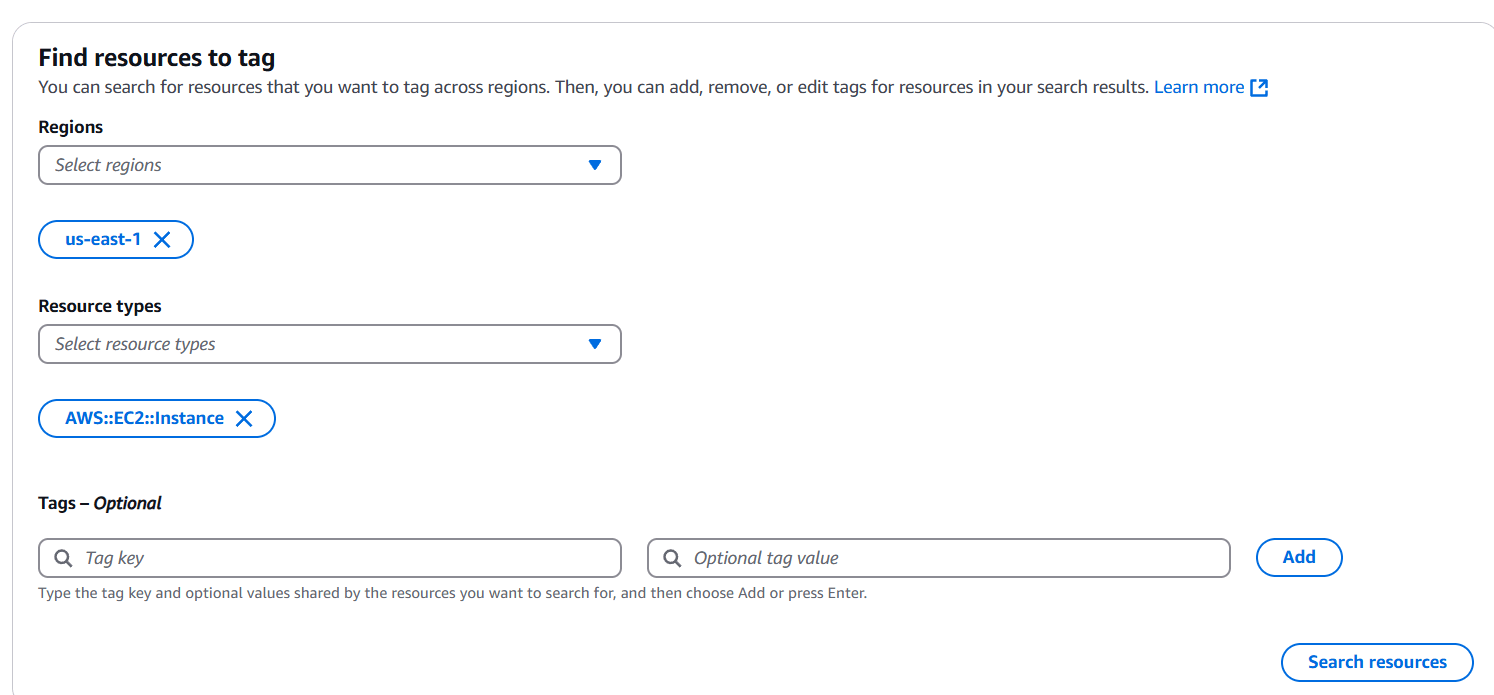
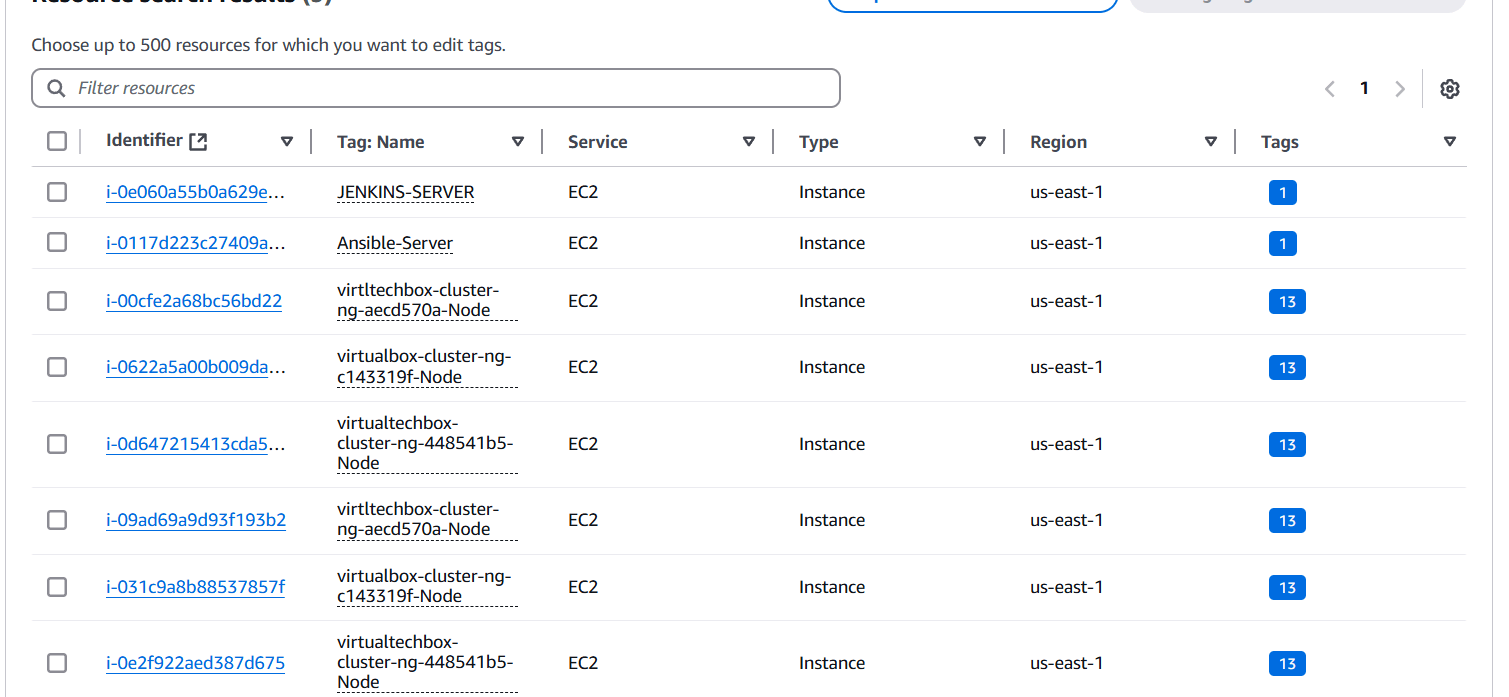
STEP 3 : After that you can see all the running instances in across all regions.
STEP 1: Now Create a bash file where we will write a script to see instances running in all regions.
toch ec2.sh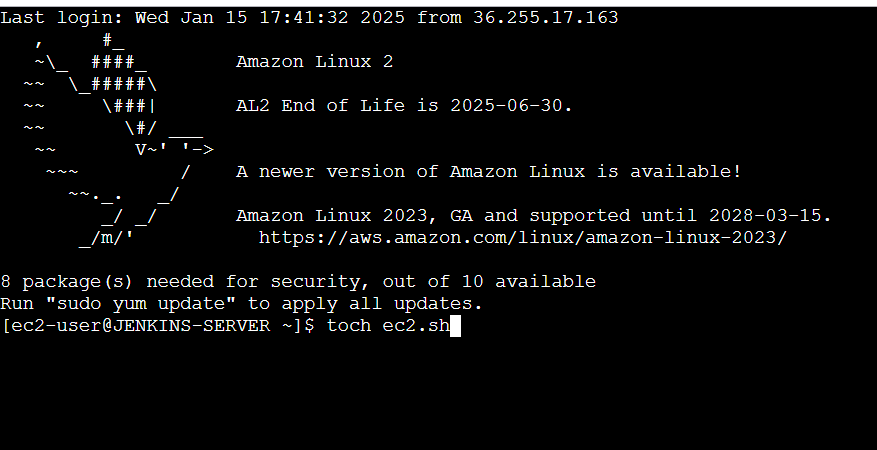
STEP 2: Paste the following lines.
 install aws cli first and configure it with credentials and default region
# the script will iterate over all regions of AWS
for region in `aws ec2 describe-regions --output text | cut -f4`
do
     echo -e "\nListing Instances in region:'$region'..."
     aws ec2 describe-instances --query "Reservations[*].Instances[*].{IP:PublicIpAddress,ID:InstanceId,Type:InstanceType,State:State.Name,Name:Tags[0].Value}" --output=table --region $region
done

STEP 3: Now give the necessary permission to the file we created using chmod command and run the file.
chmod +x file_name.sh
./file_name.sh
STEP 4: After running the file we can see the output in table format in the output it will loop through all regions and give the describe of instances where they are running.
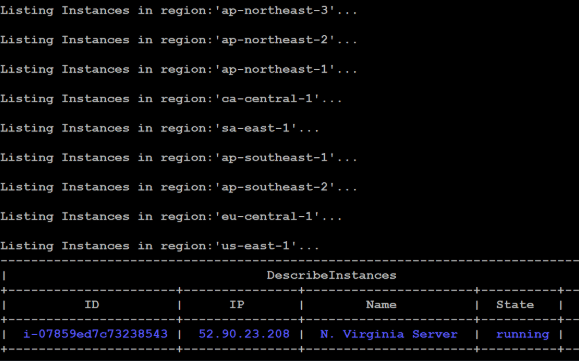

Amazon EC2 instances are deployed across multiple AWS regions. By default, you can only view instances within a specific region, so it’s crucial to consider all regions when attempting to get a global view of your EC2 infrastructure. While the AWS Management Console allows you to see EC2 instances within each region, it doesn’t provide a unified view across multiple regions simultaneously. You would need to manually switch regions to check each one.
In essence, a combination of AWS CLI, tagging, automation, and external tools can help you gain visibility and control over EC2 instances running across multiple regions, ensuring smooth operations and cost-effective resource management.

Amazon Athena is an interactive query service provided by Amazon Web Services (AWS) that allows users to analyze data directly in Amazon Simple Storage Service (S3) using standard SQL queries. Athena is serverless, meaning you don’t need to manage any infrastructure. You simply point Athena at your data stored in S3, define the schema, and run SQL queries.

AWS Glue is a fully managed, serverless data integration service provided by Amazon Web Services (AWS) that makes it easy to prepare and transform data for analytics. It automates much of the effort involved in data extraction, transformation, and loading (ETL) workflows, helping you to quickly move and process data for storage in data lakes, data warehouses, or other data stores.
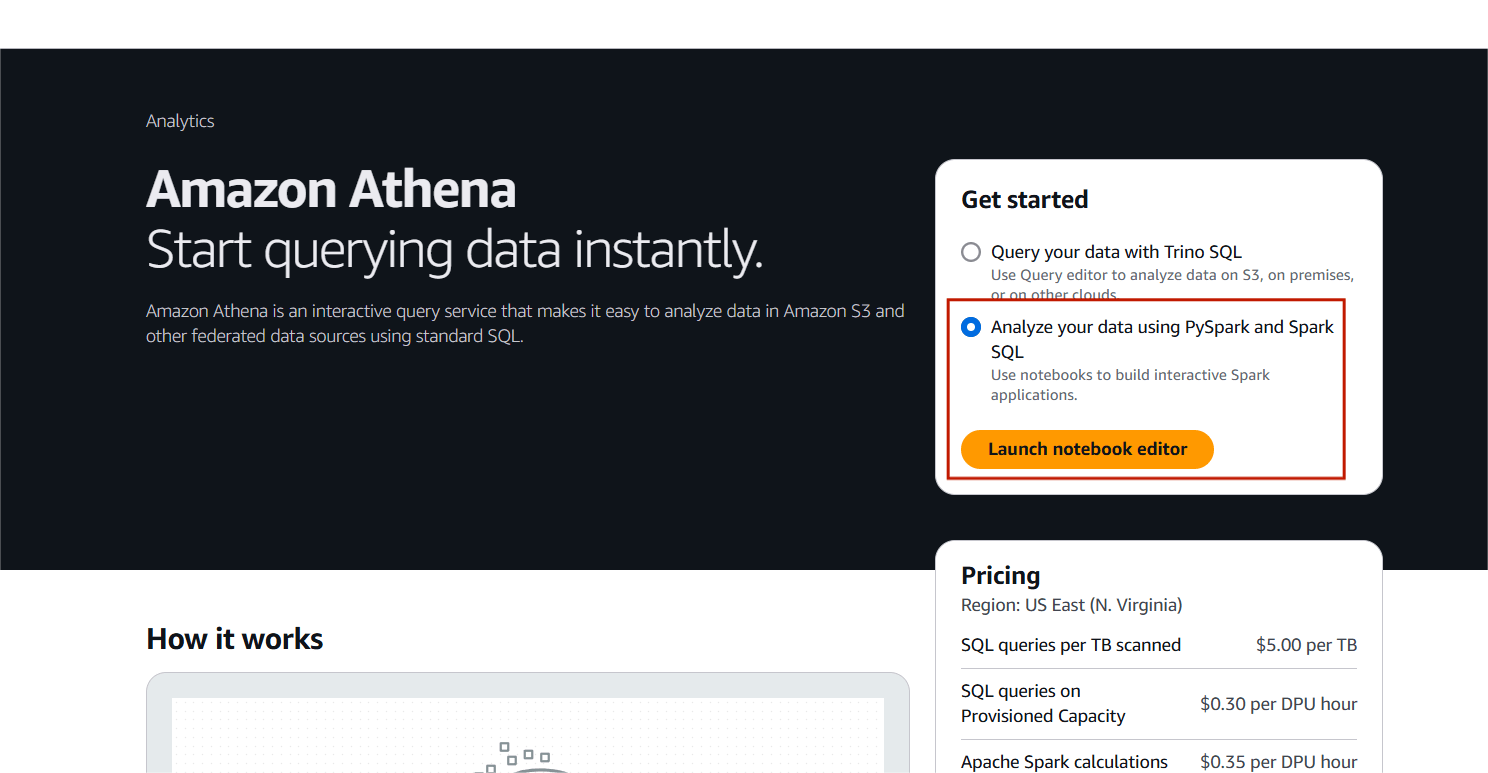
In this blog we will attempt to query and analyze data stored in an S3 bucket using SQL statements.
STEP 1: Navigate AWS Athena.
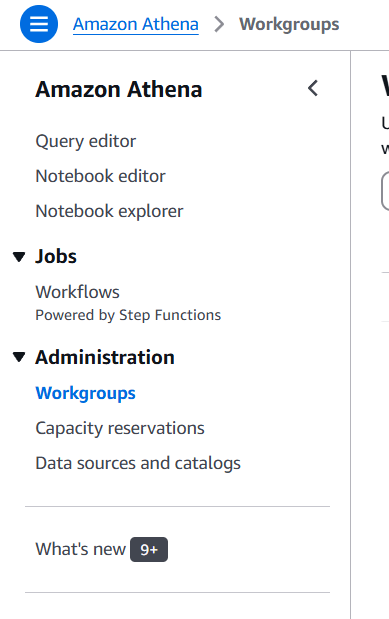
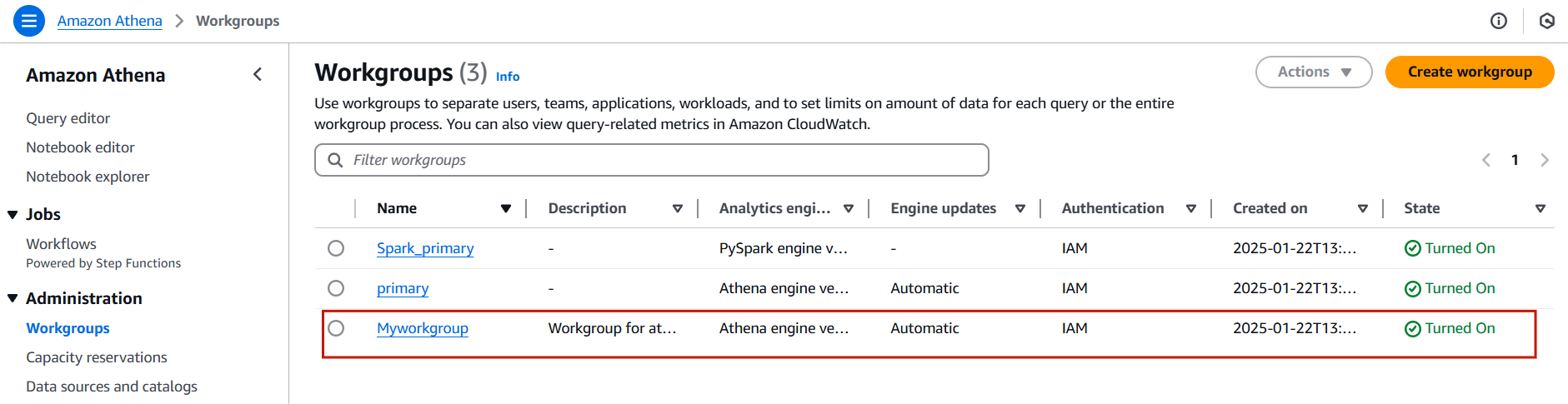
STEP 2: Select workgroup and click on create workgroups.
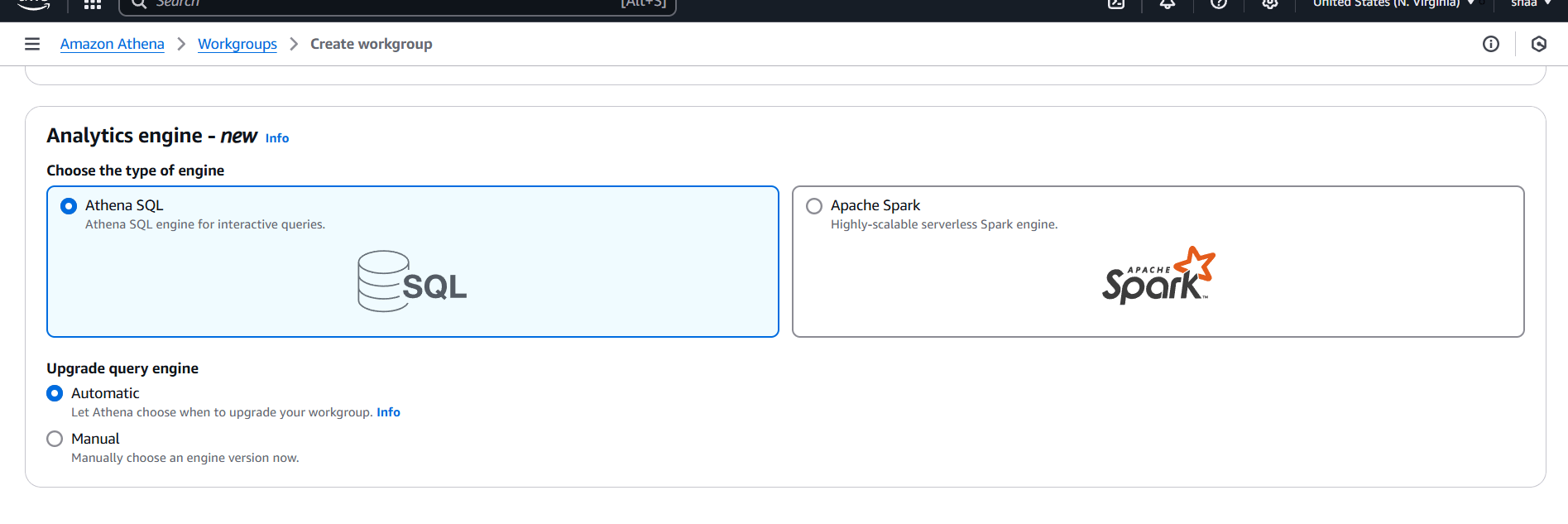
STEP 3: Workgroup Name: Enter your choice of name
STEP 4: Select your S3 bucket.
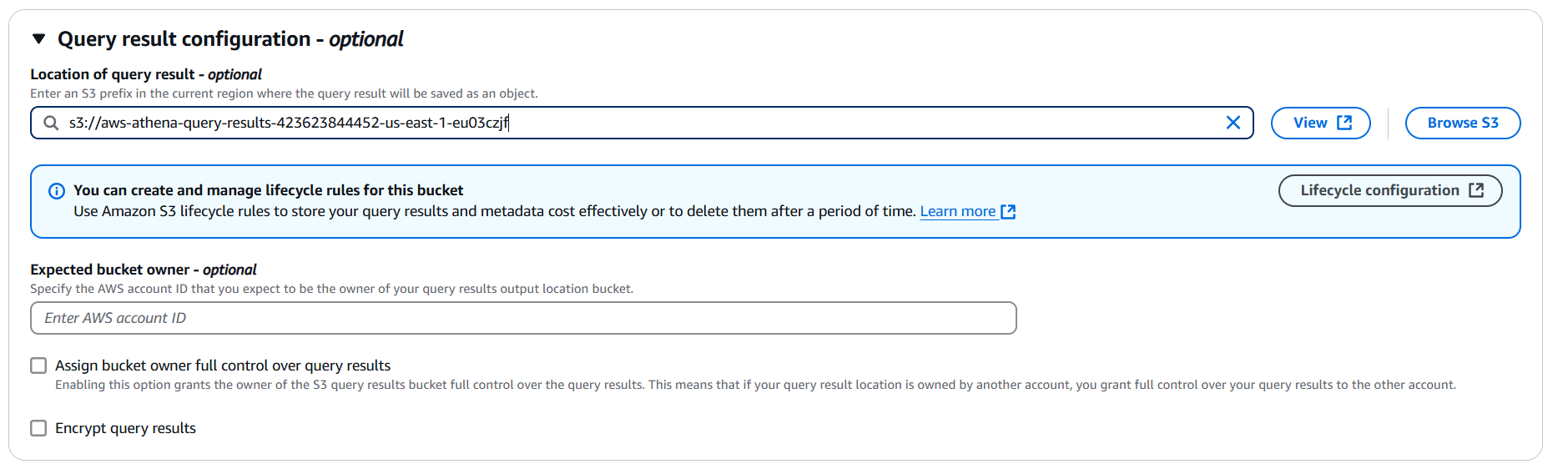
STEP 5: You will be see a created myworkgroup.
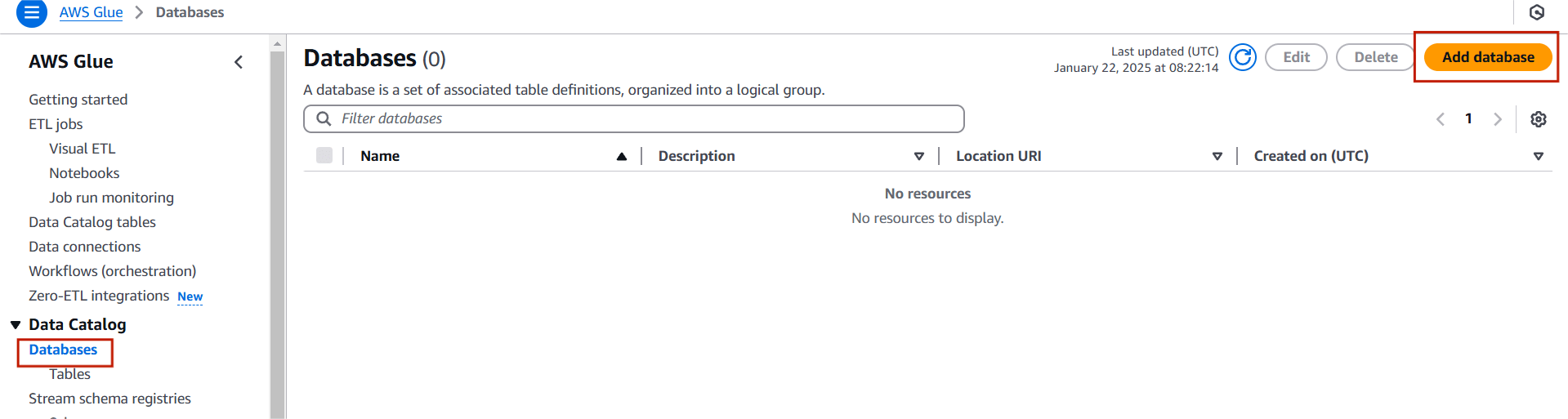
STEP 1: Navigate AWS Glue, Click on database.
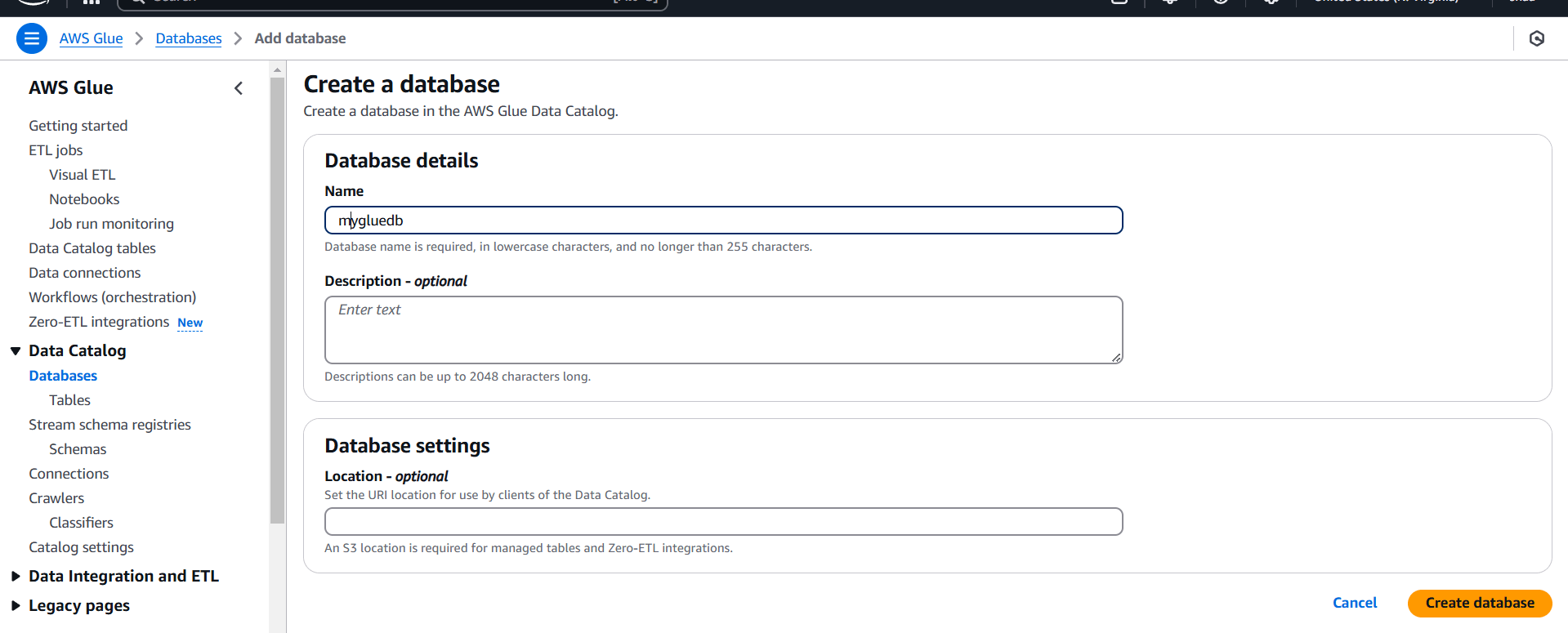
STEP 2: Enter the database name.
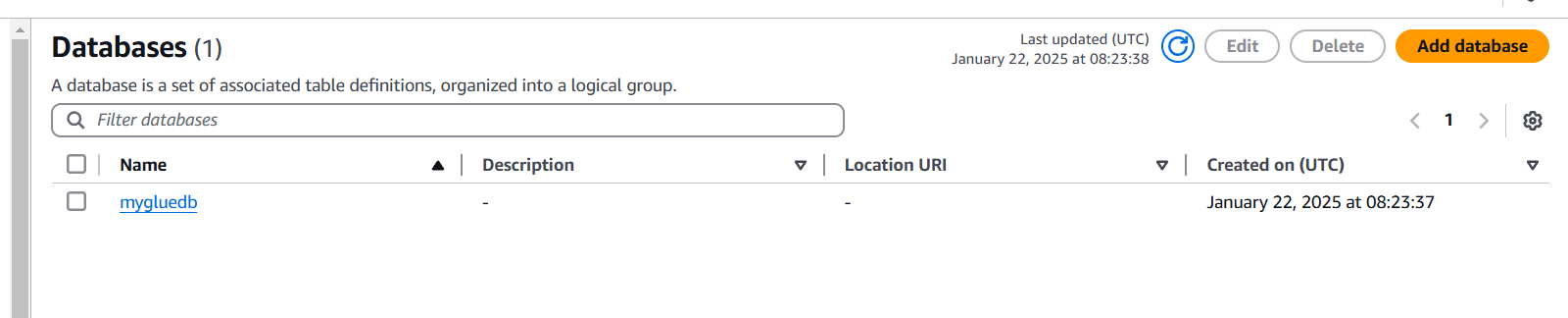
STEP 3: You will see a created Database.
Task 3: Create a table in Glue.
STEP 1: Select table and click on add table.
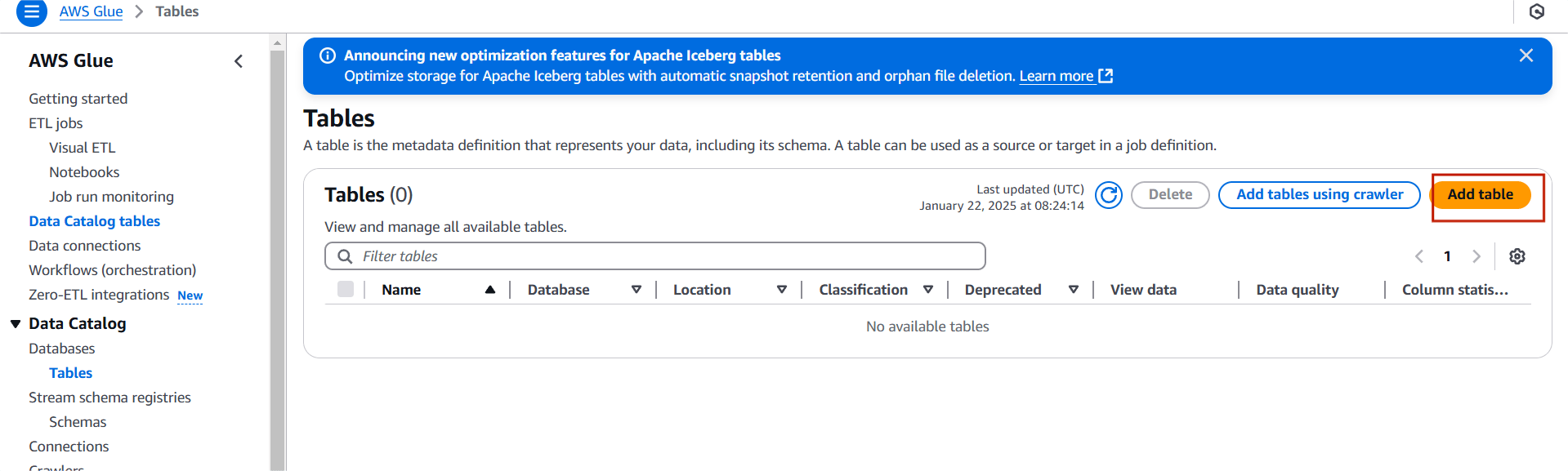
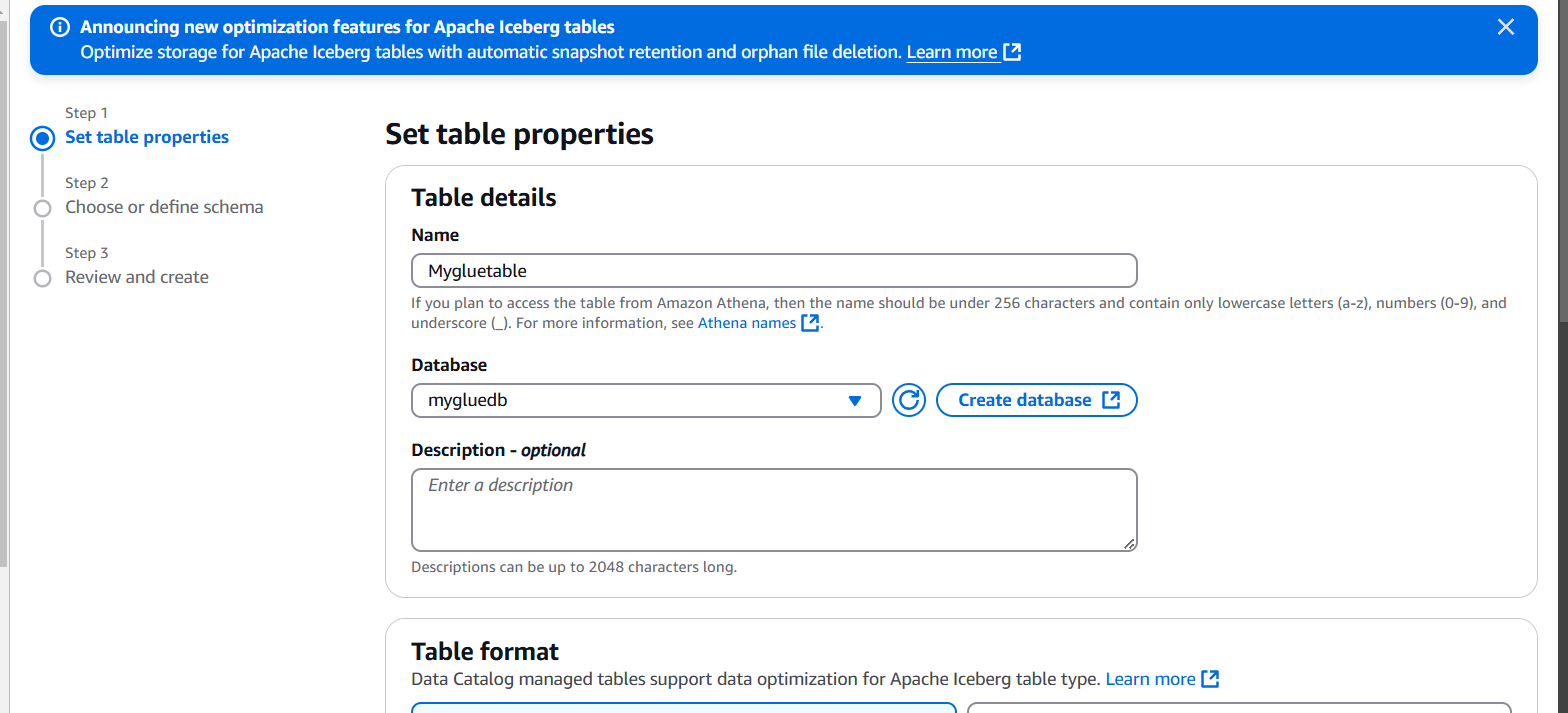
STEP 2: Enter the name and select the database.
STEP 3: Select standard AWS glue table.
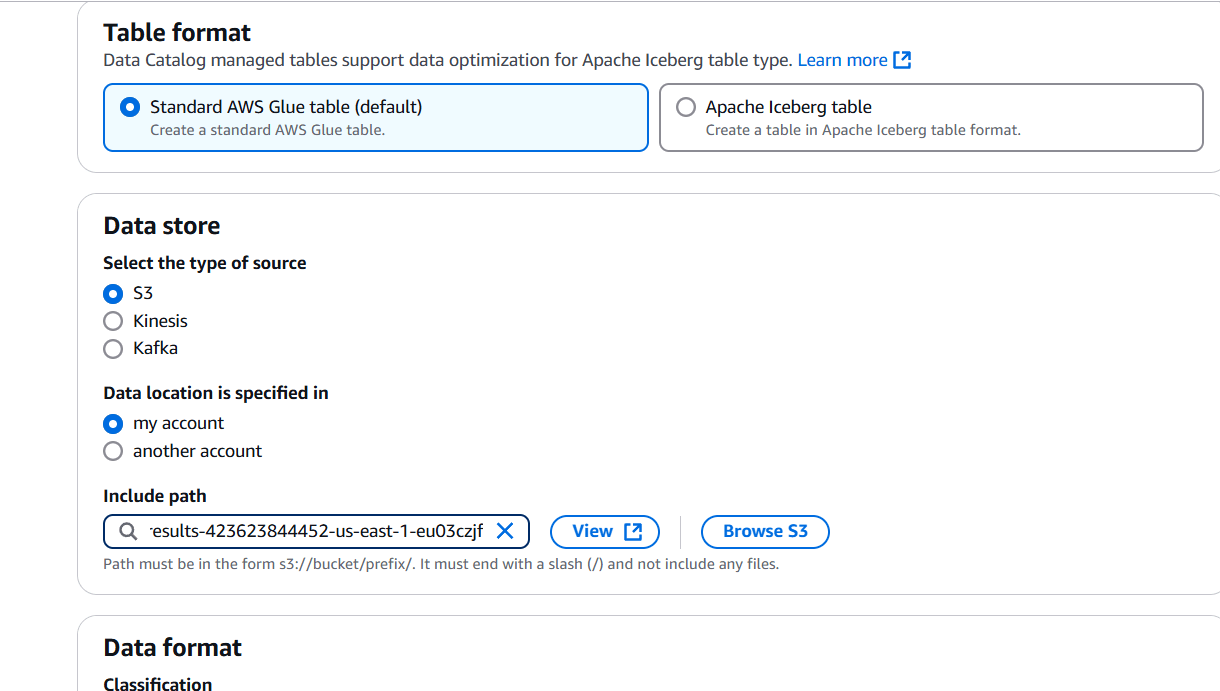
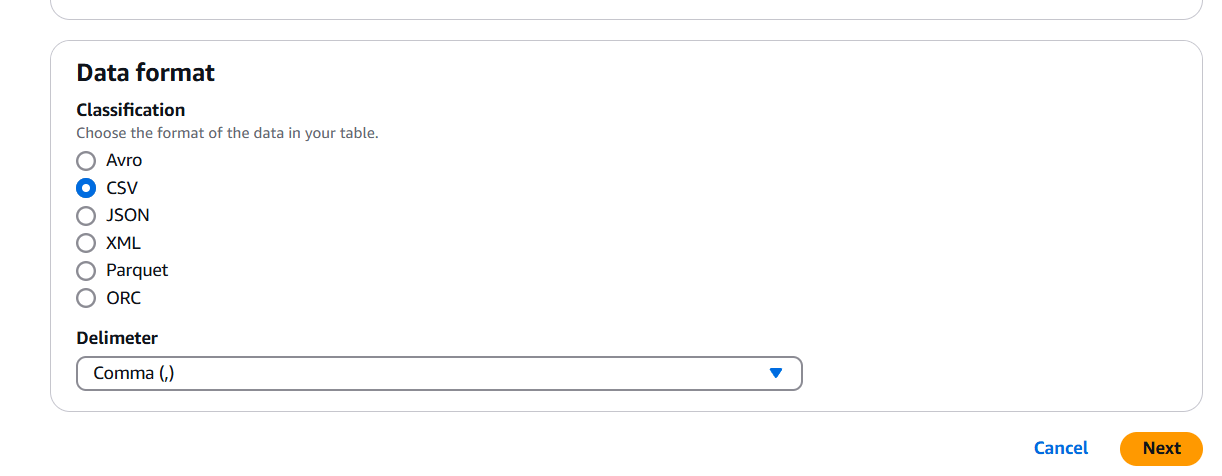
STEP 4: Schema : Define or upload schema.
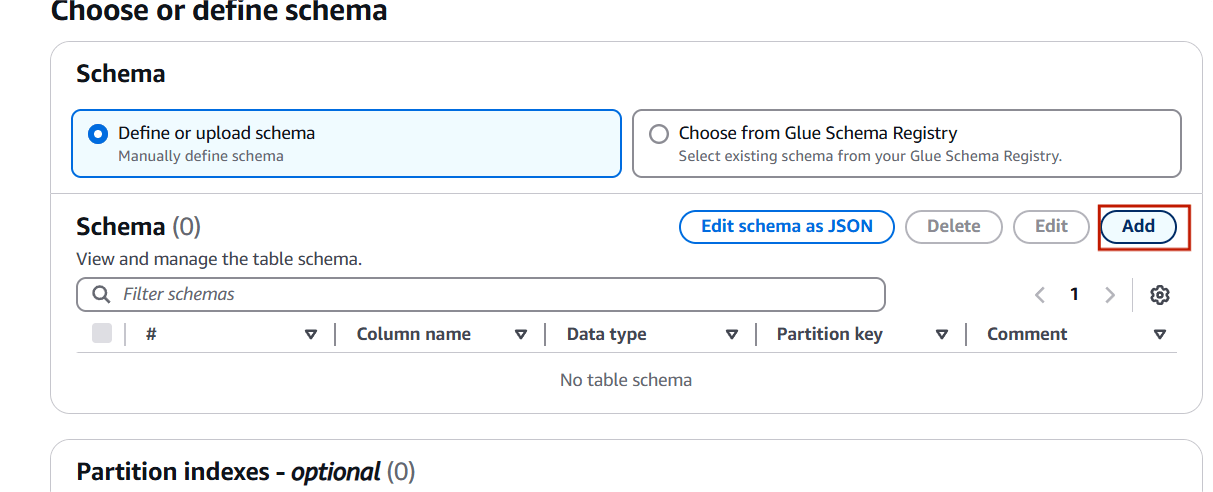
STEP 5: Enter the name and data type.
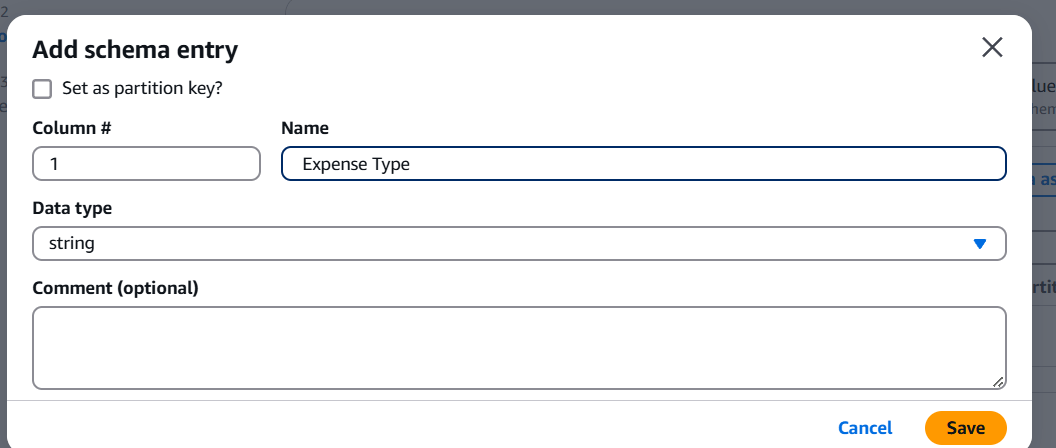
STEP 6: Enter the name and data type(coloum 1).
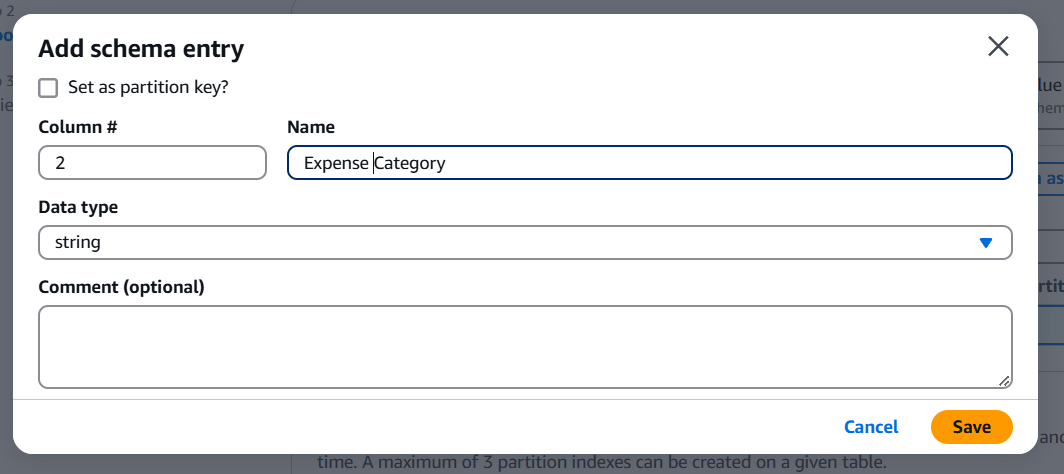
STEP 7: After Enter the schema Click on next.
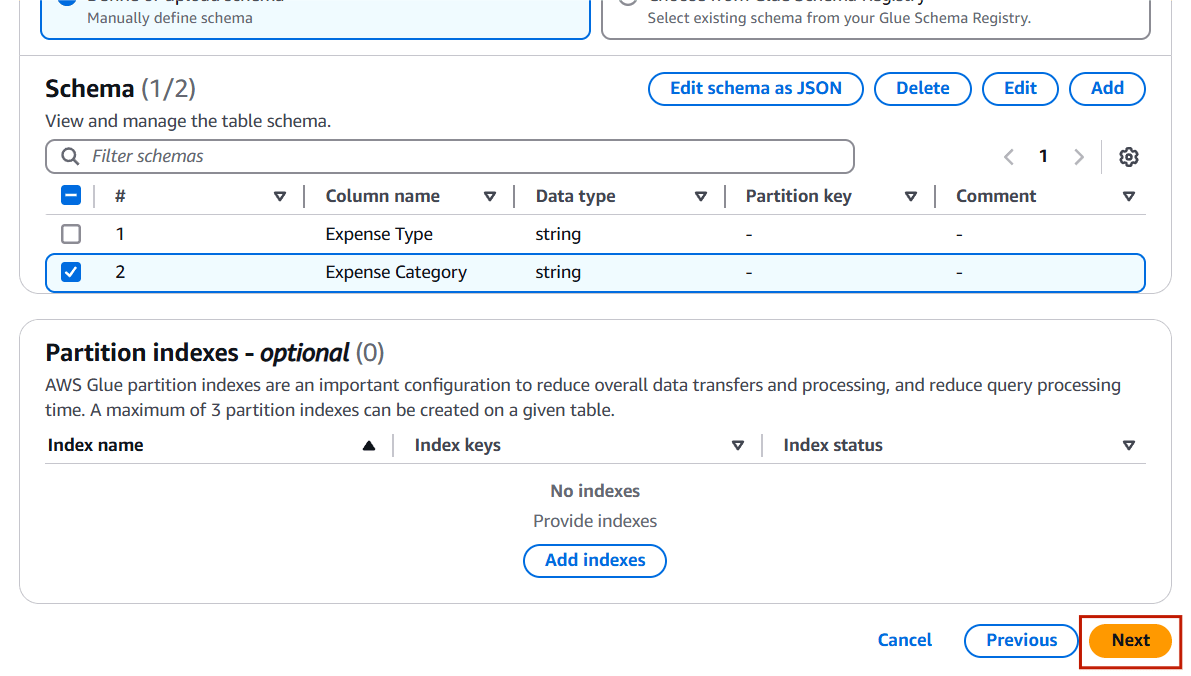
STEP 8: Click on create.

STEP 9: Select database and table.
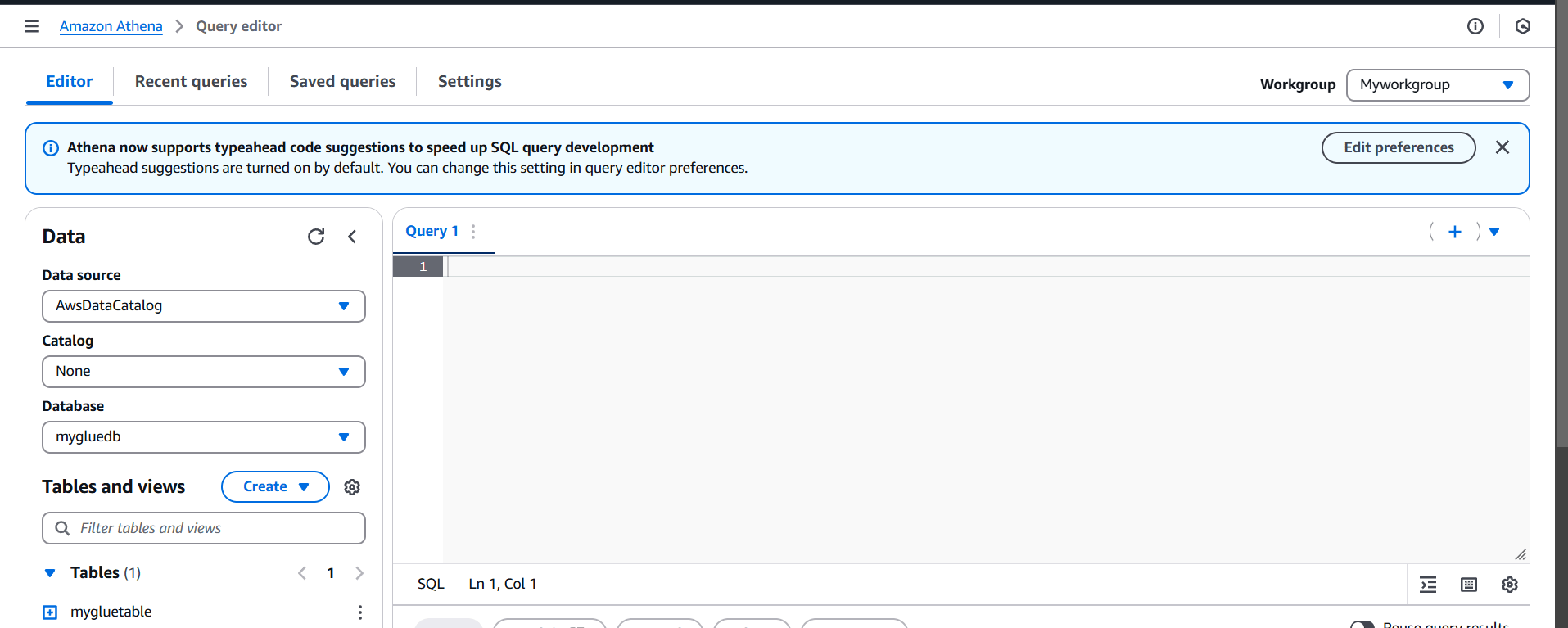
STEP 10: Click on preview table.
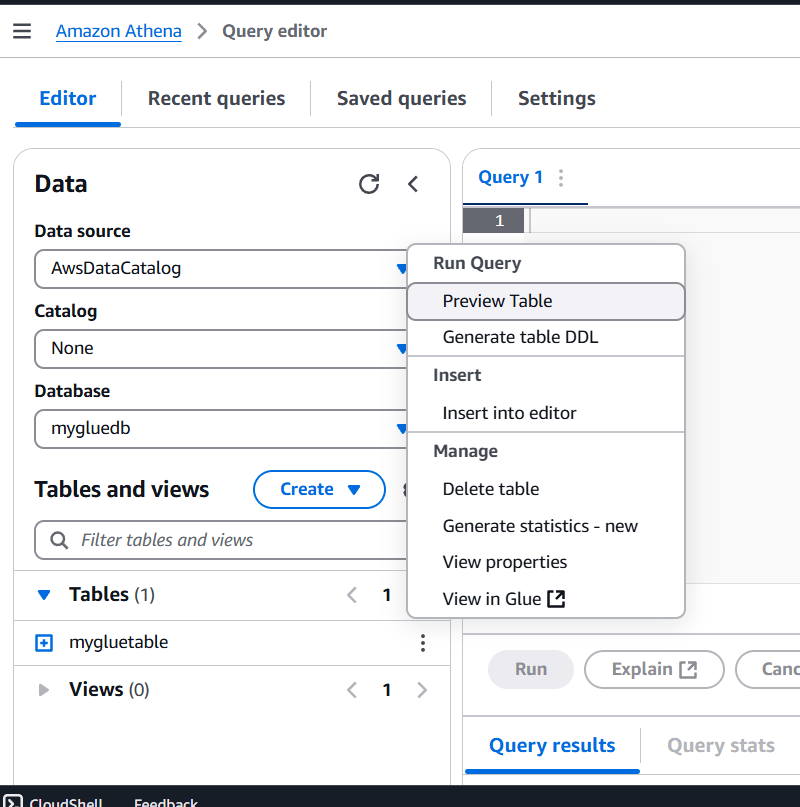
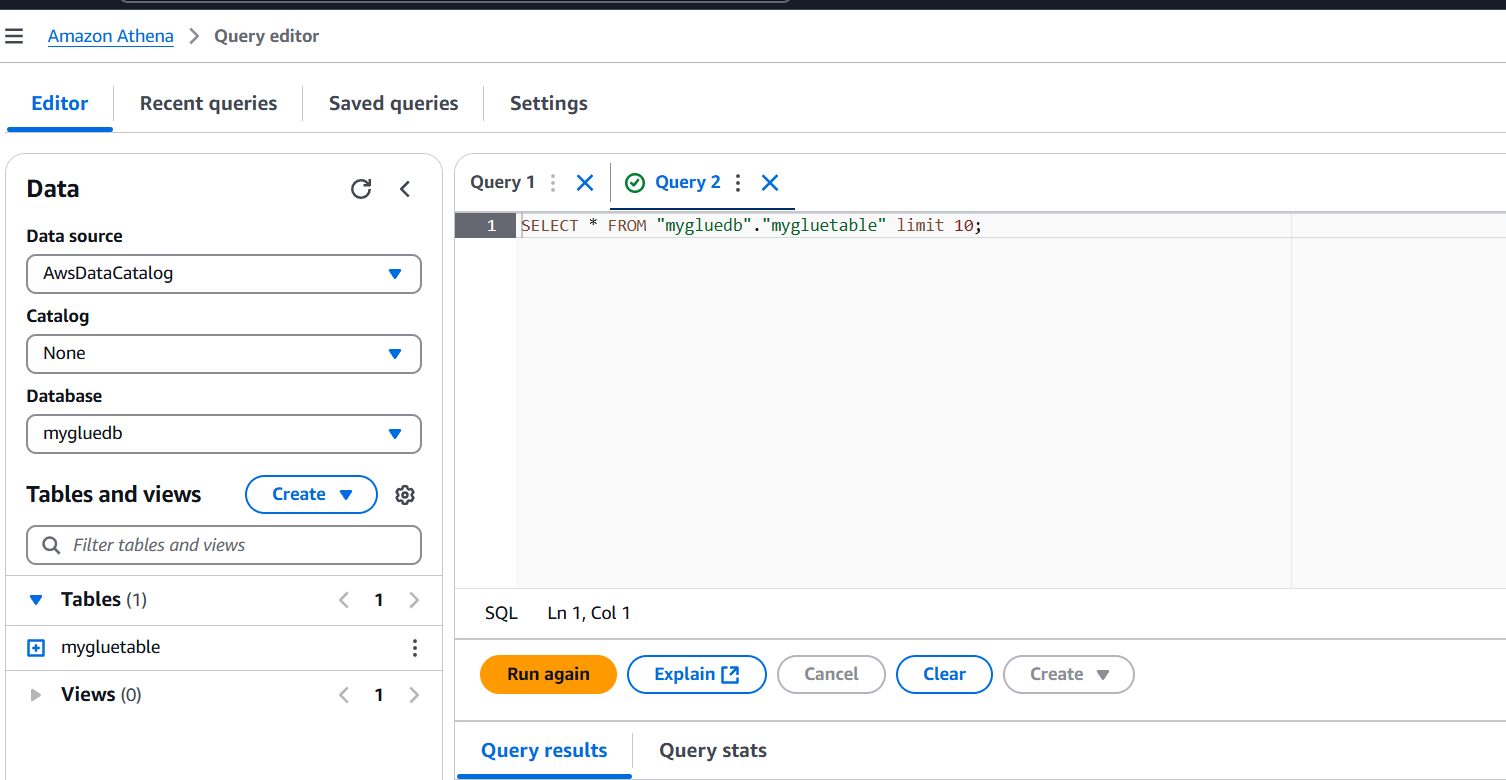
STEP 10: Query editor will automatically generate the SQL statement for querying the first 10 columns.
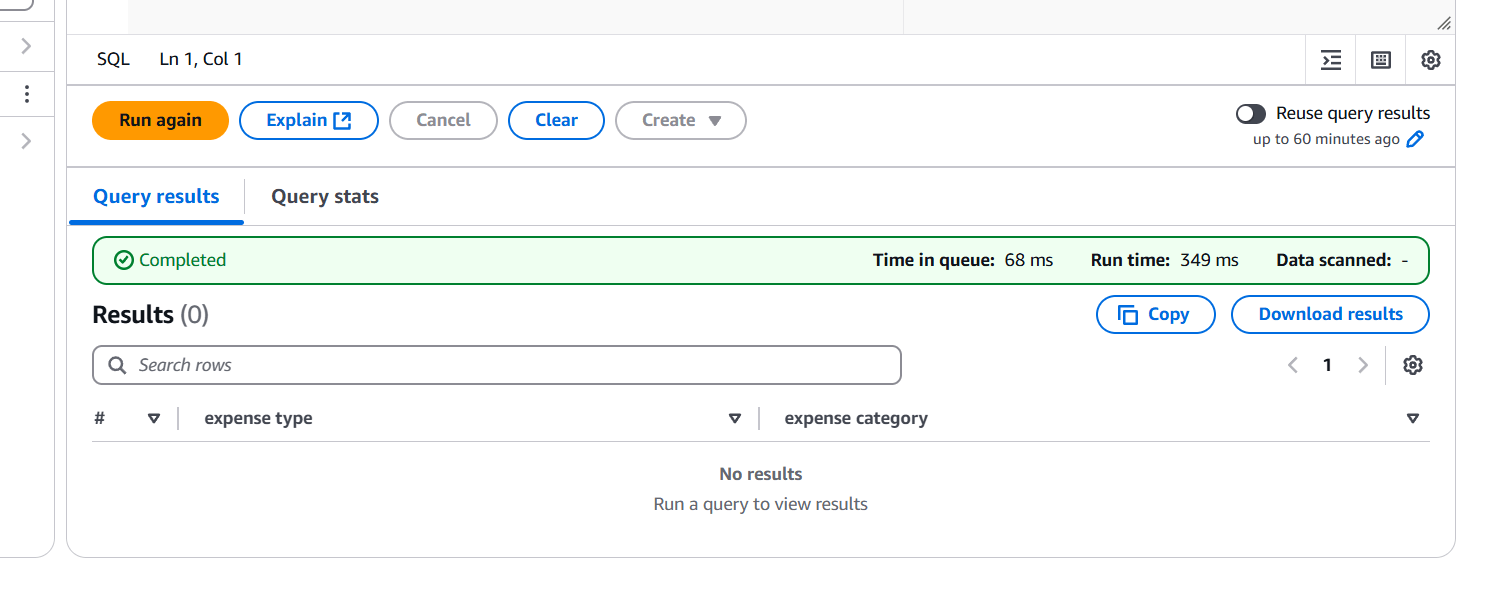

In this guide, we’ve walked through the process of querying data stored in Amazon S3 using Amazon Athena, which offers a powerful, serverless, and cost-effective solution for interacting with large datasets in S3. Amazon Athena allows you to run SQL queries directly on data stored in Amazon S3, without the need to load it into a database. This makes querying large datasets more accessible, especially for users who are familiar with SQL. Athena’s serverless nature means there’s no infrastructure to manage. You don’t need to worry about provisioning, configuring, or maintaining servers. Athena scales automatically based on the complexity of your queries.

AWS FSx (Amazon FSx) is a fully managed service provided by Amazon Web Services (AWS) that offers highly scalable, performant, and cost-effective file storage options. It is designed to support workloads that require shared file storage for Windows and Linux-based applications.
There are two main types of Amazon FSx:

Now go to create a Amazon FSx.
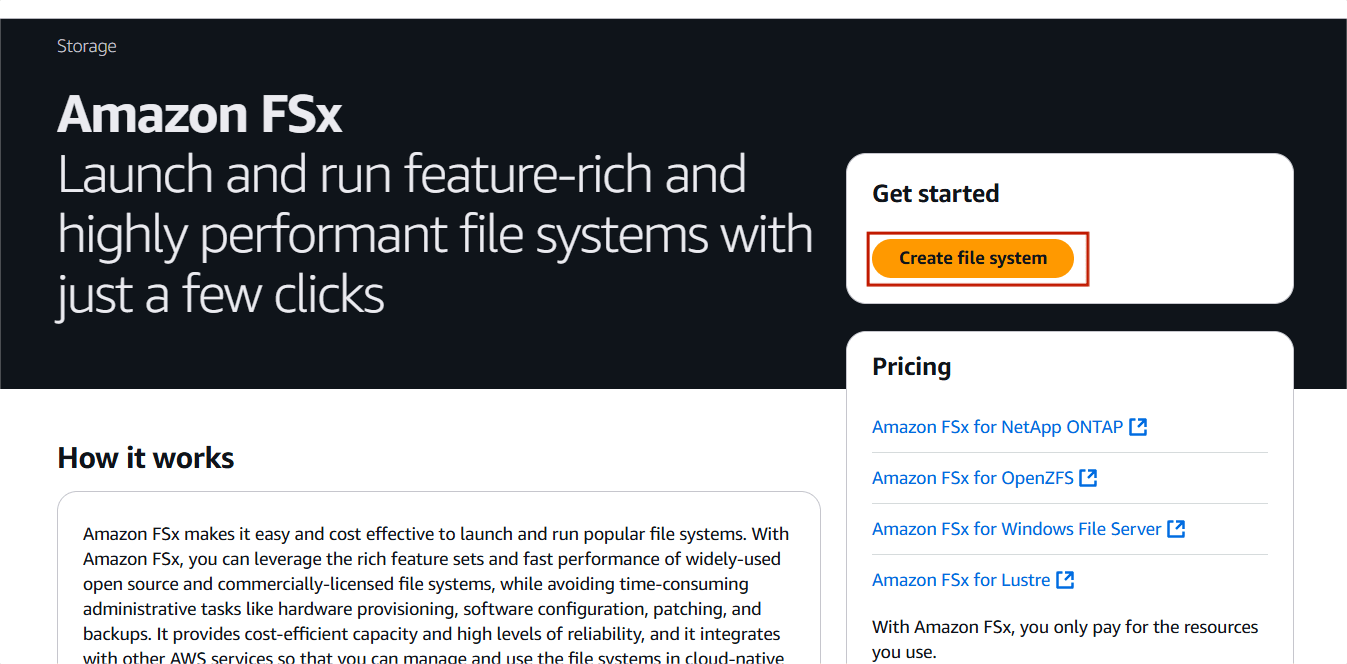
STEP 1: Go to the “Services” section & Search the “FSx”. Click on Create file system.
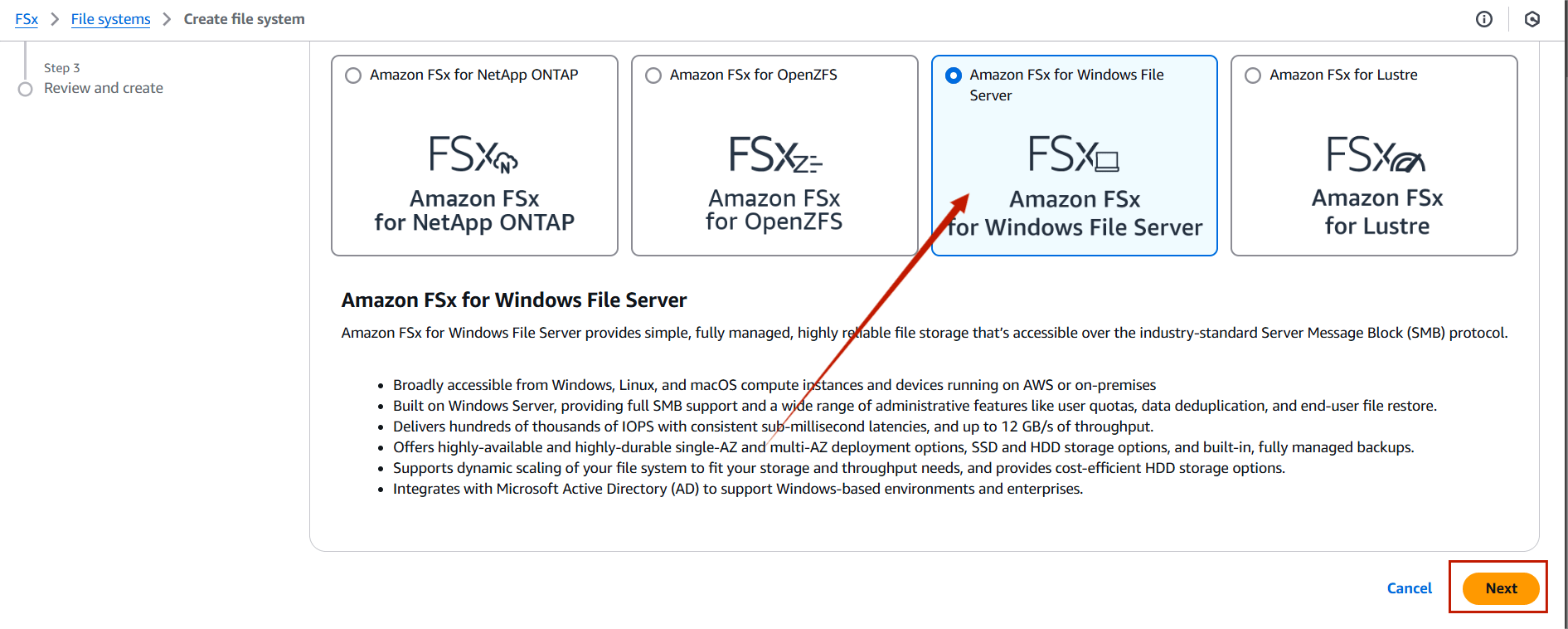
STEP 2: Choose the “Amazon FSx for Window File Server” .
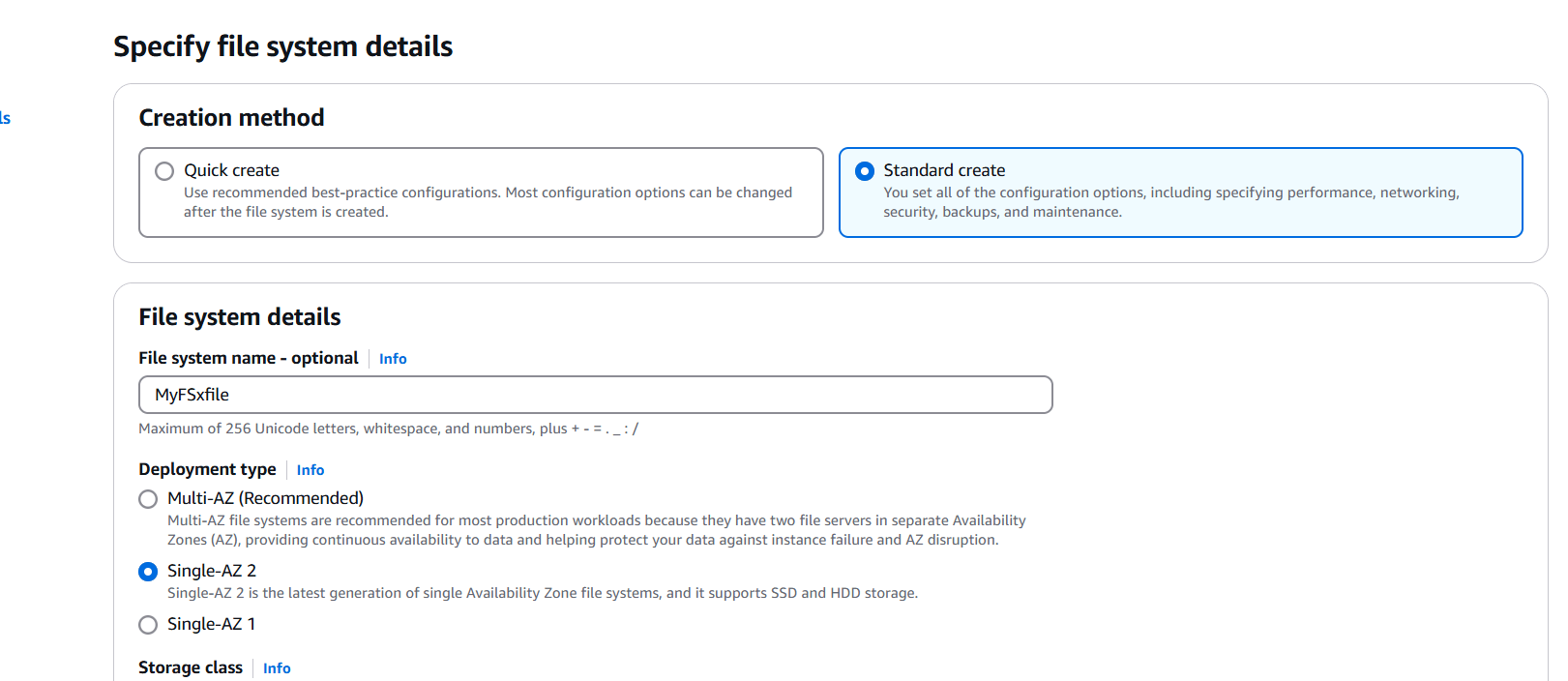
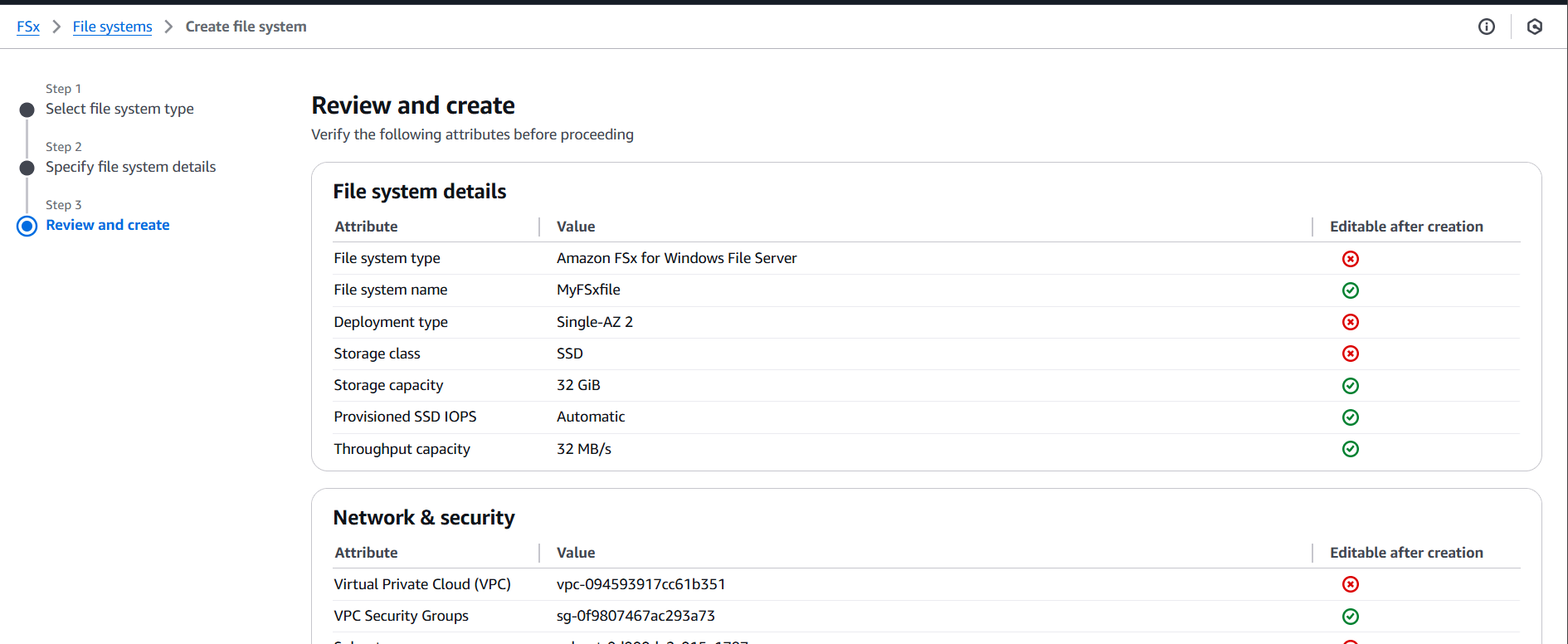
STEP 3: In the “File system details”, we will choose the following options.
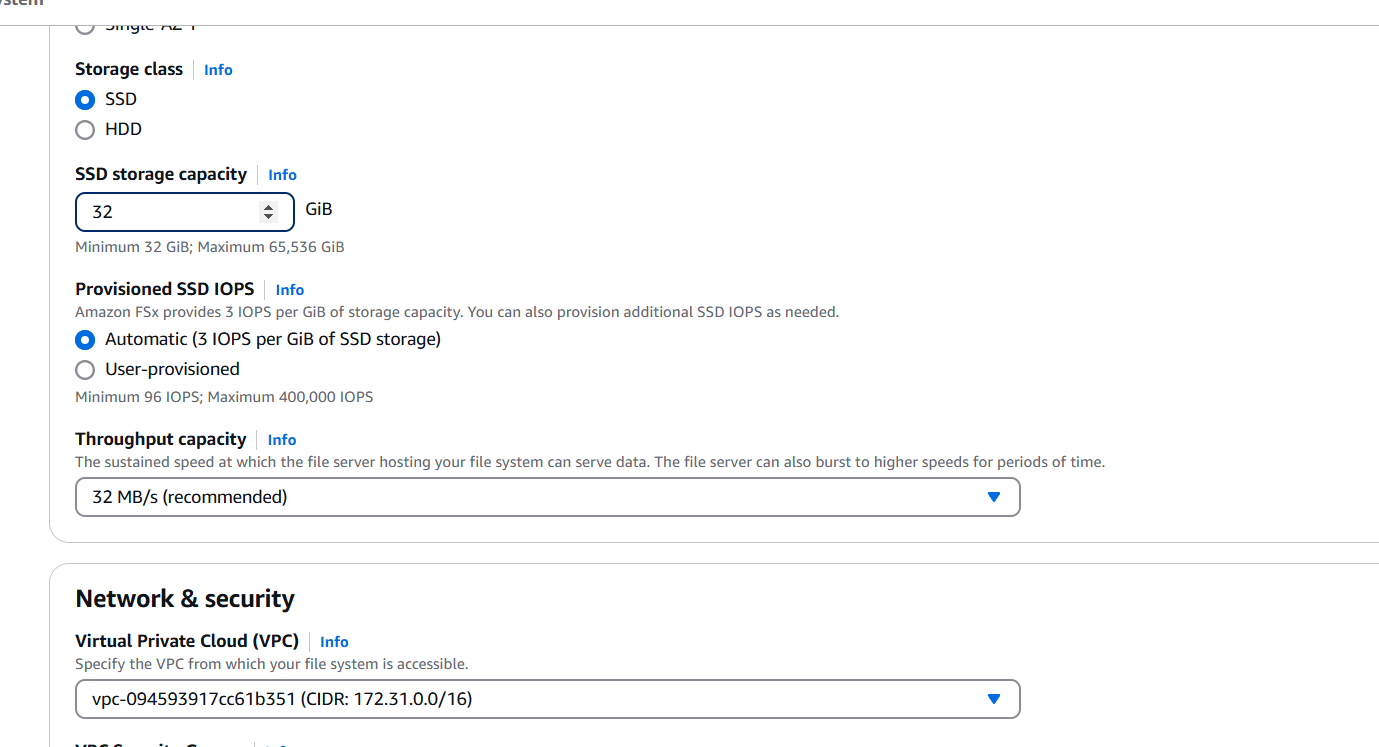
STEP 4: Select VPC, Security group and subnet.
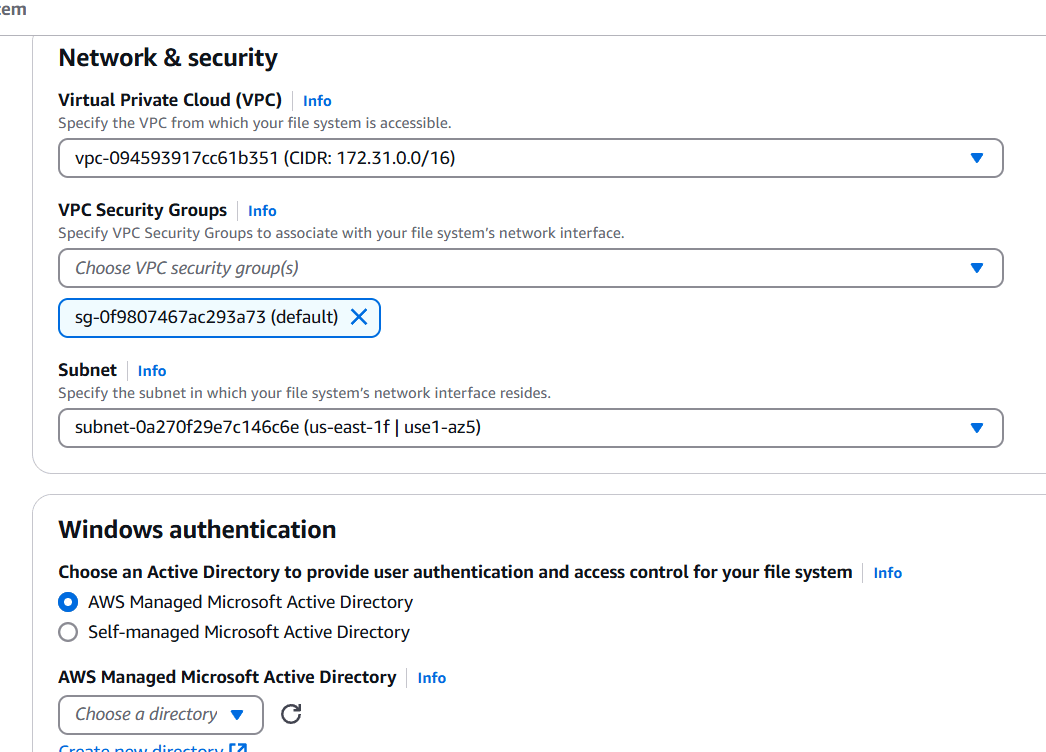
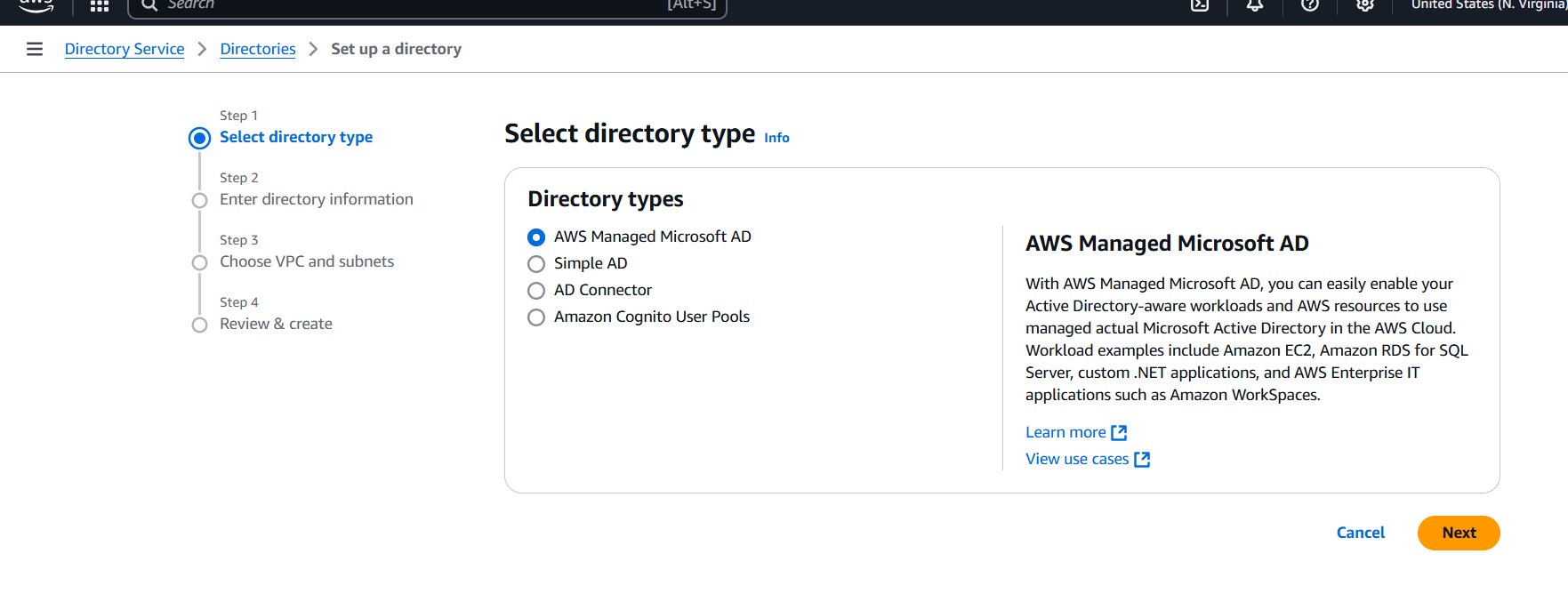
STEP 5: Click on the Create new directory.
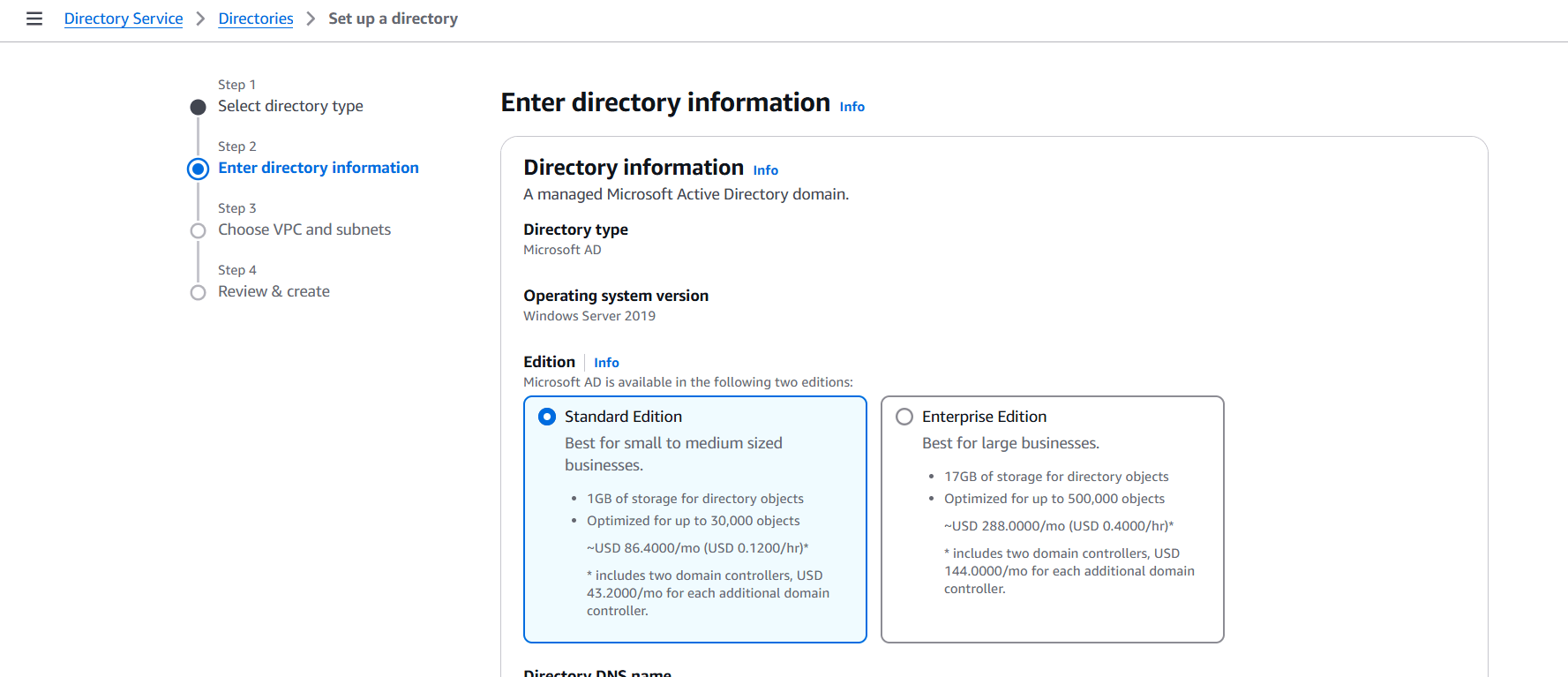
STEP 6: Edition: Standard Edition.
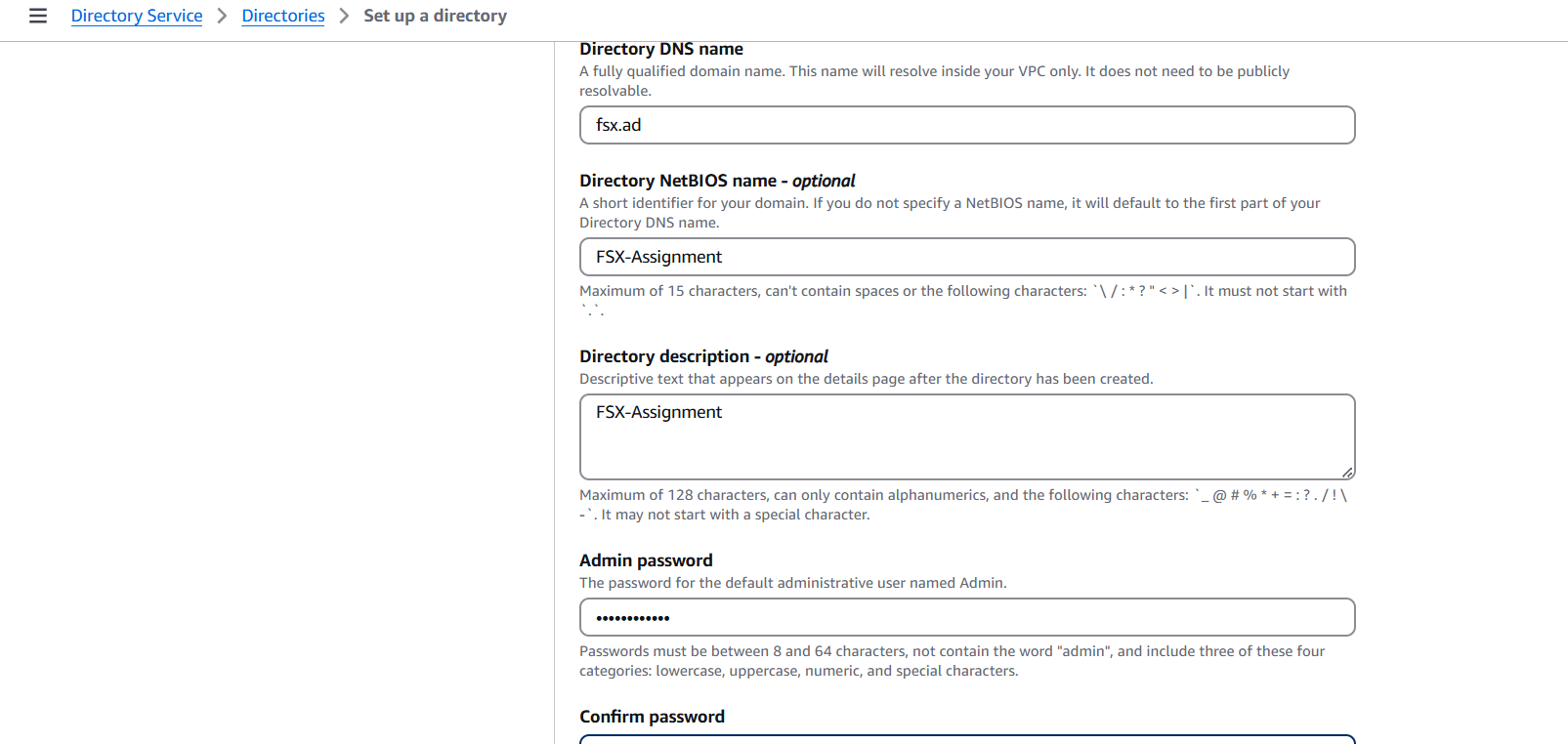
STEP 7: Directory DNS Name: fsx.ad.
STEP 8: Select VPC and click on next.
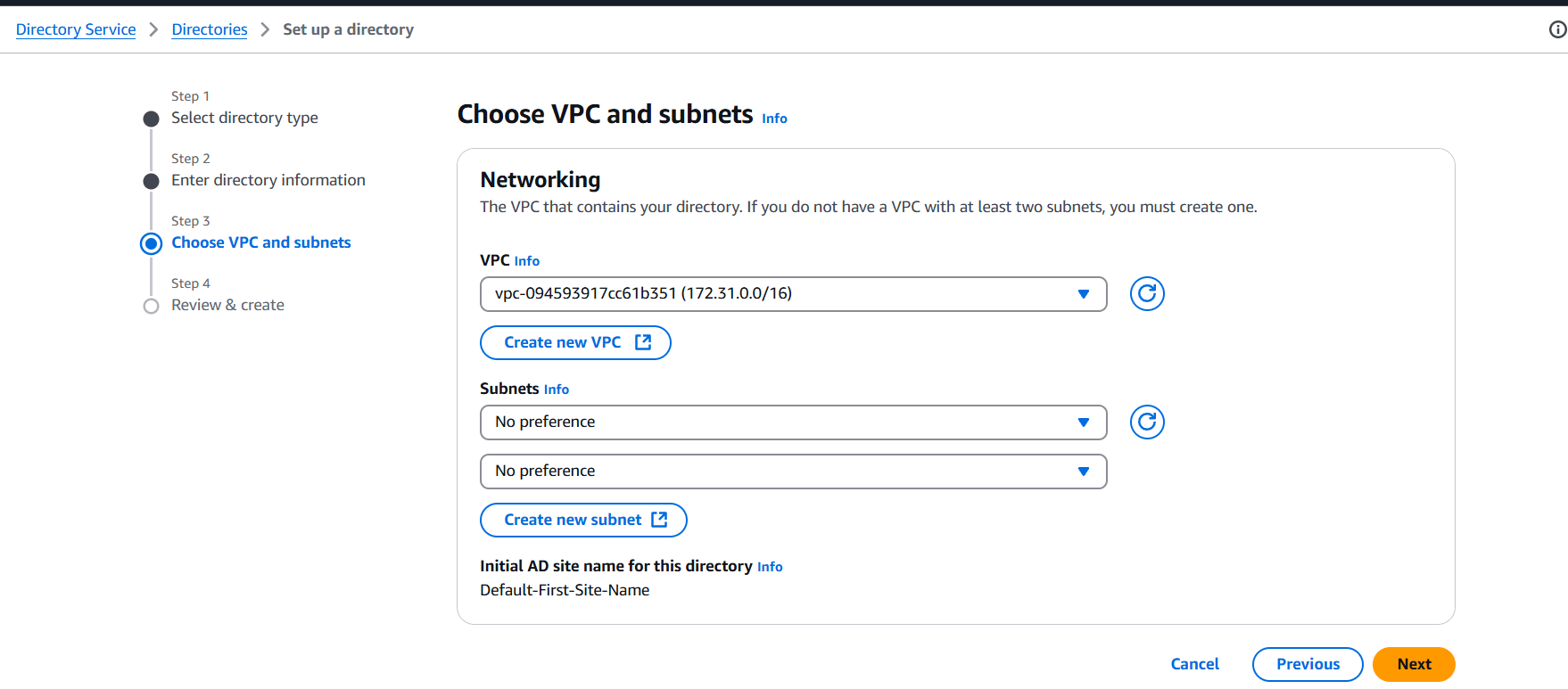
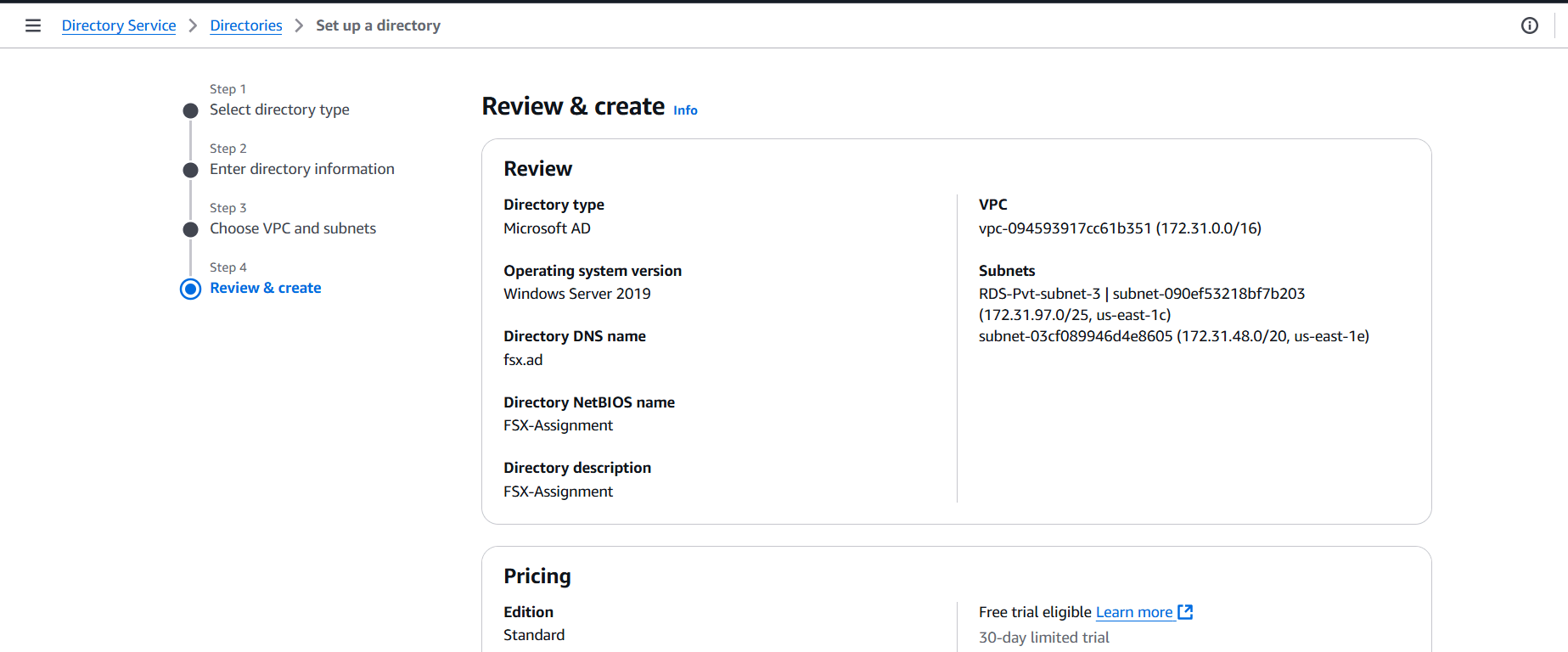
STEP 9: It will be taking 30 Minutes to be go from the “Creating” to the “Active” Status.
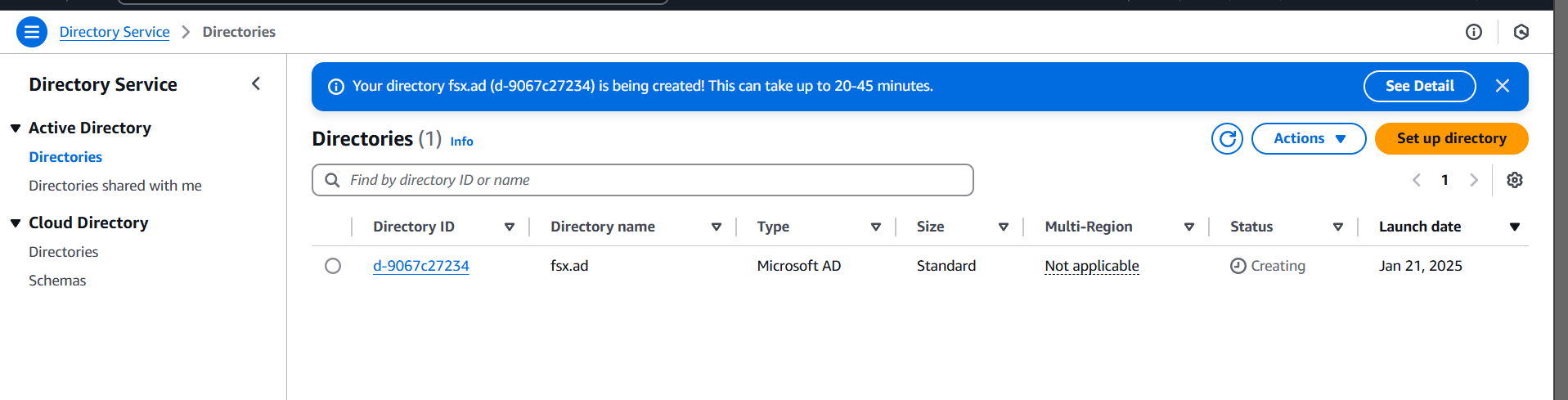
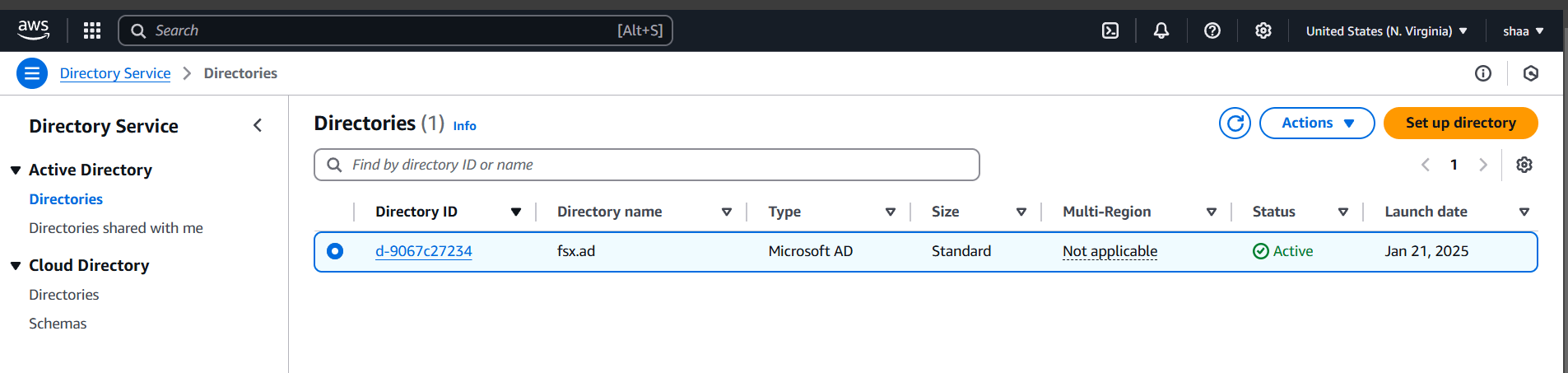
STEP 10: Choose your created directory (fsx.ad).
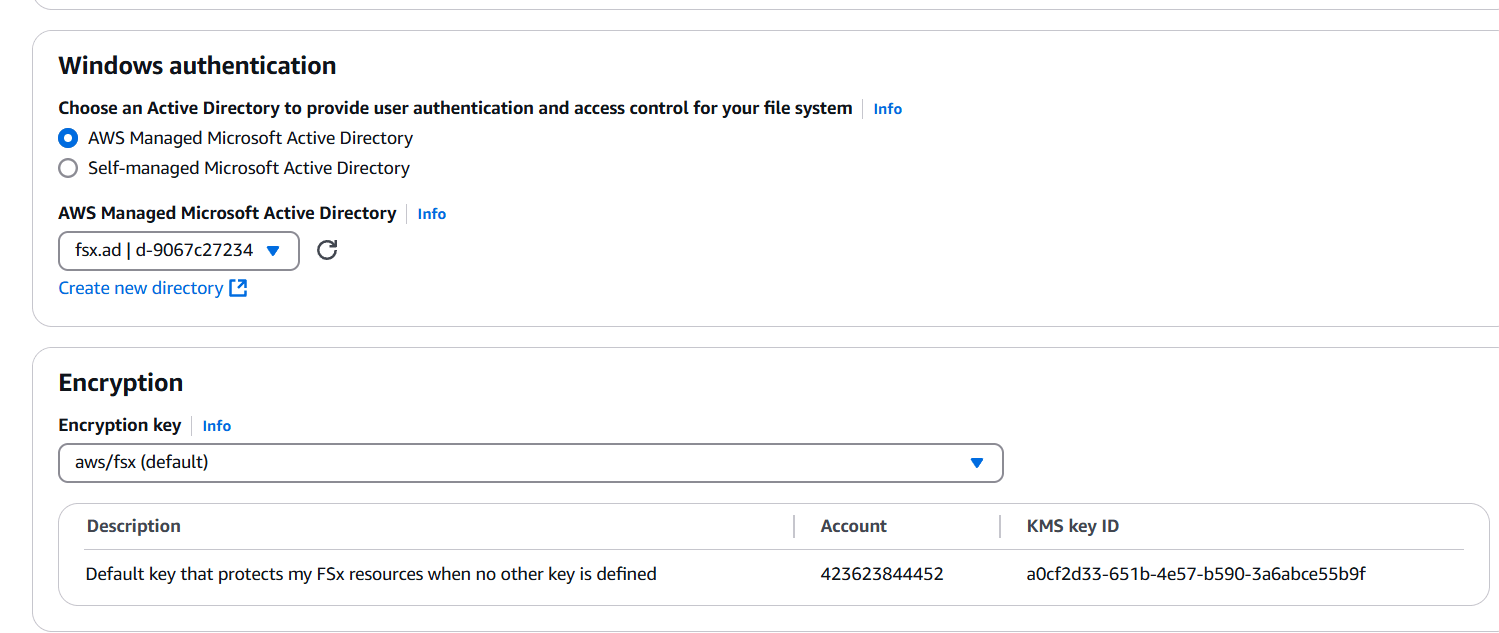
STEP 11: click on the Next.
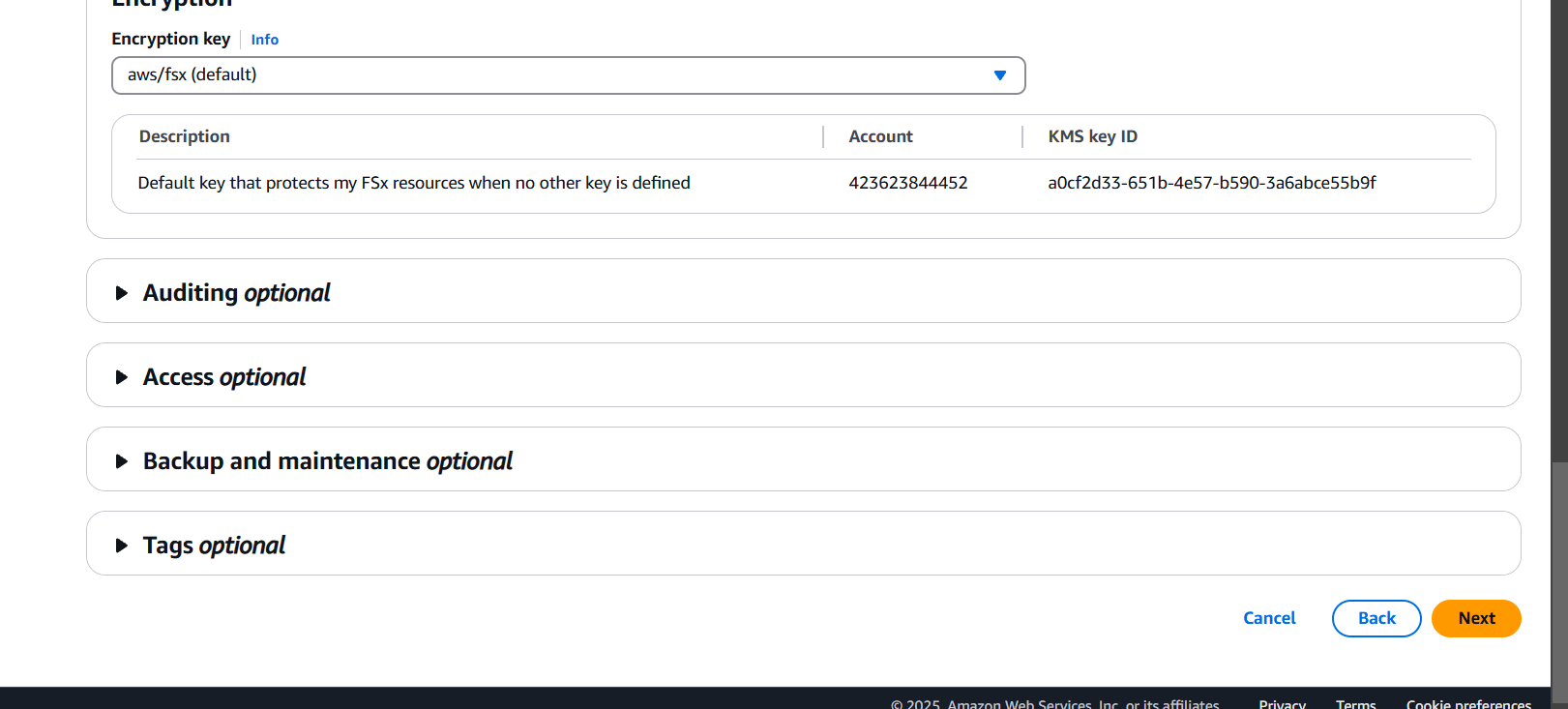
STEP 12: : Click on the “Create file system”.
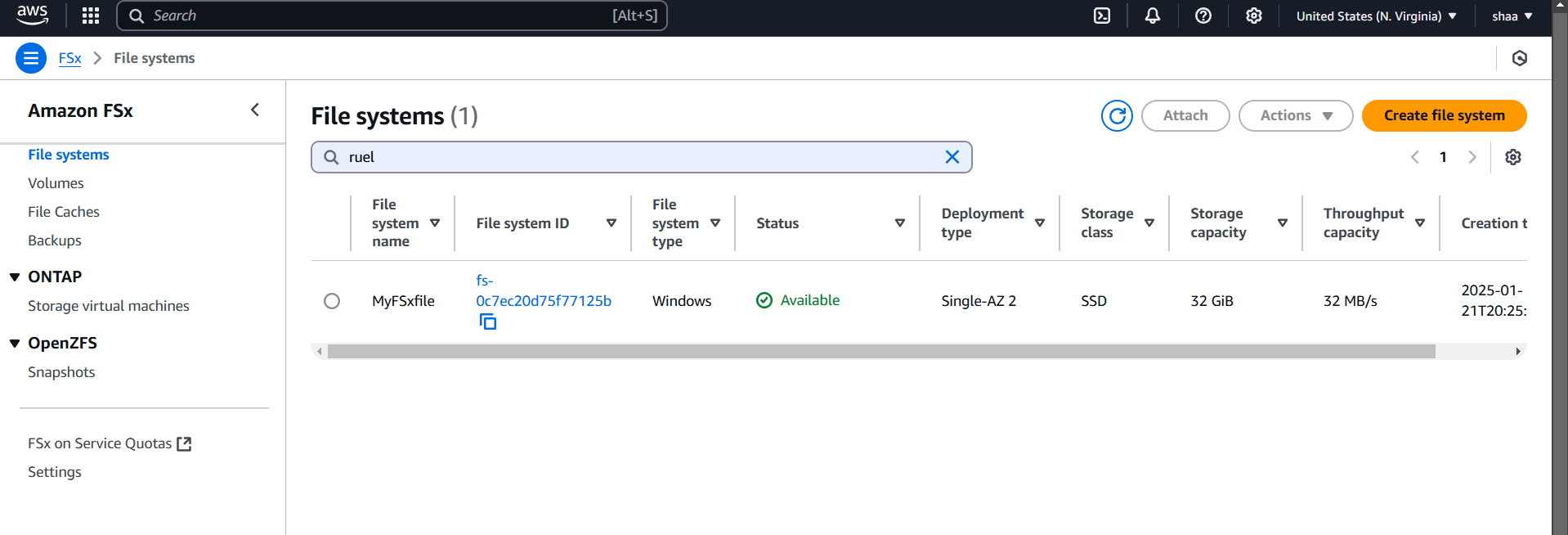
STEP 13: it will show the status as Creating. It will take 30 minutes to be shown Status as Available.

In conclusion, AWS FSx provides a powerful and flexible file storage solution for a variety of use cases. Whether you need a Windows-compatible file system with Amazon FSx for Windows File Server or require high-performance storage for data-intensive applications with Amazon FSx for Lustre, AWS ensures a fully managed experience with ease of scalability, reliability, and security. By leveraging AWS FSx, businesses can streamline their storage management, reduce administrative overhead, and focus on their core operations while benefiting from high-performance file systems tailored to their specific needs.
AWS Cognito is a service provided by Amazon Web Services (AWS) that helps developers manage user authentication and access control in their applications. It simplifies the process of adding user sign-up, sign-in, and access management features to mobile and web apps. AWS Cognito is widely used to handle user identities securely and scale effortlessly while integrating with other AWS services.

Terraform is an open-source Infrastructure as Code (IaC) tool developed by HashiCorp, that lets you build, change, and version cloud and on-prem resources safely and efficiently in human-readable configuration files that you can version, reuse, and share.
Now, Create cognito using terraform script in vscode.
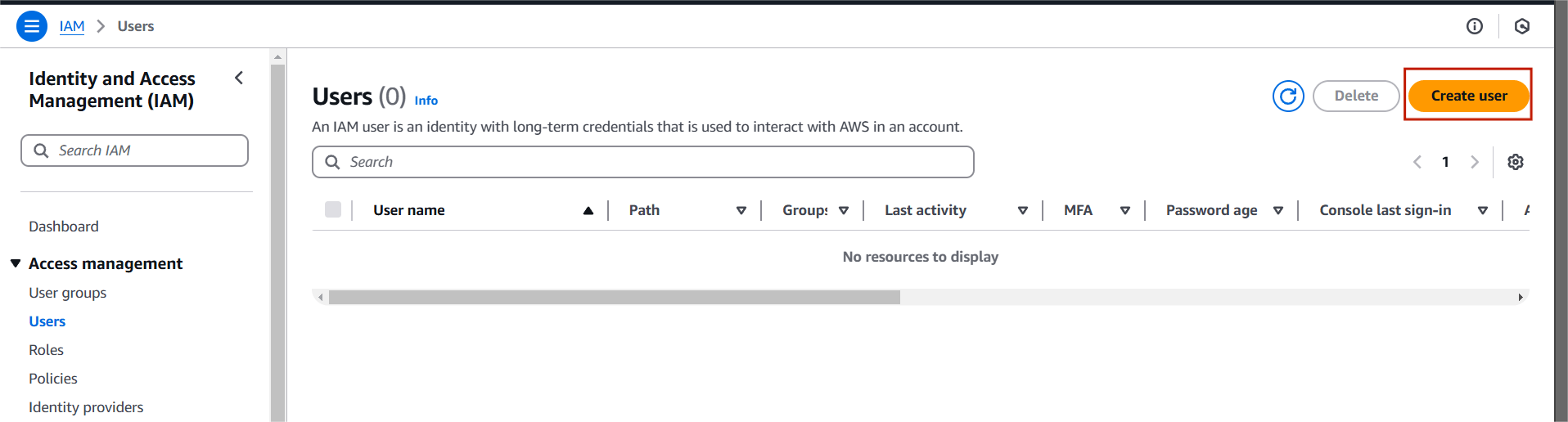
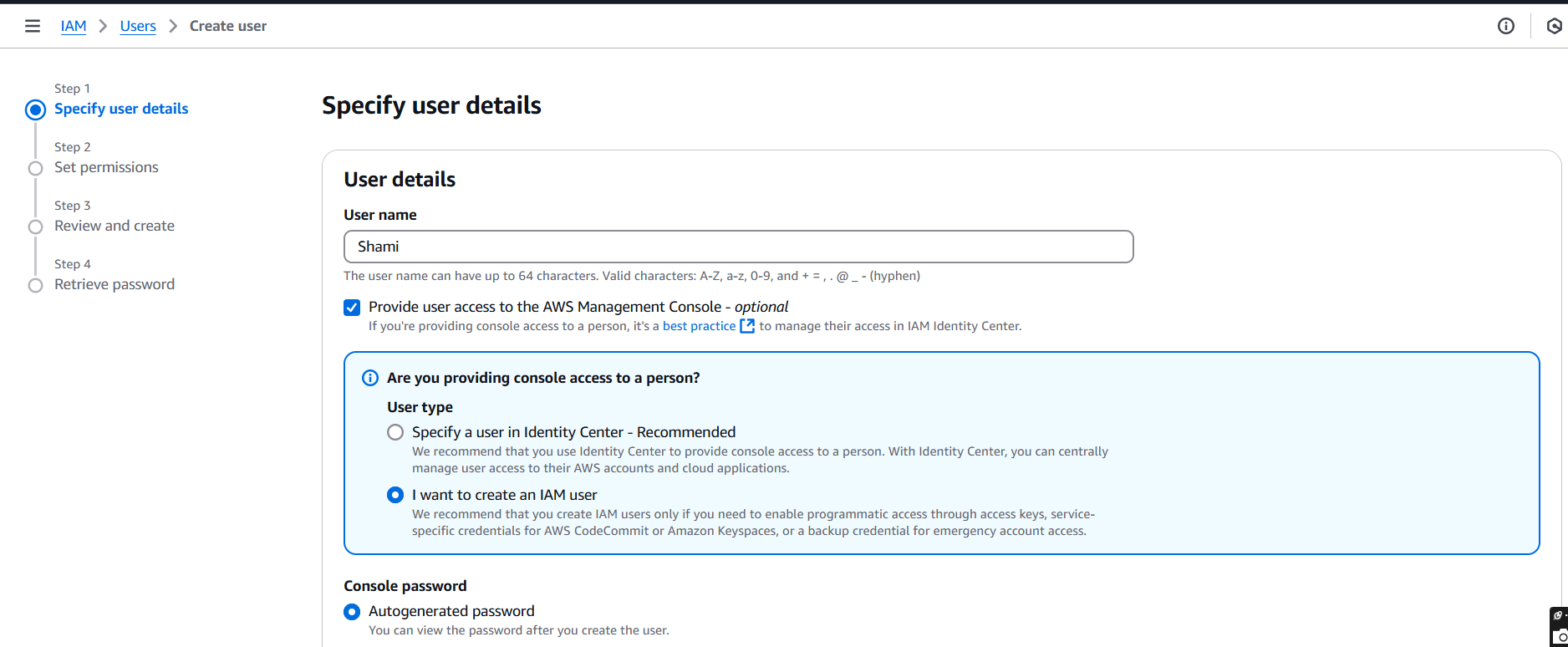
STEP 1: Create IAM user.
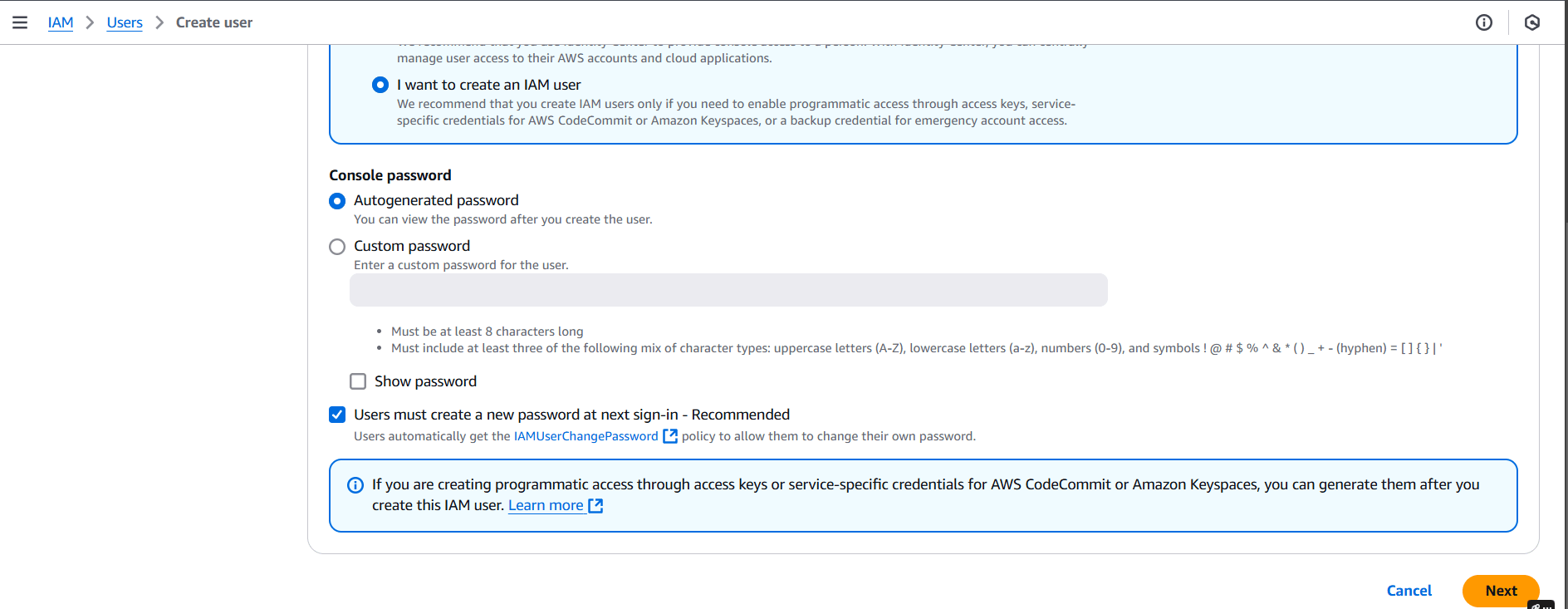
STEP 2: Click on Attach policies directly.
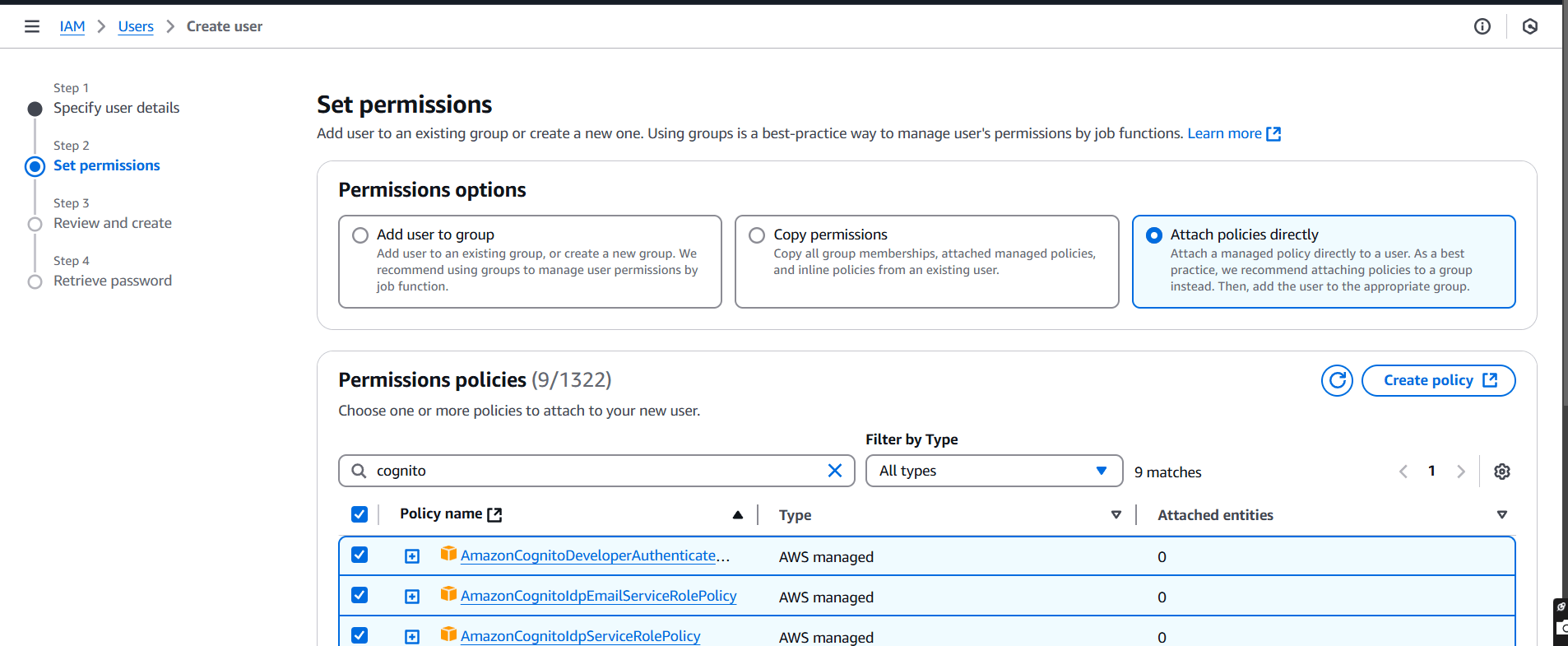
STEP 3: Click on create user.
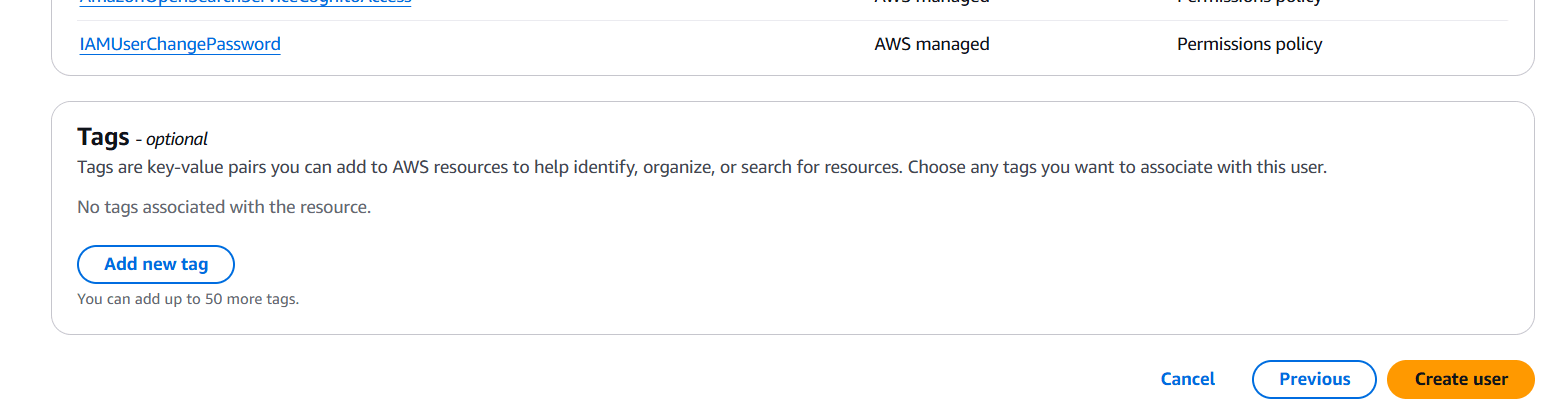
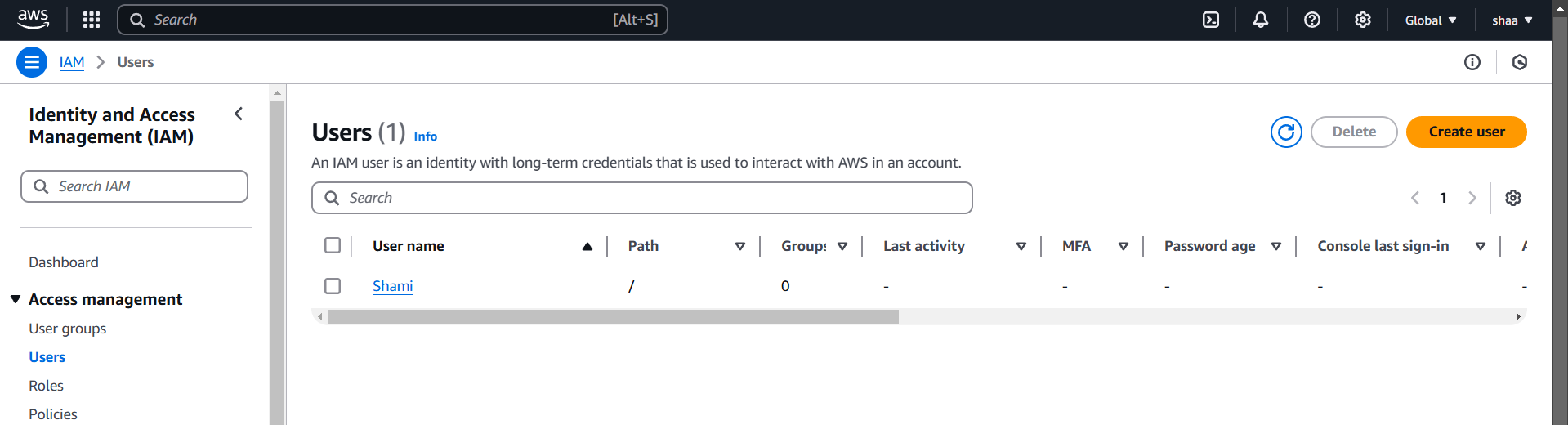
STEP 4: You will see that a user has been created.
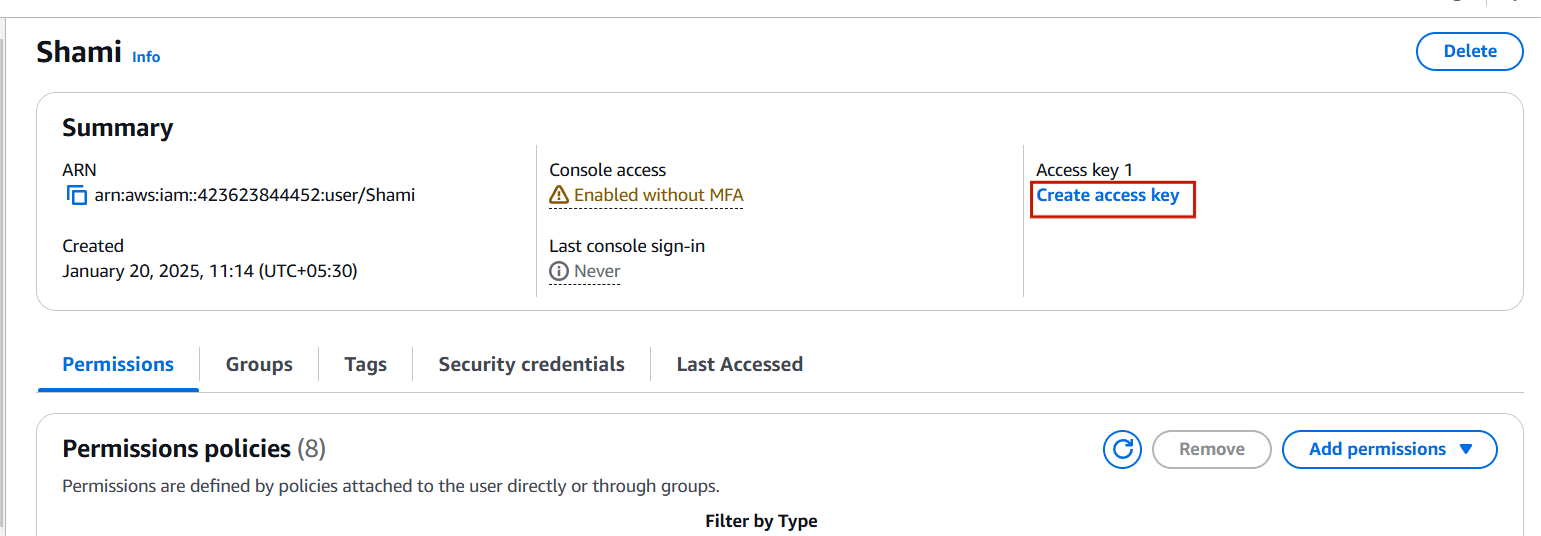
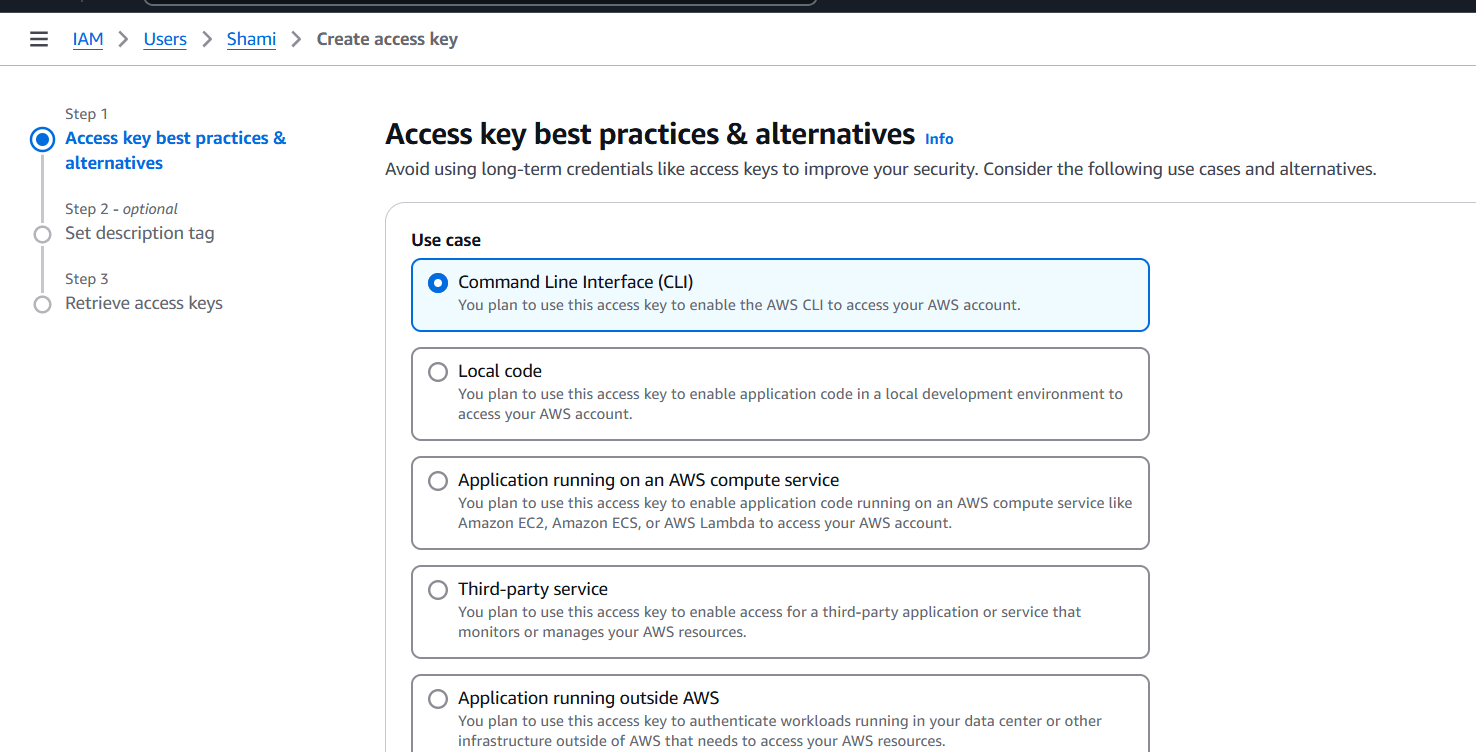
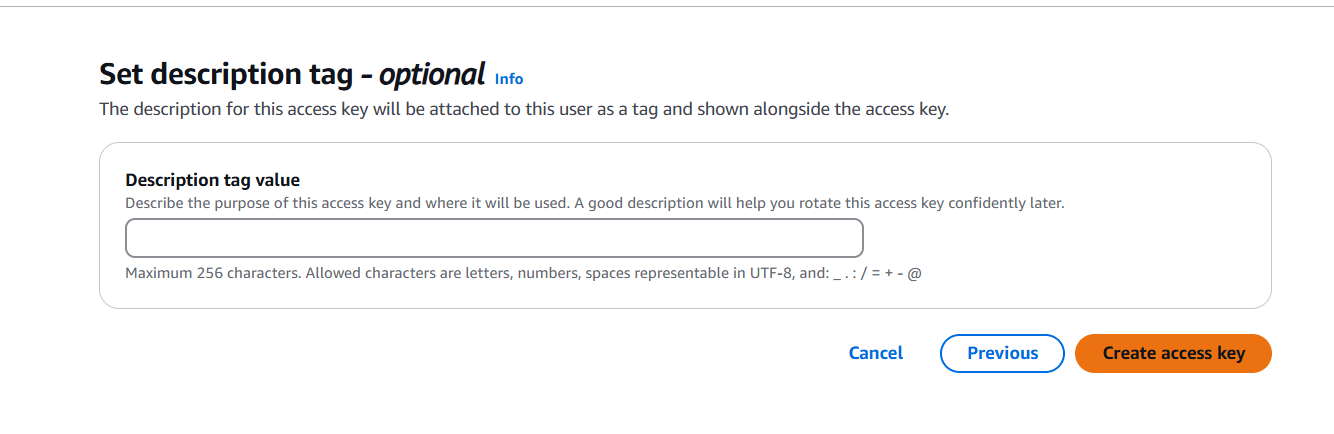
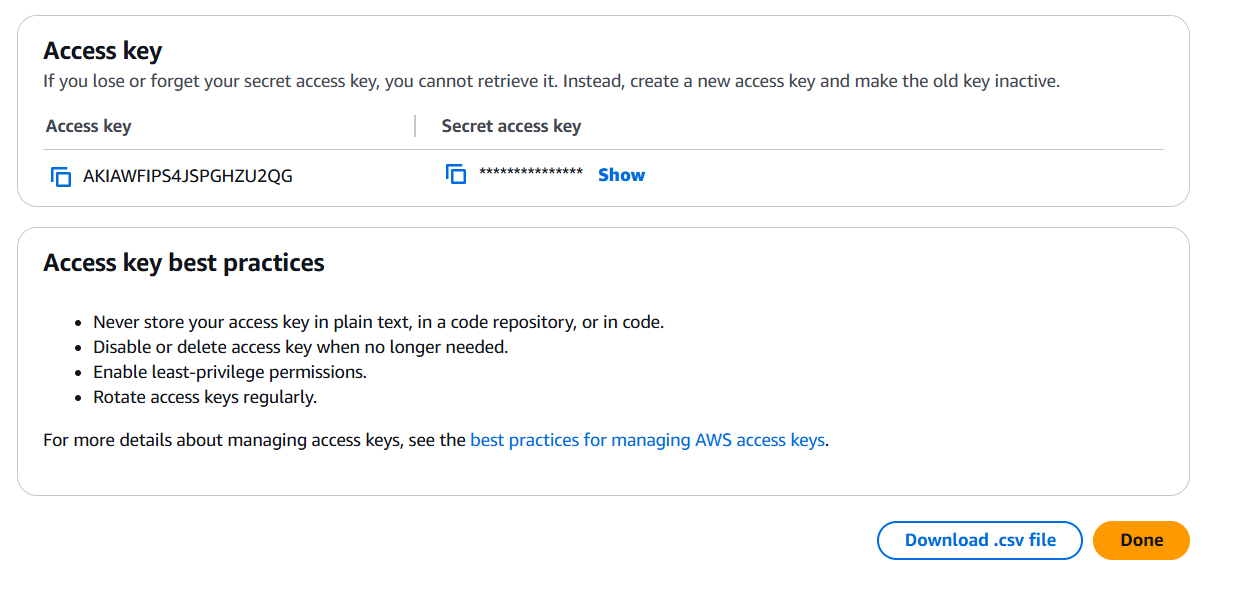
STEP 5: Select the create access key.
STEP 6: Select CLI.
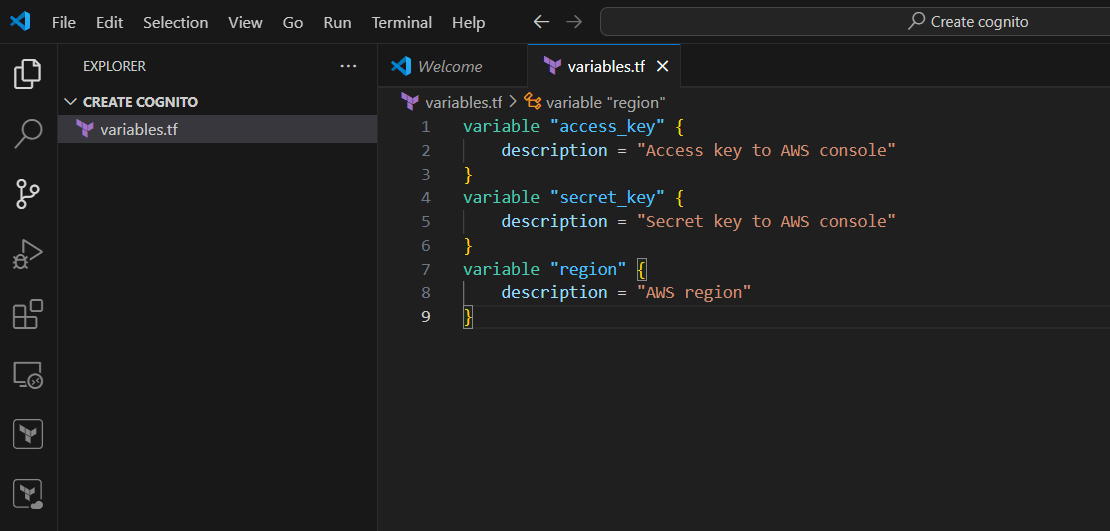
STEP 7: Go to VS Code and open your folder.
variable "access_key" {
    description = "Access key to AWS console"
}
variable "secret_key" {
    description = "Secret key to AWS console"
}
variable "region" {
    description = "AWS region"
}
STEP 8: Create terraform.tfvars and enter your region, access key and secret key.
region = "us-east-1"
access_key = "<Your access key id>"
secret_key = "<Your secret key id>"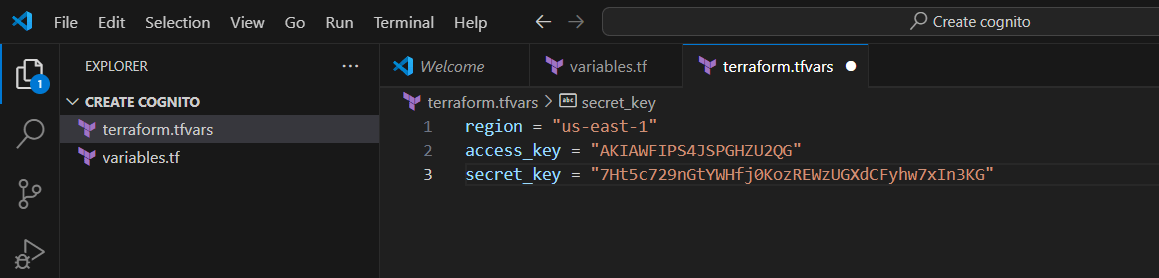
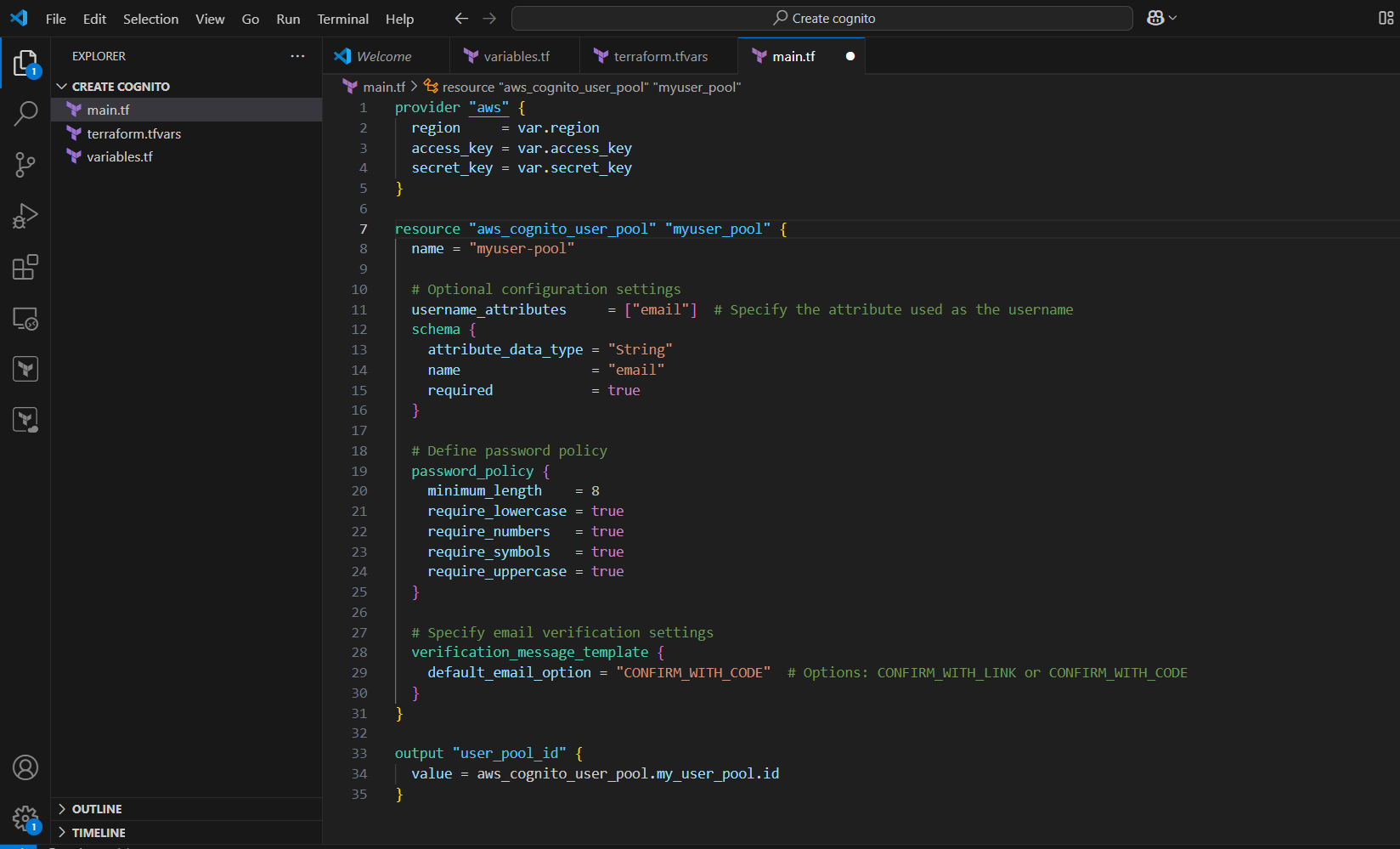
STEP 9: Create main.tf file.
provider "aws" {
  region     = var.region
  access_key = var.access_key
  secret_key = var.secret_key
}

resource "aws_cognito_user_pool" "my_user_pool" {
  name = "my-user-pool"

  # Optional configuration settings
  username_attributes     = ["email"]  # Specify the attribute used as the username
  schema {
    attribute_data_type = "String"
    name                = "email"
    required            = true
  }

  # Define password policy
  password_policy {
    minimum_length    = 8
    require_lowercase = true
    require_numbers   = true
    require_symbols   = true
    require_uppercase = true
  }

  # Specify email verification settings
  verification_message_template {
    default_email_option = "CONFIRM_WITH_CODE"  # Options: CONFIRM_WITH_LINK or CONFIRM_WITH_CODE
  }
}

output "user_pool_id" {
  value = aws_cognito_user_pool.my_user_pool.id
}
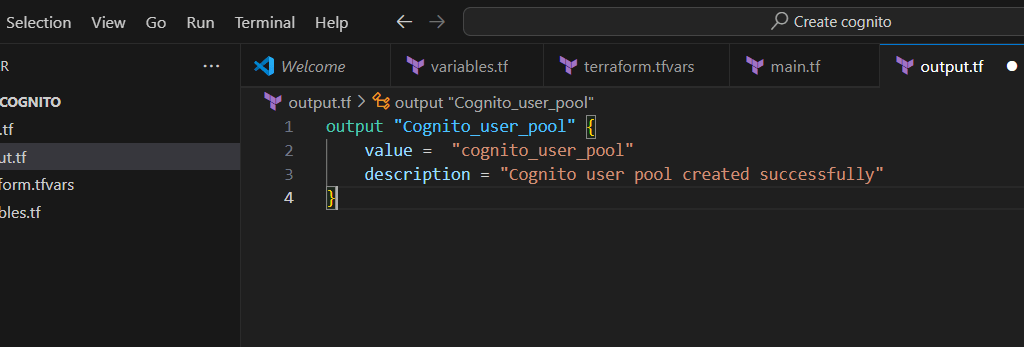
STEP 10: Create output.tf file.
output "Cognito_user_pool" {
    value =  "cognito_user_pool"
    description = "Cognito user pool created successfully"
}
STEP 11: Go to terminal and enter the terraform init command.
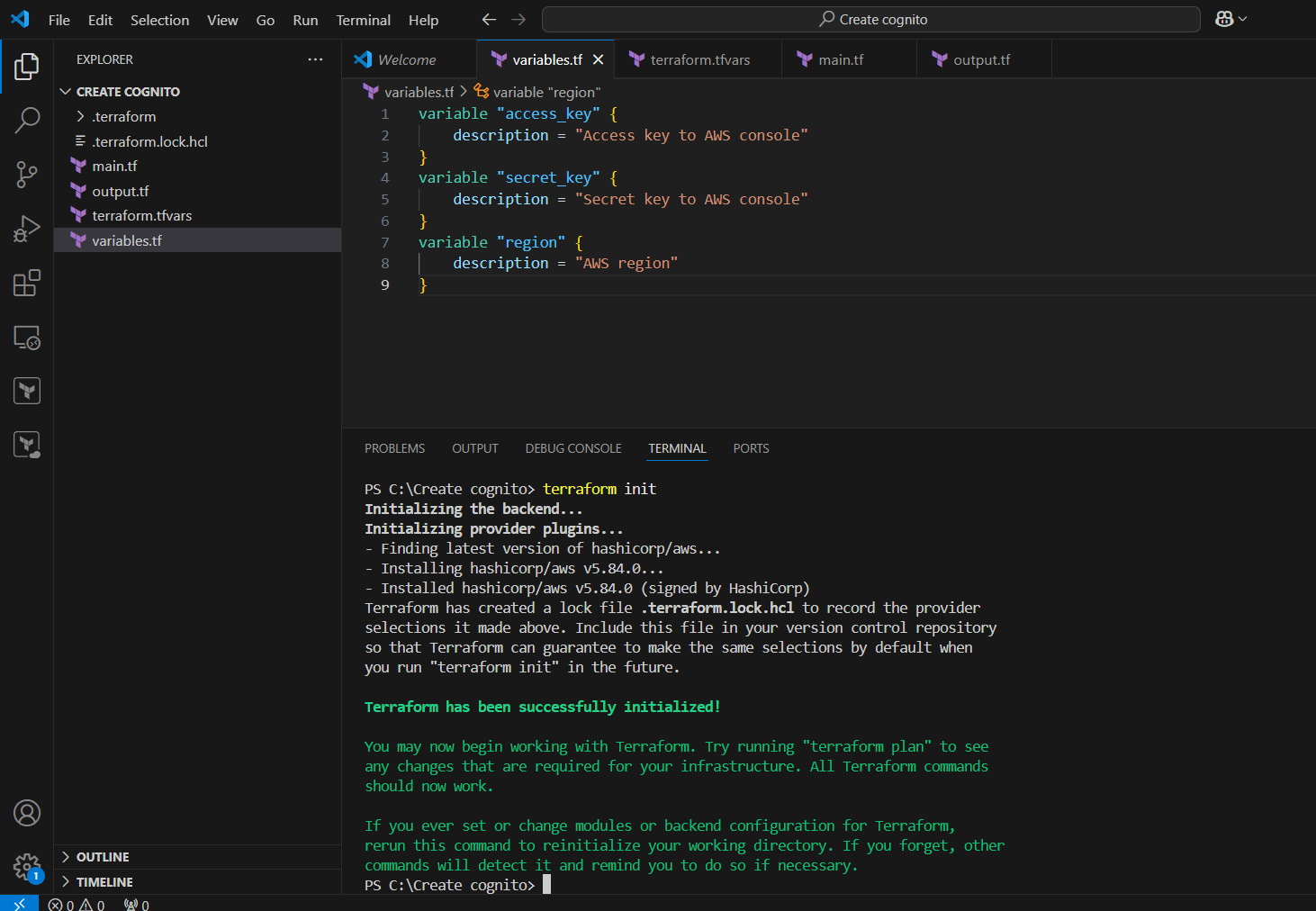
STEP 12: Next, enter terraform plan.
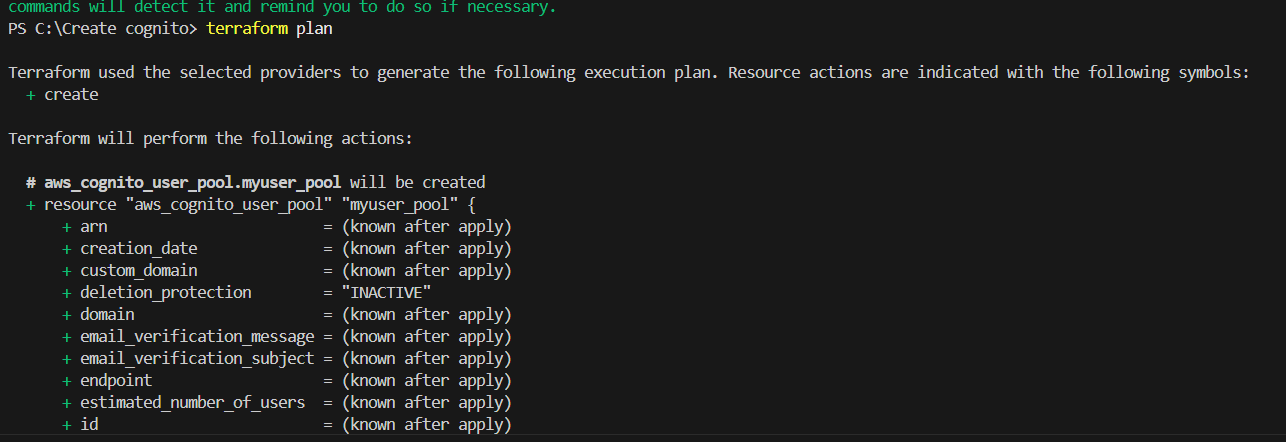
STEP 13: Enter terraform apply.
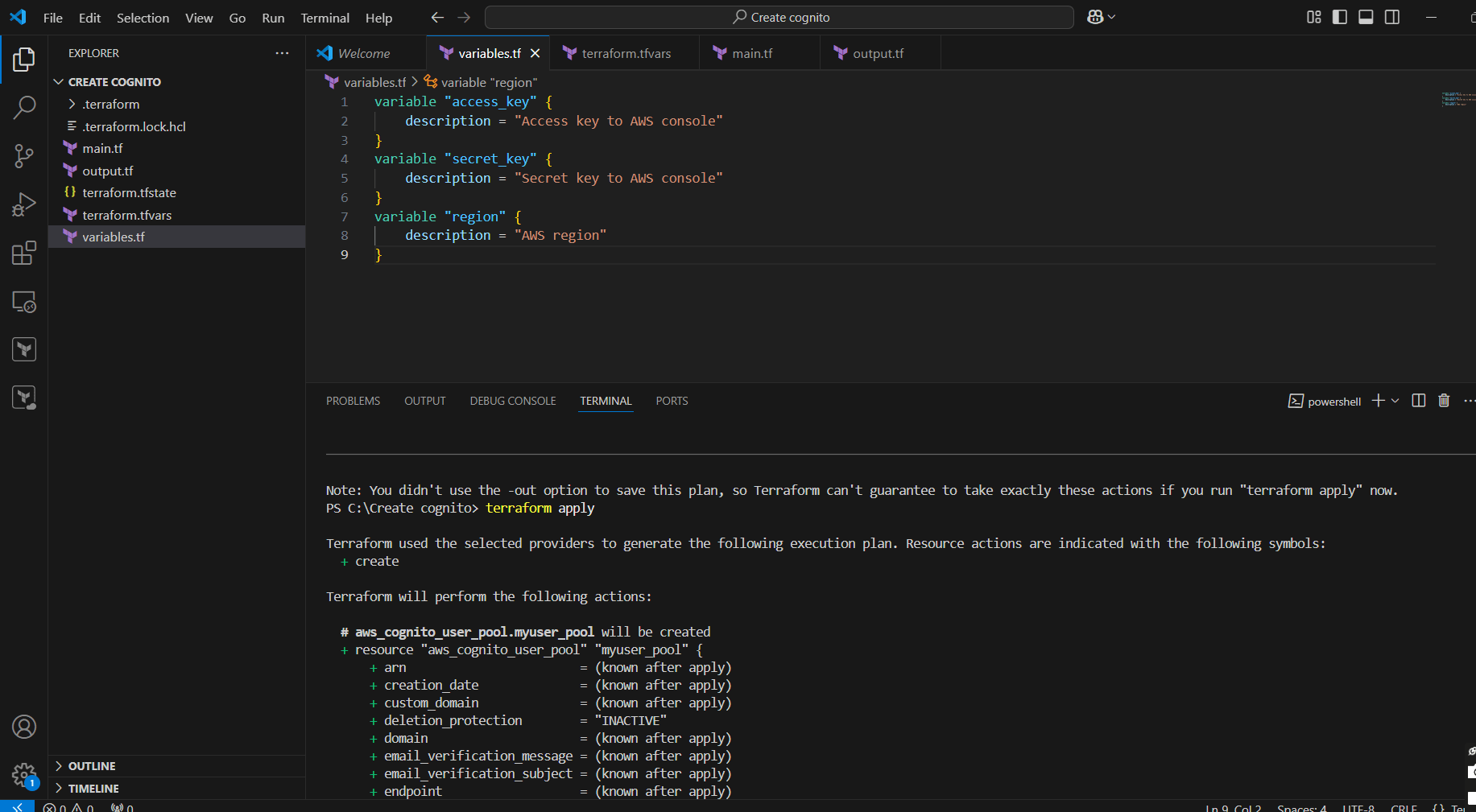
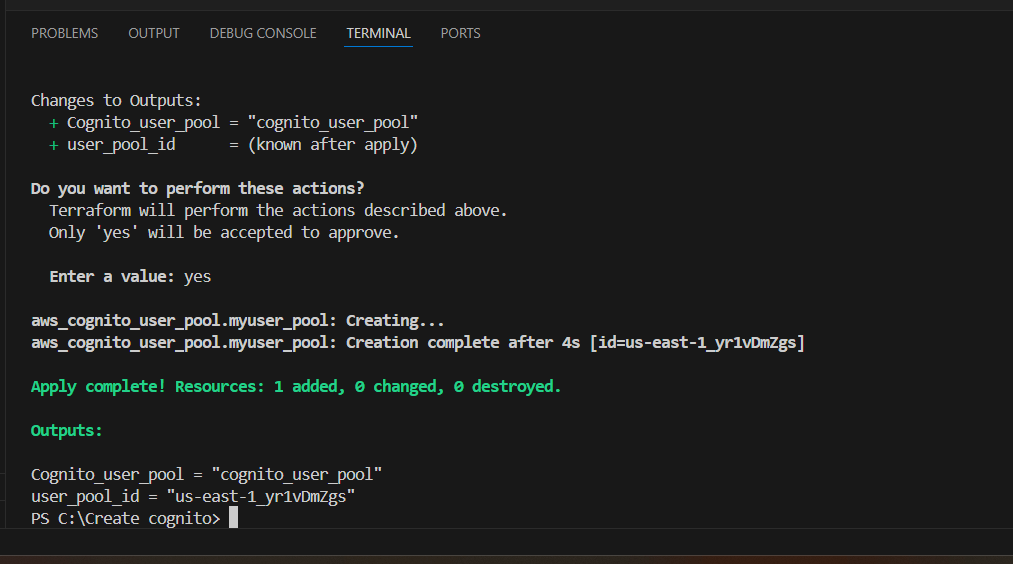
STEP 14: Check the resources in the AWS Console.
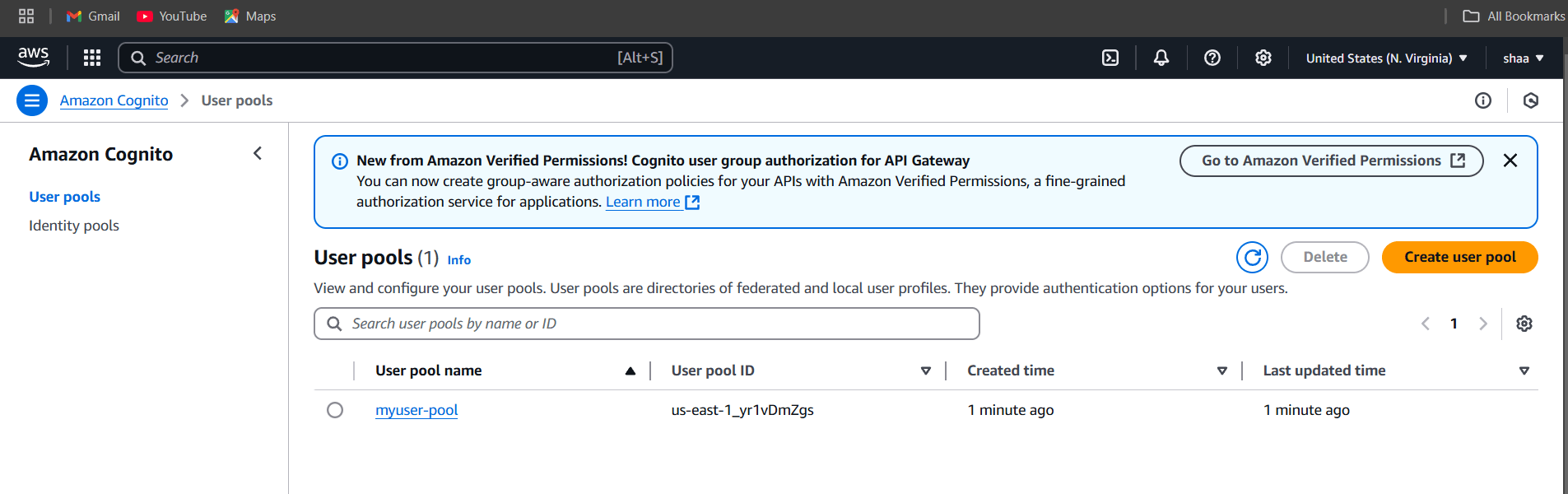
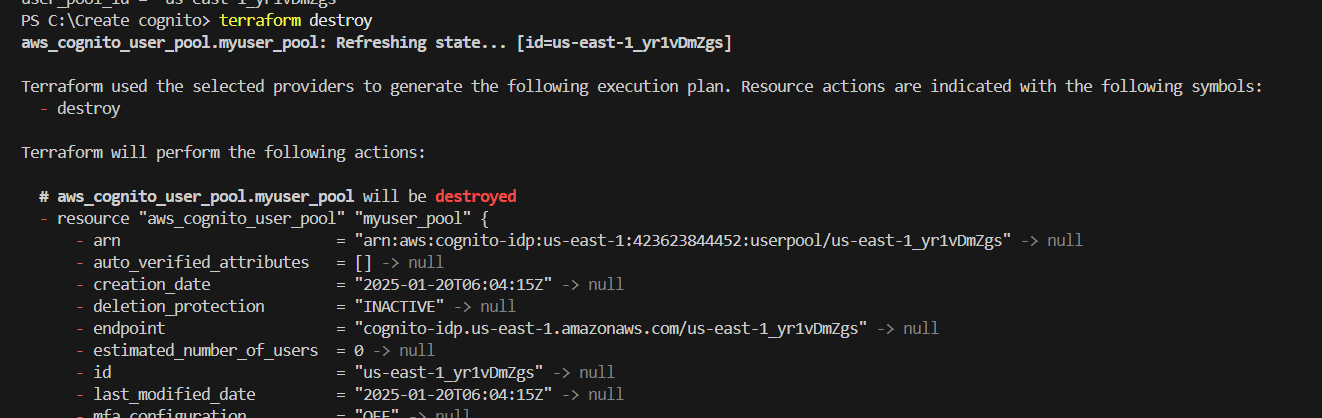
STEP 15: If you delete, use the terraform destroy command.

You have successfully created a User Pool in AWS Cognito. AWS Cognito is a powerful tool for managing user authentication and access in applications, providing a blend of security, scalability, and integration with AWS services. While it may require a learning curve for complex setups, its benefits often outweigh these challenges, making it a strong candidate for companies looking to enhance their user management processes and secure their applications. It is essential for businesses to assess their specific use cases to maximize the benefits of AWS Cognito effectively.