





In today’s cloud-native world, monitoring and observability are crucial for ensuring the health and performance of applications, systems, and services. As organizations increasingly adopt microservices and containerized environments, the need for efficient, scalable, and flexible monitoring solutions has grown. Amazon Managed Service for Prometheus is one such powerful solution that allows organizations to collect, store, and query high-resolution metrics at scale.
AWS Prometheus is a fully managed service that simplifies the setup and management of Prometheus, an open-source system monitoring and alerting toolkit designed specifically for modern, containerized applications. Prometheus is widely adopted in the tech community for its robust support of time-series data, flexible querying capabilities, and seamless integration with Kubernetes and other container orchestration systems.
By using AWS Managed Prometheus, organizations can benefit from a fully managed, scalable, and secure platform for monitoring metrics without the overhead of managing the infrastructure required for self-hosting Prometheus. AWS handles much of the operational complexity, including scaling the system as your workloads grow, managing backups, and applying necessary security patches, allowing teams to focus on monitoring and alerting rather than infrastructure management.
A major advantage of using AWS Prometheus is its integration with Amazon CloudWatch and other AWS services. This provides a holistic monitoring solution, where AWS Prometheus collects and stores your metrics data, while Amazon CloudWatch can handle logs and dashboards. This integration enables users to correlate metrics, logs, and traces for a complete view of system health and performance.
Setting up AWS Prometheus is straightforward and efficient. Through the AWS Management Console or via AWS CLI, you can quickly create a Prometheus workspace, configure data collection, and start storing time-series metrics. With Prometheus’ native support for PromQL (Prometheus Query Language), users can query their data in a powerful and flexible way, making it easy to gain insights into application performance, resource utilization, and more.
This guide will walk you through the process of creating and configuring AWS Prometheus, starting from setting up the workspace to integrating it with your existing monitoring stack. Whether you’re monitoring Kubernetes clusters, EC2 instances, or containerized workloads, AWS Prometheus provides the scalability and reliability needed for comprehensive monitoring and observability.
Moreover, you’ll learn how to configure data scraping, set up alerting for critical thresholds, and leverage AWS’s security features to ensure that your monitoring data is protected. We will also explore how AWS Prometheus can help your organization improve the efficiency and reliability of applications, giving you the insights needed to optimize performance and quickly identify and address issues.
By the end of this guide, you will be ready to set up AWS Prometheus and start monitoring your cloud-native applications with confidence. Whether you are a DevOps engineer, cloud architect, or systems administrator, AWS Prometheus provides the tools needed for proactive monitoring, performance optimization, and enhanced observability in a dynamic cloud environment.

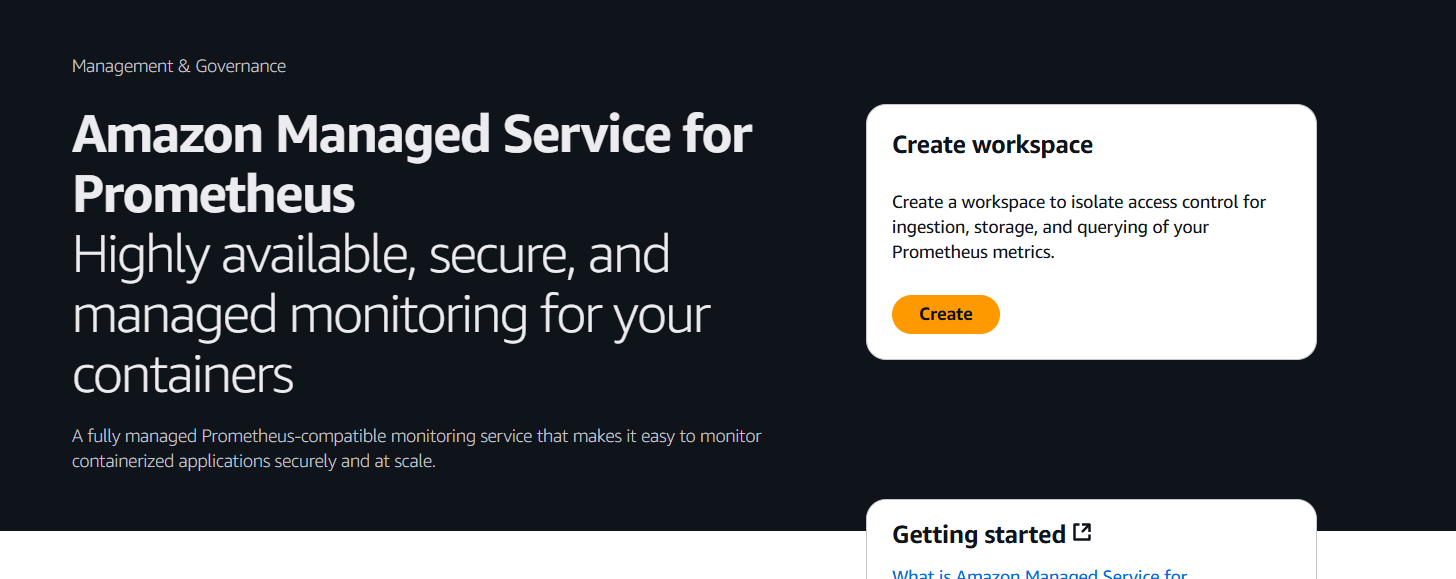
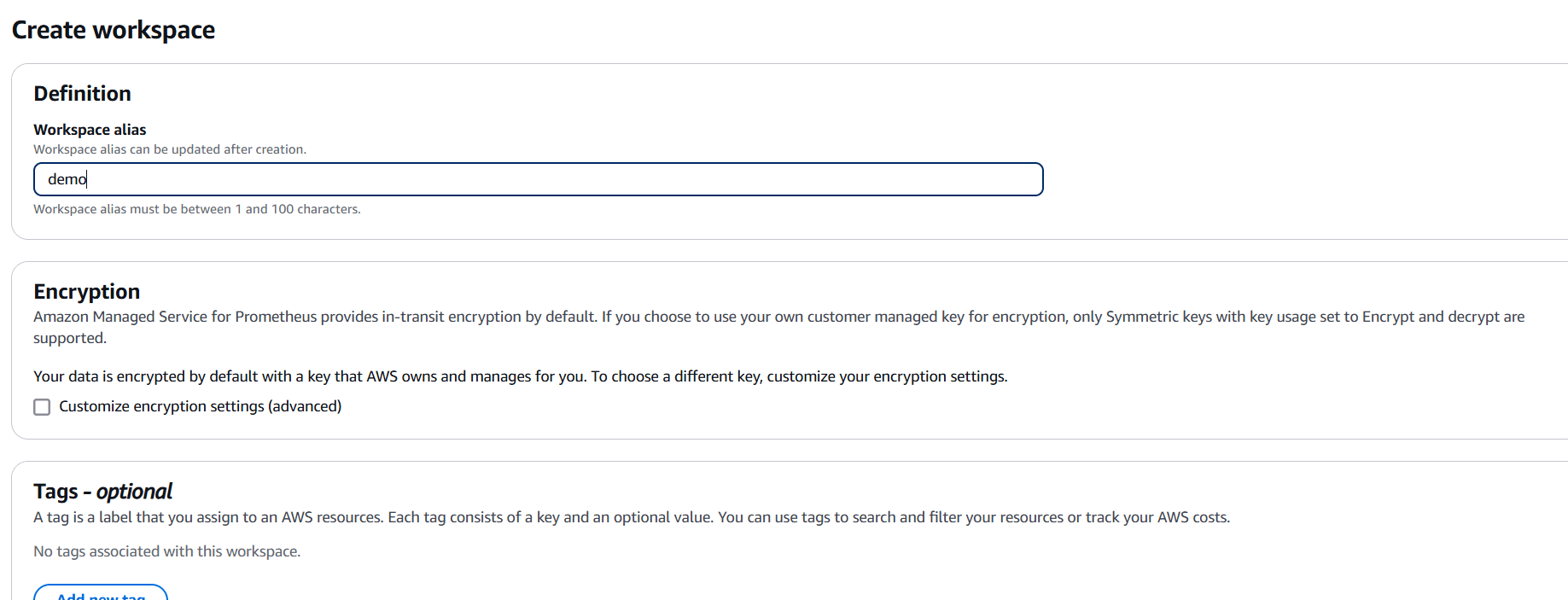
MyPrometheusWorkspace or something related to your application or project.If prompted, create or choose an IAM role that will provide the necessary permissions for AMP.

In conclusion, AWS Managed Prometheus is a powerful and scalable solution for organizations looking to effectively monitor their cloud-native applications and infrastructure. By leveraging the capabilities of Prometheus, AWS provides a fully managed, secure, and cost-effective service that eliminates the complexities of setting up and maintaining your own Prometheus instance.
With its seamless integration with Amazon CloudWatch and other AWS services, AWS Prometheus offers a holistic monitoring solution that allows you to collect, store, and analyze metrics at scale. The flexibility of PromQL, combined with the managed environment, enables you to query and gain deep insights into your application and system performance with minimal overhead.
Whether you’re working with Kubernetes, containerized environments, or EC2 instances, AWS Prometheus provides the essential tools needed to ensure the reliability, availability, and performance of your applications. Its ability to scale automatically with your workloads means that no matter how large or dynamic your system becomes, AWS Prometheus will grow with you, delivering the real-time metrics necessary for proactive monitoring and troubleshooting.
As cloud-native technologies continue to evolve, adopting a comprehensive and efficient monitoring solution like AWS Prometheus will become increasingly important. With features like automated scaling, built-in security, and robust querying, AWS Prometheus empowers teams to focus on optimizing applications rather than managing complex infrastructure.
Ultimately, by using AWS Prometheus, organizations can improve their operational efficiency, gain better visibility into application performance, and rapidly detect and resolve issues. It’s a critical tool for modern DevOps and cloud teams striving for high availability, low latency, and a seamless user experience in today’s fast-paced, ever-changing cloud environments.
By setting up AWS Prometheus, you are taking a significant step toward achieving effective observability, ensuring that your systems are not only running but are continuously optimized for success.

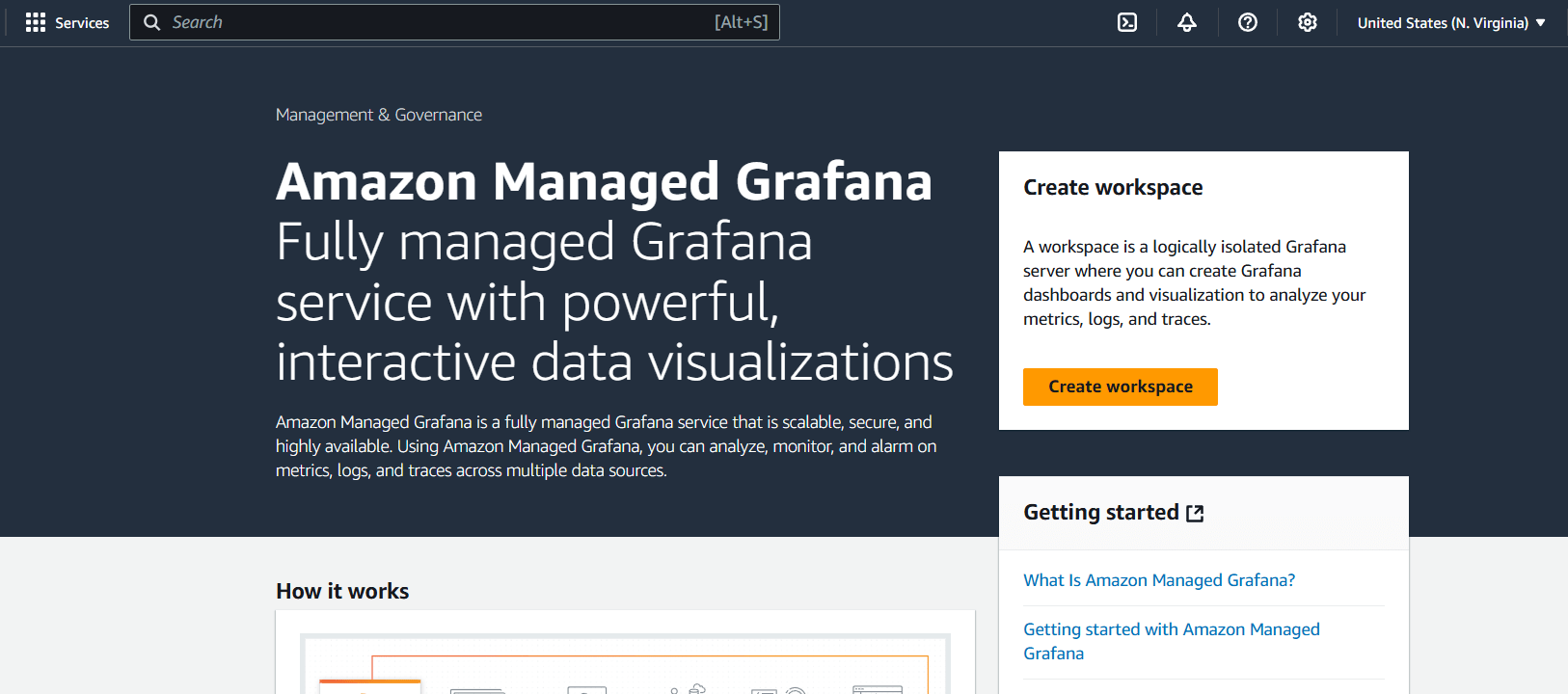
In the modern world of cloud computing, monitoring and visualizing system performance, application health, and infrastructure metrics are essential for maintaining high availability and ensuring smooth operations. AWS Managed Grafana is a fully managed service that simplifies this process by providing a cloud-native, scalable solution for visualizing and analyzing data from multiple sources. Grafana, an open-source analytics and monitoring platform, is widely recognized for its powerful capabilities in creating customizable dashboards, integrating with a wide variety of data sources, and providing real-time insights into your data.
Amazon Web Services (AWS) offers AWS Managed Grafana to take the complexity out of deploying and maintaining Grafana. By fully managing the underlying infrastructure, AWS handles the heavy lifting, so you can focus on configuring your Grafana instance, adding data sources, and building dashboards. With AWS Managed Grafana, you can easily connect to AWS services like Amazon CloudWatch, Amazon Elasticsearch, Prometheus, InfluxDB, and many more, enabling seamless integration with your AWS ecosystem.
Setting up AWS Managed Grafana provides numerous benefits, such as reduced operational overhead, automatic scaling, and built-in security features. It is an excellent tool for teams that need real-time visibility into their AWS infrastructure, applications, and logs. Furthermore, because it is fully managed, it removes the need for manually installing, patching, and managing Grafana servers, allowing organizations to focus on their core tasks.
This service is particularly useful for businesses that require centralized monitoring across multiple AWS accounts, regions, and services. Whether you’re tracking metrics related to EC2 instances, RDS databases, Lambda functions, or Kubernetes clusters, AWS Managed Grafana gives you the flexibility to visualize your data in an intuitive, easy-to-understand way.
Moreover, the integration with Amazon CloudWatch allows you to monitor AWS resources, set alarms, and automate actions based on those alarms. Similarly, you can pull data from other services like Prometheus for containerized applications or Elasticsearch for log analytics, making it a versatile tool for full-stack monitoring. Additionally, AWS Managed Grafana supports alerts and notifications, helping you stay informed of critical changes and take action quickly.
Getting started with AWS Managed Grafana is straightforward, thanks to its seamless integration with the AWS Management Console. You can easily set up a Grafana workspace, connect data sources, create dashboards, and configure alerts with just a few clicks. The user-friendly interface allows both beginners and advanced users to quickly grasp how to create insightful visualizations.
In this guide, we’ll walk you through the entire process of setting up AWS Managed Grafana—from creating your workspace to configuring data sources, building your first dashboard, and setting up alerts. Whether you are new to Grafana or an experienced user, you’ll gain the knowledge and skills needed to start using AWS Managed Grafana effectively.

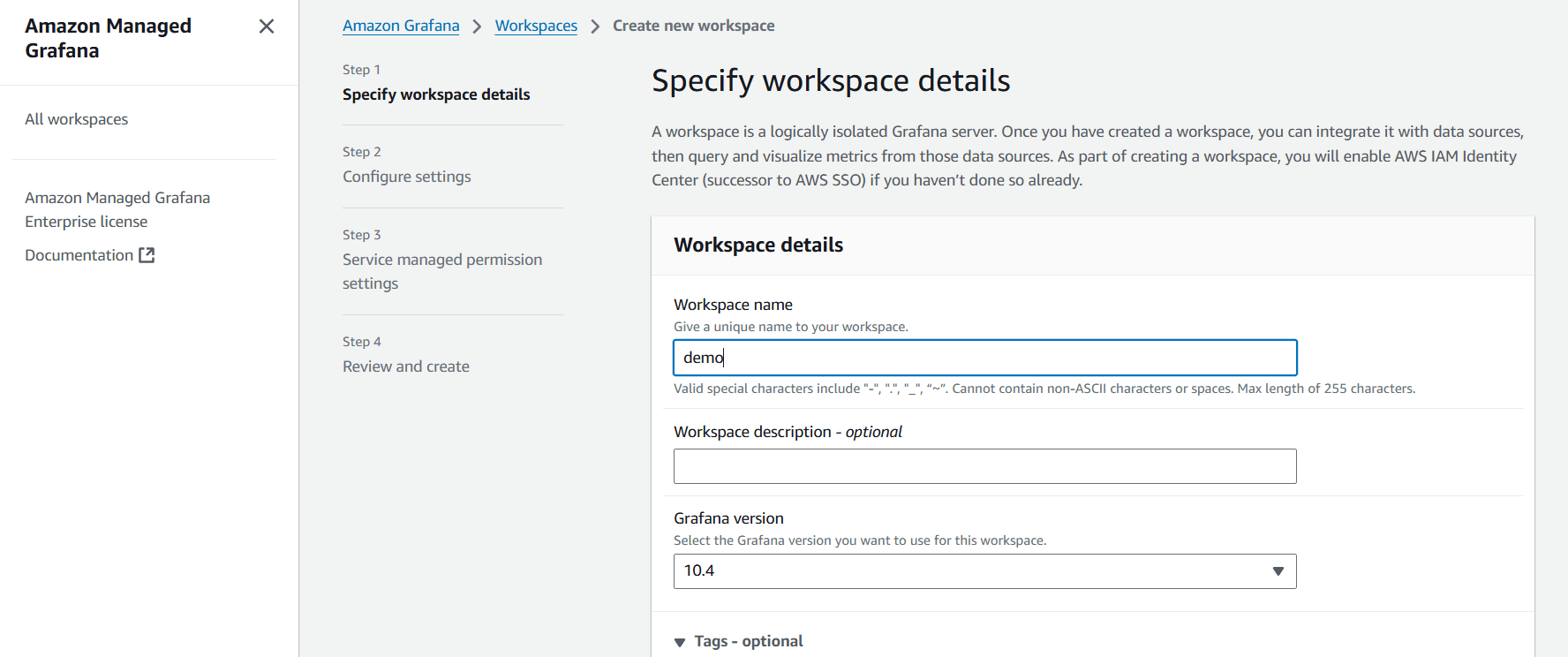
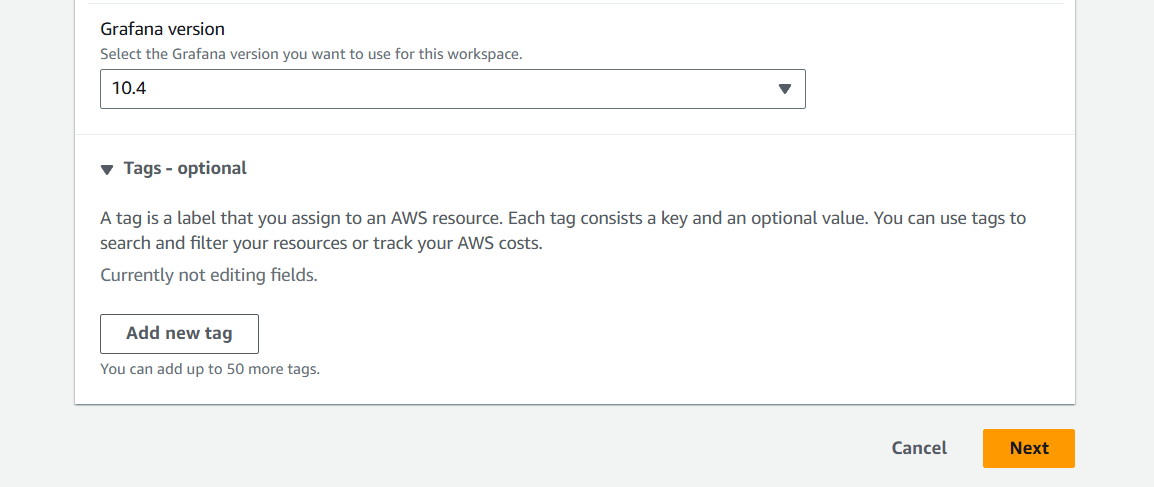
STEP 2: Select your version and click on next.
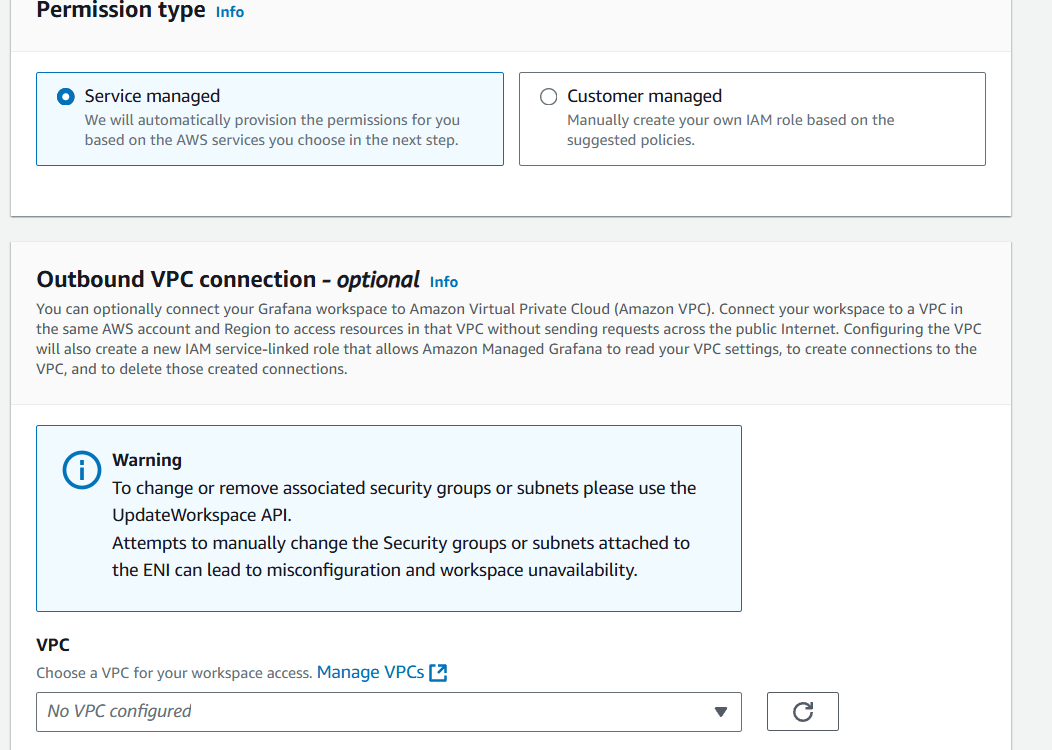
STEP 3: Select the permission type and VPC, Subnet, Security group.
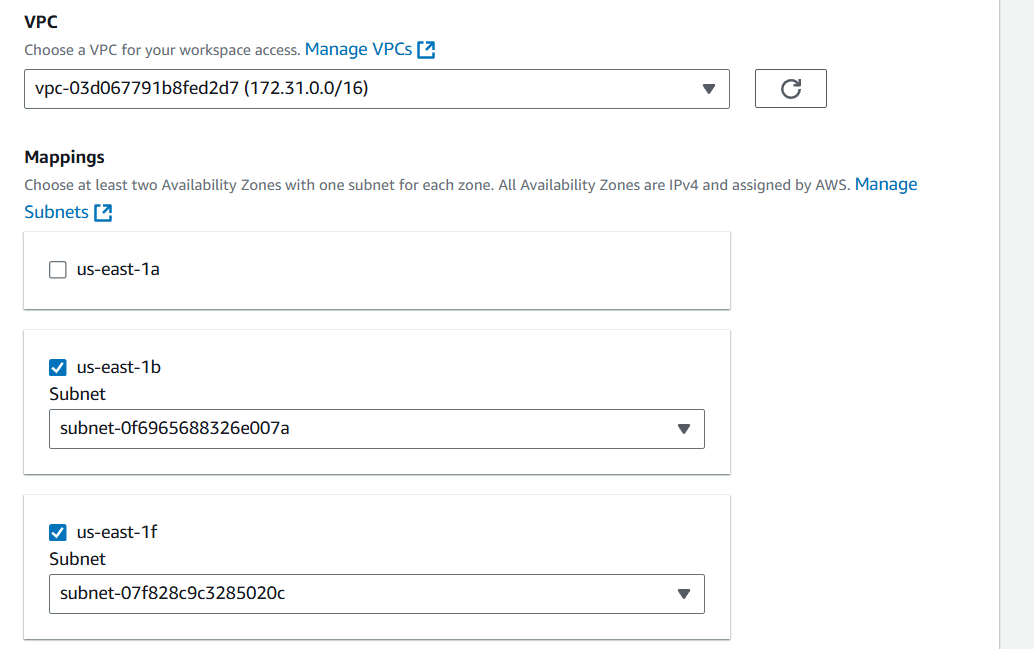
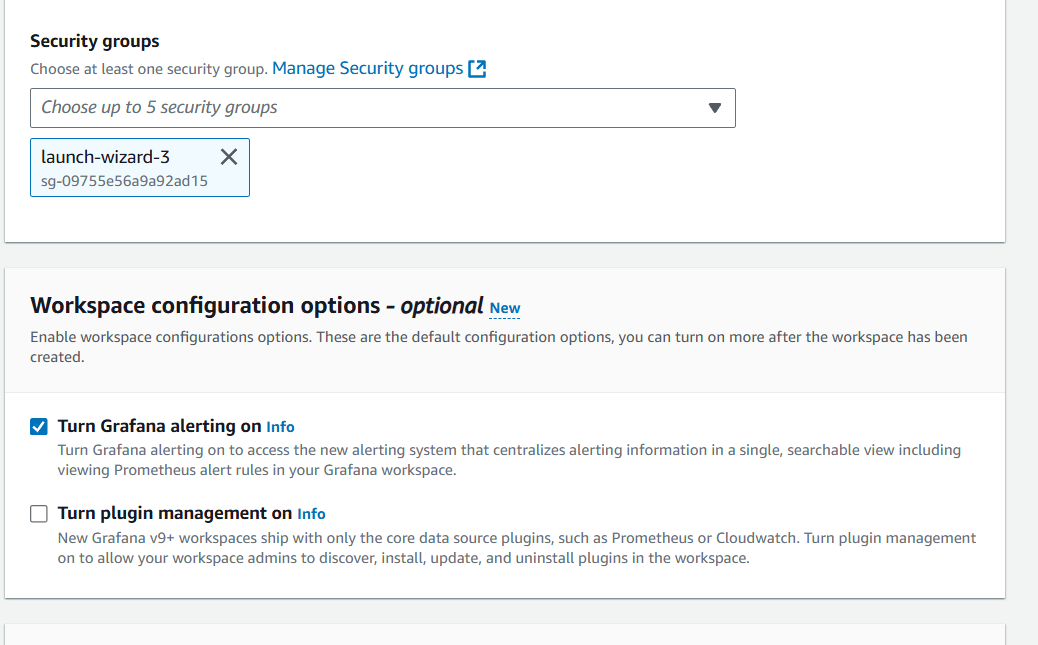
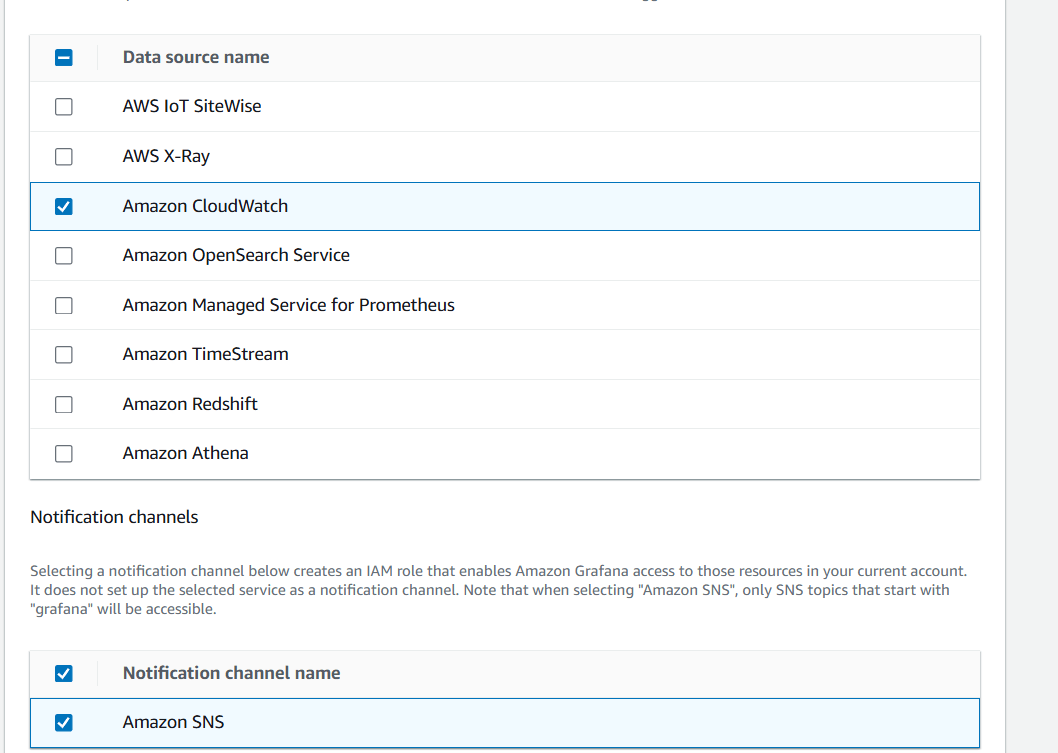
STEP 4: Select data source name and amazon SNS.
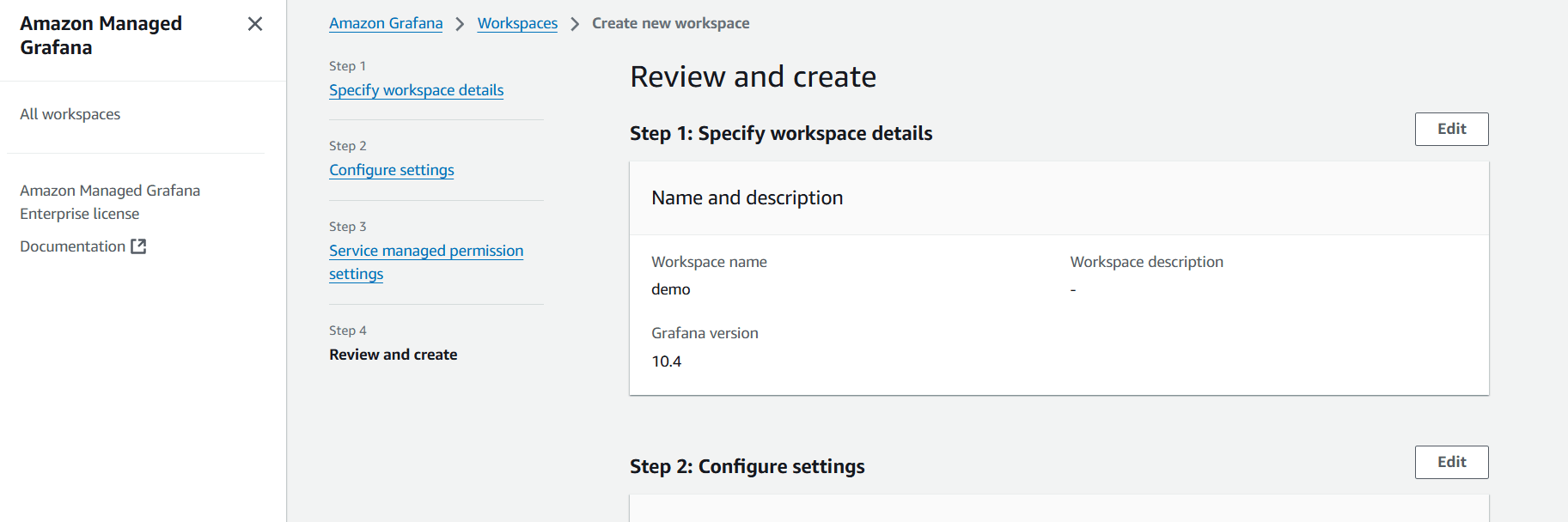
STEP 6: Reviewed and click on create.
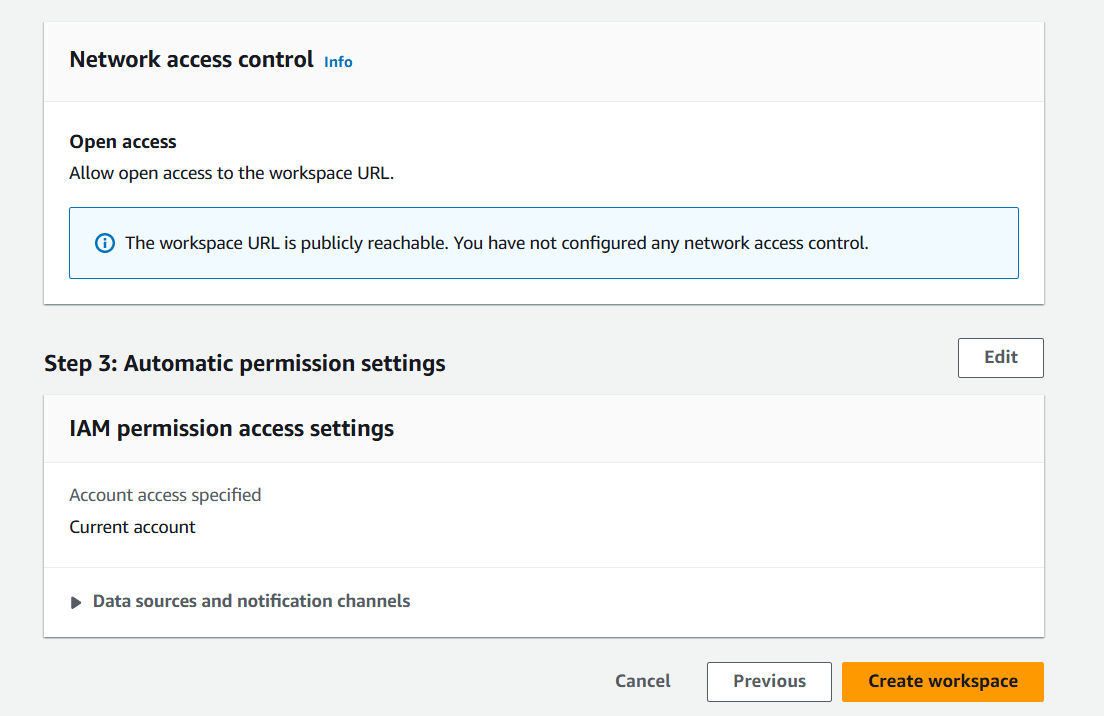
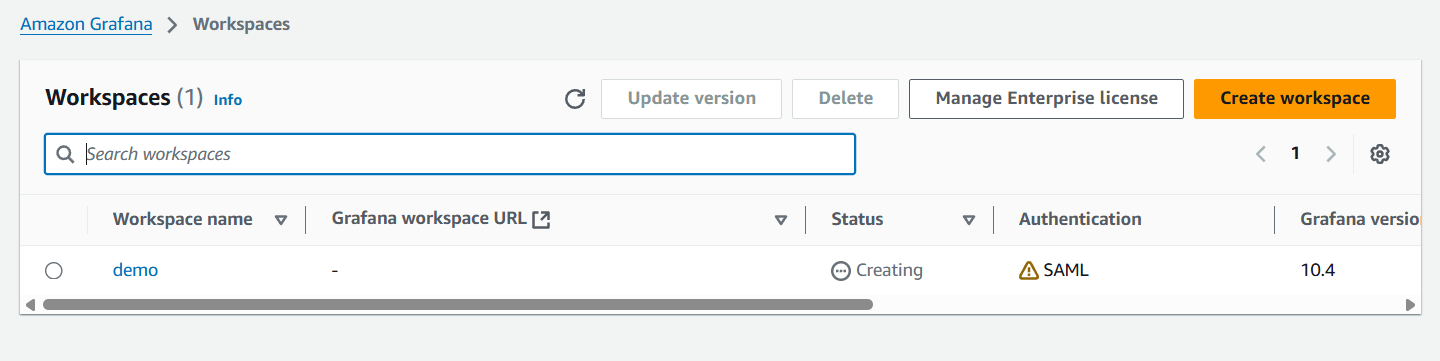

Setting up AWS Managed Grafana allows you to easily visualize and monitor your data without the need for managing infrastructure. By integrating various data sources such as Amazon CloudWatch, Prometheus, and Elasticsearch, AWS Managed Grafana provides a powerful platform for real-time monitoring and analysis.
With the ability to create custom dashboards, configure alerts, and leverage AWS’s scalability, AWS Managed Grafana simplifies the process of observing your AWS resources, applications, and workloads. Whether you are monitoring infrastructure, logs, or application performance, Grafana provides a centralized location for all your monitoring needs.
Now that you’ve learned how to create and configure AWS Managed Grafana, you can start building dashboards, monitoring your metrics, and ensuring the health and performance of your systems in a centralized and efficient manner. Happy monitoring!

Jenkins, a popular open-source automation server, is widely used in Continuous Integration (CI) and Continuous Deployment (CD) workflows. It helps automate repetitive tasks such as building, testing, and deploying software, making it an essential tool for modern DevOps practices. One of the most commonly used features of Jenkins is the creation of Freestyle Projects. These projects provide a simple and flexible way to automate tasks within Jenkins, allowing teams to build and deploy software with minimal setup.
A Freestyle Project in Jenkins is a type of job that allows you to define the entire automation process using a simple user interface, making it an excellent starting point for Jenkins users who are new to the tool. Freestyle projects are perfect for straightforward tasks such as compiling code, running tests, or deploying applications. Unlike more complex project types, such as Pipeline jobs, Freestyle Projects are relatively easy to configure and can be customized with various build steps, triggers, and post-build actions.
In this guide, we’ll walk through the process of creating and configuring Freestyle Projects in Jenkins, covering everything from basic setup to advanced configurations. Whether you’re automating your first build or optimizing your existing Jenkins setup, understanding how to work with Freestyle Projects is essential for streamlining your CI/CD pipelines.

Freestyle Projects are ideal for simpler workflows where you need to execute a series of commands or scripts in a sequential manner. Their advantages include:
Before diving into the configuration of a Freestyle Project, here’s what you need:
Configuring Freestyle Projects is one of the most powerful aspects of Jenkins. Through the simple interface, you can:
In the next sections of this guide, we’ll take you through the step-by-step process of creating and configuring your first Freestyle Project in Jenkins, as well as exploring some advanced features to streamline your CI/CD pipeline. By the end, you’ll be well-equipped to automate tasks efficiently and improve your software delivery process.
Let’s get started on creating your first Freestyle Project in Jenkins!
Before you start, you’ll need the following:
If you haven’t installed Jenkins yet, follow these quick steps:
http://localhost:8080 to access Jenkins.Once Jenkins is installed, log in to your Jenkins dashboard:
http://localhost:8080 (or your Jenkins server URL).Now that you’re logged in, it’s time to create your Freestyle Project:
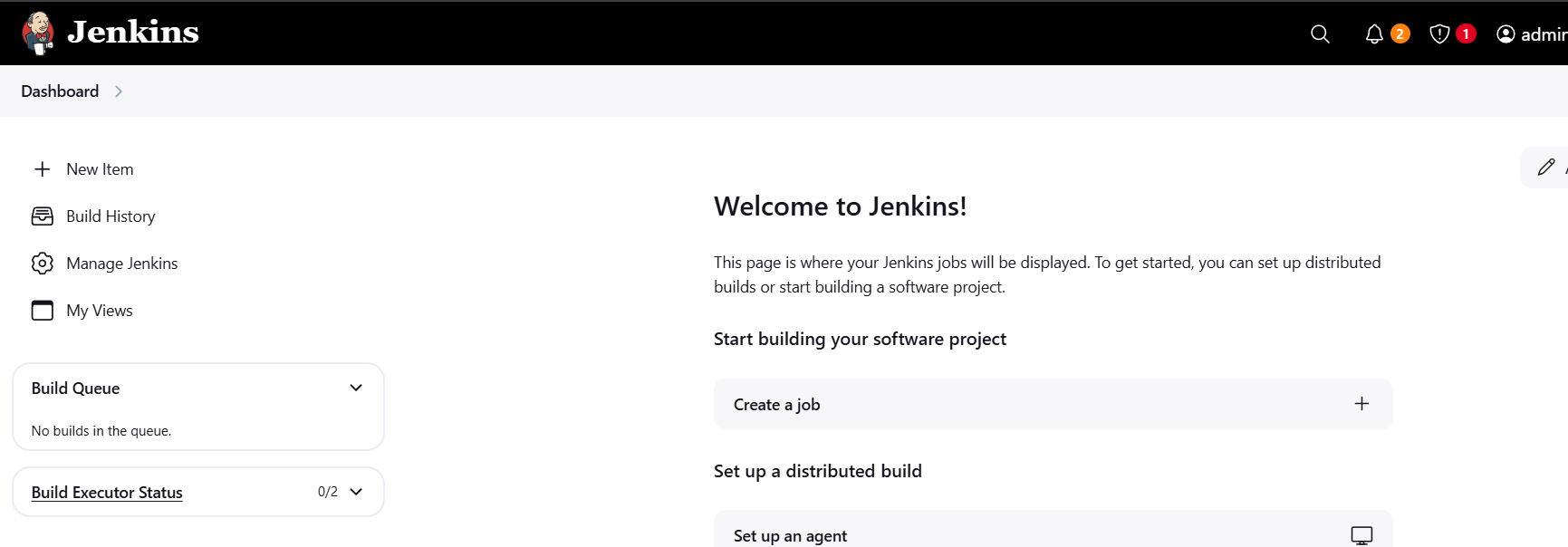
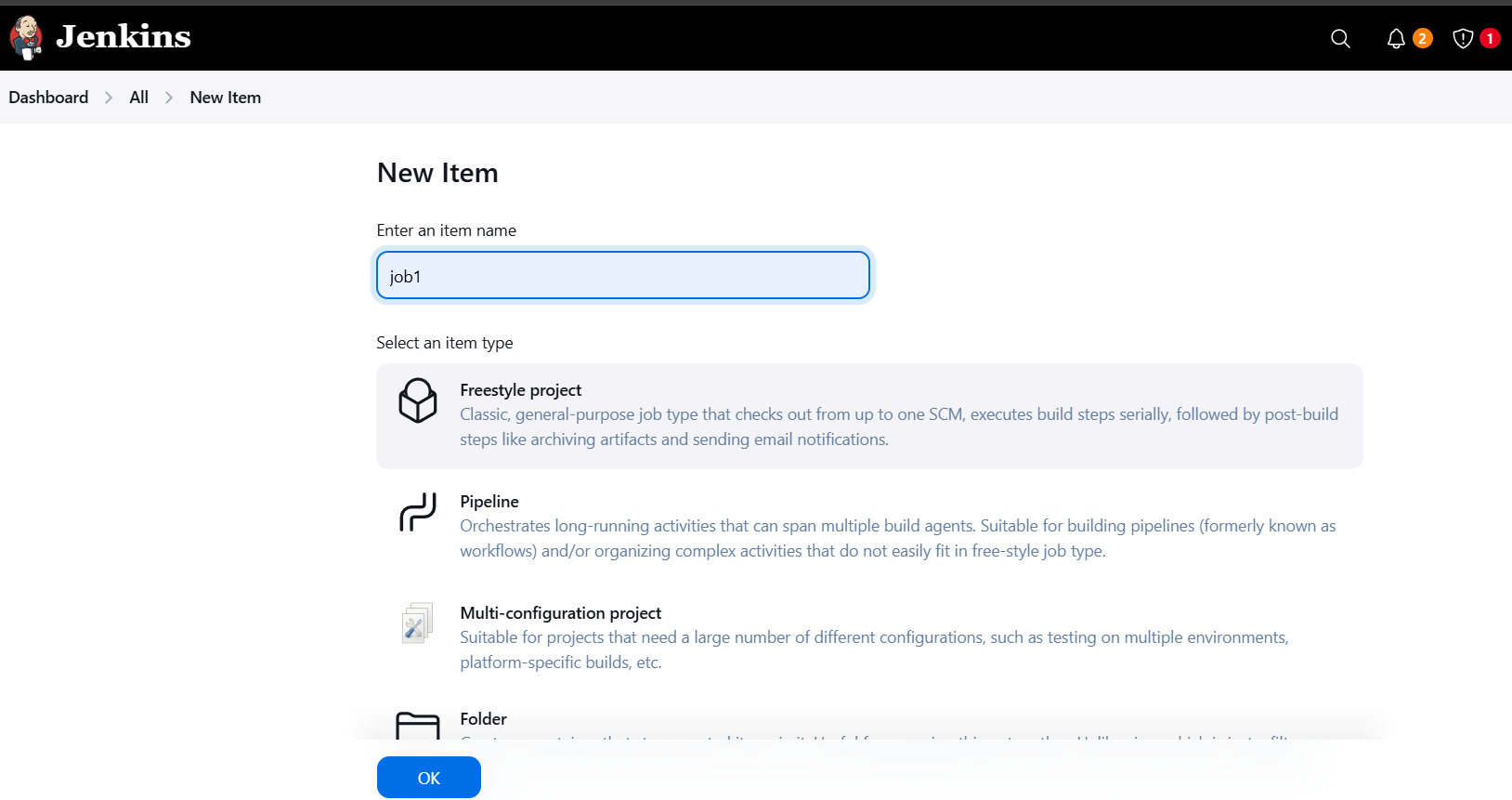
After clicking OK, you’ll be taken to the configuration page of your newly created Freestyle Project. Here, you’ll configure the various aspects of the project. Let’s walk through the main sections:
This section allows you to link your Jenkins project to your version control system (VCS), like Git, Subversion, etc.
https://github.com/your-repo.git).main or master).This section defines when Jenkins should start the build. Common triggers include:
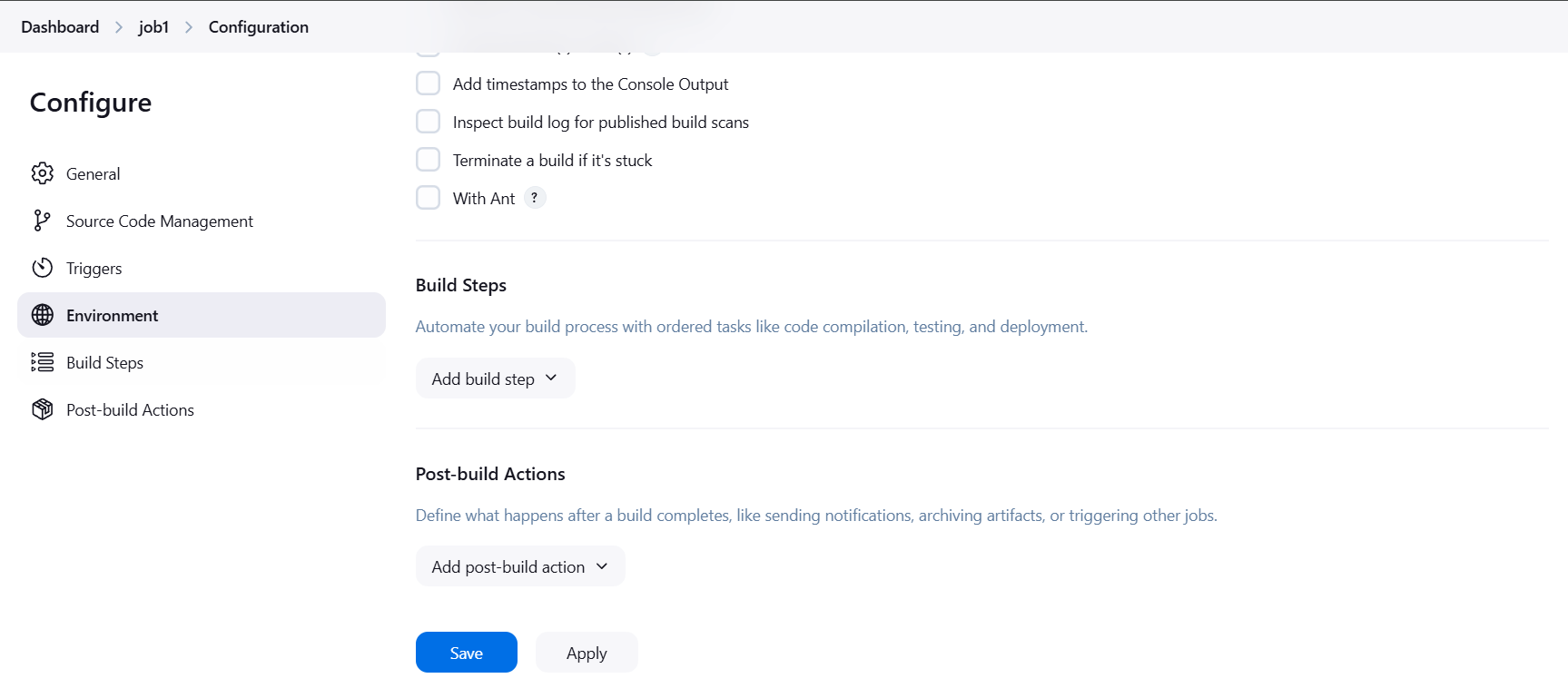
H/15 * * * * checks every 15 minutes).This is where you define the actions Jenkins should take during the build process. You can add multiple build steps, such as compiling code, running tests, or creating artifacts.
clean install).Post-build actions define what should happen after the build completes. Common actions include:
target/*.jar (for Maven-based projects).Once you have configured the project, click Save to save the project configuration. You will be redirected to the project dashboard.
To manually trigger the build:
Jenkins will execute the steps you defined in the Build Steps section, and you’ll be able to see the build progress and results.
After the build completes, Jenkins provides detailed logs and feedback about the build:
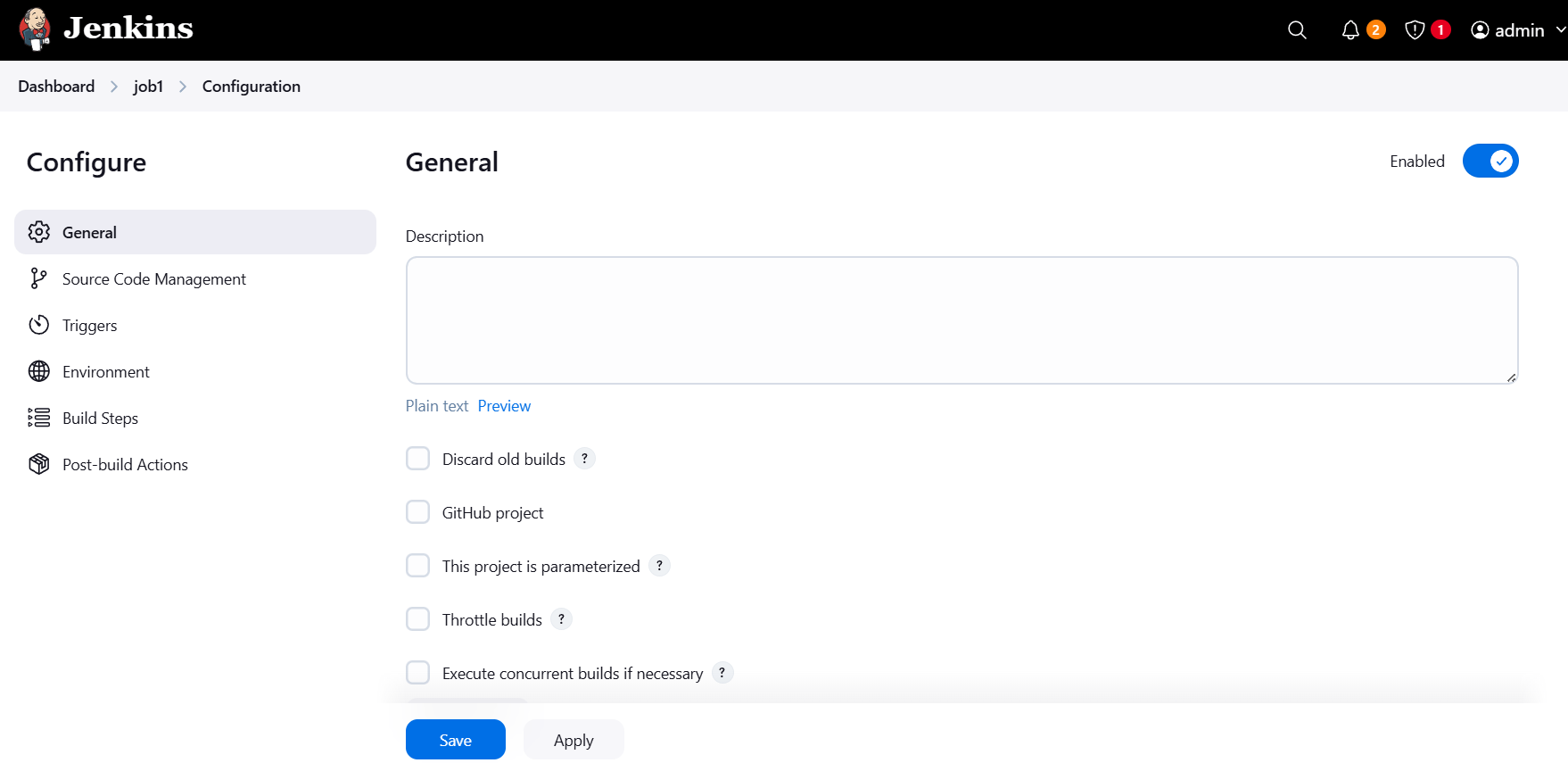
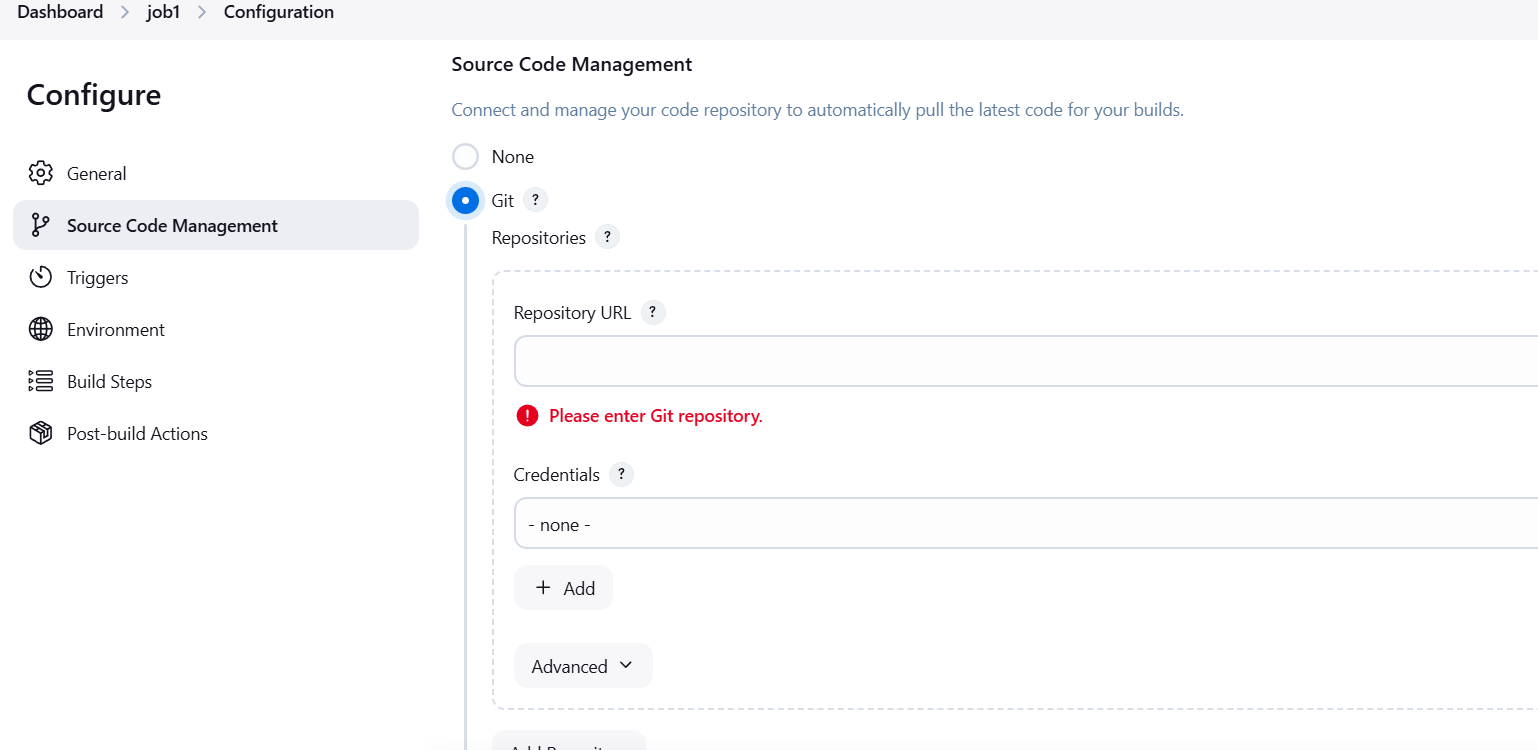
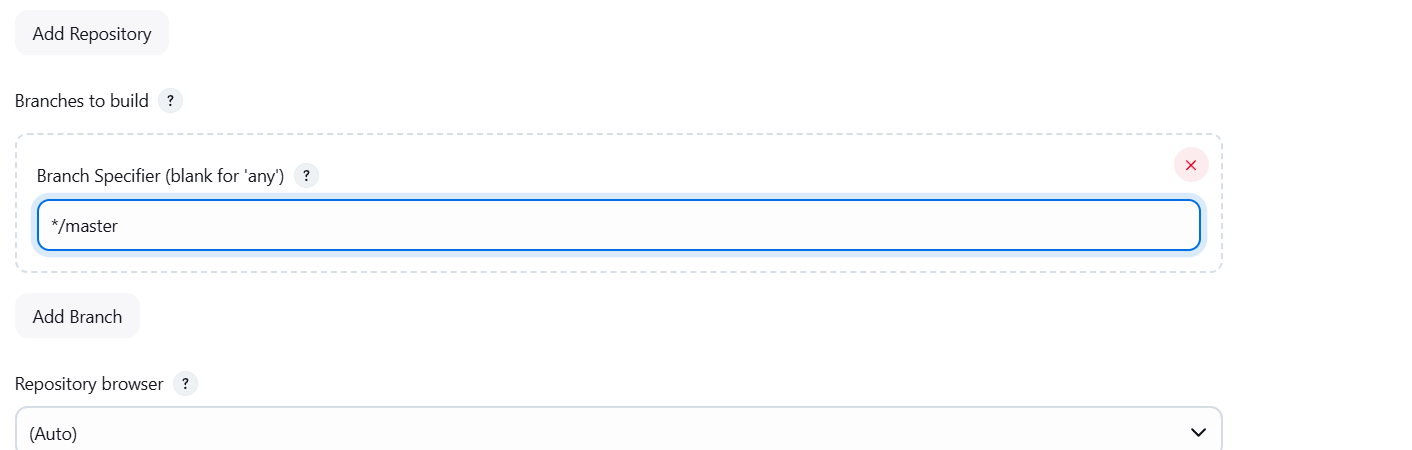
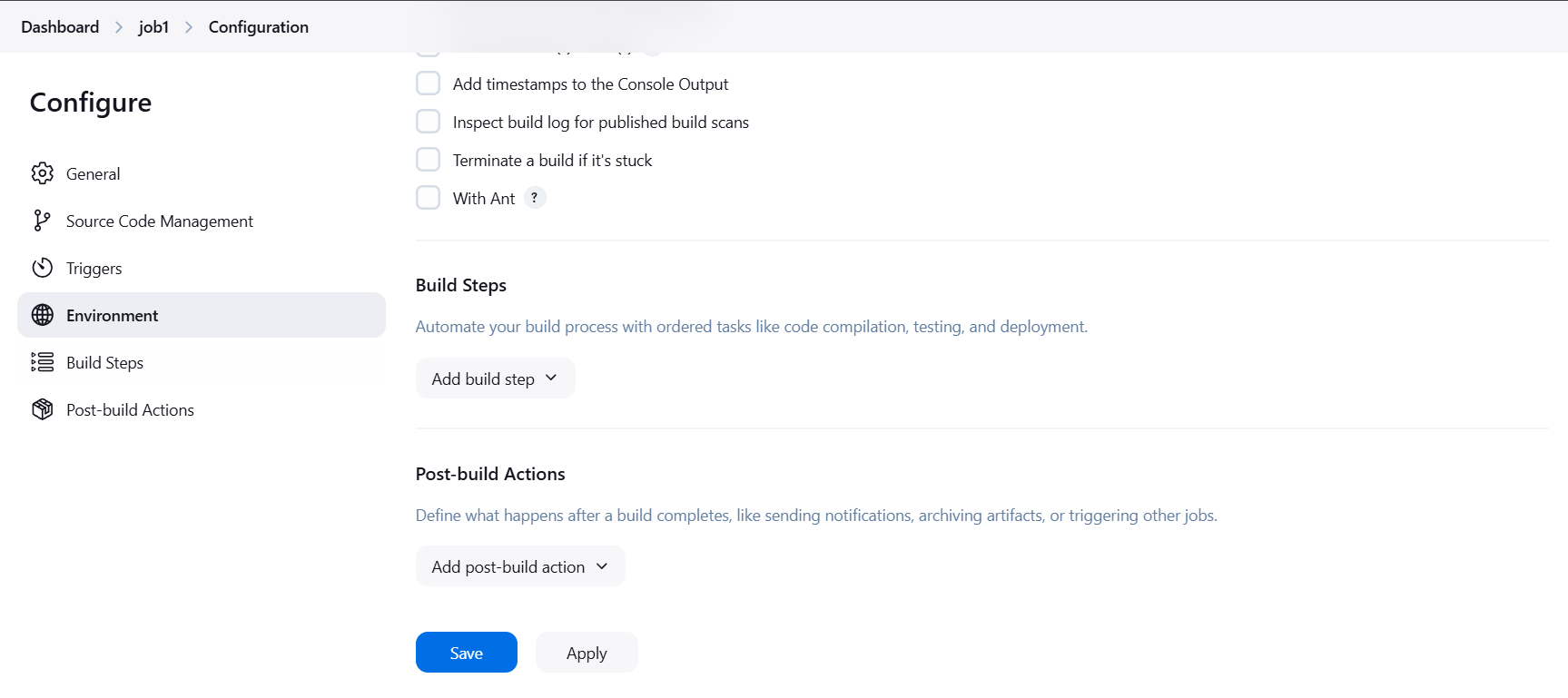
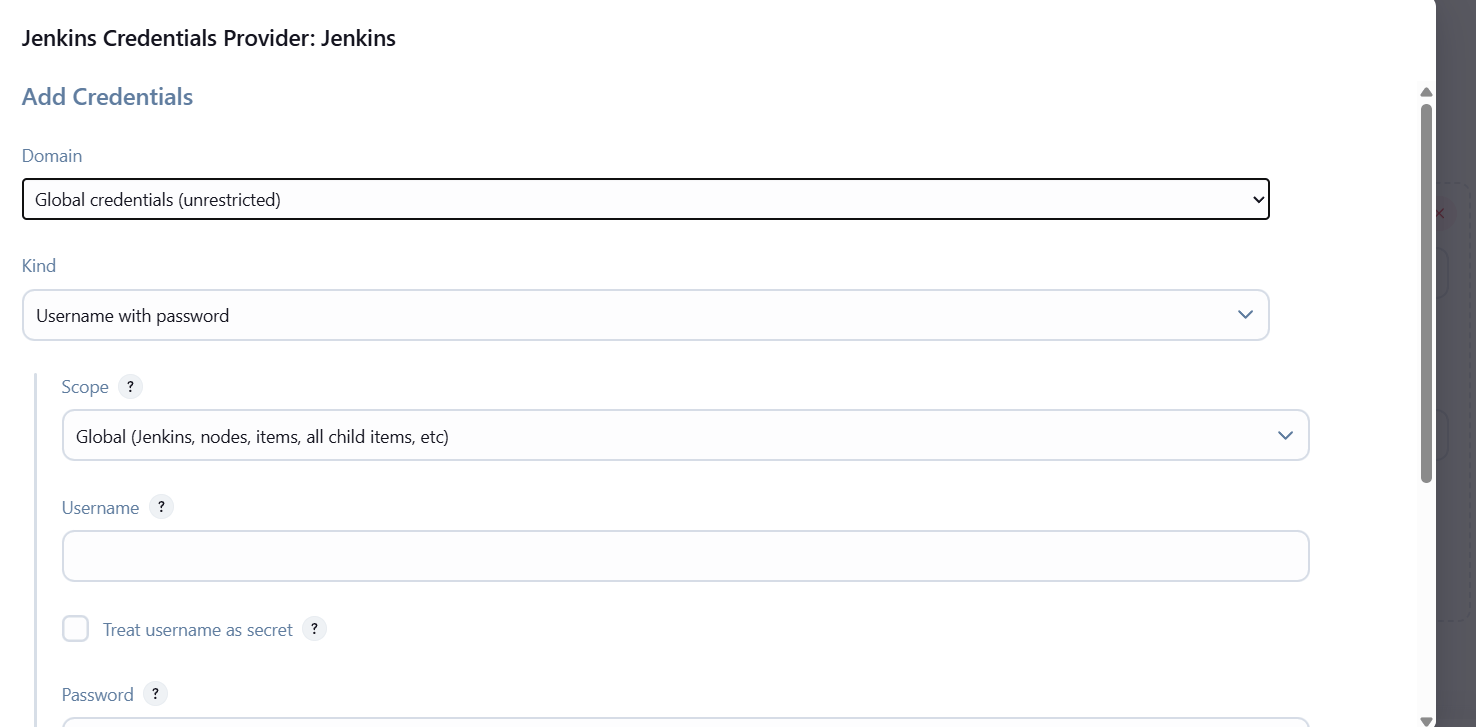
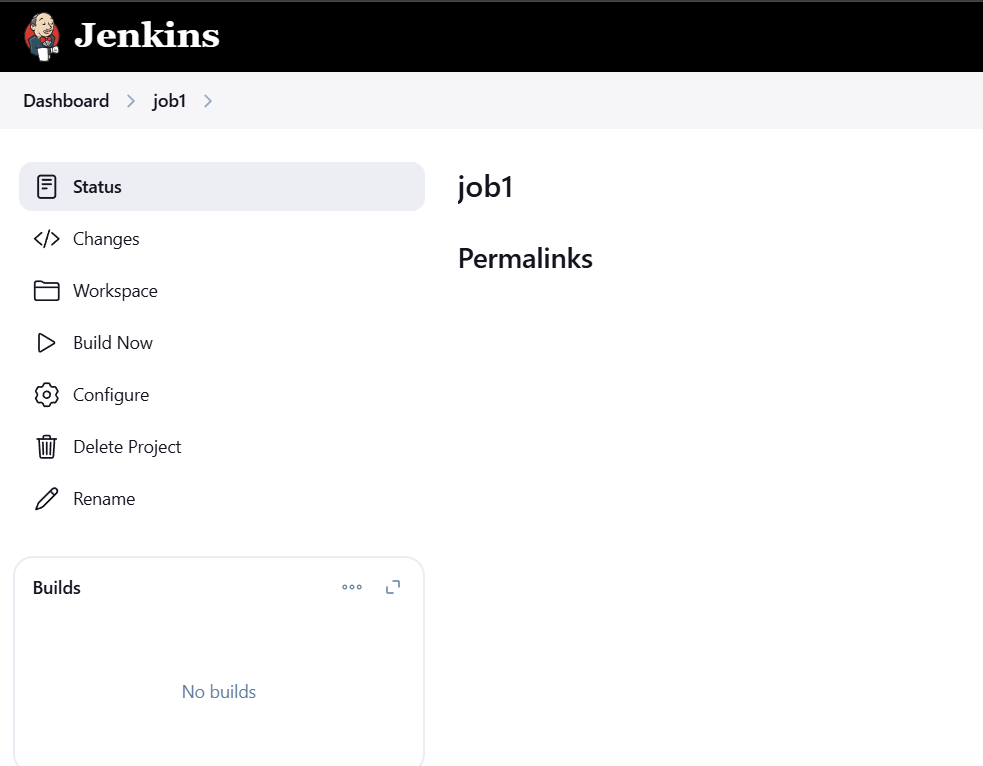

In conclusion, Freestyle Projects in Jenkins are an excellent starting point for anyone looking to automate their software development and deployment processes. They offer a straightforward and user-friendly way to set up Continuous Integration (CI) and Continuous Deployment (CD) pipelines without requiring extensive scripting or complex configurations. Whether you are just getting started with Jenkins or looking to optimize your existing CI/CD workflows, Freestyle Projects provide the flexibility and simplicity needed for efficient automation.
By following the steps outlined in this guide, you’ve learned how to create and configure Freestyle Projects, from setting up basic build triggers to adding custom build steps and post-build actions. You’ve seen how Jenkins can be tailored to suit a variety of use cases, from simple builds to more complex automation tasks.
The beauty of Freestyle Projects lies in their versatility. While they may be simple, they allow you to integrate Jenkins with version control systems, external tools, and deployment scripts, making them highly effective for many different workflows. As you grow more comfortable with Jenkins, you can always explore more advanced project types like Pipeline Jobs, which provide even greater flexibility and control.
Remember, Jenkins is not just a tool for automating individual tasks—it’s a central hub for continuous integration and deployment, helping you automate your software lifecycle and improve collaboration across development and operations teams.
With your newfound knowledge of creating and configuring Freestyle Projects, you’re ready to leverage Jenkins to automate your build, test, and deployment processes. Happy automating!

In today’s digital world, having a reliable and scalable web server is essential for hosting websites and applications. Apache HTTP Server, commonly known as Apache, is one of the most widely used open-source web server platforms. It is known for its stability, security, and flexibility, making it an excellent choice for hosting web content.
Amazon Web Services (AWS) provides scalable cloud computing services, and EC2 (Elastic Compute Cloud) instances are one of the most popular options for hosting web servers. By deploying Apache on an EC2 instance, you can ensure your website or application is hosted in a secure, flexible, and highly available environment.
In this guide, we’ll walk you through the process of setting up Apache Web Server on an Ubuntu-based EC2 instance. Whether you’re hosting a personal website, a business application, or just experimenting with cloud hosting, this tutorial will help you get your Apache server up and running in no time.
We’ll start with the basics, such as launching an EC2 instance, and move on to the installation and configuration of Apache. Along the way, we’ll explain how to secure your server, enable necessary firewall rules, and test the server to make sure everything is working correctly.

By the end of this tutorial, you’ll be able to confidently deploy your Apache web server on AWS, ready to serve your content to the world. Let’s dive in!
If you haven’t already launched an EC2 instance, follow these steps:

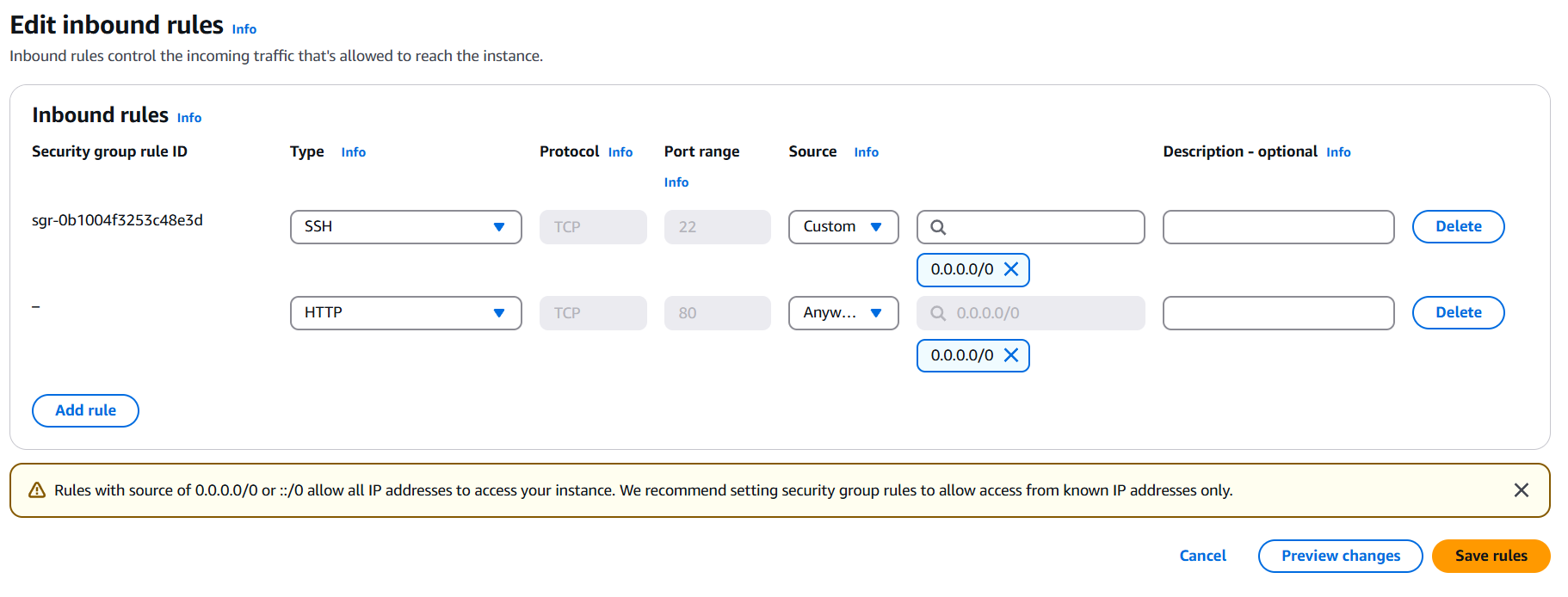
Connect to Your EC2 Instance.
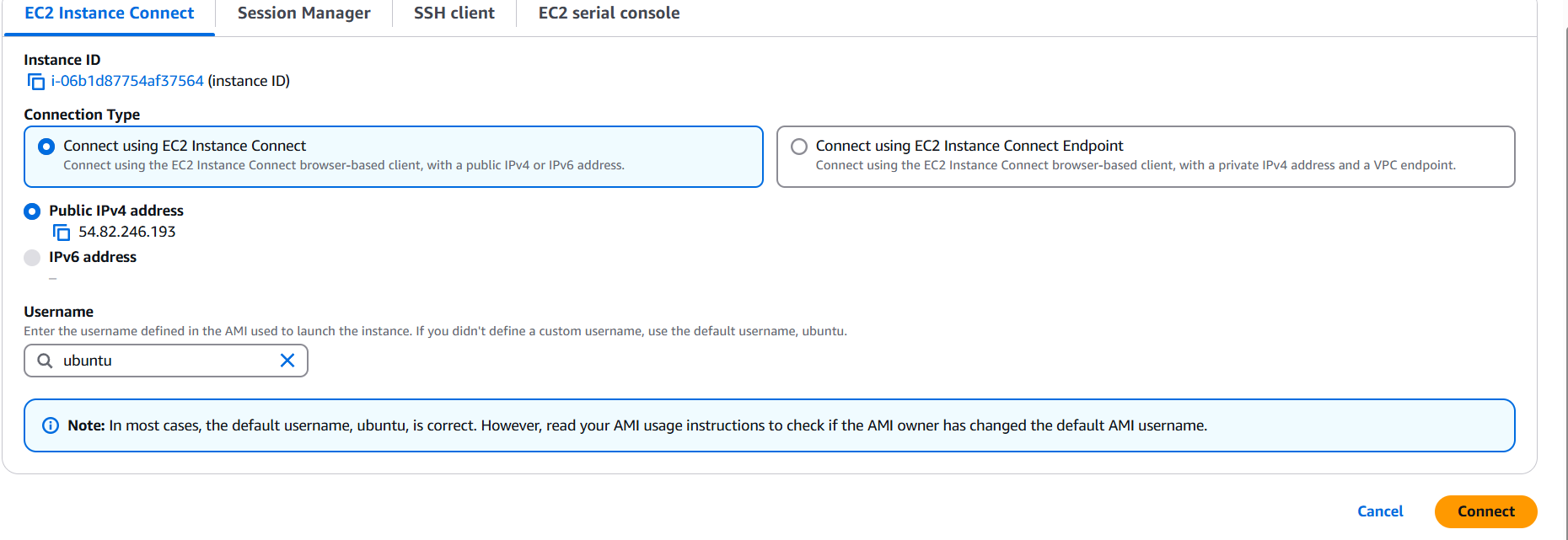
Once connected to your EC2 instance, update the package index to ensure that your instance is using the latest software versions:
sudo apt update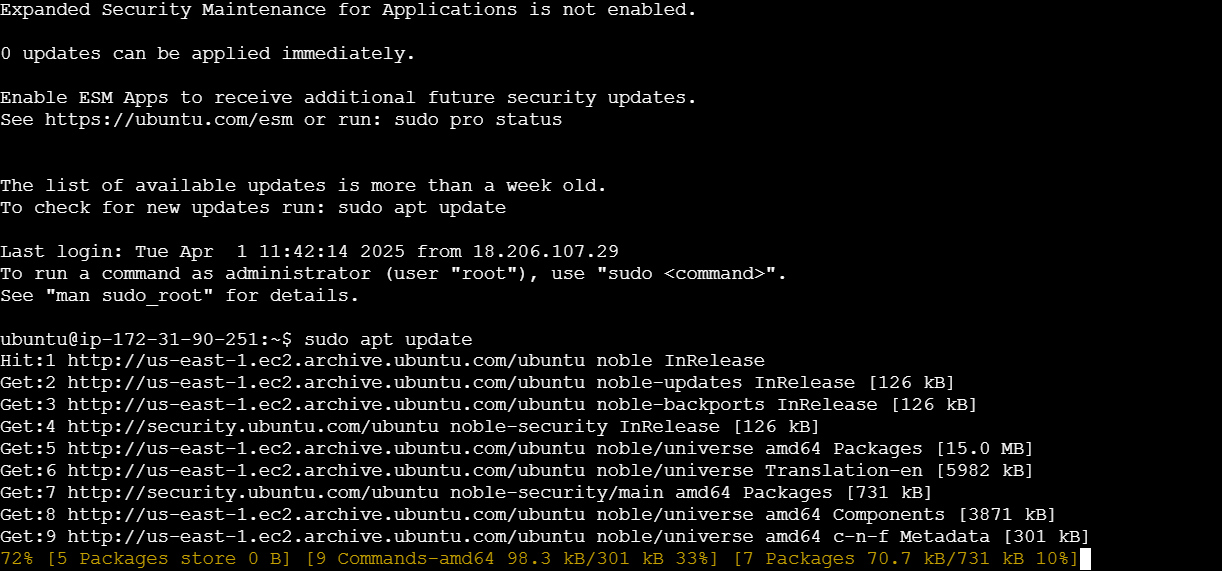
Now install Apache using the apt package manager:
sudo apt install apache2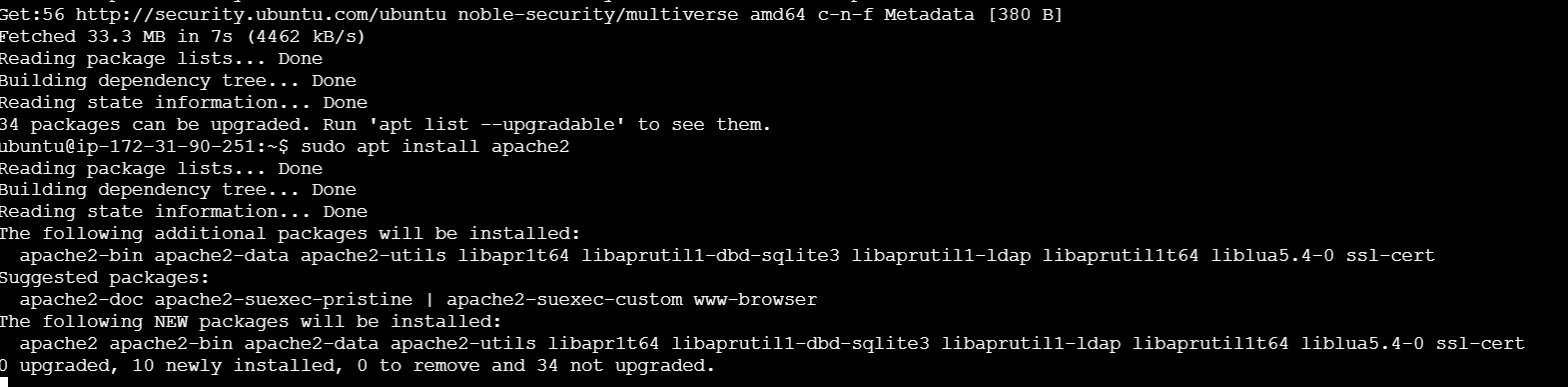
Once Apache is installed, start the service:
sudo systemctl start apache2To ensure Apache starts automatically when the system reboots:
sudo systemctl enable apache2If you’re using ufw (Uncomplicated Firewall) to manage firewall settings on your EC2 instance, you need to allow HTTP traffic:
sudo ufw allow 'Apache'
To check the status of the Apache service and confirm that it’s running:
sudo systemctl status apache2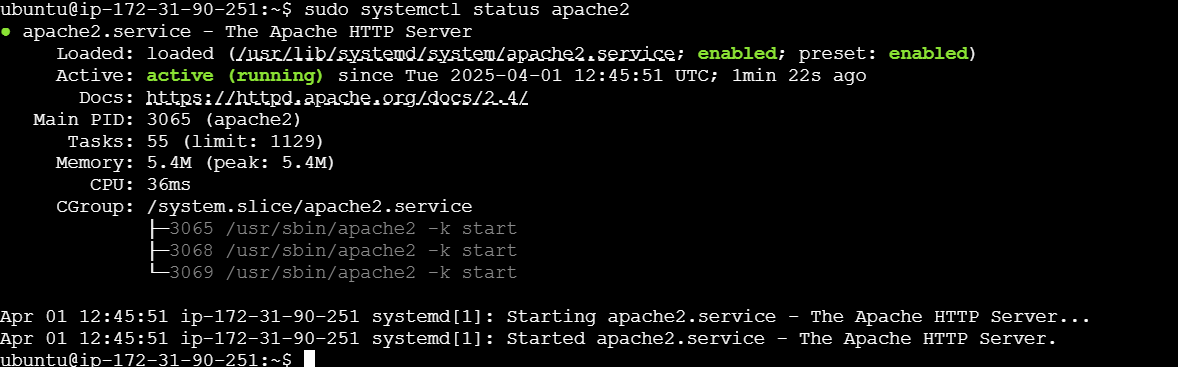
You should now be able to access the Apache web server from your browser. Open a browser and enter the public IP address of your EC2 instance:
http://your-ec2-public-ip
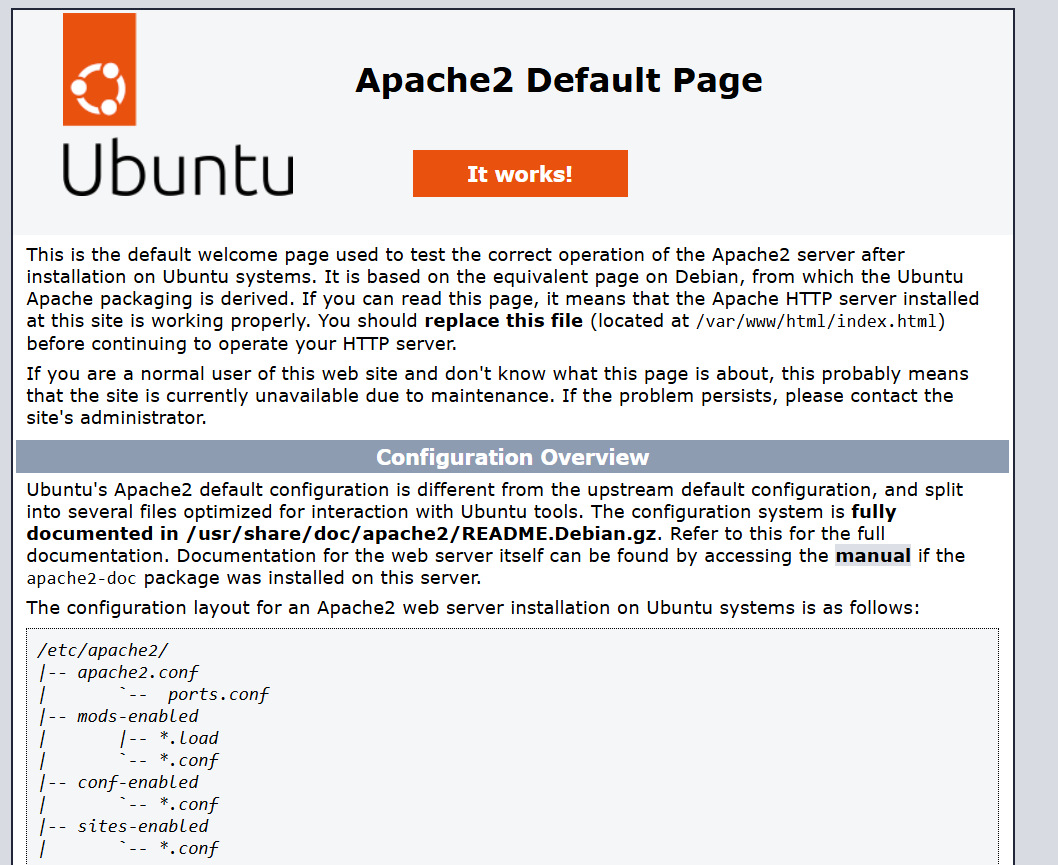

Setting up Apache Web Server on an AWS EC2 Ubuntu instance is a powerful way to host your website or web application in the cloud. By following this guide, you’ve learned how to launch an EC2 instance, install and configure Apache, and ensure that your server is accessible and secure. Whether you’re running a small personal site or a larger business application, Apache’s flexibility and stability make it a great choice for your hosting needs.
With Apache now running on your EC2 instance, you have the foundation for hosting any content you need. You can further configure the server to meet specific needs, such as setting up SSL, configuring virtual hosts, or optimizing for performance. Additionally, with AWS, you can easily scale your resources as your website or application grows.
Remember, while Apache is one of the most reliable web servers, keeping your server secure and up to date is crucial. Regularly check for updates, enable firewalls, and monitor your server’s performance to ensure that everything continues to run smoothly.
Now that your Apache web server is live on AWS EC2, you can start deploying websites, applications, or any other content you wish to serve to users around the world. With the combination of Apache’s power and AWS’s scalability, the possibilities are endless.
Happy hosting!

In the world of software development, continuous integration and continuous delivery (CI/CD) have become crucial practices for ensuring fast, efficient, and reliable software releases. Jenkins, one of the most popular automation servers, is widely used for building, testing, and deploying code. However, traditional Jenkins setups often require managing complex server environments and dependencies. This is where Docker comes in, providing a lightweight, consistent, and scalable way to run Jenkins in an isolated container.
Running Jenkins in a Docker container simplifies the setup and management of Jenkins by packaging it with its dependencies and configuration in a single container. Docker allows you to easily deploy Jenkins across different environments without worrying about inconsistencies or conflicts. This method is ideal for developers and teams who want a clean, reproducible Jenkins environment that is portable and easy to scale.
In this tutorial, we’ll guide you through the process of setting up Jenkins inside a Docker container. You’ll learn how to install Docker, pull the official Jenkins Docker image, configure the container to run Jenkins, and access the Jenkins web interface. Additionally, we’ll explore how to persist Jenkins data using Docker volumes, ensuring your configuration and build data remain intact even if the container is stopped or removed.
Whether you’re a beginner looking to get started with Jenkins or an experienced developer seeking a more streamlined setup, this guide will walk you through every step. By the end of this tutorial, you’ll have a fully functional Jenkins instance running in a Docker container, ready to automate your CI/CD pipelines with minimal effort.

Let’s get started by setting up Jenkins inside Docker and bringing automation to your development workflow!
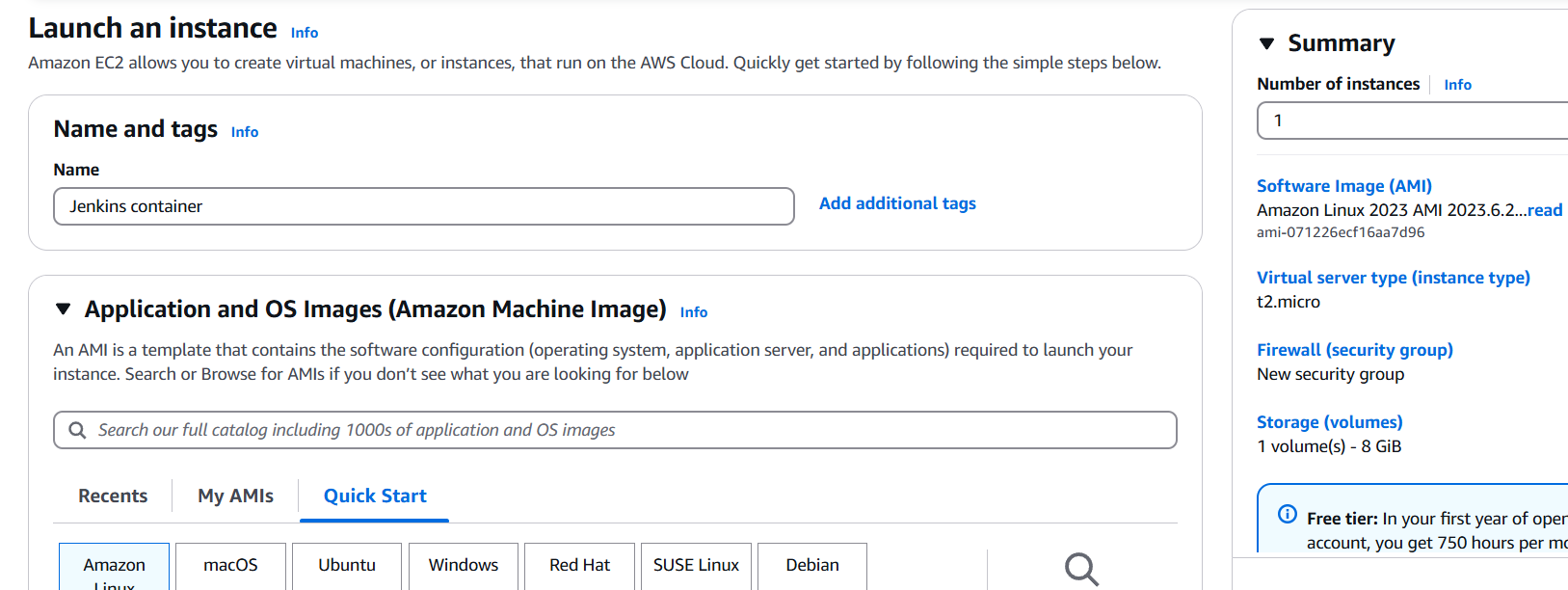
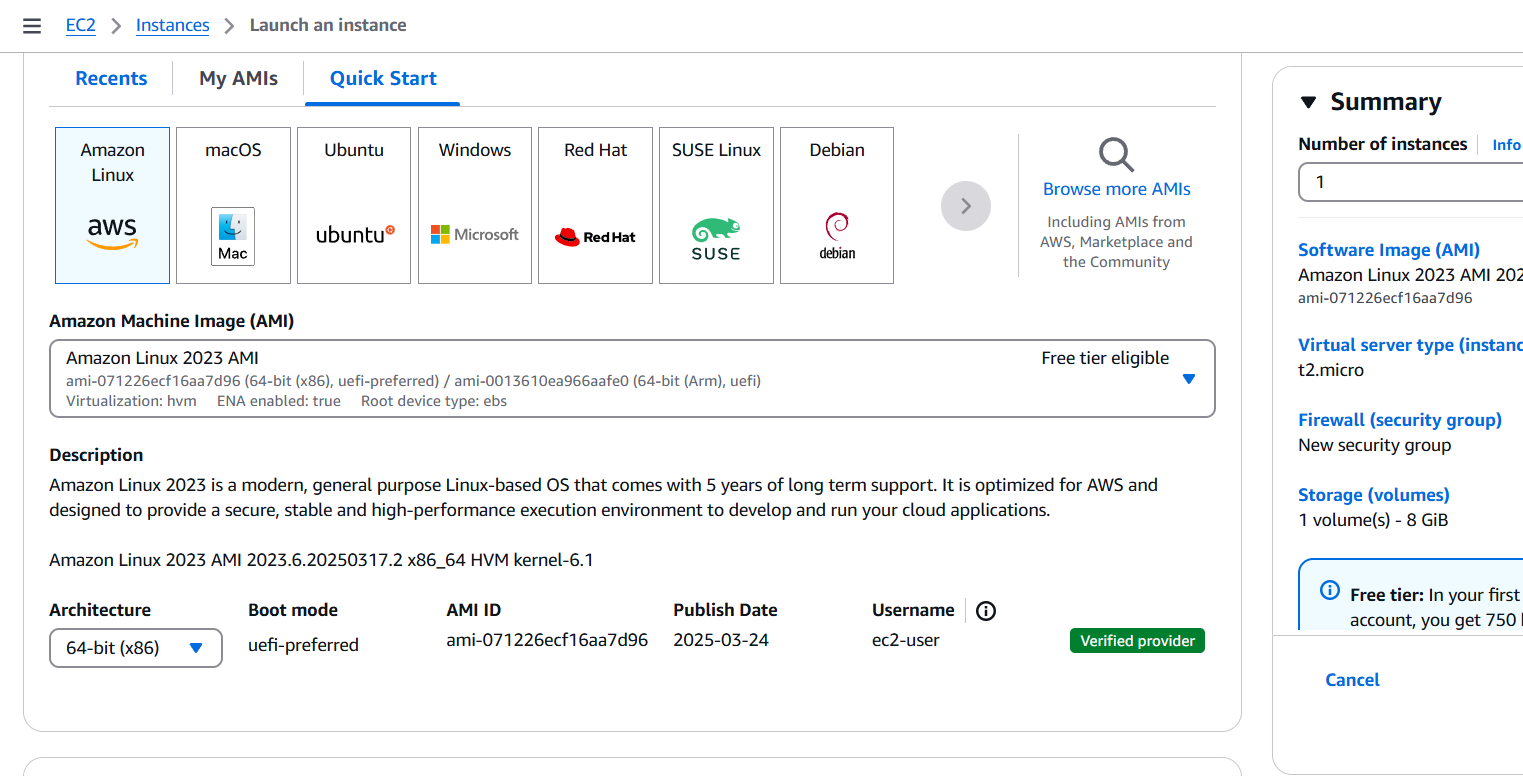
Create EC2 instance on Amazon Linux machine.
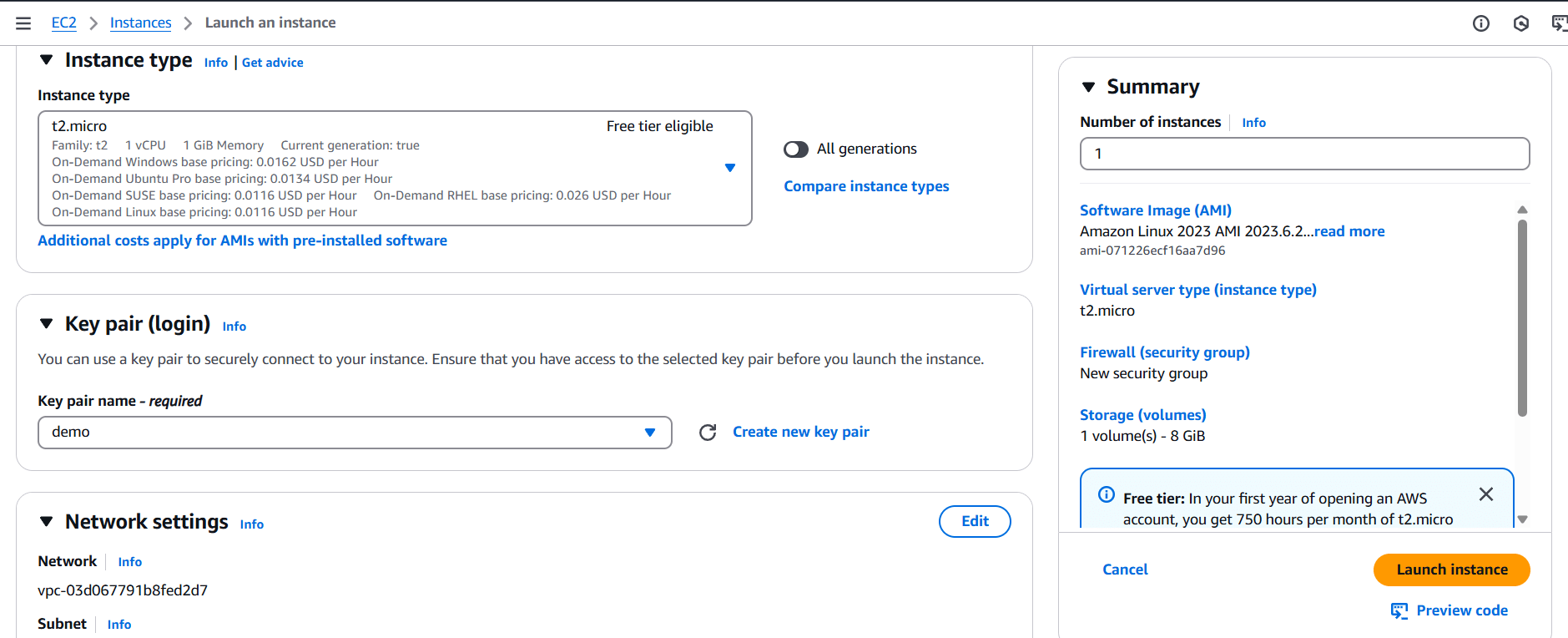
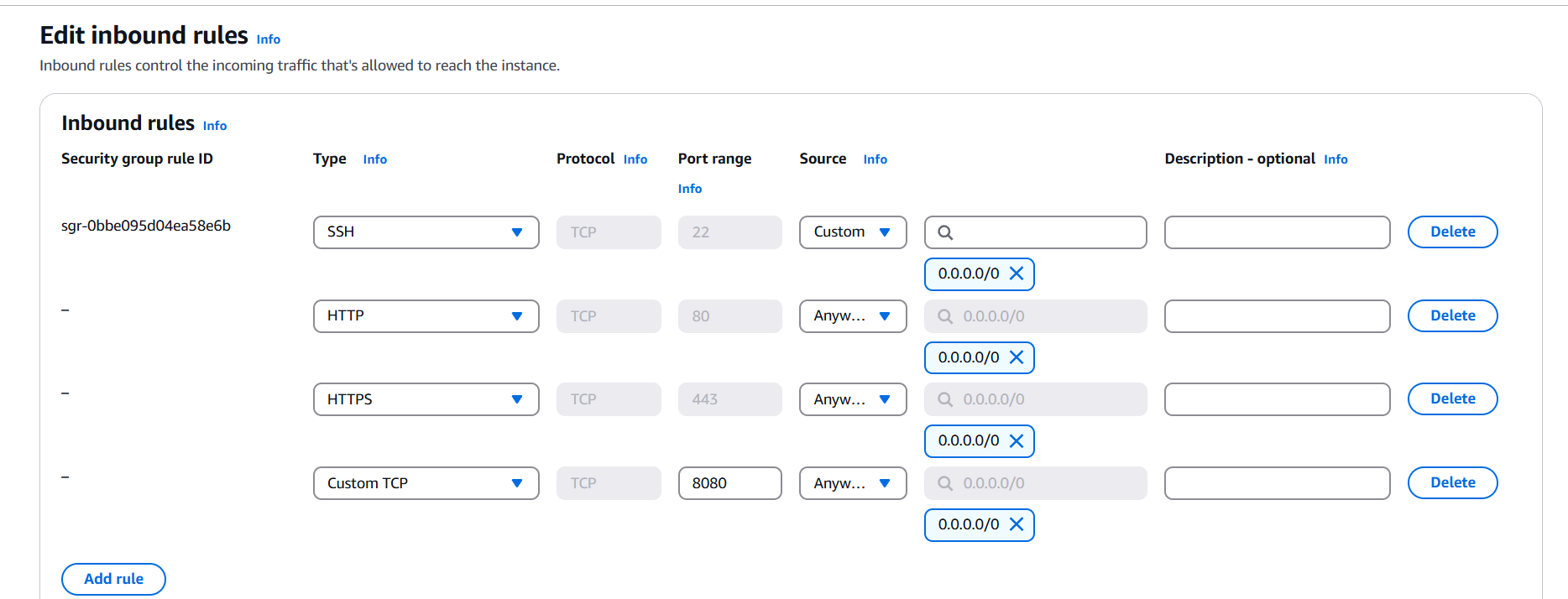
Edit the inbound rules.
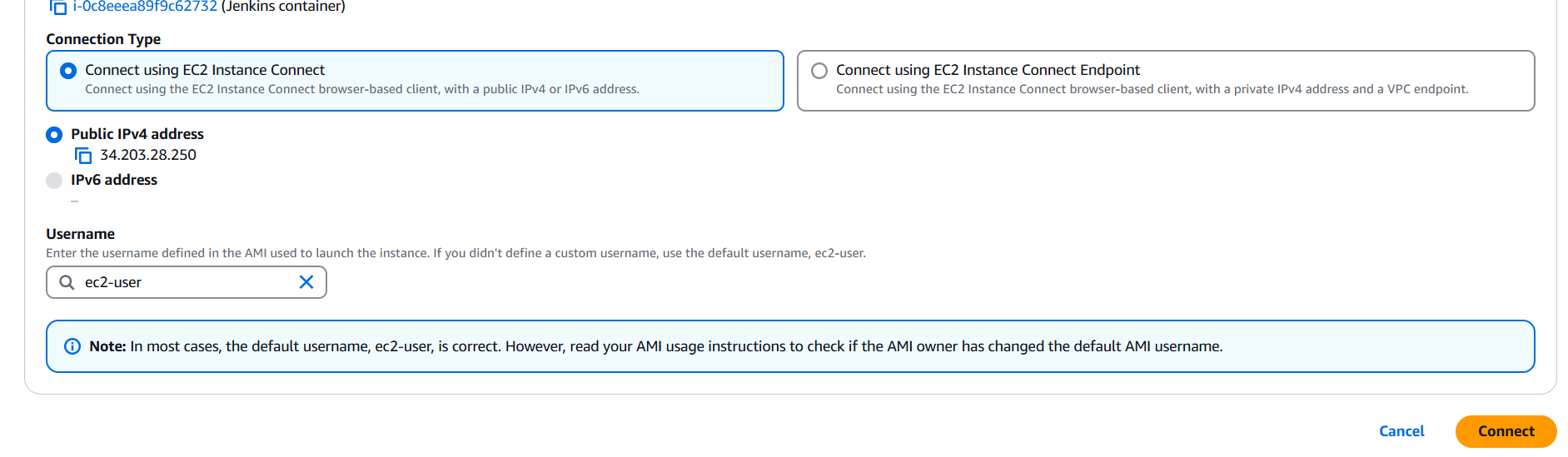
Connect the Instance.

Update use the following command.
sudo yum update -y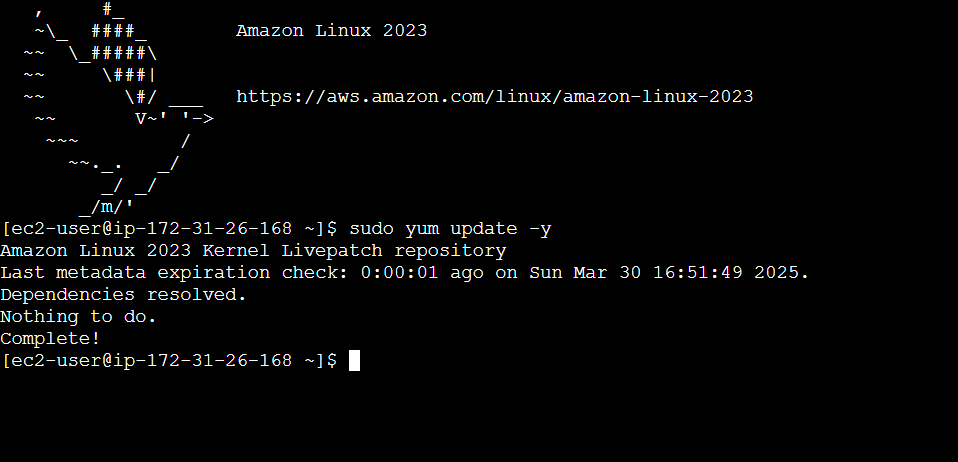
Install docker to following command.
sudo yum install -y docker
Start the docker service.
sudo service docker start
sudo systemctl enable docker

Verify your version.
sudo docker version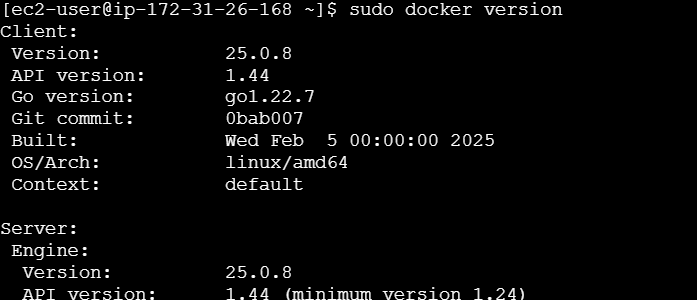
Enter the following command.
sudo docker pull jenkins/jenkins:lts
sudo docker network create jenkins-net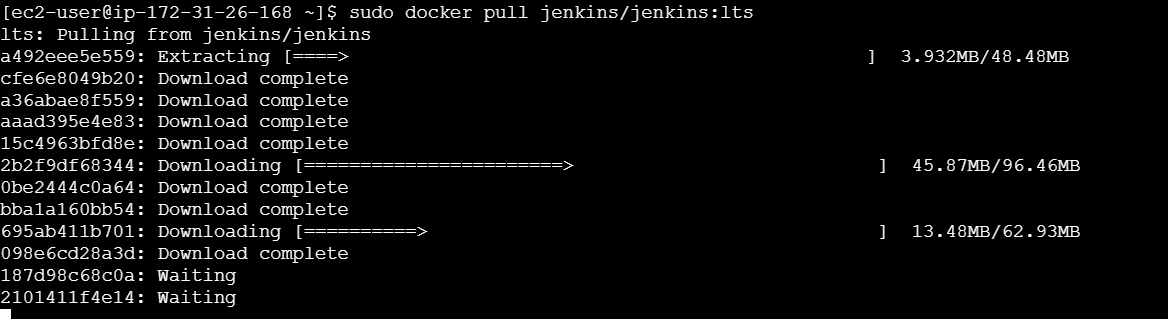

sudo docker run --name jenkins --network jenkins-net -d \
-p 8080:8080 -p 50000:50000 \
-v jenkins_home:/var/jenkins_home \
jenkins/jenkins:lts
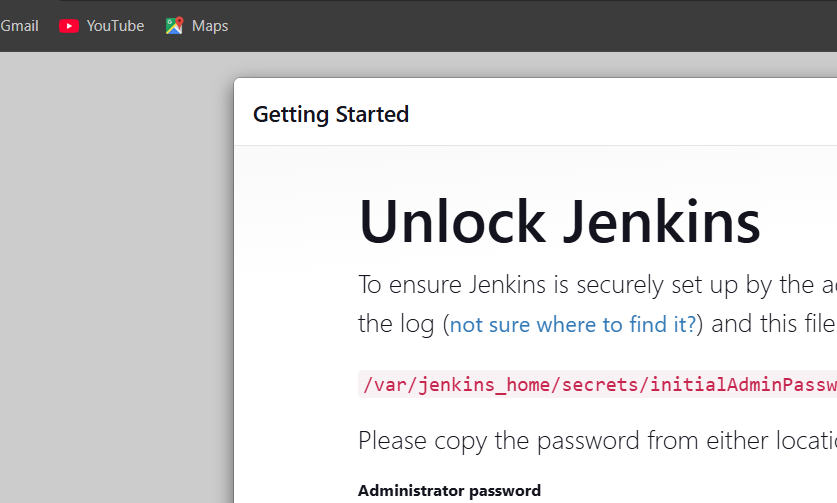
sudo docker exec jenkins cat /var/jenkins_home/secrets/initialAdminpassword
Enter your IP address on your browser and open your jenkins dashboard.

Setting up Jenkins inside a Docker container offers a simple, scalable, and efficient way to manage your continuous integration and continuous delivery (CI/CD) pipelines. By leveraging Docker, you’ve ensured that your Jenkins environment is portable, isolated, and easy to deploy across different environments, making it perfect for both development and production settings.
Throughout this guide, we’ve covered the essential steps to get Jenkins running inside a Docker container, including installing Docker, pulling the Jenkins image, running the container, and setting up persistent storage with Docker volumes. With Jenkins now up and running, you can begin automating your builds, tests, and deployments with minimal effort, all while maintaining a clean and reproducible environment.
This setup also makes scaling Jenkins instances easier. Whether you need to add additional Jenkins agents or integrate Jenkins with other services in your Dockerized environment, Docker’s flexibility ensures that Jenkins can grow with your project’s needs.
Remember, while Jenkins in Docker provides a great starting point, there are many other advanced configurations you can explore—such as setting up Jenkins pipelines, integrating version control systems, and securing your Jenkins instance. As your development processes evolve, Docker’s capabilities will allow you to adapt and scale Jenkins to suit your team’s requirements.
By now, you should have a fully operational Jenkins server running in Docker, making your CI/CD processes more streamlined and automated. Happy automating!

Selenium is one of the most popular open-source tools for automating web browsers. It is widely used for automating web applications for testing purposes, but can also be used for scraping data or performing repetitive tasks in a web environment. For those working on a Linux system, installing and setting up Selenium can be a crucial step toward achieving efficient web automation.
In this guide, we’ll walk you through the process of installing Selenium tools on a Linux machine, which will enable you to begin automating your web browsing tasks. Whether you’re a developer, quality assurance engineer, or data analyst, setting up Selenium on Linux can help you streamline repetitive tasks and improve the accuracy and efficiency of your workflow.
We will cover everything you need to know, from installing the necessary dependencies to configuring Selenium WebDriver for your preferred browser. Additionally, we’ll guide you through setting up Python bindings for Selenium, as Python is one of the most commonly used programming languages for automating tasks with Selenium.
By the end of this guide, you’ll be able to use Selenium on your Linux machine to automate web applications, perform testing, and work with various browsers and drivers, such as Chrome, Firefox, and Edge. With the right setup, you’ll have the power of Selenium at your fingertips to handle web automation tasks seamlessly.

Let’s dive in and get started with the installation process!
STEP 1: Create the EC2 server on Ubuntu server.

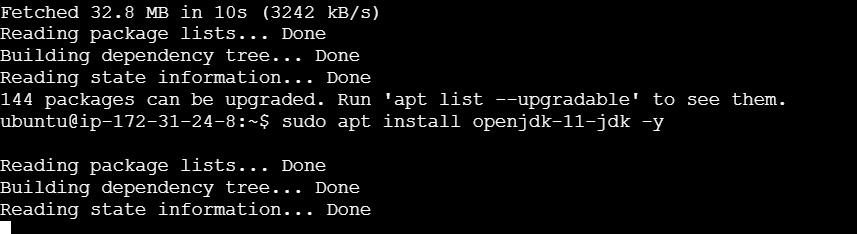
STEP 2: Update your server and Install java.
sudo apt update
sudo apt install openjdk-11-jdk -y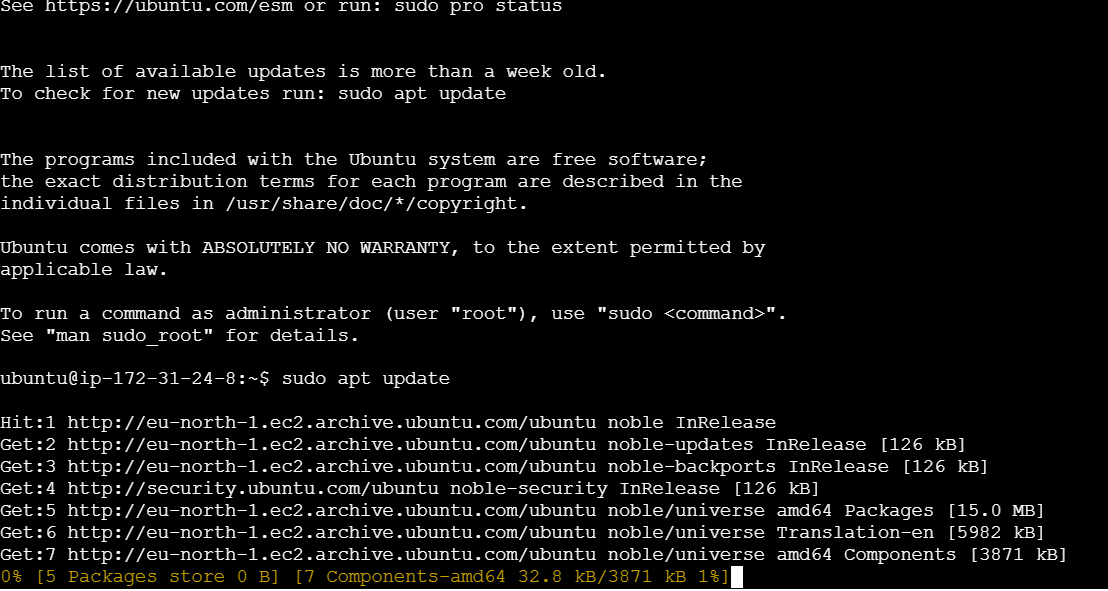
STEP 3: Install the most recent Google Chrome package on your PC.
wget -N https://dl.google.com/linux/direct/google-chrome-stable_current_amd64.deb -O /tmp/google-chrome-stable_current_amd64.deb


 sudo apt install -y /tmp/google-chrome-stable_current_amd64.deb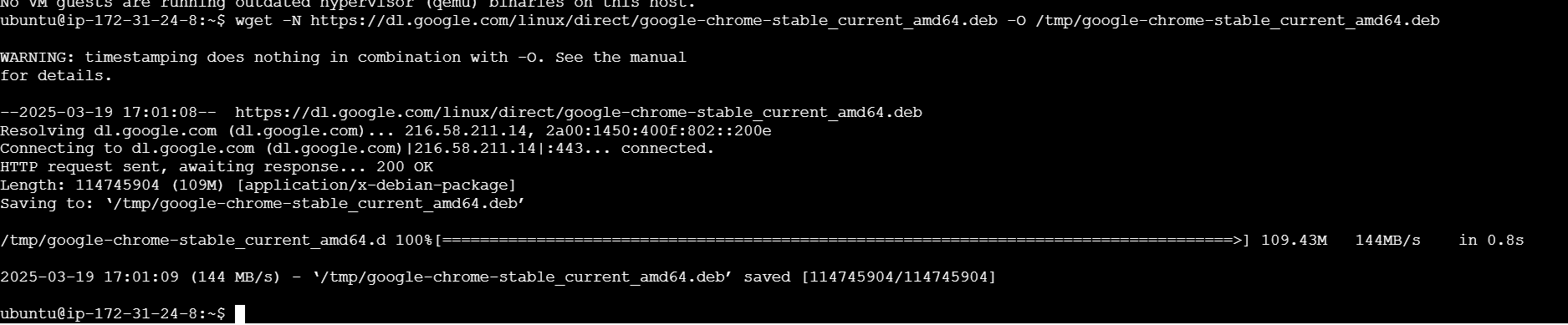
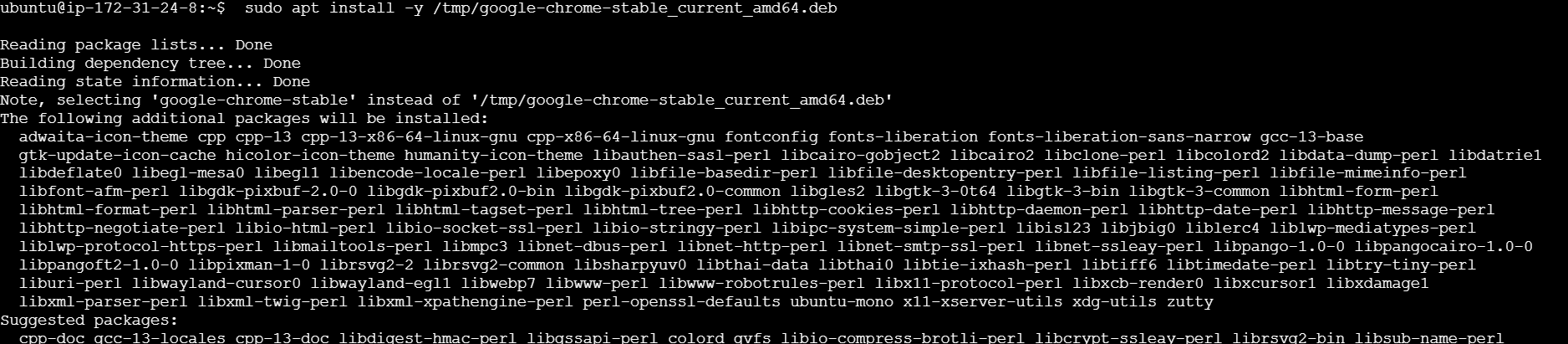
STEP 4: Enter the following command.
wget -N https://chromedriver.storage.googleapis.com/${version}/chromedriver_linux64.zip -O /tmp/chromedriver_linux64.zip
STEP 5: Configure Chrome Driver on your system.
unzip /tmp/chromedriver_linux64.zip -d /tmp/chromedriver/


 sudo cp /tmp/chromedriver/chromedriver /usr/local/bin/chromedriver

STEP 6: Enter the following commands.
chromedriver -v
wget https://github.com/SeleniumHQ/selenium/releases/download/selenium-4.11.0/selenium-server-4.11.0.jar -O selenium-server.jar
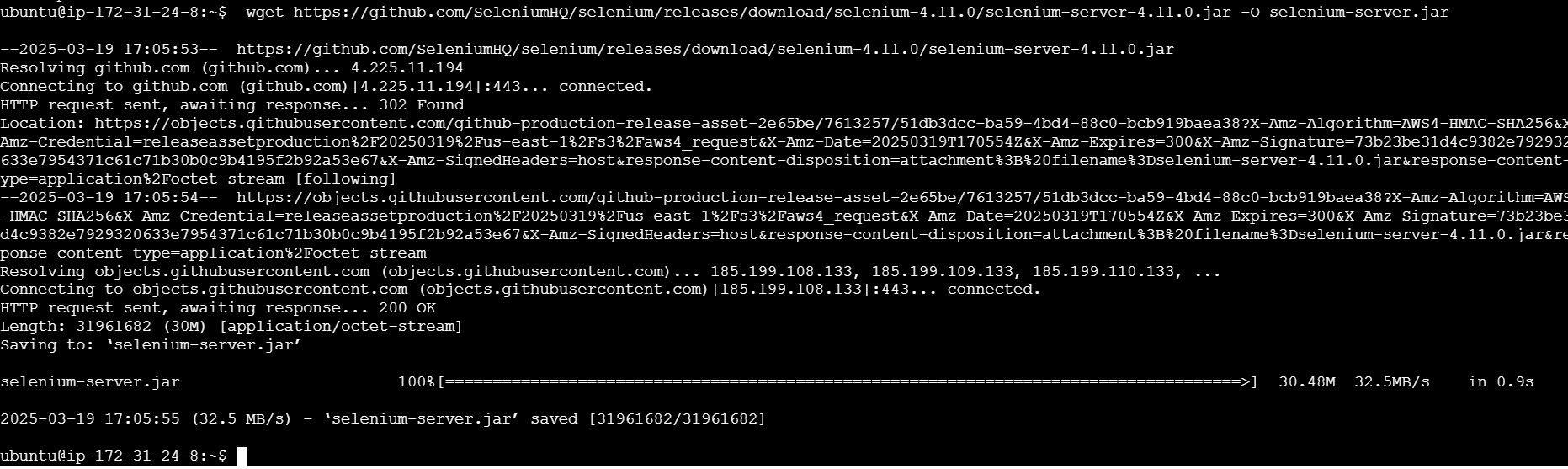
xvfb-run java -Dwebdriver.chrome.driver=/usr/bin/chromedriver -jar selenium-server.jar

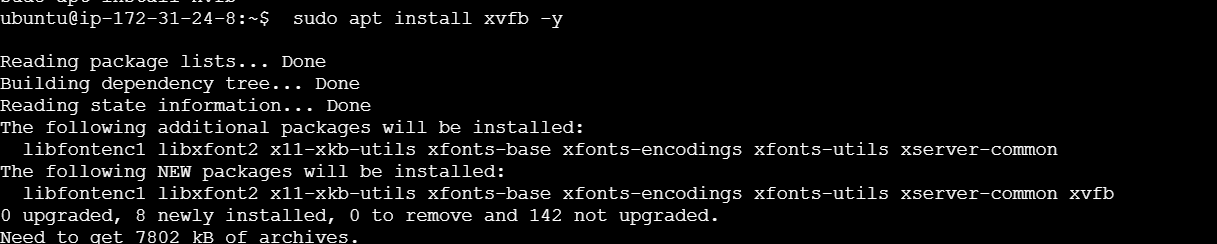
 sudo apt install xvfb -y

In this guide, we’ve walked through the process of installing Selenium tools on a Linux system, from setting up the necessary dependencies to configuring the Selenium WebDriver for automated web tasks. Whether you’re automating browser interactions for testing or other tasks, Selenium provides a powerful and flexible solution.
By following the steps outlined, you should now have Selenium installed on your Linux machine, ready to handle automated tasks with ease. Whether you are using Python, Java, or other programming languages, integrating Selenium into your development workflow will enhance productivity and reduce manual effort.
With Selenium, you can now automate browser actions across various platforms and browsers, making web interactions more efficient and reliable. With this powerful toolset at your disposal, you can tackle a wide range of web automation challenges, improve testing workflows, and create more scalable solutions.
Now that you have the knowledge to get started, experiment with different Selenium features, explore advanced functionalities, and use automation to streamline your web-based processes. Happy automating!

Creating and deploying a website can seem like a complex task, especially when dealing with cloud infrastructure. However, Amazon Web Services (AWS) offers a powerful solution to automate and streamline the process through EC2 (Elastic Compute Cloud) instances and EC2 user data scripts. By utilizing EC2, businesses and developers can quickly spin up virtual servers to host websites or applications. But the true power of EC2 lies in its flexibility and automation capabilities. One such feature, EC2 user data, allows users to execute scripts during the instance’s initialization, which can automate everything from installing software to launching a website.
In this guide, we’ll walk you through the process of creating an EC2 instance and using EC2 user data to deploy a website. Whether you’re a beginner looking to learn about cloud hosting or a seasoned developer wanting to automate your website deployment, this approach will help you save time and avoid manual configuration steps. With the right user data script, you can automatically install a web server (such as Apache or Nginx), deploy a website, and configure the server to serve content, all as part of the EC2 instance launch process.
The best part of using EC2 user data scripts is that once the instance is launched, it requires minimal interaction from the user. This fully automated approach not only accelerates website deployment but also makes it repeatable and scalable, ensuring that you can launch multiple instances with the same setup in no time. Furthermore, EC2 offers a wide range of instance types, allowing you to tailor your infrastructure according to your website’s specific needs.
In this article, we will cover the entire process: from setting up your AWS account to creating an EC2 instance, writing your EC2 user data script, and configuring it to launch your website automatically. We will also discuss how to handle common issues and troubleshoot any problems that may arise during the process. By the end of this guide, you will have a solid understanding of how to use EC2 and user data scripts to simplify your website deployment and maintenance tasks.

Ready to get started? Let’s dive in and learn how to deploy a website on AWS EC2 with a few lines of code!
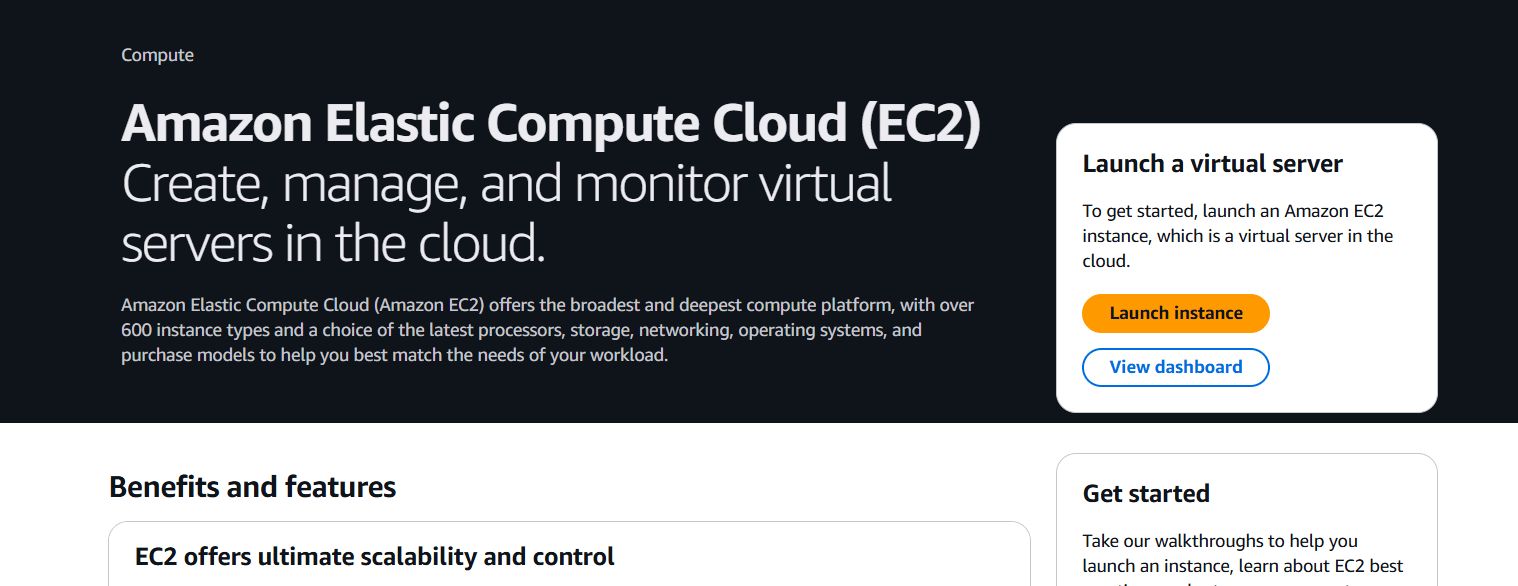
STEP 1: Navigate the EC2 instance and launch the instance.
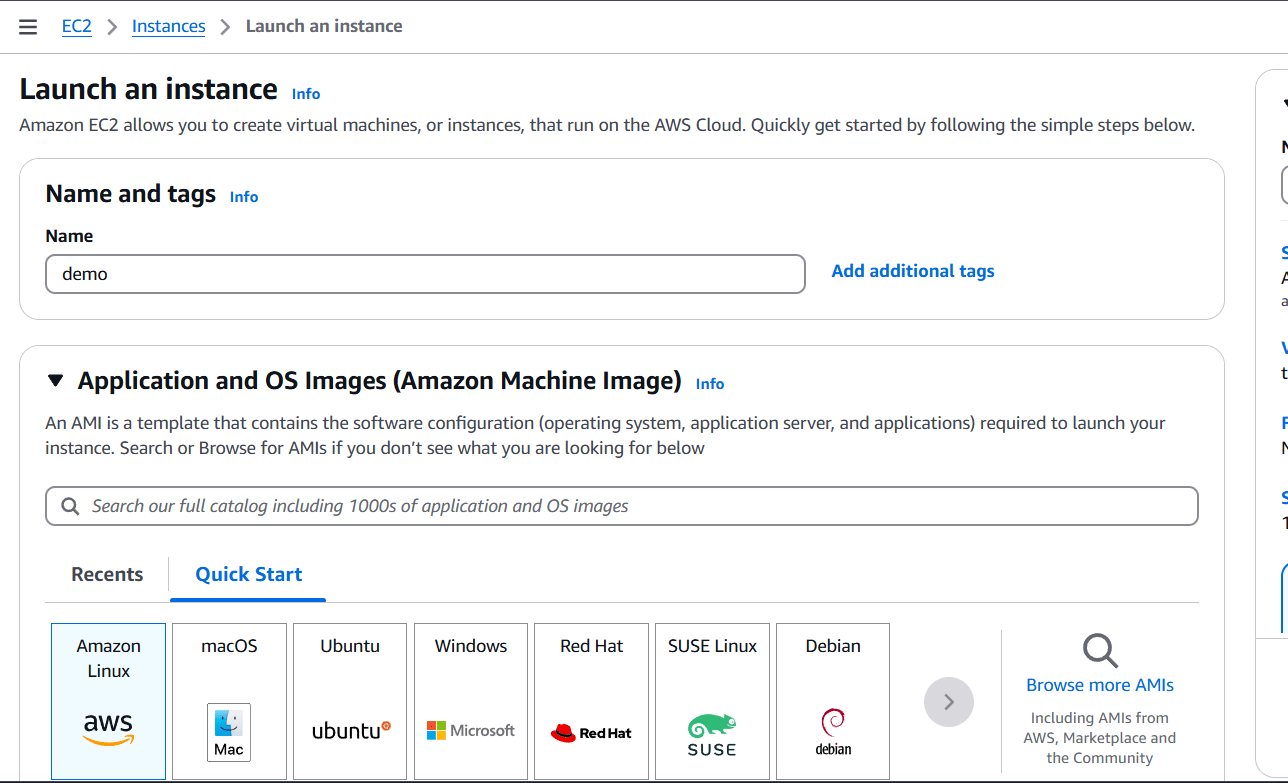
STEP 2: Enter the name and select AMI.
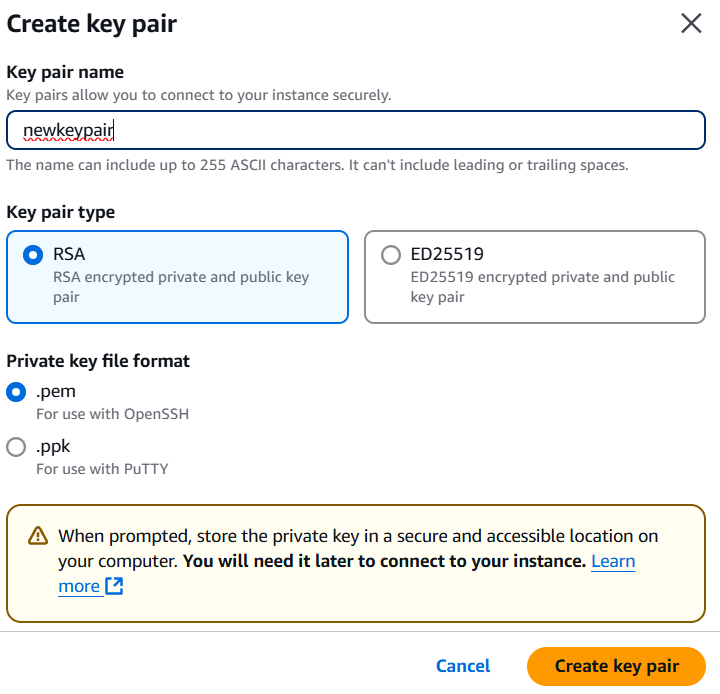
STEP 3: Create a new keypair.
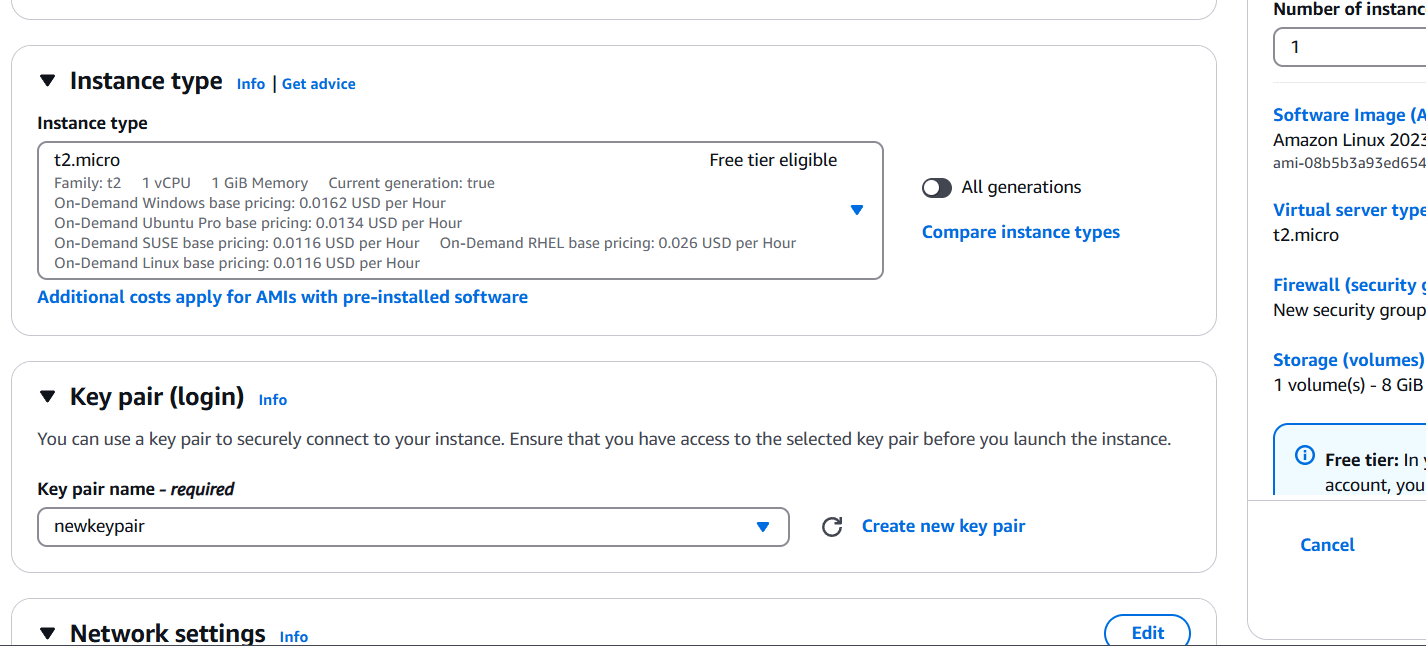
STEP 4: Select the Instance type.
STEP 5: Edit the network settings.
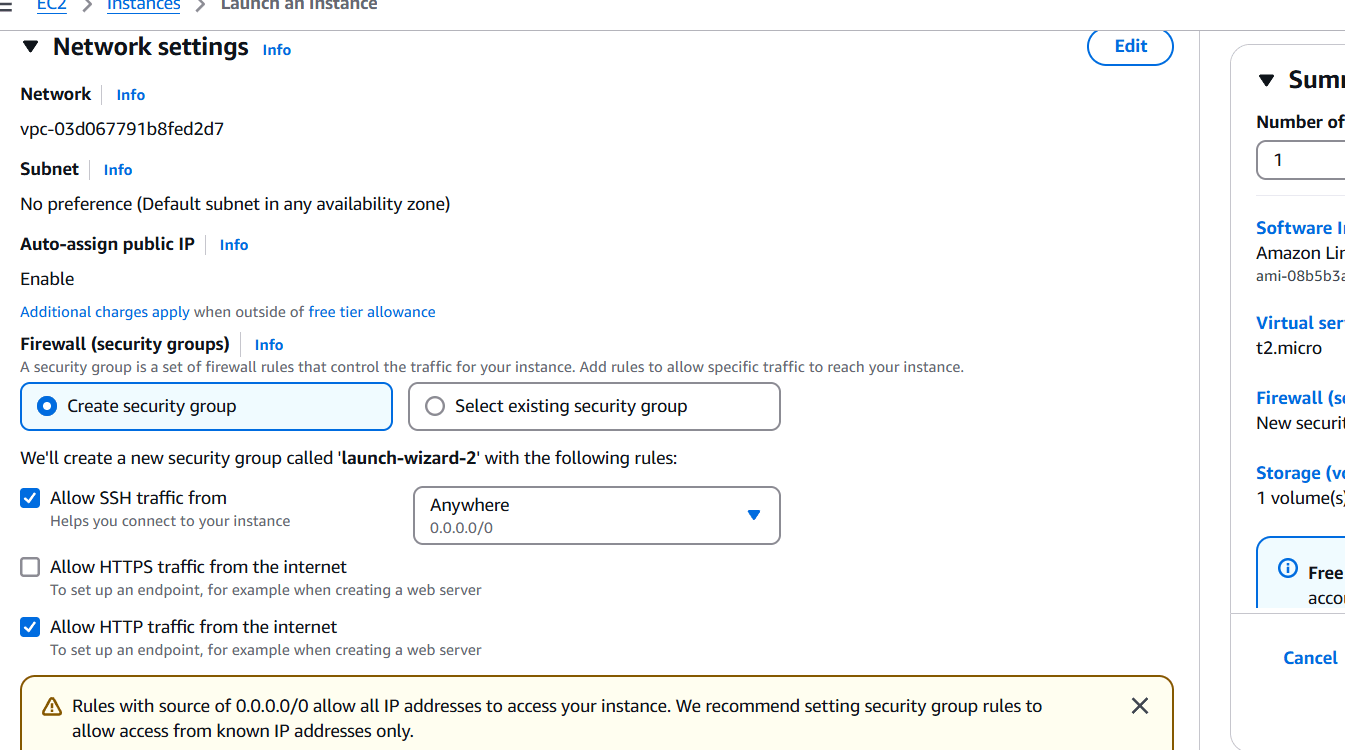
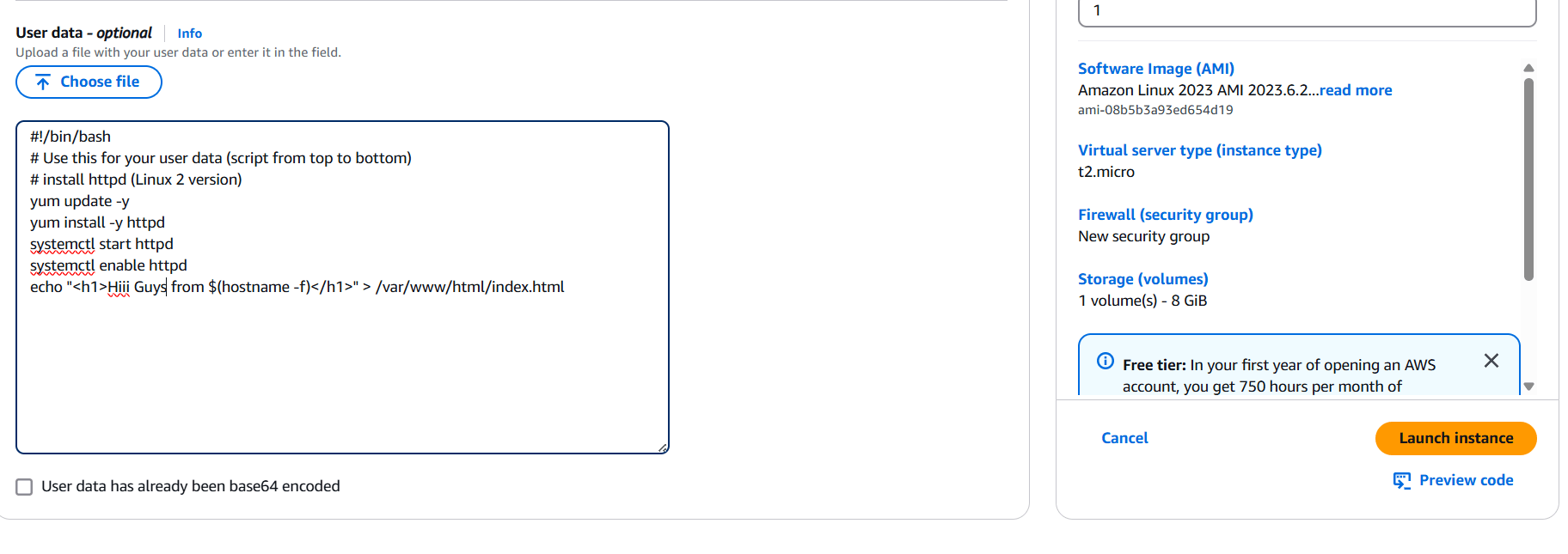
STEP 6: Enter your IP address on your Browser.
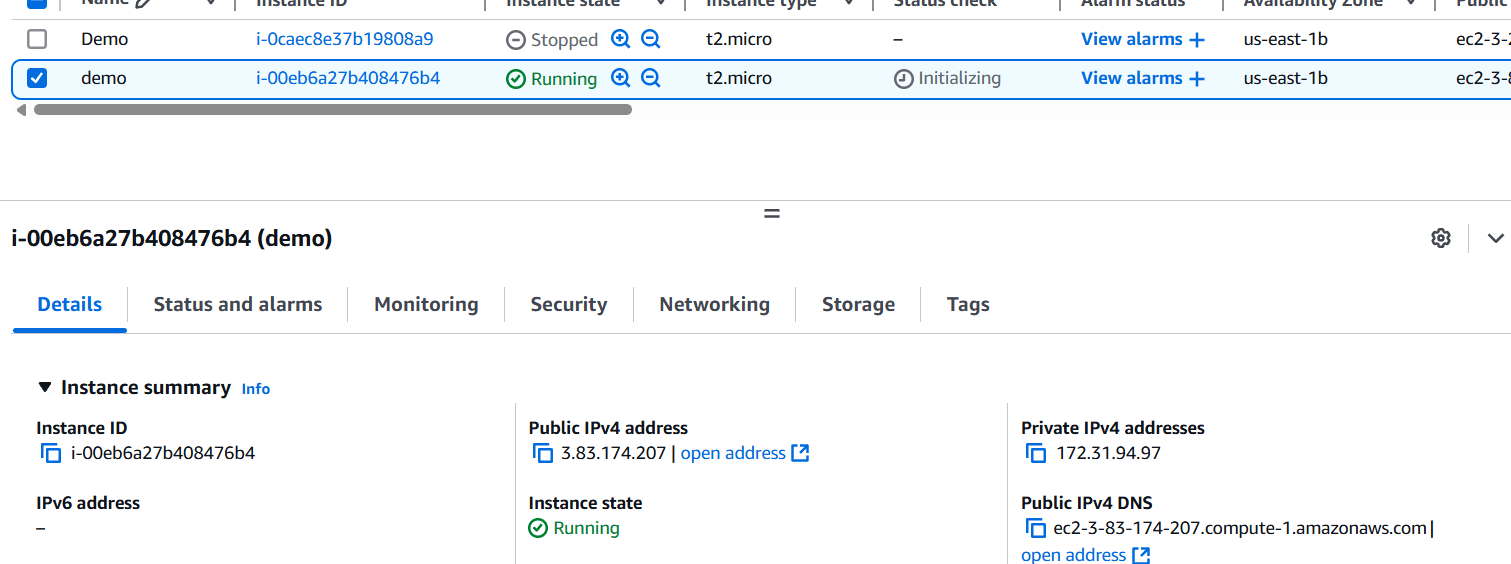
Now, let’s check if the web server is running on our EC2 instance. To do this, you need to navigate to the public IPv4 address. You can either copy the address or click on the ‘Open Address’ button, though it may not work immediately. If you click the link and it doesn’t load, try copying the URL and pasting it into your browser manually—sometimes browser behavior can affect how the link functions.
One thing to keep in mind is that you must use the correct protocol in the URL. If you enter ‘https’ instead of ‘http’, the page might not load and could result in an infinite loading screen.
In programming, when you’re testing a new setup, you typically see a ‘Hello World’ message as a first step. Similarly, our web server is displaying ‘Hello World,’ but instead of showing the public IP address, it’s displaying the private IPv4 address. Even though we used the public IP to access it, the server is showing the private IP address on the website.”
This version maintains the key points while being more concise and easier to follow.

In conclusion, using EC2 instances in conjunction with EC2 user data scripts provides an efficient and automated way to deploy websites on AWS. This approach simplifies the process, enabling you to quickly spin up a web server, install necessary software, and deploy a website—all with minimal manual intervention. By automating these tasks, you not only save time but also ensure consistency and scalability, making it easier to manage multiple instances or replicate the environment for future projects.
With the steps outlined in this guide, you can confidently create an EC2 instance, configure it to run a user data script, and deploy your website seamlessly. Whether you’re a beginner exploring cloud hosting or an experienced developer looking for automation solutions, EC2 user data scripts will streamline your website deployment and maintenance efforts.
Ultimately, AWS EC2’s flexibility, combined with the power of user data scripts, offers a robust and reliable solution for hosting and scaling your website with ease. Now that you have a solid foundation, you can experiment with different configurations and expand your knowledge of cloud infrastructure, all while leveraging the efficiency of automated deployments. Happy hosting!

In today’s digital world, data protection is more critical than ever. As organizations move to the cloud, ensuring that their data is secure, backed up, and recoverable becomes a top priority. Amazon Web Services (AWS) offers a robust solution for automating backups across various AWS resources, ensuring that your data remains safe from unforeseen events, such as accidental deletion, corruption, or hardware failure. AWS Backup is a fully managed backup service that simplifies the backup and restore process for AWS cloud services, including Amazon EBS volumes, RDS databases, DynamoDB tables, and more.
Configuring AWS Backup is a straightforward process, but it requires understanding the services you want to back up, the frequency of backups, and the retention policies. This guide will walk you through the steps of configuring AWS Backup, from setting up backup plans to automating backups across your AWS resources. By the end of this post, you’ll understand how to create backup policies, schedule regular backups, and ensure compliance with your organization’s data retention policies.
One of the key features of AWS Backup is its ability to centralize backup management across multiple AWS services, providing a unified console for backup monitoring and management. This eliminates the need for manual backup tasks and helps mitigate the risk of human error. Furthermore, with built-in encryption, AWS Backup ensures that your data remains secure both at rest and in transit.

Whether you’re new to AWS or looking to optimize your cloud data protection strategy, this guide will provide you with the knowledge and tools to effectively configure AWS Backup. Let’s dive into the process and see how you can take advantage of this powerful service to safeguard your valuable data in the cloud.
STEP 1: Navigate the AWS backup and click on create vault.
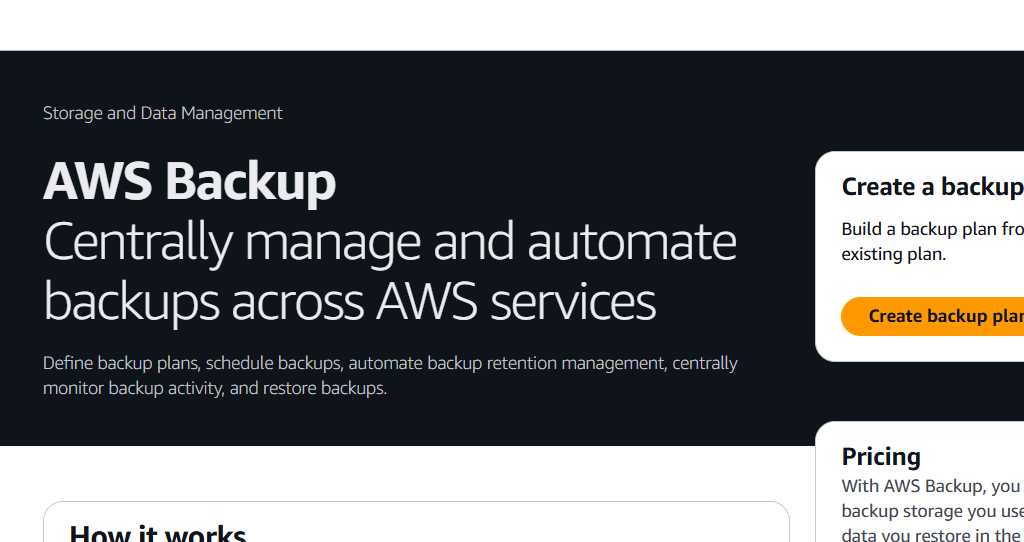
STEP 2: Enter the vault name Select the vault type.
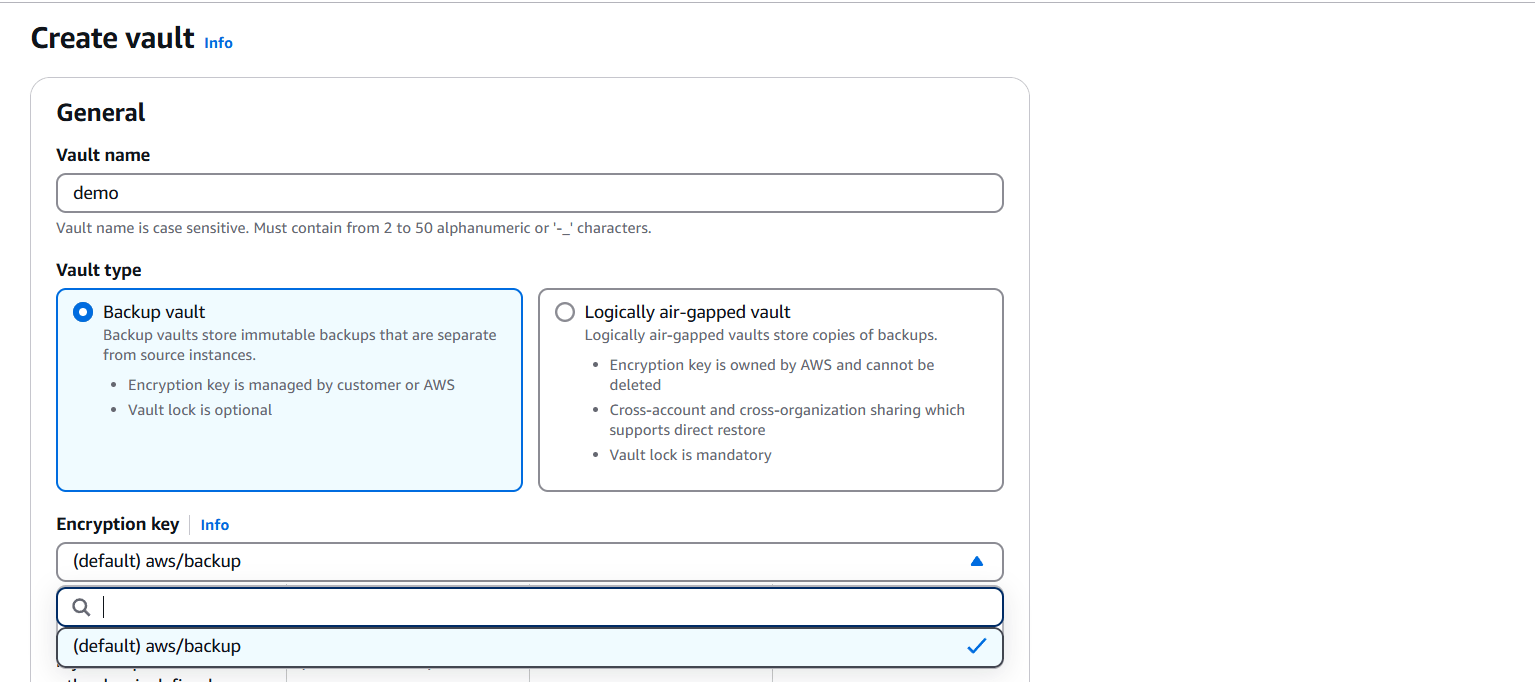
STEP 3: Click on create Vault.
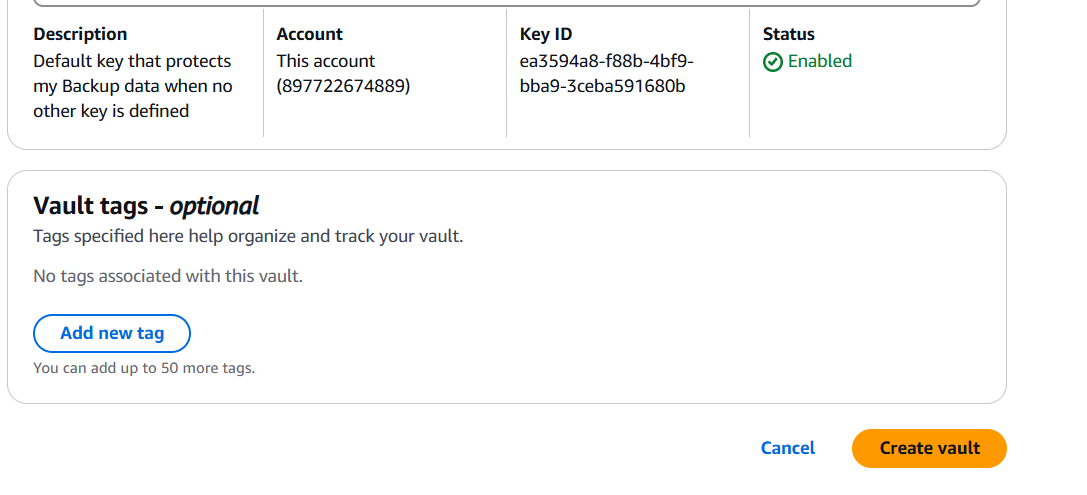
STEP 4: Click on create backup plan.

STEP 5: Select back plan and templates.
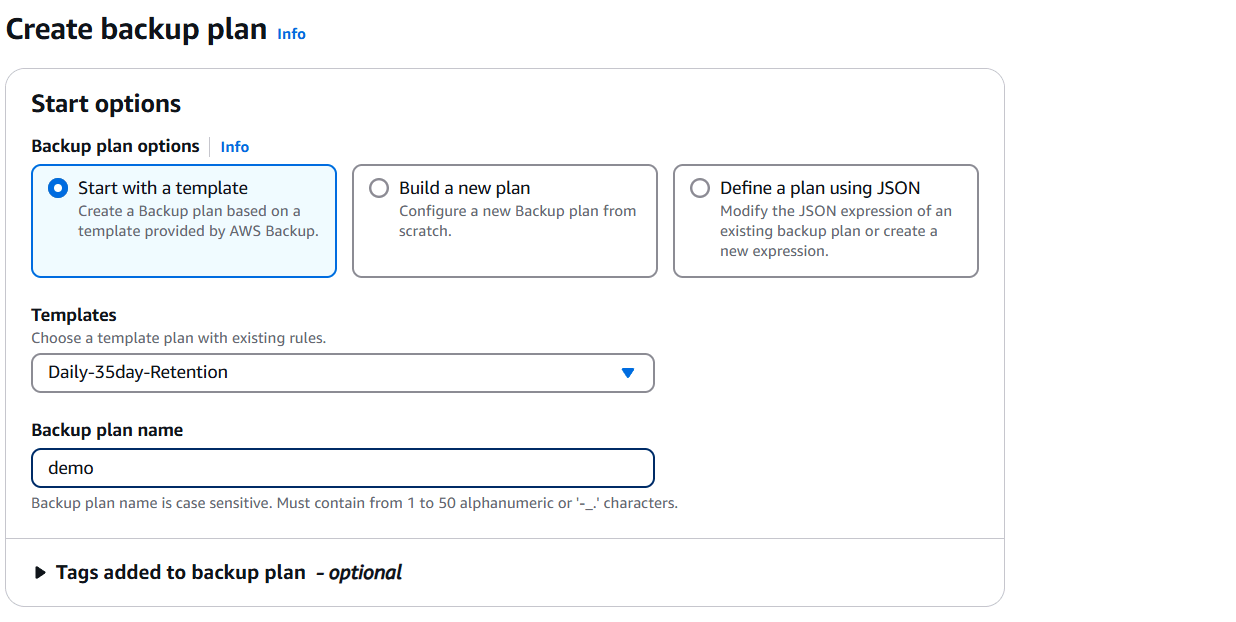
STEP 6: Click on create plan.
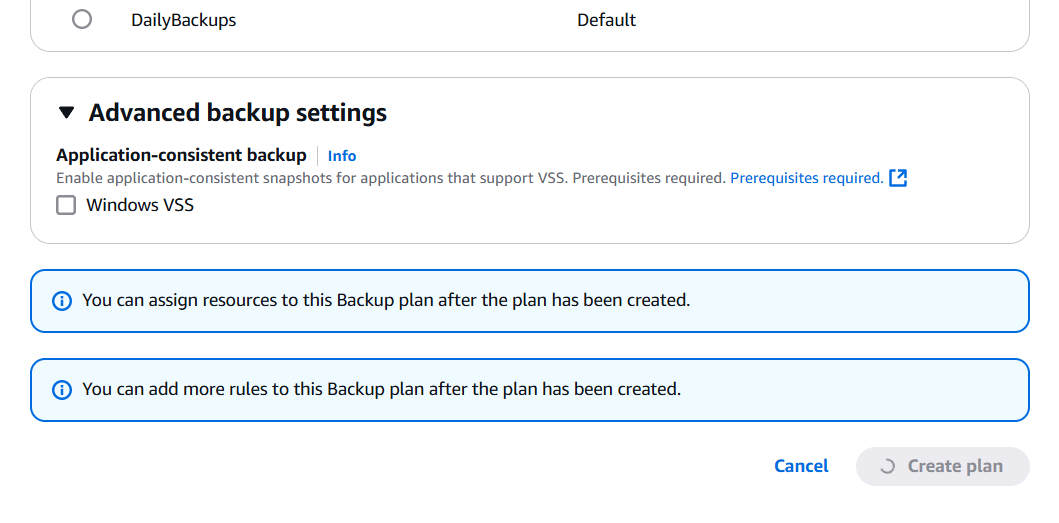
STEP 7: Select the following options.
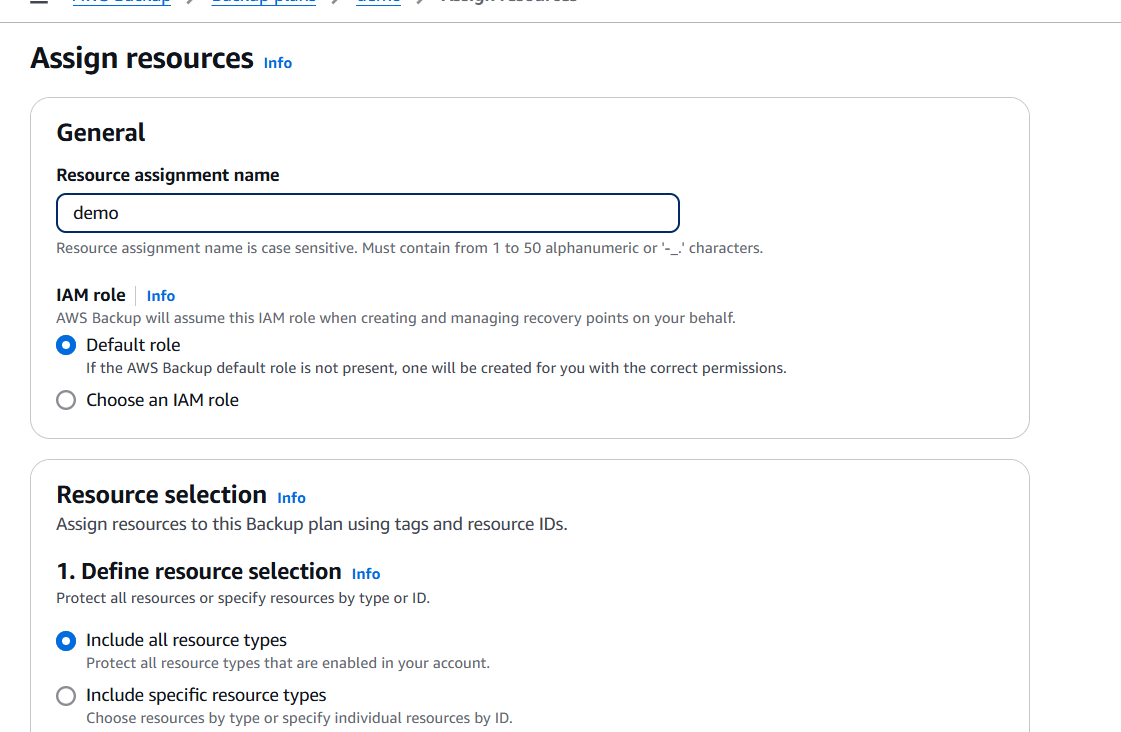
STEP 8: Click on assign resources.
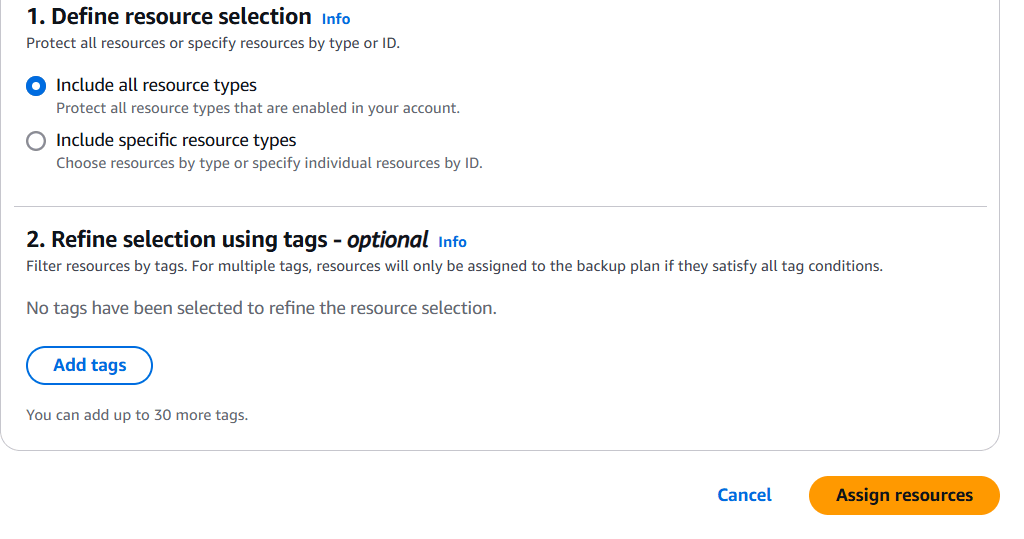
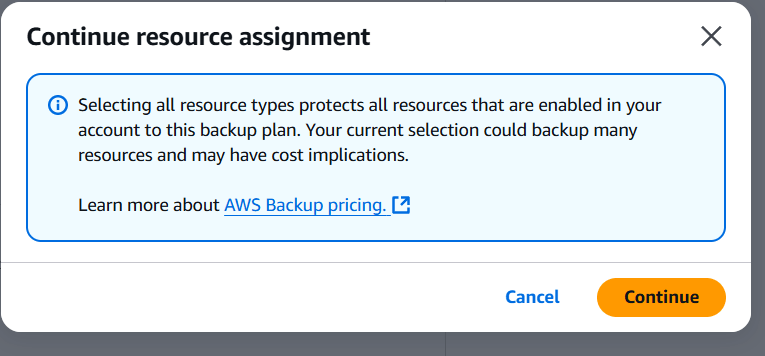
STEP 9: Click on continue.
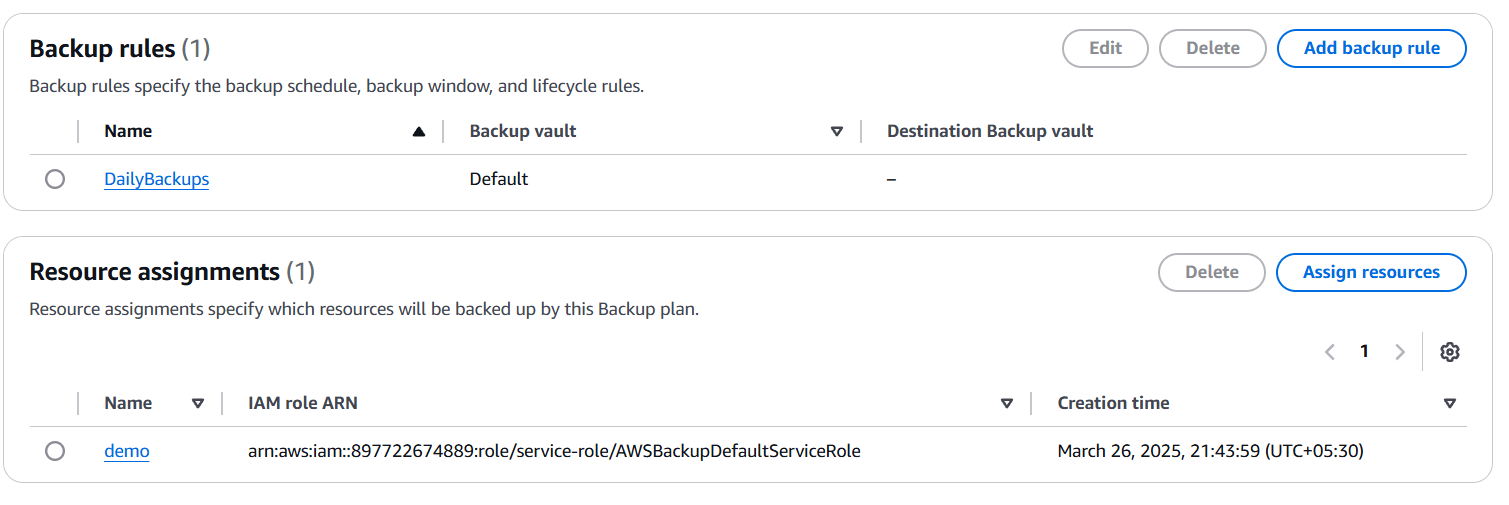

In conclusion, configuring AWS Backup is an essential step in ensuring the protection, reliability, and availability of your data in the cloud. By leveraging AWS Backup, organizations can automate backup processes, reduce the risk of data loss, and meet compliance requirements with minimal effort. The service provides a comprehensive solution for backing up a wide range of AWS resources, with flexible scheduling, retention, and encryption options.
As businesses continue to migrate to the cloud, having a solid backup strategy in place is crucial to mitigate the impact of unexpected data loss or disasters. AWS Backup simplifies this by centralizing and automating backup management, giving you peace of mind knowing that your critical data is secure and recoverable.
By following the steps outlined in this guide, you can confidently set up AWS Backup, ensuring that your cloud data is well-protected while allowing for seamless restoration when needed. Embracing AWS Backup as part of your cloud strategy not only optimizes data protection but also enhances the overall resilience of your infrastructure.

AWS Elastic File System (EFS) is a scalable, fully managed file storage service that simplifies the process of storing and accessing files in the cloud. As businesses and developers increasingly rely on cloud environments, the need for efficient, flexible, and easily accessible file storage grows. AWS EFS is designed to meet these needs by offering a solution that can seamlessly scale with your storage requirements while providing shared access to multiple instances.
Unlike traditional storage methods, which may require complex setup and management, AWS EFS is a fully managed service that handles all aspects of storage infrastructure. It automatically scales based on the amount of data you store, ensuring that you only pay for what you use, without the need to pre-provision storage. This makes it a perfect solution for workloads that require high throughput, low-latency access to shared file storage, such as web applications, content management systems, and big data analytics.
EFS is built to be highly available and durable, with multiple levels of redundancy to ensure your data is safe even in the case of hardware failure. It allows you to access your files from multiple Amazon EC2 instances simultaneously, providing shared storage across your cloud applications. This shared access makes it ideal for use cases where multiple instances need to read and write to the same files at the same time.
In addition, AWS EFS integrates seamlessly with other AWS services, such as EC2, Lambda, and Container Services, offering developers an easy-to-use solution that fits into a wide range of use cases. It also supports a wide variety of file system protocols, including NFS (Network File System), enabling compatibility with many applications and operating systems.
Whether you’re building a web application, running an analytics pipeline, or developing a containerized environment, AWS EFS provides a flexible and cost-effective file storage solution. It allows your applications to scale effortlessly without worrying about storage capacity, all while maintaining high performance.
In this guide, we will explore AWS Elastic File System (EFS) in more detail, covering its features, benefits, and best practices. We will also discuss how to set it up, how it compares to other AWS storage services like EBS and S3, and some common use cases where EFS excels. By the end of this article, you will have a thorough understanding of how AWS EFS can help you optimize your cloud storage architecture.

mount or through the efs-utils package for easier mounting.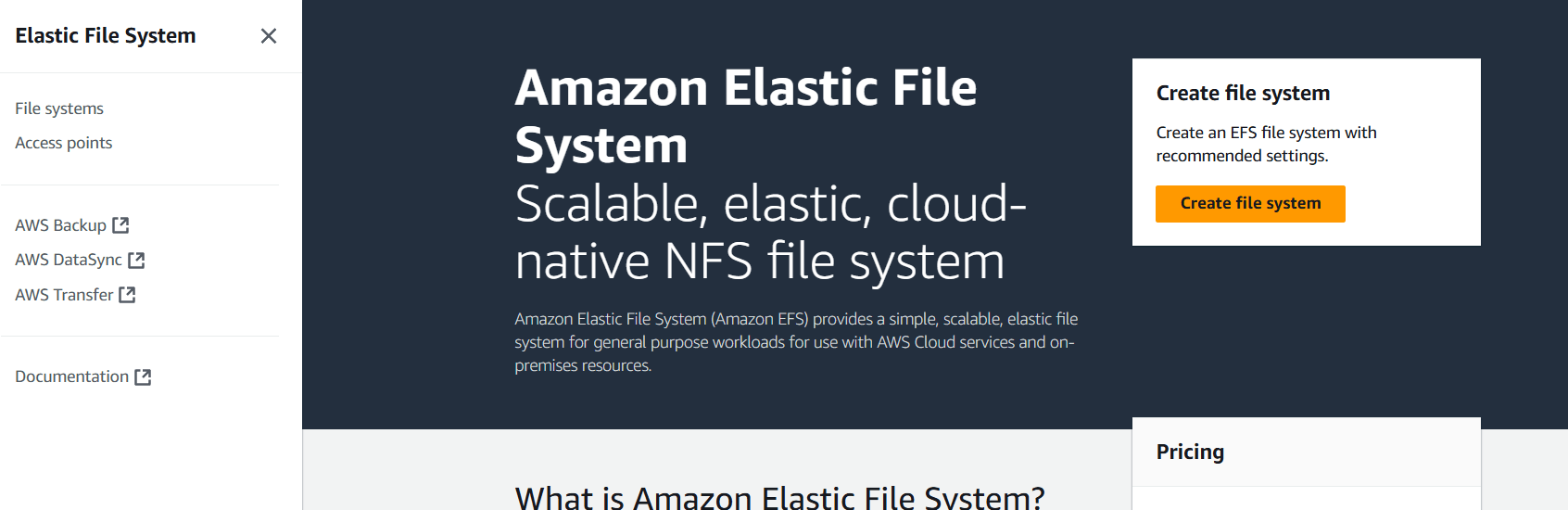
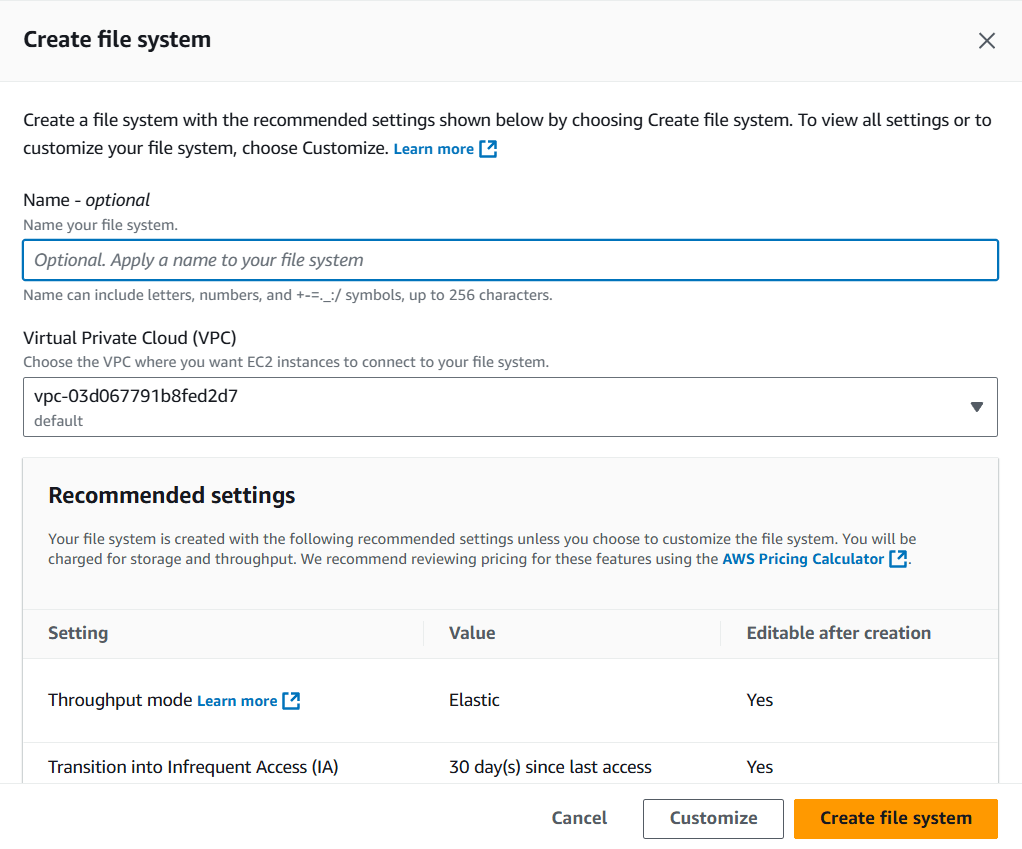
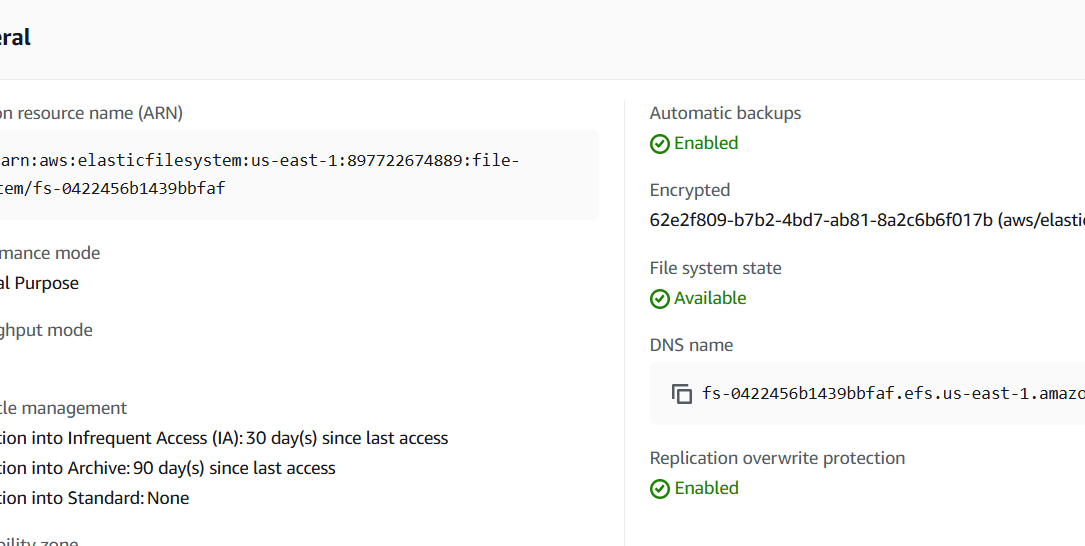
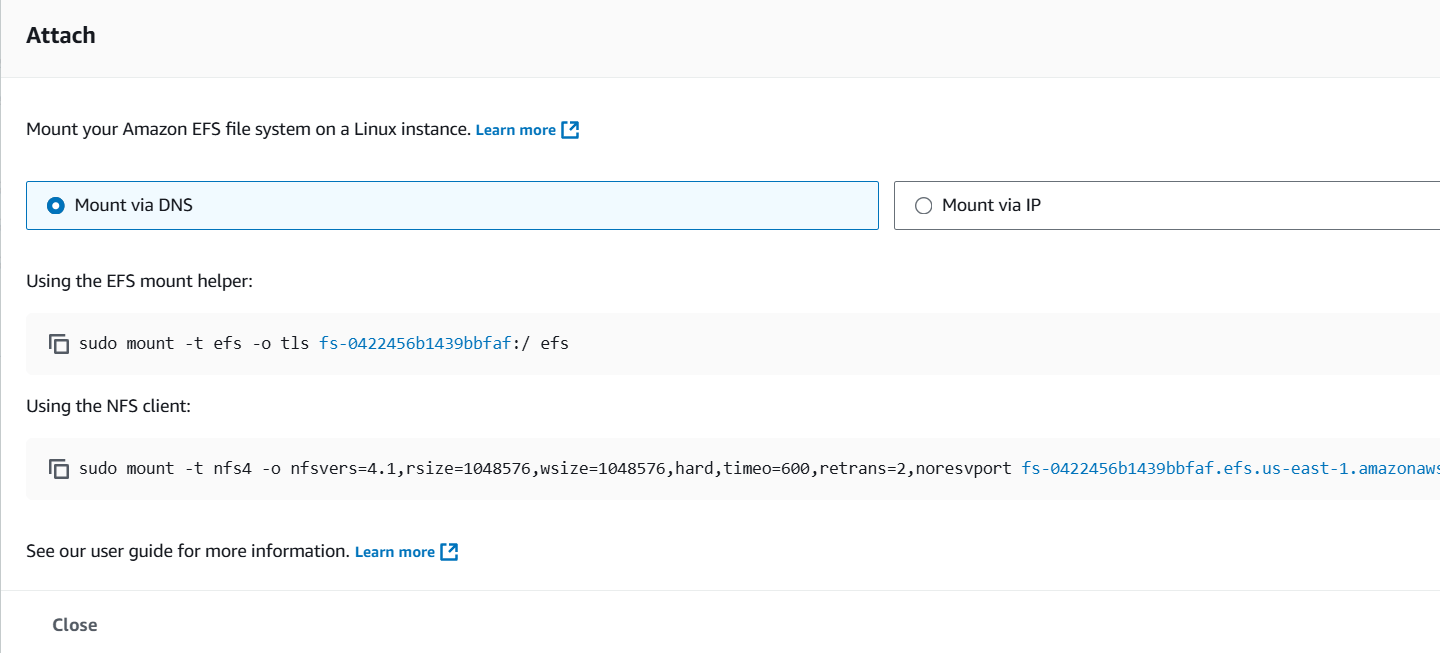
The “Attach” option in Amazon Elastic File System (EFS) refers to the process of linking an EFS file system to an EC2 instance, allowing the instance to access the file system as if it were a local disk. EFS provides scalable, shared file storage that multiple EC2 instances can access concurrently. The attach process involves mounting the EFS file system using the NFS (Network File System) protocol. Once attached, the EC2 instance can read from and write to the EFS file system, enabling shared access to files and data across instances. The attachment requires configuring security groups and VPC settings to ensure proper communication between the EC2 instance and the EFS file system. Additionally, you need to create mount targets in the VPC for the EC2 instances to access the EFS. EFS offers two performance modes: General Purpose and Max I/O, which cater to different workloads. The “Attach” option makes EFS ideal for applications that need shared access to data, such as web servers, data analytics, and development environments. It also provides elasticity, automatically scaling the file system as data is added or removed.

In conclusion, AWS Elastic File System (EFS) is a powerful and scalable solution for managing file storage in the cloud. Its fully managed nature simplifies the complexities of traditional file storage, while its ability to scale automatically with your needs ensures that it can support growing workloads without the need for constant management. EFS’s support for shared access across multiple EC2 instances and its seamless integration with other AWS services make it an ideal choice for applications requiring high availability, reliability, and performance.
By leveraging EFS, businesses can reduce infrastructure overhead, increase efficiency, and enable flexible collaboration between instances, making it a great fit for a wide range of use cases, from web hosting to data analytics. The service’s durability, security, and cost-effectiveness add to its appeal as a go-to storage solution for modern cloud environments.
As cloud storage requirements continue to evolve, AWS EFS remains a robust option that simplifies storage management while delivering excellent performance. Whether you’re a developer building scalable applications or a business looking to optimize your cloud storage, AWS EFS provides the tools needed to support your growing infrastructure. With its ease of use, flexibility, and powerful features, AWS Elastic File System can help you build and manage cloud-based file storage systems with ease.

In the world of cloud computing, flexibility and scalability are crucial when designing your infrastructure. One of the powerful features of AWS (Amazon Web Services) is its Elastic Block Store (EBS), which provides persistent storage for your EC2 instances. Typically, an EBS volume is attached to a single EC2 instance, but there are cases where you might want to attach a single EBS volume to multiple EC2 instances simultaneously. This setup can be beneficial for use cases such as sharing data between instances, improving redundancy, or enabling cluster-based applications.
However, it’s important to note that by default, an EBS volume can only be attached to one instance at a time in the same Availability Zone. So, how can we enable a single EBS volume to work with multiple EC2 instances? The answer lies in understanding the different types of access and configurations available.
In AWS, this can be achieved through specific configurations such as enabling multi-attach support for EBS volumes. This allows a single EBS volume to be attached to multiple EC2 instances simultaneously, giving them access to the same data. But before jumping in, there are important considerations to keep in mind, such as the use of supported instance types, operating systems, and file systems. Additionally, you must be cautious about data consistency, as concurrent access from multiple instances can lead to data corruption if not properly managed.
In this guide, we will walk you through the steps to attach a single EBS volume to multiple EC2 instances in AWS. We will cover the prerequisites, how to configure the EBS volume for multi-attach, best practices for managing access, and troubleshooting common issues. Whether you’re building a distributed application, setting up a shared storage solution, or scaling out your infrastructure, understanding how to share an EBS volume across instances is an essential skill for cloud engineers.
By the end of this guide, you’ll have a clear understanding of how to configure and attach an EBS volume to multiple instances, as well as the best practices to ensure your data remains secure and consistent across all instances. Let’s dive into the process and explore how to make the most of AWS EBS multi-attach capabilities.

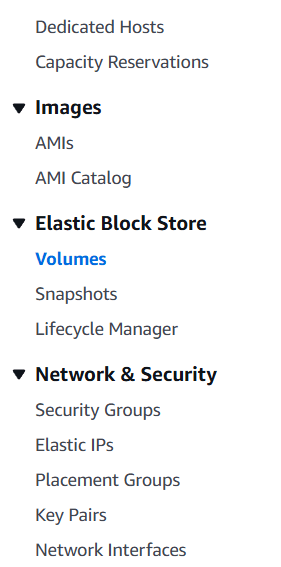
STEP 1: Navigate the EC2 instance and Select the Volumes.
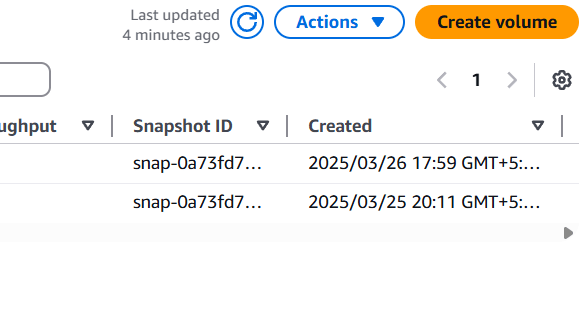
STEP 2: Click on create volume.
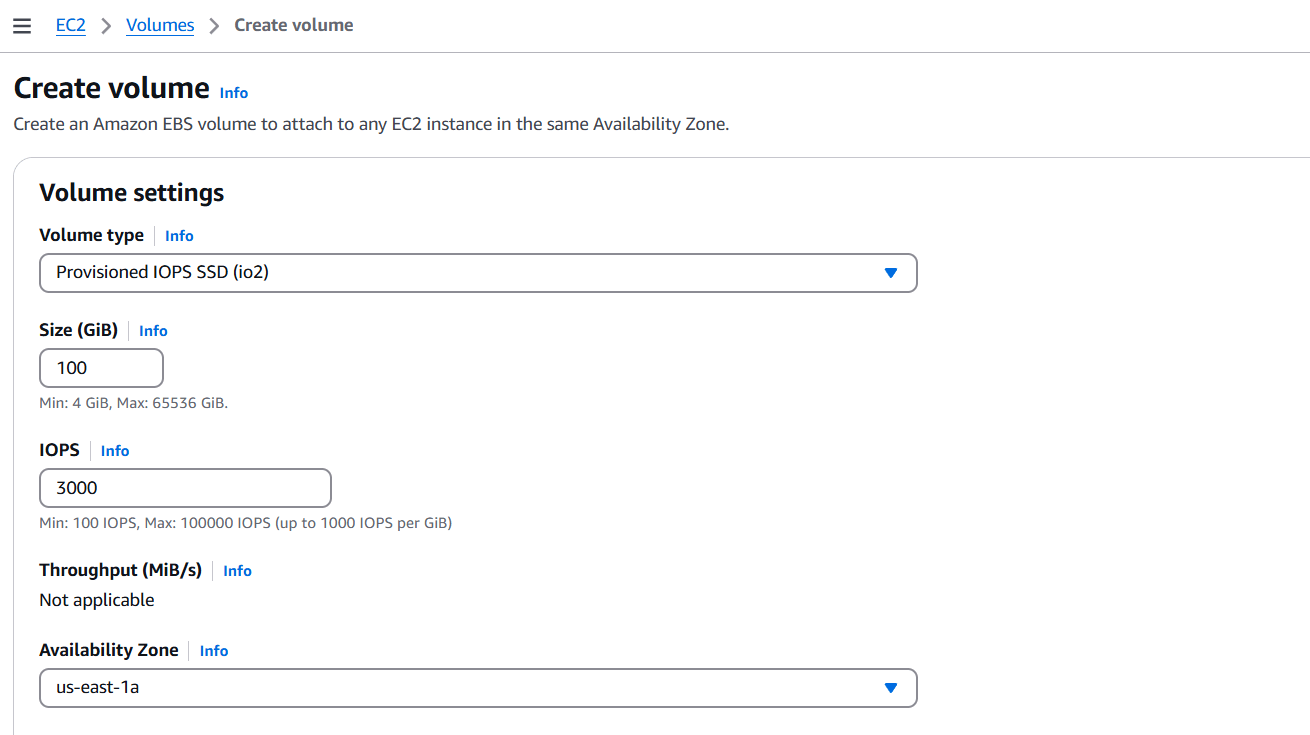
STEP 3: Edit the volume settings.
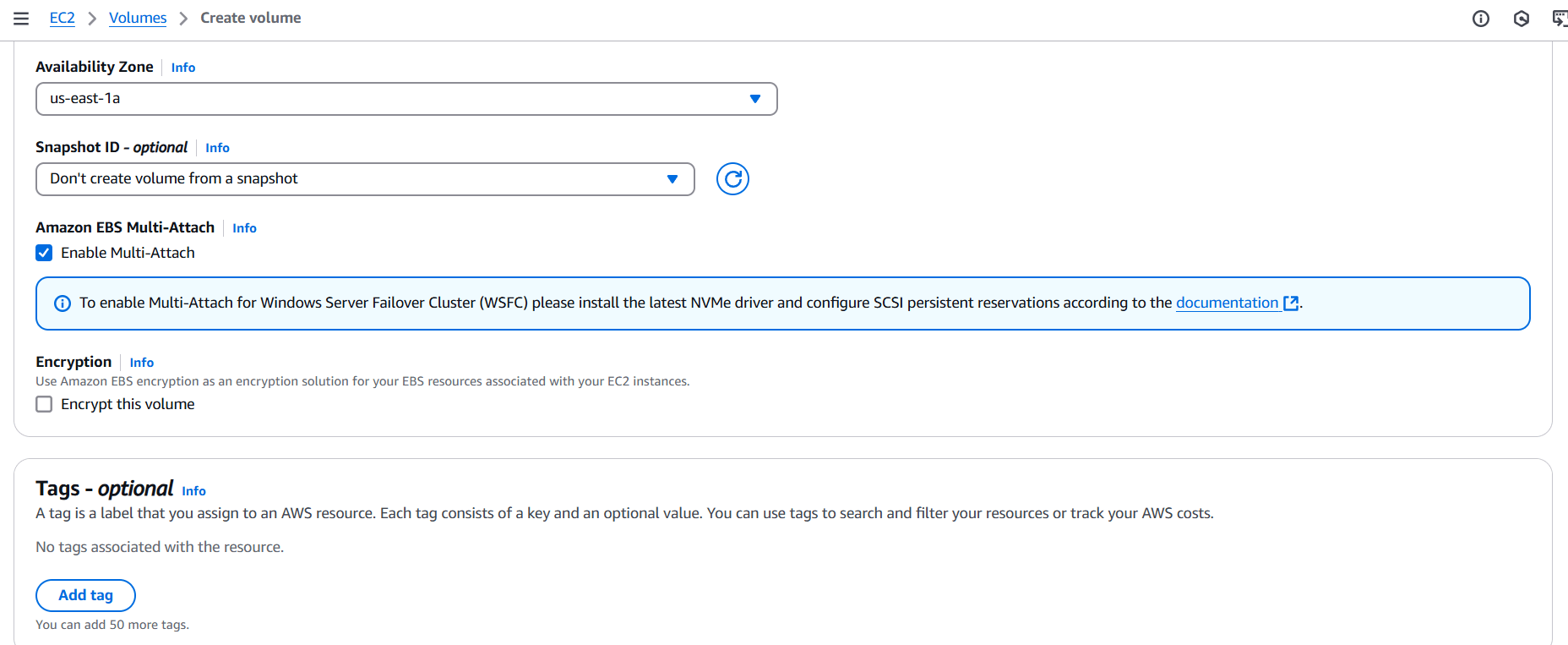
STEP 4: Tick on Enable Multi attach.
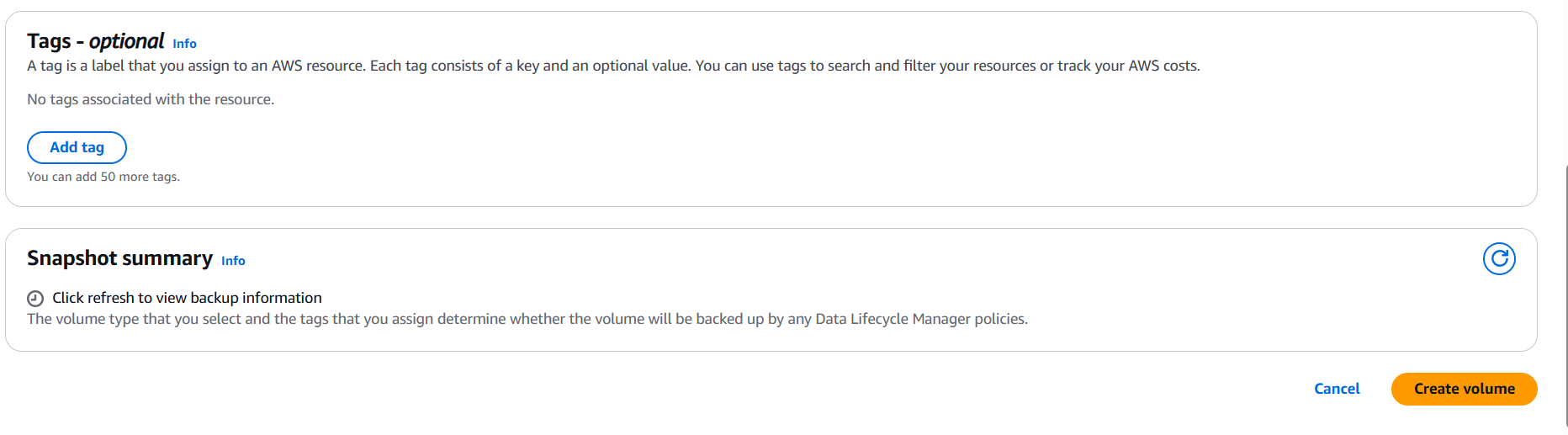
STEP 5: Click on create volume.
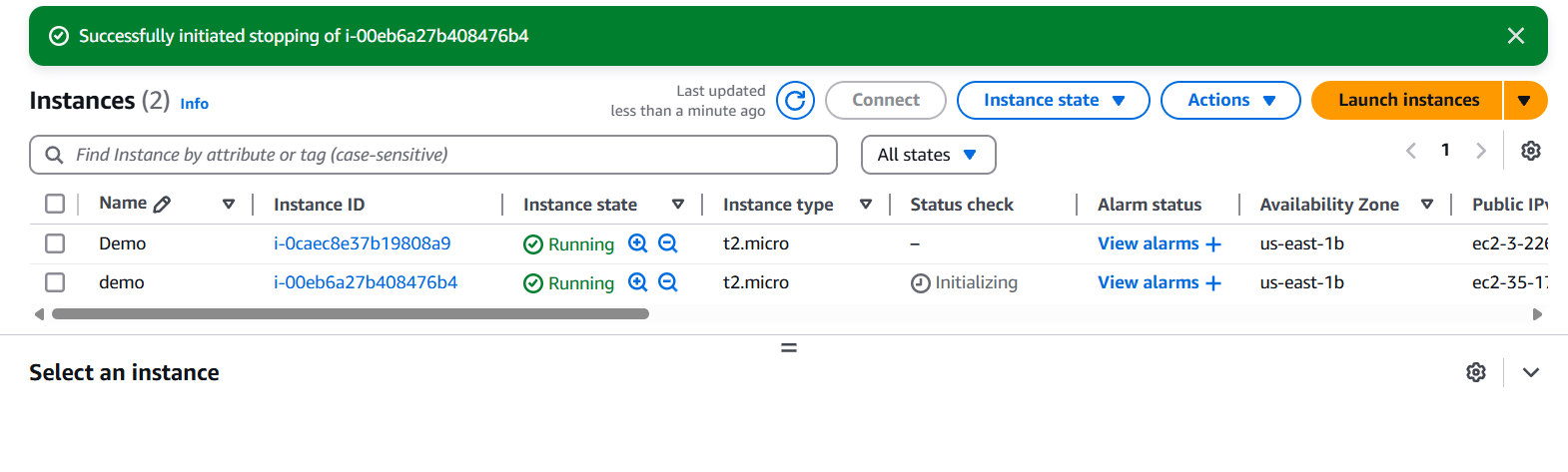
STEP 6: Already I have created a 2 EC2 instance.
Make sure at least two instances should be running to achieve this multi attach goal.
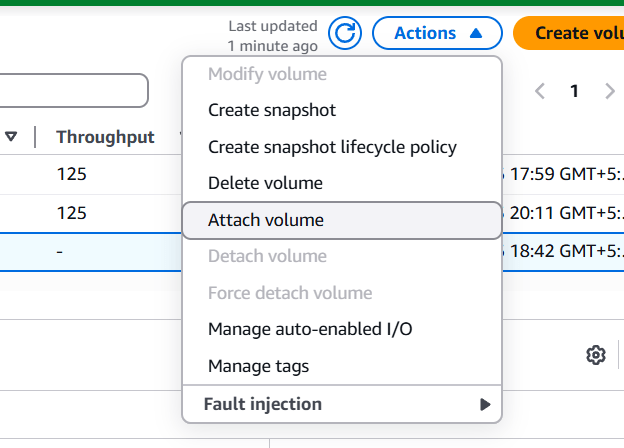
STEP 7: Select your created volume and click on action button and select the Attach volume.
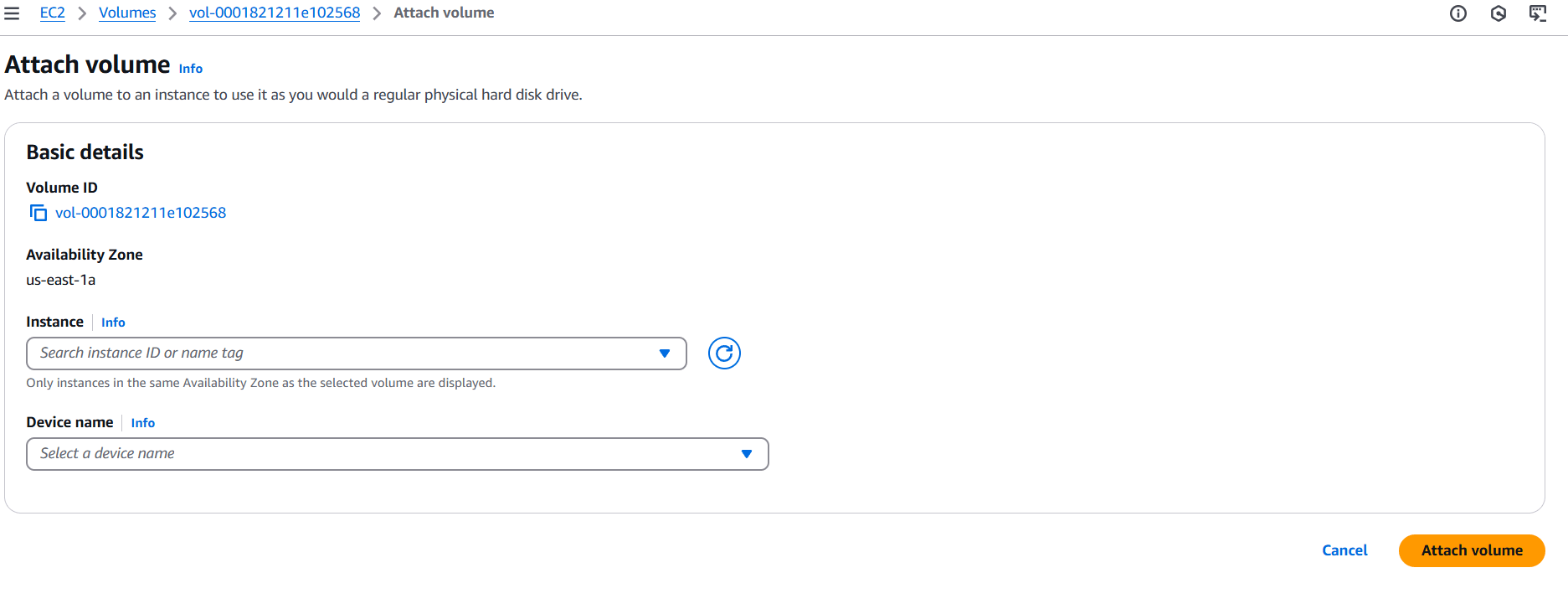
STEP 8: Select the Instance and Device Name.

In conclusion, attaching a single EBS volume to multiple EC2 instances in AWS can significantly enhance your infrastructure’s flexibility, especially for use cases that require shared storage across instances. By utilizing the multi-attach feature, you can enable simultaneous access to an EBS volume from multiple instances, which is ideal for distributed applications, data redundancy, and load-balanced environments. However, it’s crucial to consider the potential challenges, such as ensuring data consistency and selecting the appropriate instance types and operating systems that support multi-attach.
By following the steps outlined in this guide, you can confidently configure your EBS volume for multi-attach and apply best practices to manage access efficiently. Always be mindful of the risks associated with concurrent writes and take appropriate measures to maintain data integrity. With proper setup and management, this feature can streamline your cloud architecture and support more dynamic, scalable solutions.
Understanding how to share an EBS volume between instances opens up a world of possibilities for building more resilient, cost-effective applications. As AWS continues to evolve, knowing how to leverage its storage solutions effectively will give you a competitive edge in managing complex cloud environments.