In the world of cloud infrastructure, security and controlled connectivity are crucial. Whether you’re building a web application, a data processing pipeline, or a backend service, the ability to manage how your resources communicate with the outside world is essential.
Amazon Web Services (AWS) offers a range of tools to architect your network securely and efficiently. One of the most important components in this toolkit is the NAT Gateway.
But what is a NAT Gateway, and why do you need one?
When you launch resources inside a private subnet in your Virtual Private Cloud (VPC), those resources don’t have direct access to the internet by default. This is a security feature—it prevents inbound traffic from reaching your private instances.
However, there are many scenarios where these private resources do need to access the internet. For example:
Installing OS updates on an EC2 instance
Pulling packages from online repositories (like yum, apt, pip, or npm)
Uploading logs to Amazon S3
Downloading configuration files from remote servers
This is where the NAT Gateway comes in.
A NAT (Network Address Translation) Gateway allows instances in a private subnet to initiate outbound connections to the internet, while blocking inbound connections initiated from outside. This ensures a secure yet functional environment for your cloud resources.
In this guide, we’ll walk through:
What a NAT Gateway is and how it works
The prerequisites you need to set one up
Step-by-step instructions to create a NAT Gateway using the AWS Console and CLI
How to route private subnet traffic through your NAT Gateway
Key considerations like cost, availability, and security best practices
Whether you’re a beginner exploring AWS networking for the first time, or an experienced cloud architect refining your VPC setup, this guide will help you set up a NAT Gateway confidently and correctly.
By the end, you’ll have a solid understanding of how to:
Keep your instances protected in private subnets
Allow them secure access to external services
Ensure your AWS architecture meets best practices for both performance and security
Let’s get started by exploring the building blocks you’ll need before deploying your NAT.
1. Allocate an Elastic IP
Go to the VPC Dashboard → Elastic IPs
Click Allocate Elastic IP address
Choose your scope (EC2 or VPC) and click Allocate
2. Create the NAT Gateway
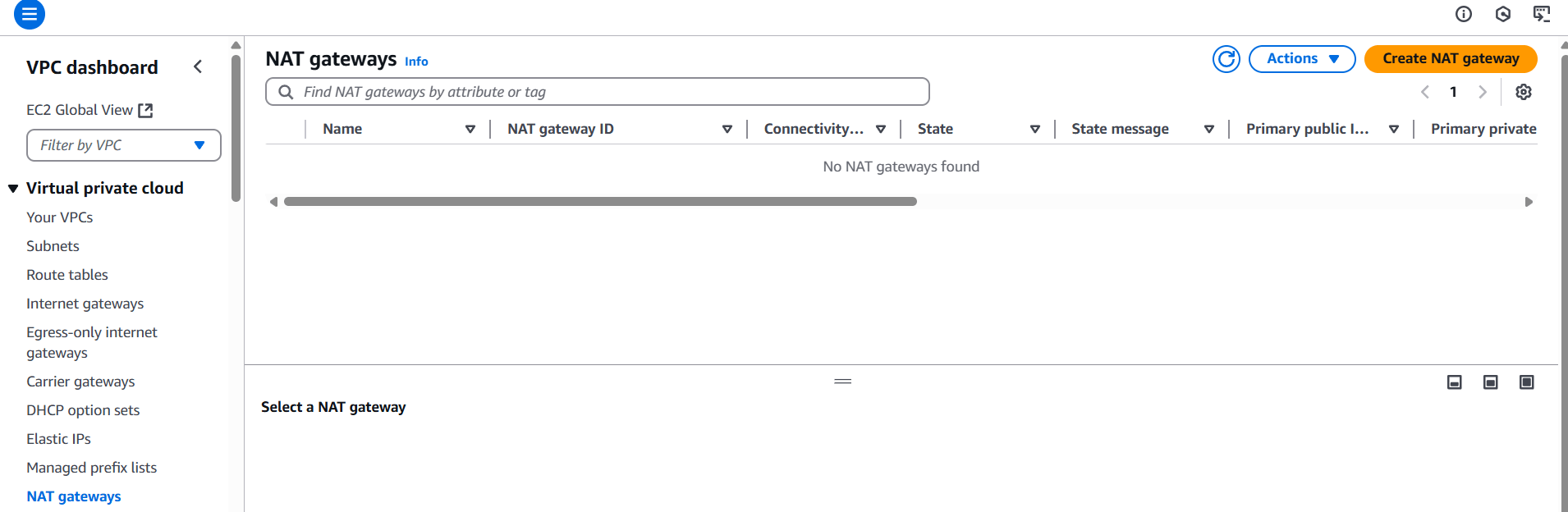
Go to VPC Dashboard → NAT Gateways
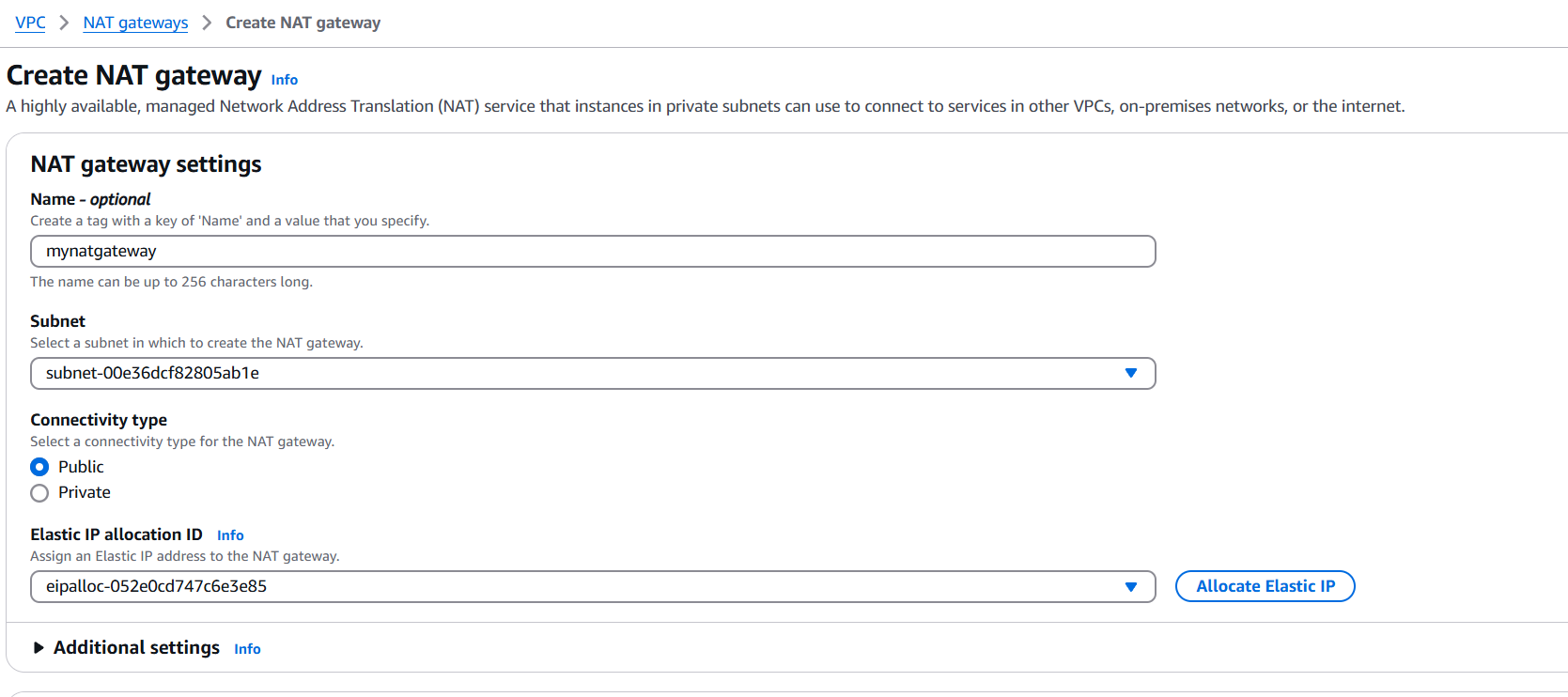
Click Create NAT Gateway
Choose:
Subnet: Must be in a public subnet (i.e., has a route to an Internet Gateway)
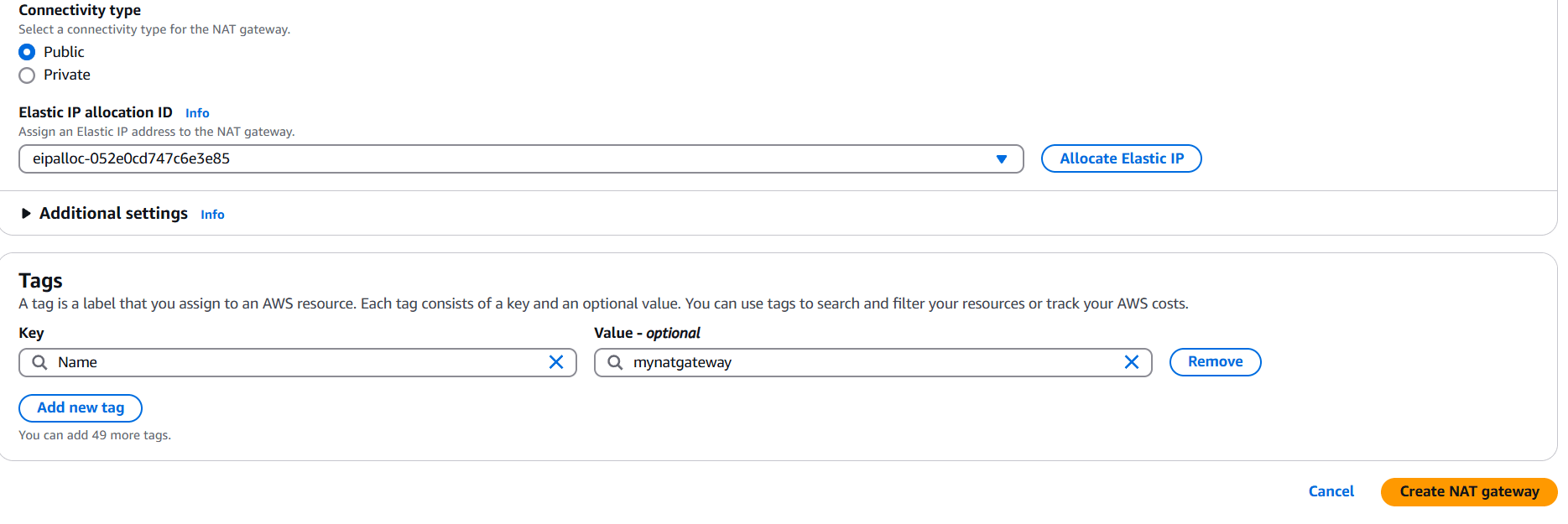
Elastic IP: Use the one you just allocated
Click Create NAT Gateway
3. Update Route Table for the Private Subnet
Go to Route Tables
Find the route table associated with your private subnet
Click Edit routes → Add route:
Destination: 0.0.0.0/0
Target: your new NAT Gateway ID
Save the route
Conclusion.
Setting up a NAT Gateway might seem like just another networking task in AWS, but it plays a vital role in designing secure, functional cloud environments. It gives your private subnet resources the ability to connect to the internet—without exposing them to unsolicited inbound traffic.
In this guide, we covered:
What a NAT Gateway is and why it’s important
How to allocate an Elastic IP and place the NAT Gateway in a public subnet
How to route private subnet traffic through it using route tables
How to automate the setup using the AWS Console or CLI
By implementing a NAT Gateway correctly, you ensure that your internal services remain protected behind a layer of network security, while still maintaining the internet access they need to function efficiently.
Keep in mind:
NAT Gateways are zonal—consider multiple NAT Gateways for high availability across AZs
There are usage costs—monitor data transfer and hourly charges
Regularly review your route tables and VPC configuration for consistency and security
Whether you’re building a simple web app or scaling a multi-tier architecture, mastering NAT Gateway configuration is a fundamental AWS skill.
Ready to take your VPC setup to the next level? Try pairing NAT Gateways with other networking best practices like VPC Peering, Transit Gateways, and custom NACLs.
In today’s cloud-native world, visibility and awareness are everything. Whether you’re running a small web app or a massive distributed system, knowing when something changes—or goes wrong—is critical to keeping your applications available, efficient, and cost-effective. This is where user notifications in AWS come into play. They empower you to stay on top of your infrastructure, services, costs, and workflows by sending real-time alerts for events that matter to you.
Imagine this: your EC2 instance suddenly stops, your Lambda function throws an error, or your monthly bill crosses an unexpected threshold. Without timely notifications, you might find out too late—after performance degrades or costs spiral out of control. But with the right notification setup, AWS can immediately alert you by email, SMS, push notification, or even send messages to your team’s Slack or Microsoft Teams channel.
AWS offers multiple ways to create and manage user notifications through services like Amazon SNS (Simple Notification Service), Amazon CloudWatch, EventBridge, and AWS Budgets. Each tool has a specific role: SNS helps broadcast alerts, CloudWatch monitors metrics and logs, EventBridge reacts to system-level events, and AWS Budgets keeps an eye on your cloud spend. Together, they form a powerful system that can help you automate monitoring and alerting across your entire AWS environment.
In this post, we’ll walk you through how to set up and use AWS user notifications effectively. Whether you want to get an email when CPU usage spikes, receive a text message when a deployment fails, or send a webhook to Slack when your budget is exceeded—we’ve got you covered. You’ll learn how to create notification topics, subscribe users, connect alerts to services like EC2, Lambda, and S3, and customize your message delivery based on your team’s workflow.
The goal is to give you full control over your cloud visibility. Once notifications are in place, you’ll no longer have to manually check logs or dashboards for updates—your infrastructure will talk to you. And as your AWS usage grows, having this automated layer of communication will help you respond faster, reduce downtime, and build more resilient systems.
Whether you’re just getting started with AWS or you’re looking to tighten up your DevOps practices, understanding user notifications is a skill you’ll benefit from again and again. Ready to build a smarter, more responsive cloud environment? Let’s dive into how AWS can keep you informed, in control, and ahead of the curve.
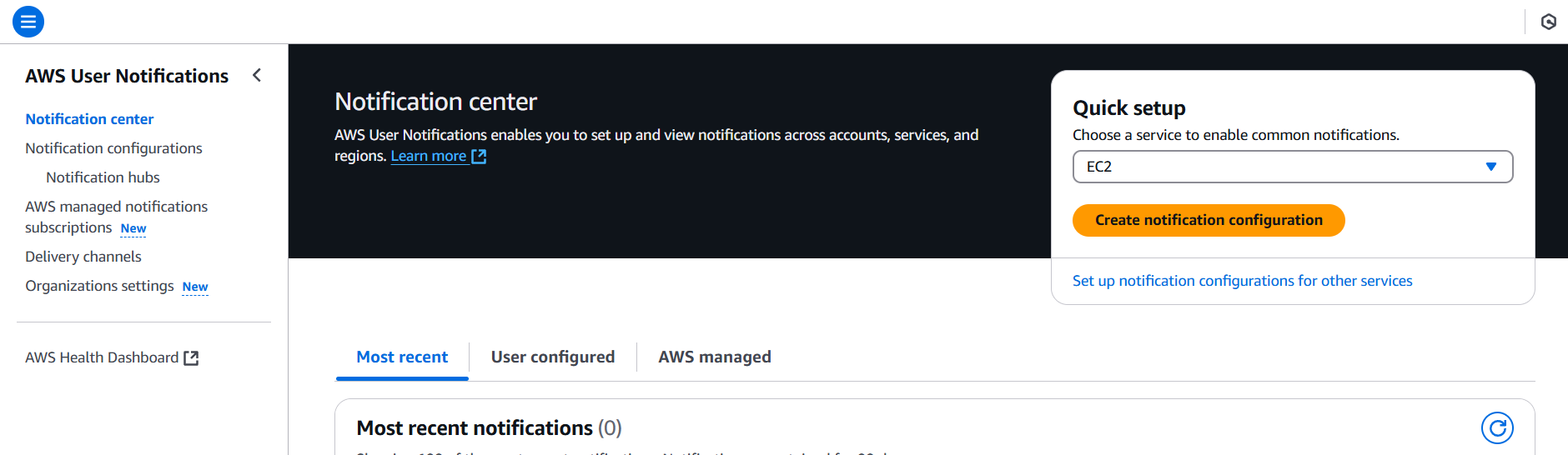
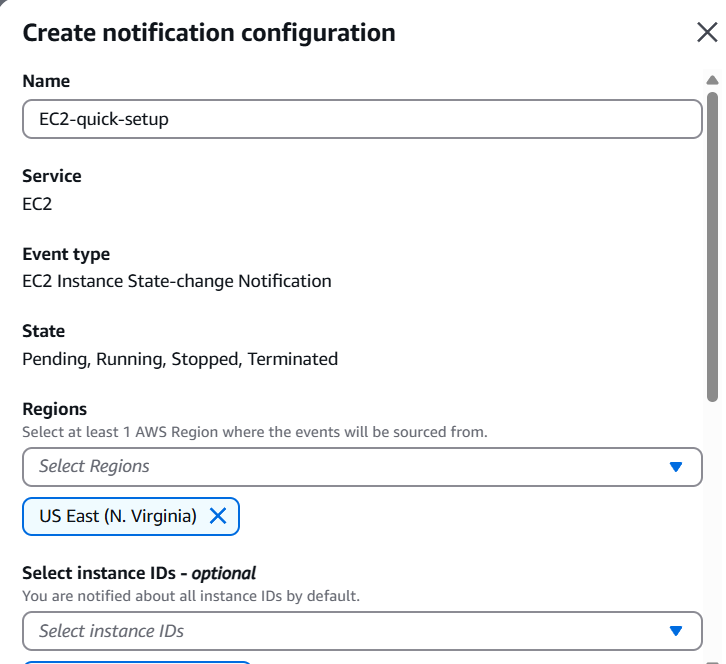
STEP 1: Navigate the AWS User notifications.
Click on create notification configuration.
STEP 2: Select Regions.
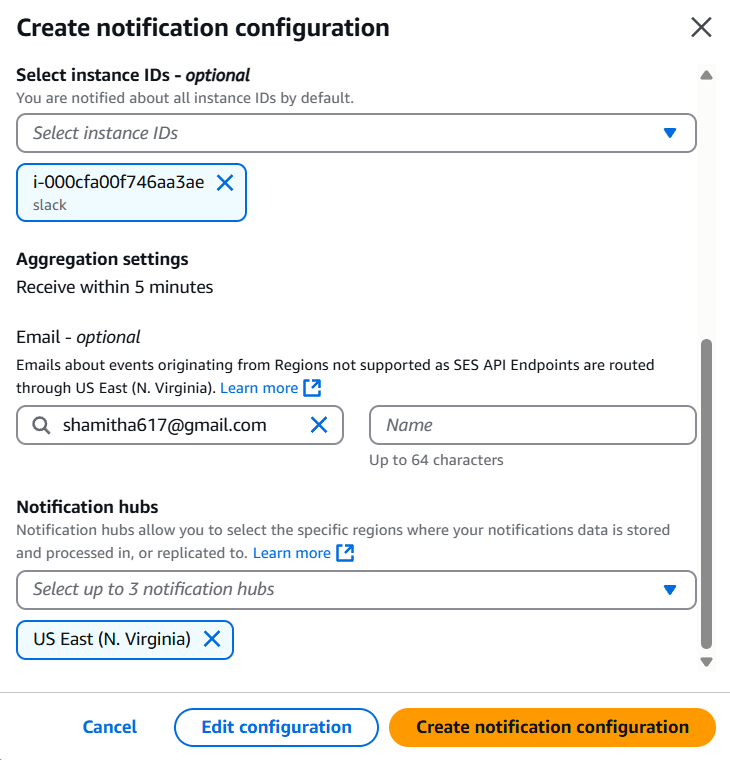
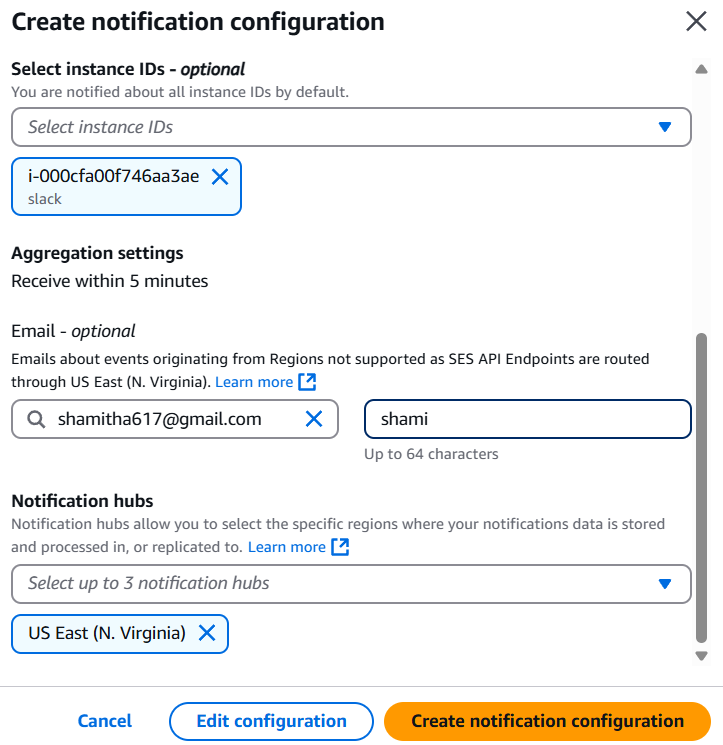
STEP 3: Select your Instance ID and Enter the mail id name and name.
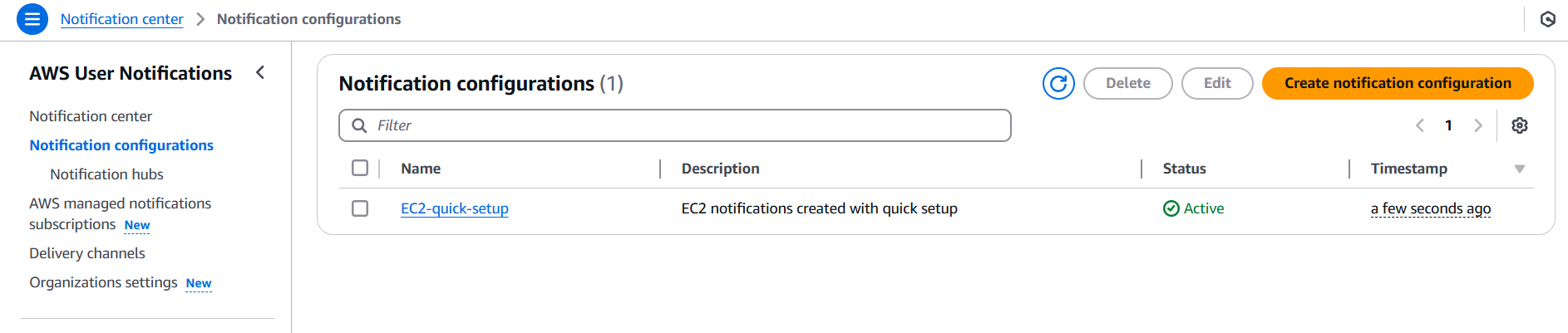
STEP 4: Click on create.
Conclusion.
In a cloud environment where things can change in seconds, staying informed isn’t just a convenience—it’s a necessity. AWS User Notifications empower you to monitor, respond, and act quickly on key events across your infrastructure. From resource performance to budget tracking, from deployment pipelines to unexpected errors, having the right notifications in place helps you maintain uptime, optimize costs, and deliver a more reliable experience for your users.
In this guide, we walked through the core services—Amazon SNS, CloudWatch, EventBridge, and AWS Budgets—and how each plays a role in keeping you updated in real time. Whether you’re sending emails to admins, pushing alerts to Slack, or automating responses with Lambda, AWS gives you the flexibility to create notification systems that suit your unique architecture and workflows.
As you continue building in the cloud, consider notifications not just as alerts, but as your early warning system, your operations assistant, and your eyes on the infrastructure when you’re not looking. Properly set up, they become one of your most valuable tools in delivering stable, scalable, and responsive applications.
Now that you’ve seen how powerful and easy it is to implement AWS notifications, the next step is yours. Start small—monitor a key resource or set a budget alert—and build from there. The more proactive you are today, the fewer surprises you’ll face tomorrow.
Thanks for reading—and may your cloud always be quiet (unless something’s actually wrong)!
In today’s data-driven world, businesses generate vast amounts of raw data every second—from web clicks and app usage to IoT sensors and customer transactions. But raw data alone holds limited value. To turn it into meaningful insights, it must be collected, processed, transformed, and moved across different systems in a reliable and scalable way. This is where data pipelines come in. A data pipeline is a series of steps that automate the flow of data from source to destination, often including stages like ingestion, transformation, validation, storage, and visualization.
Building a data pipeline manually from scratch can be complex, especially when dealing with large volumes of data or multiple integration points. That’s why cloud providers like Amazon Web Services (AWS) offer a suite of tools designed to simplify and scale every part of the data pipeline process. With AWS, you can create robust, automated pipelines that ingest data from various sources (like databases, APIs, or streaming services), process it in real-time or batches, and deliver it to destinations such as Amazon Redshift, S3, or data lakes—all while ensuring security, monitoring, and cost-efficiency.
In this blog post, we’ll walk you through the end-to-end process of building a data pipeline on AWS, using a combination of powerful services like AWS Glue, Amazon S3, AWS Lambda, Amazon Kinesis, and Amazon Redshift. Whether your use case is real-time analytics, periodic ETL processing, or data lake population, AWS provides the flexibility to meet your needs.
You’ll learn how to design a pipeline architecture that meets your data requirements, automate tasks like data extraction and transformation, and monitor the entire workflow for reliability and performance. We’ll also highlight best practices for optimizing performance and reducing costs—so you don’t just build a pipeline, but build a smart one.
Whether you’re a data engineer, developer, analyst, or cloud architect, this guide will give you a hands-on look at how to implement modern data workflows using AWS-native tools. You don’t need to be an expert in every AWS service—we’ll keep things beginner-friendly and practical, with step-by-step instructions and code snippets where needed.
By the end of this post, you’ll not only understand how AWS data pipelines work, but also have a working prototype that you can adapt and expand for your real-world data projects. So if you’re ready to move beyond messy spreadsheets and manual scripts, and start building efficient, scalable data pipelines in the cloud—let’s dive in and make your data work for you.
Prerequisites:
A source code repository (e.g., GitHub, CodeCommit, or Bitbucket)
A build specification file (buildspec.yml) if using CodeBuild
An S3 bucket or a deployment service (like ECS, Lambda, or Elastic Beanstalk)
IAM permissions to create CodePipeline, CodeBuild, and related services
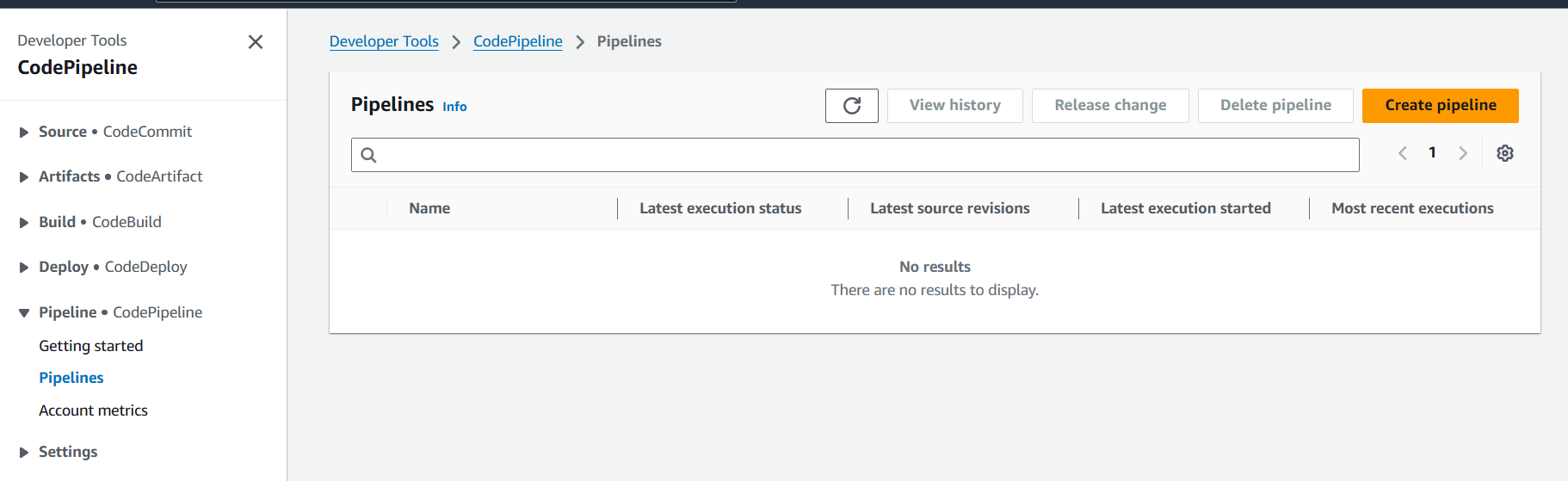
Step 1: Open the AWS CodePipeline Console
Go to the AWS Console
Navigate to CodePipeline
Click Create pipeline
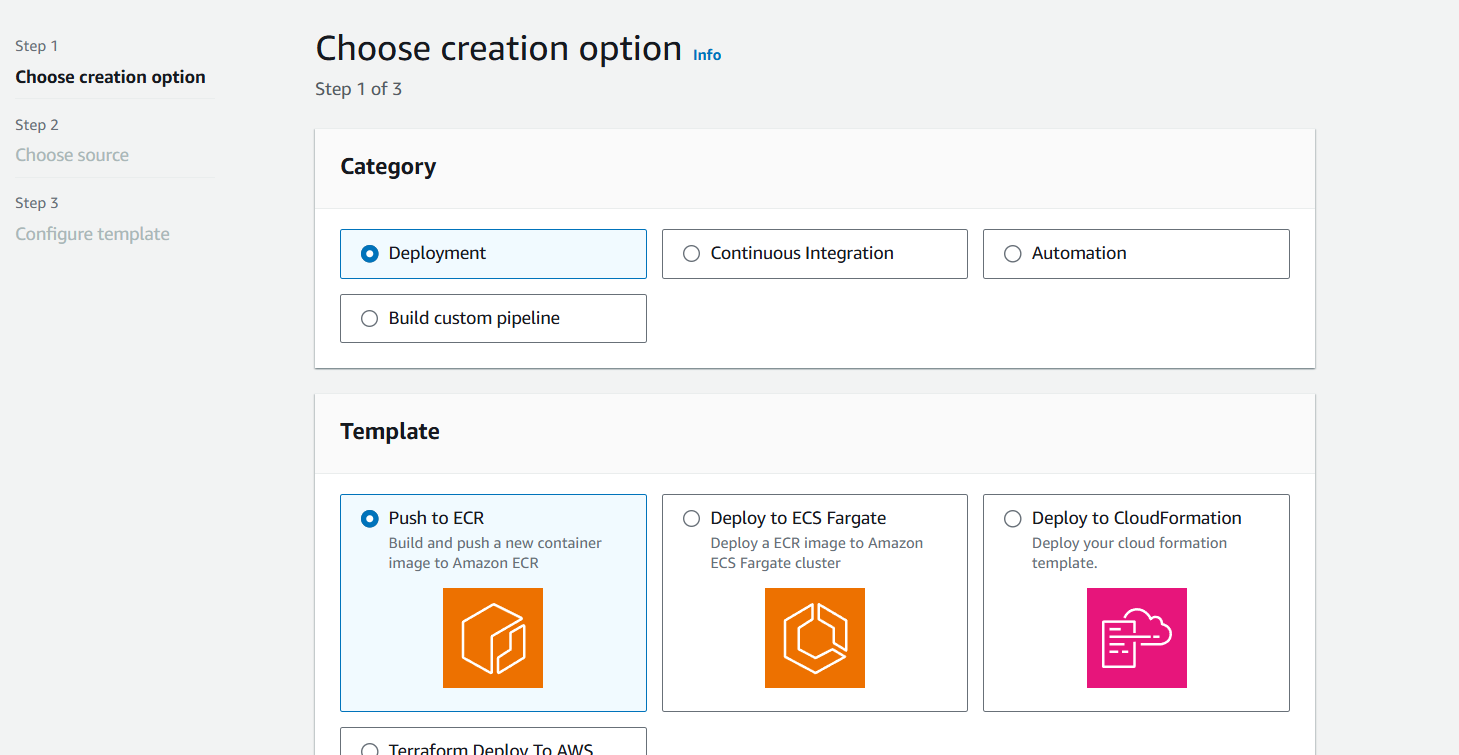
Step 2: Configure Your Pipeline
Pipeline name: Name your pipeline (e.g., MyAppPipeline)
Service role: Choose an existing role or let AWS create one for you (recommended)
Artifact store: AWS will use an S3 bucket to store artifacts (you can specify one)
Click Next.
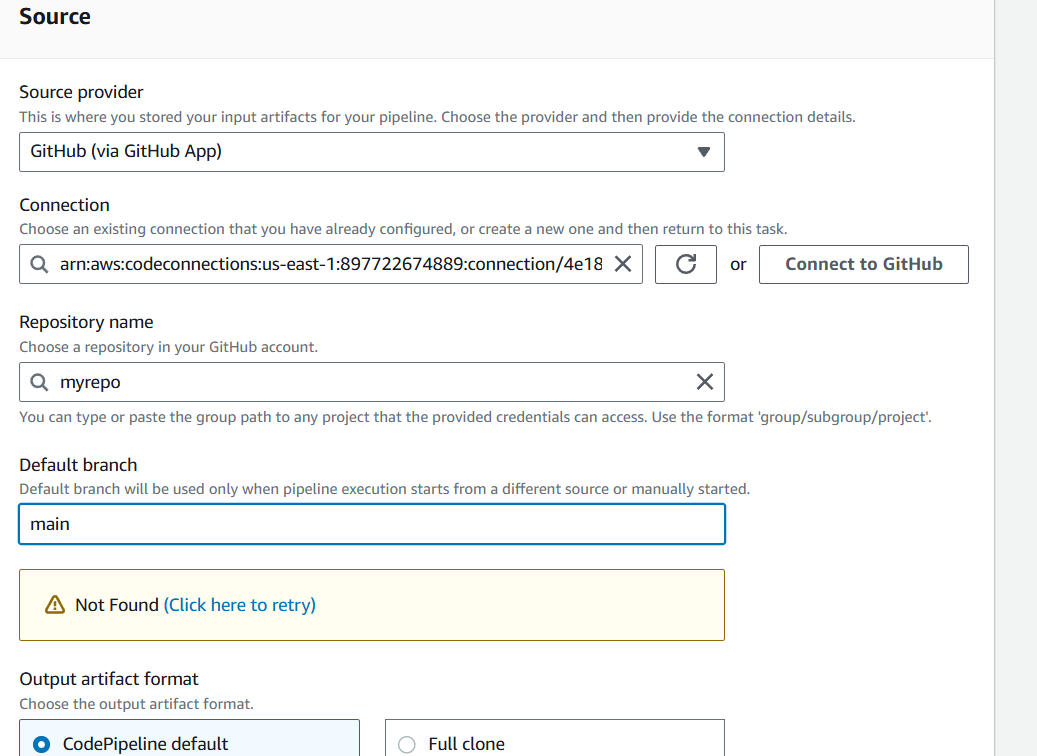
Step 3: Add a Source Stage
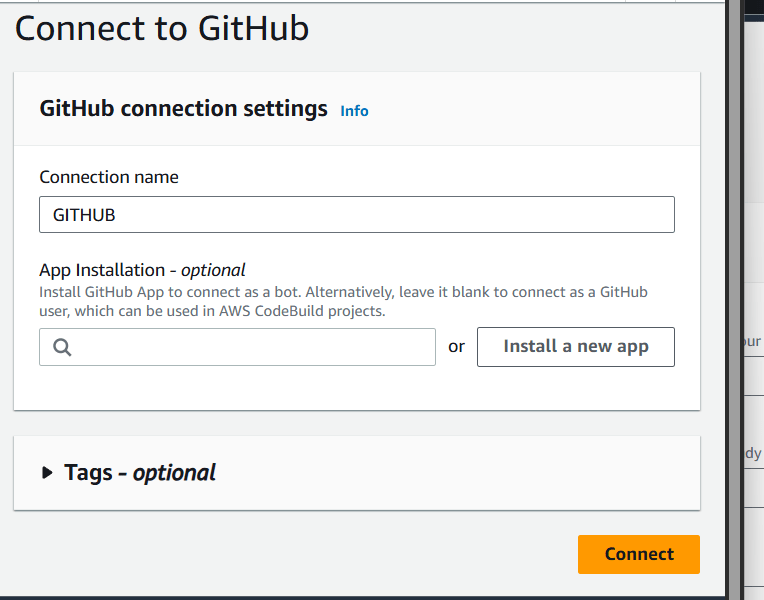
Source provider: Choose your source (e.g., GitHub, CodeCommit, Bitbucket)
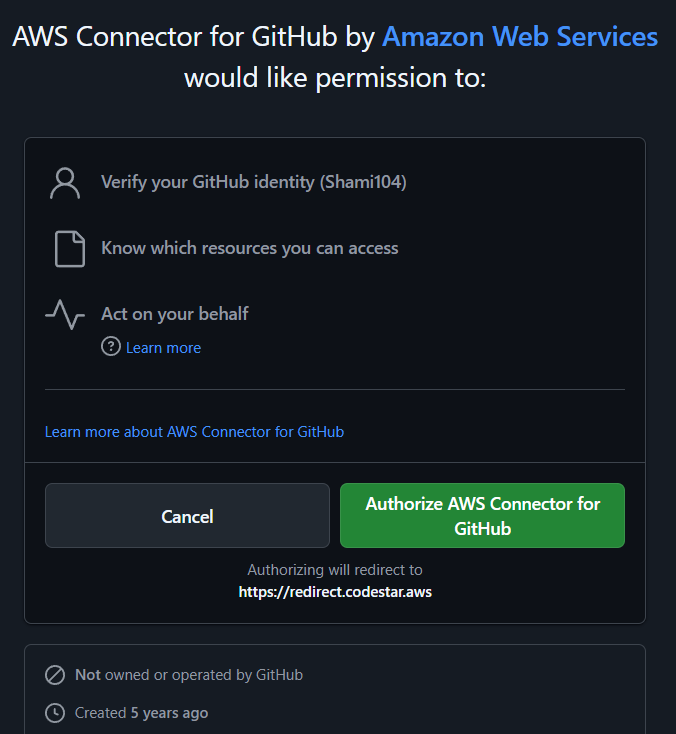
Connect to your repository (OAuth or via token)
Select the repo and branch to watch for changes
Click Next
Step 4: Add a Build Stage (Optional but common)
Build provider: Choose AWS CodeBuild
Project name: Select an existing build project or create a new one
If creating a new one, set the environment, runtime, and permissions
Make sure you have a buildspec.yml in the root of your repo
Click Next
Step 5: Add a Deploy Stage
Choose your deployment target:
Amazon ECS (for container-based apps)
AWS Lambda
Elastic Beanstalk
EC2 / S3
You can also skip this step to deploy manually later
Configure the deployment settings based on the service you chose.
Click Next
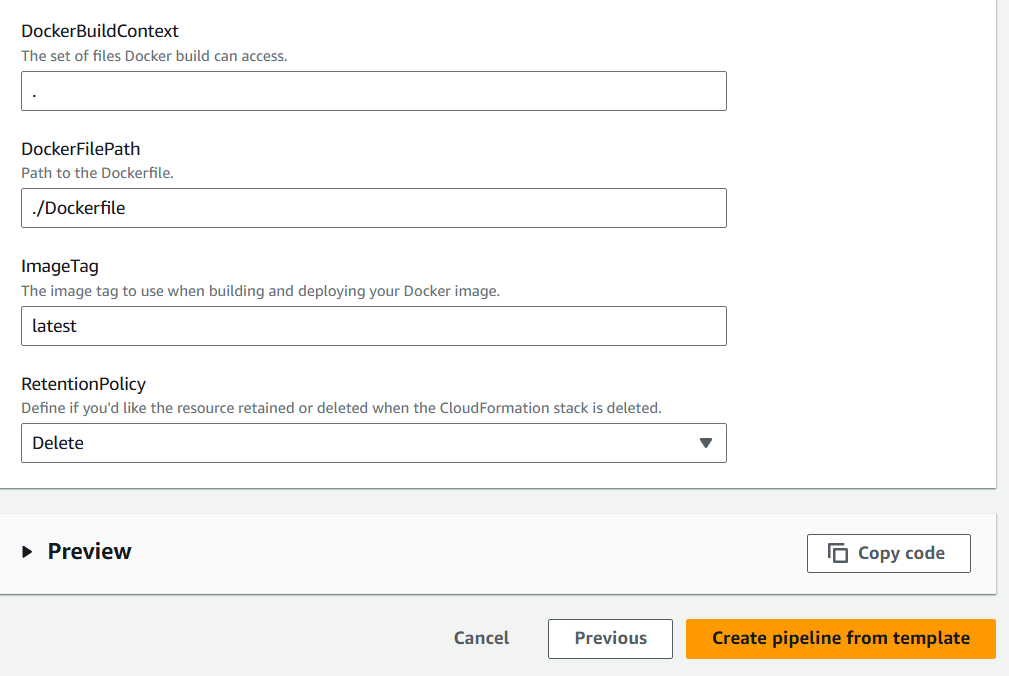
Step 6: Review and Create
Review all stages
Click Create pipeline
The pipeline will start running immediately and show you the progress of each stage
Test Your Pipeline
Push code to your source repo (e.g., GitHub)
Watch as CodePipeline automatically pulls the changes, builds them, and deploys to your environment
Conclusion.
Building a data pipeline on AWS might seem overwhelming at first, but with the right approach and the powerful tools AWS offers, it becomes not just manageable—but scalable, secure, and efficient. Whether you’re moving data from transactional systems into a data lake, cleaning and transforming it for analytics, or processing real-time streams for immediate insights, AWS provides a full ecosystem to support every step of the journey.
In this guide, you’ve seen how services like Amazon S3, AWS Glue, Lambda, Kinesis, and Redshift can work together to build robust pipelines that automate your data workflows end-to-end. You’ve learned about ingestion, transformation, and storage, as well as best practices for cost optimization, monitoring, and fault tolerance.
More importantly, you now have a foundation to build on. Whether you’re handling small batch jobs or designing a multi-layered enterprise data architecture, the principles and services discussed here will scale with your needs. As your data grows, AWS makes it easy to adapt and extend your pipeline with features like workflow orchestration (using Step Functions), real-time processing (using Kinesis Data Analytics), and even machine learning integration (with SageMaker).
So what’s next? Experiment, iterate, and refine. Start with small, meaningful pipelines and scale them as your use cases evolve. And if you’re ready to go deeper, explore tools like Amazon Data Pipeline, AWS Step Functions, or Apache Airflow on Amazon MWAA for even more control over your data flow.
Thanks for reading—now go build something data-driven, scalable, and awesome!
In today’s globally connected digital landscape, ensuring your users get the fastest, most relevant experience possible isn’t just a luxury—it’s a necessity. As traffic to your website or application grows, especially across regions and continents, the way you route that traffic becomes critically important. That’s where AWS Route 53’s Geolocation Routing Policy steps in. Unlike traditional routing methods that treat all traffic the same regardless of origin, geolocation routing lets you make intelligent, location-based decisions about where to send user requests. Whether you’re running a multi-region application, optimizing performance, or meeting regulatory requirements, geolocation routing gives you precise control based on the geographic origin of your users. Route 53—Amazon’s scalable and highly available DNS web service—offers multiple routing policies, but geolocation stands out for its ability to deliver truly customized experiences. With this policy, you can configure DNS responses based on continents, countries, or even U.S. states. That means visitors from Europe can be directed to servers in Frankfurt, users in Asia can hit infrastructure in Singapore, and traffic from California can be served from a local edge location—all without writing complex logic into your application. This approach not only reduces latency but can also improve content localization, legal compliance, and service availability. Whether you’re serving a content-heavy media site, a global e-commerce platform, or a SaaS application, geolocation routing can play a crucial role in scaling smart. The best part? Setting it up in Route 53 is straightforward once you understand the core concepts. In this blog post, we’ll break down how geolocation routing works, when you should use it, and how to configure it step by step. We’ll explore real-world use cases, cover edge cases you should be aware of, and share some pro tips to make the most out of it. By the end of this article, you’ll not only understand geolocation routing—you’ll be ready to implement it with confidence. So let’s dive into the world of Route 53 geolocation routing policies and discover how you can use them to build smarter, faster, and more resilient infrastructure for your global audience.
Prerequisites
You have a hosted zone set up in Route 53 for your domain.
You have multiple resources (e.g., servers, load balancers, or endpoints) in different geographic regions.
Your domain is already pointing to Route 53 name servers.
Step 1: Go to the Route 53 Console
Sign in to the AWS Management Console.
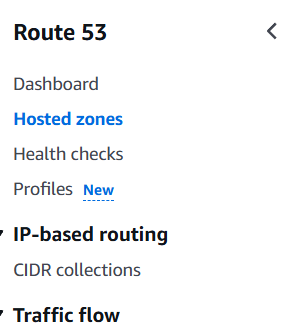
Navigate to Route 53 > Hosted Zones.
Click on the domain you want to set up geolocation routing for.
Step 2: Create a Record Set (Now called a “Record”)
Click “Create record”.
Choose a Record type: usually A (IPv4) or CNAME, depending on your setup.
Enter the record name (e.g., www or leave blank for root domain).
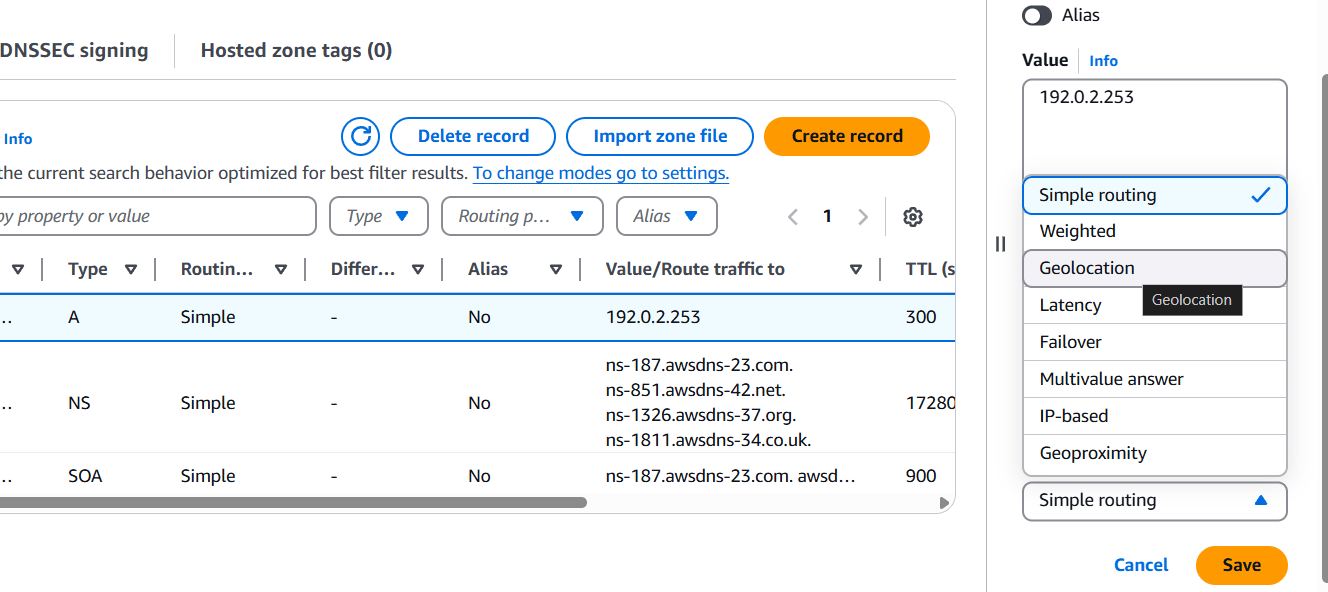
Step 3: Select “Geolocation” Routing Policy
Under Routing Policy, choose Geolocation.
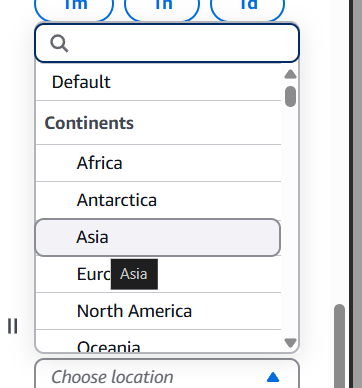
Under Location, pick the geographic location:
Continent (e.g., Asia)
Country (e.g., United States)
U.S. State (e.g., California)
Enter the value for the resource to route to (e.g., IP address or ELB hostname).
Step 4: Repeat for Other Locations
Create additional geolocation records for each region or country you want to route differently.
For example:
U.S. traffic → us-app.example.com
Europe traffic → eu-app.example.com
Asia traffic → asia-app.example.com
Step 5: Add a Default Record.
If a user’s location doesn’t match any of the geolocation records, Route 53 can use a default location record.
Create one more record.
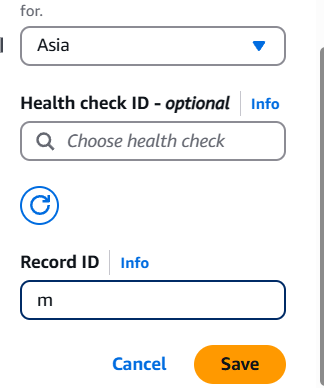
Set Location to Default.
Point it to a global fallback server or load balancer.
Step 6: Test Your Configuration
Use nslookup, dig, or an online DNS testing tool.
Simulate requests from different regions using VPNs or tools like Globalping.
Best Practices
Always configure a Default geolocation record.
Use health checks to ensure Route 53 only responds with healthy endpoints.
Monitor usage with CloudWatch and Route 53 logs.
Keep in mind geolocation is based on the user’s resolver IP, which might be different from the actual user’s location.
Conclusion.
In conclusion, AWS Route 53’s Geolocation Routing Policy is a powerful feature that allows you to control DNS responses based on the geographic location of your users. Whether you’re aiming to reduce latency, comply with regional regulations, or deliver tailored content, this routing method gives you the flexibility and precision to serve your global audience effectively. By directing users to the most appropriate endpoints based on where they are, you can significantly enhance performance, reliability, and the overall user experience. Implementing it is straightforward within the Route 53 console or via Infrastructure as Code tools, and when combined with good monitoring and fallback strategies, it becomes an essential part of any robust, global architecture. As your infrastructure grows, understanding and leveraging geolocation routing can give your application the edge it needs to stay responsive, compliant, and user-focused—no matter where your users are in the world.
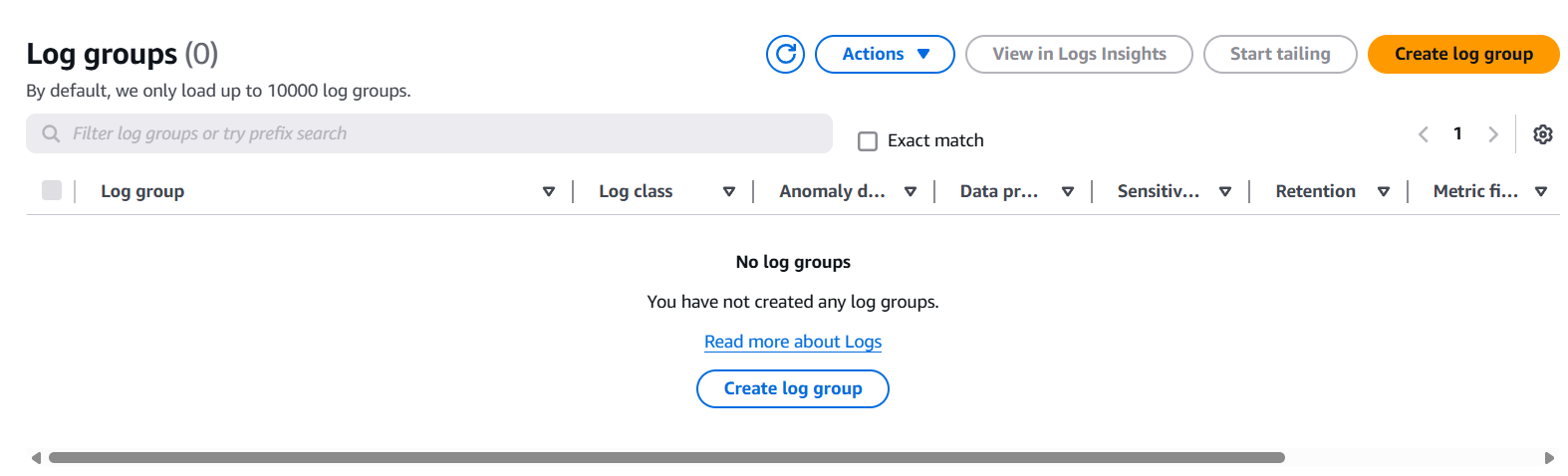
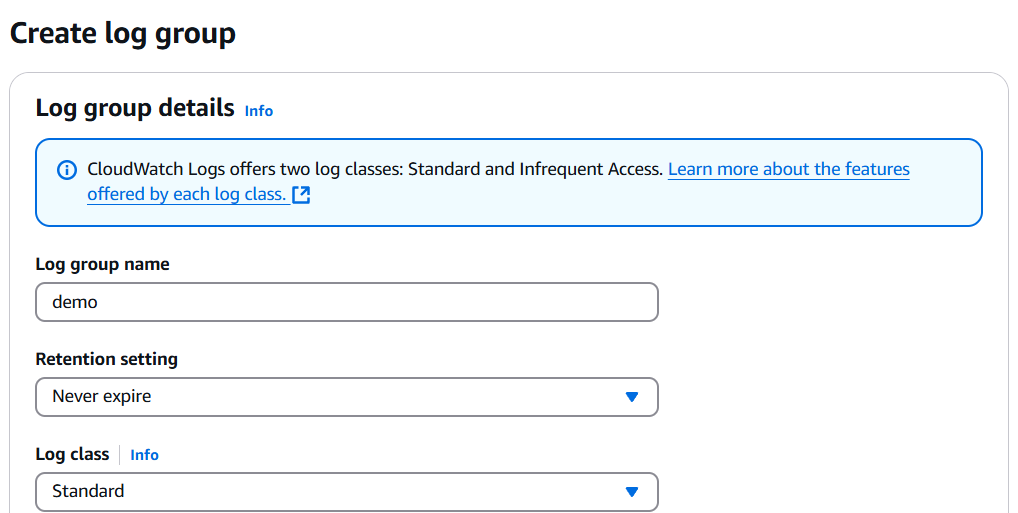
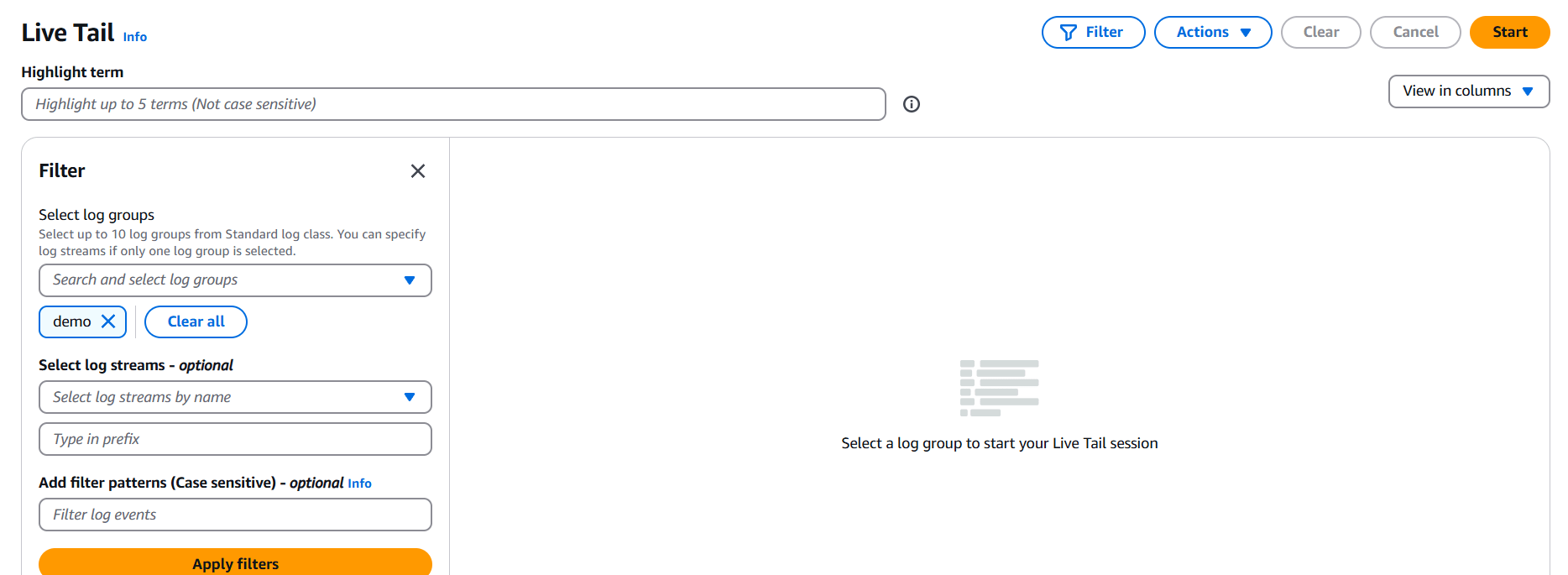
The Live Tail feature in Amazon CloudWatch Logs allows users to view streaming log data in near real-time, directly from the AWS Management Console. This functionality is especially useful for developers and operations teams who need immediate visibility into their applications and infrastructure. With Live Tail, users can monitor logs as they are ingested without the need to refresh or re-run queries, similar to the tail -f command used in Unix-based systems. It provides an interactive, continuously updating view of logs, helping teams quickly detect and troubleshoot errors, monitor deployments, and observe application behavior. This feature enhances real-time observability and reduces the time it takes to identify and respond to operational issues, making it a valuable tool for modern DevOps workflows.
Choose the log group you want to monitor (e.g., from a Lambda function, ECS task, etc.)
Click on the log group name
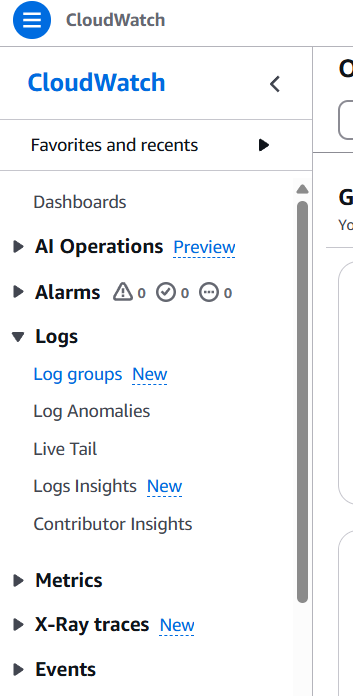
Step 3: Click “Live Tail”
Inside the log group page, you’ll see a “Live Tail” tab at the top
Click it to start watching logs in real time
Step 4: Filter and Customize
Use filter patterns (like ERROR or a specific request ID) to narrow down the view
Logs will stream in continuously as new events are ingested
You can pause, scroll, or clear the log view as needed
Tips for Using Live Tail Effectively
Combine with CloudWatch Alarms to monitor known patterns or anomalies
Use it during deployments to confirm success or catch issues immediately
Collaborate with your team by sharing the log group and filters
Keep in mind that Live Tail is a read-only viewer—it doesn’t affect log data or retention
Conclusion.
In conclusion, the Live Tail feature in Amazon CloudWatch Logs offers a powerful and efficient way to monitor log data in real time. By providing continuous visibility into application and system behavior, it significantly improves the speed and effectiveness of troubleshooting and operational monitoring. Whether you’re deploying new code, investigating issues, or simply observing system performance, Live Tail enables faster decision-making and enhances overall observability. It’s an essential tool for teams aiming to maintain high availability and reliability in their AWS environmentsq
In the world of modern application development, serverless architecture has become a go-to solution for building scalable, cost-effective, and event-driven systems. At the heart of AWS’s serverless ecosystem are two powerful services: API Gateway and AWS Lambda.
API Gateway acts as the front door to your backend services, allowing you to expose RESTful APIs to the internet or internal applications. AWS Lambda, on the other hand, lets you run code without provisioning or managing servers—executing logic only when needed, and charging you only for compute time used.
While it’s possible to create and connect these services manually through the AWS Console, doing so can quickly become complex, error-prone, and hard to maintain—especially as your infrastructure grows.
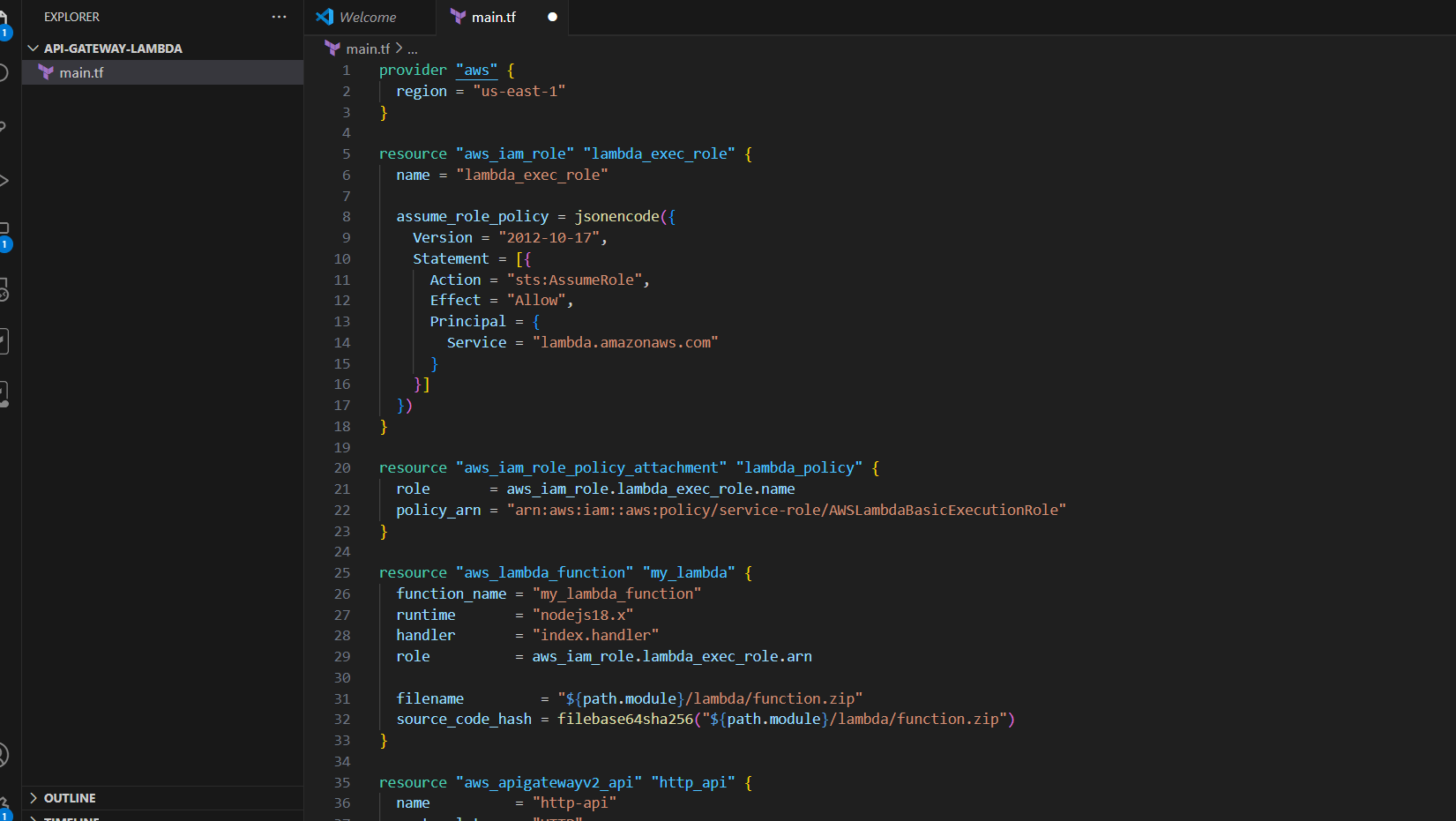
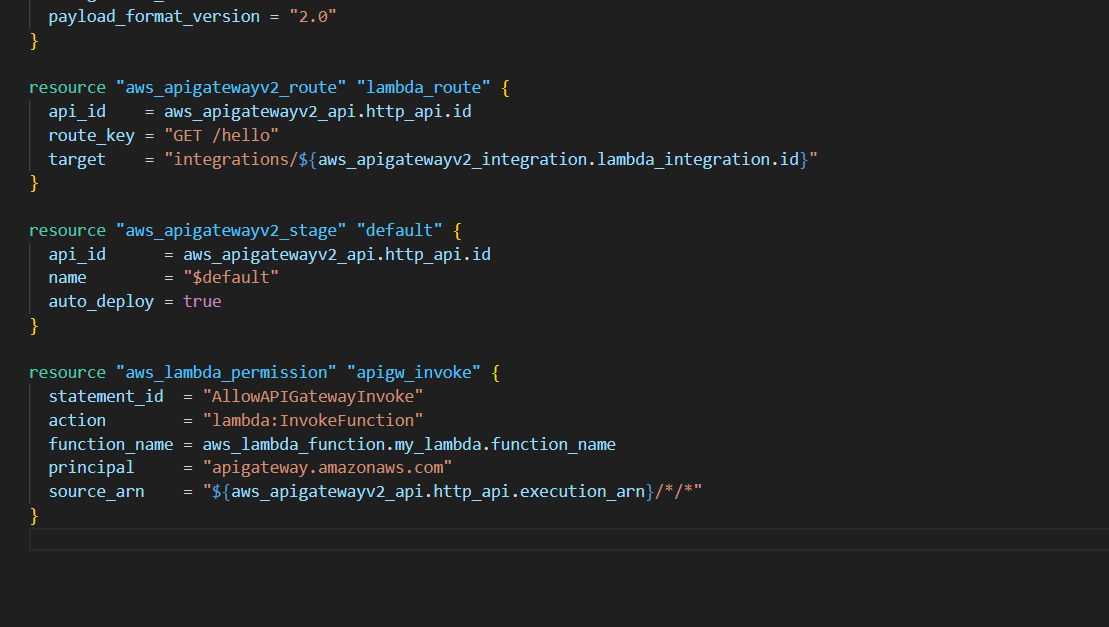
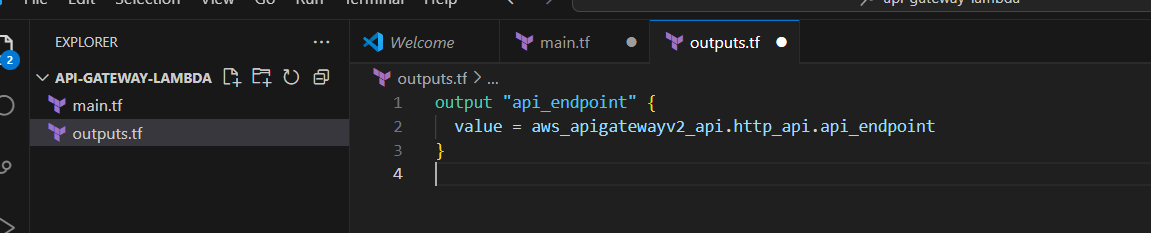
That’s where Terraform comes in. Terraform is an open-source Infrastructure as Code (IaC) tool that lets you define your infrastructure in simple, readable configuration files. With Terraform, you can provision, manage, and version your API Gateway, Lambda functions, and much more—all in a repeatable, automated way.
In this blog, we’ll walk through how to use Terraform to:
Create a simple Lambda function
Set up an API Gateway REST endpoint
Integrate them together to handle HTTP requests
By the end, you’ll have a fully functional, serverless API deployed with just a few lines of code.
Prerequisites
Make sure you have the following:
VS Code installed
Terraform installed (terraform -v)
AWS CLI installed and configured (aws configure)
An AWS account
Basic knowledge of terminal/command line
1. Project Setup in VS Code
1.1 Create Project Folder
api-gateway-lambda.
2. Write Lambda Code
In lambda/index.js, paste this:
exports.handler=async(event)=>{return{statusCode:200,body:JSON.stringify({message:"Hello from Lambda!"}),};};
In this post, we explored how to build a serverless API using AWS API Gateway, AWS Lambda, and Terraform. By defining our infrastructure as code, we achieved a setup that is not only repeatable and scalable but also easy to manage and version-controlled.
Using Terraform to provision resources like Lambda functions and API Gateway endpoints enables teams to move faster, reduce human error, and maintain consistent environments across development, staging, and production.
This simple use case—triggering a Lambda function via an API Gateway request—is just the beginning. With this foundation, you can extend your infrastructure to include custom domain names, request/response mapping, authentication, logging, monitoring, and much more.
As serverless architectures continue to grow in popularity, combining the power of AWS with the automation of Terraform is a smart and future-proof approach. Whether you’re building microservices, webhooks, or full APIs, you now have the tools to deploy them the right way.
Happy coding—and welcome to the world of serverless with Terraform!
AWS CloudFormation is a powerful service that lets you automate the creation and management of AWS resources by using templates written in YAML or JSON. These templates define the infrastructure and services you want to deploy—such as EC2 instances, S3 buckets, IAM roles, and more.
Instead of manually setting up each resource through the AWS Console, CloudFormation allows you to define your entire infrastructure as code, which ensures consistency, repeatability, and efficiency.
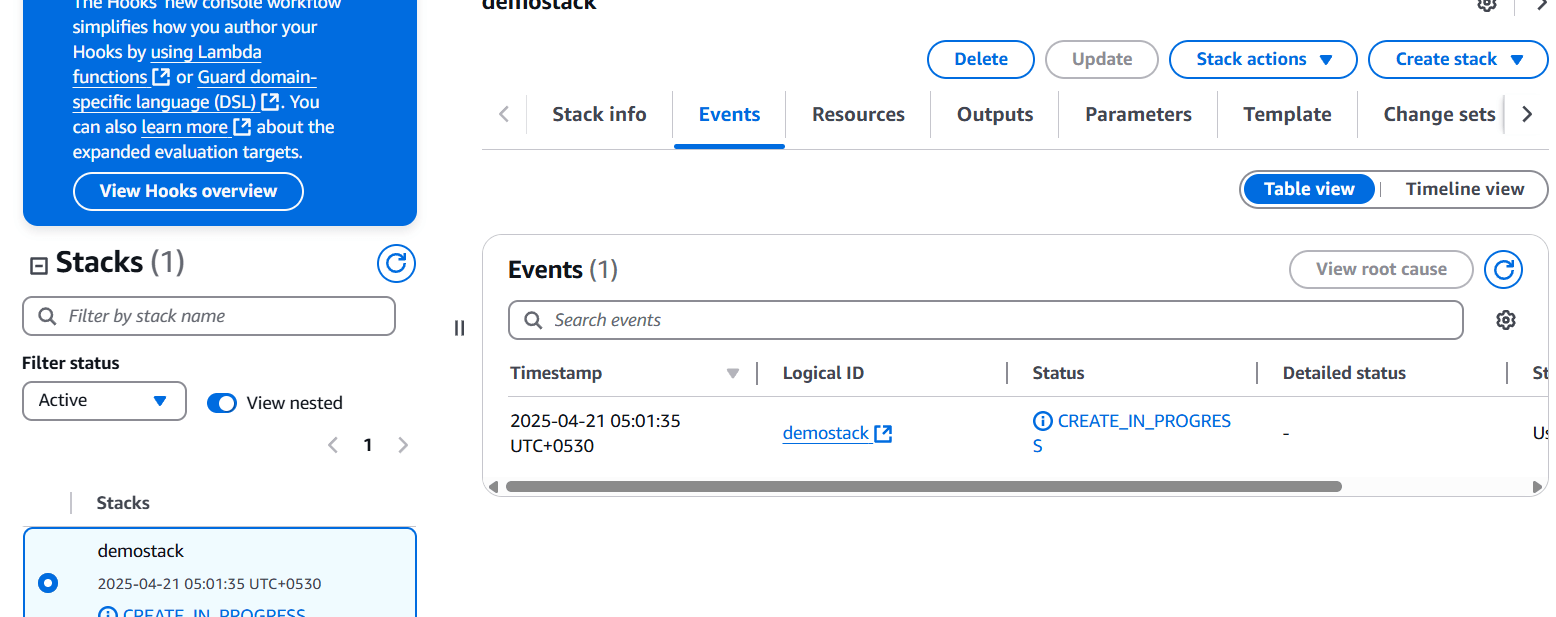
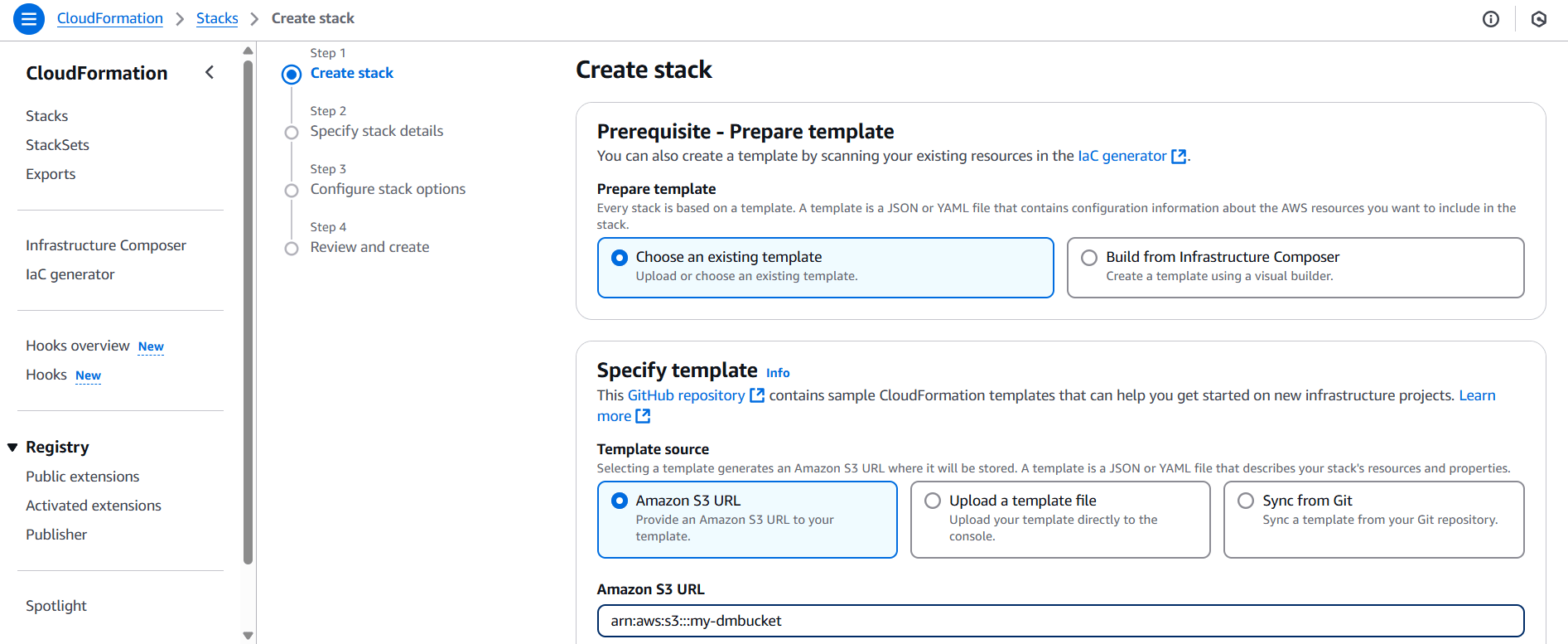
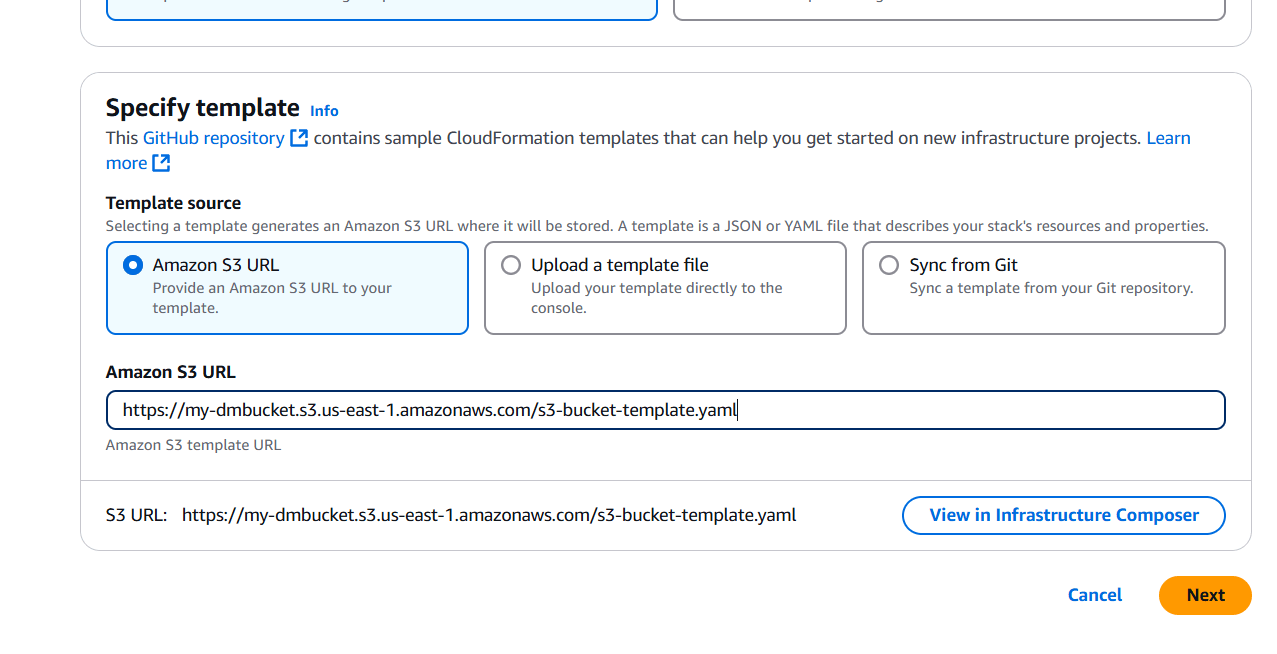
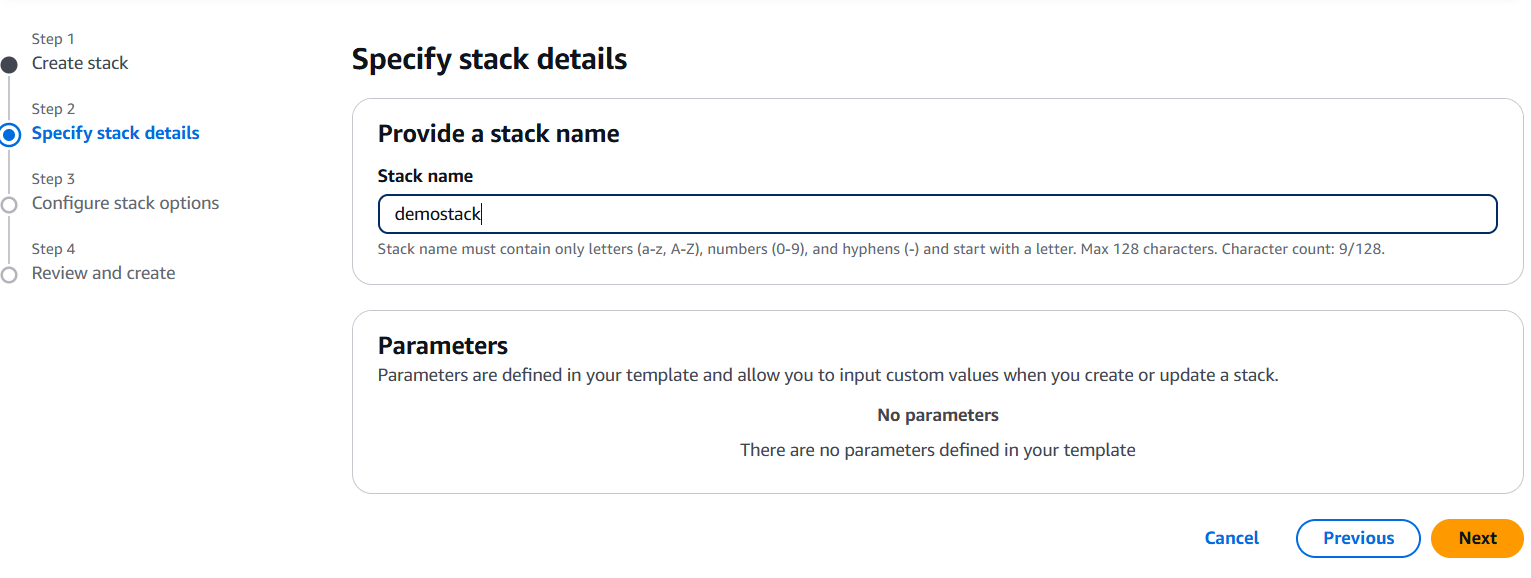
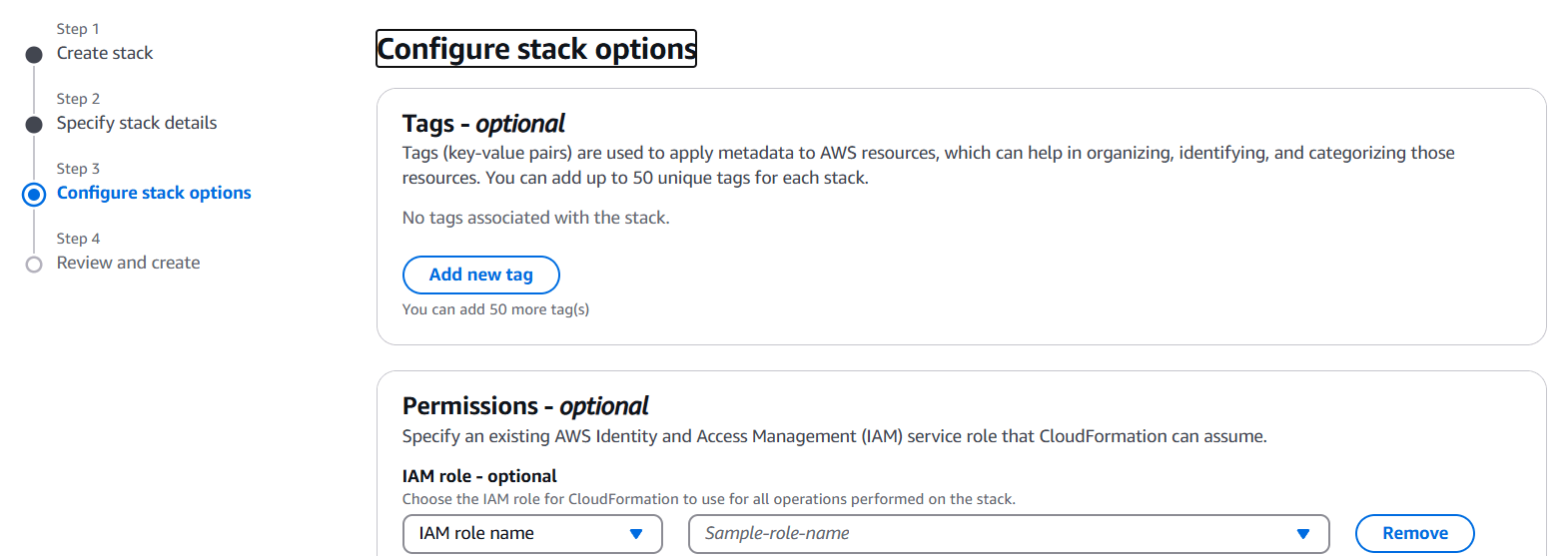
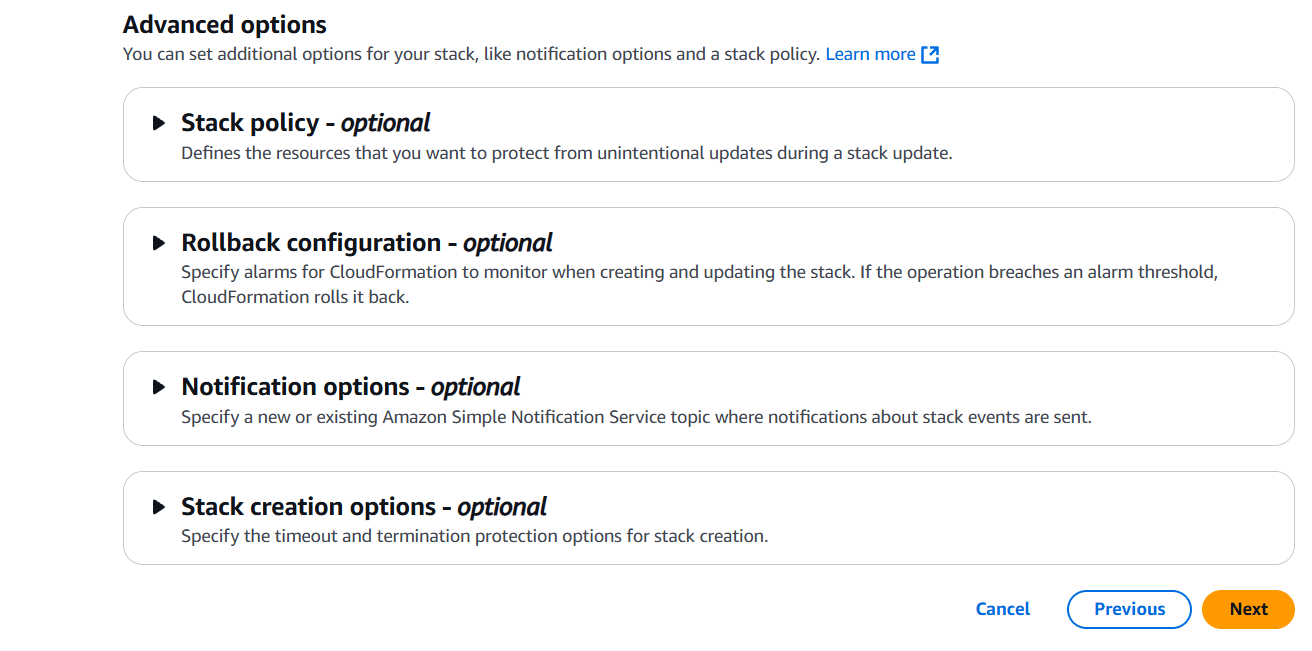
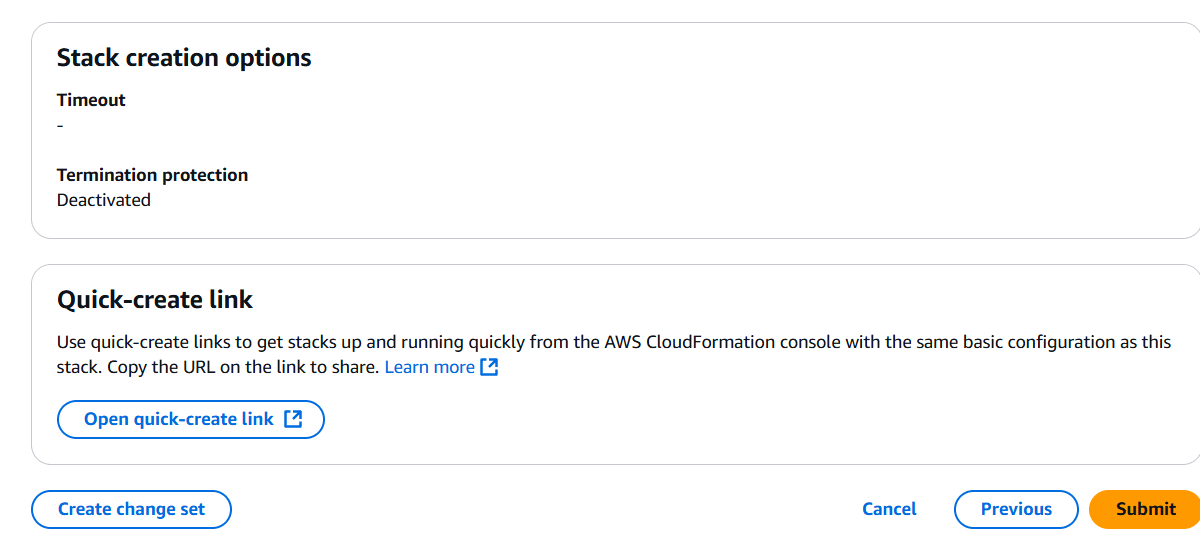
One common method for deploying a CloudFormation template is by hosting it on Amazon S3. When a template is stored in an S3 bucket, it can be accessed through a public or private S3 URL. You can then use this URL to launch a CloudFormation stack—a set of AWS resources created and managed together.
This method is especially useful when:
You’re working with large templates.
You want to reuse the same template across multiple environments or accounts.
You need to share the template with others or integrate it into automated pipelines.
By providing the S3 URL to AWS CloudFormation—either through the Console, CLI, or SDK—you can deploy your resources quickly and reliably. It’s a core DevOps practice and essential for scalable infrastructure management in AWS.
Prerequisites:
An AWS account
A CloudFormation template file (usually .yaml or .json) uploaded to Amazon S3
S3 object is publicly accessible (or your IAM role has access)
AWS CLI or AWS Management Console
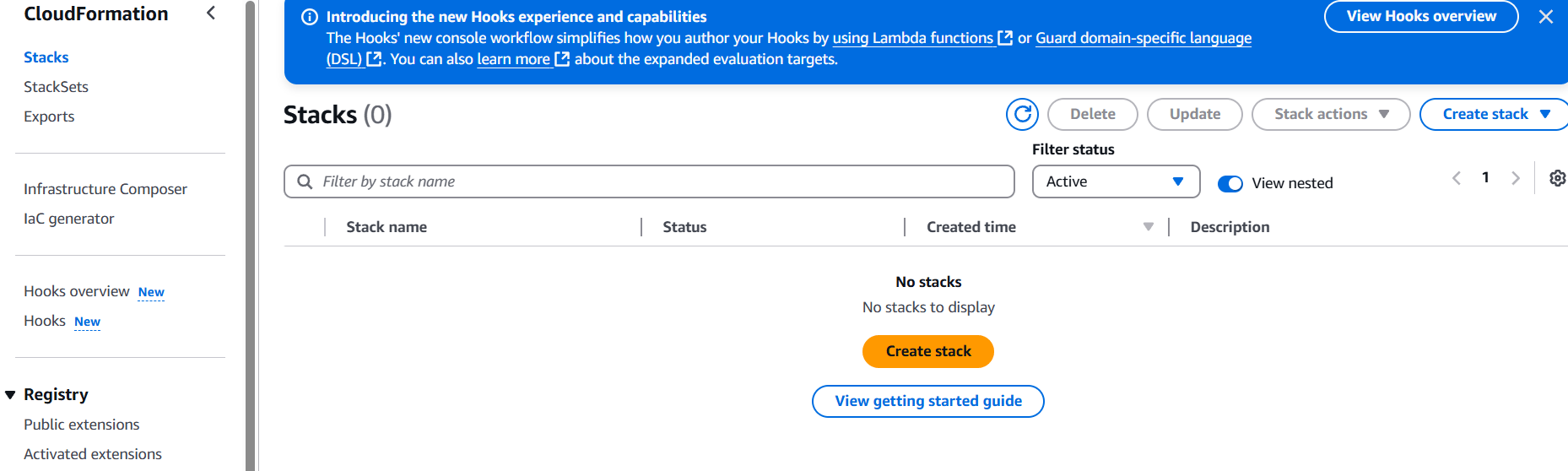
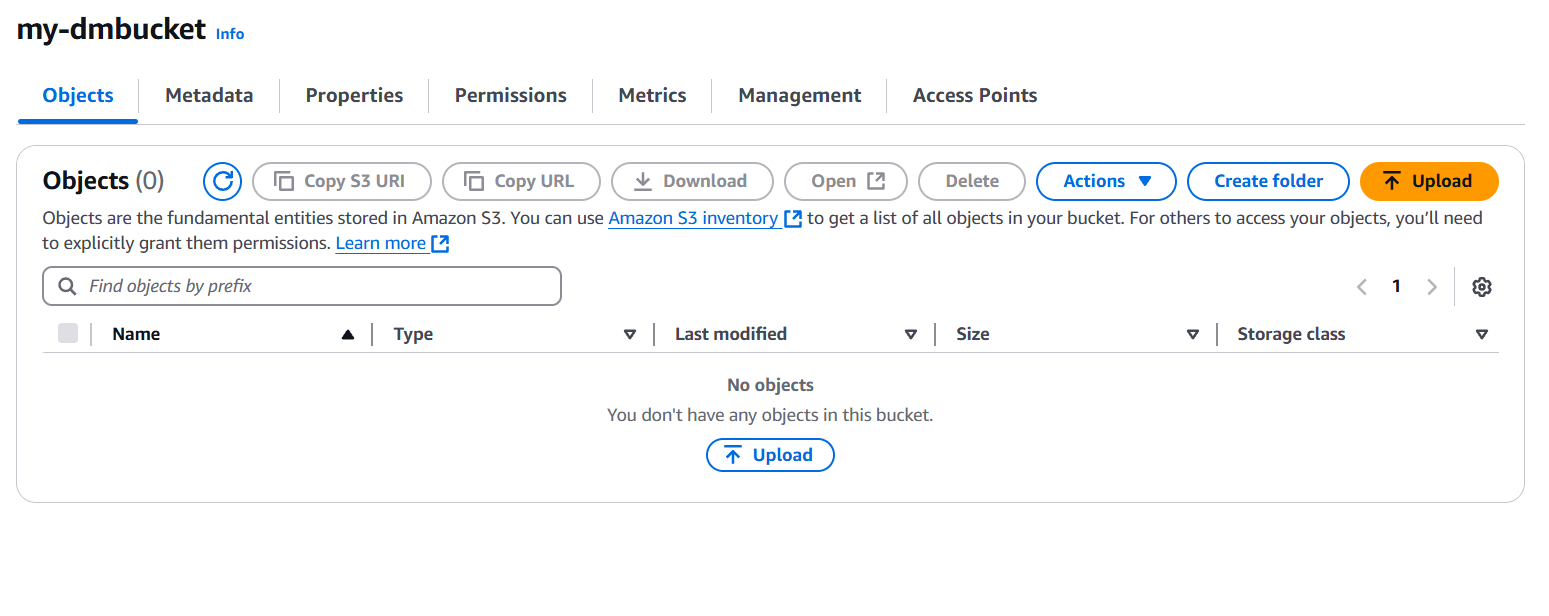
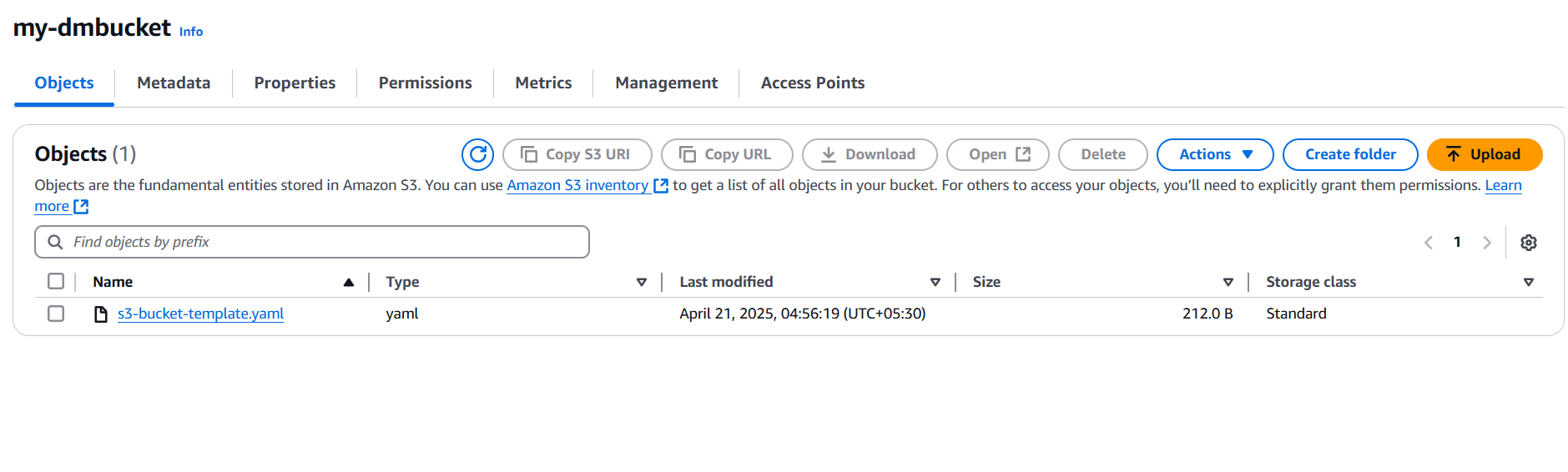
Step 1: Upload Template to S3 (if not already uploaded)
If you’re doing this as a challenge, they might’ve given you a pre-uploaded S3 URL. Otherwise:
--capabilities is required if your template creates IAM roles/policies.
Troubleshooting Tips.
403 Forbidden when using S3 URL? Make sure the object is:
Public (or)
You’re authenticated with appropriate permissions
Template file must be in a valid CloudFormation format (YAML/JSON)
Conclusion.
Launching a CloudFormation stack using a template hosted on Amazon S3 is a simple yet powerful way to automate infrastructure deployment in AWS. By storing your templates in S3, you gain flexibility, reusability, and the ability to integrate with CI/CD pipelines or collaborate across teams.
Whether you use the AWS Console or CLI, referencing your template via an S3 URL allows you to quickly spin up fully defined stacks—saving time and reducing the risk of manual configuration errors.
This method is especially valuable in production environments where consistency, scalability, and automation are key. Once mastered, it becomes a vital part of any cloud engineer’s or DevOps team’s workflow.
By combining CloudFormation with S3, you’re harnessing the true power of infrastructure as code—deploying faster, smarter, and with greater control.
In modern software development, speed and reliability are everything. Delivering high-quality code quickly without sacrificing stability is the ultimate goal—and that’s where CI/CD comes in.
Continuous Integration (CI) is the practice of frequently merging code changes into a shared repository, triggering automated builds and tests. Continuous Deployment/Delivery (CD) extends that process by automatically deploying code to production or staging environments once it passes all tests.
Together, CI/CD transforms how teams build, test, and ship software. It reduces bugs, accelerates development, and ensures a smoother release process.
One of the most popular tools to implement CI/CD is Jenkins, an open-source automation server trusted by developers and DevOps teams worldwide. Jenkins allows you to create powerful pipelines that automatically handle code integration, testing, and deployment—saving hours of manual work.
In this blog, we’re going to walk you through how to create a CI/CD pipeline in Jenkins from scratch. No prior DevOps expertise required—just a basic understanding of code and version control (like Git).
You’ll learn how to:
Install and configure Jenkins
Connect Jenkins with your code repository (like GitHub)
Write and use a Jenkinsfile to define your pipeline
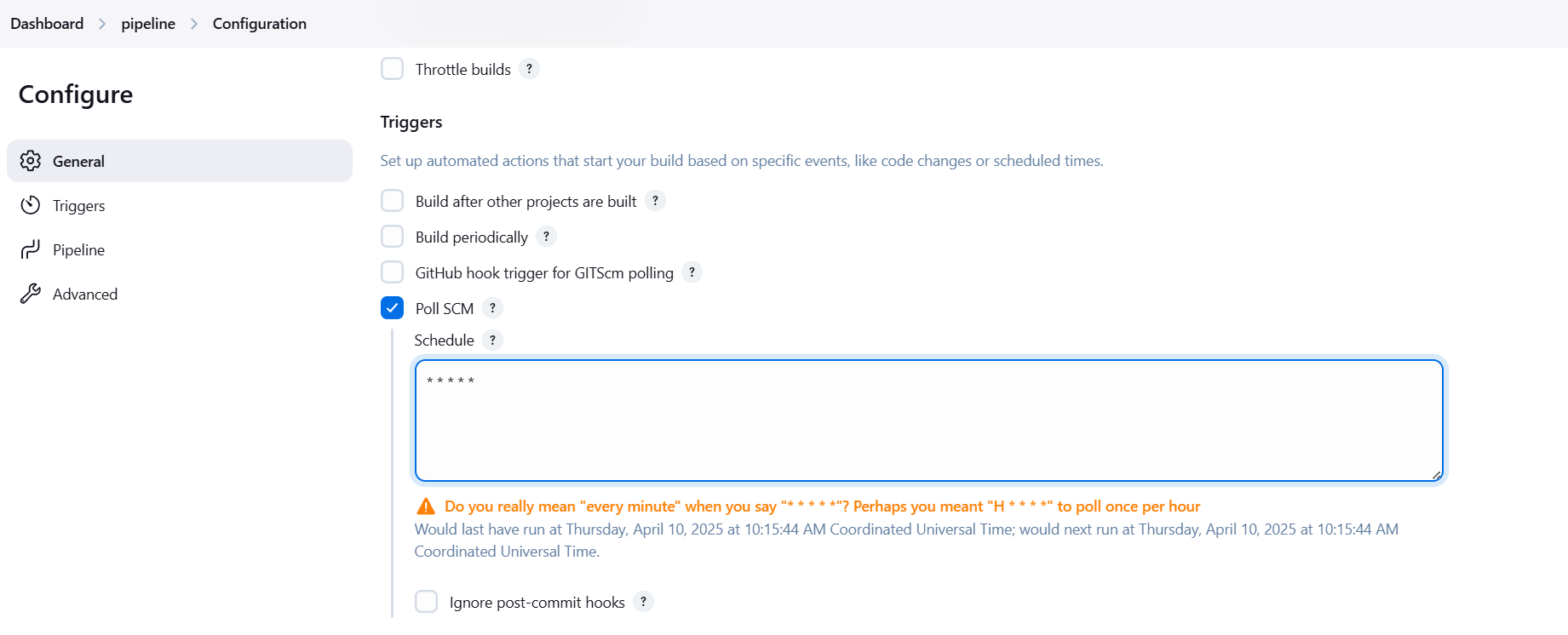
Run builds automatically when code changes
Deploy your application after successful builds
By the end, you’ll have a working CI/CD pipeline that can build, test, and deploy your code with zero manual steps.
Ready to automate your development workflow and take your projects to the next level? Let’s dive into building your first Jenkins pipeline!
Step 1: Install Jenkins
Download and install Jenkins from jenkins.io
Run it locally or on a cloud VM
Access Jenkins at http://localhost:8080
Complete initial setup (unlock with admin password, install suggested plugins)
Step 2: Create a New Pipeline Project
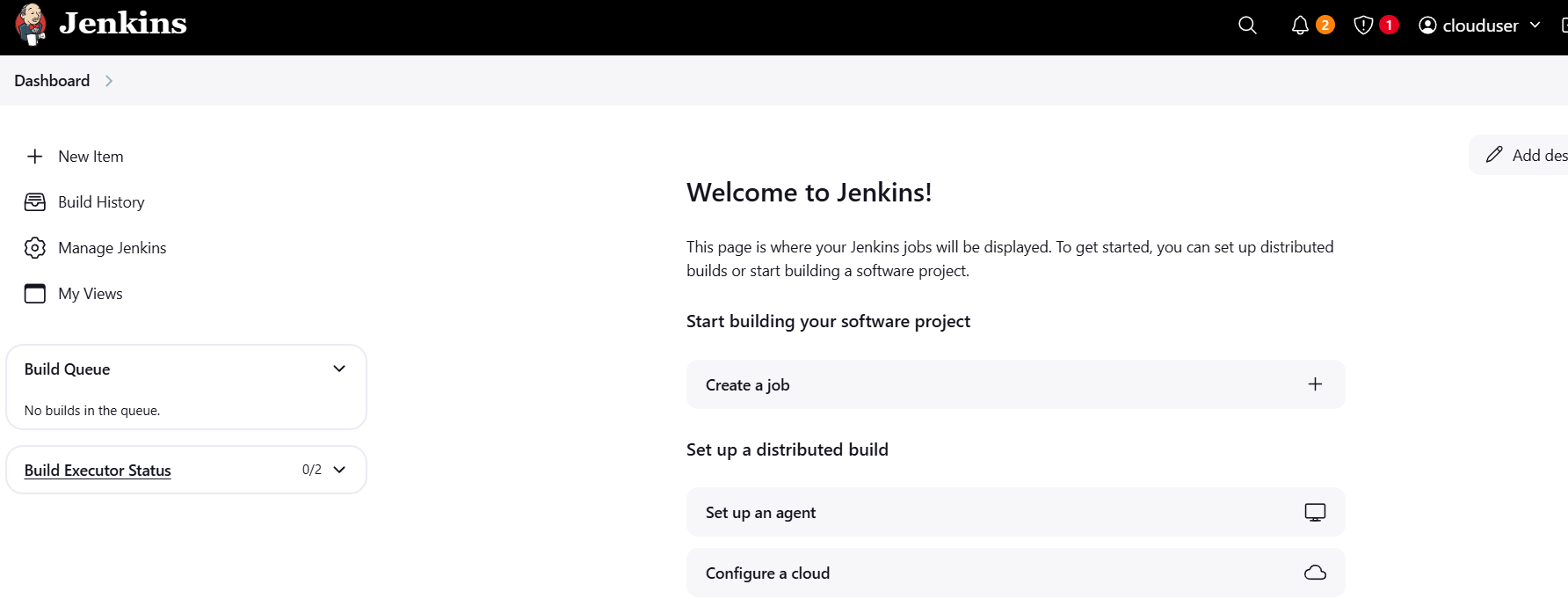
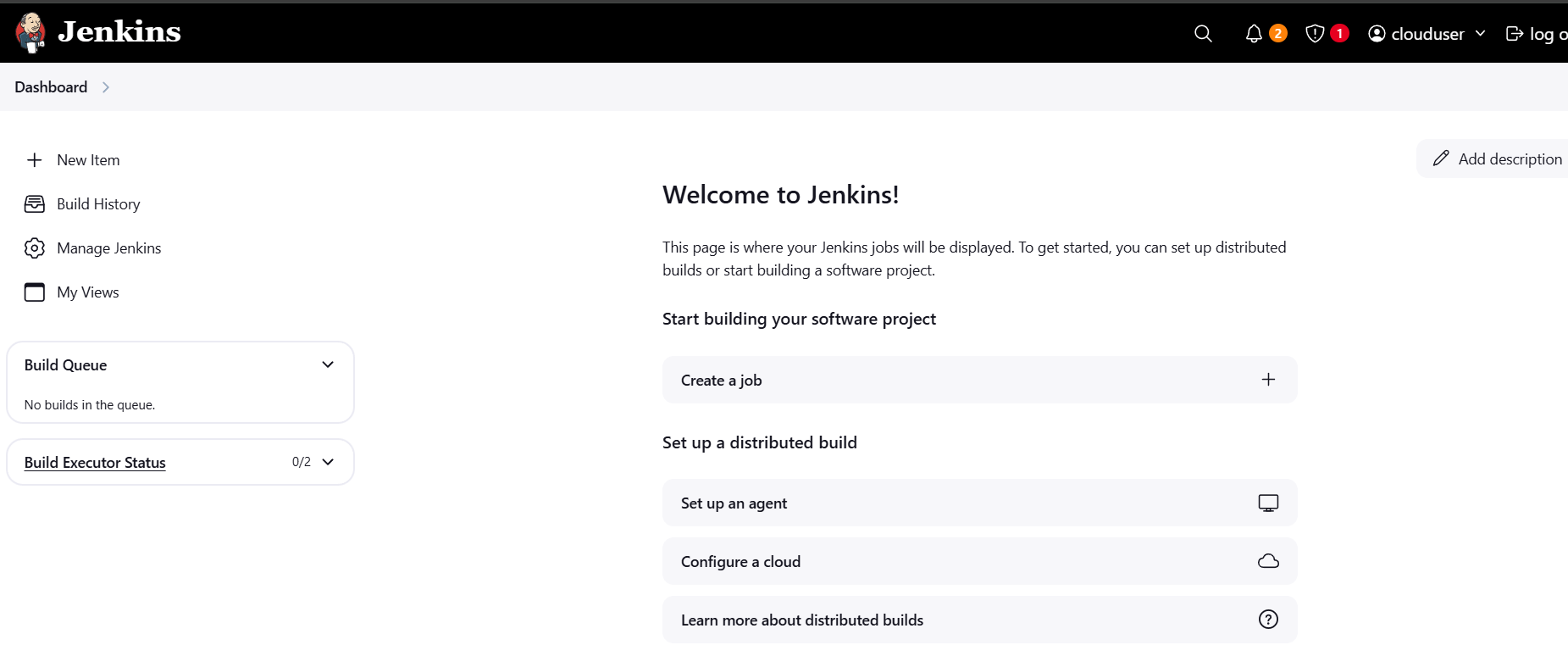
Go to Jenkins Dashboard > New Item
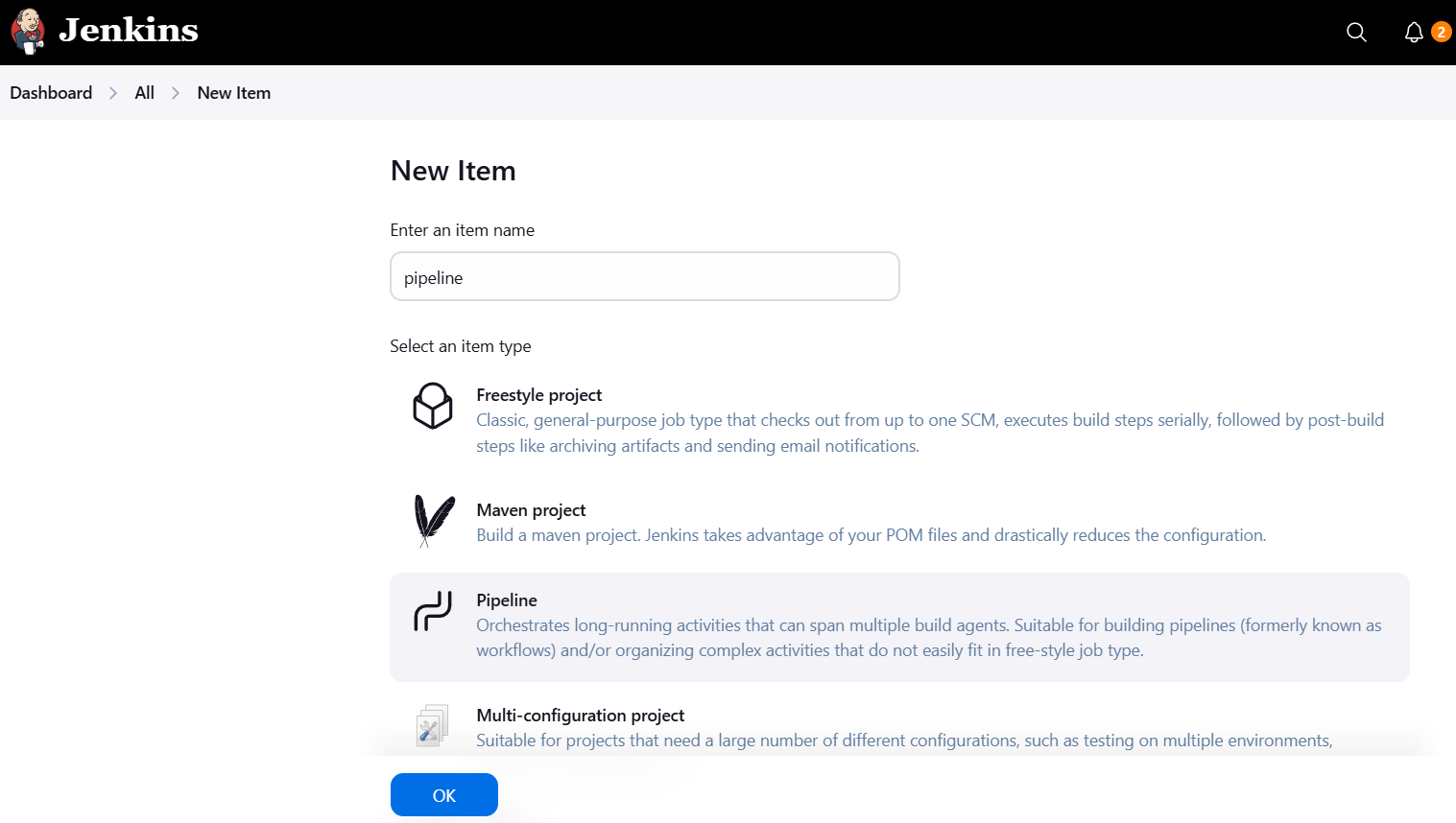
Enter project name, select Pipeline, click OK
Step 3: Connect to Your Git Repository
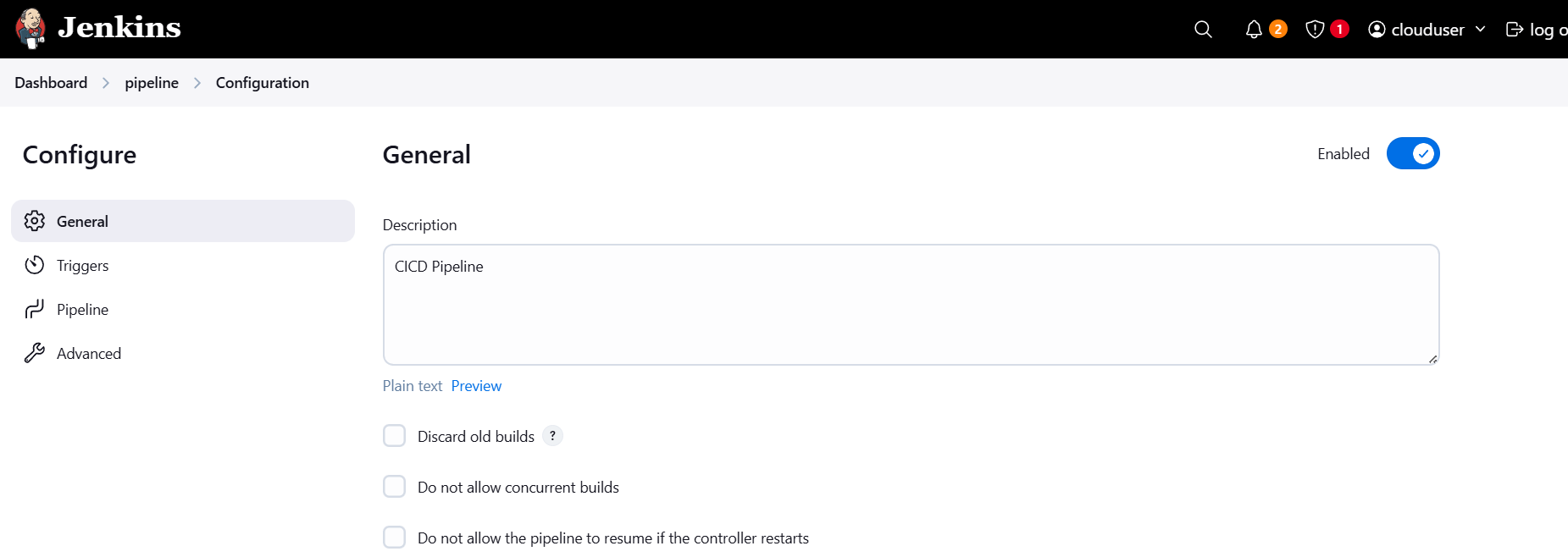
In the project config:
Under Pipeline > Definition, choose Pipeline script from SCM
SCM: Git
Add your Git repo URL
Add credentials if it’s private
Branch: main or master
Step 4: Add a Jenkinsfile to Your Repo
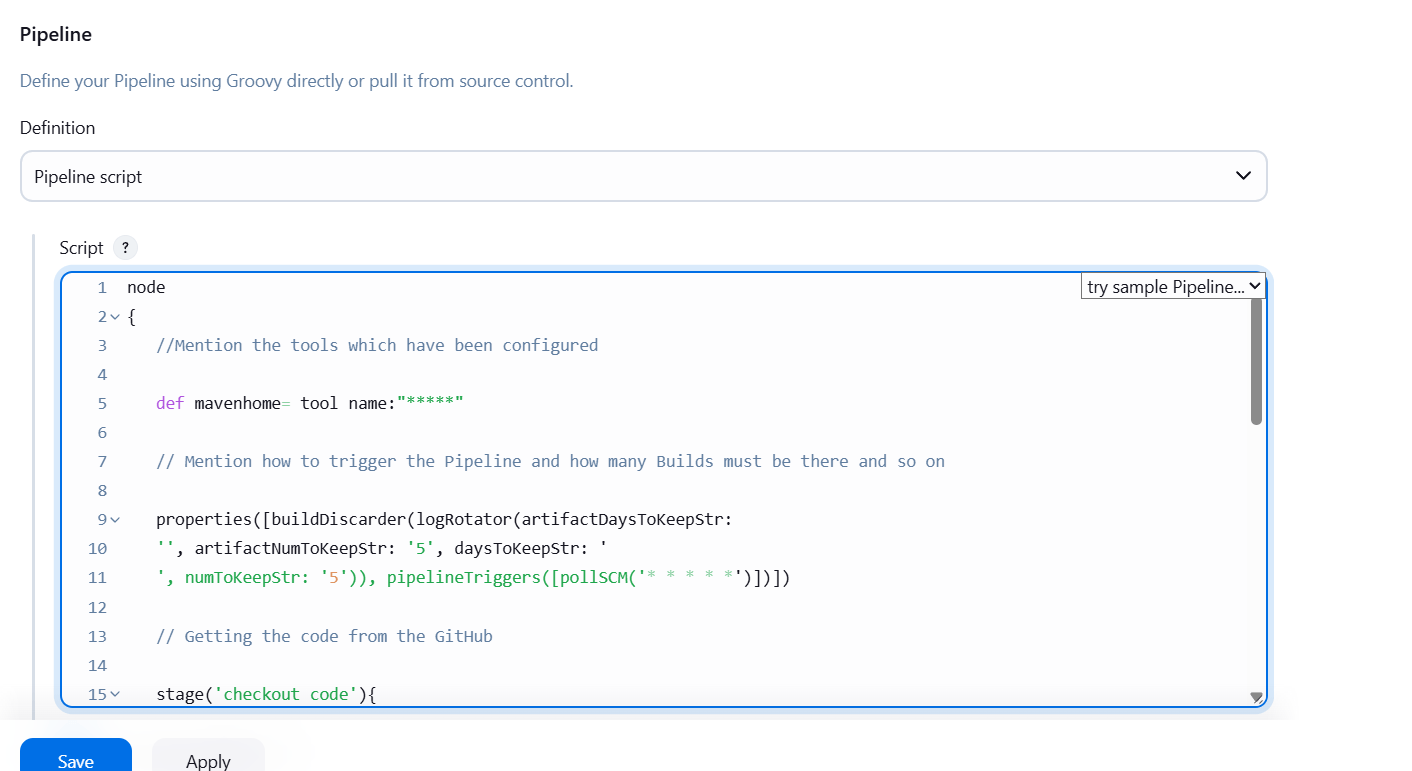
Create a file named Jenkinsfile in the root of your project with content like this:
node{//Mention the tools which have been configureddefmavenhome=tool name:"*****"// Mention how to trigger the Pipeline and how many Builds must be there and so on properties([buildDiscarder(logRotator(artifactDaysToKeepStr: '',artifactNumToKeepStr: '5',daysToKeepStr: '',numToKeepStr: '5')),pipelineTriggers([pollSCM('* * * * *')])])// Getting the code from the GitHubstage('checkout code'){git branch:'development', credentialsId:'*******', url:'********'}//Building the code in to packages by using maven stage('build'){sh"${mavenhome}/bin/mvn clean package"//Executing the code quality report by using SonarQube}stage('execute sonarqube package'){sh"${mavenhome}/bin/mvn clean sonar:sonar"//Uploading the package into nexus}stage('upload buildartifact'){sh"${mavenhome}/bin/mvn clean deploy"//Deploying th application into Tomcat}stage('tomcat'){sshagent(['**********']) {sh"scp -o StrictHostKeyChecking=no target/maven-web-application.warec2-user@*******:/opt/apache-tomcat-9.0.64/webapps/"}}
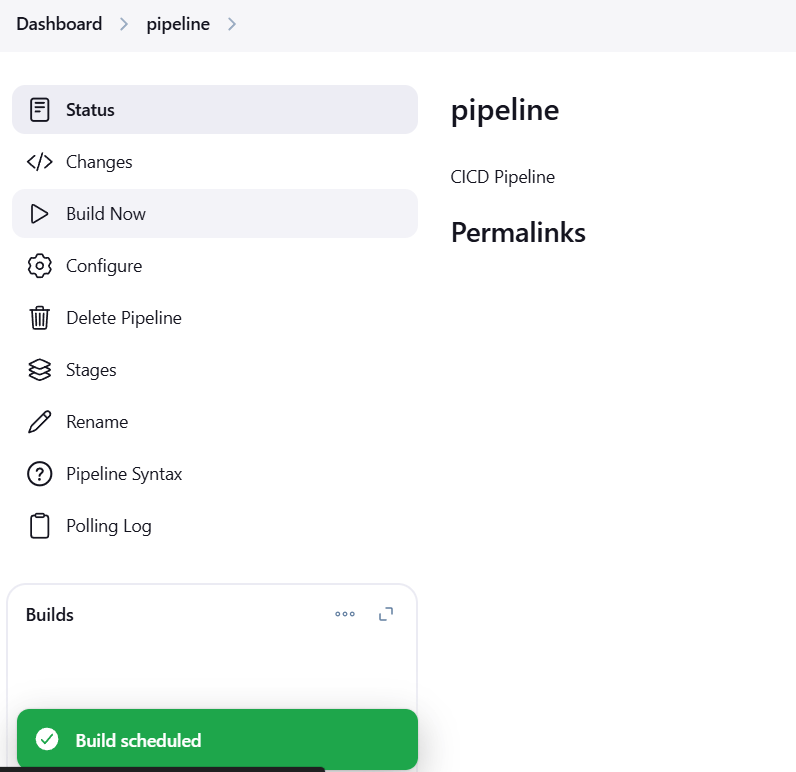
Step 5: Save and Run the Pipeline
Click Save in Jenkins
Conclusion.
Setting up a CI/CD pipeline in Jenkins might seem like a big task at first, but once it’s in place, it becomes a game-changer for your development process. You’ve now seen how Jenkins can automatically build, test, and deploy your code—saving you time, reducing errors, and boosting productivity.
By following this guide, you’ve learned how to:
Set up Jenkins and connect it to your code repository
Define build and deployment steps using a Jenkinsfile
Automate the CI/CD process with each code push
With this foundation, you can now expand your pipeline to include:
Testing frameworks like JUnit or Selenium
Code quality tools like SonarQube
Notifications via Slack or email
Deployment to Docker, Kubernetes, AWS, and more
CI/CD isn’t just about automation—it’s about delivering value faster, safer, and more consistently. As your projects grow, your pipeline can grow with them, helping your team move faster and stay focused on writing great code.
Thanks for reading! Now go ahead and push that code—Jenkins has your back. 💻🚀
In today’s fast-paced development world, automation is the key to efficiency, reliability, and scalability. Continuous Integration and Continuous Deployment (CI/CD) have become essential practices for modern software development. Among the most popular tools enabling this automation is Jenkins, a powerful open-source automation server. Jenkins helps developers build, test, and deploy their code continuously with minimal manual intervention.
Another widely-used tool in the Java ecosystem is Apache Maven, a build automation tool designed to simplify the process of managing a project’s build lifecycle. Maven helps in compiling code, running unit tests, managing dependencies, and packaging applications. When combined, Jenkins and Maven offer a seamless way to automate builds and deployments in Java-based projects.
If you’re a developer or DevOps enthusiast looking to integrate Maven with Jenkins, you’re in the right place. In this guide, we’ll walk you through the entire process of configuring a Maven project in Jenkins—step by step. No assumptions, no skipped steps—just a clear path to getting your build automation up and running.
Whether you’re setting up Jenkins for the first time or simply looking to automate your Maven projects, this guide is for you. You don’t need to be a Jenkins expert to follow along, but a basic understanding of Java projects and Maven will help.
So why should you automate your Maven project with Jenkins? Because automation reduces human error, speeds up release cycles, and ensures consistency across environments. Manual builds and deployments can quickly become bottlenecks in a fast-moving team. Jenkins takes care of the repetitive tasks, letting you and your team focus on writing great code.
We’ll cover everything from installing necessary plugins, configuring the Jenkins environment, setting up the Maven path, and finally, creating a Jenkins job to build your Maven project. By the end of this tutorial, you’ll have a fully working CI pipeline for your Maven project.
We’ll also explore best practices and tips to make your Jenkins + Maven integration more robust and maintainable.
Here’s a quick preview of what you’ll learn:
Installing Maven and Jenkins (if you haven’t already)
Configuring Jenkins system settings for Maven
Creating and configuring a new Jenkins job for a Maven project
Running your first build and troubleshooting common issues
All instructions will be accompanied by screenshots, code snippets, and explanations to make the setup as painless as possible.
Whether you’re working on a solo project, part of a startup, or contributing to enterprise software, this setup will be a valuable skill. Jenkins is widely used across the industry, and knowing how to configure Maven builds is a core DevOps competency.
Think of this guide as your launchpad into automated builds and deployments.
Let’s dive in and take your Java development workflow to the next level. No more manual builds. No more forgetting dependencies. Just fast, clean, automated builds—powered by Jenkins and Maven.
Ready to get started? Let’s go!
✅ Prerequisites
Before you begin, make sure you have the following installed and set up:
Jenkins installed and running (locally or on a server)
Apache Maven installed on your system
Java JDK installed (Jenkins and Maven both require it)
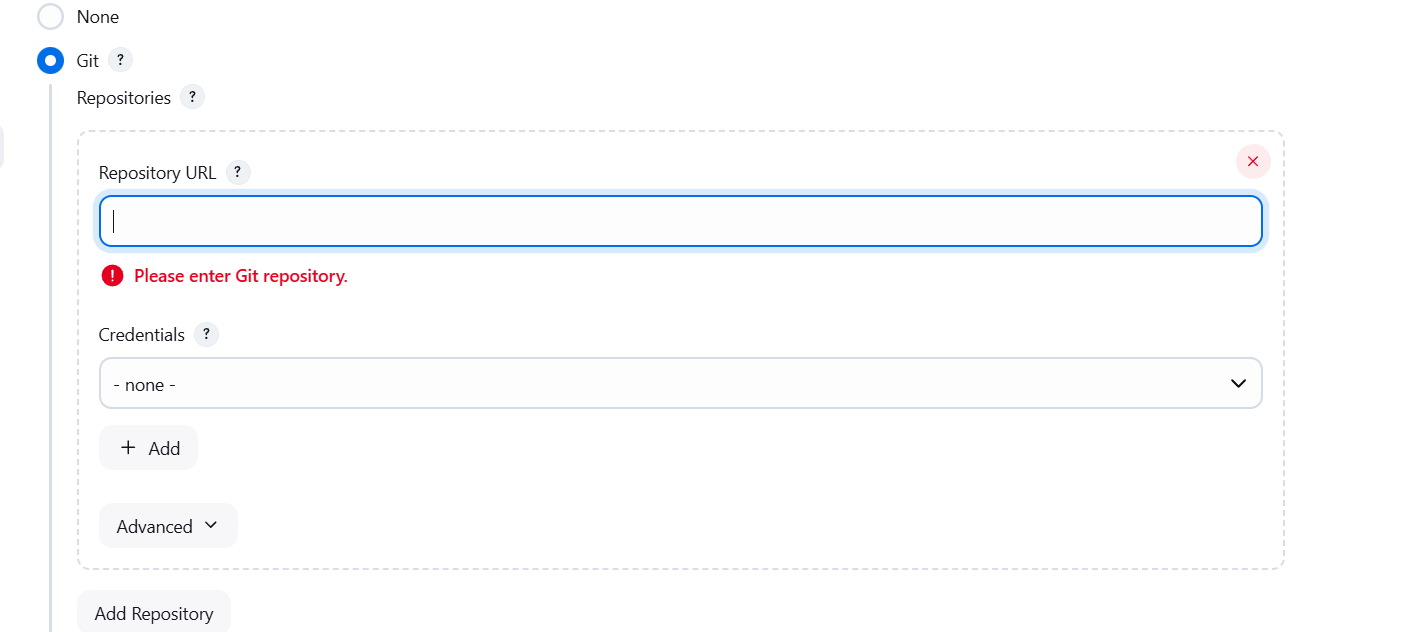
A basic Maven project in a Git repository (GitHub, GitLab, Bitbucket, etc.)
Step 1: Install Required Plugins
Go to Jenkins Dashboard.
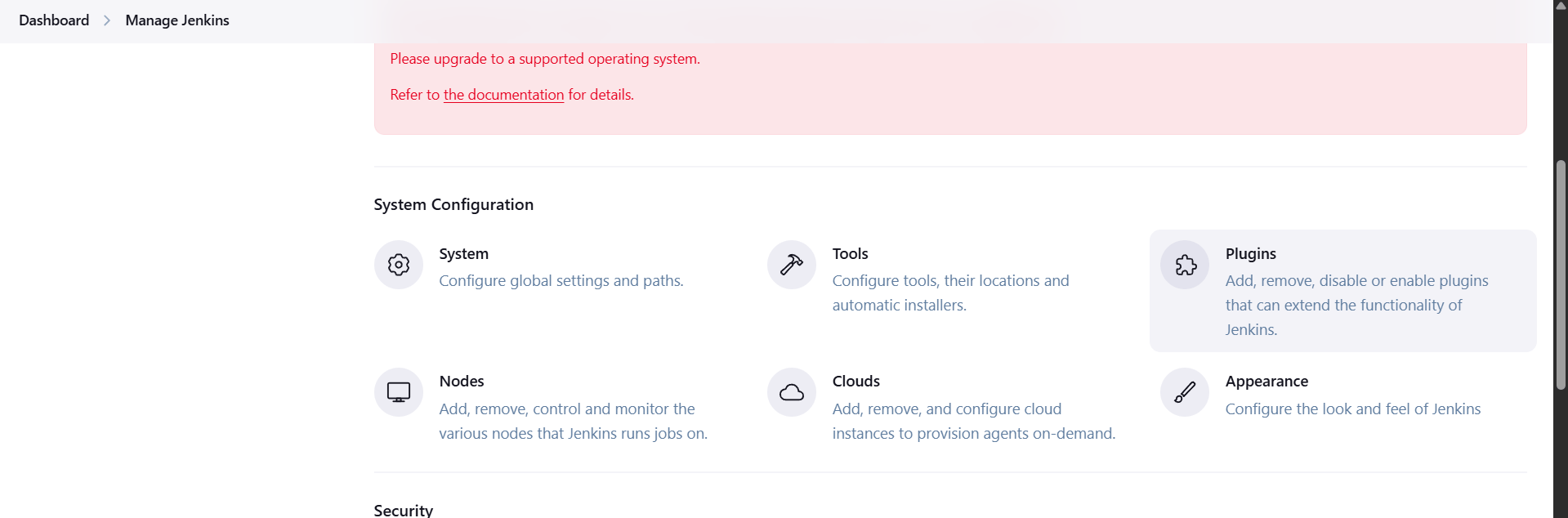
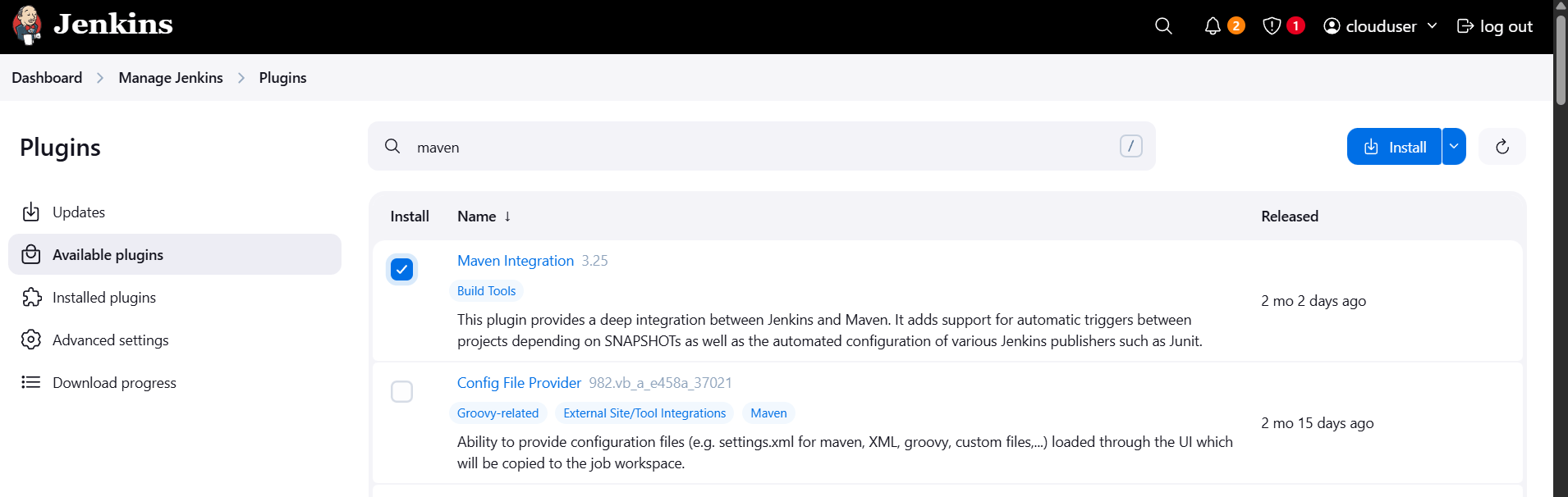
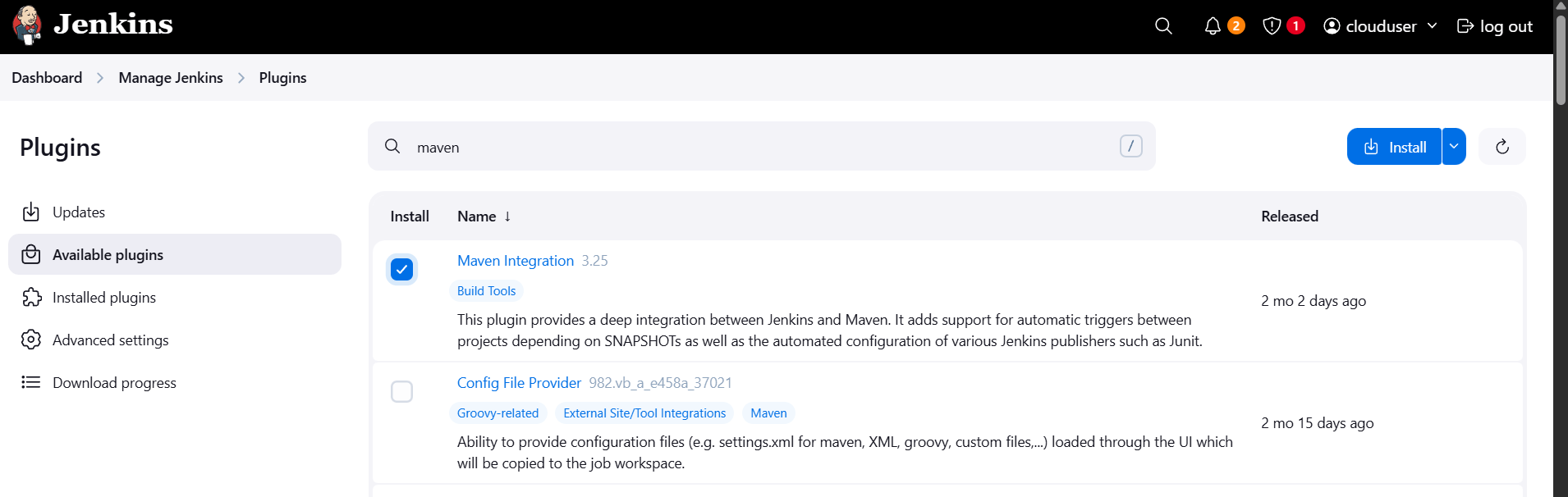
Navigate to Manage Jenkins > Plugins.
Under the Available tab, search for and install:
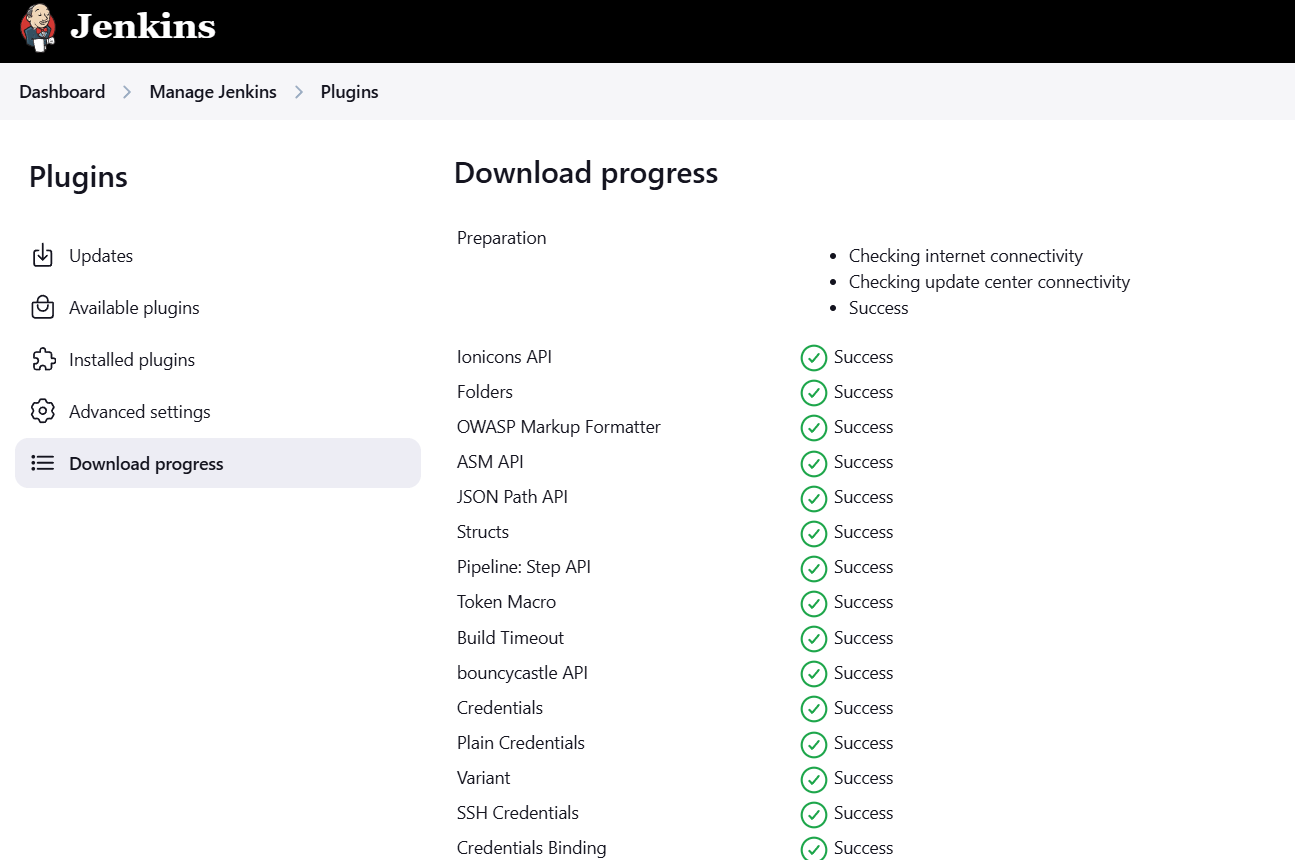
Maven Integration plugin
Step 2: Configure Maven in Jenkins
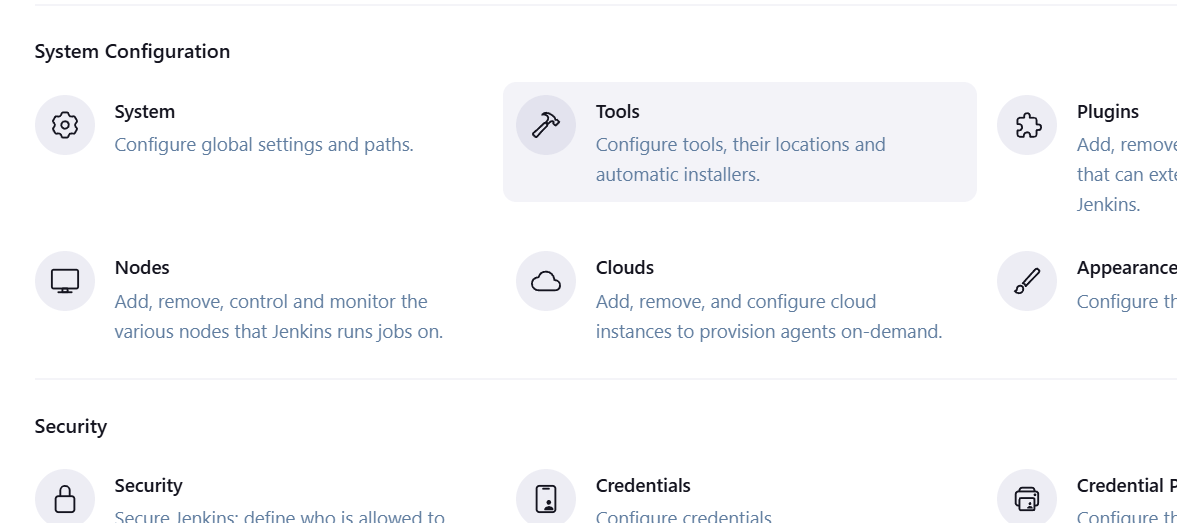
Go to Manage Jenkins > Global Tool Configuration.
Scroll down to Maven.
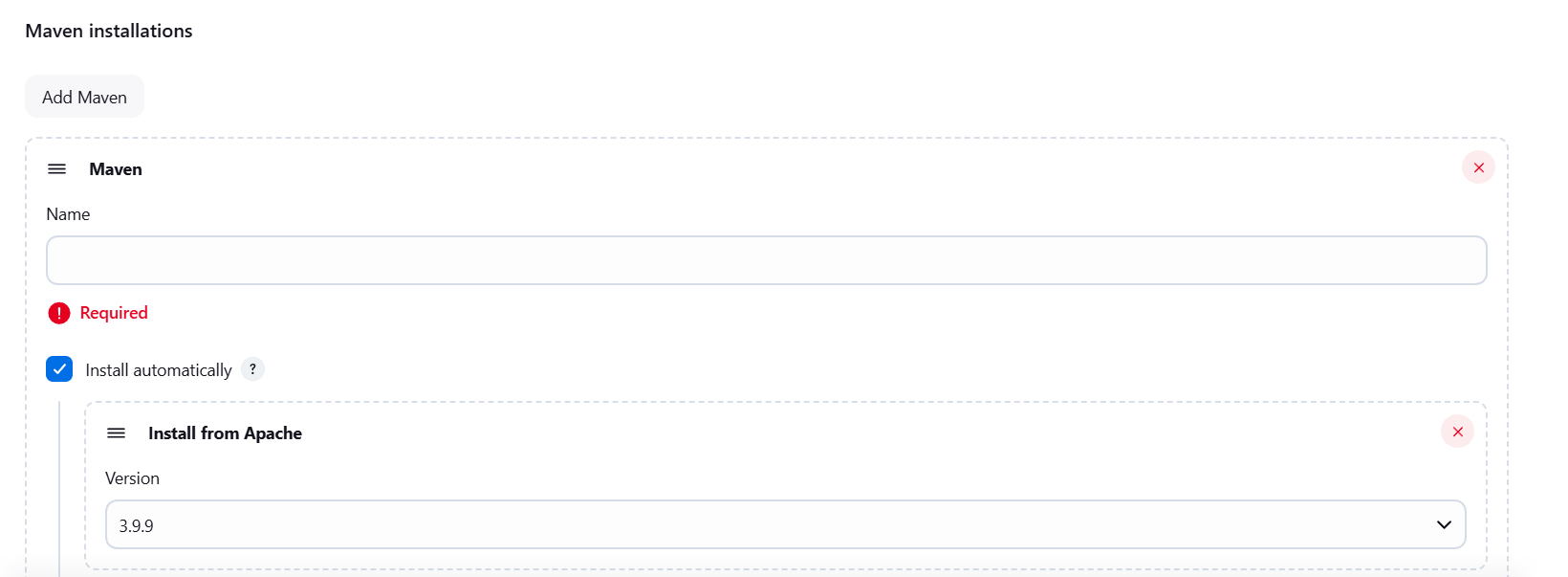
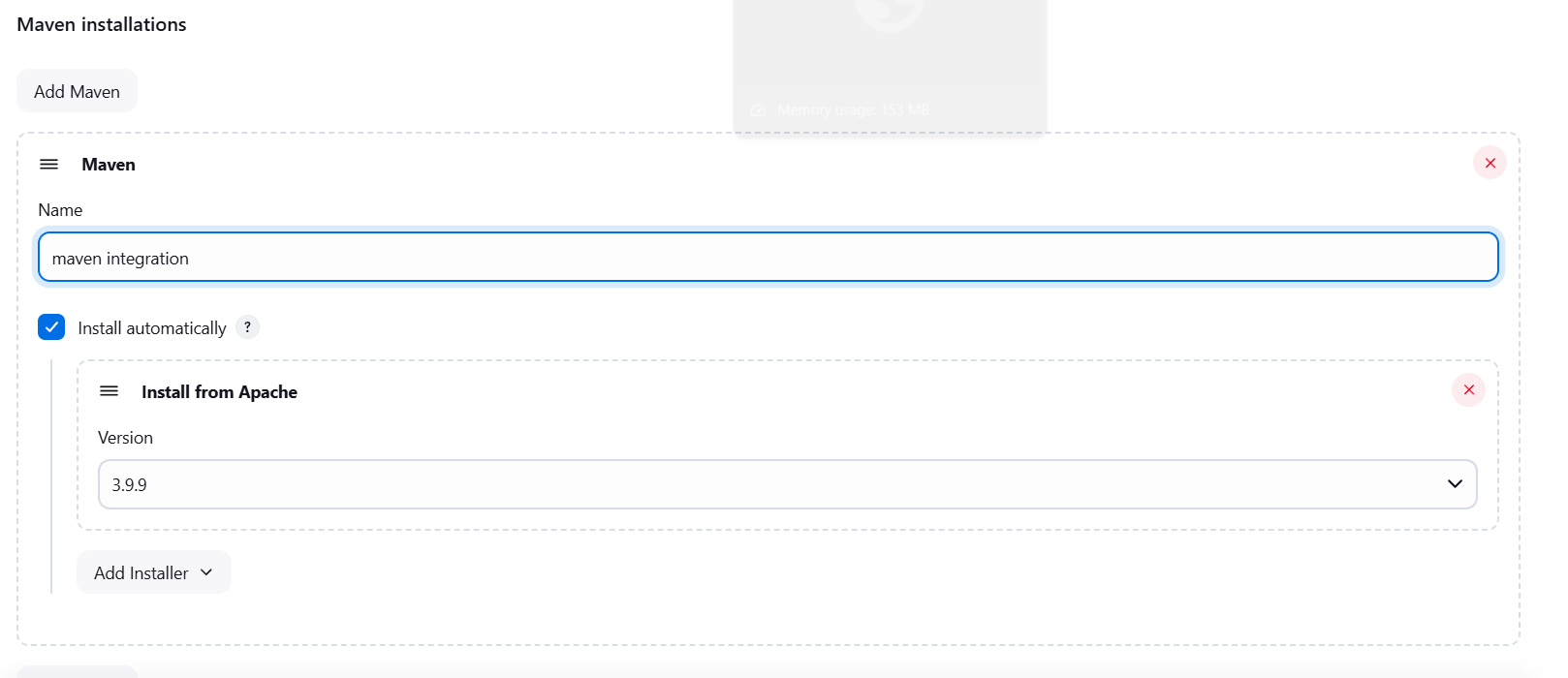
Click Add Maven:
Name: Maven 3.9.5 (or whatever version you’re using)
Option 1: Check “Install automatically” to let Jenkins download it
Option 2: Uncheck and provide the path if Maven is installed locally
Click save.
Step 3: Create a New Jenkins Job
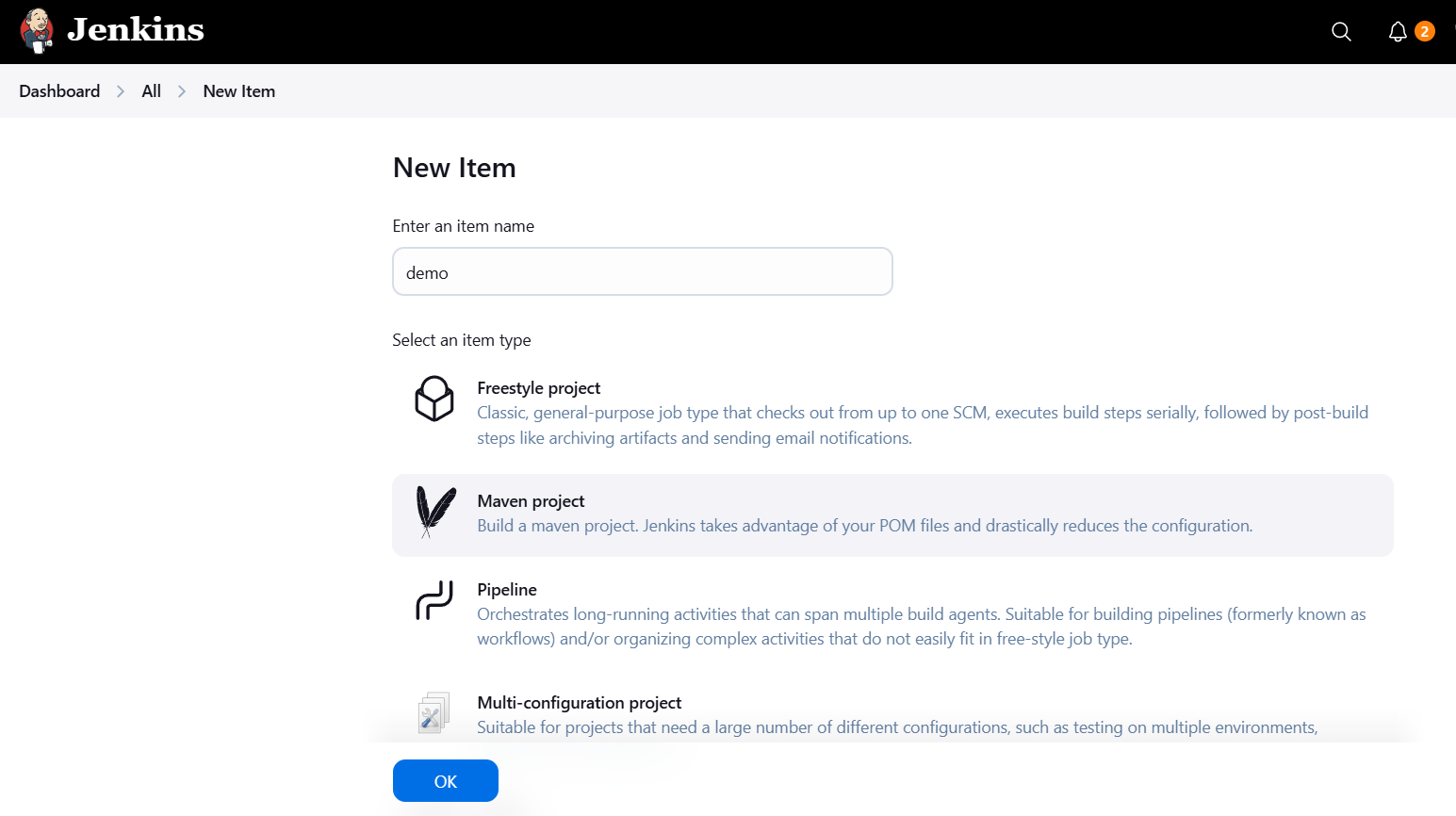
From the Jenkins Dashboard, click New Item.
Enter a name for your job.
Select Maven project and click OK.
Conclusion.
Setting up a Maven project in Jenkins might seem complex at first, but once configured, it becomes a powerful part of your development workflow. By integrating Jenkins and Maven, you’ve taken a big step toward automating your build process, increasing efficiency, and reducing manual errors.
In this guide, we walked through:
Installing and configuring Maven in Jenkins
Creating and setting up a Jenkins job for your Maven project
Triggering builds and monitoring results
Troubleshooting common setup issues
With Jenkins handling your builds automatically, you can focus more on writing code and less on managing your CI process manually. Whether you’re a solo developer or part of a large team, this setup helps ensure faster delivery, better collaboration, and more reliable software.
As you grow more comfortable with Jenkins, you can explore further enhancements like:
Integrating with GitHub or Bitbucket
Adding build notifications via email or Slack
Running tests, generating reports, and deploying artifacts
Creating pipelines using Jenkinsfile for better scalability and version control
Remember, the goal of CI/CD is not just automation—it’s continuous improvement. Keep iterating on your setup to make it more efficient, secure, and tailored to your project’s needs.
Thanks for following along, and happy building with Jenkins and Maven!
The Go programming language, also known as Golang, has gained immense popularity among developers due to its simplicity, speed, and efficiency. It’s often used for building scalable, high-performance applications, from web servers to cloud-native applications. One of the most common environments for deploying Go applications is the cloud, and Amazon Web Services (AWS) provides a perfect platform with its powerful and flexible EC2 (Elastic Compute Cloud) instances.
AWS EC2 allows developers to quickly create and configure virtual machines in the cloud, providing an environment where you can run Go applications seamlessly. If you’re new to AWS and Go, the process of setting up an EC2 instance to install Go might seem overwhelming. However, AWS EC2 makes it easy to get started, offering a variety of instance types that can cater to different application needs. The installation process for Go on an EC2 instance is straightforward and can be accomplished in just a few steps.
In this blog, we’ll walk you through the process of setting up Go on AWS EC2. Whether you’re a beginner just starting with Go or an experienced developer looking for an easy cloud-based setup, this guide will help you get up and running with minimal effort. We’ll cover how to launch an EC2 instance, SSH into it, and install Go, ensuring that you have a fully configured environment for Go development.
First, we will start by launching an EC2 instance with a suitable operating system (such as Ubuntu or Amazon Linux). We’ll explain how to connect to your EC2 instance using SSH to access the terminal and perform the installation. Then, we will walk you through installing the latest version of Go from the official source, as well as configuring the necessary environment variables, such as GOPATH and GOROOT.
By the end of this guide, you will have Go successfully installed on your EC2 instance, and you’ll be ready to develop and deploy Go applications on AWS. The beauty of using EC2 is that it offers a scalable and cost-effective way to run applications in the cloud, and Go’s efficiency makes it a perfect fit for cloud environments.
Whether you’re planning to use Go for backend services, microservices, or other cloud-based applications, this guide will set up the foundation for your projects. Let’s dive into the setup process and get your Go environment running on AWS EC2 in no time!
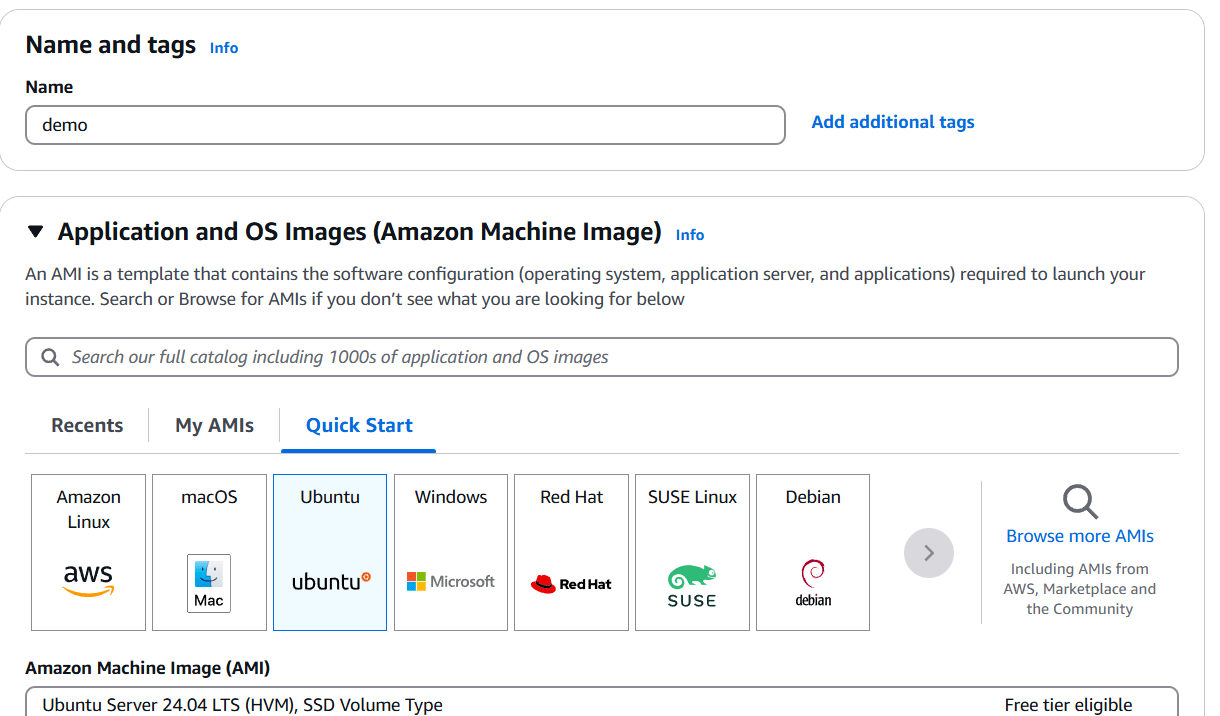
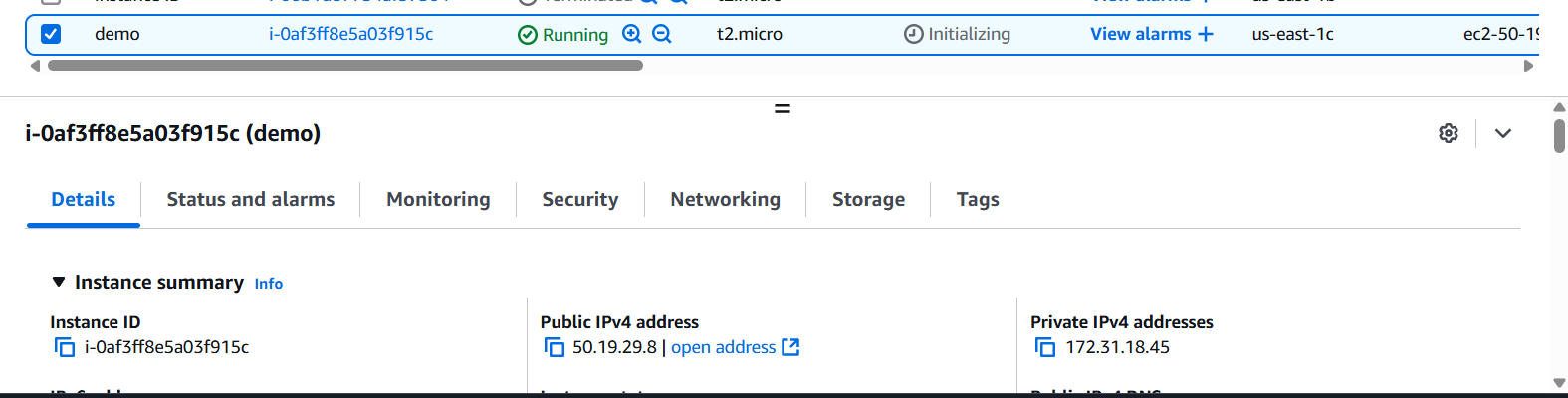
STEP 1: Create the EC2 Instance.
Enter the name and Click on ubuntu.
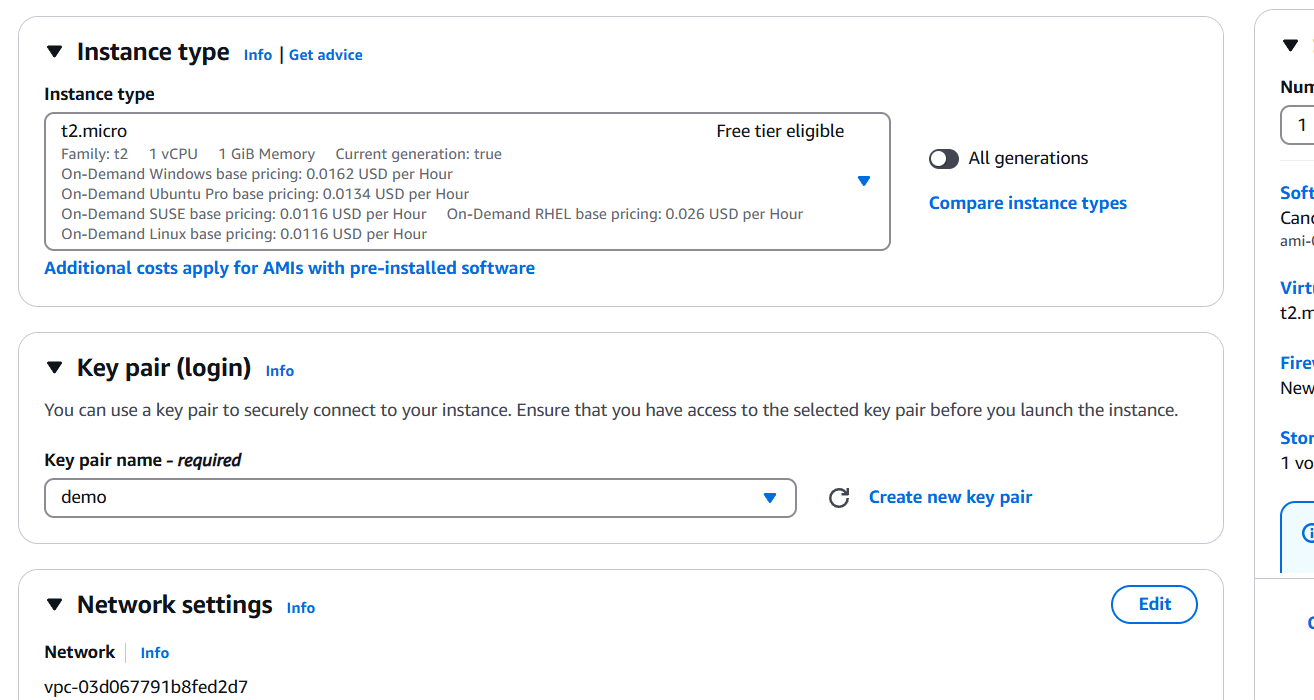
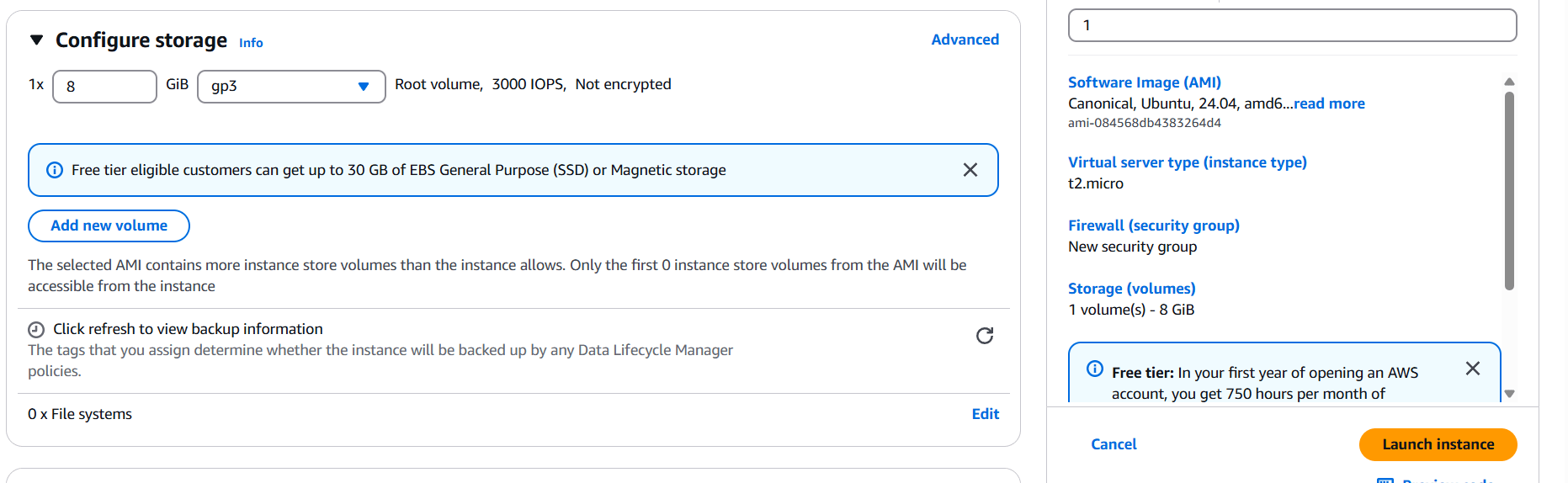
Create Keypair and click on launch Instance.
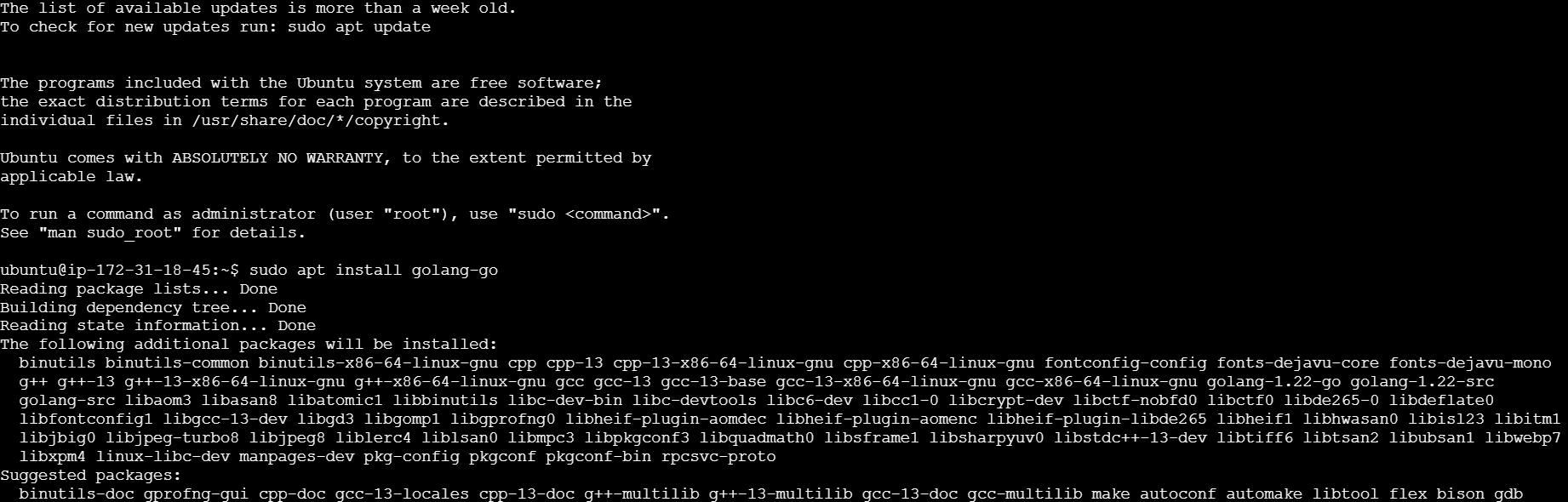
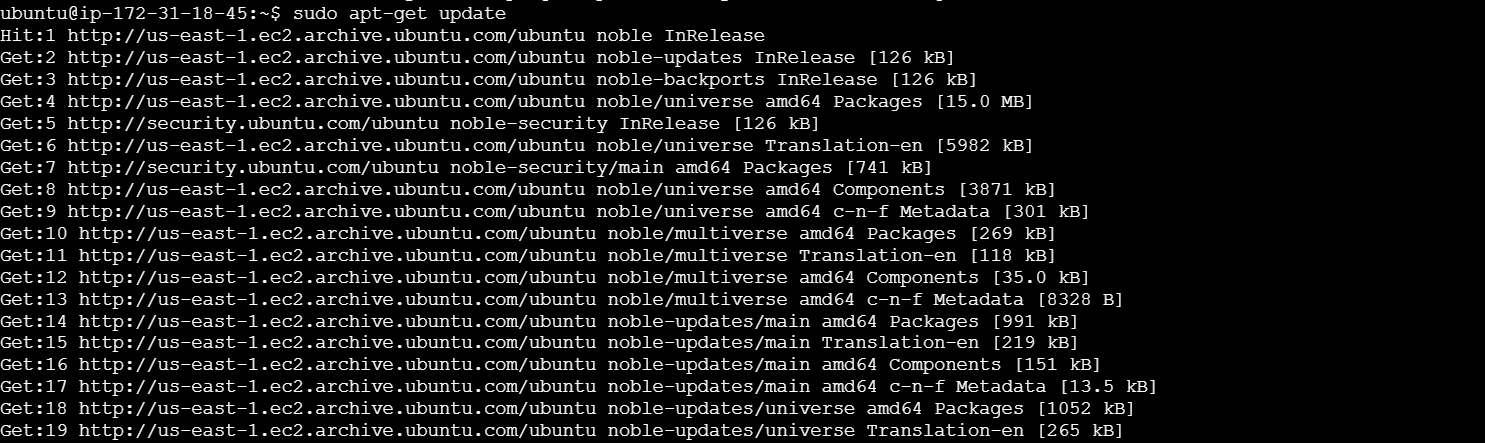
STEP 2: Enter the following command.
sudoaptinstallgolang-gosudoapt-getupdategoversion
Conclusion.
In conclusion, installing Go on AWS EC2 provides a flexible and scalable environment for developing and deploying Go-based applications. By following the simple steps outlined in this guide, you can quickly set up a fully functional Go environment on an EC2 instance, whether you’re working on a personal project or scaling up for production use. AWS EC2’s powerful cloud infrastructure ensures that your Go applications can run efficiently, while also providing you with the flexibility to choose instance types that match your workload.
With Go successfully installed on your EC2 instance, you’re now equipped to start developing and deploying high-performance applications that can handle a variety of use cases. The cloud-based setup allows you to easily scale resources as your application grows, ensuring that your infrastructure remains cost-effective and reliable.
By taking advantage of AWS EC2’s scalability, combined with Go’s speed and simplicity, you’re setting yourself up for success in building cloud-native applications that are both fast and efficient. As you move forward, consider leveraging other AWS services like Elastic Load Balancing, Amazon RDS, and AWS Lambda to extend your Go application’s capabilities.
This guide has provided a straightforward path to getting your Go development environment up and running in the cloud. Now that you’re familiar with the installation process, you can further customize your EC2 instance, experiment with different Go libraries, or explore cloud-native architectures. The combination of Go and AWS EC2 opens up a world of possibilities for building modern, high-performance applications.
Happy coding, and best of luck with your Go projects on AWS!