





In modern software development, automation plays a critical role in streamlining processes, increasing efficiency, and ensuring faster delivery of applications. Jenkins, an open-source automation server, has become one of the most widely used tools in Continuous Integration and Continuous Deployment (CI/CD) pipelines. One of the most powerful features Jenkins offers is the ability to integrate with webhooks, allowing for automatic triggering of builds based on events that occur in your version control system, like GitHub or GitLab.
Webhooks are HTTP callbacks that notify external systems (like Jenkins) about specific events or changes. When it comes to Jenkins, webhooks can be used to trigger automated builds whenever there’s a change in the code repository, such as a push, pull request, or commit. This integration removes the need for manual intervention, saving developers valuable time and reducing the risk of human error.
Setting up Jenkins with webhooks enables continuous integration, which means that as soon as a developer commits code to a repository, Jenkins automatically pulls the changes and runs tests, build tasks, or deployment procedures. This creates a seamless process that speeds up development cycles and ensures that the code in production is always up to date and functioning as expected.
This guide will walk you through the steps required to set up Jenkins webhooks for automated builds. We’ll start with the prerequisites, such as installing Jenkins and configuring the necessary plugins, and then move on to configuring the webhook in your version control system (like GitHub, GitLab, or Bitbucket). Finally, we’ll demonstrate how Jenkins can automatically trigger builds when changes are pushed to your repository, ensuring a smoother and faster development workflow.
Whether you’re a beginner or an experienced developer, setting up Jenkins webhooks is a straightforward way to automate your build process. By the end of this tutorial, you’ll have a fully functioning CI/CD pipeline that reacts automatically to code changes, providing quicker feedback and improving the overall development experience.

Let’s get started with setting up Jenkins webhooks and harness the power of automation!
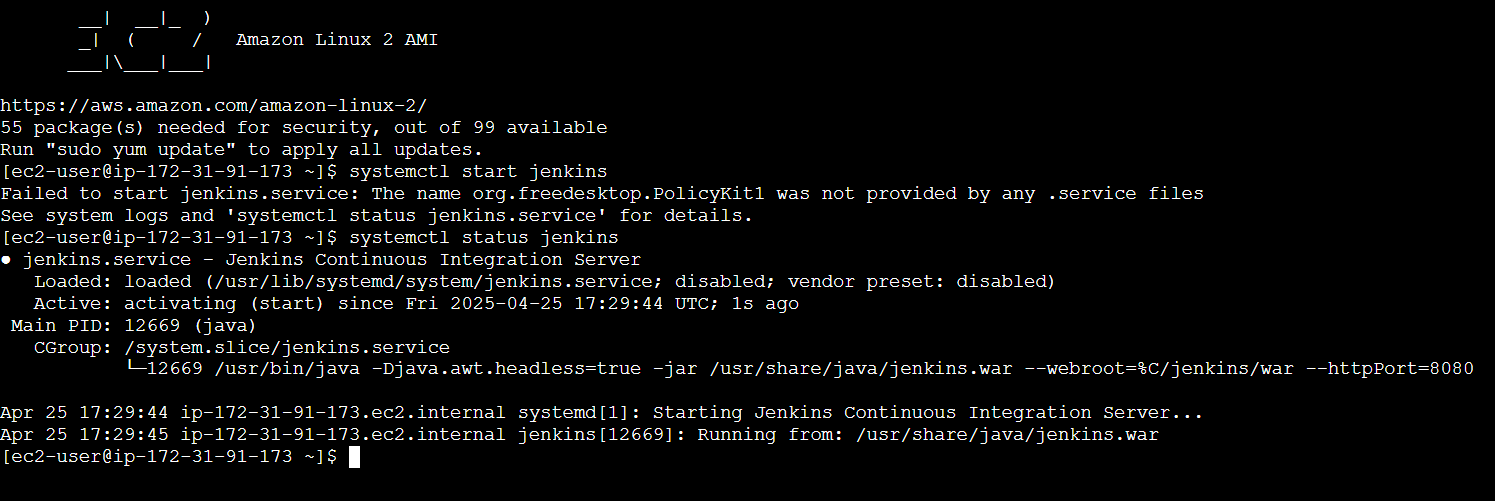
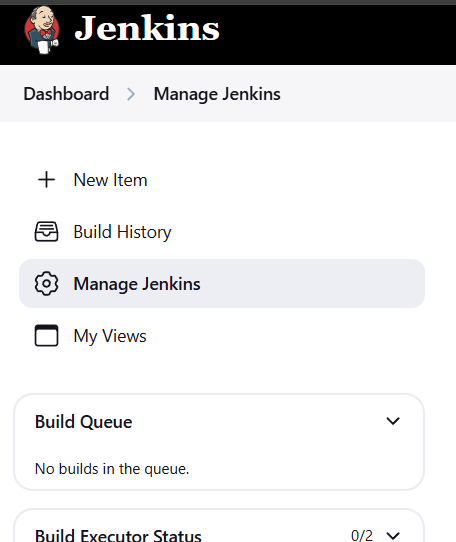
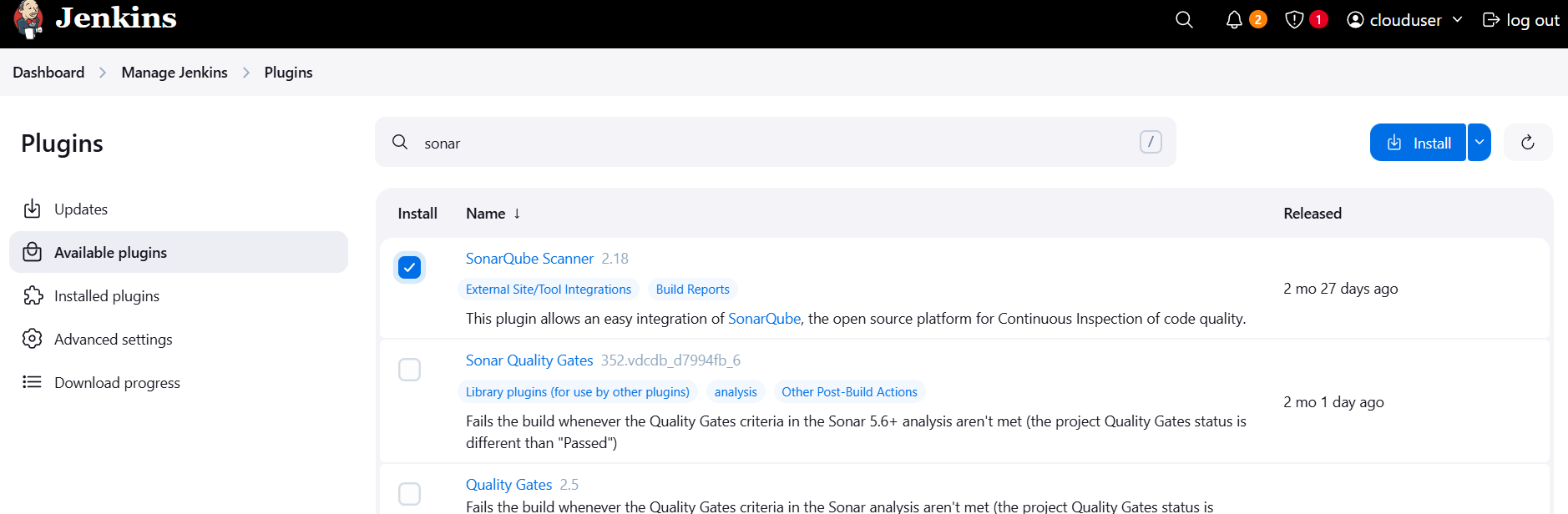
Ensure that Jenkins is up and running. Additionally, install any required plugins:
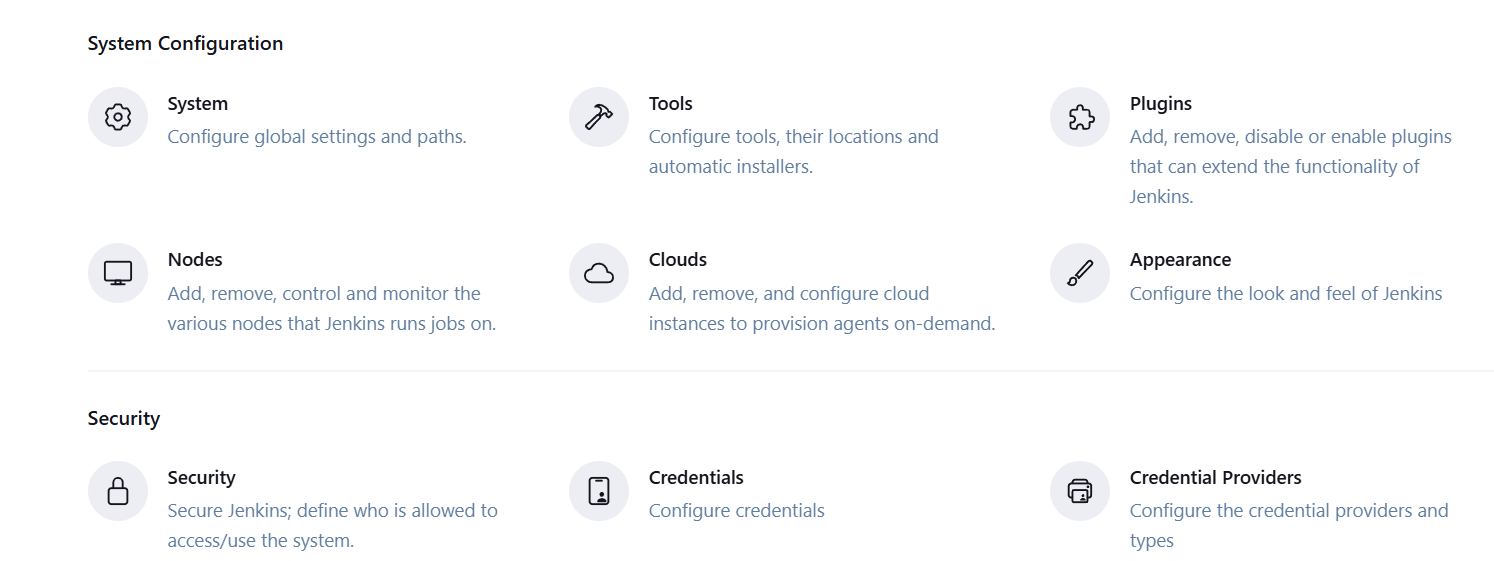
To install plugins:
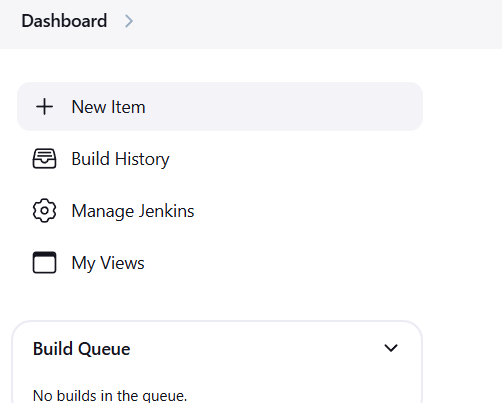
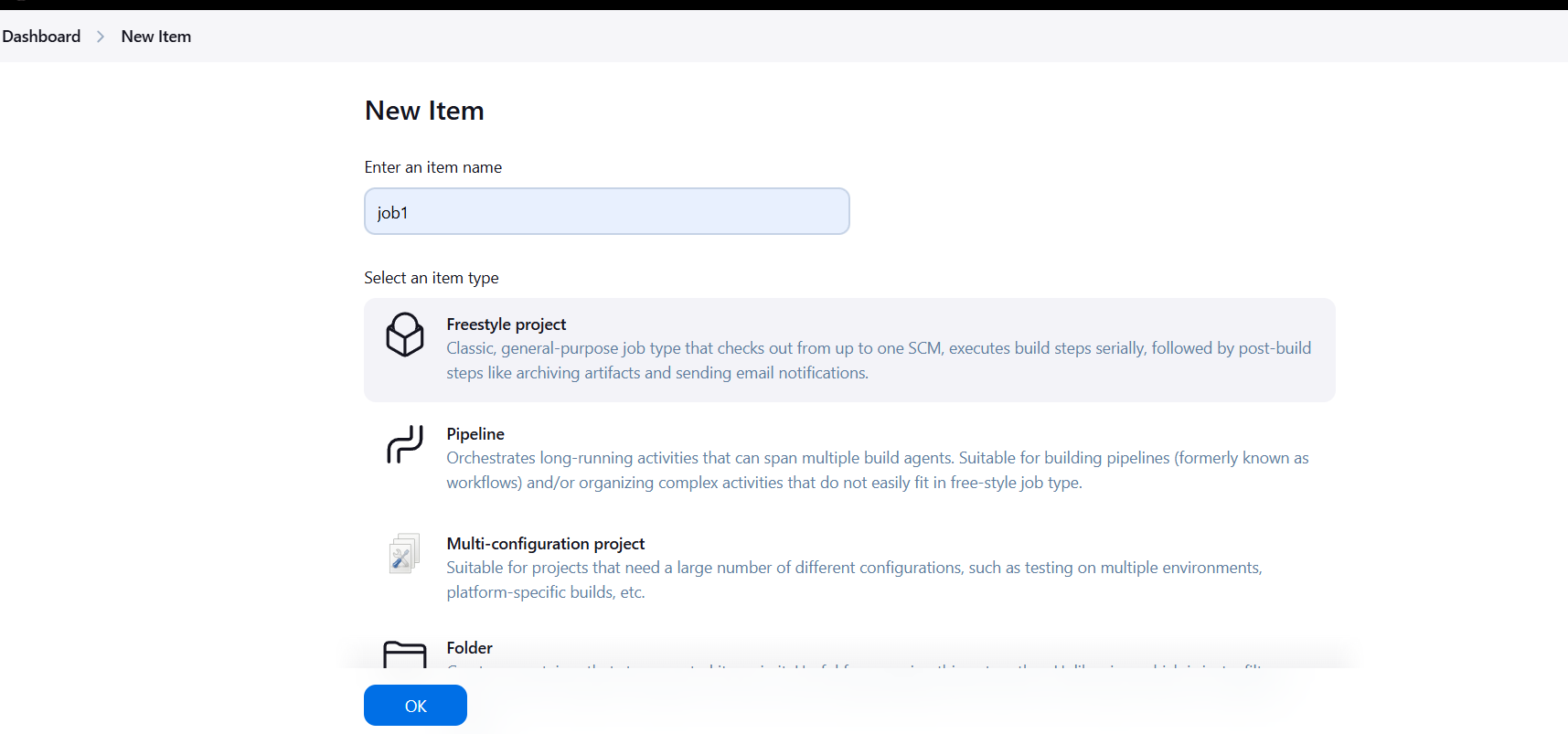
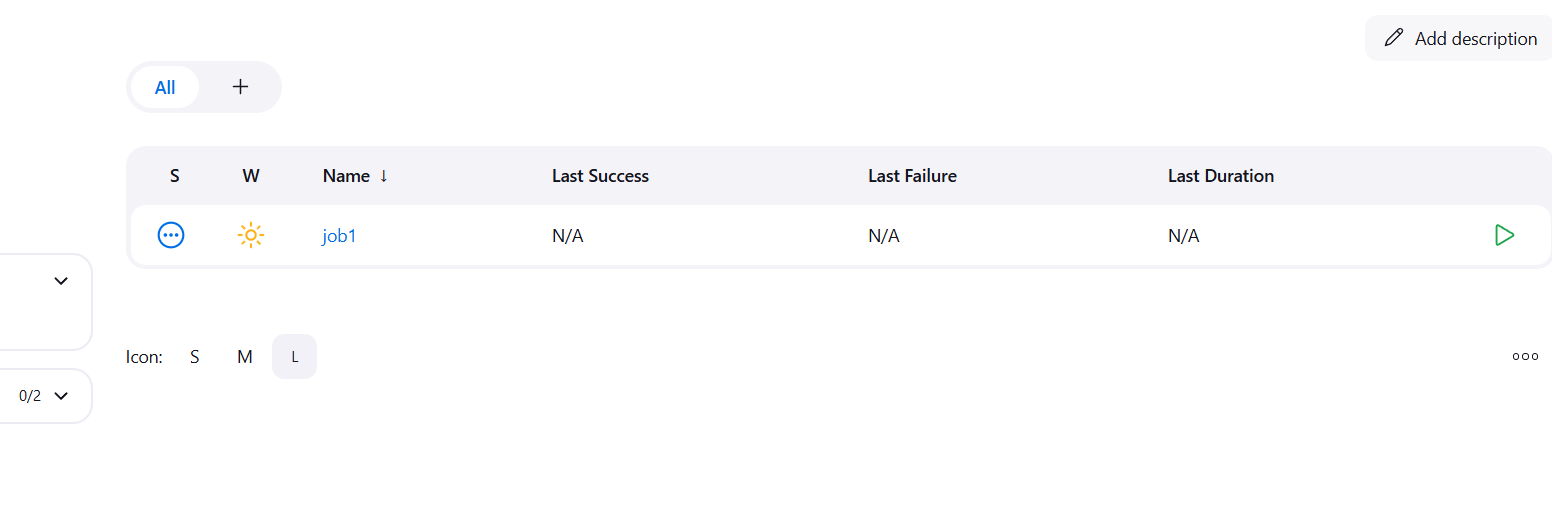
/github-webhook/ (e.g., http://your-jenkins-url/github-webhook/).
Integrating Jenkins with webhooks is a key step in automating your CI/CD pipeline, allowing for seamless code deployment and testing. By configuring webhooks in platforms like GitHub, GitLab, or Bitbucket, Jenkins can automatically trigger builds when changes are pushed to the repository. This eliminates the need for manual intervention and speeds up the development process. With plugins such as the Git plugin and Generic Webhook Trigger, Jenkins can easily communicate with your version control system. Securing webhook communication with a secret token ensures that only authorized events trigger builds. Overall, this integration enhances workflow efficiency, improves consistency, and accelerates delivery cycles. By automating these processes, teams can focus more on development and innovation while minimizing errors. Webhook-based automation helps maintain a continuous flow of updates, making CI/CD more reliable and scalable.

In today’s cloud-native world, managing and deploying containerized applications efficiently has become a critical part of modern software development. Docker containers have revolutionized how applications are built and shared, but storing these container images securely and reliably is equally important. That’s where Amazon Elastic Container Registry (ECR) comes in. AWS ECR is a fully managed container image registry service that integrates seamlessly with Amazon ECS, EKS, and your CI/CD pipelines. Whether you’re an enterprise managing thousands of containers or a solo developer testing out microservices, ECR offers a scalable, secure, and highly available solution for storing Docker images.
One of the key features of ECR is its support for private repositories, allowing teams to store container images securely with fine-grained access control. This ensures that your images are not publicly accessible and can only be pulled or pushed by users or systems with the appropriate permissions. Creating a private repository is a foundational step when building secure container workflows in the AWS ecosystem. It not only keeps your images protected but also supports advanced features like image scanning for vulnerabilities, encryption at rest, and tag immutability.
In this tutorial, we’ll walk you through the process of creating a private ECR repository from scratch. We’ll cover both the AWS Management Console method (great for beginners or those who prefer a visual interface) and the AWS CLI method (ideal for automation or experienced users). Along the way, you’ll learn about best practices for configuring your repo, such as enabling image scanning, using encryption, and understanding IAM permissions for access control. Whether you’re deploying containers with ECS, Kubernetes on EKS, or your own container orchestrator, having a private, secure registry is the first step toward a robust DevOps workflow.
By the end of this guide, you’ll not only have a working private ECR repository but also a deeper understanding of how ECR fits into the larger AWS container ecosystem. This post is perfect for developers, DevOps engineers, and cloud architects looking to strengthen their container image management strategy. If you’re just starting out with AWS or Docker, don’t worry — we’ll explain every step clearly, so you can follow along confidently. So, let’s dive in and learn how to create a private AWS ECR repository that’s secure, scalable, and production-ready.

my-private-repo).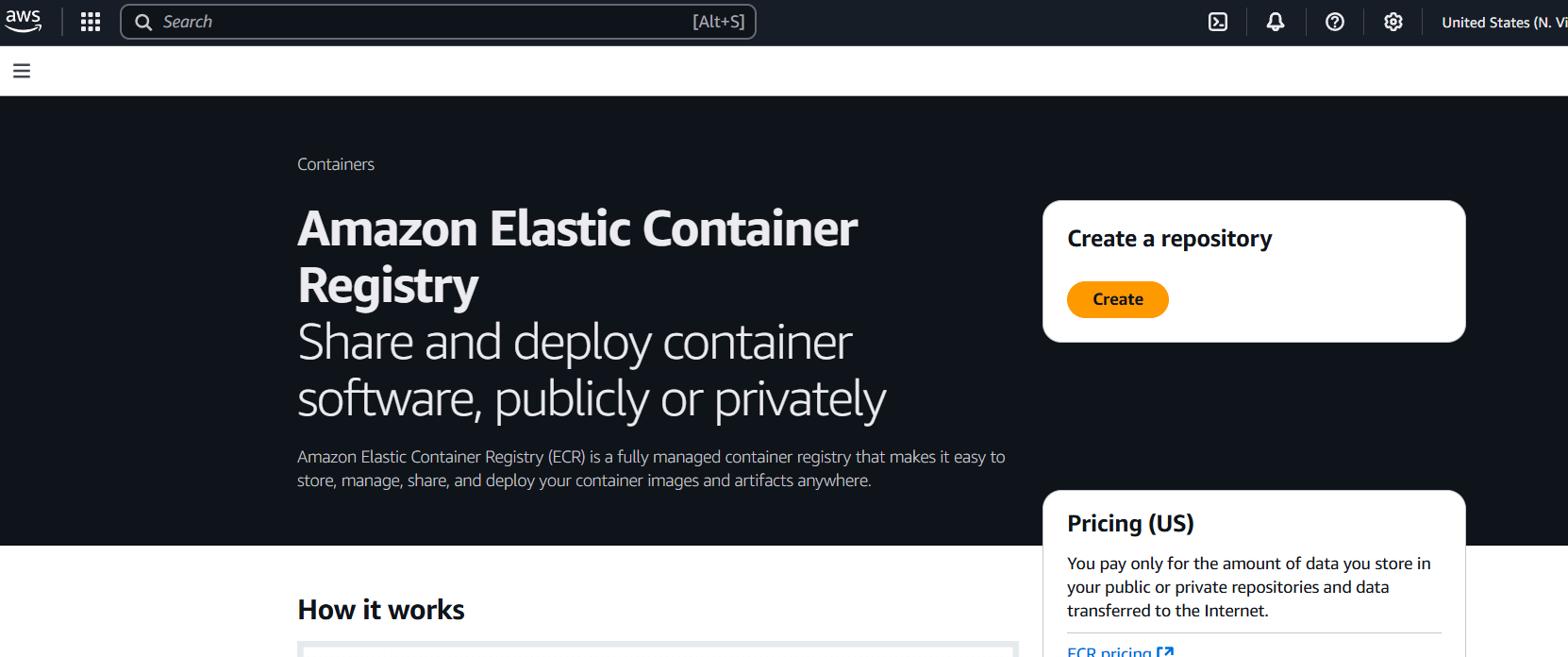
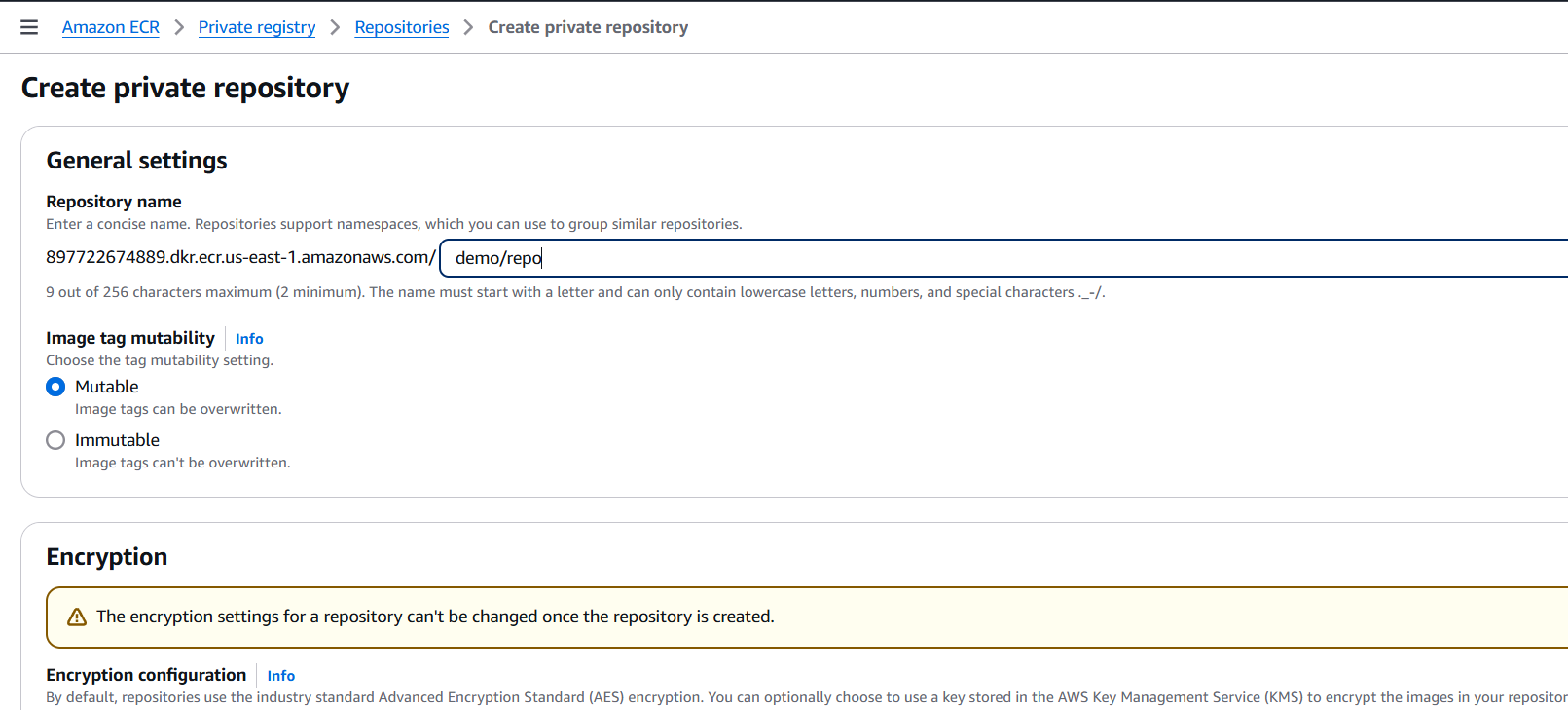
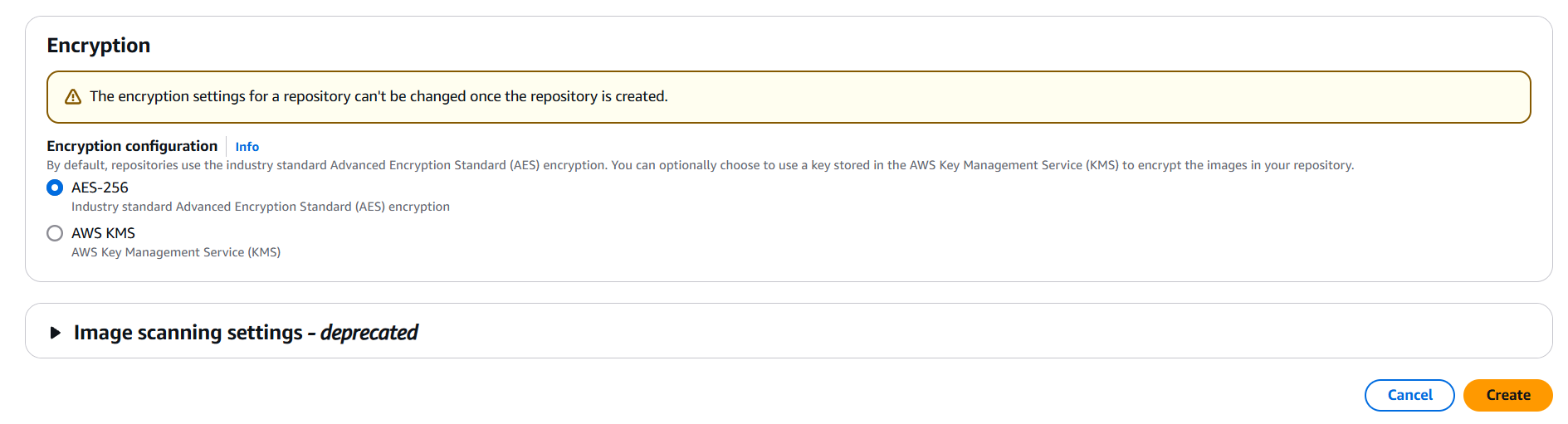
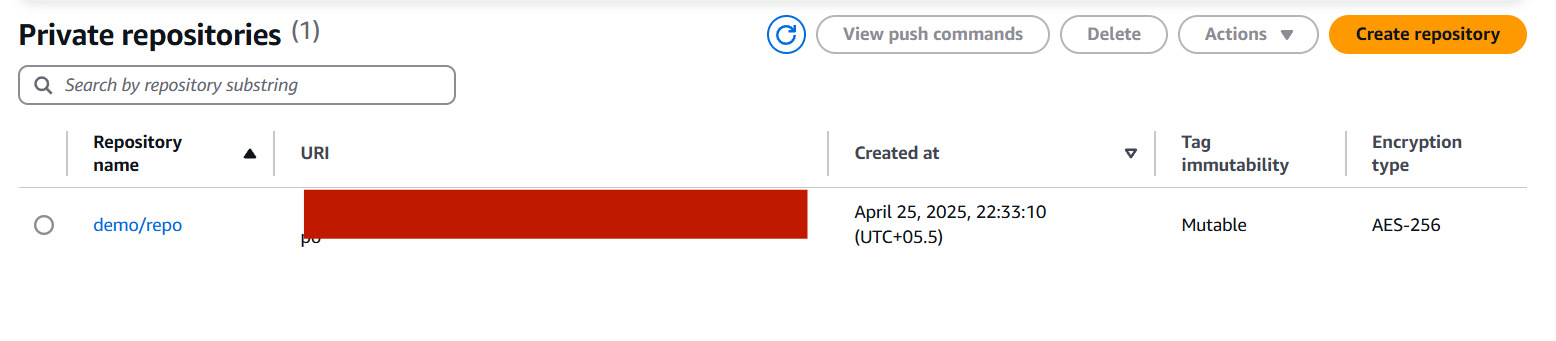
First, make sure you’re authenticated:
aws configureThen create the private repo:
aws ecr create-repository \
  --repository-name my-private-repo \
  --region us-east-1 \
  --image-scanning-configuration scanOnPush=true \
  --encryption-configuration encryptionType=AES256
This creates a private ECR repo named my-private-repo in the us-east-1 region.

Creating a private repository on AWS ECR is a straightforward yet powerful step toward building a secure and scalable container infrastructure. Whether you chose the AWS Management Console or the CLI, you now have a secure place to store and manage your Docker images with full control over access, scanning, and lifecycle policies. ECR integrates smoothly with other AWS services, making it an ideal choice for modern DevOps pipelines and cloud-native deployments. As you continue building and deploying containerized applications, leveraging private repositories ensures your workloads remain protected and compliant. With this foundation in place, you’re well-equipped to scale your container strategy with confidence and efficiency in the AWS cloud.

Managing cloud costs is one of the most critical aspects of working with AWS. As cloud environments scale and services multiply, keeping track of spending becomes not just a good practice—but a necessity. Yet, despite the variety of monitoring tools AWS provides, there’s often a gap between raw billing data and real-time, actionable insights. For developers, startups, and even enterprise teams, having a simple, custom AWS billing counter can be a game-changer. It provides visibility, promotes accountability, and helps prevent those end-of-month surprises that make everyone nervous.
In this guide, we’re going to walk through how to create your own AWS billing counter—something lightweight, yet powerful enough to keep your spending in check. We’ll explore how to use AWS native tools like CloudWatch, Cost Explorer, Lambda, and possibly even Slack or email integrations to send cost updates right to your team in real-time. This kind of setup isn’t just about monitoring; it’s about taking control of your cloud budget with automation and insight.
Whether you’re new to AWS or have been deploying for years, this solution can be adapted to your workflow. It’s cost-effective, scalable, and customizable. Best of all, once it’s in place, you’ll have a billing tracker that’s always working behind the scenes—silently watching over your AWS usage and keeping your costs transparent. We’ll go step-by-step so even if you’re not a DevOps pro, you can follow along and implement a solution that works.
This blog post is not just a tutorial; it’s a practical approach to solving a real-world problem faced by almost every AWS user. By the end, you’ll not only have built your own AWS billing counter, but you’ll also have a deeper understanding of how AWS tracks and charges for usage—and how to use that to your advantage.

Let’s dive in and make your AWS billing more predictable, manageable, and stress-free.
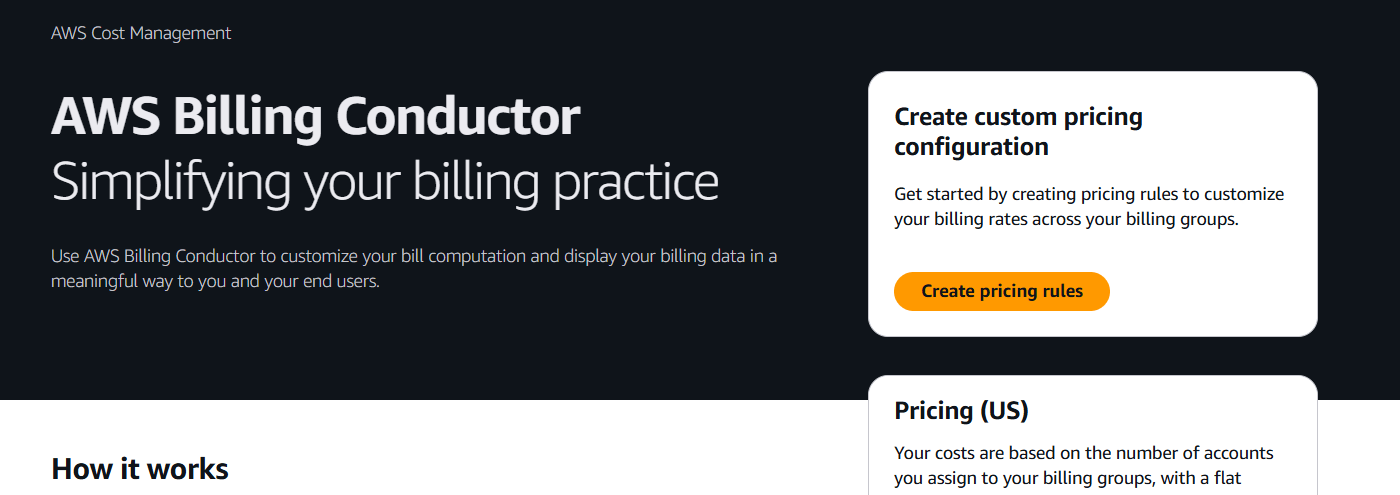
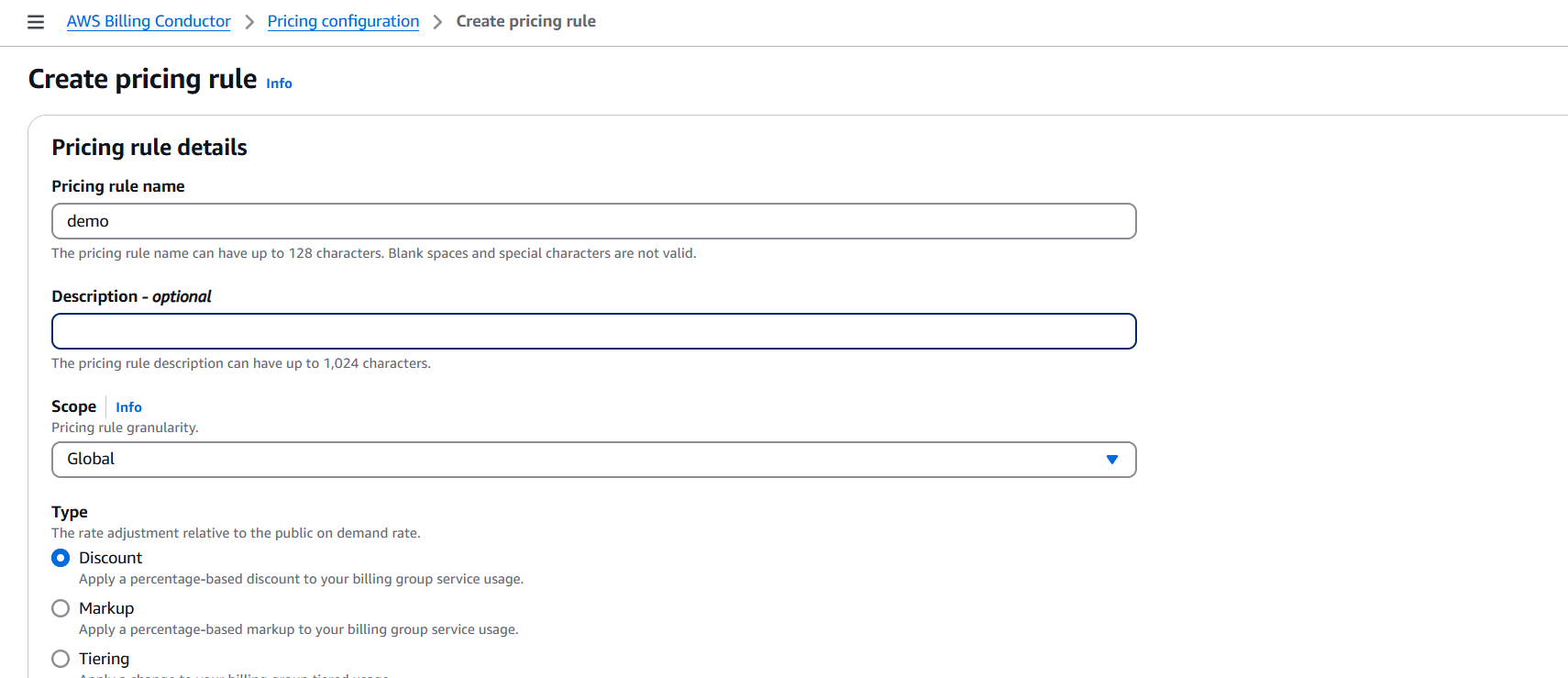
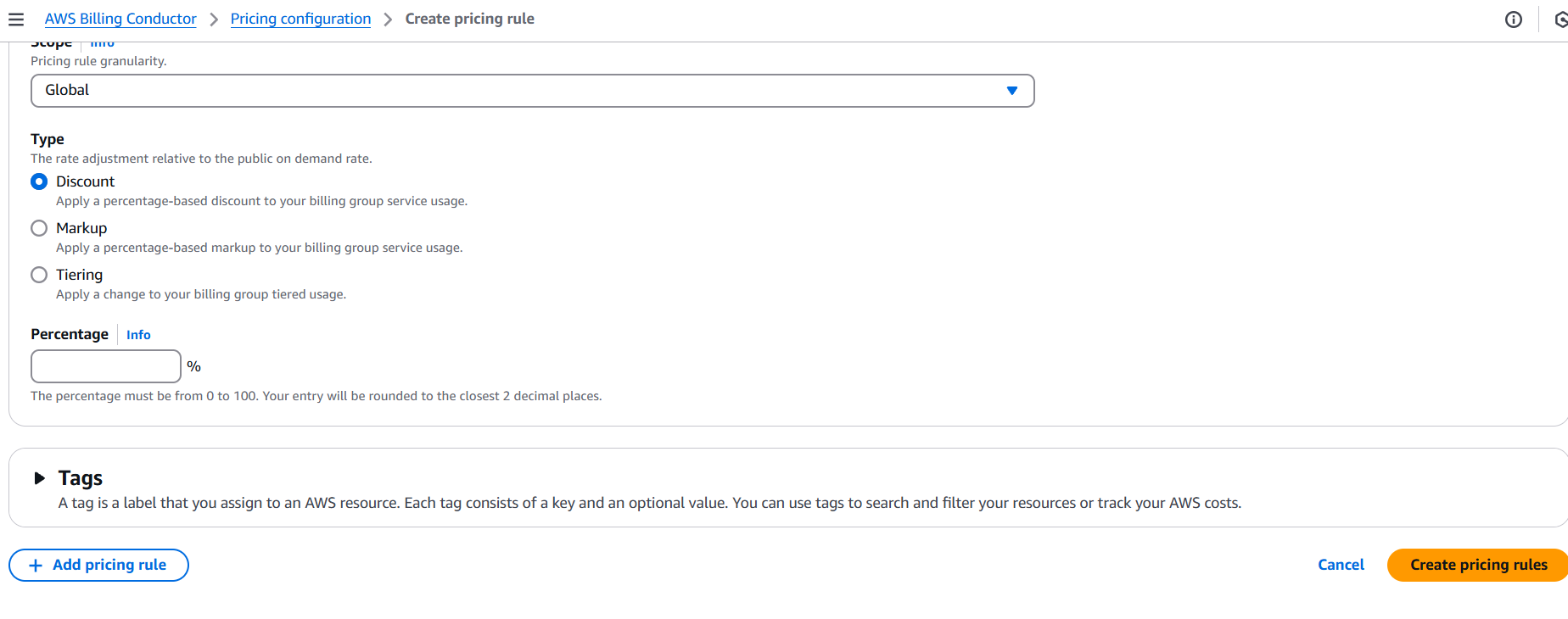

Keeping cloud costs under control doesn’t have to be complicated. With the right setup, a custom AWS billing counter can give you near real-time insights into your spending, empowering your team to make informed decisions and avoid budget surprises. By leveraging native AWS services like Cost Explorer, CloudWatch, Lambda, and SNS or Slack for notifications, you’ve created a scalable and automated way to track usage as it happens.
More than just a technical project, this billing counter becomes part of your financial visibility strategy in the cloud. Whether you’re a solo developer, managing a startup, or working in a large team, having this kind of visibility brings peace of mind and cost efficiency.
As AWS environments grow more complex, staying on top of costs will only become more important. Start small, iterate, and evolve your billing counter to suit your needs. And remember—when you understand your AWS bill, you’re already one step ahead.

In the modern cloud landscape, customer data security isn’t just a technical requirement—it’s a competitive differentiator. As organizations increasingly migrate to cloud-native platforms, they demand greater control over how their data is encrypted, who can access it, and how encryption keys are managed. Enter Customer-Managed Keys (CMKs) on AWS Key Management Service (KMS), a powerful feature that allows customers to own and operate their encryption keys, while service providers integrate these keys into their applications without ever directly managing them. This paradigm shift in data control helps meet compliance needs like GDPR, HIPAA, and PCI-DSS, while simultaneously building trust between providers and their users.
For software providers and SaaS companies, enabling customer-managed encryption is no longer a luxury—it’s a strategic necessity. When you allow your customers to bring and control their own KMS keys, you’re not just enhancing security; you’re empowering them with autonomy, transparency, and peace of mind. This model is especially critical in industries like finance, healthcare, and government, where data sovereignty and strict auditing are non-negotiable. By offering customer-managed services built on KMS, you signal a strong commitment to data ownership and compliance readiness.
So, what does it take to build a customer-managed service using AWS KMS? At its core, it involves separating encryption responsibilities: you manage the infrastructure and application logic, while the customer manages the encryption keys via their own AWS account. This means you need to architect your services to request permissioned access to customer-owned CMKs, handle encryption/decryption securely, and gracefully manage key revocation, rotation, and access changes. Done right, it creates a seamless experience where your system can operate securely without compromising customer control.
This blog walks you through the entire process—starting from understanding KMS fundamentals, defining roles and permissions, implementing secure key access via AWS SDKs or CLI, handling lifecycle events, and providing clear documentation to your customers for onboarding. We’ll also explore best practices around key policy design, grant usage, audit logging, and fault-tolerant design patterns to ensure your service is not only secure but also resilient and compliant.
By the end of this guide, you’ll have a clear roadmap to design and deploy services that leverage customer-managed encryption in AWS, offering your users a security model where they truly hold the keys. Whether you’re building a SaaS product, a cloud-native platform, or managing sensitive data workflows, this approach will position your service as trustworthy, future-ready, and aligned with modern enterprise expectations. Let’s dive in.

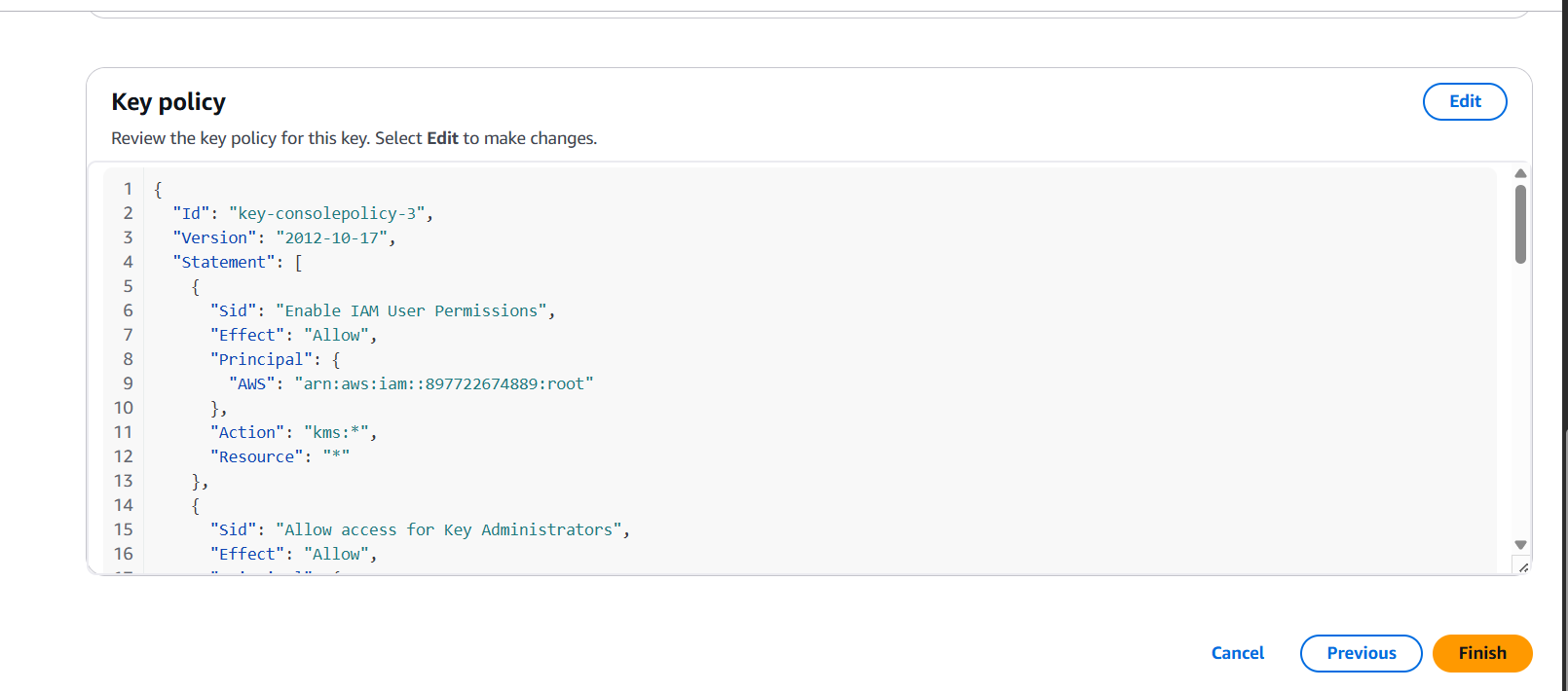
Customers must grant your service permissions to use their CMK.
Your service account needs:
{
  "Sid": "AllowServiceToUseKey",
  "Effect": "Allow",
  "Principal": {
    "AWS": "arn:aws:iam::<your-service-account-id>:role/<service-role>"
  },
  "Action": [
    "kms:Encrypt",
    "kms:Decrypt",
    "kms:GenerateDataKey"
  ],
  "Resource": "*"
}
Customers apply this in the KMS key policy.
kms:Encrypt or kms:GenerateDataKey API from the customer’s CMK.import boto3
kms = boto3.client('kms')
response = kms.encrypt(
KeyId='arn:aws:kms:us-east-1:customer-account-id:key/key-id',
Plaintext=b'Some secret data'
)
ciphertext = response['CiphertextBlob']Add fallback logic or alerts to prevent data loss.
Provide a simple onboarding guide:
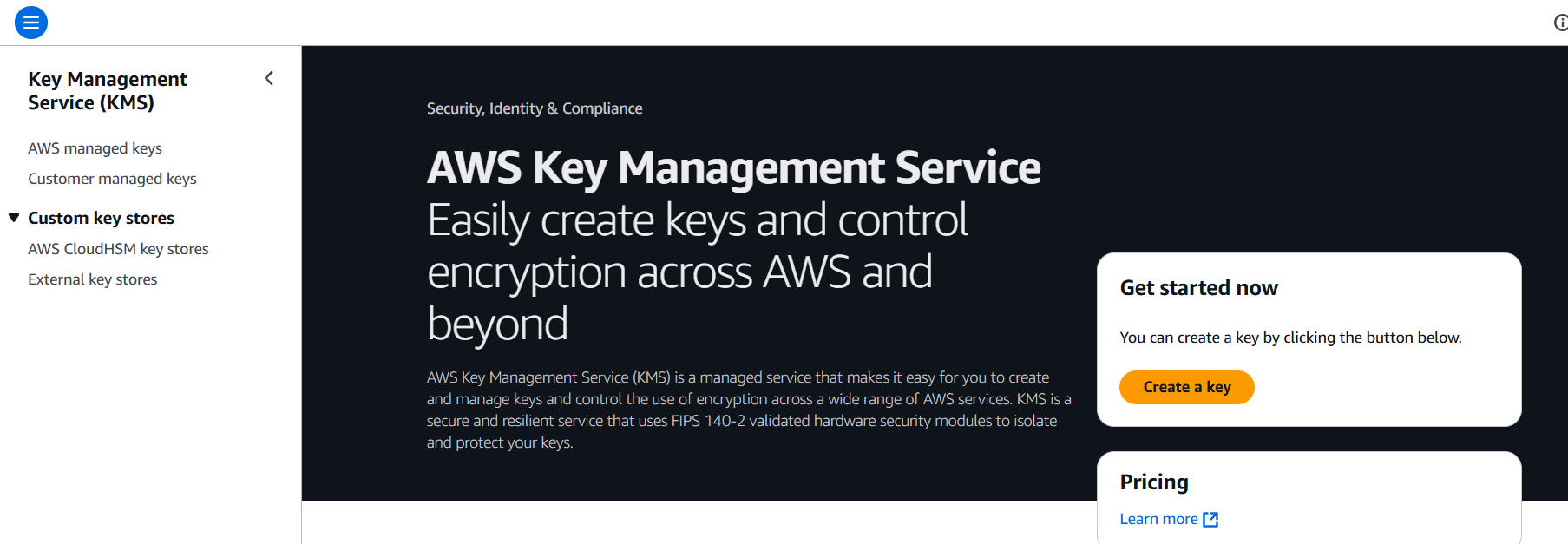
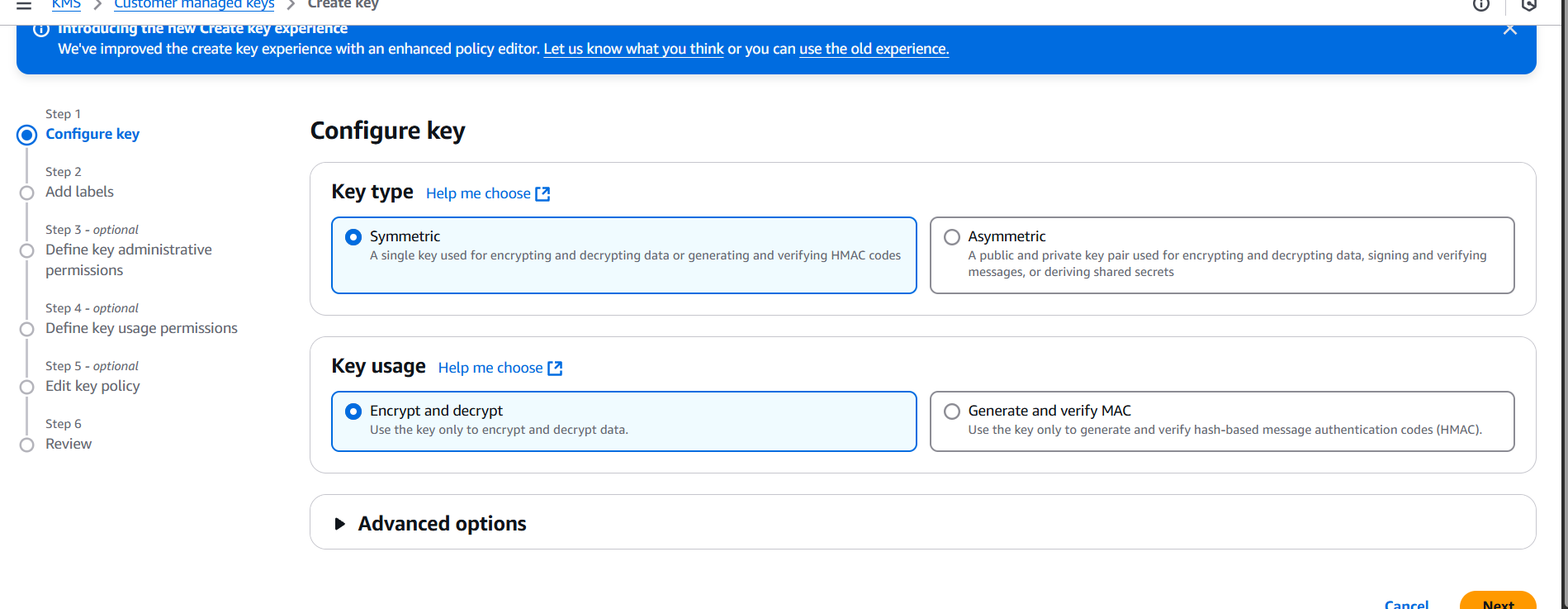
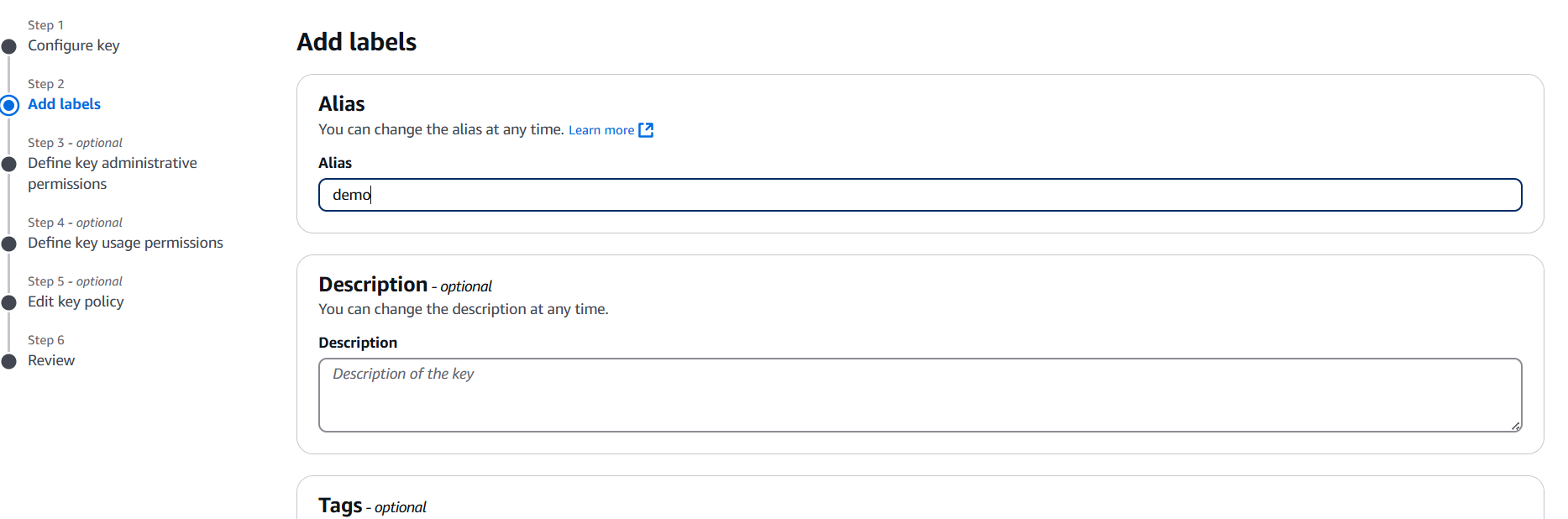
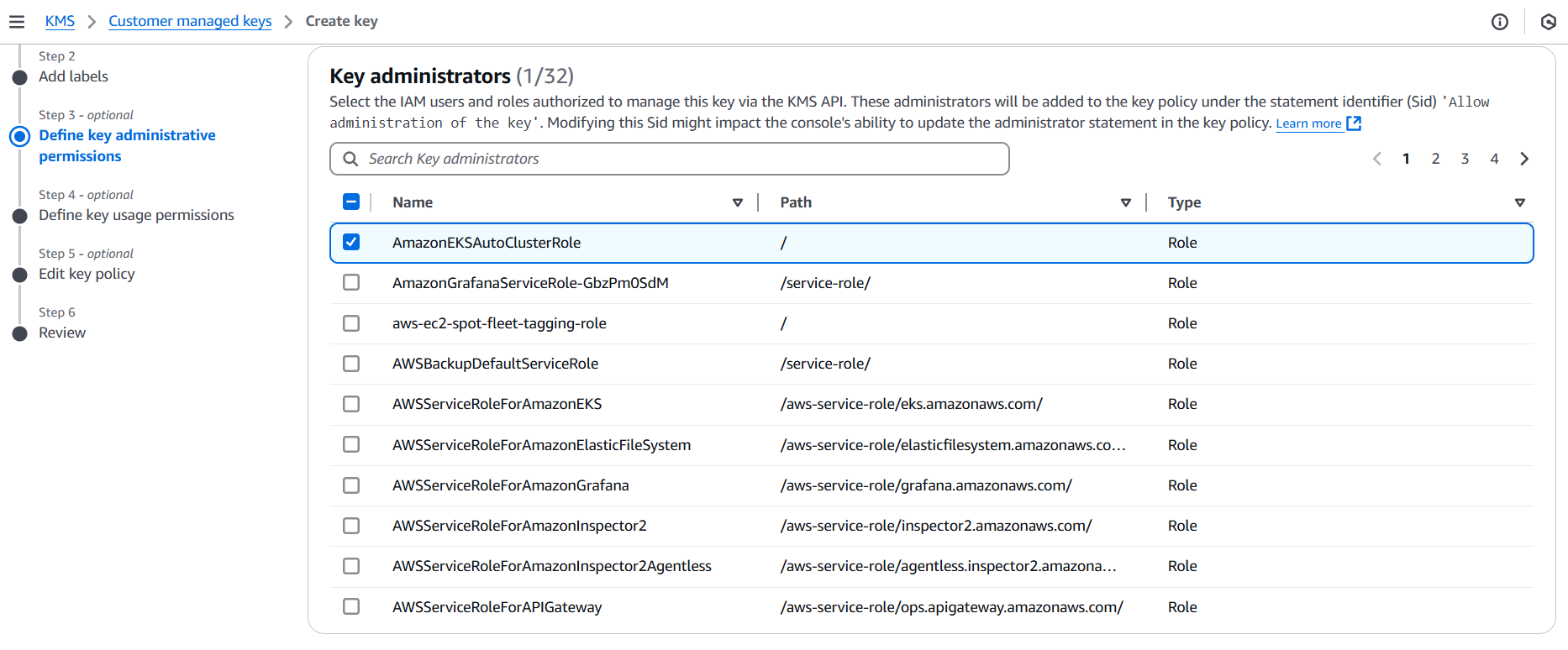
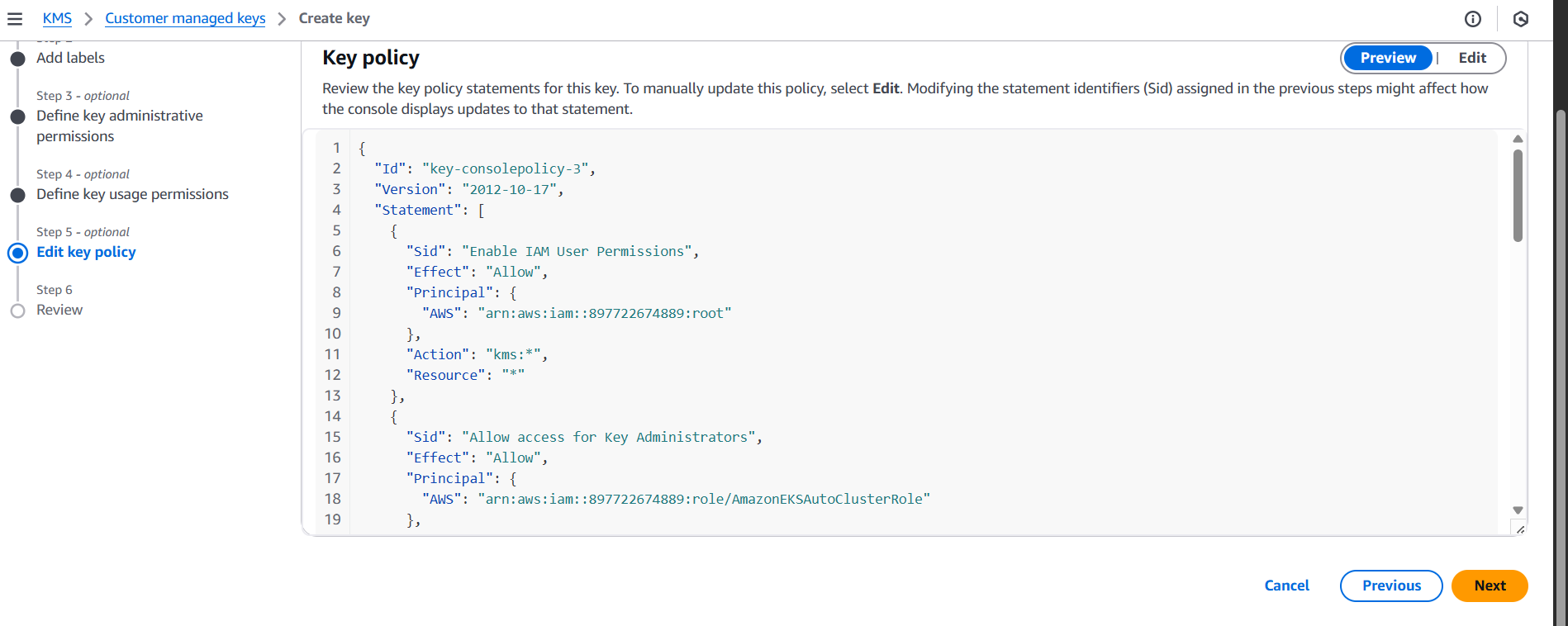
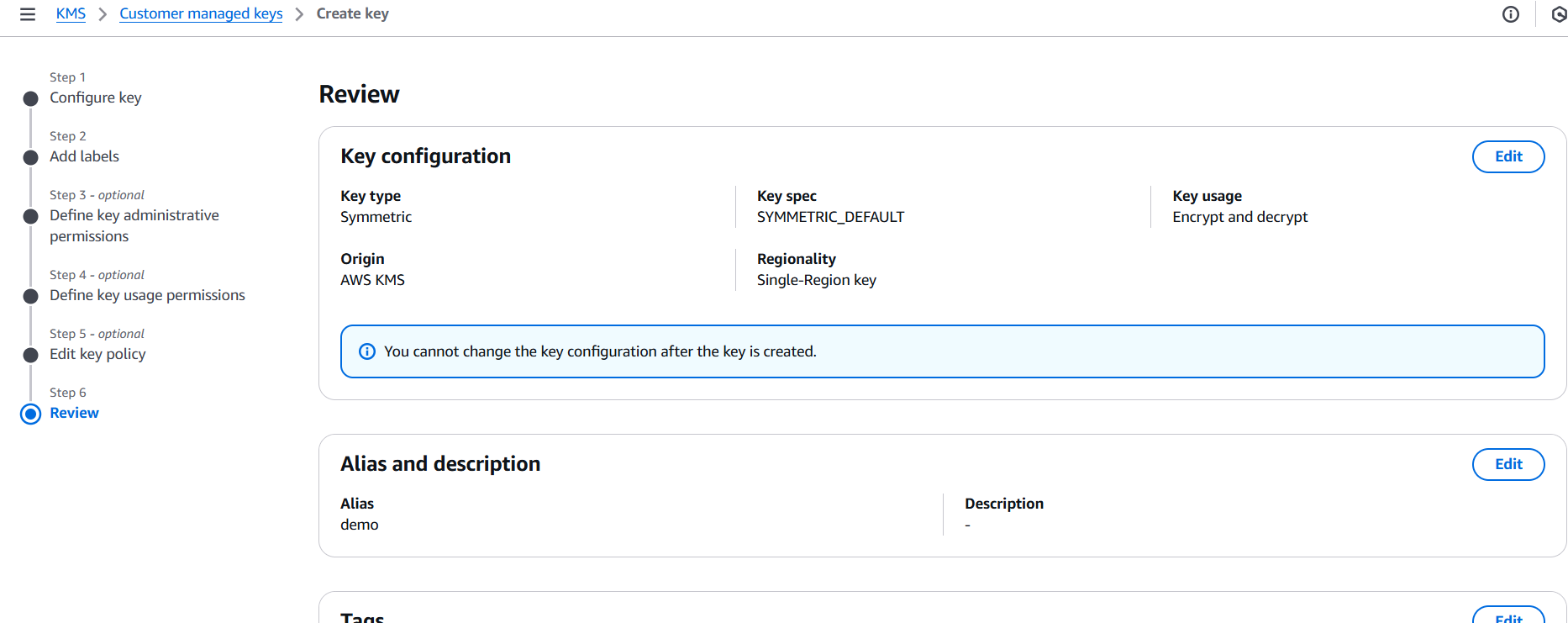

Building customer-managed services using AWS KMS isn’t just a technical enhancement—it’s a strategic step toward deeper customer trust, improved compliance alignment, and long-term service differentiation. By allowing your customers to manage their own encryption keys, you offer them the ability to own their security posture without compromising the functionality or performance of your platform. It’s a win-win approach: you handle the infrastructure, scalability, and availability, while your customers retain control over how, when, and where their data is protected.
Throughout this guide, we’ve explored the foundational concepts of AWS Key Management Service, the distinction between provider-managed and customer-managed encryption models, and the critical components required to support CMKs in a multi-tenant service architecture. You’ve seen how to request access to customer-owned keys securely, enforce least-privilege access using IAM roles and policies, and implement best practices like auditing, logging, and graceful failure handling. These are more than just technical patterns—they form the backbone of a modern, compliance-ready service.
One of the most important takeaways is that enabling customer-managed keys doesn’t mean giving up control—it means shifting it to the right hands. It requires careful design, thoughtful documentation, and proactive support, but the rewards are clear: increased adoption from security-conscious enterprises, smoother onboarding in regulated industries, and a reputation for putting customer needs first. This model sends a clear message: your platform is built with transparency and flexibility at its core.
As more organizations demand accountability in the way their data is handled, customer-managed encryption will become a baseline expectation rather than a premium feature. By embracing this architecture early, you position your business as a forward-thinking provider that is aligned with the evolving cloud security landscape. In doing so, you reduce the friction around procurement and security reviews, opening doors to larger deals and longer-term partnerships.
Looking ahead, consider how this approach can be extended—whether through automation of key grant creation, enhanced key lifecycle tooling, or integration with multi-cloud key management strategies. And don’t forget to keep educating your customers: the easier you make it for them to bring their own keys and trust your service, the more likely they are to stay.
Ultimately, customer-managed services on AWS KMS are about empowering your users without overburdening your operations. With the right mindset, tooling, and architecture, you can build services that not only meet today’s demands but are ready for tomorrow’s expectations. So start small, iterate securely, and give your customers the confidence to take ownership of their data—because in the cloud, trust is everything.

If you’re working with AWS and building scalable, fault-tolerant applications, chances are you’ve encountered the concept of load balancing. One essential piece of that puzzle is the EC2 Target Group. Whether you’re setting up an Application Load Balancer (ALB) or a Network Load Balancer (NLB), target groups help you manage traffic flow to your Amazon EC2 instances efficiently and reliably.
In simple terms, a target group is a logical grouping of backend resources—typically EC2 instances—that a load balancer sends traffic to. By defining a target group, you’re telling AWS where to send requests once they hit your load balancer. Sounds straightforward, right? But under the hood, there’s a bit more going on.
Each target group supports health checks, port configuration, target registration, and more. These features ensure your application only routes traffic to healthy instances and scales gracefully as demand increases. Understanding how to create and configure a target group properly is key to building a solid AWS infrastructure.
Whether you’re deploying your first web app or optimizing an existing cloud architecture, this guide will walk you through everything you need to know about EC2 target groups. We’ll cover what they are, why they’re used, and most importantly—how to create one from scratch. No fluff, just practical steps you can follow.
We’ll use the AWS Management Console in this guide, but I’ll also point out how you can do the same thing using the AWS CLI or Infrastructure as Code tools like Terraform if you’re more into automation. The goal? To make sure you’re confident managing EC2 target groups in any workflow.
By the end of this tutorial, you’ll not only understand what an EC2 target group is but also how it fits into the bigger picture of load balancing and scalable cloud design. You’ll learn how to register EC2 instances to a target group, configure health checks, and associate your target group with a load balancer.
So if you’re ready to demystify EC2 target groups and take your AWS skills up a notch, let’s dive right in. Whether you’re a beginner looking to level up or an experienced cloud engineer in need of a refresher, you’re in the right place.

Let’s get started.
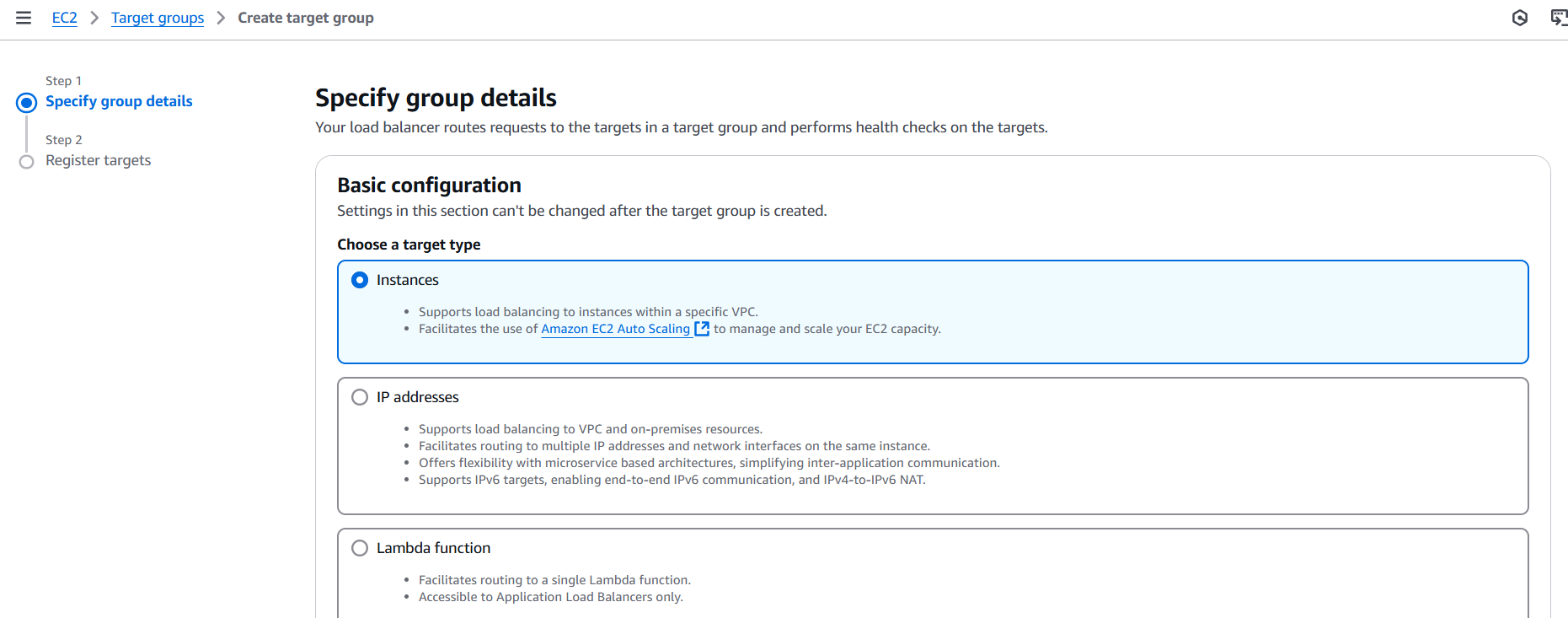
my-app-target-group)./health or / depending on your app.
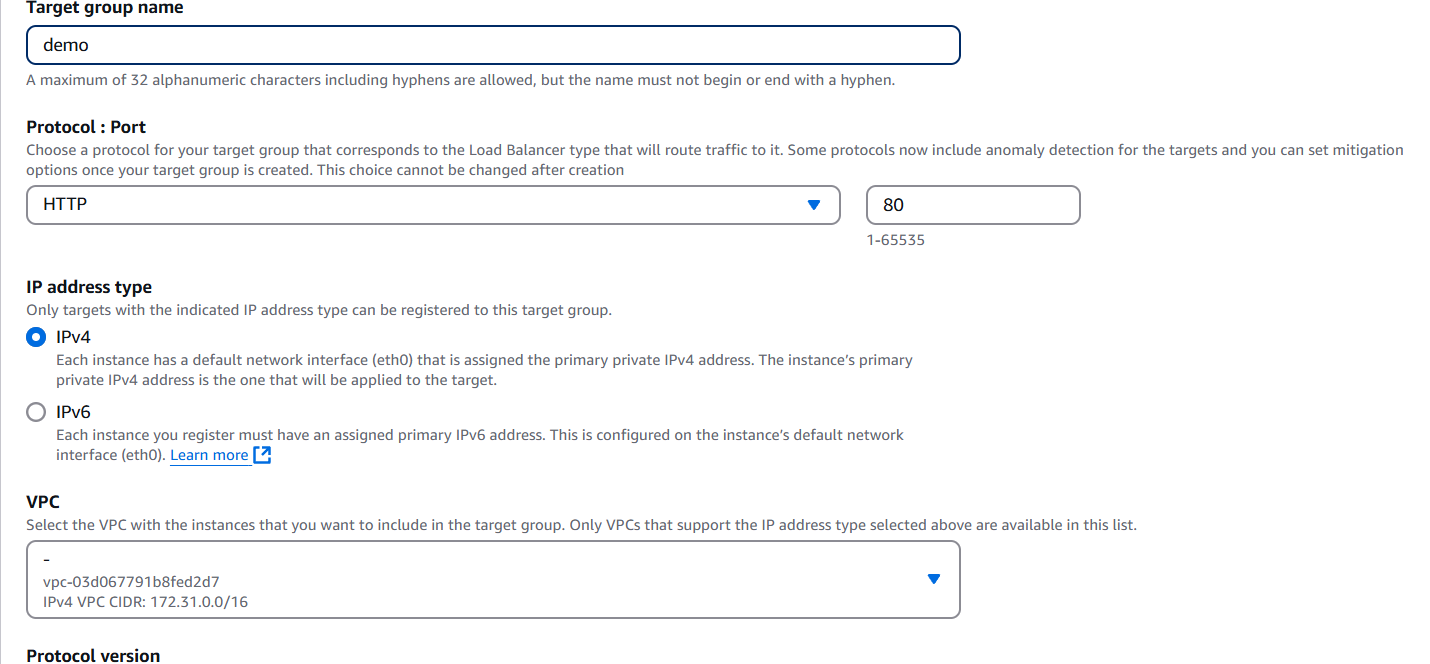
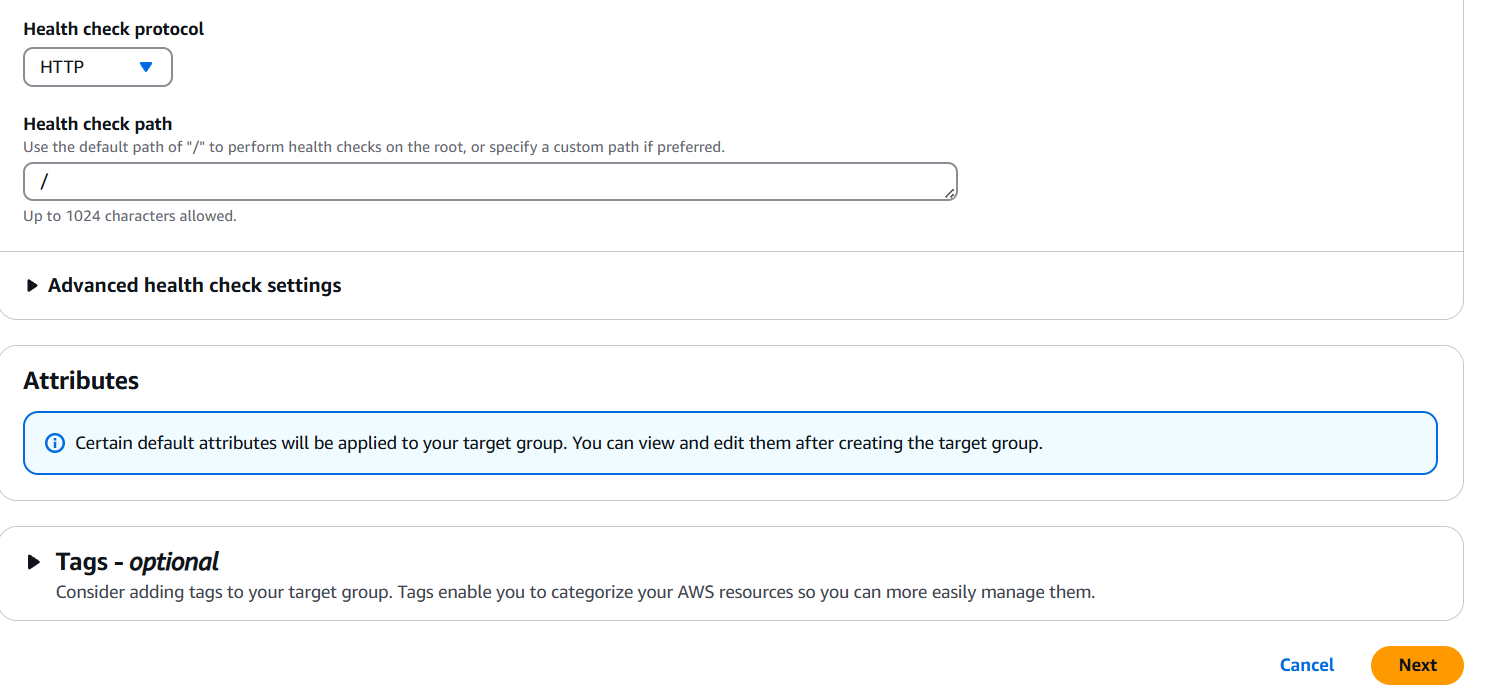
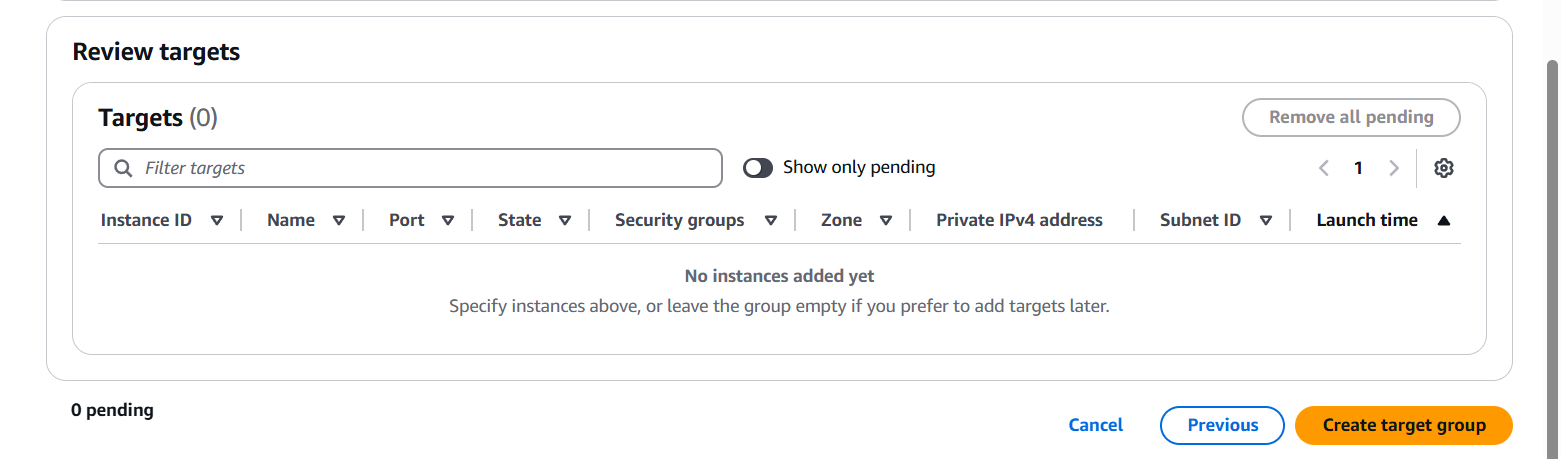
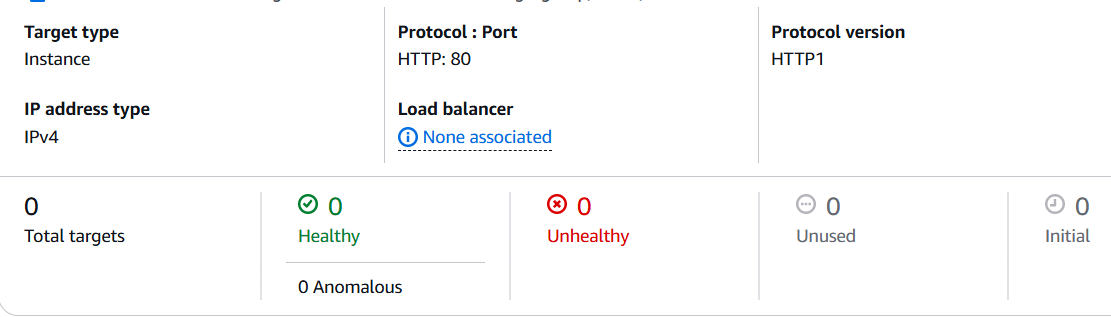
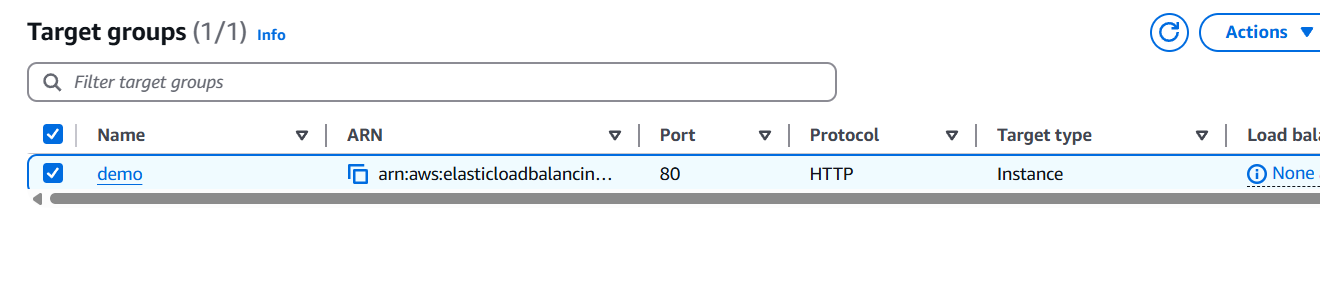

Creating an EC2 target group might seem like a small task, but it’s a foundational step in building robust, scalable architectures on AWS. Whether you’re routing traffic through an Application Load Balancer or a Network Load Balancer, target groups ensure that your traffic gets to the right place—and that it only reaches healthy, responsive instances. From defining protocols and ports to configuring health checks and registering EC2 instances, each step contributes to a reliable and efficient load balancing setup. As your infrastructure grows, mastering components like target groups will help you maintain performance, availability, and control. Hopefully, this guide gave you the clarity and confidence to create, manage, and optimize your EC2 target groups like a pro. Now you’re one step closer to building smarter, more resilient applications in the cloud.

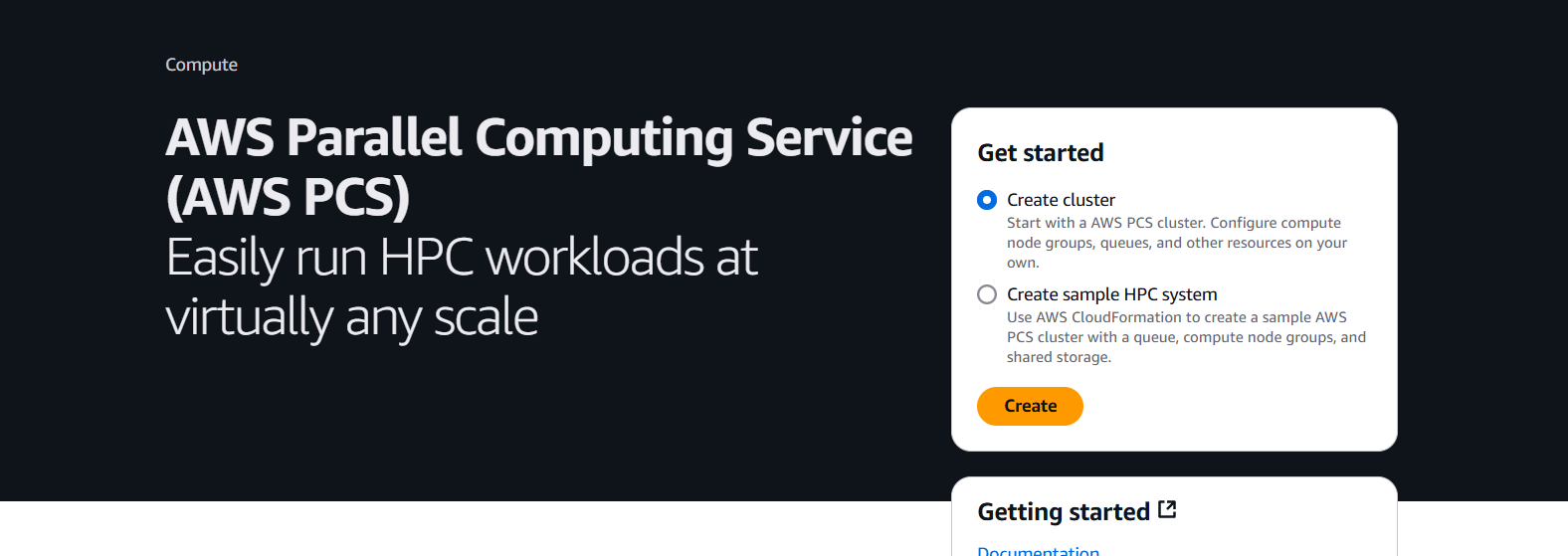
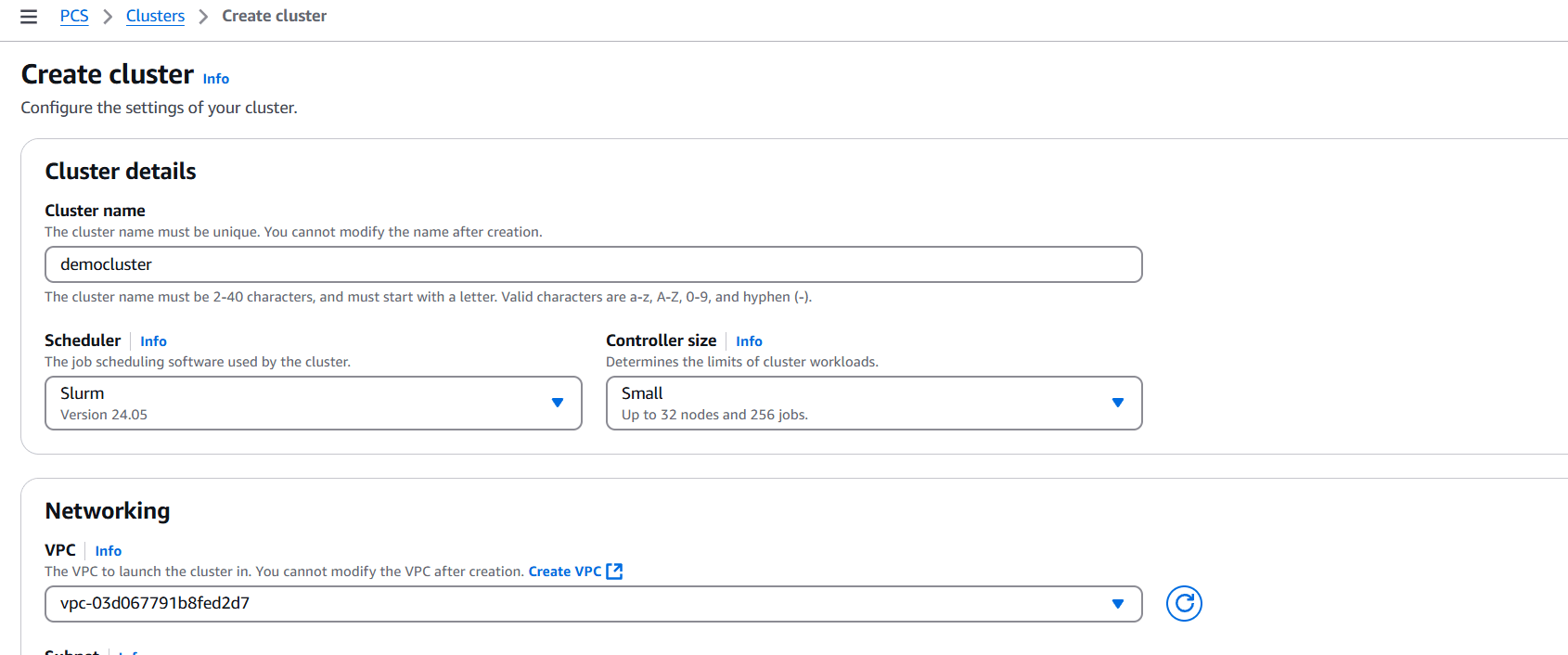
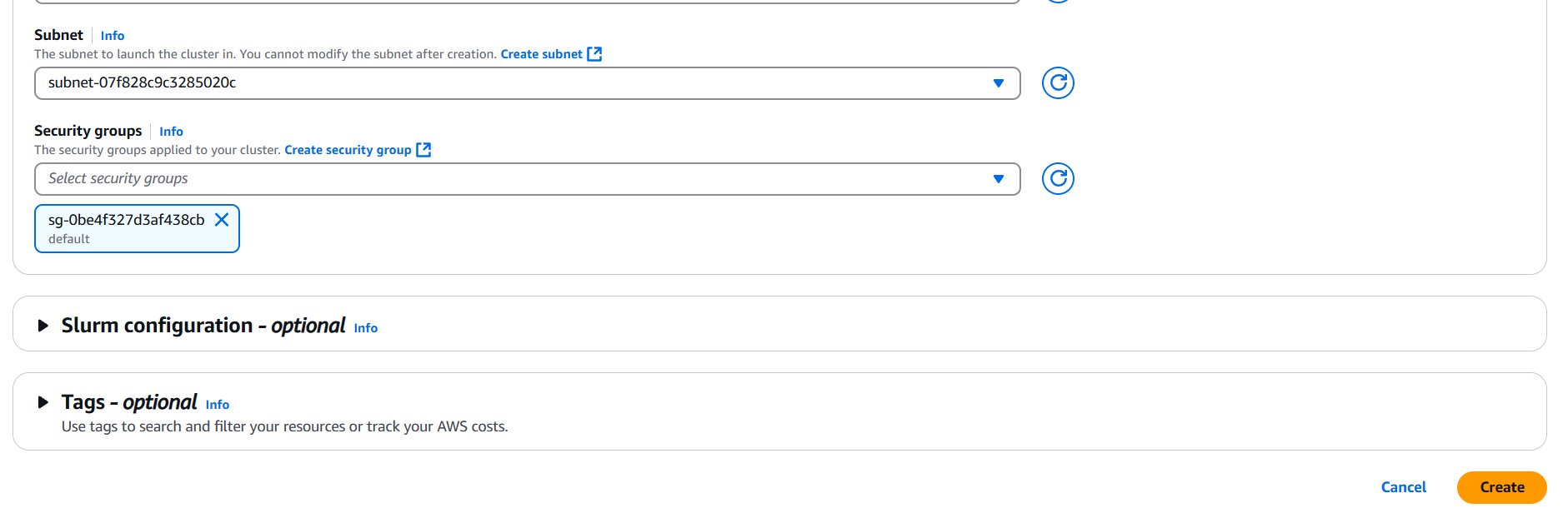
In today’s data-driven world, the demand for faster, more efficient computing is higher than ever. Whether you’re processing massive datasets, training machine learning models, running simulations, or conducting scientific research, the ability to perform computations in parallel is a game changer. Traditionally, setting up high-performance or parallel computing environments required specialized hardware, deep system knowledge, and a hefty budget. But thanks to cloud services like AWS, these capabilities are now more accessible than ever—even to solo developers, researchers, and small startups. AWS offers a variety of services that allow you to create scalable, reliable, and cost-efficient parallel computing systems without managing physical infrastructure. From AWS ParallelCluster, which simplifies the deployment of high-performance computing (HPC) clusters, to AWS Batch, which enables large-scale job scheduling and container-based execution, the possibilities are both vast and flexible. You can even take advantage of serverless options like AWS Lambda and Step Functions to orchestrate lightweight parallel tasks at scale.
This guide walks you through the process of building a parallel computing service using AWS’s powerful ecosystem. We’ll cover the core concepts of parallel computing in the cloud, help you choose the right AWS service for your use case, and show you step-by-step how to set up a parallel workload—from configuring your compute environment to running your first jobs. Whether you’re a data scientist analyzing genomes, a researcher simulating physics models, or a developer running large-scale image processing tasks, this guide is designed to make the journey easier. We’ll also touch on best practices, performance tuning, cost optimization, and security considerations to ensure your system runs efficiently and effectively. No matter your level of experience, you’ll find actionable insights to help you leverage AWS for parallel computing in a way that matches your needs and goals.

AWS ParallelCluster is best for HPC (High Performance Computing) applications where MPI (Message Passing Interface) or tightly coupled computing is required.
pip install aws-parallelclusterConfigure AWS CLI:
aws configureCreate a configuration file (e.g., pcluster-config.yaml) with compute environment settings:
Region: us-west-2
Image:
  Os: alinux2
HeadNode:
  InstanceType: t3.medium
  Networking:
    SubnetId: subnet-xxxx
Scheduling:
  Scheduler: slurm
  SlurmQueues:
    - Name: compute
      ComputeResources:
        - Name: hpc
          InstanceType: c5n.18xlarge
          MinCount: 0
          MaxCount: 10
      Networking:
        SubnetIds:
          - subnet-xxxx
Create the cluster:
pcluster create-cluster --cluster-name my-hpc-cluster --cluster-configuration pcluster-config.yamlSSH into the cluster and submit jobs using Slurm:
ssh ec2-user@<HeadNodeIP>
sbatch my_parallel_job.shAWS Batch is ideal for embarrassingly parallel jobs (e.g., video rendering, genomics, machine learning inference, etc.).
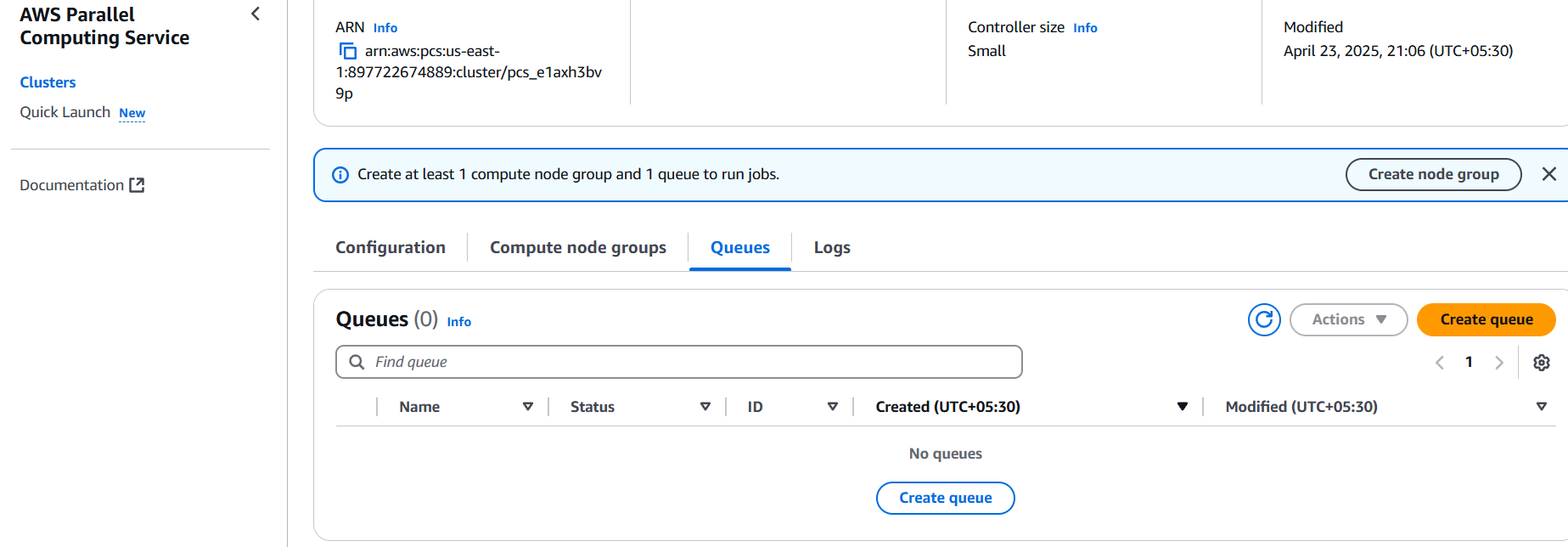
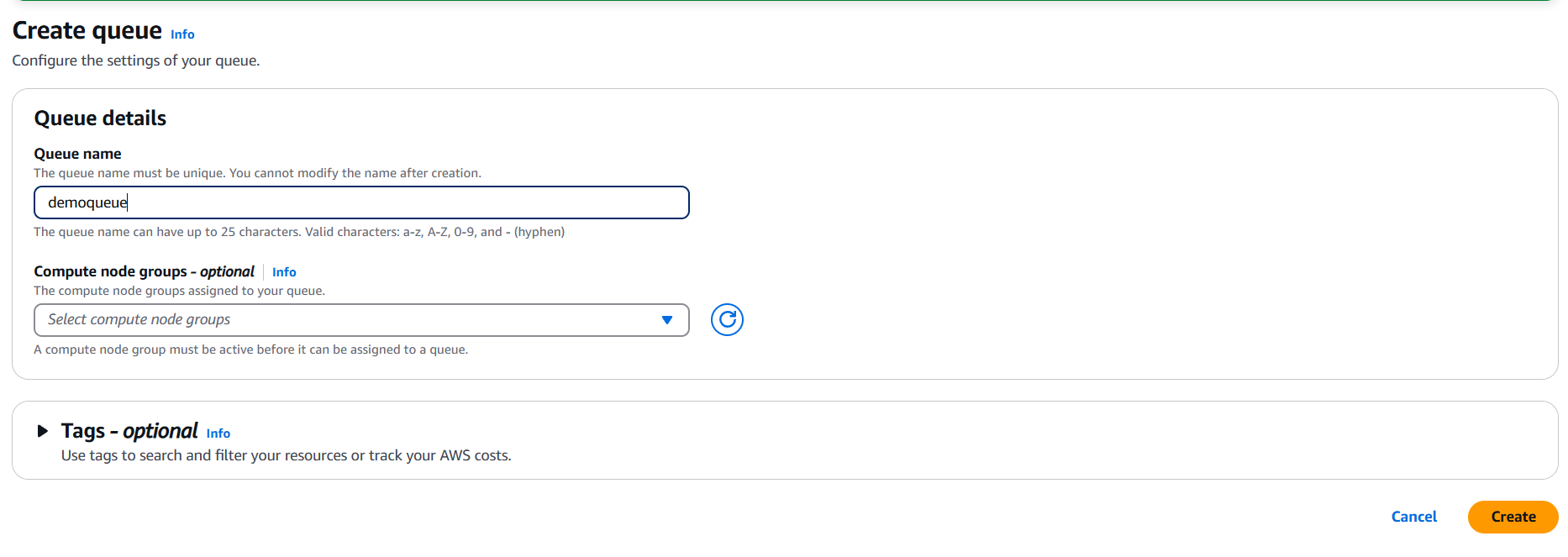
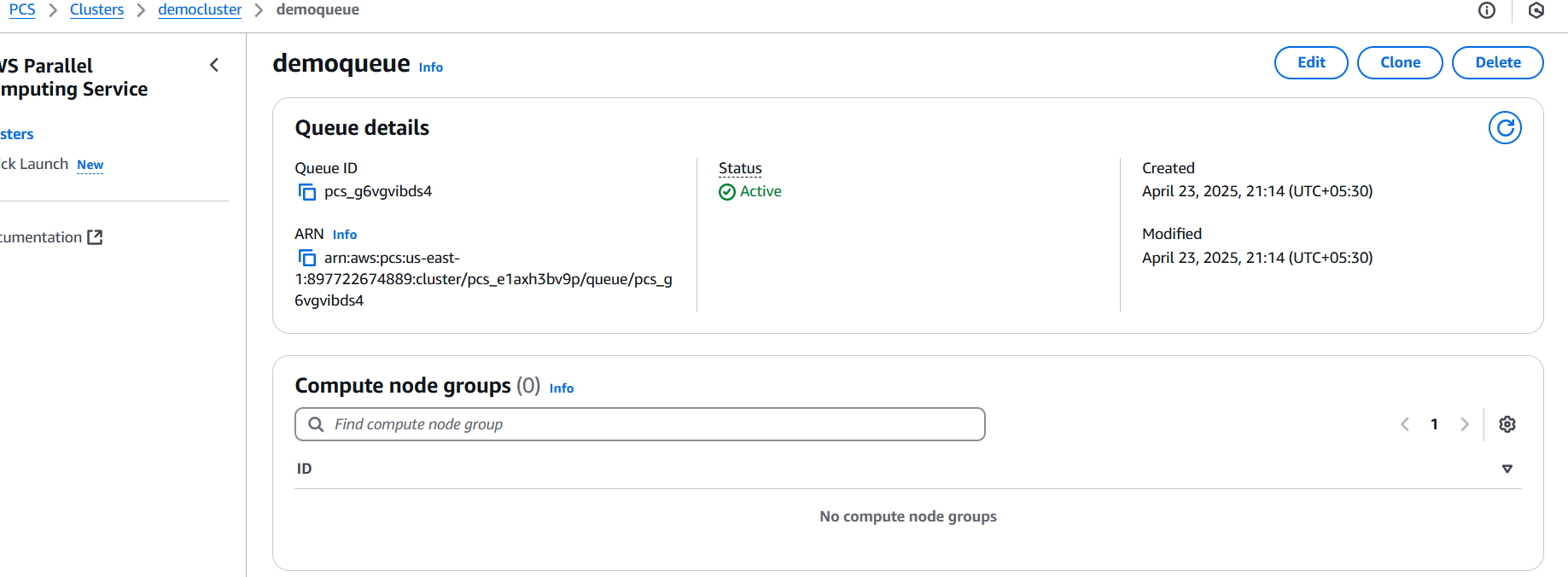
aws batch submit-job \
  --job-name my-job \
  --job-queue my-queue \
  --job-definition my-job-definition \
  --container-overrides 'command=["python", "script.py", "input1"]'
Repeat for different inputs using a script or AWS Step Functions.

Parallel computing doesn’t have to be complicated, expensive, or limited to large research labs and enterprise environments. With AWS, developers and teams of all sizes can harness powerful, scalable infrastructure to run parallel workloads with ease. Whether you’re using AWS ParallelCluster for tightly coupled HPC tasks, AWS Batch for embarrassingly parallel jobs, or integrating Lambda and Step Functions for lightweight, event-driven processes, the flexibility is unmatched. By carefully choosing the right tools and designing your architecture around your specific workload requirements, you can unlock significant performance improvements, reduce runtime, and optimize costs. The cloud takes care of the heavy lifting—provisioning, scaling, and managing the underlying resources—so you can focus on what really matters: solving problems, innovating, and accelerating your project timelines. As your computing needs grow, AWS grows with you, offering a powerful foundation for both experimentation and production-grade systems. Now that you’ve got a roadmap in hand, you’re well on your way to building your own parallel computing service in the cloud.

In today’s cloud-driven world, managing access to resources securely and efficiently is non-negotiable. As organizations scale, the need for robust identity management becomes more critical, especially when multiple users, teams, and external systems require access to cloud infrastructure. That’s where AWS IAM Identity Providers come into play. An IAM Identity Provider acts as a bridge between AWS and your external identity system, enabling you to grant secure, temporary access to AWS resources without managing individual IAM users or hardcoded credentials. Whether you’re using a corporate SSO solution like Okta or Azure AD, implementing federated access with SAML, or connecting a modern identity platform like Google or GitHub via OIDC, IAM Identity Providers allow seamless integration with AWS’s powerful access control features.
Traditionally, many developers relied on long-term IAM credentials, which, although functional, come with security risks and management overhead. IAM Identity Providers offer a better alternative—by allowing you to define trust relationships, create short-lived sessions, and offload authentication to systems you already use. Imagine letting a developer in your company log in to the AWS Console with their existing company email, or enabling GitHub Actions to assume a role in your AWS account securely during a deployment. That’s the power of federated access through IAM Identity Providers.
Setting up an identity provider in AWS involves creating a trust relationship between your AWS account and your chosen external identity system. You then define IAM roles that specify who can assume them and what actions they can perform once authenticated. Depending on the provider type—SAML 2.0 for enterprise-grade federated access or OIDC (OpenID Connect) for modern, web-based identity platforms—the configuration process varies slightly, but the concept remains the same: delegate authentication, and use IAM to control authorization.
In this blog post, we’ll break down exactly how IAM Identity Providers work, when to use SAML vs. OIDC, and walk you through real-world setup scenarios—from enabling SSO for your team to securing automation with GitHub Actions. We’ll also cover common pitfalls, best practices, and how to debug issues when they arise. By the end, you’ll have a clear understanding of how to harness IAM Identity Providers to simplify access management in your AWS environment, reduce security risk, and align your cloud access policies with your organization’s identity strategy.

Used for enterprise federated access (e.g., Okta, ADFS, Azure AD)
Used for modern identity providers like Google, Auth0, or GitHub Actions.
OktaProvider)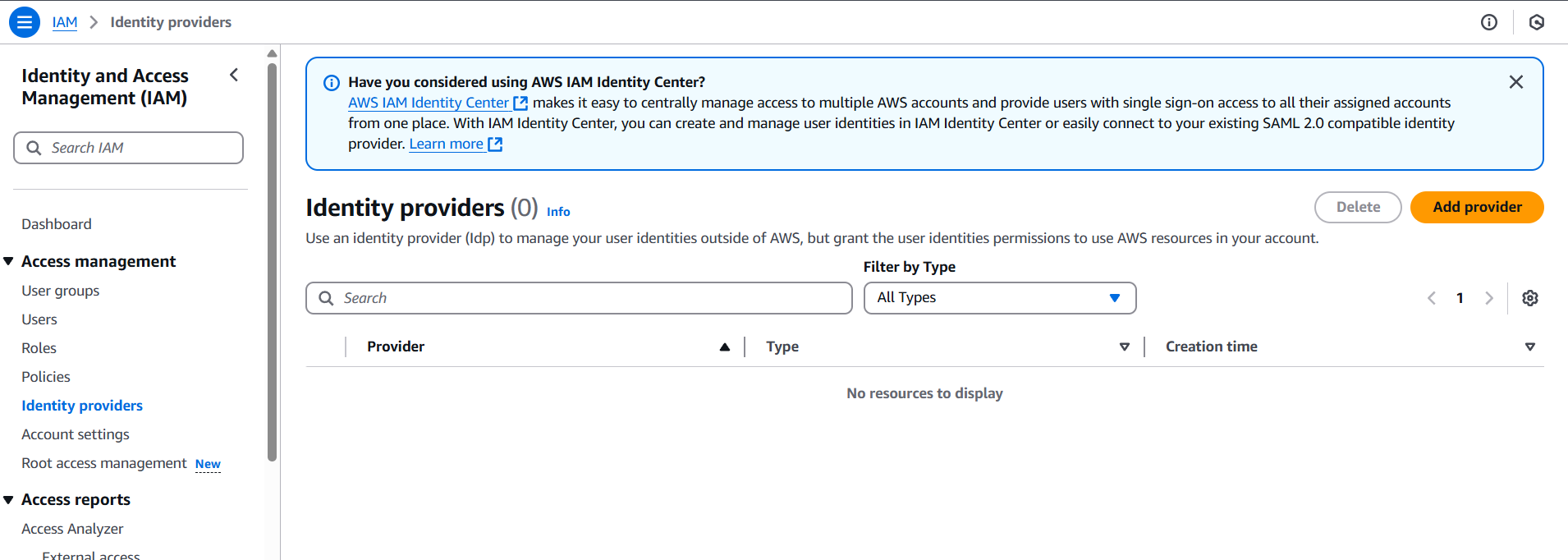
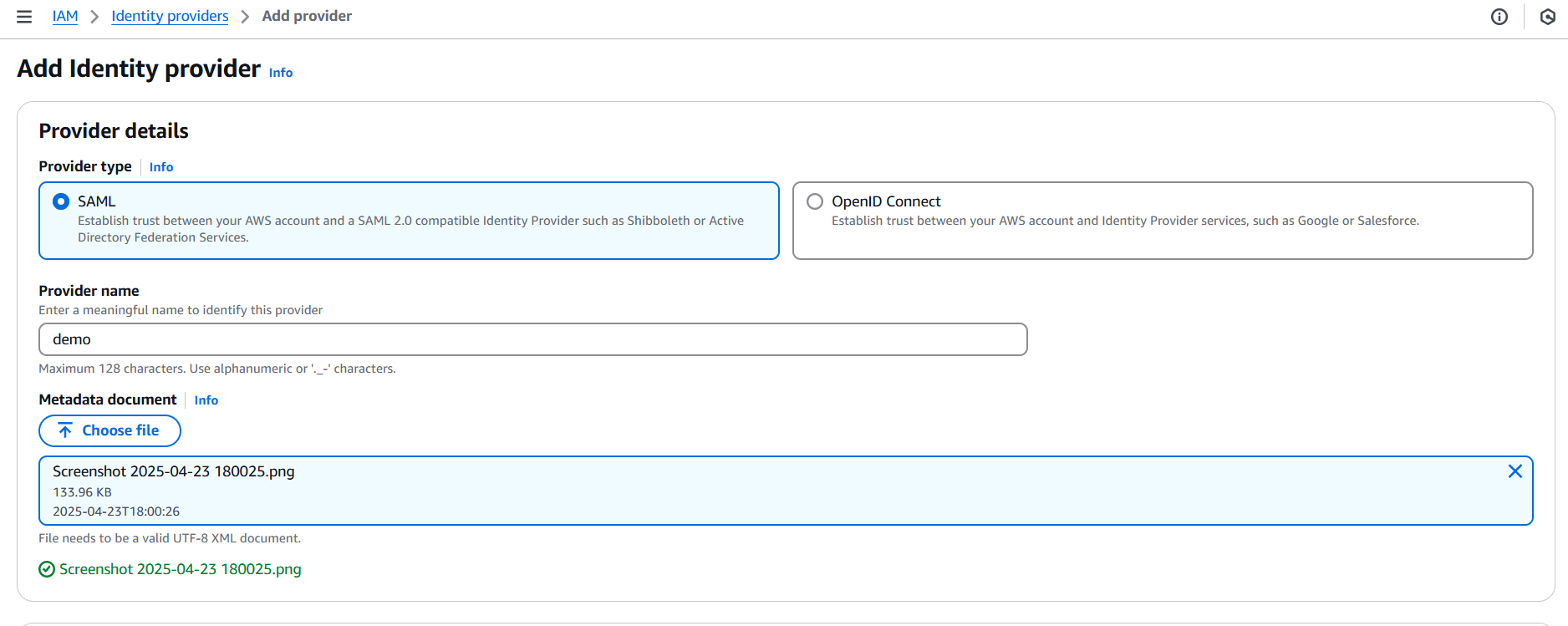
https://accounts.google.com)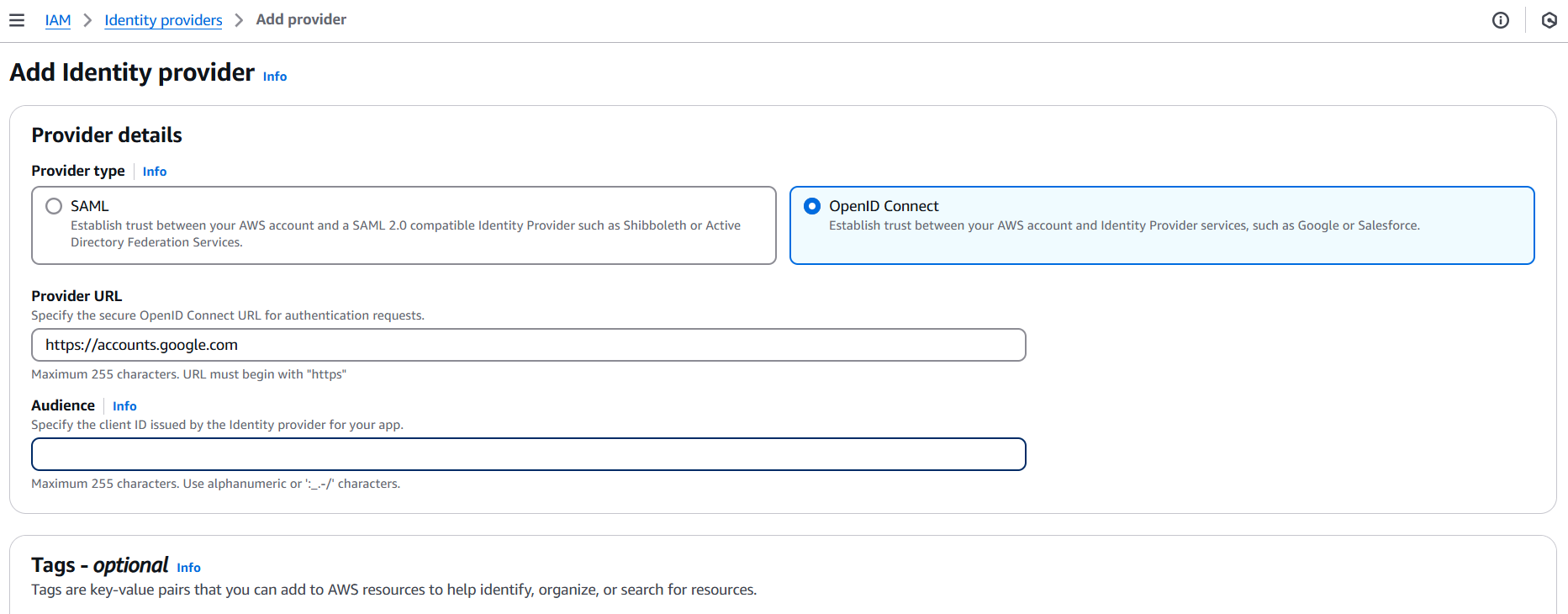
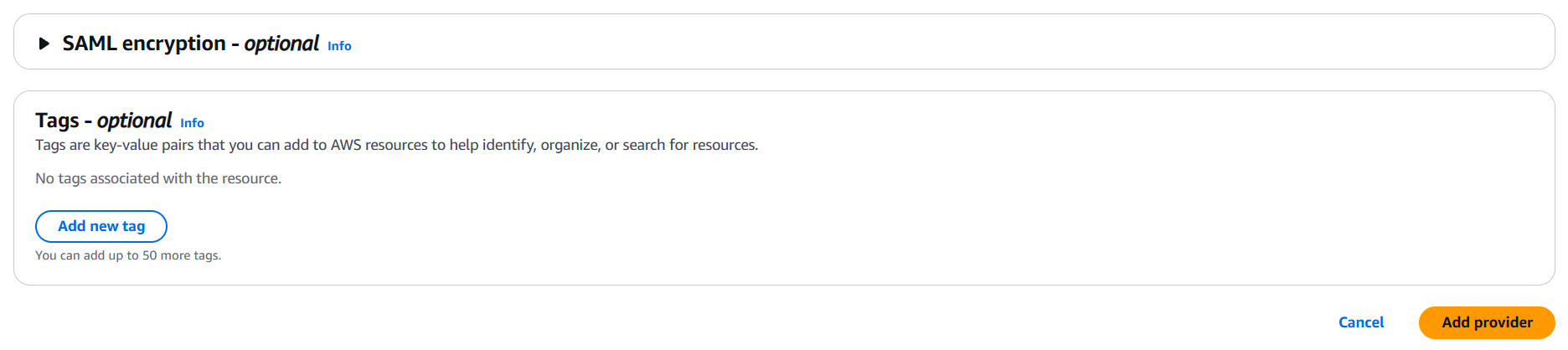
AmazonS3ReadOnlyAccess)FederatedUserRead only)
In a world where secure, scalable, and flexible access control is critical, IAM Identity Providers in AWS offer a modern and efficient way to manage user authentication and authorization. By integrating external identity systems—whether enterprise-grade SAML providers or modern OIDC platforms—you can eliminate the need for long-term credentials, streamline user access, and enforce fine-grained permissions with IAM roles. This approach not only boosts your security posture but also simplifies access management across development teams, CI/CD pipelines, and third-party services. Whether you’re enabling SSO for your workforce or securing automated deployments, leveraging IAM Identity Providers gives you the best of both worlds: centralized identity management and AWS-native security controls. As you move forward, remember to align your configurations with best practices, audit roles and permissions regularly, and keep learning—because in the cloud, identity is the new perimeter.

Setting up authentication for a web application is essential for protecting user data and controlling access. Amazon Cognito, a fully managed AWS service, simplifies this by offering user authentication, authorization, and user management capabilities for web and mobile apps. It supports user sign-up and sign-in, as well as integration with social identity providers like Google, Facebook, and Apple, or SAML-based identity providers for enterprise use. To begin, the first step is to create a Cognito User Pool. This acts as a user directory that securely handles user registration and login. Within the AWS Management Console, create a new user pool and configure it based on your app’s requirements, such as allowing users to sign up with an email or username. You can set password strength policies, enable Multi-Factor Authentication (MFA), and select required user attributes like name or phone number.
After creating the user pool, the next step is to create an App Client, which allows your web application to interact with the user pool. For front-end web applications, it’s important to disable the App Client secret, since secrets cannot be securely stored in the browser. Once the App Client is created, you can optionally configure a domain name for Cognito’s Hosted UI, which provides prebuilt, customizable sign-in and sign-up pages. OAuth 2.0 settings, such as the allowed callback and logout URLs, need to be defined to ensure proper redirection during authentication.
For integrating Cognito with your app, one popular method is using AWS Amplify, which provides a straightforward JavaScript library to handle authentication flows. After installing Amplify via npm, you configure it with your region, User Pool ID, App Client ID, and domain settings. With that done, your app can now allow users to register, sign in, and sign out using simple function calls. Additionally, Amplify provides helper methods to check the authentication state and retrieve the current user session.
Testing the authentication flow involves running your app, triggering a sign-up or sign-in process, and verifying user credentials against your Cognito User Pool. With minimal configuration and powerful features, Cognito allows developers to add secure, scalable authentication in minutes, while offloading complex identity management to AWS. Whether you’re building a personal project, a SaaS product, or an enterprise portal, Cognito gives you the flexibility to authenticate users your way.

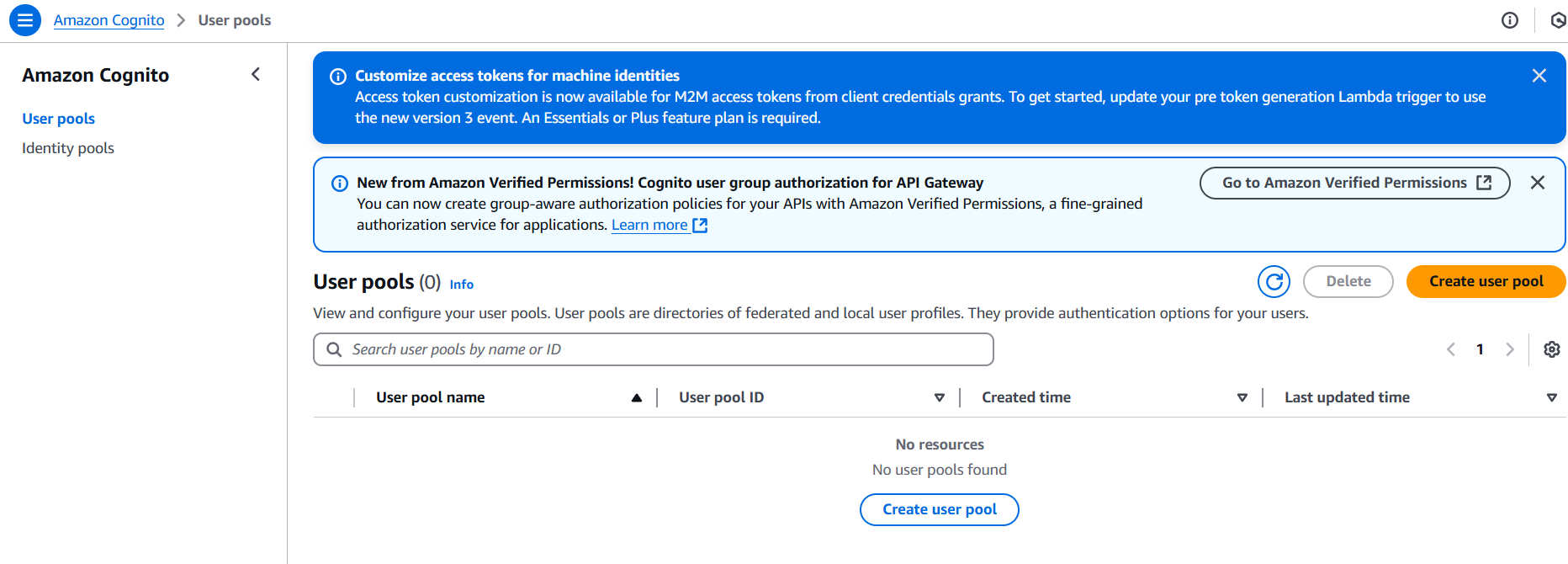
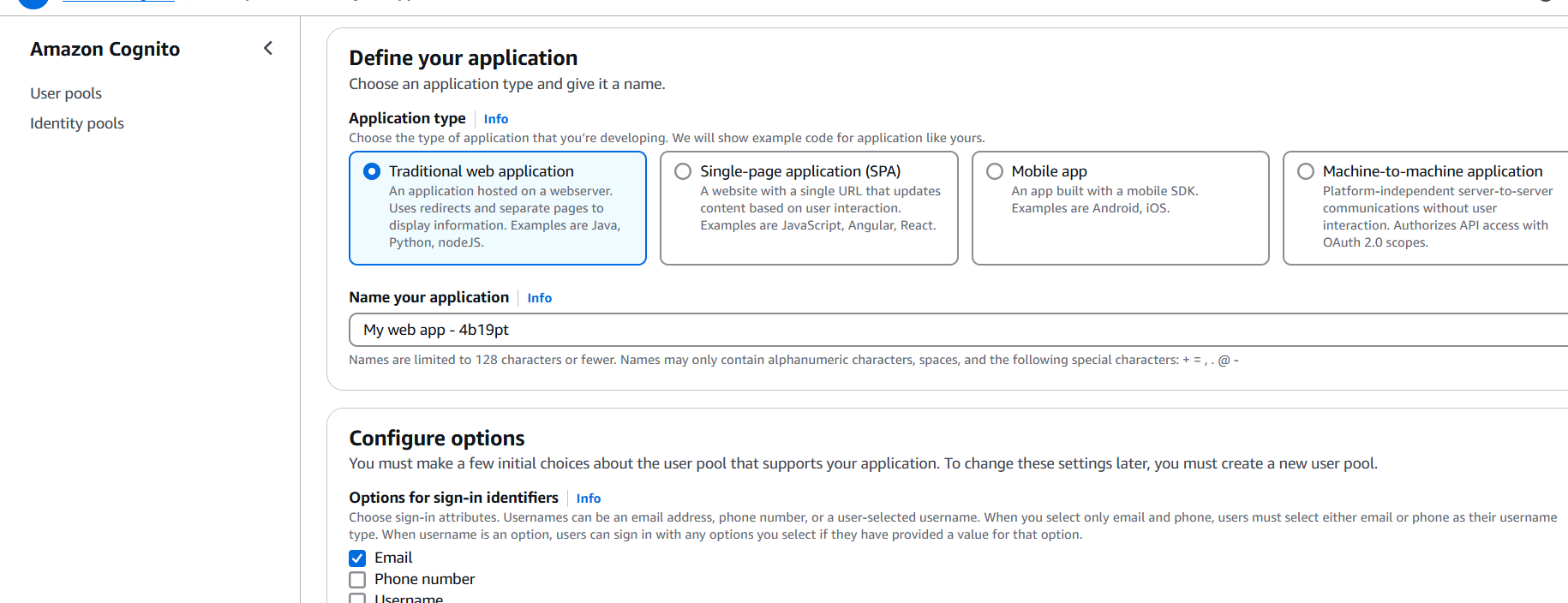
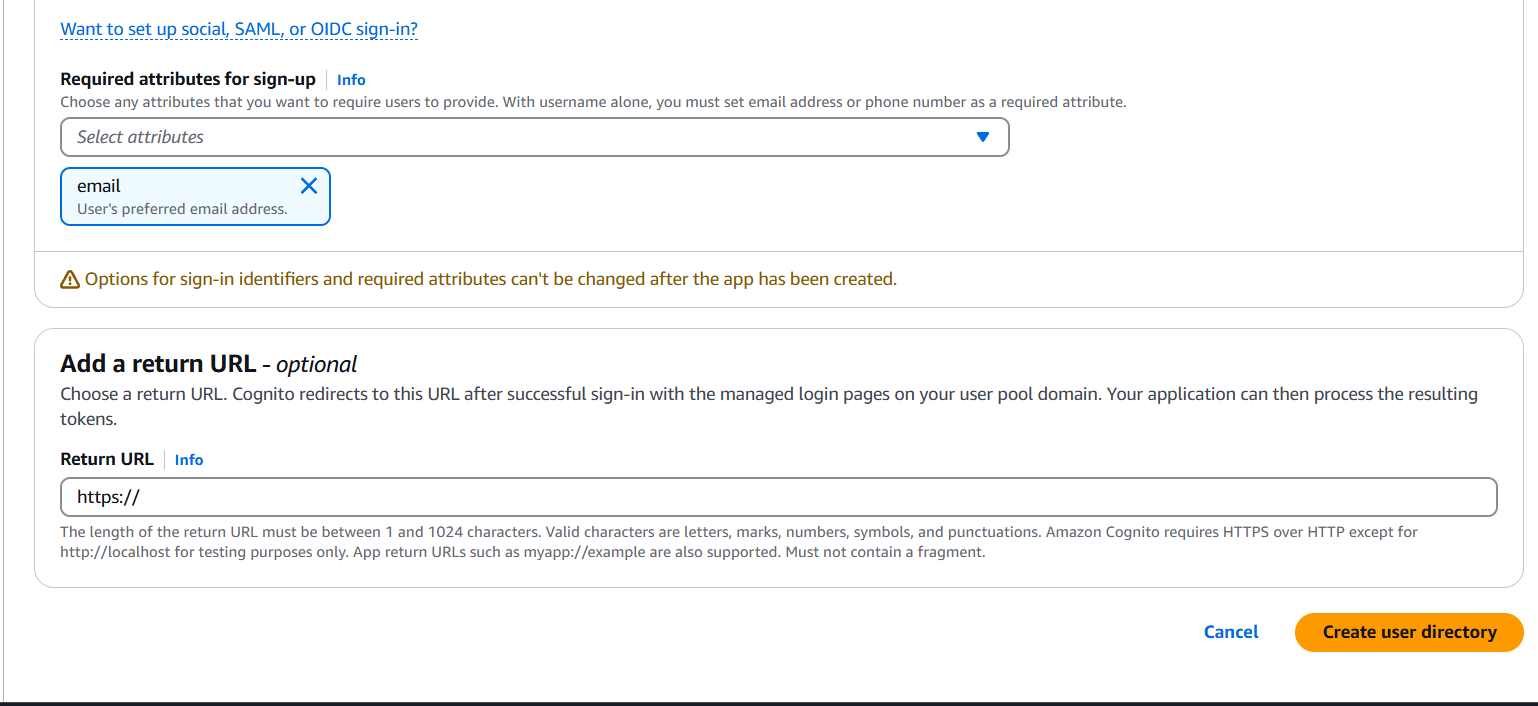
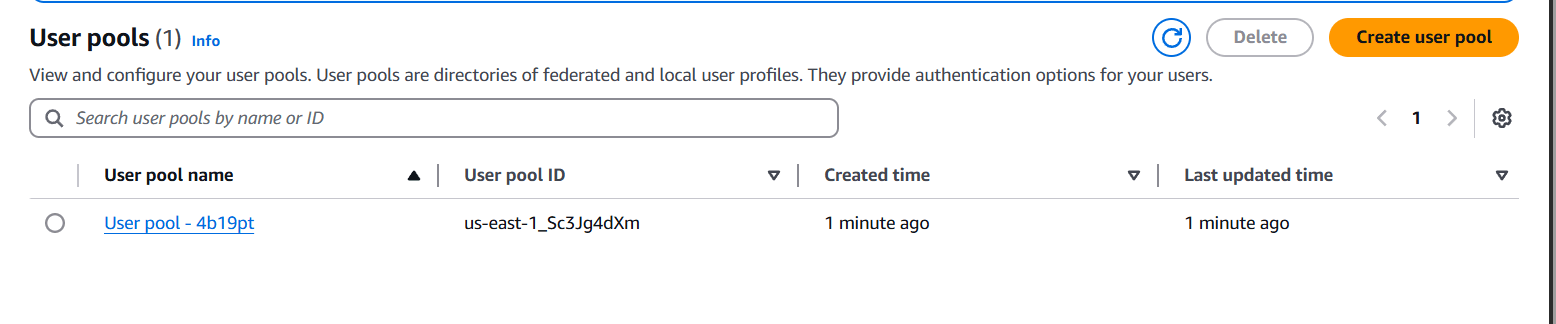
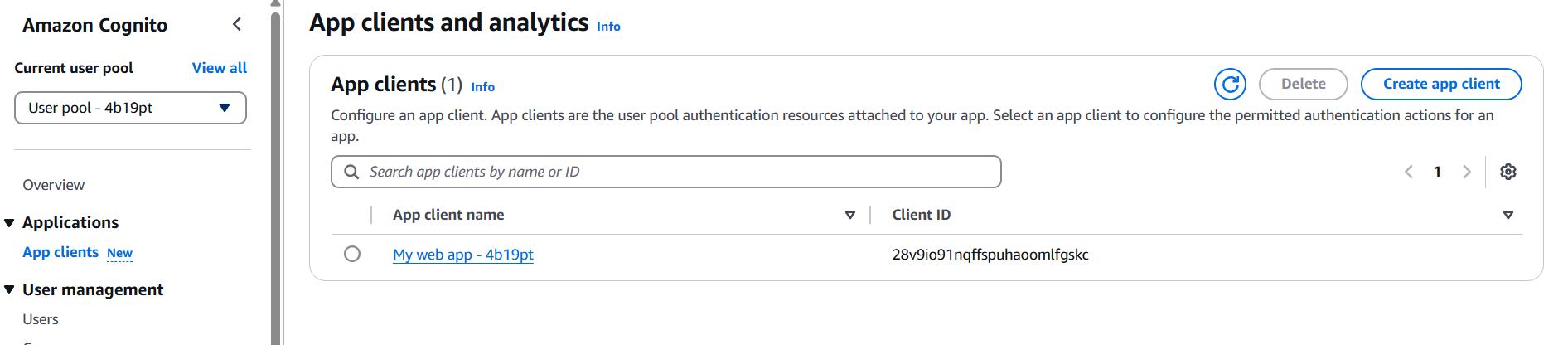
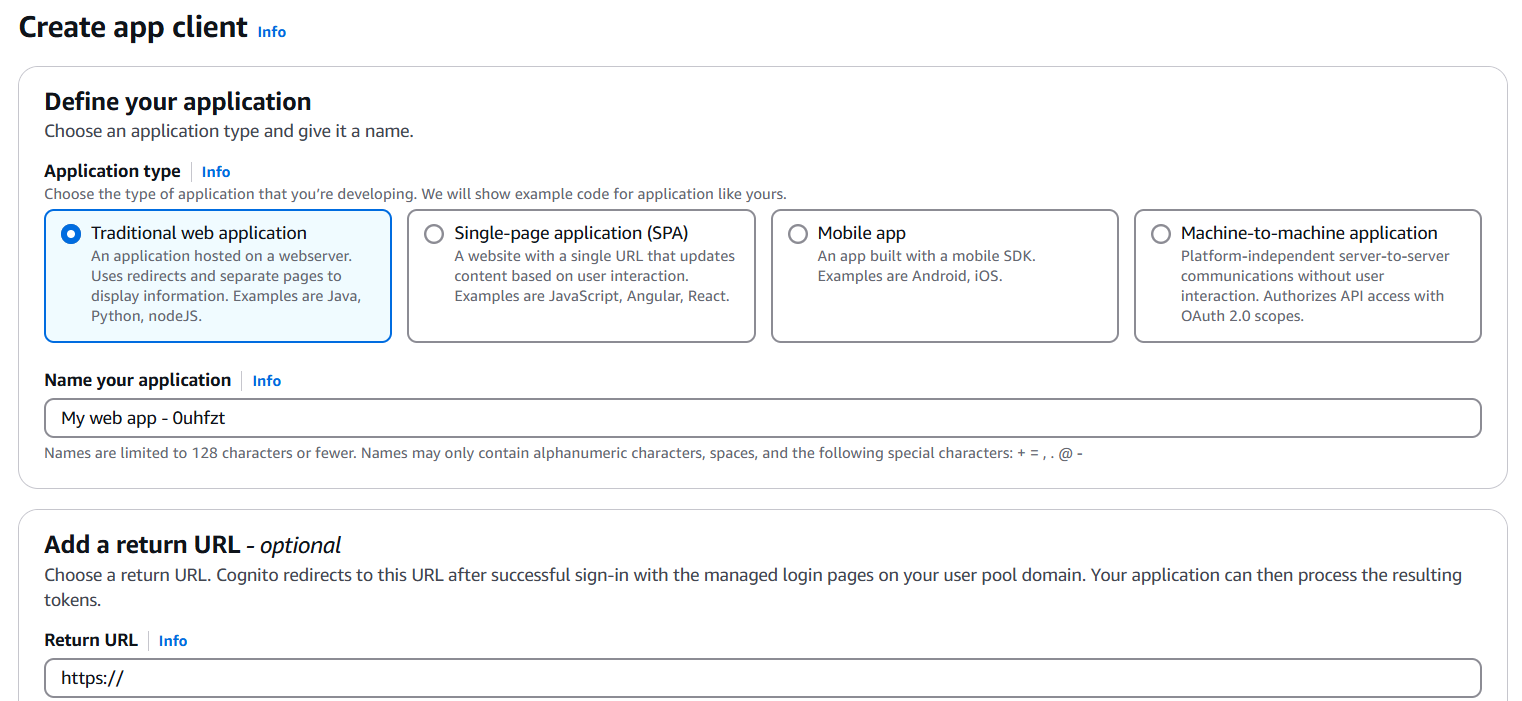
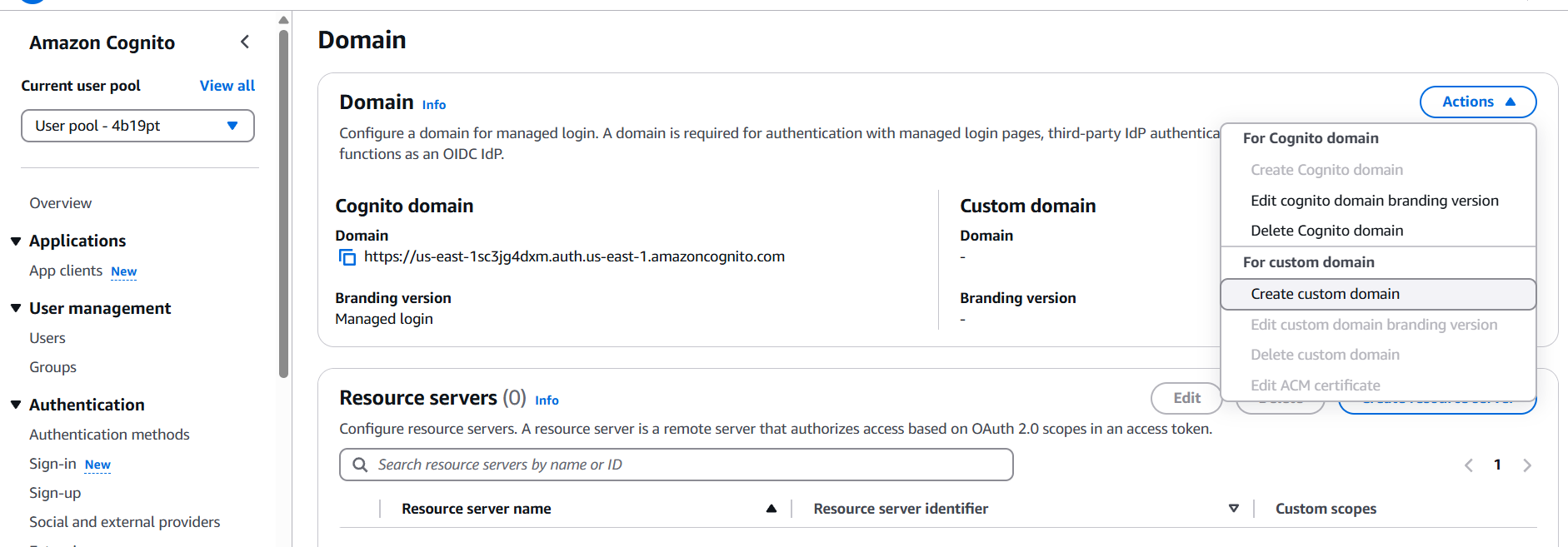
Still under App Integration:
http://localhost:3000/callback (for local testing)http://localhost:3000/Use Amazon Cognito Identity SDK or AWS Amplify. Here’s a simple example using AWS Amplify.
npm install aws-amplifyConfigure Amplify
// src/aws-exports.js (or in your code directly)
import { Amplify } from 'aws-amplify';

Amplify.configure({
  Auth: {
    region: 'YOUR_AWS_REGION',
    userPoolId: 'YOUR_USER_POOL_ID',
    userPoolWebClientId: 'YOUR_APP_CLIENT_ID',
    oauth: {
      domain: 'your-domain.auth.YOUR_REGION.amazoncognito.com',
      scope: ['email', 'openid'],
      redirectSignIn: 'http://localhost:3000/',
      redirectSignOut: 'http://localhost:3000/',
      responseType: 'code' // or 'token' for Implicit flow
    }
  }
});
Add Sign In / Sign Up Functionality
import { Auth } from 'aws-amplify';

// Sign up a new user
Auth.signUp({
  username: 'email@example.com',
  password: 'Password123!',
  attributes: { email: 'email@example.com' }
});

// Sign in
Auth.signIn('email@example.com', 'Password123!');

// Sign out
Auth.signOut();Auth.federatedSignIn().Auth.currentAuthenticatedUser() to check logged-in status.
In conclusion, Amazon Cognito provides a powerful and flexible solution for adding authentication to web applications with minimal overhead. By creating a User Pool, configuring an App Client, and integrating with tools like AWS Amplify, developers can implement secure sign-up, sign-in, and user management flows without building an authentication system from scratch. Whether you’re working on a simple frontend app or a large-scale cloud-native solution, Cognito scales with your needs while handling the complexities of identity and access control. With its support for industry standards, built-in security features, and seamless AWS integration, Cognito is a smart choice for modern application authentication.

In the world of cloud computing, performance optimization is key—especially when it comes to deploying large-scale or latency-sensitive applications. Whether you’re running high-performance computing (HPC) workloads, distributed databases, or gaming servers, the physical placement of your EC2 instances can have a significant impact on speed, reliability, and cost-efficiency. That’s where AWS Placement Groups come into play. Designed to give users more control over how instances are physically distributed across AWS’s data center infrastructure, Placement Groups allow you to tailor your architecture based on your performance, redundancy, and scalability requirements. AWS offers three main placement strategies: Cluster, Spread, and Partition. Each serves a unique purpose. The Cluster strategy packs instances close together within a single Availability Zone to reduce latency and improve throughput. The Spread strategy distributes instances across distinct underlying hardware, reducing the risk of simultaneous failures. Meanwhile, the Partition strategy is ideal for massive, fault-tolerant distributed systems by placing instances into logical partitions with isolation at the hardware level. While Placement Groups may seem like an advanced AWS feature, they’re surprisingly easy to set up once you understand the use cases and options. This guide will walk you through everything from choosing the right strategy to deploying your first group via the AWS Management Console, CLI, and Terraform. You’ll also learn about best practices, limitations, and common pitfalls to avoid. Whether you’re a cloud architect, DevOps engineer, or just starting your AWS journey, mastering Placement Groups can help you build systems that are faster, more resilient, and better aligned with your business needs. So, if you’re ready to squeeze more power out of your EC2 infrastructure, let’s dive in and explore how AWS Placement Groups can elevate your cloud strategy.

Cluster: Packs instances close together (low latency, high throughput).Partition: Spreads instances across partitions (good for large distributed systems like Hadoop).Spread: Places instances on distinct hardware (max 7 per AZ).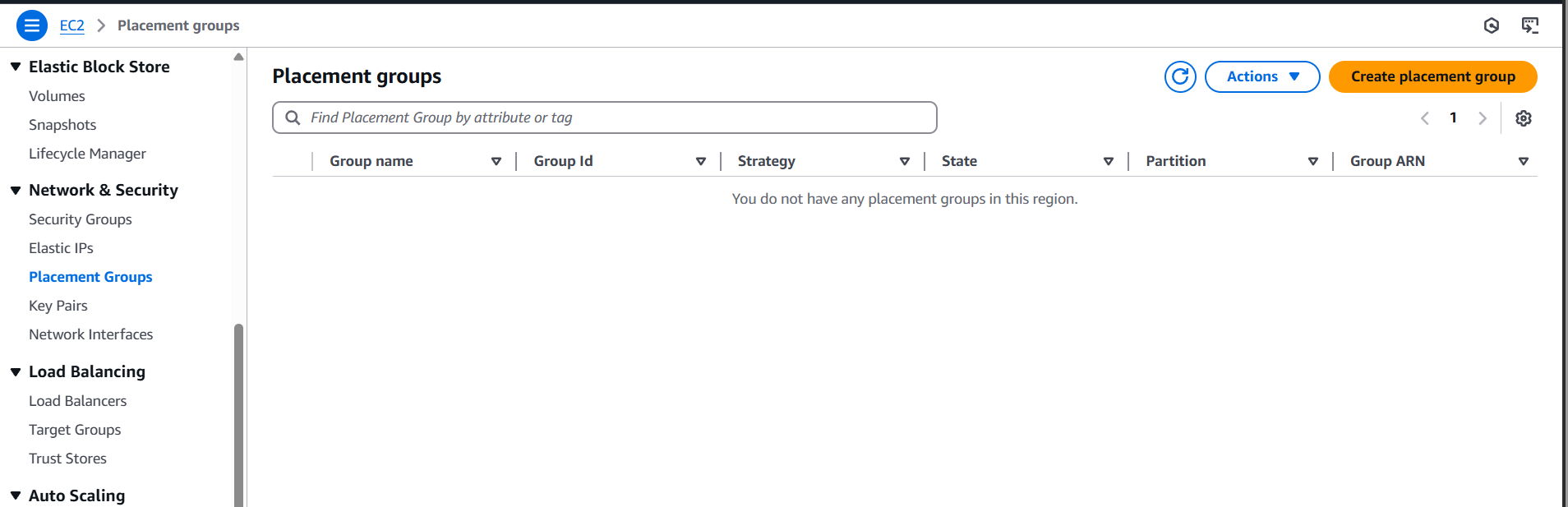
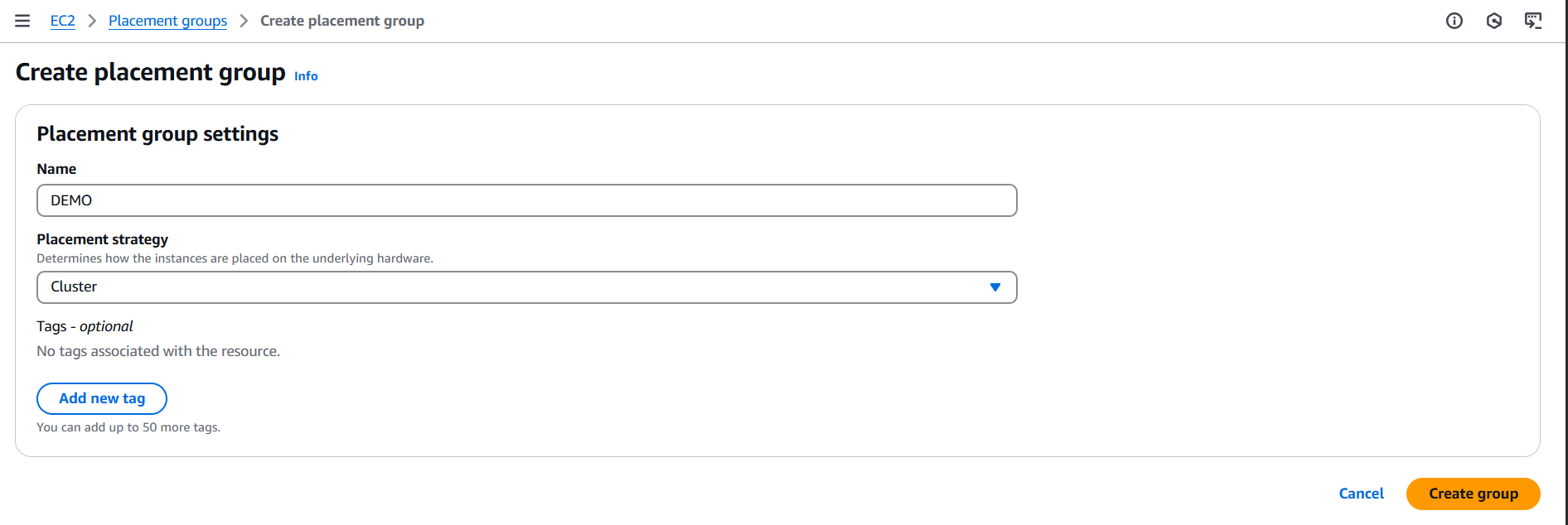
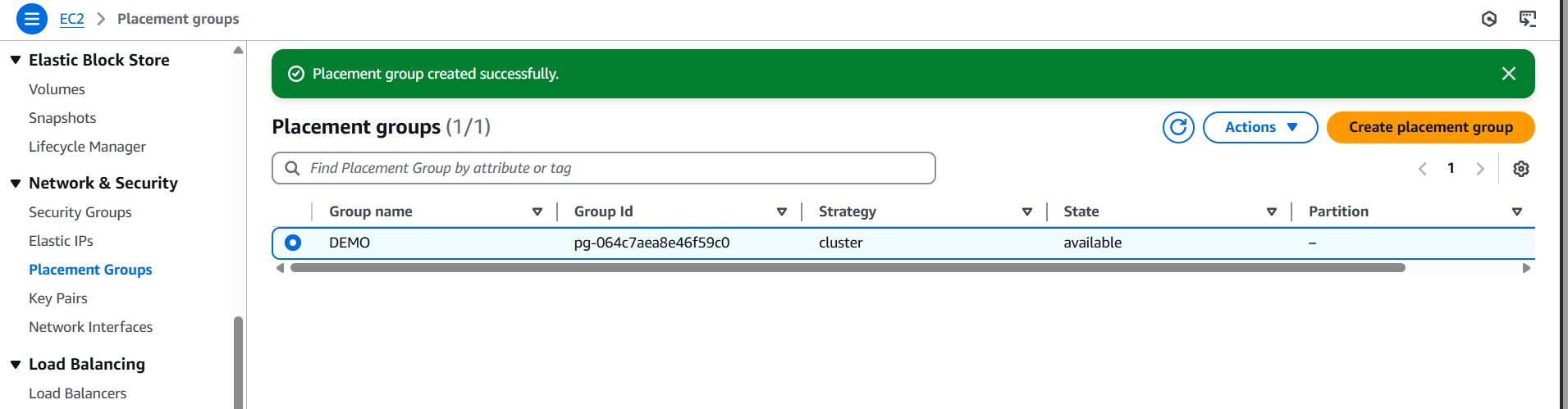
First, make sure the AWS CLI is installed and configured.
aws ec2 create-placement-group \
  --group-name my-placement-group \
  --strategy cluster
You can also use spread or partition for the --strategy.
aws ec2 describe-placement-groupsHere’s a quick Terraform snippet:
resource "aws_placement_group" "example" {
  name     = "example-pg"
  strategy = "cluster"
}
terraform init
terraform apply
In today’s fast-paced digital landscape, building performant and resilient cloud infrastructure isn’t just a bonus—it’s a necessity. AWS Placement Groups offer a powerful yet underutilized feature that enables you to fine-tune the physical deployment of your EC2 instances to match your workload requirements. Whether you need ultra-low latency for high-performance computing, high availability across hardware for mission-critical apps, or robust fault isolation for big data clusters, there’s a placement strategy designed for your use case. By understanding the differences between Cluster, Spread, and Partition strategies, you can make smarter decisions about how to structure your resources for performance and durability. As we’ve seen, setting up a placement group is straightforward via the AWS Management Console, CLI, or Terraform—making it accessible whether you’re managing infrastructure manually or using Infrastructure as Code. But more than just the setup, it’s important to integrate placement groups into your broader architectural thinking. Consider how instance types, AZ selection, scaling needs, and fault domains interact with your placement strategy. And always monitor and test performance to validate your design choices. In essence, placement groups are like a fine-tuning dial for your AWS EC2 environment. Use them wisely, and you can dramatically improve your app’s responsiveness, uptime, and fault tolerance. So whether you’re optimizing for throughput, resilience, or distribution, now you have the tools and knowledge to put AWS Placement Groups to work. Start experimenting, measure the results, and elevate your cloud architecture to the next level.

Amazon Web Services (AWS) is one of the most powerful and widely used cloud platforms, providing businesses and developers with a comprehensive suite of resources to build, deploy, and scale applications efficiently. When we talk about AWS resources, we’re referring to the individual components—ranging from compute and storage services to networking and security tools—that allow you to construct and manage a cloud infrastructure. AWS offers over 200 fully featured services, and each of these services can be considered a “resource” that helps meet specific needs. For example, Amazon EC2 (Elastic Compute Cloud) is a resource that allows you to run virtual machines on-demand, while Amazon S3 (Simple Storage Service) provides scalable, secure storage for data. Networking resources like VPC (Virtual Private Cloud) let you create isolated networks within the AWS cloud, and services like IAM (Identity and Access Management) enable you to control access to your resources. These resources not only help you scale your infrastructure but also provide flexible options for optimizing cost, performance, and security. By choosing the right resources and configuring them properly, businesses can create architectures that meet their specific requirements, whether they are hosting a small website or managing large-scale applications. AWS resources also integrate seamlessly, meaning you can combine services like databases (e.g., Amazon RDS) with compute and storage to create fully functional applications. The real strength of AWS resources lies in their flexibility and scalability—resources can be dynamically adjusted to meet growing demand, while also providing robust security features to protect your data and applications. Understanding AWS resources is essential for anyone using the platform, as it allows you to make informed decisions about what services to use, how to integrate them, and how to optimize them for both cost and performance. As AWS continues to innovate and introduce new services, mastering the available resources is crucial for staying ahead in the cloud computing space and building resilient, secure, and efficient applications.

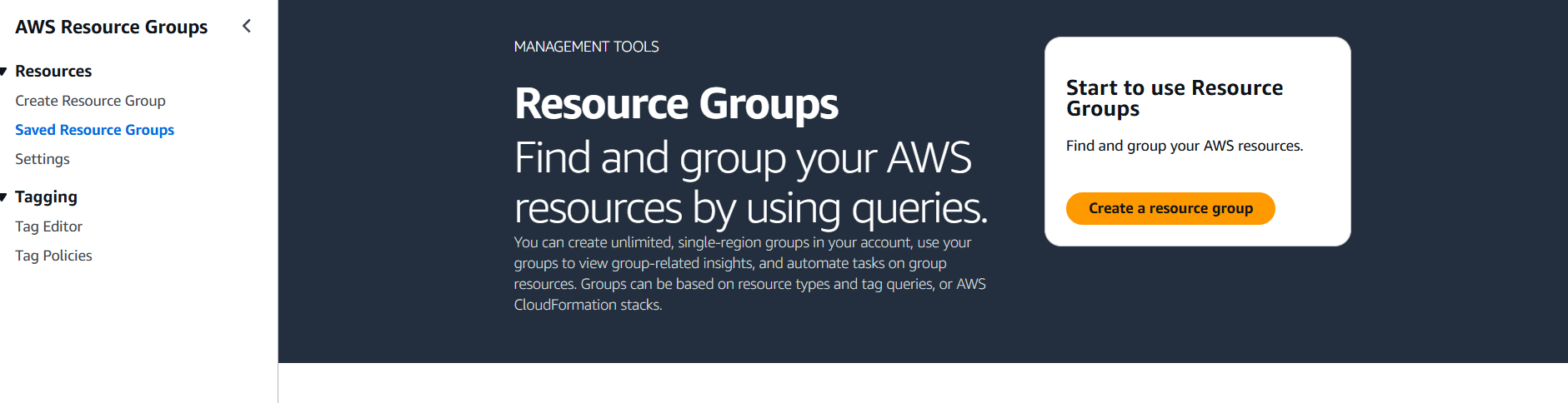
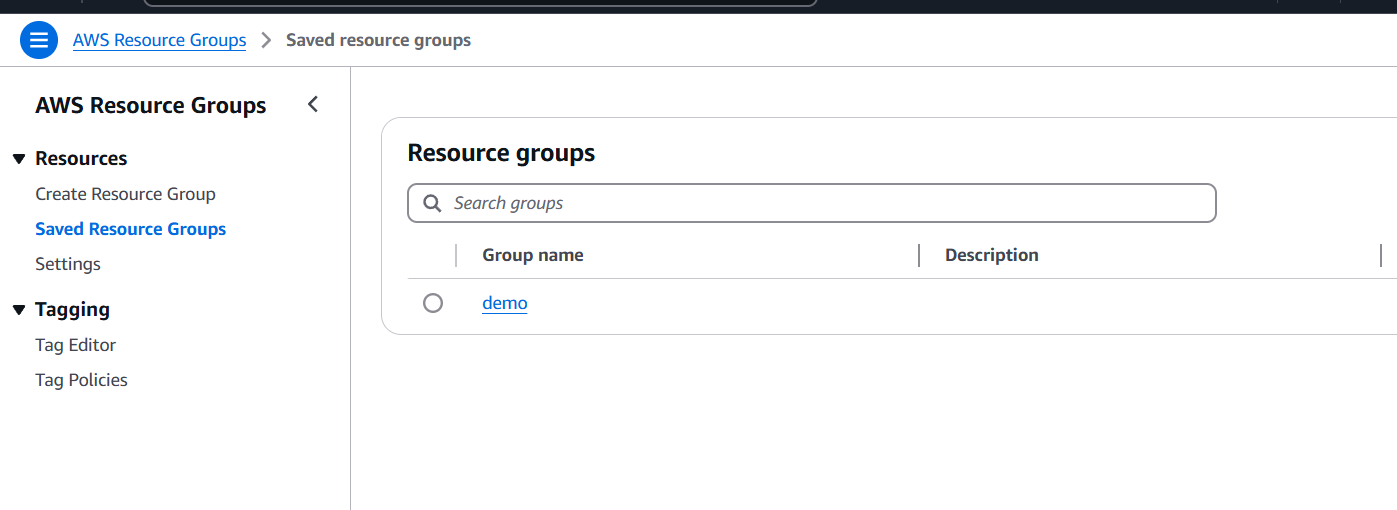
STEP 1: Navigate the AWS Resource group.
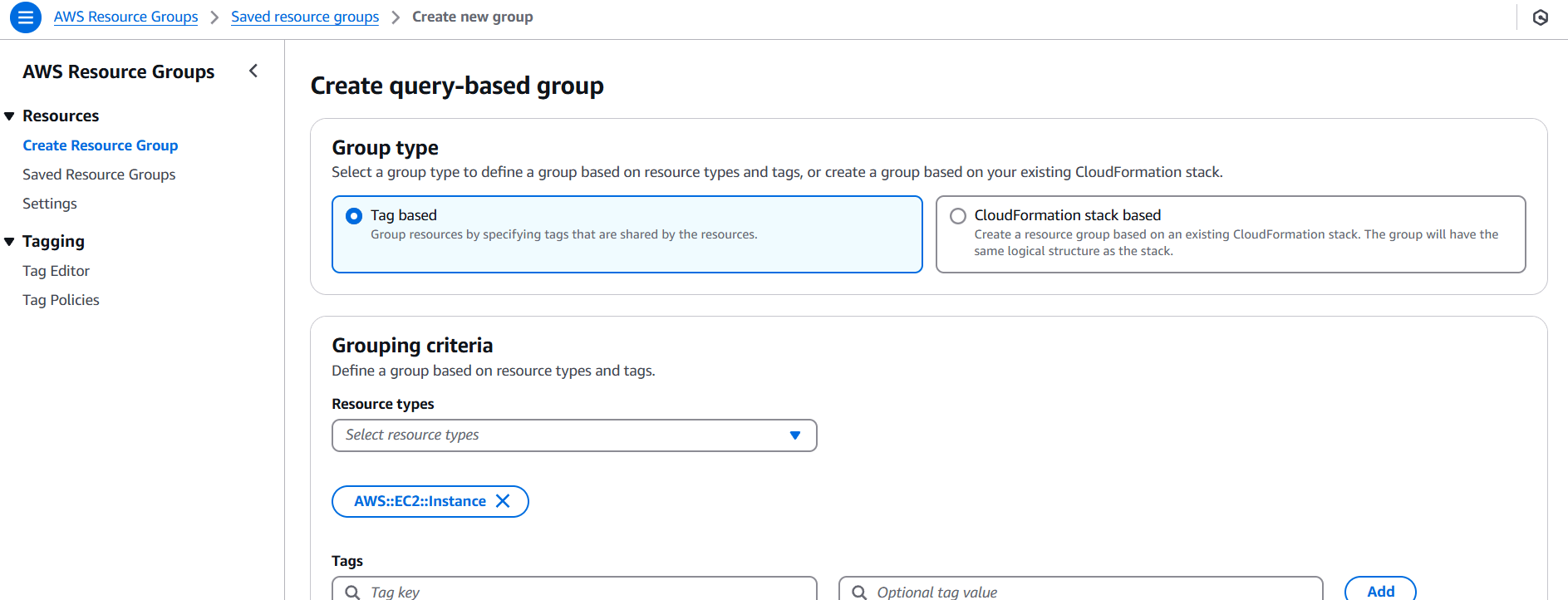
STEP 2: Select Group type and criteria.
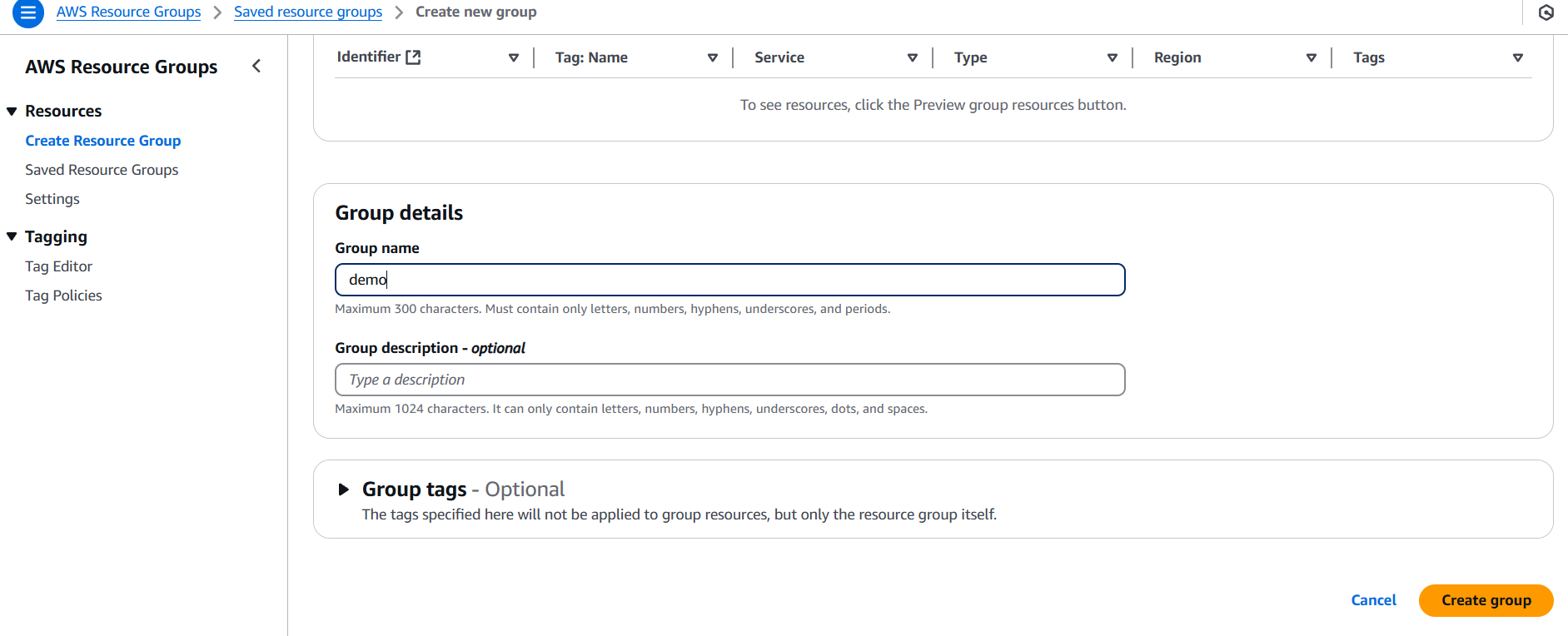
STEP 3: Enter the name and click on create.

In conclusion, AWS resources form the backbone of cloud infrastructure, providing businesses and developers with the tools needed to build scalable, flexible, and secure applications. From compute power to storage solutions, networking, and security, each AWS service is designed to address specific needs while offering flexibility and cost-effectiveness. By understanding and strategically leveraging these resources, organizations can optimize their cloud architectures to enhance performance, ensure security, and reduce operational costs. Whether you’re scaling up an existing application or building a new one from scratch, AWS resources offer the versatility to meet a wide range of use cases. As AWS continues to evolve and expand its service offerings, staying informed about the latest resources and best practices will help ensure you’re building cloud environments that are both innovative and resilient. Ultimately, mastering AWS resources is crucial for anyone looking to take full advantage of the capabilities and potential of the cloud.