




In modern cloud architectures, scalability, control, and security are crucial pillars of network design. As organizations grow their cloud presence, they often end up managing multiple Amazon Virtual Private Clouds (VPCs), VPNs, and even direct connections across accounts and regions. This increasing complexity can quickly turn network management into a tangled mess—especially when trying to maintain visibility, enforce routing rules, or implement fine-grained traffic control. This is where AWS Transit Gateway enters the picture as a powerful service that simplifies connectivity and centralizes network routing. But to truly unlock its full potential, especially in scenarios that demand granular control over how traffic flows between connected attachments, you need to understand and leverage the Transit Gateway Policy Table feature.
Transit Gateway Policy Tables are a relatively recent enhancement that allow you to apply route-based decisions based on source, destination, and type of attachment. Unlike the traditional route tables that direct traffic based on destination IP ranges alone, policy tables offer a more intent-based routing mechanism. Think of them as an intelligent traffic cop within the Transit Gateway—allowing or denying traffic between attachments based on defined rules. This means you can now say things like: “Allow traffic from VPC A to VPC B, but only if it’s HTTP traffic,” or “Deny access from a VPN connection to our internal development environment.” These capabilities give cloud architects and security teams the kind of fine-tuned control that’s essential for multi-account, multi-VPC environments operating at scale.
In this guide, we’ll walk through the process of creating a Transit Gateway Policy Table from scratch. Whether you’re a cloud engineer just getting familiar with AWS networking or an experienced architect looking to tighten access control between environments, this tutorial will break down the setup into manageable steps. We’ll start by reviewing the prerequisites you’ll need—like an existing Transit Gateway—and the IAM permissions required to create and manage policy tables. From there, we’ll go step-by-step through creating the table, associating it with attachments, and defining custom policy rules.
We’ll also explore common use cases for Transit Gateway Policy Tables, such as isolating test and production environments, enforcing zero-trust principles, and simplifying compliance in regulated environments. By the end of this guide, you’ll understand not only how to set up a policy table but also how to use it effectively as part of a broader network security and management strategy.
AWS has continued to evolve its network services to keep up with the demands of modern enterprises, and Transit Gateway Policy Tables are a testament to that progress. They offer a level of control and visibility that was previously only achievable through complex workarounds or third-party solutions. Now, with just a few clicks—or commands in the AWS CLI—you can implement policies that help safeguard your cloud infrastructure while keeping it flexible and scalable.
So whether you’re managing a simple two-VPC setup or orchestrating a full-scale cloud backbone for a global enterprise, understanding how to use Transit Gateway Policy Tables is a skill worth mastering. Let’s dive into the details and get started on building one.

ec2:CreateTransitGatewayPolicyTable, ec2:AssociateTransitGatewayPolicyTable, etc.).accept, deny)You can add multiple rules to customize traffic flow.
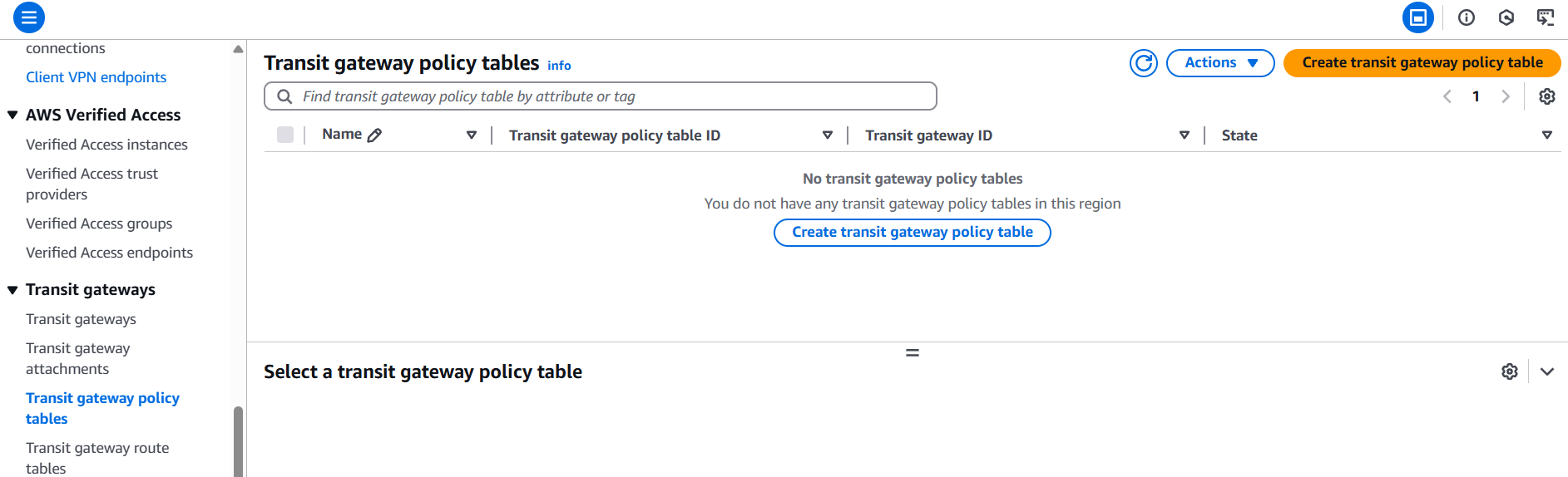
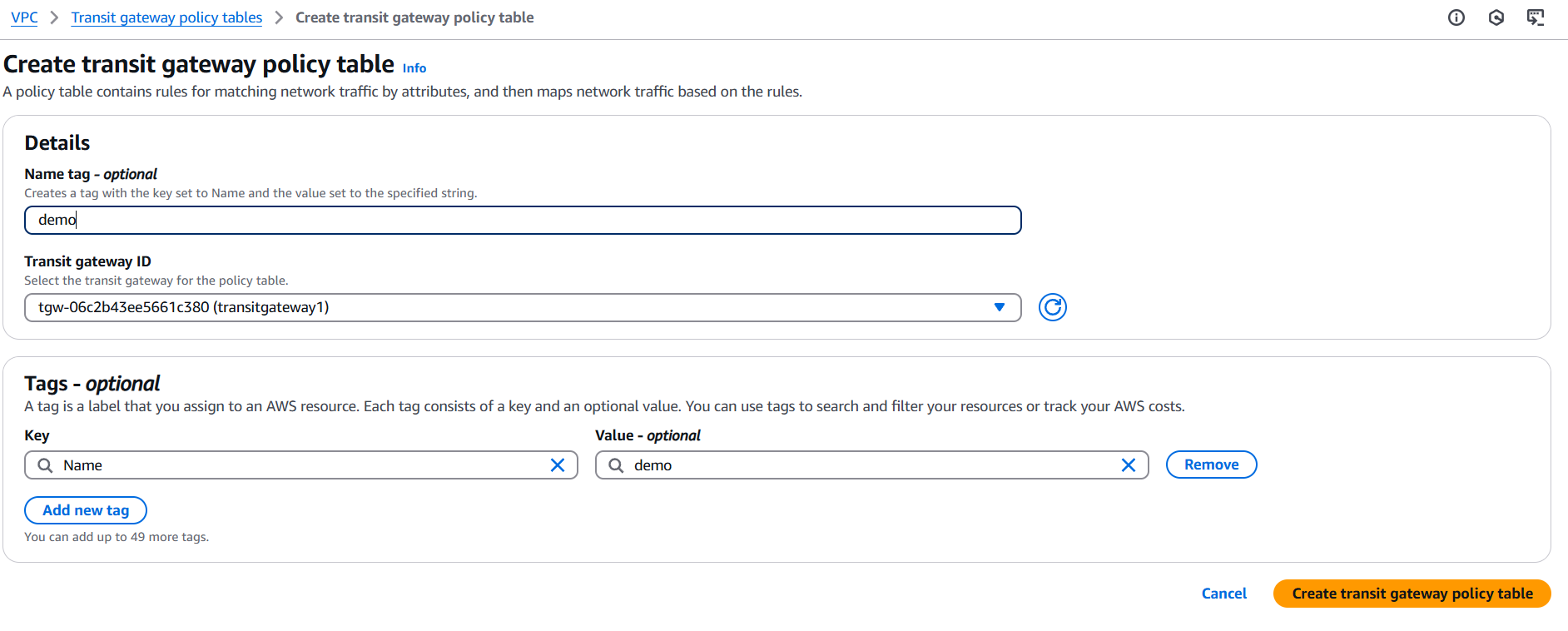
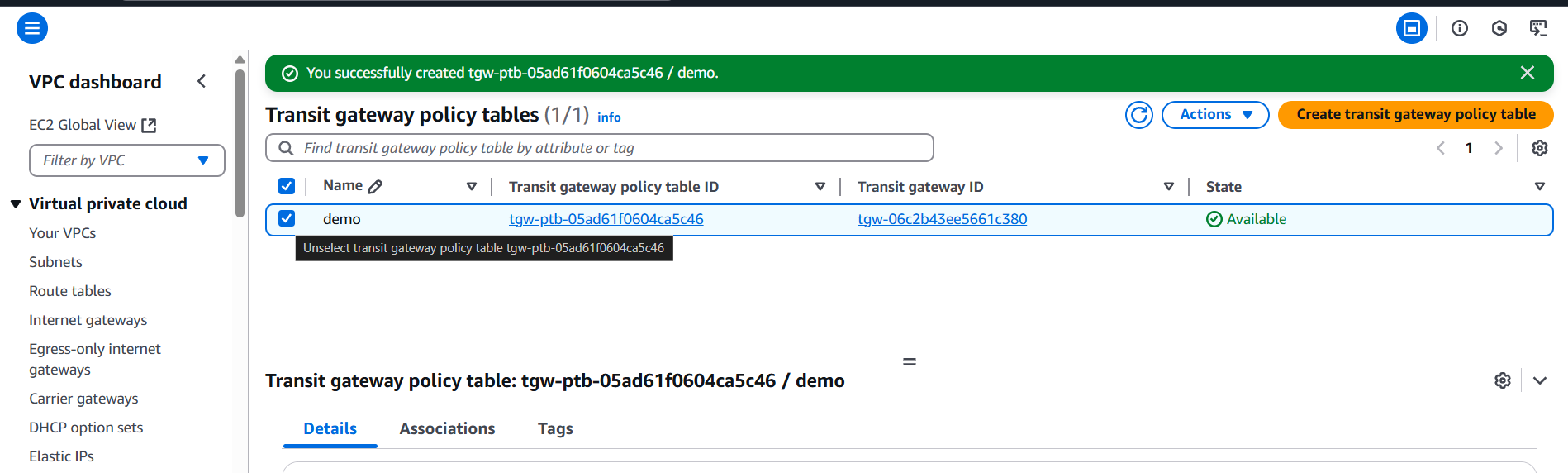
5. (Optional) Using AWS CLI
# Create a policy table
aws ec2 create-transit-gateway-policy-table \
  --transit-gateway-id tgw-1234567890abcdef0

# Associate a policy table
aws ec2 associate-transit-gateway-policy-table \
  --transit-gateway-policy-table-id tgw-ptb-abc123 \
  --transit-gateway-attachment-id tgw-attach-xyz456

# Add a policy rule
aws ec2 modify-transit-gateway-policy-table \
  --transit-gateway-policy-table-id tgw-ptb-abc123 \
  --add-policy-rule '{
    "SourceCidrBlock": "10.0.0.0/16",
    "DestinationCidrBlock": "192.168.1.0/24",
    "PolicyRuleAction": "accept"
}'Policy tables let you define rules based on source, destination, port, protocol, and attachment type, allowing precise control over traffic flows—something not possible with basic route tables.
You can manage traffic rules in one place across multiple VPCs, VPNs, and Direct Connect links, reducing complexity and making your infrastructure easier to audit and maintain.
By defining explicit “accept” or “deny” rules, you can enforce zero-trust networking models and reduce the attack surface between connected networks. This is especially useful in regulated environments.
Instead of manually managing routes based on CIDRs, policy tables allow logical routing based on intent, such as allowing “all traffic from Dev VPCs to reach the logging VPC” without needing complex subnet mappings.
In AWS Organizations or Control Tower environments, Transit Gateway Policy Tables simplify managing traffic between accounts by applying rules consistently—no need for per-account route table micromanagement.
You can easily isolate environments (e.g., test, dev, prod) and enforce communication policies between them. For example, allowing test to reach dev, but not prod.
Policies are easier to document and review compared to sprawling route tables. This helps during compliance audits or when proving access control to security teams.
Through the AWS Console or API, you can visually inspect and manage rules, making it easier to understand and troubleshoot network policies.
You can fully automate the creation and management of policy tables via Infrastructure as Code (IaC) tools like CloudFormation, Terraform, or the AWS CLI.
Reducing the need for custom network appliances, NAT configurations, or third-party firewalls improves network performance and reduces cost and operational overhead.

In today’s cloud-native and multi-account environments, managing traffic flow with precision is no longer a luxury—it’s a necessity. AWS Transit Gateway Policy Tables offer a powerful solution for organizations looking to scale securely and efficiently. By moving beyond the limitations of traditional route tables, policy tables allow you to define intent-driven, rule-based traffic control between VPCs, VPNs, and other network attachments—all from a centralized, manageable interface.
Through this guide, you’ve learned how to create a Transit Gateway Policy Table, associate it with attachments, and define granular rules that give you full control over network behavior. Whether you’re segmenting workloads, enforcing strict security boundaries, or simply aiming for better visibility and control across your cloud infrastructure, Transit Gateway Policy Tables provide the tools to do so with confidence.
As AWS continues to expand its networking features, mastering capabilities like policy tables positions your organization to adopt best practices, reduce risk, and streamline operations. By incorporating policy tables into your architecture, you’re not just building a network—you’re designing a secure, scalable, and future-ready cloud environment.
Now that you understand the concepts and steps involved, it’s time to apply them in your own AWS environment and take full advantage of what Transit Gateway Policy Tables have to offer.

Managing cloud infrastructure efficiently is a core responsibility for anyone working with AWS. As your environment grows with hundreds or even thousands of resources across multiple services, organizing and tracking those assets becomes a challenge. This is where AWS Tag Editor becomes an invaluable tool. AWS resources—whether they’re EC2 instances, S3 buckets, or Lambda functions—can be tagged with key-value pairs, allowing you to sort, search, and manage them more easily. These tags can represent anything: environments like “production” or “staging”, cost centers like “marketing” or “engineering”, or even project names and ownership. However, applying and managing these tags consistently across services and regions is often easier said than done.
The AWS Tag Editor offers a centralized way to view and manage tags across all your AWS resources. It eliminates the need to hop between services or regions to apply changes, helping ensure consistency and reducing human error. Especially in large organizations, inconsistent tagging can lead to issues with cost allocation, compliance, and security. AWS Tag Editor helps solve this by giving you a powerful interface to filter, select, and update resources at scale. Whether you’re tagging a few new EC2 instances or applying a policy across hundreds of resources globally, this tool makes the process faster and more reliable.
Another advantage of the AWS Tag Editor is its simplicity. You don’t need to write scripts or use the AWS CLI to make widespread changes. From the console, you can quickly search for resources based on regions, services, or existing tags, and then apply new ones or edit existing tags in bulk. This can save hours of work, especially in dynamic environments where resources are frequently spun up and torn down. The intuitive interface is especially useful for teams new to AWS or those without deep DevOps experience. It also supports governance efforts by making it easier to find untagged or incorrectly tagged resources before they become an issue.

In this blog post, we’ll walk you through exactly how to use the AWS Tag Editor, step by step. We’ll show you how to search for resources, apply and update tags, and share some best practices to help you stay organized. Whether you’re a developer trying to manage your workloads, a system administrator responsible for cost tracking, or a cloud architect aiming for clean infrastructure hygiene, mastering the Tag Editor will give you better control over your cloud environment. By the end, you’ll not only know how to use the tool effectively—you’ll also understand why proper tagging is essential to operating securely and efficiently in the cloud.
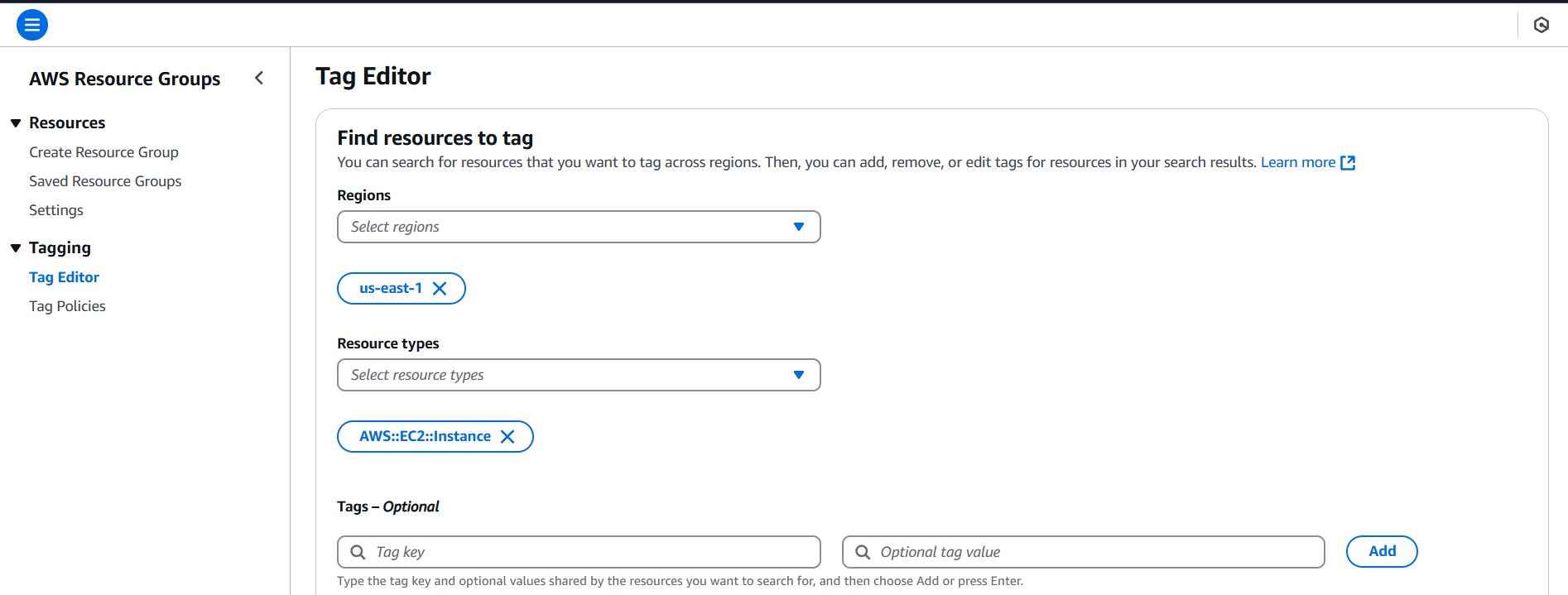
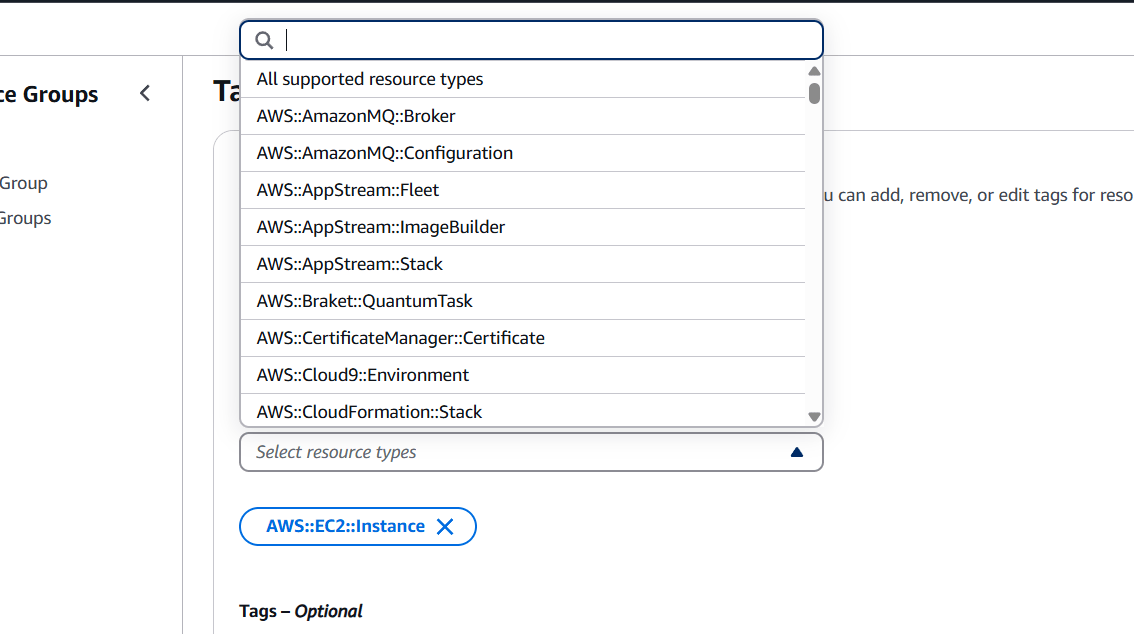
STEP 1: Navigate the AWS Resources group and click on tag editor.
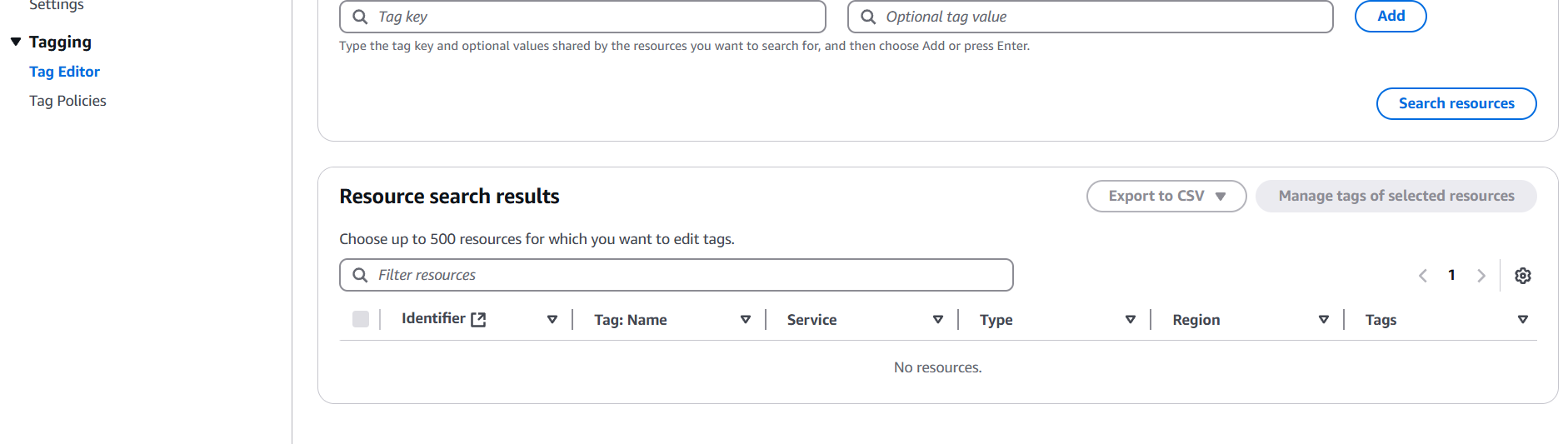
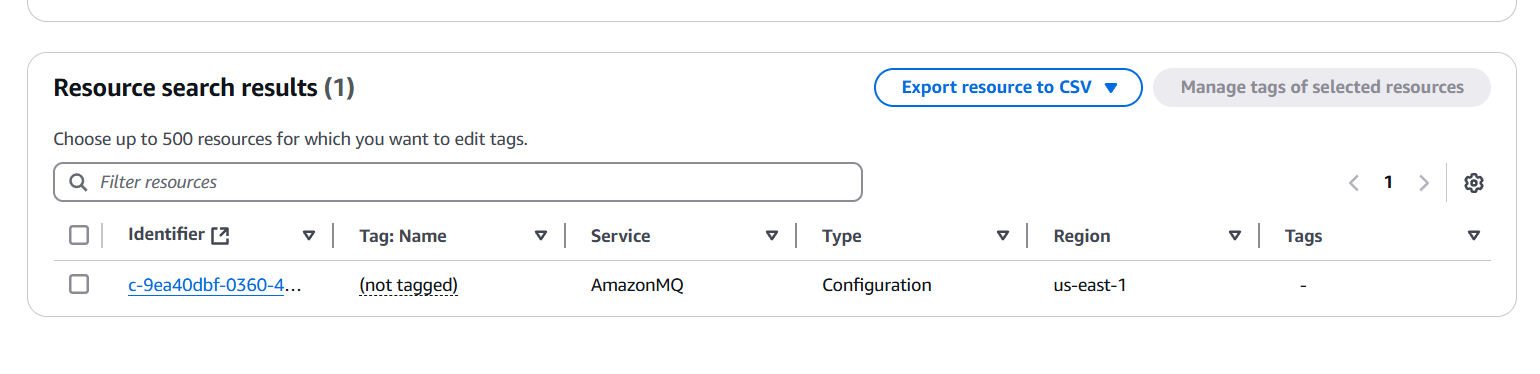
STEP 2: Click on search resources.
AWS Tag Editor allows you to manage tags across all AWS resources from a single interface, eliminating the need to navigate through individual service consoles. This centralized approach simplifies tagging and ensures consistency across your entire AWS environment.
The ability to apply, update, or remove tags in bulk can save significant time compared to manual tagging. Whether you need to update a few resources or manage thousands, the Tag Editor allows you to perform actions on multiple resources at once, improving efficiency.
AWS Tag Editor lets you search and filter resources based on tags, regions, and resource types. This capability makes it easy to discover untagged or incorrectly tagged resources, enabling better governance and compliance.
By using tags effectively, you can categorize resources by department, project, or function, which aids in accurate cost allocation and tracking. This allows for better cost management and identification of areas where you might be overspending.
Tags can help enforce security and compliance standards by making it easier to identify and manage resources that require special attention. For example, you can tag resources with specific compliance requirements and use the Tag Editor to ensure those resources are properly managed.
Instead of manually tagging resources one by one, the Tag Editor speeds up the process significantly. Bulk changes can be made within minutes, which is particularly beneficial in dynamic environments where resources are constantly being created and deleted.
Unlike other AWS automation tools that require scripting or use of the AWS CLI, AWS Tag Editor provides a straightforward graphical user interface (GUI) that allows you to manage tags without needing to write code. This makes it more accessible for users who may not be familiar with AWS scripting.
Using tags in AWS can improve reporting and auditing processes. With AWS Tag Editor, you can easily track resources that are grouped by specific tags, making it easier to generate meaningful reports for different stakeholders within your organization.
You can manage resources across multiple regions and services with AWS Tag Editor, ensuring that you have consistent tagging practices across your entire AWS infrastructure.
AWS Tag Editor integrates seamlessly with AWS Resource Groups, enabling you to group resources by tags and manage them in a logical, organized way. This improves your ability to maintain a structured cloud environment.

In conclusion, the AWS Tag Editor is a simple yet powerful tool that can dramatically improve how you manage, organize, and govern your AWS resources. With just a few clicks, you can apply consistent tags across regions and services, making it easier to track usage, allocate costs, maintain security standards, and streamline operations. Whether you’re working in a small startup or managing a large-scale enterprise environment, proper tagging is essential—and AWS Tag Editor makes that process more efficient and less error-prone. By incorporating it into your workflow, you’ll not only gain better visibility into your infrastructure but also set the foundation for scalable, well-managed cloud operations. Now that you know how to use the Tag Editor, take the next step and start tagging smarter today.

Creating an application in today’s digital landscape involves not just writing code, but also selecting the right platform to deploy, manage, and scale that application. Amazon Web Services (AWS), being one of the most powerful cloud computing platforms available today, offers developers a wide range of tools and services to build and host applications of any size and complexity. Whether you’re building a simple website, a mobile backend, or a scalable web application with a global user base, AWS provides the infrastructure, scalability, and flexibility needed to bring your project to life.
For beginners and professionals alike, AWS might seem a bit overwhelming at first due to its sheer range of services — from EC2 and Lambda to RDS, S3, DynamoDB, and beyond. But once you understand the core components and how they interact, creating and deploying an application on AWS becomes a smooth and powerful process. The journey typically starts with identifying your application’s needs: What kind of application are you building? Is it a web app, mobile backend, API service, or something else? Based on your answer, you choose the appropriate AWS services to match.
For a traditional web application, you might choose Amazon EC2 for hosting your server, Amazon RDS for relational databases, and S3 for storing assets like images or videos. If you prefer a serverless approach, AWS Lambda lets you run your code without managing servers, while services like Amazon API Gateway, DynamoDB, and S3 handle the rest. Either way, AWS provides a customizable environment that supports your app’s structure, logic, and data flow.
The process of creating an app on AWS usually involves setting up a development environment, choosing your architecture, configuring AWS resources, deploying your code, and finally managing and monitoring your app’s performance. You’ll use tools like the AWS Management Console, AWS CLI (Command Line Interface), and SDKs for various programming languages. Security is also a major part of building apps on AWS — using Identity and Access Management (IAM), setting up proper permissions, and configuring secure access points is essential to protect your app and user data.
One of the biggest advantages of using AWS is scalability. Whether you’re launching your app for 10 users or 10 million, AWS can automatically scale your infrastructure up or down based on real-time demand. You also get access to powerful services like Amazon CloudFront (a CDN for global delivery), AWS Elastic Beanstalk (for simplified app deployment), and Amazon CloudWatch (for monitoring and logs). These tools reduce the complexity of maintaining infrastructure, allowing developers to focus more on building features and improving user experience.

This introduction is just the beginning. Over the course of this guide, you’ll learn how to navigate AWS’s ecosystem, understand the most important services for app development, and follow a step-by-step walkthrough for launching your own application in the cloud. Whether you’re a solo developer or working on a team, AWS opens the door to modern, resilient, and scalable applications with global reach. It’s time to take your app idea from concept to cloud — and AWS is the perfect platform to help you do it.
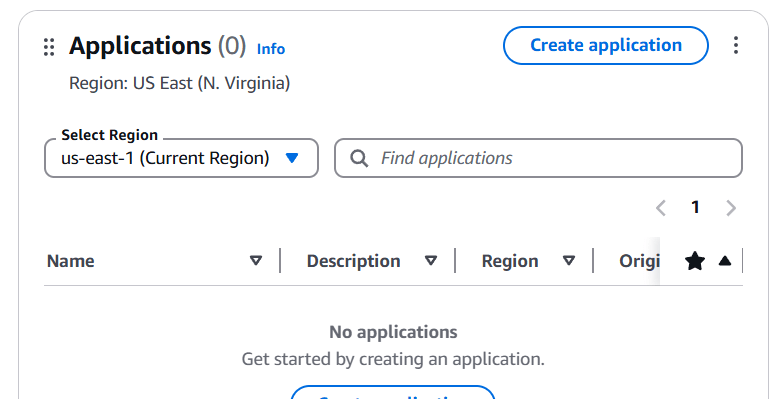
STEP 1: Go to AWS Console and click on Create application.
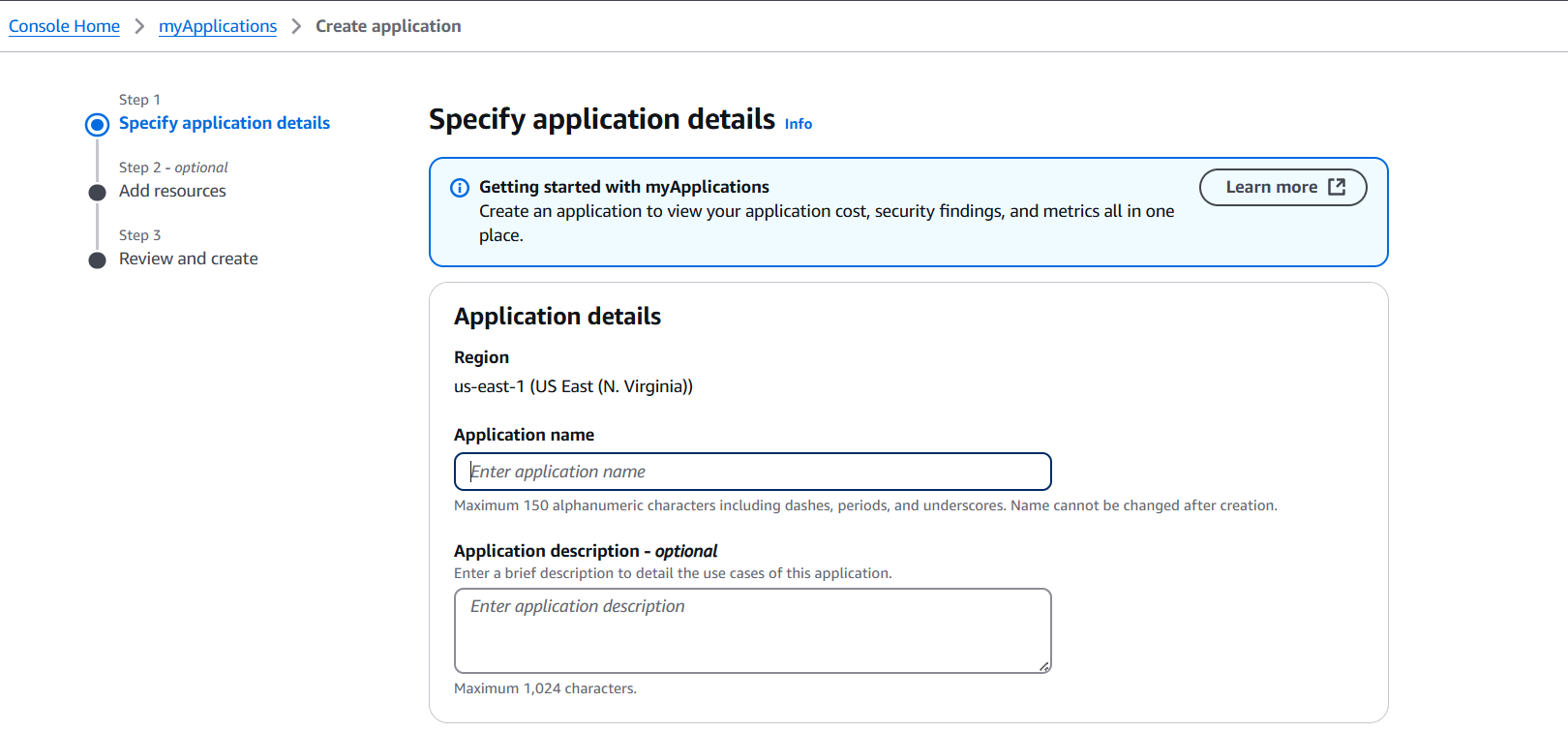
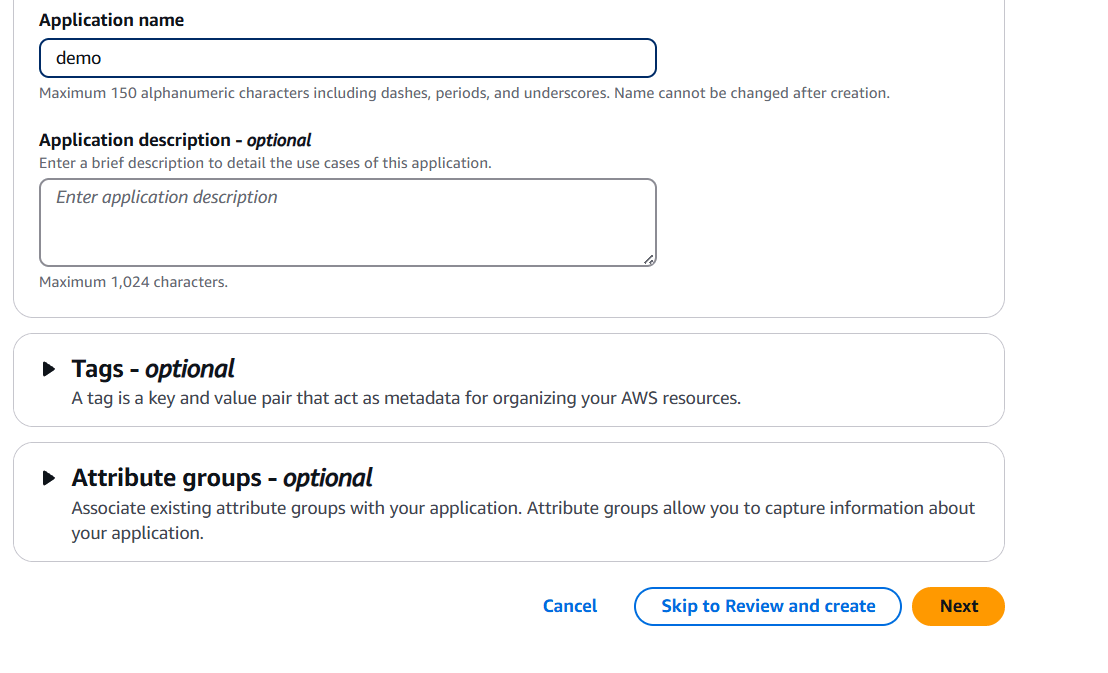
STEP 2: Enter the name and click on next.
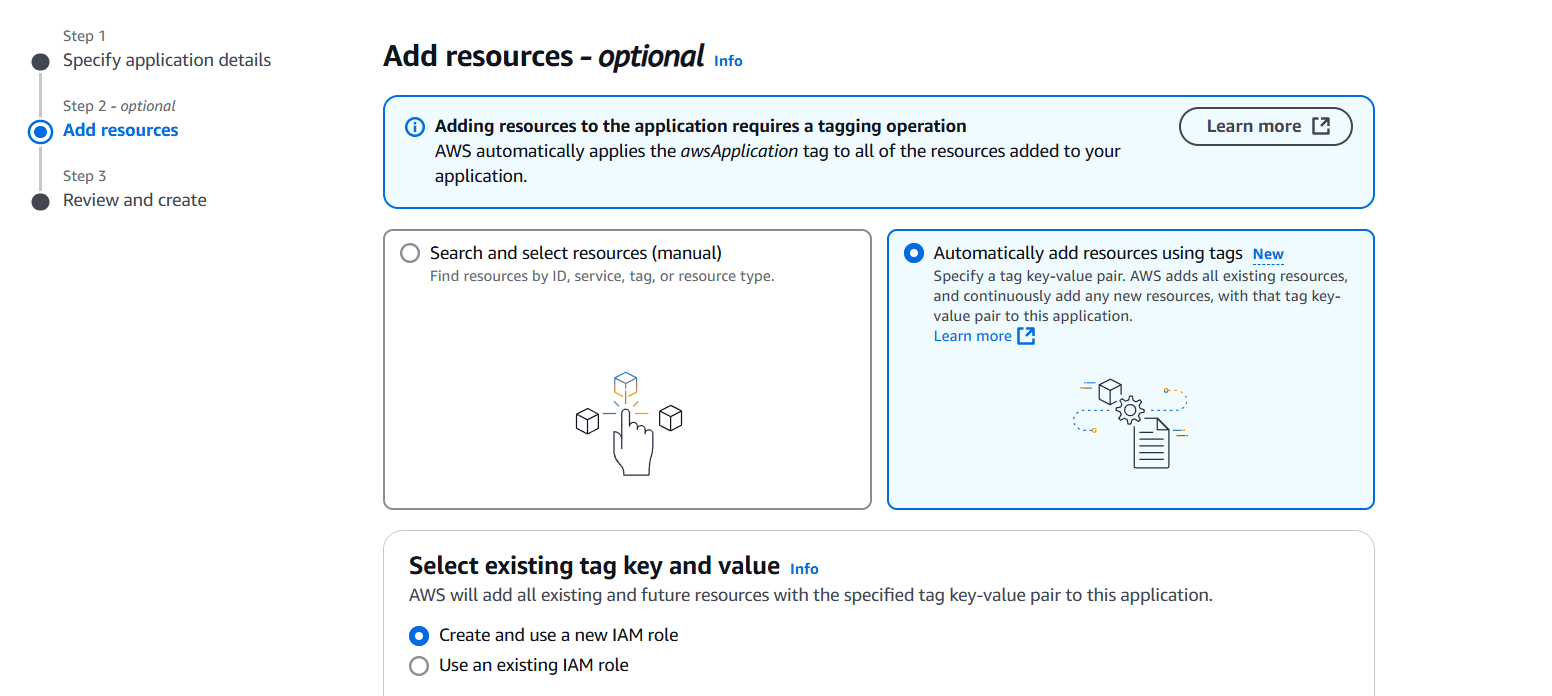
STEP 3: Add resources and Select the Key and Value.
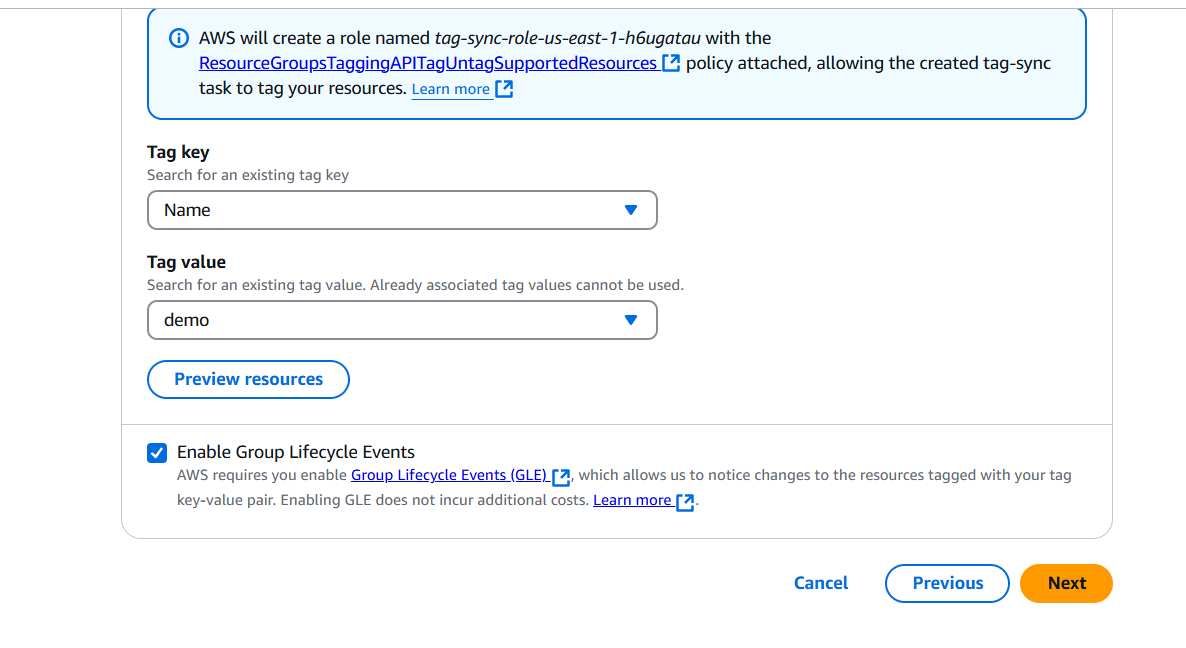
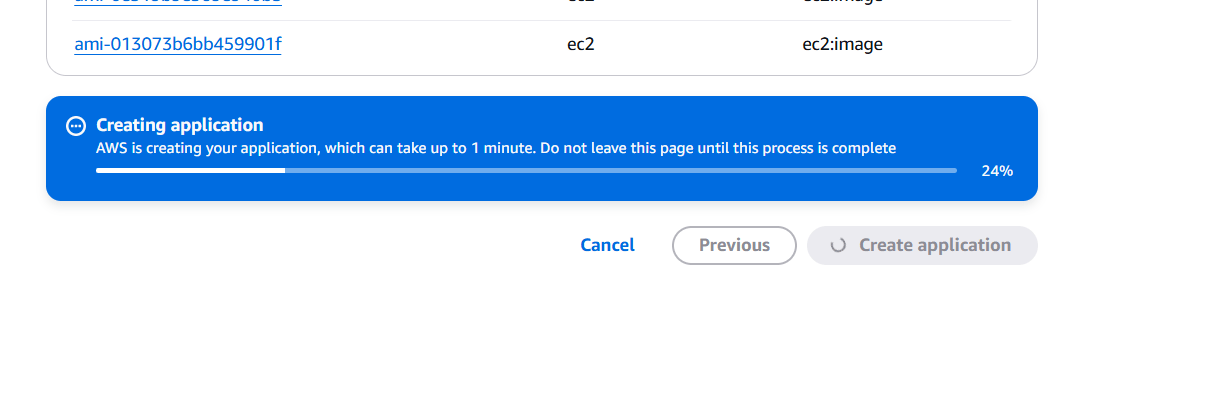
STEP 4: Click on create application.
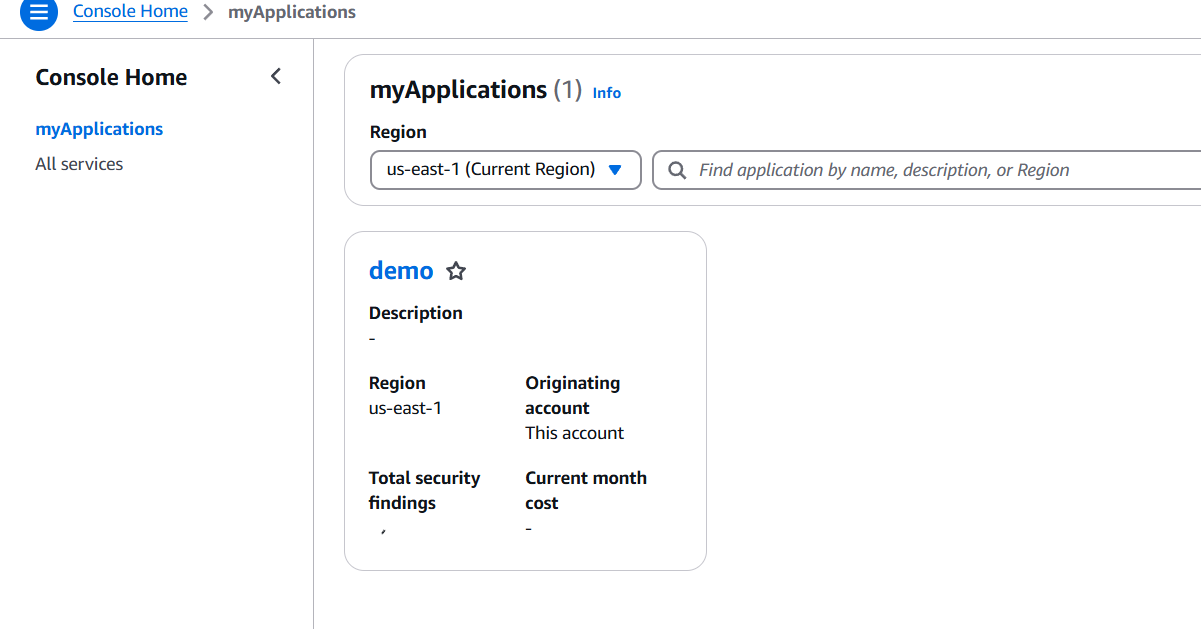

In conclusion, building an application on AWS opens the door to a flexible, scalable, and highly reliable cloud infrastructure that can support nearly any project — from simple websites to complex enterprise systems. Whether you’re leveraging virtual machines through EC2, going serverless with Lambda, or deploying full-stack applications using AWS Amplify, the platform provides the tools you need to move quickly and confidently from development to deployment. The key lies in understanding your application’s needs, choosing the right services, and applying best practices in security, scalability, and cost management.
While the AWS ecosystem might seem complex at first, taking a structured, step-by-step approach can make the process manageable and even enjoyable. With time and practice, you’ll become more comfortable navigating the AWS console, configuring services, and optimizing your deployments. AWS also continues to innovate, regularly launching new tools and features that make building and maintaining applications easier than ever.
If you’re just getting started, don’t be afraid to experiment in the AWS Free Tier. Take advantage of documentation, tutorials, and community forums to build your confidence. And as your app grows, AWS will grow with you — offering the performance and reliability required to support users around the globe.
Ultimately, creating an application on AWS is not just about launching a product; it’s about building on a foundation that supports innovation, agility, and long-term success in the cloud.

Creating a CloudFront Function is an excellent way to improve the flexibility and performance of your content delivery with Amazon CloudFront. CloudFront Functions allow you to run lightweight JavaScript code at CloudFront edge locations, closer to your users, enabling low-latency operations for tasks like URL rewrites, header manipulation, and basic routing. Unlike AWS Lambda, CloudFront Functions are optimized for speed and cost-effectiveness, making them perfect for tasks that don’t require complex processing. By leveraging CloudFront Functions, developers can easily customize how content is served based on specific conditions such as user location, headers, or even query parameters. This enables better personalization, improved SEO strategies, and enhanced security for content delivery.
CloudFront Functions work in concert with CloudFront distributions, automatically executing based on specific events during the request-response cycle, such as Viewer Request, Viewer Response, Origin Request, and Origin Response. This allows for tailored responses that fit various use cases, from adding custom headers to redirecting traffic based on user behavior. For example, you might use a CloudFront Function to check the User-Agent header of incoming requests and redirect mobile users to a specific mobile-optimized page, or to add security headers that ensure content is delivered securely. The real power lies in the simplicity of deployment and the fact that these functions can run with minimal overhead, providing a smooth, high-performance user experience.
A key benefit of CloudFront Functions is their ability to execute directly at edge locations, meaning they can process requests and responses with minimal delay. This reduces the time spent on round trips to origin servers, ensuring that content is delivered faster and more efficiently to users globally. Furthermore, they are designed to handle a high volume of requests with high throughput, which is essential for websites and applications that serve large-scale audiences. The use of CloudFront Functions can also drive down costs for server-side processing, as they are designed to handle smaller, less complex tasks without requiring the infrastructure overhead typically associated with more heavyweight solutions like AWS Lambda or EC2.
Additionally, integrating CloudFront Functions with other AWS services opens up endless possibilities for developers. For example, you can use CloudFront Functions in tandem with AWS WAF (Web Application Firewall) to add a layer of security, blocking malicious traffic before it even reaches your origin. Alternatively, you can combine them with Amazon S3 or AWS Elastic Load Balancing to handle routing logic based on request attributes, ensuring that content is directed to the correct resource or server. The integration of these services ensures a seamless experience that improves scalability, security, and overall efficiency.

In this guide, we will walk through the process of creating and deploying a CloudFront Function, covering how to write the function, deploy it to a CloudFront distribution, and test its functionality. Whether you’re new to CloudFront or already experienced with AWS, this process will help you better understand how to leverage CloudFront Functions for optimizing your content delivery and improving user experiences. By the end of this guide, you’ll have the tools and knowledge to implement CloudFront Functions in your own projects, unlocking the full potential of Amazon CloudFront and serverless computing.
myCloudFrontFunction).Once you’ve filled out these fields, click Create function.
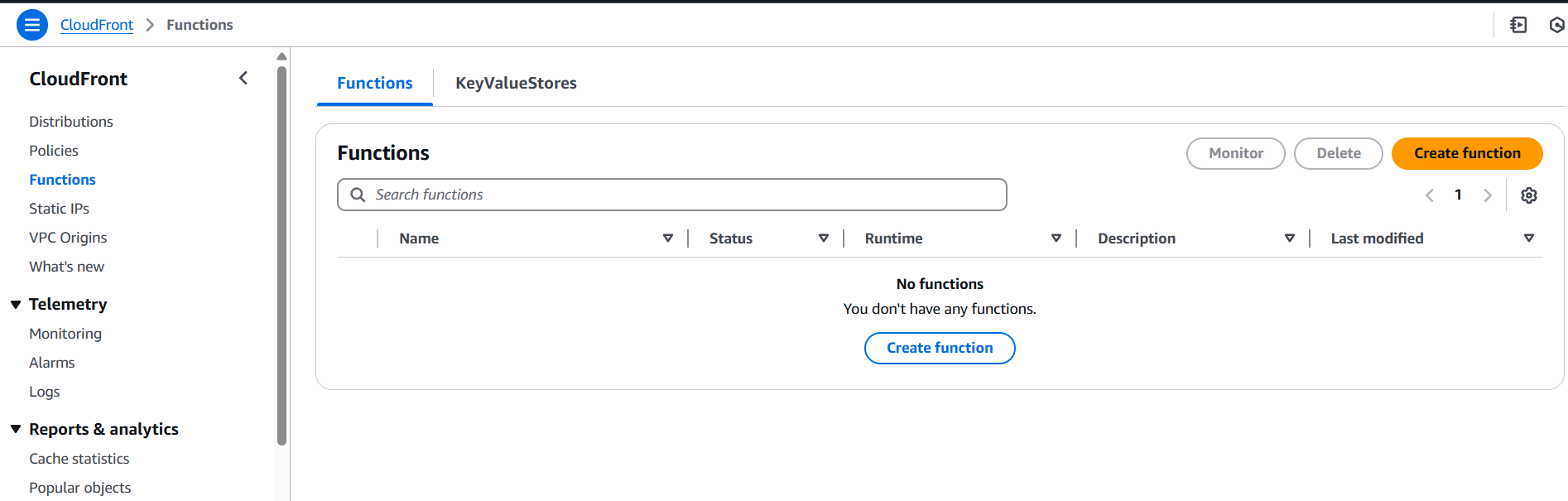
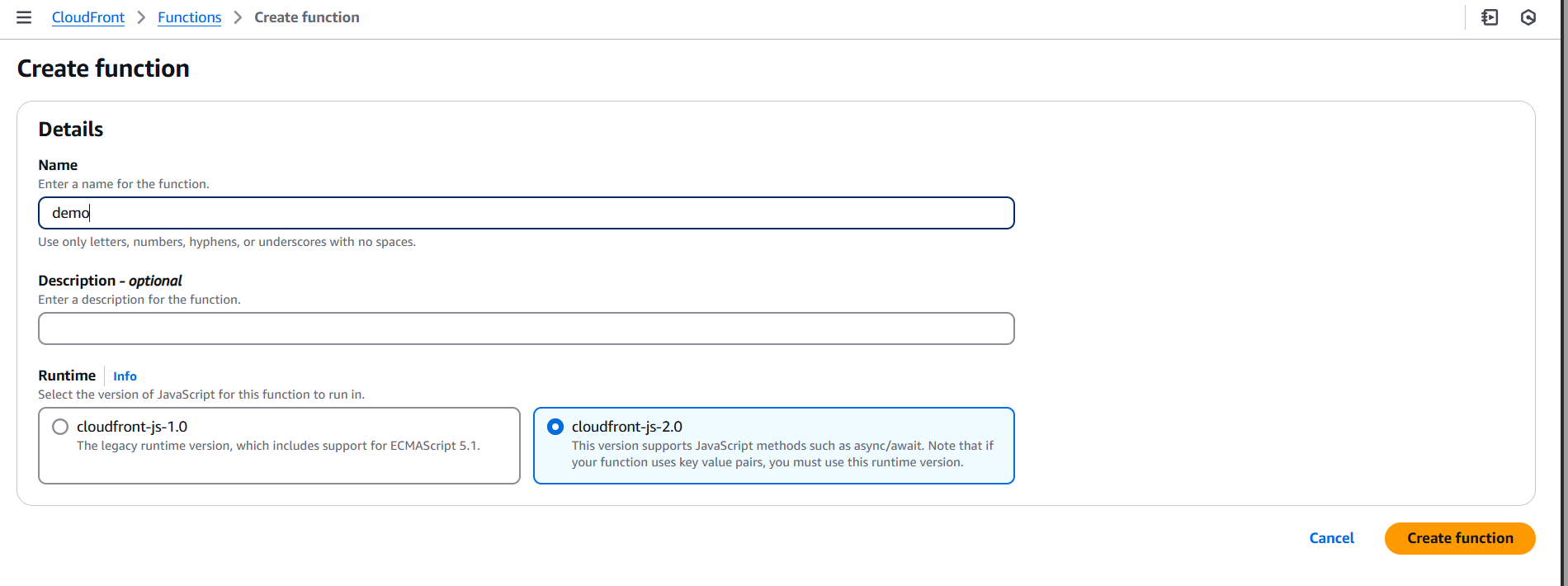
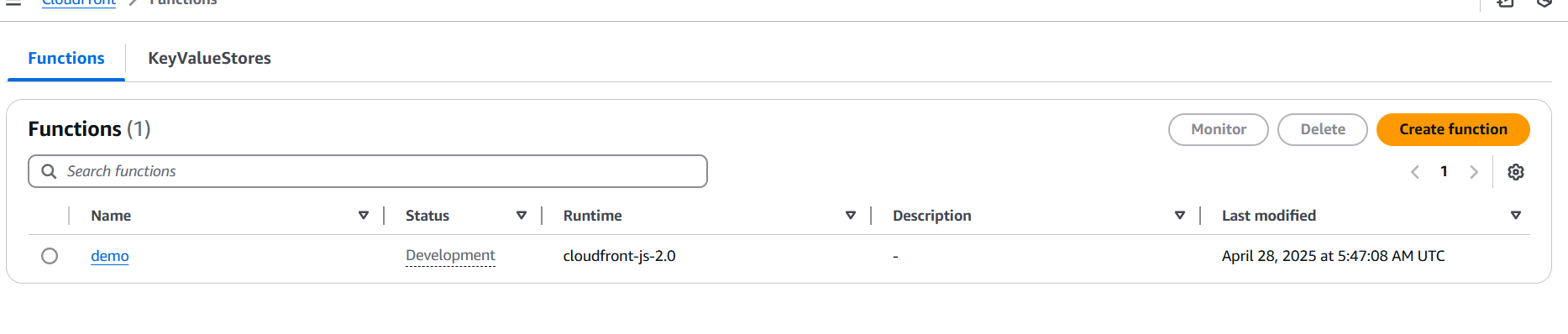
Here’s a simple example of a CloudFront Function that adds a custom header to each request:
/**
 * CloudFront Function to add a custom header to the request.
 */
function handler(event) {
    var request = event.request;

    // Add a custom header to the request
    request.headers['x-custom-header'] = [{
        key: 'x-custom-header',
        value: 'Hello from CloudFront Function!'
    }];

    // Return the modified request
    return request;
}
In this example, every incoming request to your CloudFront distribution will have the custom header x-custom-header added to it.
Once you’ve written your function, click Save changes.
CloudFront Functions execute at AWS edge locations, closer to the end-users. This reduces the time taken for requests to travel to a central server, resulting in faster content delivery and lower latency. By running code at the edge, CloudFront Functions can provide near-instant response times, significantly improving user experiences, especially for global audiences.
CloudFront Functions are designed to handle lightweight tasks, making them very cost-effective compared to alternatives like AWS Lambda@Edge. Since CloudFront Functions are optimized for speed and simplicity, they incur lower costs for operations such as modifying headers, URL rewrites, and basic request routing. This makes them an excellent choice for high-traffic websites or applications with small, frequent tasks that don’t require complex processing.
Unlike traditional server-side solutions, CloudFront Functions are easy to create, deploy, and manage through the AWS Management Console. The entire process is streamlined: write a small JavaScript function, deploy it to your CloudFront distribution, and it’s ready to run at edge locations. This simplicity makes it ideal for developers who want to add quick customizations to their CloudFront distributions without managing servers or complex infrastructure.
CloudFront Functions are tightly integrated with Amazon CloudFront. This seamless integration allows you to run functions in response to CloudFront events, such as Viewer Request, Viewer Response, Origin Request, and Origin Response. Whether you need to modify request headers, rewrite URLs, or handle caching logic, CloudFront Functions work directly with your distribution’s configuration and can be easily customized for your needs.
CloudFront Functions are designed to scale automatically to handle high volumes of requests. Because the code is executed at CloudFront edge locations, it benefits from AWS’s global infrastructure, making it highly scalable and reliable. Whether your application handles thousands or millions of requests, CloudFront Functions can efficiently process them without compromising performance.
CloudFront Functions allow you to manipulate the request or response before it reaches the origin or the viewer. This gives you the flexibility to customize how content is served based on various conditions like headers, cookies, query parameters, or even geographic location. This customization capability is invaluable for tasks like A/B testing, personalization, or SEO optimization.
CloudFront Functions can be used to enhance security by adding security-related headers, such as CORS headers, X-Frame-Options, or Strict-Transport-Security. Additionally, they allow you to filter out unwanted requests (e.g., block certain IP addresses or user agents) or implement custom authentication and authorization logic before requests hit your origin servers, providing an added layer of protection.
Since CloudFront Functions are executed at AWS’s edge locations worldwide, they can provide a consistent experience for users, regardless of their geographic location. This global reach ensures that your custom logic, like URL rewrites or header changes, is applied instantly to all users, offering a uniform experience across regions.
CloudFront Functions are a serverless solution, meaning you don’t need to worry about managing the underlying infrastructure. AWS handles all the scaling, availability, and reliability of the edge locations, allowing you to focus solely on your code and the business logic you want to implement. This reduces operational complexity and lets you concentrate on delivering value to your users.
You can monitor CloudFront Functions using Amazon CloudWatch. This enables you to track function executions, monitor logs for any issues, and ensure that your functions are behaving as expected. The integration with CloudWatch allows for straightforward debugging and helps you maintain visibility over how your code is performing in real-time.

In conclusion, CloudFront Functions provide a powerful and efficient way to enhance your content delivery process with minimal overhead. By running lightweight JavaScript code at CloudFront edge locations, these functions enable fast, customizable responses based on specific request parameters or events, improving both performance and user experience. Whether you’re looking to modify headers, redirect traffic, or add security features, CloudFront Functions offer an ideal solution for these lightweight, high-throughput tasks. Their seamless integration with other AWS services further extends their versatility, allowing you to create a more robust, secure, and scalable application infrastructure.
The ease of deployment and low-cost, low-latency operations make CloudFront Functions a go-to choice for developers seeking to optimize their CDN setup without the complexity of traditional server-side processing. As you integrate CloudFront Functions into your workflows, you’ll be able to deliver content faster, ensure better security, and provide more personalized user experiences globally. By leveraging CloudFront’s edge locations and the power of serverless computing, CloudFront Functions help you achieve a more efficient, cost-effective content delivery strategy. Whether you’re just getting started or you’re looking to optimize an existing CloudFront distribution, CloudFront Functions empower you to take full control over how content is served to users.

Amazon CloudFront is one of the most powerful and globally distributed content delivery networks (CDN) offered by AWS. It accelerates the delivery of your website’s content, including static files, dynamic content, and streaming media, ensuring a seamless user experience for end-users worldwide. However, as with any critical infrastructure component, it’s vital to monitor CloudFront performance to ensure that it’s functioning as expected. Without proper monitoring, issues such as increased latency, error rates, or even service disruptions could go unnoticed, leading to potential downtime or performance degradation. To address this, AWS provides the ability to set up alarms on CloudFront through Amazon CloudWatch.
CloudWatch is a comprehensive monitoring service that allows users to track the performance and health of their AWS resources, including CloudFront distributions. By creating alarms on CloudFront, you can automatically receive notifications when certain thresholds are breached, such as high error rates, excessive latency, or reduced cache hit ratios. These alarms act as early warning systems, helping you identify problems before they affect your users. For example, if your CloudFront distribution starts experiencing a surge in 5xx errors (server-side issues) or latency that’s above an acceptable threshold, an alarm can trigger and notify you immediately, enabling you to take swift action.
Setting up CloudFront alarms is not only crucial for proactive monitoring but also for optimizing the performance of your application. By receiving real-time updates, you can perform necessary adjustments such as increasing your cache duration, analyzing traffic spikes, or adjusting your server configurations. Furthermore, with alarms tied to Amazon SNS (Simple Notification Service), you can automatically notify your team via email, SMS, or other messaging services, ensuring that the right people are informed and can resolve issues quickly.

In this article, we will walk through the step-by-step process of creating alarms on CloudFront using CloudWatch, covering different types of metrics to monitor and explore how these alarms can improve the performance and reliability of your application. Whether you’re new to CloudFront or an experienced AWS user, this guide will help you set up an effective monitoring strategy to keep your CDN performance in check. Additionally, we will discuss best practices for alarm configuration, ensuring that your alerts are fine-tuned to avoid unnecessary noise and only trigger when significant issues arise. Let’s dive in and learn how to configure CloudFront alarms that will give you complete visibility into your CDN’s operation.
CloudFront metrics will include things like:
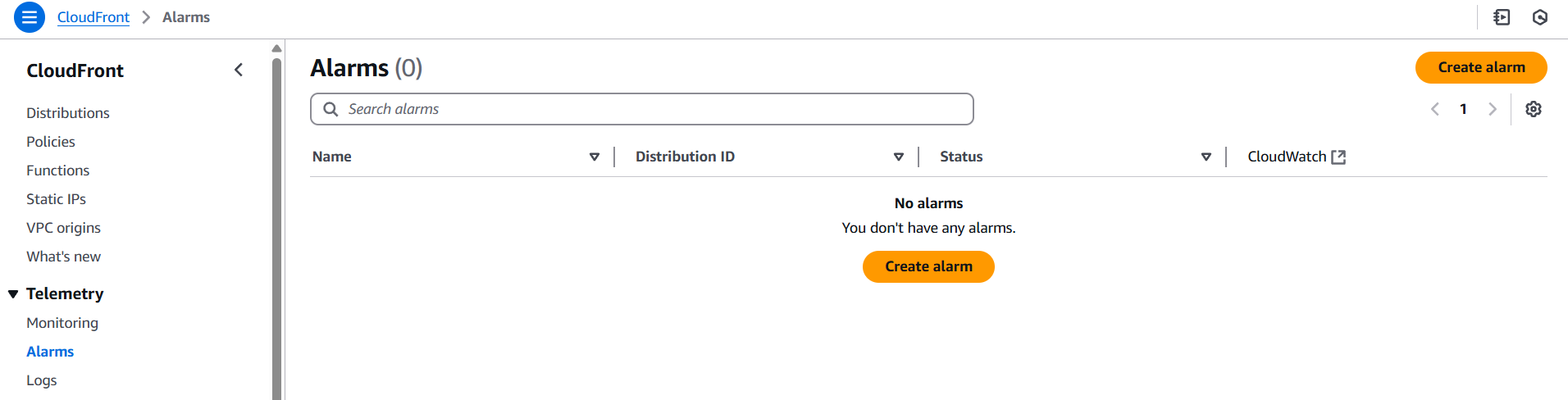
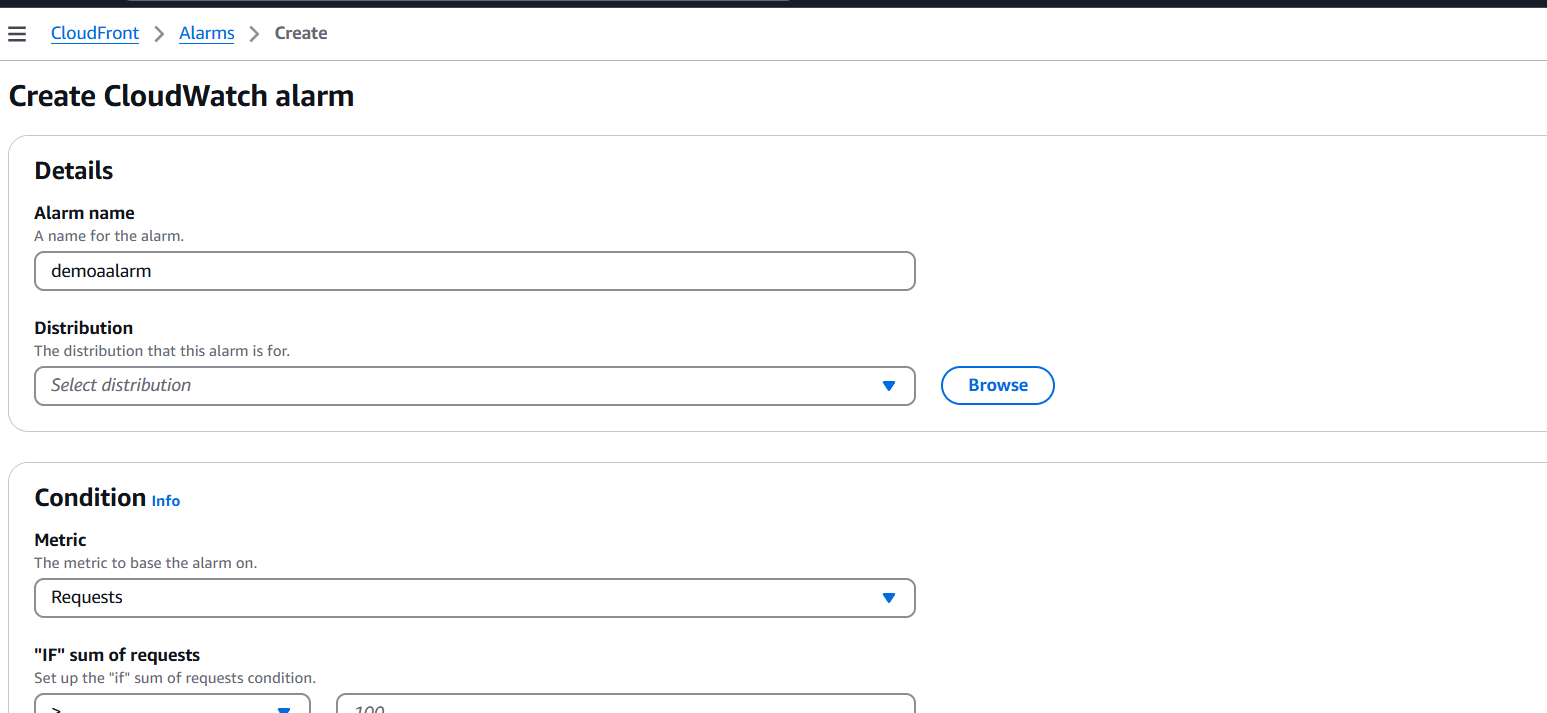
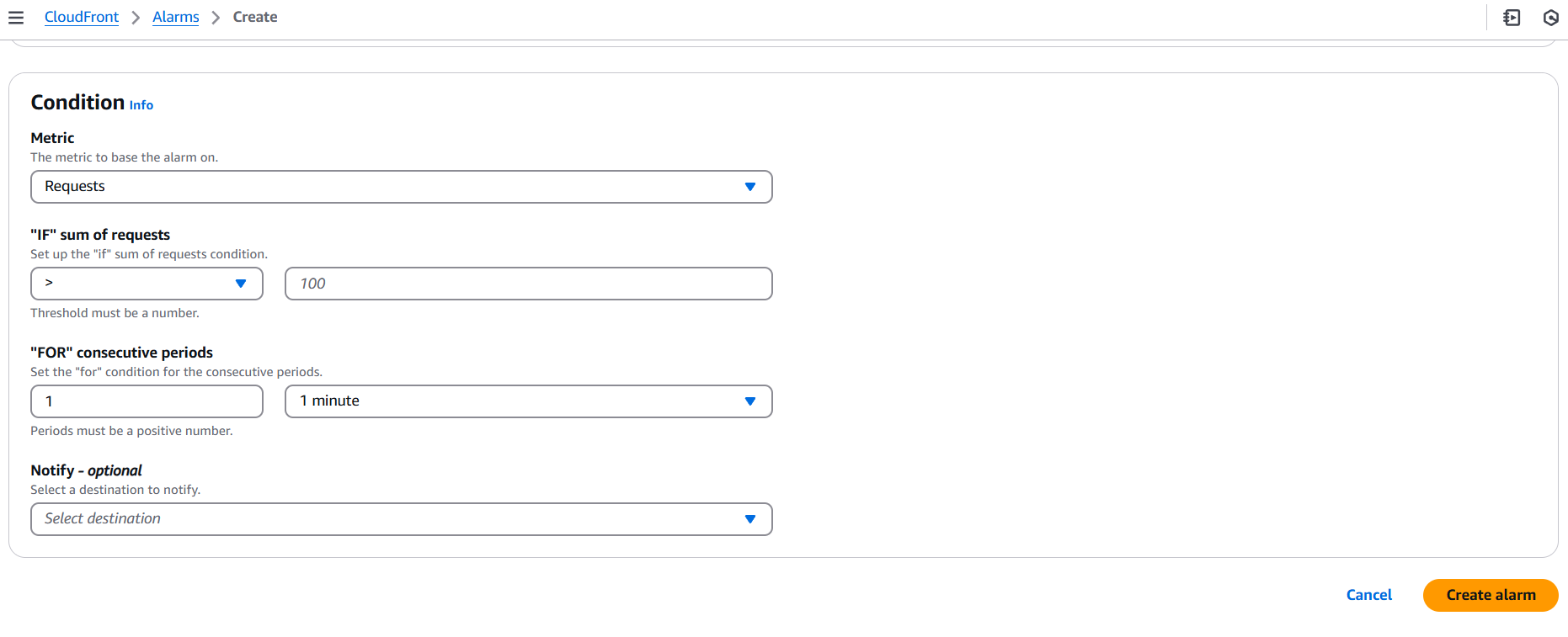

In today’s fast-paced digital landscape, ensuring optimal performance and availability of your web applications is paramount. Amazon CloudFront provides an excellent CDN service to deliver content quickly and reliably to users worldwide, but like any infrastructure component, it requires constant monitoring to maintain high performance. By setting up alarms in CloudWatch for CloudFront, you gain real-time visibility into key metrics such as error rates, latency, and cache hits, allowing you to proactively address issues before they affect your end users.
The process of creating CloudFront alarms is straightforward, but the impact of effective monitoring cannot be overstated. Whether it’s detecting an unexpected surge in traffic, catching server-side issues early, or optimizing your caching strategy, alarms serve as a crucial safety net. Through CloudWatch and SNS, you can automate notifications, ensuring that your team is immediately alerted to potential problems, which in turn reduces downtime and improves the overall user experience.
By implementing CloudFront alarms, you’re not just setting up reactive notifications; you’re actively taking control of your infrastructure’s health, enhancing reliability, and maintaining a superior quality of service. With the steps outlined in this guide, you now have the knowledge to configure alarms that align with your needs and help ensure that your CloudFront distributions continue to run smoothly, efficiently, and without disruption.
Remember that continuous monitoring and alarm fine-tuning are essential to maintaining the stability and performance of your application. By applying the best practices shared here, you can stay ahead of issues, optimize resource utilization, and ultimately deliver a better experience to your users. Monitoring isn’t just a safety measure—it’s a key component of your success in a cloud-driven world.

In today’s increasingly cloud-dependent world, securing your network infrastructure is no longer optional—it’s essential. As organizations migrate their workloads to the cloud, they face new security challenges, including securing virtual networks against unauthorized access, malicious traffic, and data exfiltration. While AWS offers multiple layers of security features, such as Security Groups and Network ACLs, these tools can be limited when it comes to deep packet inspection, traffic filtering at scale, or managing complex rule sets across multiple VPCs. That’s where AWS Network Firewall comes in—a powerful, fully managed network security service designed to protect your Amazon Virtual Private Clouds (VPCs) from threats at the network level.
AWS Network Firewall allows you to define and enforce fine-grained rules to control both inbound and outbound traffic across your VPC subnets. It supports both stateless and stateful traffic inspection, allowing for advanced use cases like domain name filtering, intrusion prevention, and central policy enforcement. Unlike basic security tools that operate at the resource or subnet level, AWS Network Firewall is designed for more complex, enterprise-grade architectures that require centralized control, scalability, and visibility.
Whether you’re running sensitive applications, managing multi-account architectures, or working with compliance-heavy industries like finance or healthcare, AWS Network Firewall provides the flexibility and robustness needed to build secure network boundaries in the cloud. It integrates seamlessly with AWS services like VPC Traffic Mirroring, CloudWatch Logs, AWS Config, and AWS Firewall Manager, giving you full observability and control over your network security posture.
This step-by-step guide is designed to walk you through the process of creating, configuring, and deploying an AWS Network Firewall in your environment. From setting up the right VPC and subnets to crafting firewall policies and updating route tables, we’ll cover each stage in detail to ensure your network is protected against unauthorized access and malicious traffic. Whether you’re a cloud security engineer or a DevOps professional, by the end of this guide, you’ll have a solid understanding of how to secure your VPCs with AWS Network Firewall and how to manage and monitor it effectively for long-term protection.

Ready to lock down your network? Let’s dive into the setup process and build a firewall that’s as strong as your cloud ambitions.
curl, ping, or netcat to test blocked/allowed ports or domains.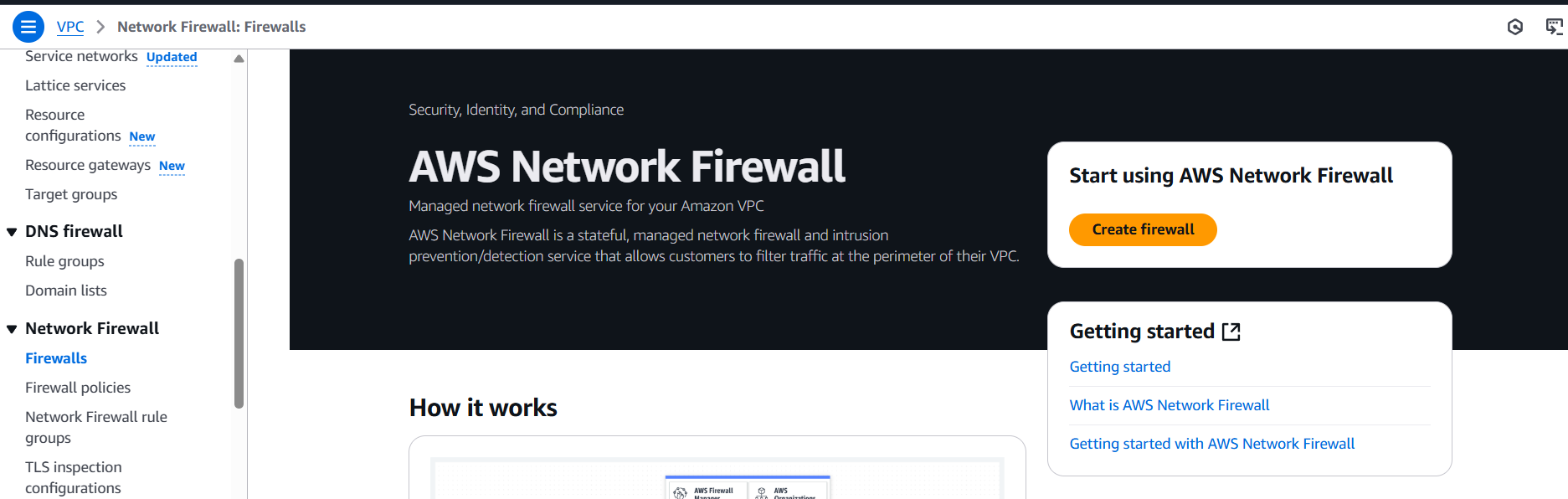
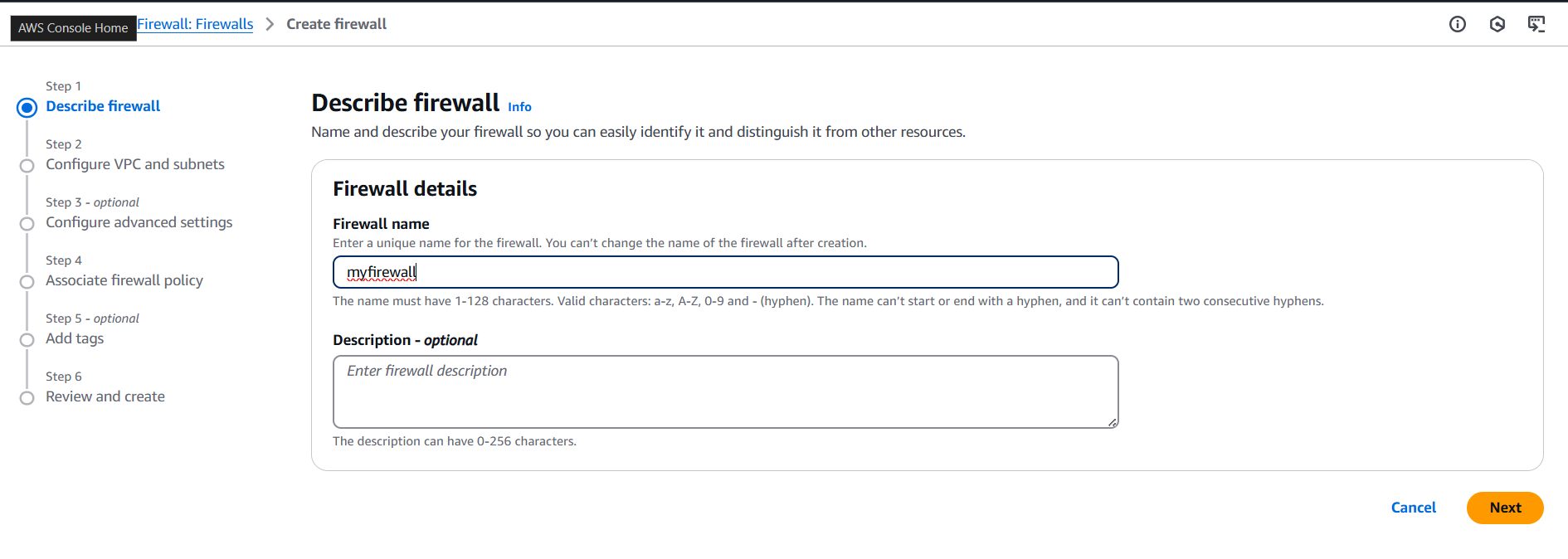
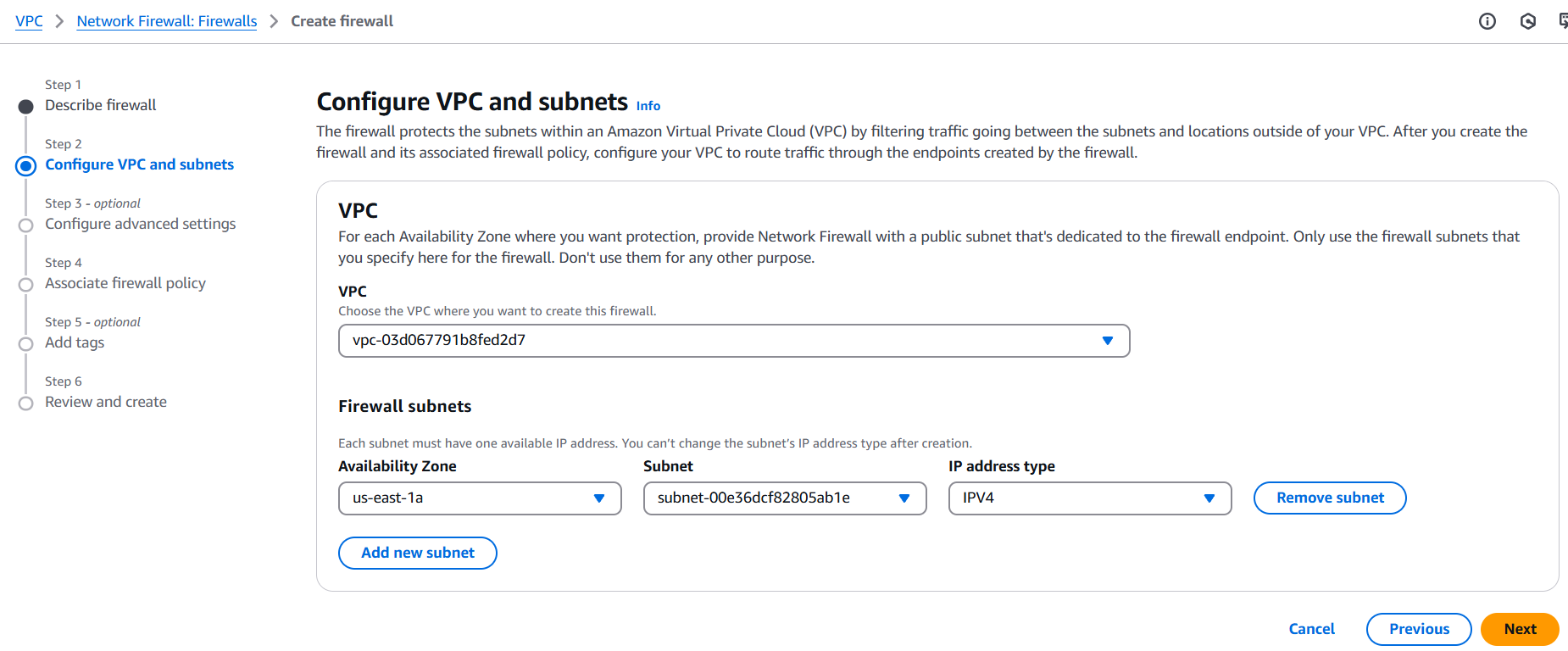
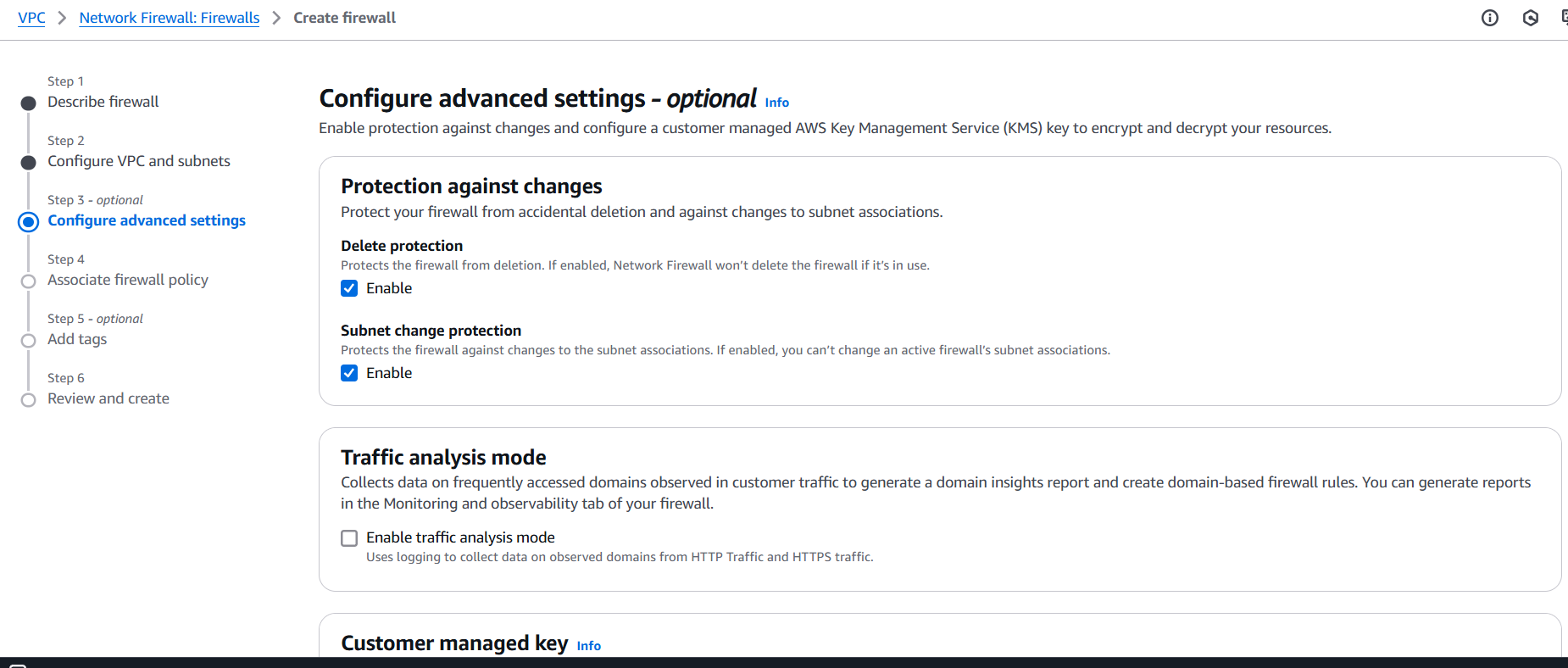
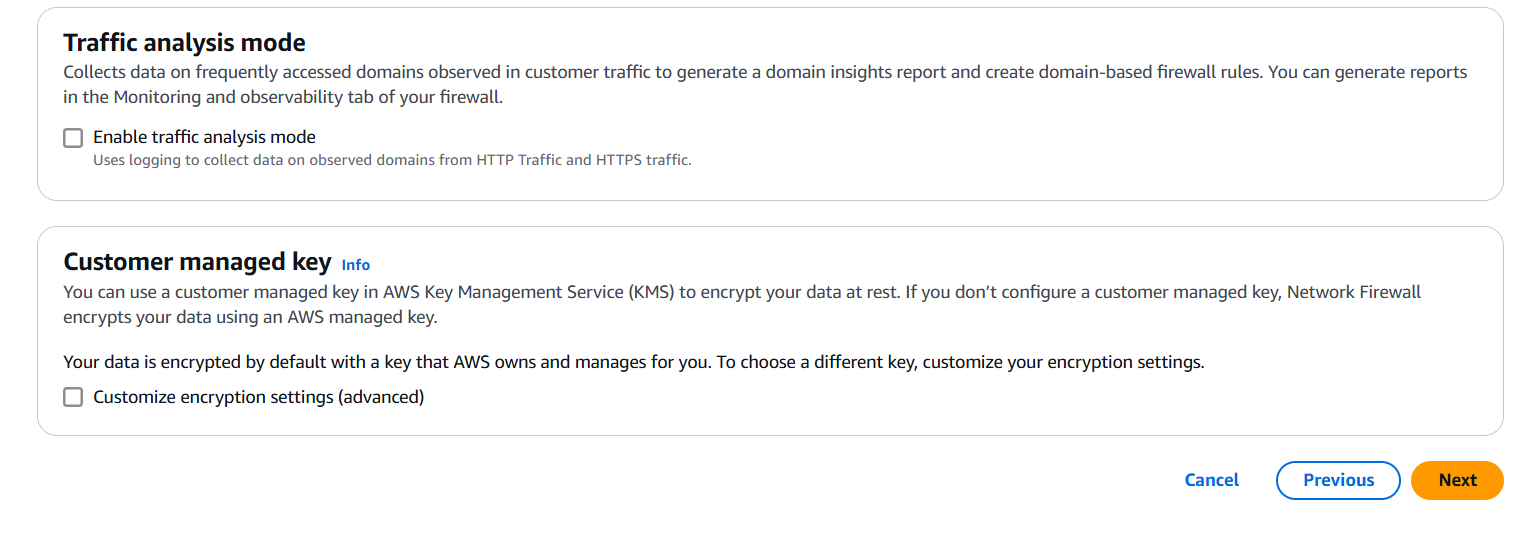
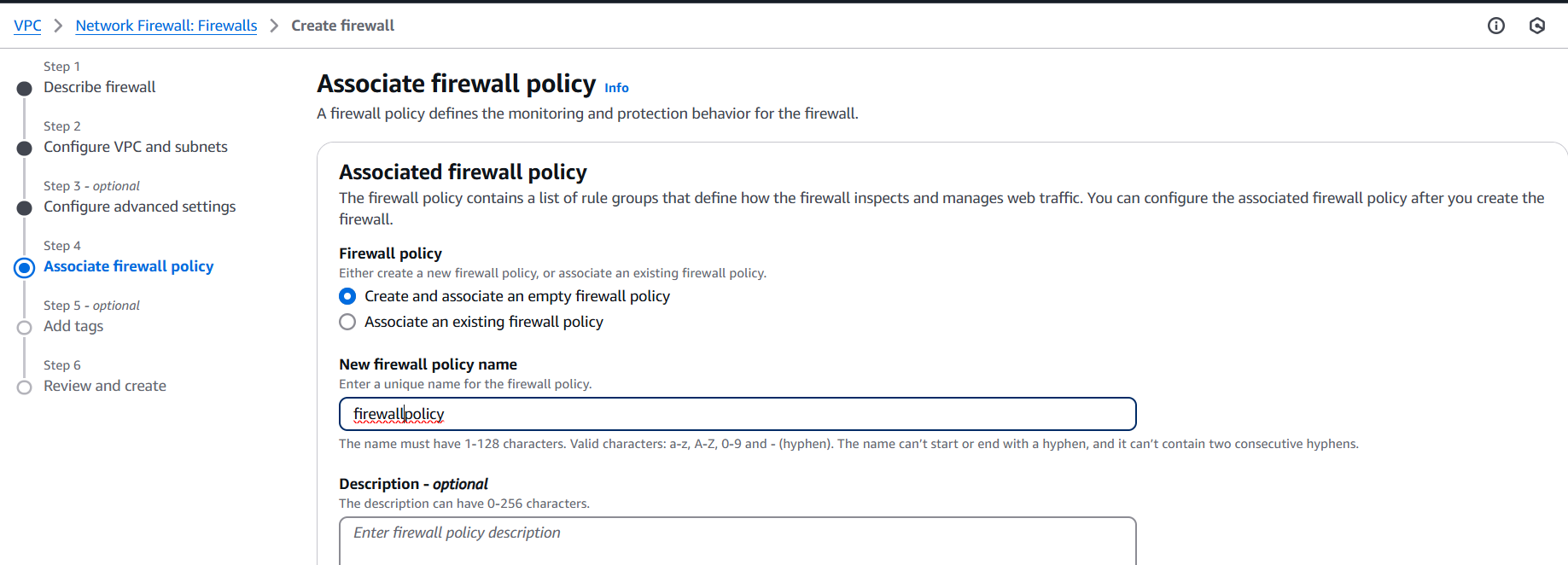
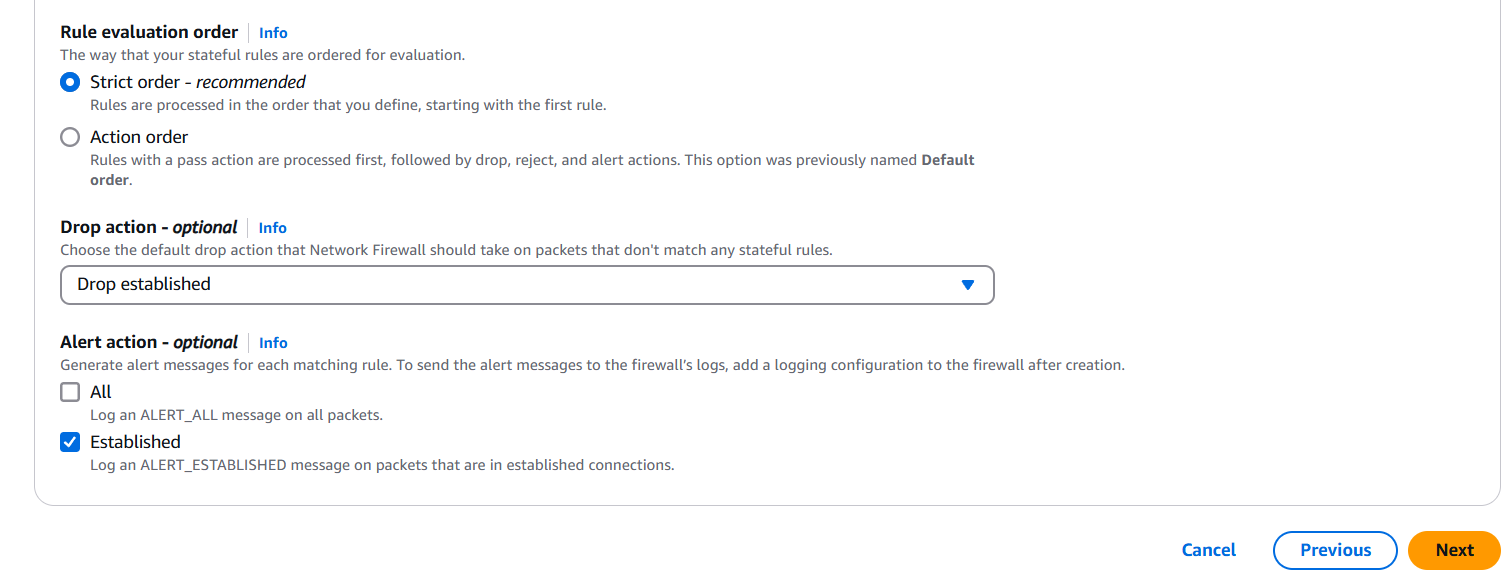
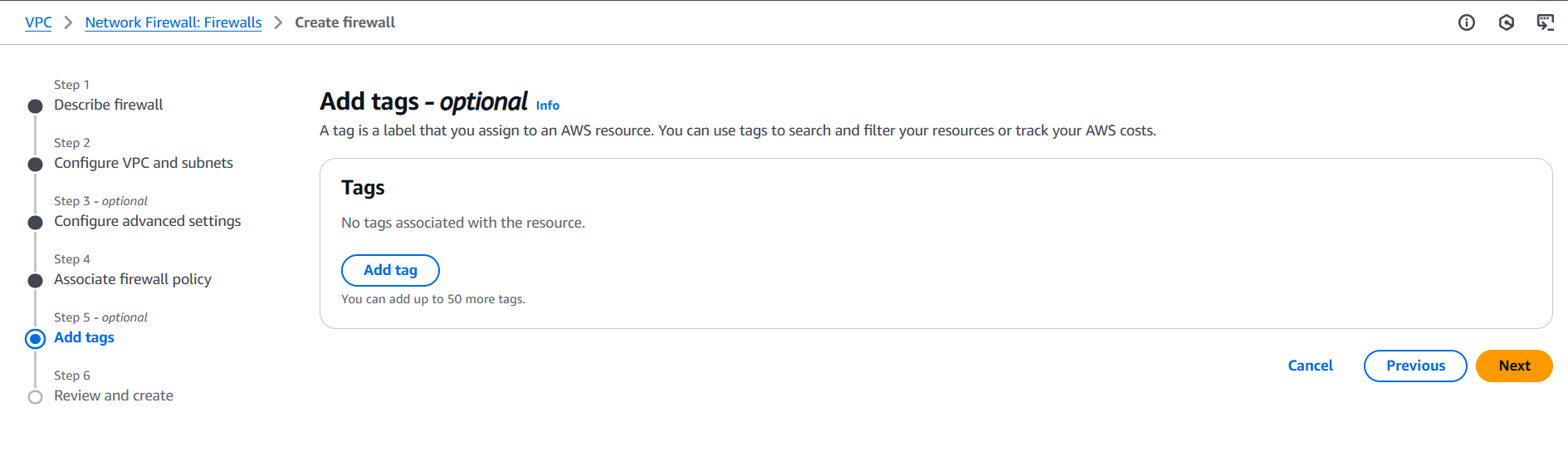
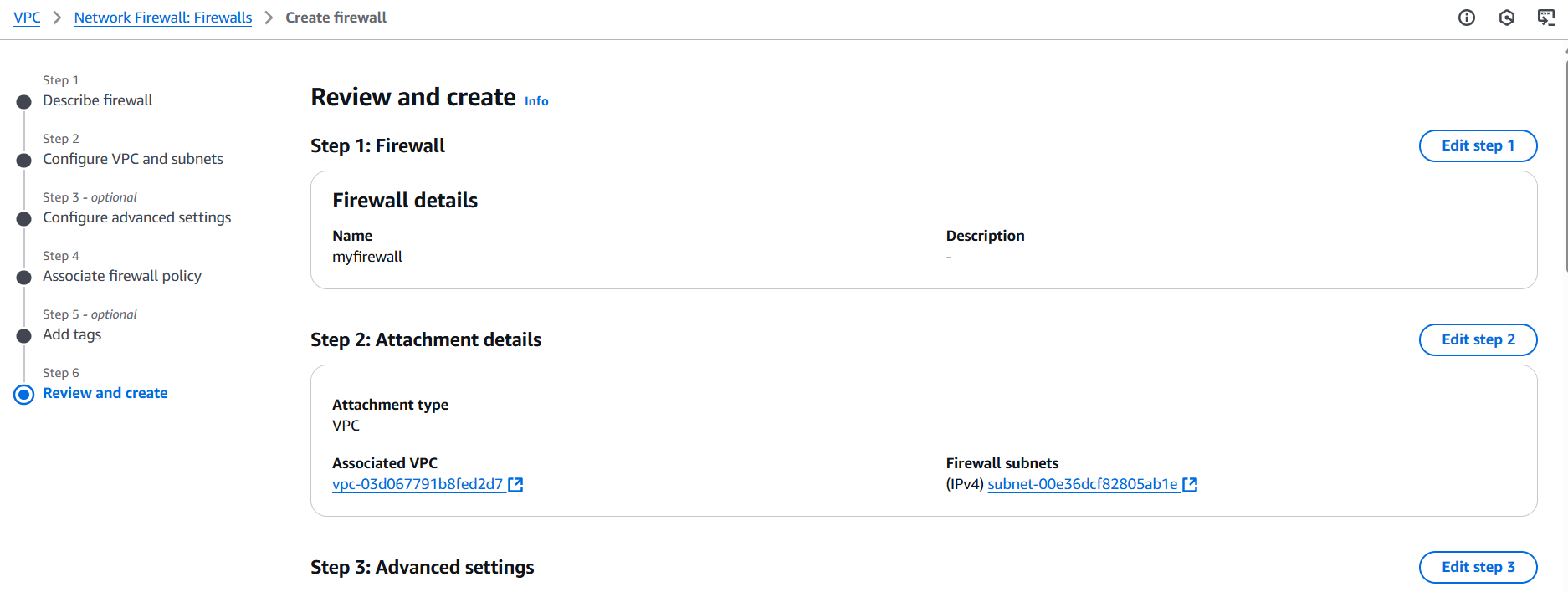
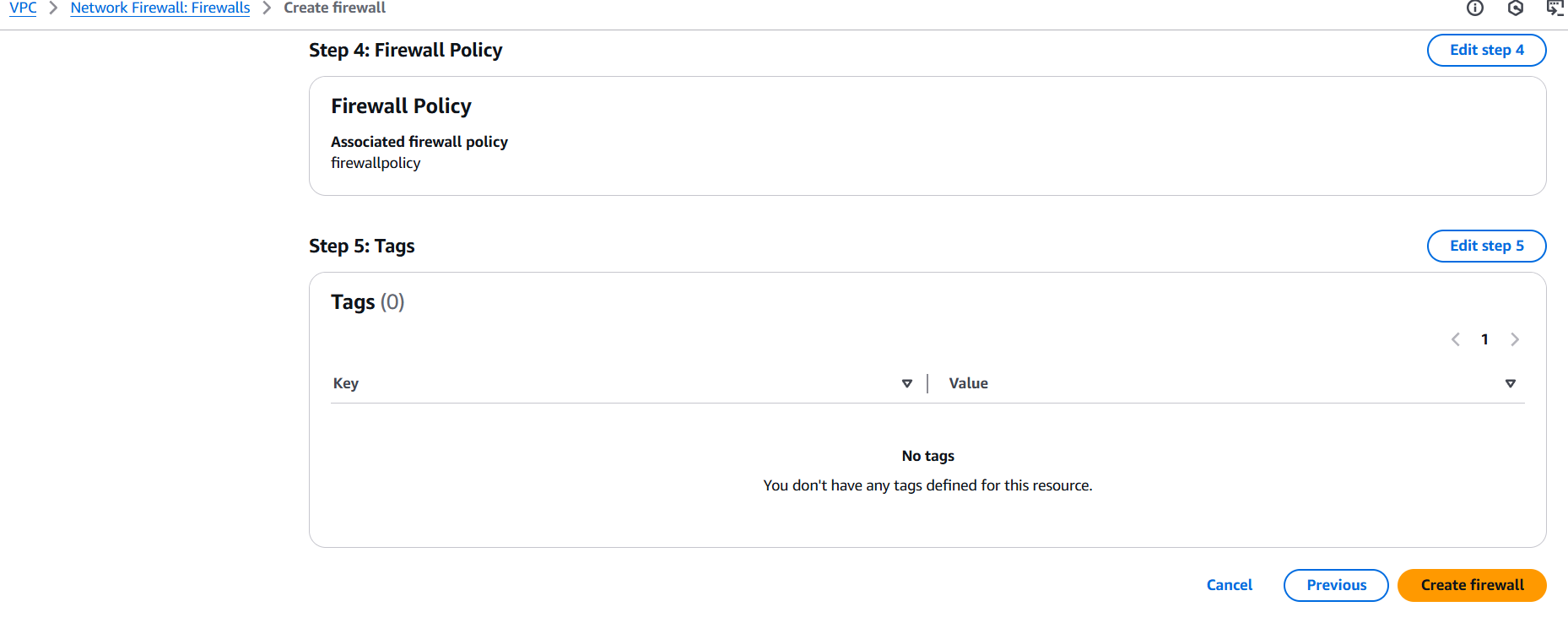
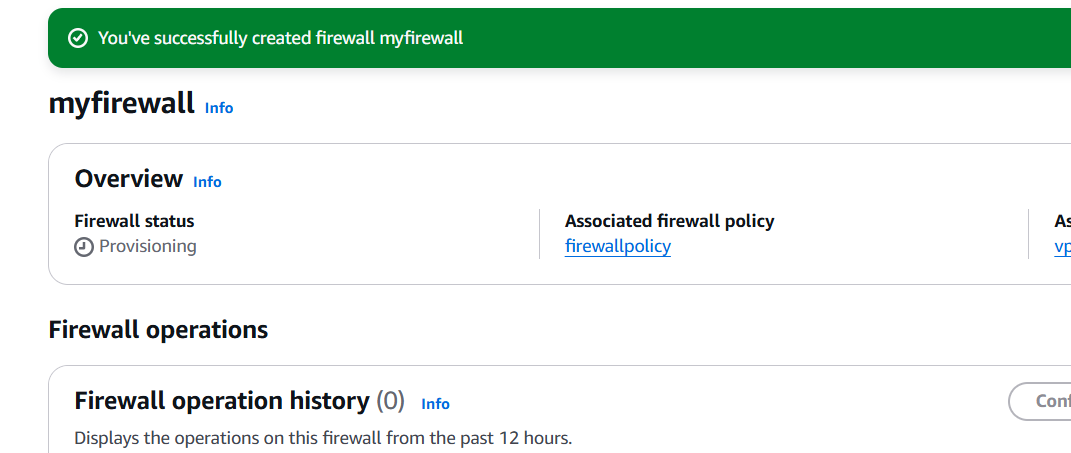
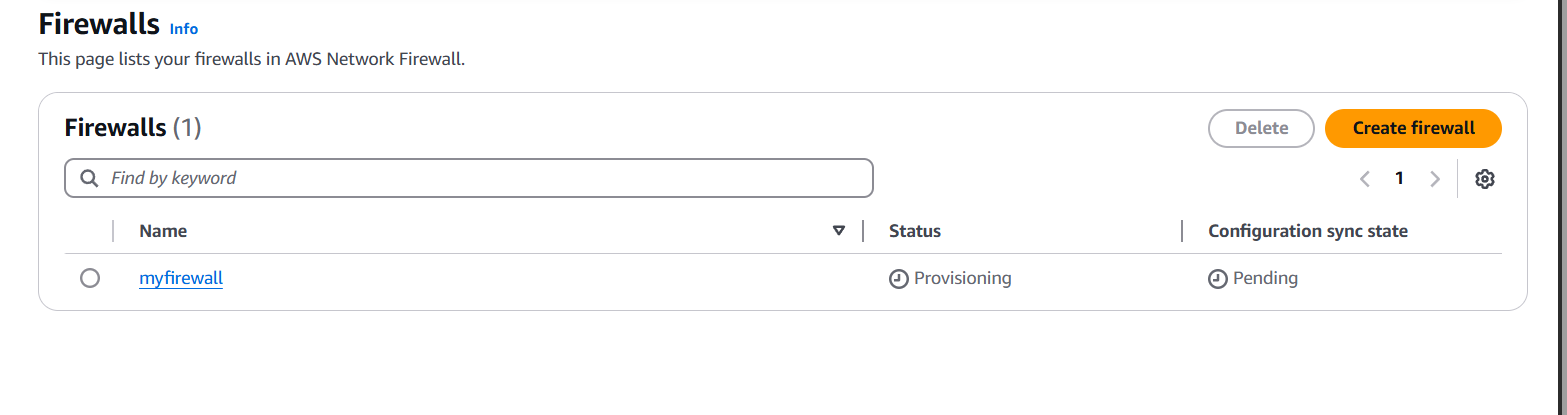

Securing your AWS infrastructure isn’t just about locking down ports—it’s about creating intelligent, adaptable layers of defense that evolve with your applications and threats. AWS Network Firewall offers a powerful, flexible way to safeguard your VPC traffic at scale, giving you deep control over what flows into and out of your network. From crafting detailed stateless and stateful rule sets to routing traffic through firewall endpoints and monitoring activity in real time, AWS Network Firewall helps bring enterprise-grade security to your cloud architecture. By following the steps in this guide, you’ve laid the groundwork for a robust, policy-driven firewall setup that can grow alongside your environment. Don’t stop here—keep refining your rules, integrating with tools like AWS Firewall Manager, and reviewing logs to adapt to new risks. In the cloud, security is continuous—and now you’ve got the tools to stay one step ahead.

In today’s cloud-driven world, security is everything — and nowhere is that more evident than in the way access is managed within Amazon Web Services (AWS). Whether you’re a beginner stepping into cloud infrastructure or a seasoned developer looking to sharpen your cloud security skills, understanding IAM (Identity and Access Management) policies is essential. IAM is AWS’s core service for managing who has access to what within your AWS account. It determines what resources users can access and what actions they can perform — making it a foundational piece of your cloud architecture.
So, what exactly is an IAM policy? Simply put, it’s a document written in JSON (JavaScript Object Notation) that defines permissions. These policies specify the actions (like reading an S3 bucket or starting an EC2 instance), the resources those actions apply to, and any optional conditions that further control access. Policies can be attached to IAM users, groups, or roles, allowing you to enforce granular, role-based access control across your AWS environment.
The power of IAM policies lies in their flexibility and precision, but that same power can also make them seem complex and intimidating to beginners. One small misconfiguration can unintentionally lock users out of critical resources or open up potential security vulnerabilities. That’s why it’s crucial to learn not just how to write policies, but also how to understand and validate them.
In this guide, we’ll walk through the entire process of creating IAM policies, starting from the basic structure to real-world examples and best practices. We’ll explain the key components of a policy document — such as the “Version,” “Statement,” “Effect,” “Action,” “Resource,” and “Condition” elements — and how they come together to define what is and isn’t allowed. You’ll learn how to use the AWS Management Console to build policies visually, as well as how to write and apply custom policies using JSON and the AWS CLI.
We’ll also cover important concepts like least privilege, service-specific permissions, and policy evaluation logic — all of which play a role in designing secure and effective access control. In addition, we’ll look at common use cases, such as granting read-only access to S3, full access to Lambda functions, or restricting actions to specific IP addresses. Each example will come with a breakdown so you can fully understand what the policy is doing and how to tweak it for your own needs.
Whether you’re managing a small app on AWS or part of a team running enterprise-scale cloud workloads, creating the right IAM policies ensures that your infrastructure stays secure, compliant, and efficient. AWS offers plenty of built-in policies, but learning how to craft your own gives you the flexibility to support unique requirements and fine-tune permissions at every level.
By the end of this post, you’ll be able to confidently create IAM policies tailored to your organization’s needs — and more importantly, understand why they work. Ready to become an IAM policy pro? Let’s dive in.

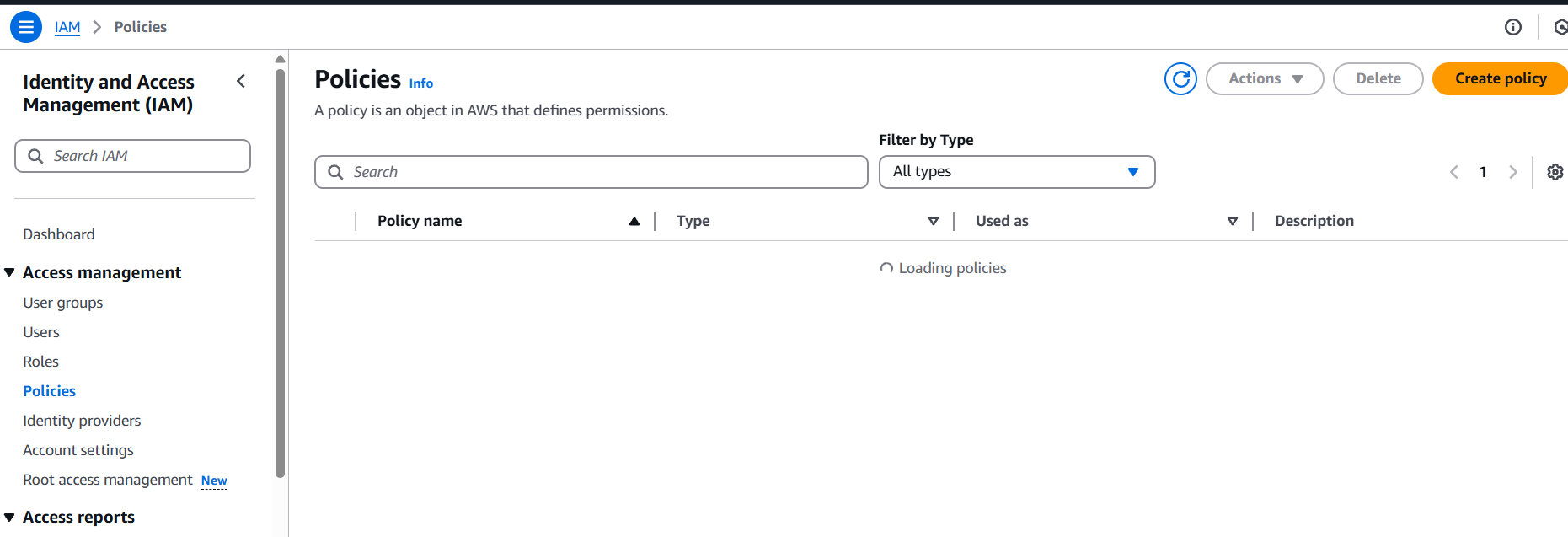
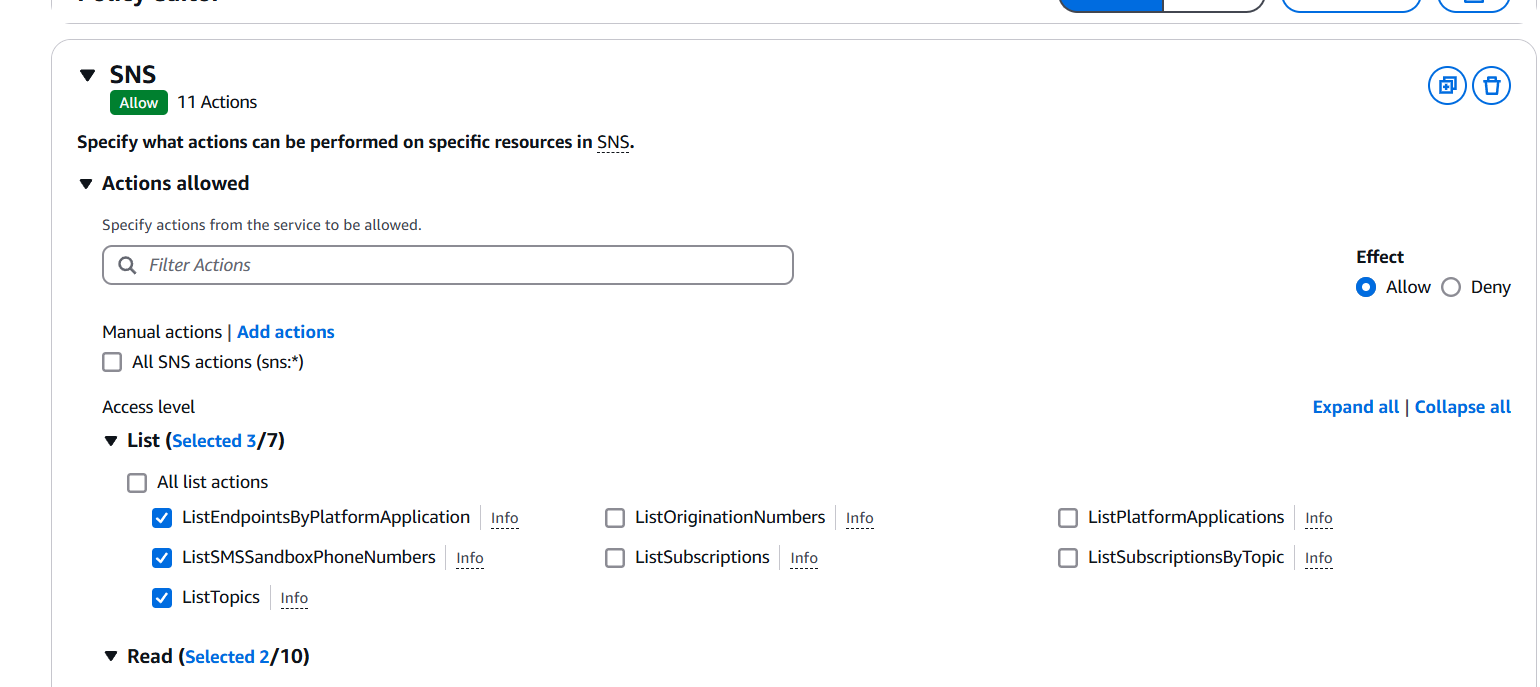
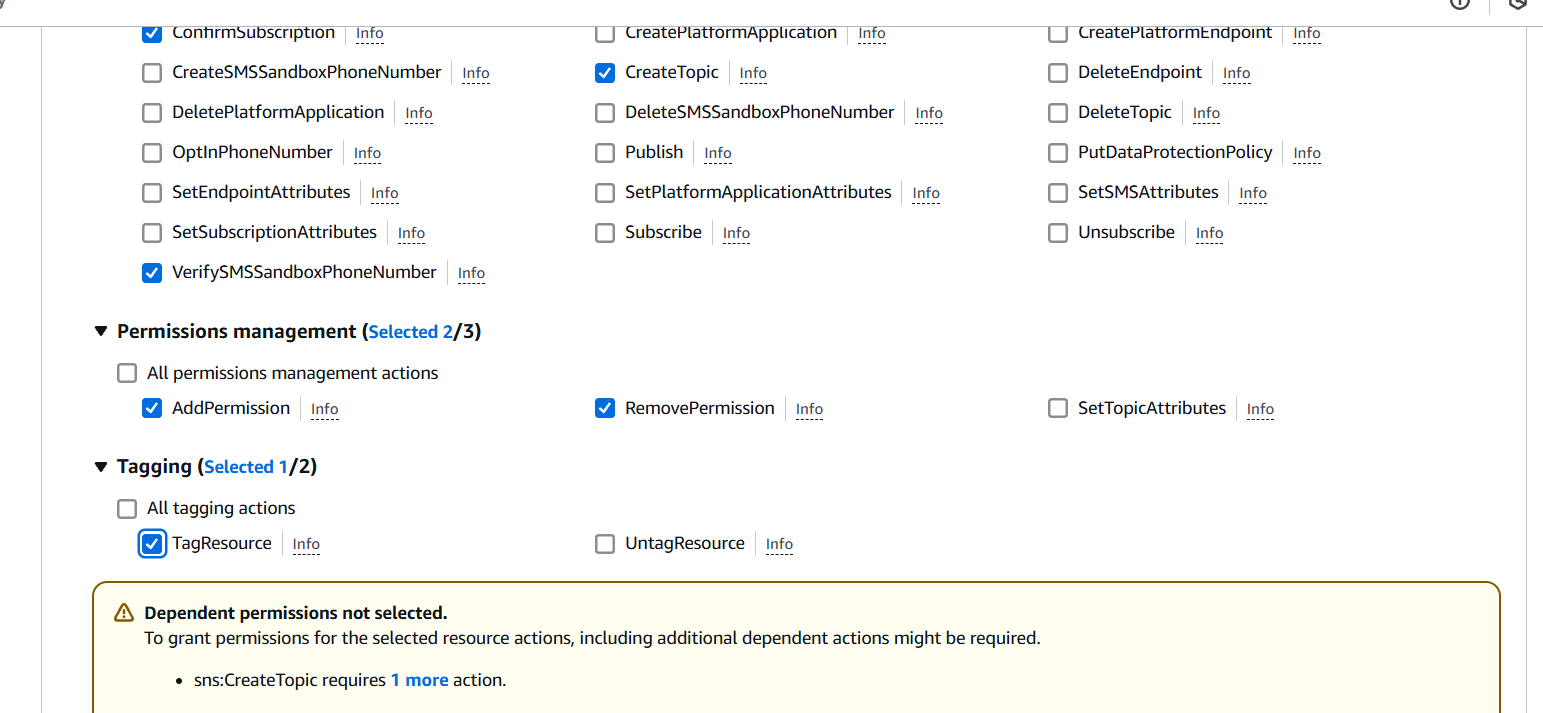
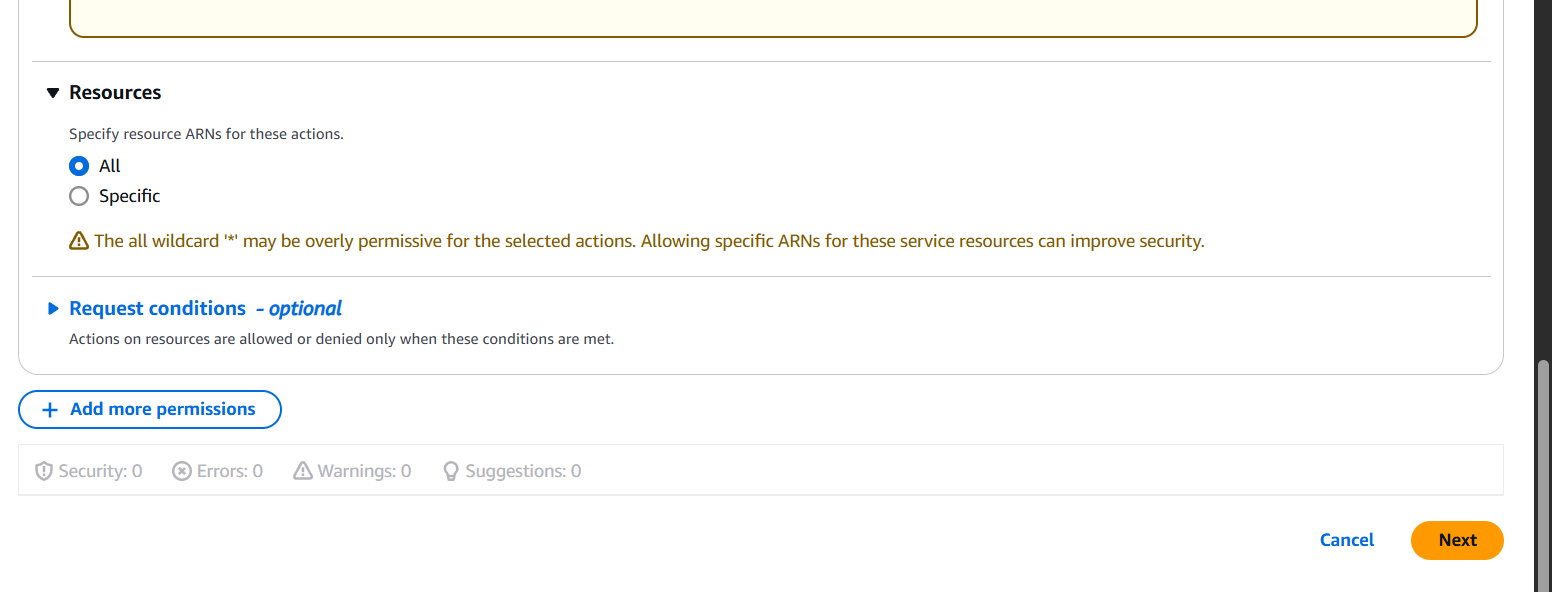
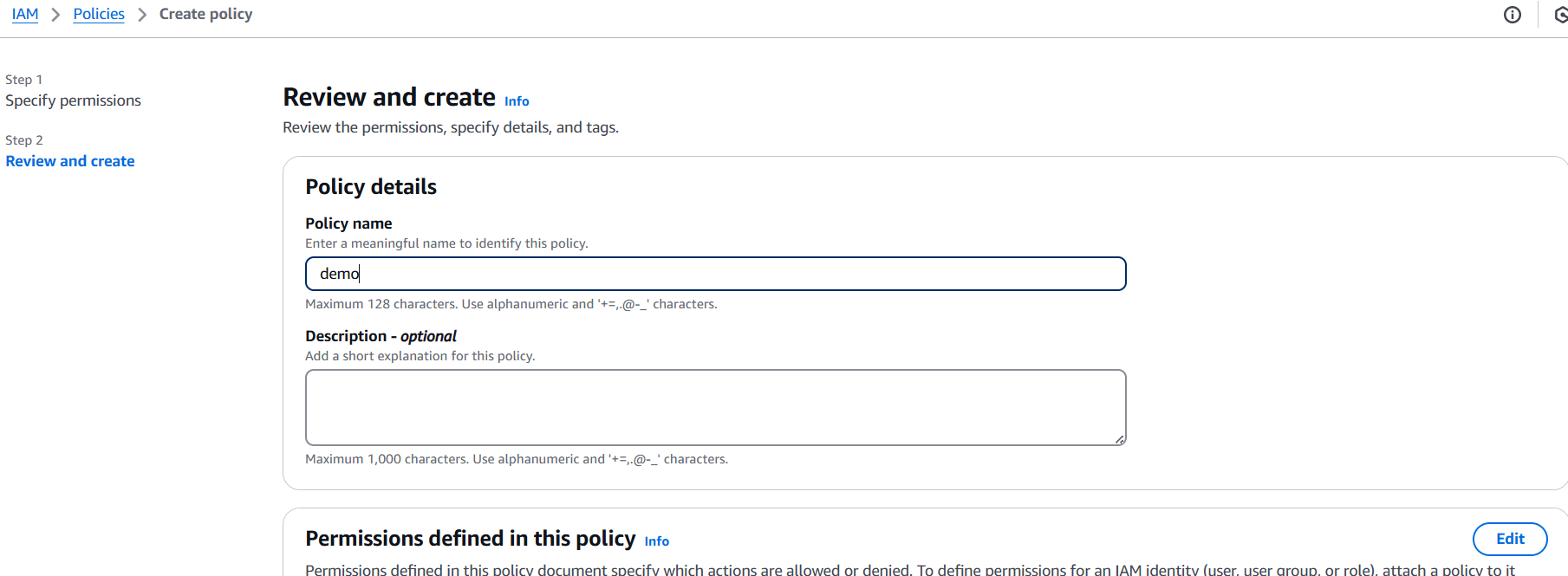
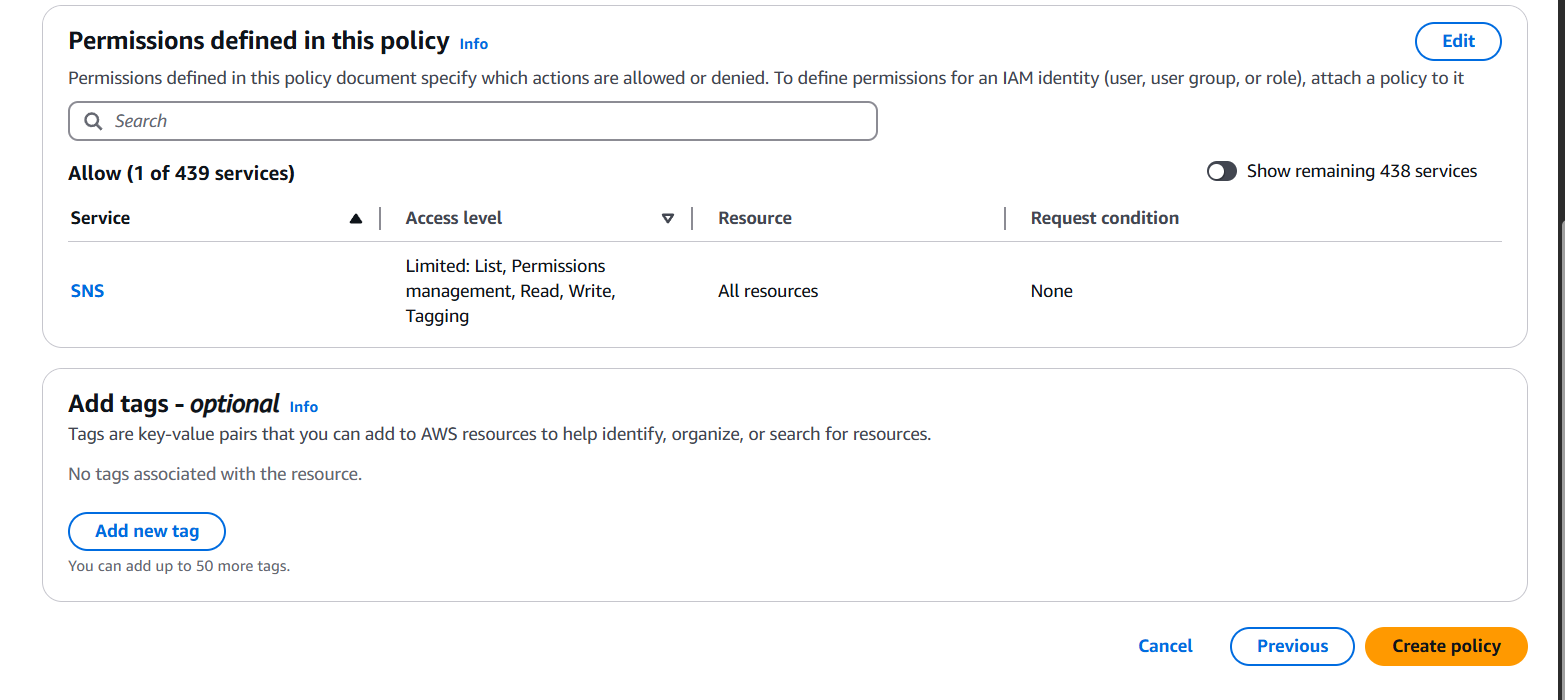
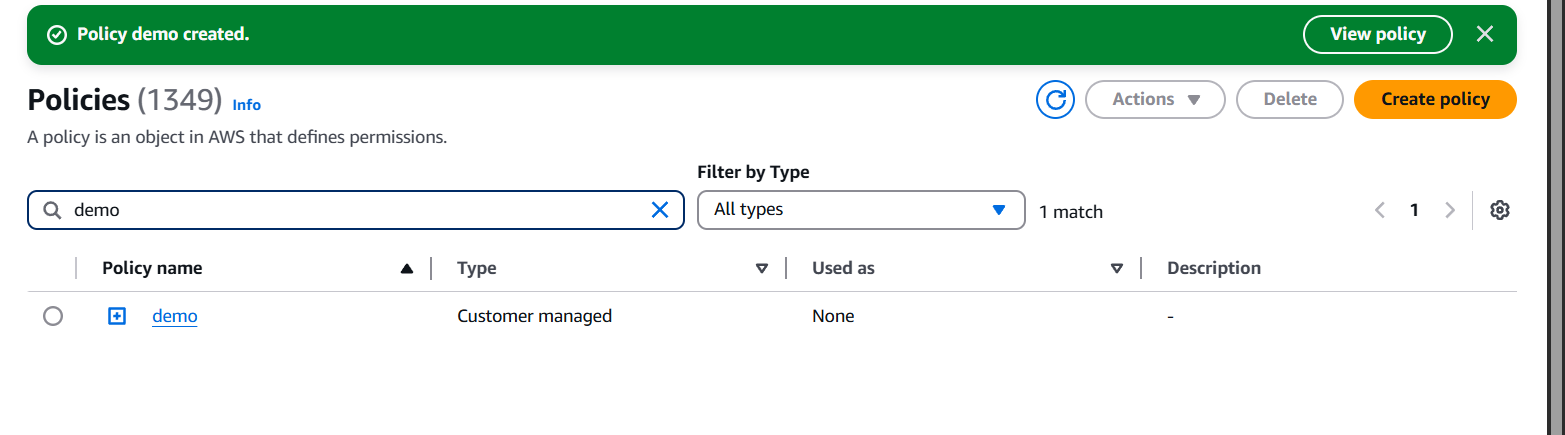
Option 2: Using AWS CLI
aws iam create-policy \
  --policy-name MyExamplePolicy \
--policy-document file://my-policy.jsonmy-policy.json with the path to your JSON policy file.{
"Version": "2012-10-17",
"Statement": [
{
"Effect": "Allow",
"Action": [
"s3:Get*",
"s3:List*"
],
"Resource": "*"
}
]
}This allows read-only access to all S3 buckets.

Creating IAM policies in AWS might seem daunting at first, but with a solid understanding of their structure and purpose, it becomes a powerful skill that puts you in control of your cloud environment. By mastering the basics — from the policy JSON format to defining actions, resources, and conditions — you can design access controls that are both secure and precise. Whether you used the visual editor in the AWS Console or wrote policies manually with JSON, you’ve now taken a significant step toward managing permissions the right way.
IAM policies aren’t just about restricting access — they’re about giving the right people or services the right permissions at the right time. And when done correctly, they help enforce the principle of least privilege, minimize risk, and ensure compliance with organizational or regulatory standards.
As your AWS environment grows, so does the importance of getting IAM right. So keep practicing, review AWS documentation regularly, and explore more complex use cases like policy conditions, service control policies (SCPs), and permissions boundaries. The more comfortable you become with IAM, the better you’ll be at securing your infrastructure without slowing down development.
Thanks for reading — now go write those policies with confidence!

As cloud computing continues to gain momentum, organizations face the growing challenge of managing complex network architectures. With multiple Virtual Private Clouds (VPCs), on-premises data centers, and remote locations to connect, maintaining seamless communication and efficient routing becomes crucial for operational success. This is where AWS Transit Gateway steps in. AWS Transit Gateway (TGW) is a managed service that acts as a central hub, enabling the connection of multiple VPCs, data centers, and other networks. By offering a scalable, high-performance, and secure platform for network interconnectivity, it simplifies networking tasks while ensuring optimal performance across your infrastructure. AWS Transit Gateway eliminates the need for complex peering arrangements, reduces the number of connections between VPCs, and makes routing more straightforward by allowing a hub-and-spoke model, where all traffic flows through a central gateway. Whether you’re dealing with a multi-region architecture, hybrid cloud environments, or just need to streamline your network setup, the AWS Transit Gateway offers a powerful solution. It enables both direct and VPN-based connections, supports BGP (Border Gateway Protocol) for dynamic routing, and integrates well with services like Direct Connect and Site-to-Site VPN. The flexibility to scale as your business grows ensures that AWS Transit Gateway can handle the ever-increasing complexity of your cloud infrastructure. However, setting up a Transit Gateway requires careful planning to ensure it meets your specific needs and requirements. In this blog post, we’ll take you through a comprehensive, step-by-step guide on how to create an AWS Transit Gateway, configure attachments to VPCs, set up routing tables, and optimize the service for your network architecture. Whether you’re new to AWS networking or a seasoned cloud architect, this guide will provide you with the knowledge you need to leverage AWS Transit Gateway effectively, ensuring your cloud network remains efficient, secure, and scalable.

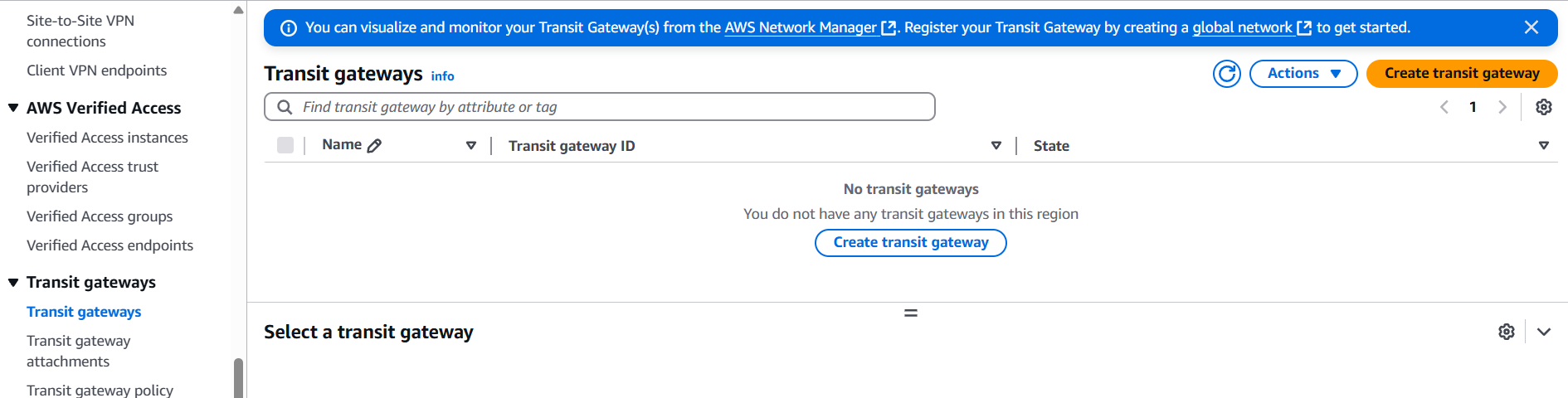
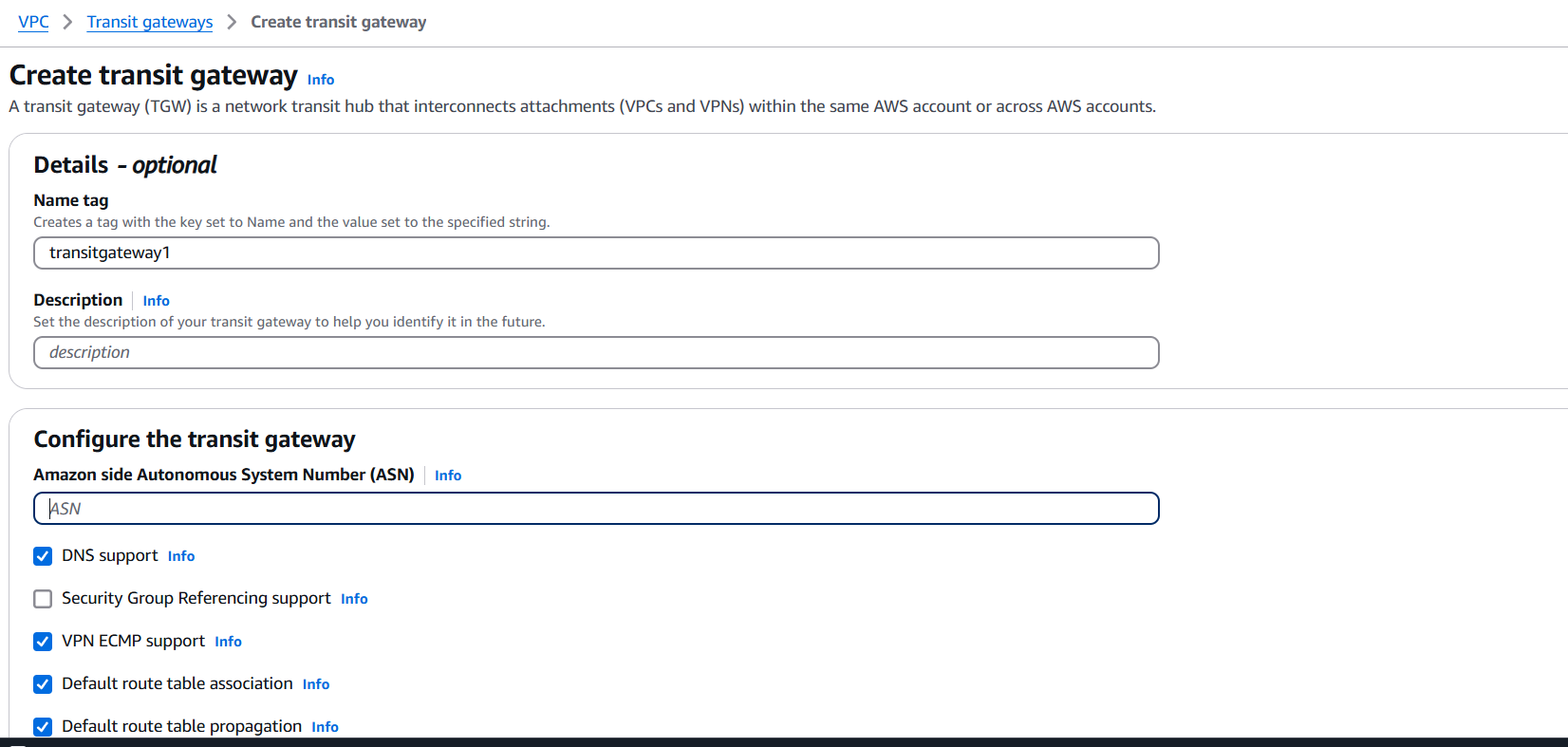
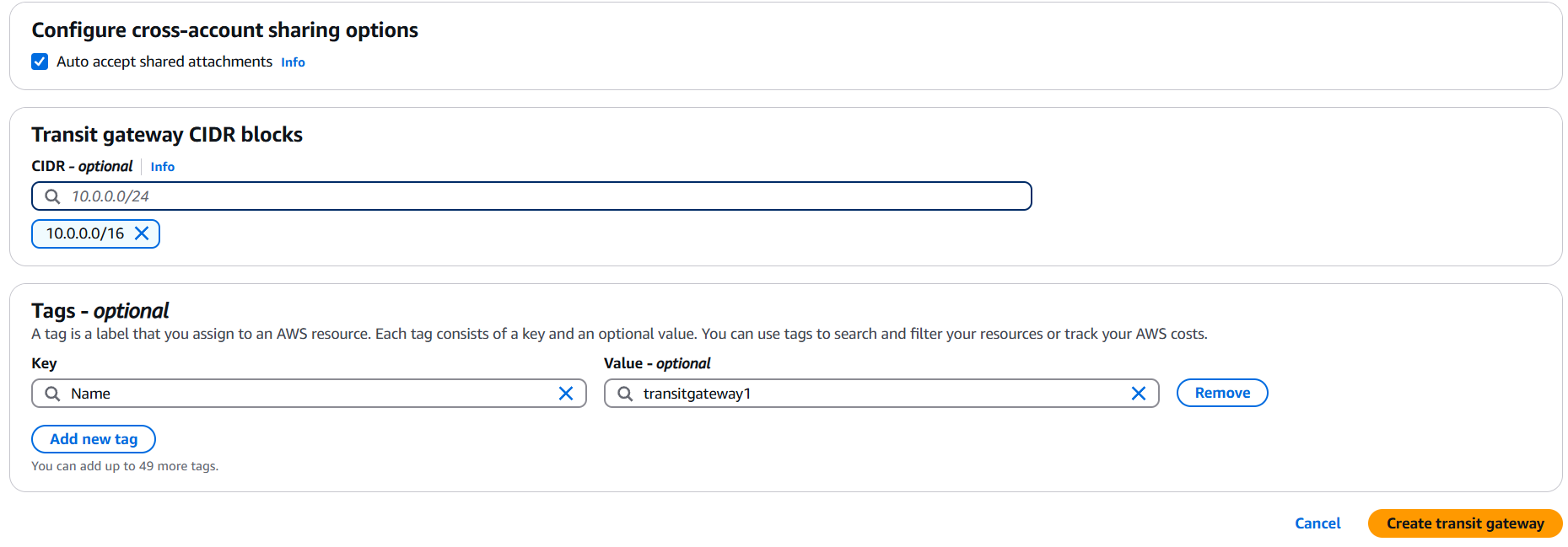
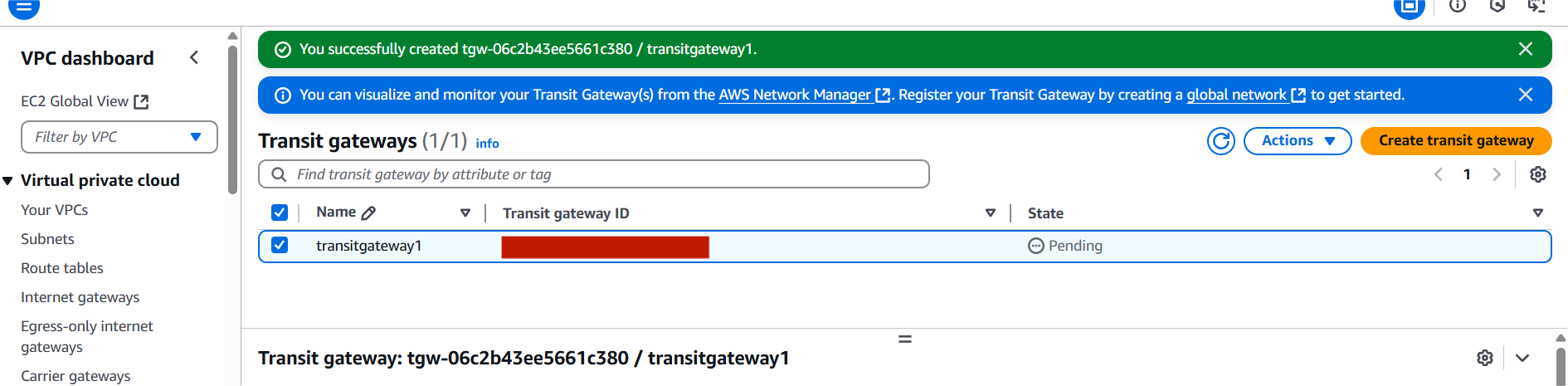
Central-TGW).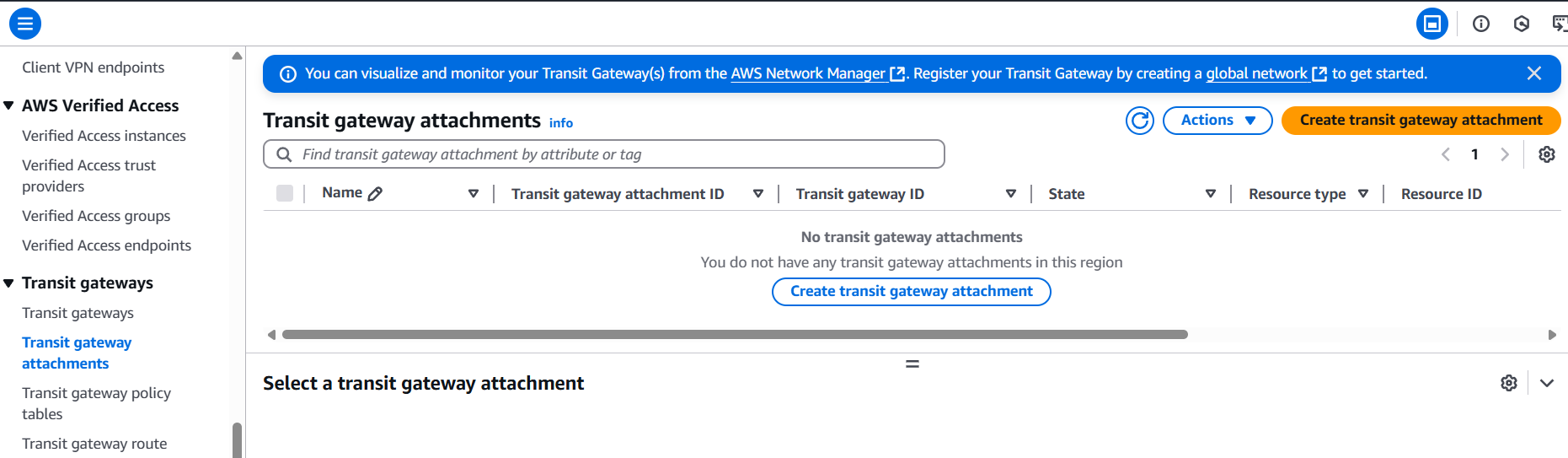
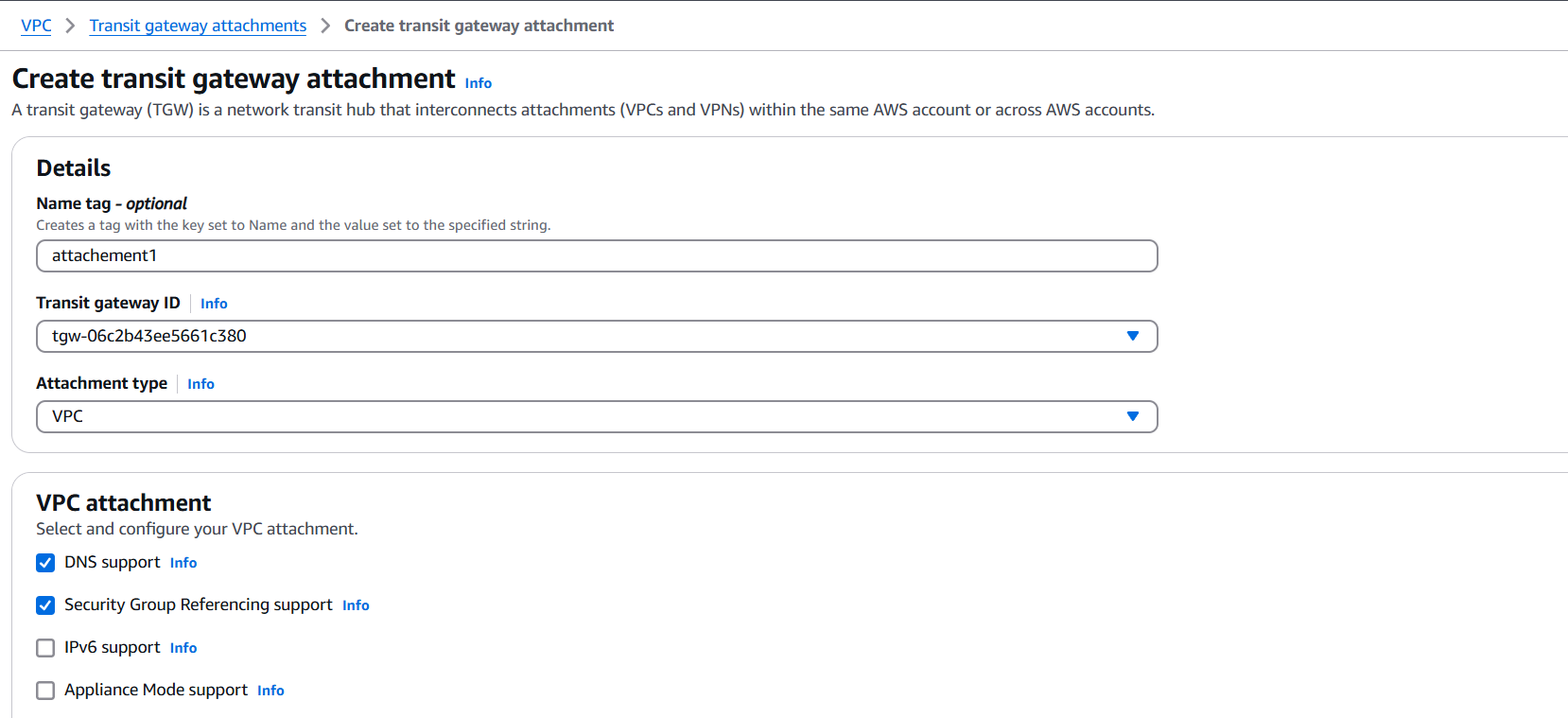
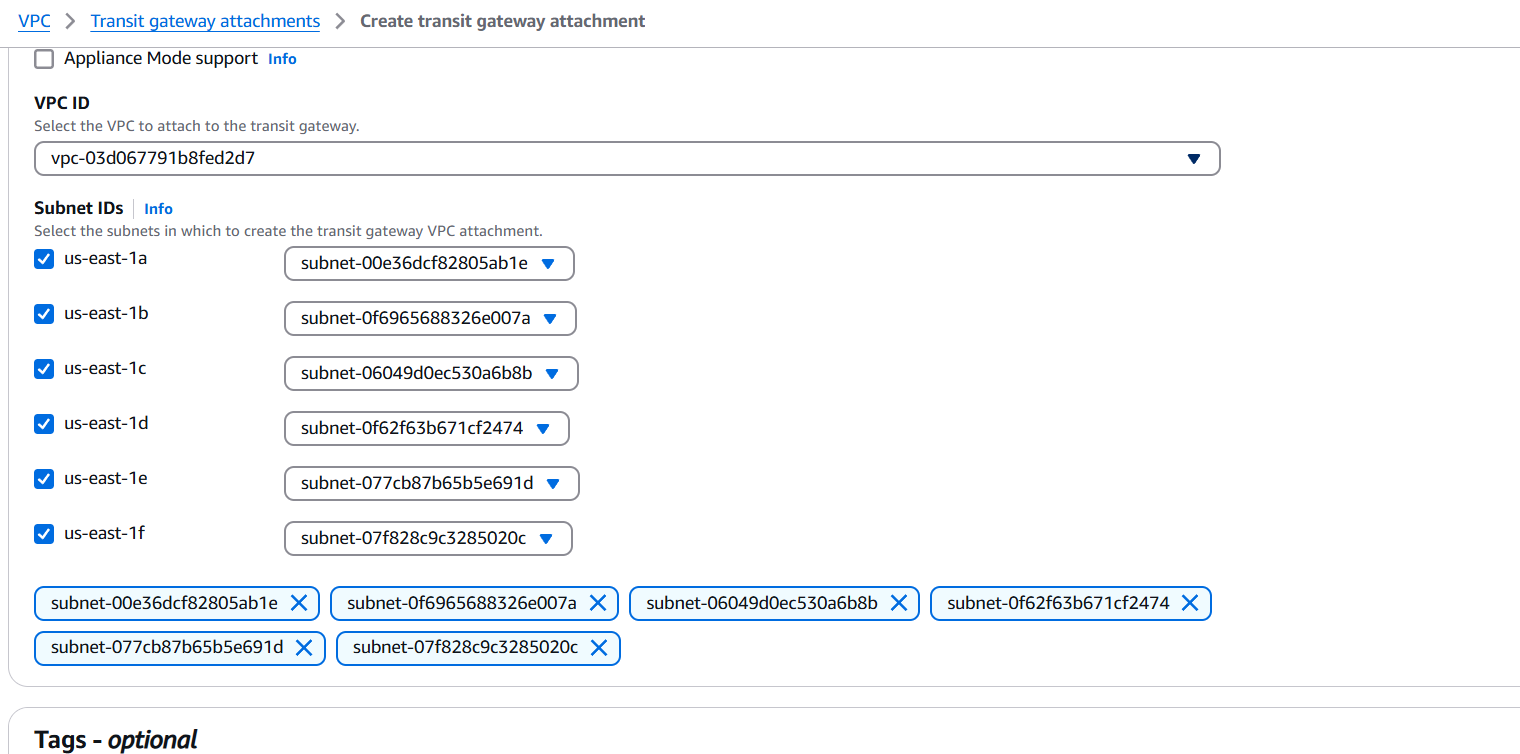
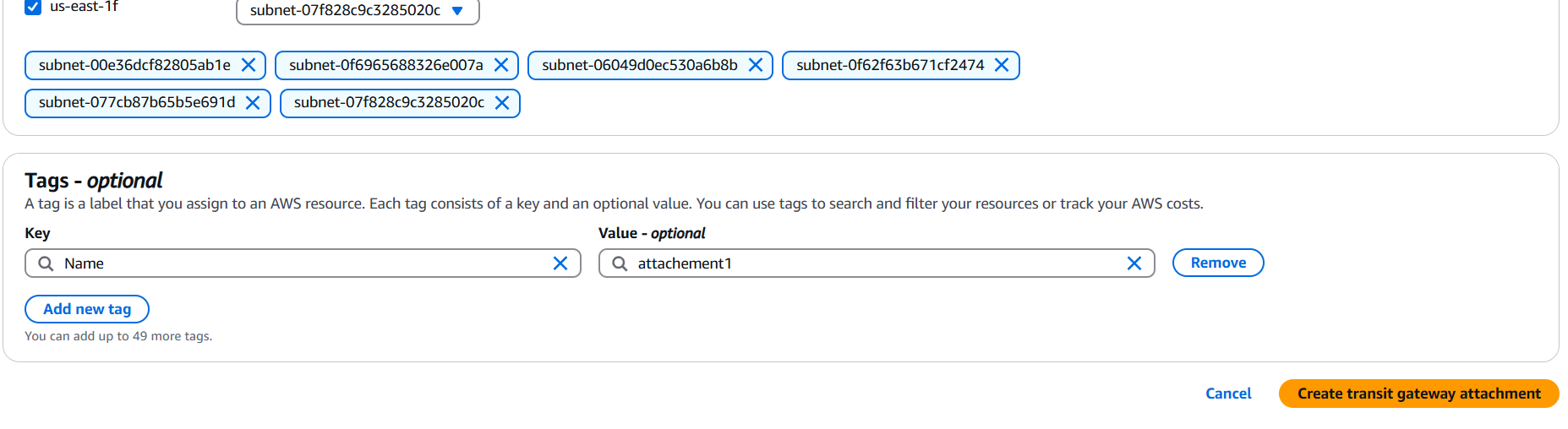
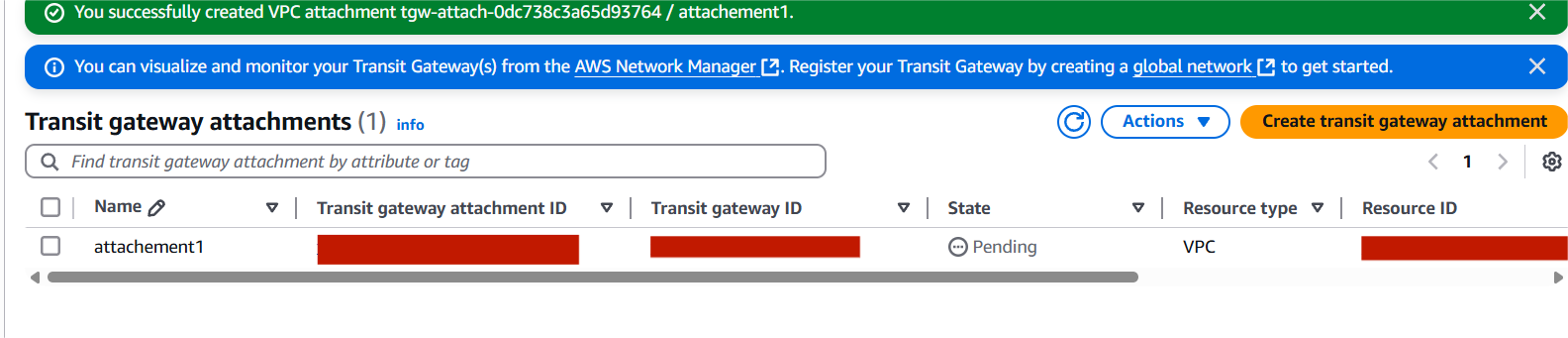

In conclusion, AWS Transit Gateway offers a robust and scalable solution for managing complex network architectures in the cloud. By simplifying the connection between multiple VPCs, on-premises environments, and remote networks, it enables organizations to reduce complexity and enhance performance. Whether you’re operating a multi-region deployment or integrating with on-premises resources, AWS Transit Gateway provides a centralized hub that makes managing interconnectivity both efficient and secure. By following the steps outlined in this guide, you can set up your own Transit Gateway, attach VPCs, and configure routing for optimized network traffic. As your cloud infrastructure evolves, AWS Transit Gateway ensures that you can scale seamlessly while maintaining high levels of security, availability, and performance. As with any AWS service, it’s important to plan your network design carefully to make the most of its features and avoid common pitfalls. With the right setup, AWS Transit Gateway will help you build a flexible and future-proof network infrastructure that can grow with your business.

In today’s rapidly evolving cloud landscape, ensuring endpoint security has become more critical than ever. As organizations increasingly migrate their workloads to the cloud, the need for robust protection against threats, malware, and unauthorized access grows in parallel. One of the most effective ways to bolster your cloud security posture is by leveraging AWS Endpoint Detection and Response (EDR). AWS EDR is designed to offer real-time threat detection, continuous monitoring, and automated responses to suspicious activities occurring across your cloud endpoints.
This guide aims to help you understand how to create, configure, and initialize AWS EDR from the ground up, even if you’re new to cloud security tools. We’ll walk through the core concepts, break down the essential steps, and provide practical tips to ensure your setup is both secure and scalable. By the end of this guide, you’ll not only understand how AWS EDR works but also how to effectively integrate it into your organization’s existing cloud environment.
We’ll begin by explaining what AWS EDR is and why it plays a vital role in your AWS security stack. Next, we’ll explore its components—how it integrates with services like AWS Security Hub, Amazon GuardDuty, and AWS CloudTrail. Then, we’ll dive into the step-by-step process of setting it up: from enabling necessary services, setting up IAM roles and permissions, to configuring alerting and automated remediation.
Security professionals and DevOps teams alike can benefit from implementing AWS EDR to gain real-time visibility into potential threats and reduce response times significantly. Even for startups or small businesses using AWS, having a solid endpoint defense solution like EDR can mean the difference between a minor security hiccup and a major breach.
Whether you’re looking to protect EC2 instances, container workloads in ECS or EKS, or even hybrid environments, AWS EDR can be tailored to meet those needs. In this blog, we aim to make the setup process as simple and actionable as possible, with clear instructions and helpful insights along the way. You’ll also learn some best practices for maintaining and scaling your EDR configuration as your infrastructure grows.

Cybersecurity doesn’t have to be overwhelming or overly complex, especially with tools like AWS EDR that are built to integrate seamlessly into your AWS workflow. So, if you’re ready to enhance your cloud security and gain greater control over your endpoints, let’s dive in and get started with AWS EDR from scratch.
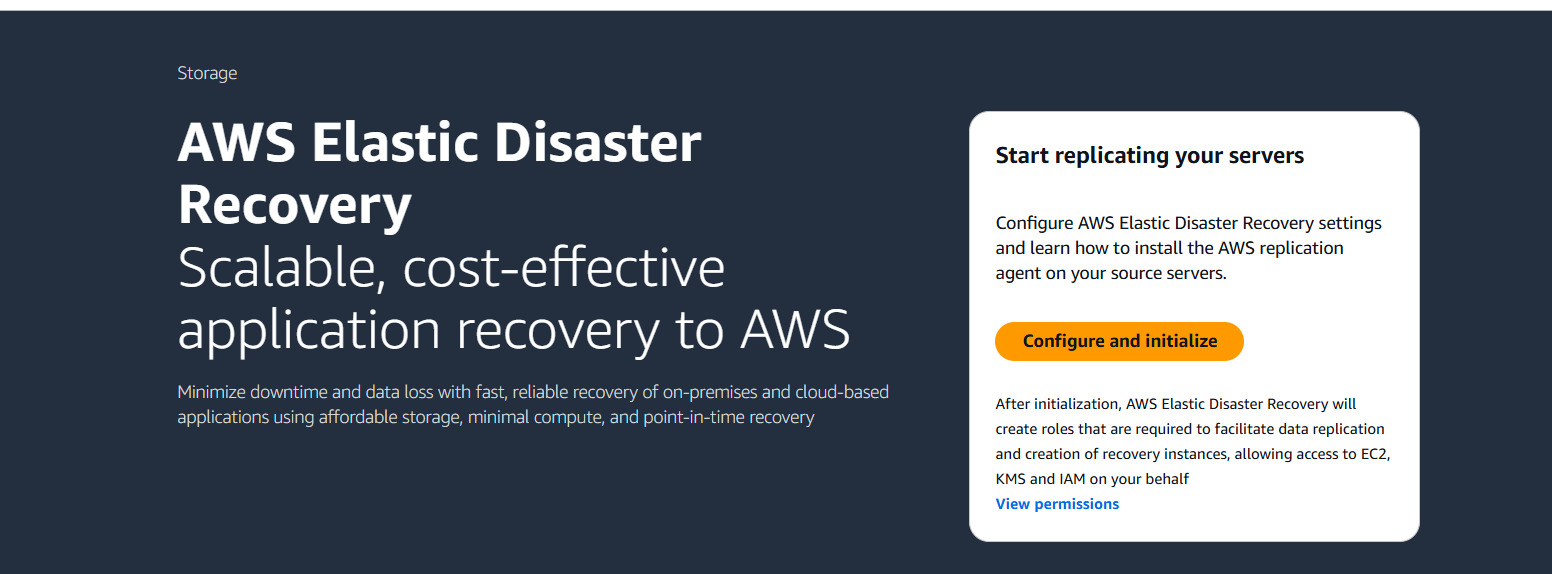
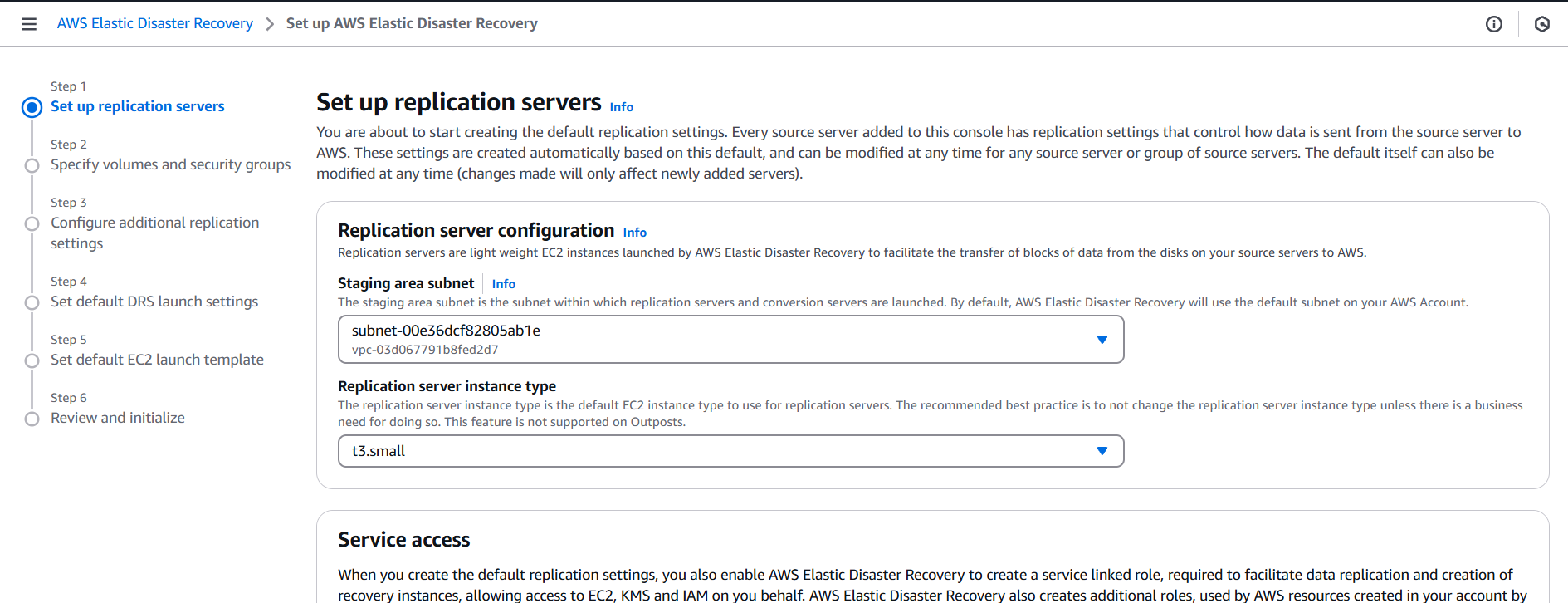
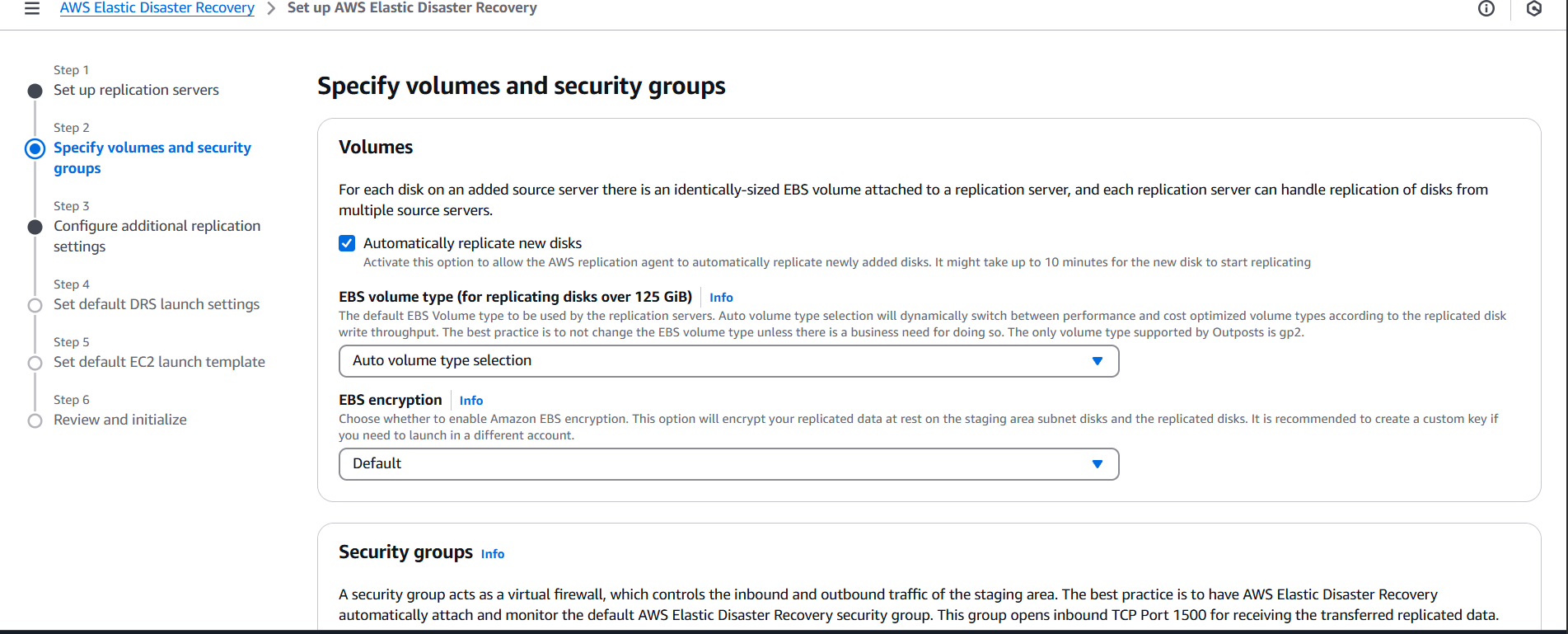
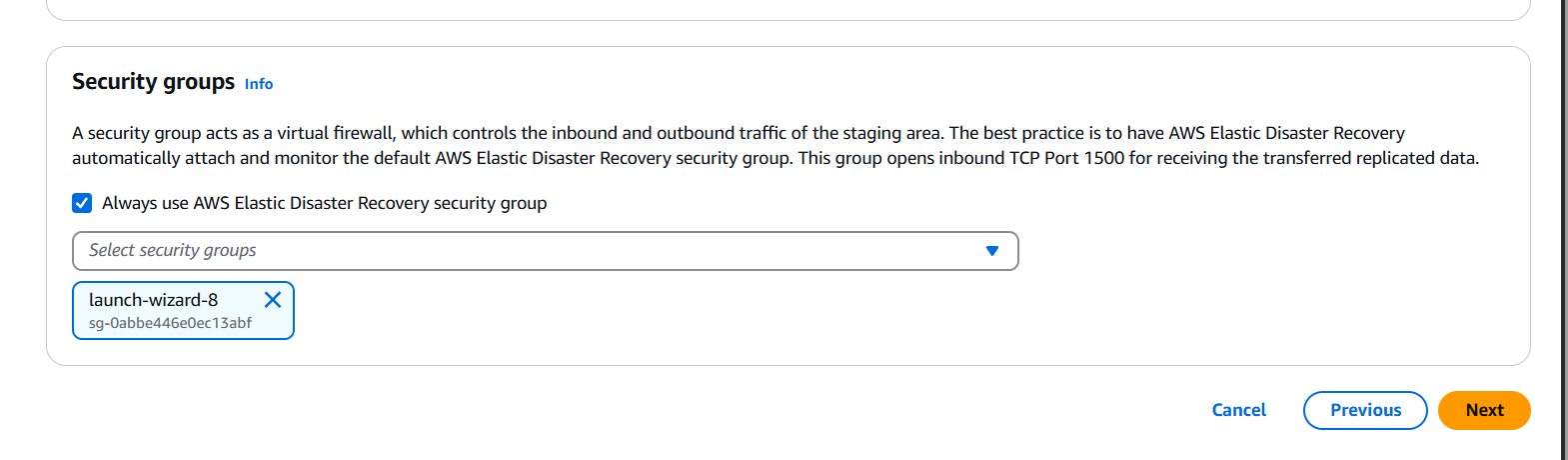
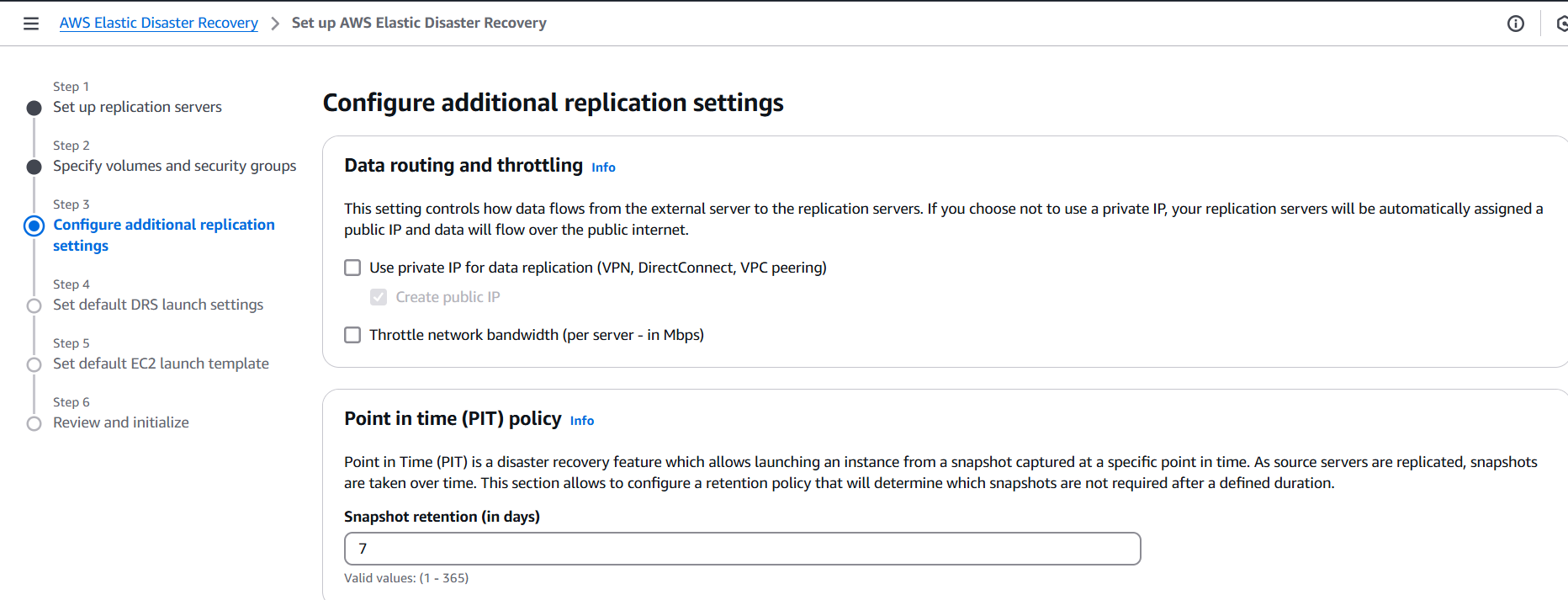
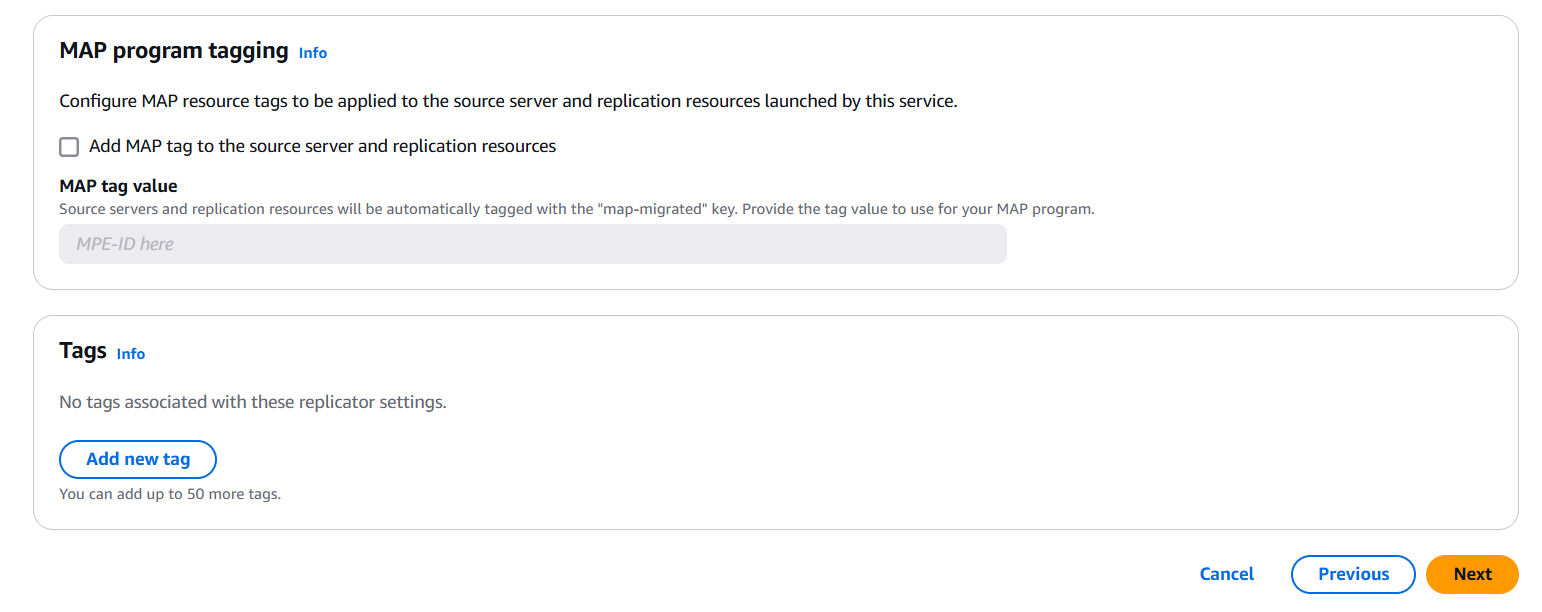
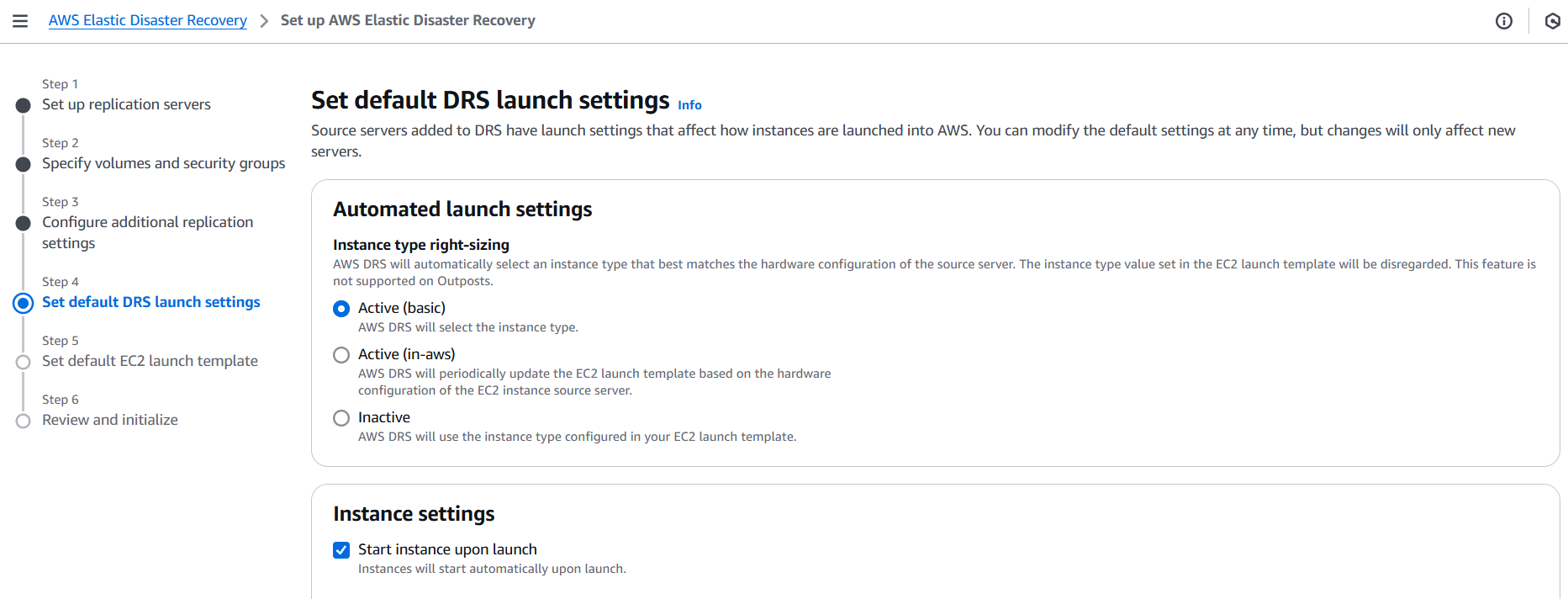
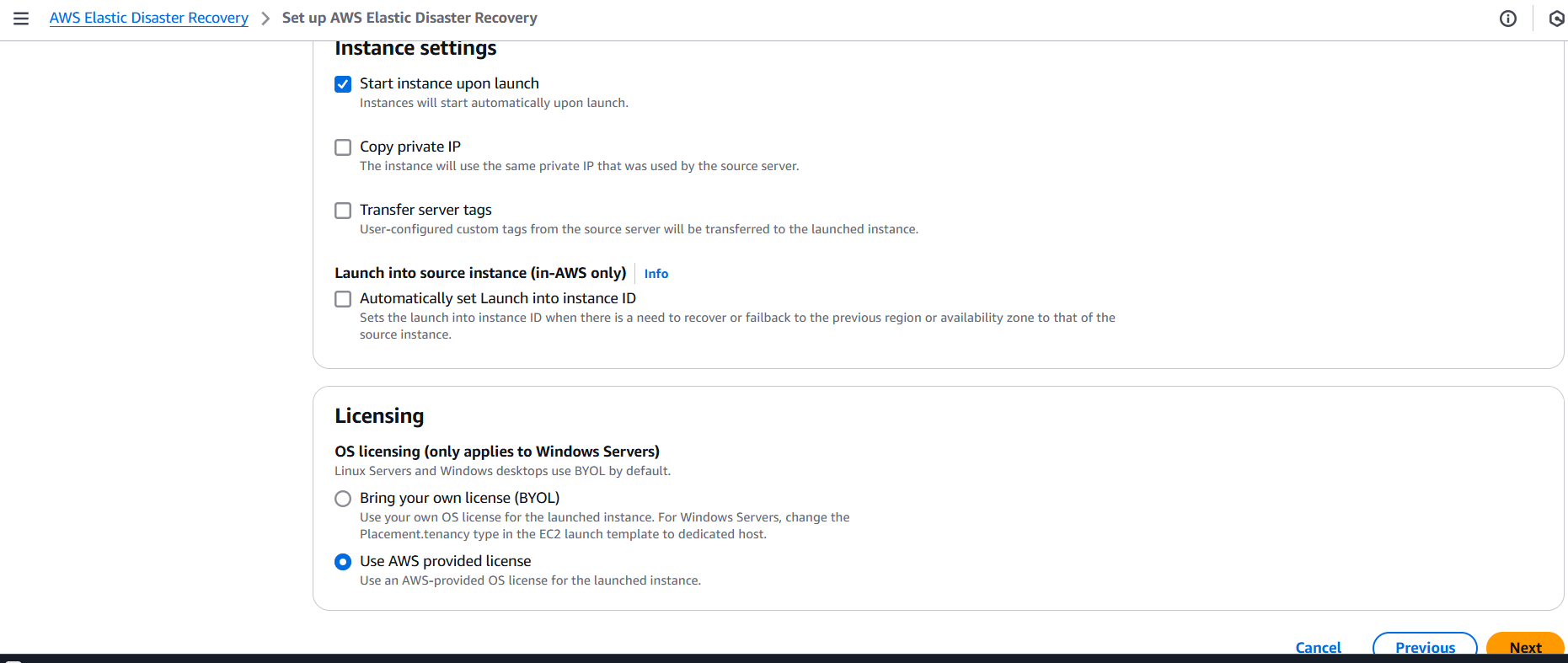
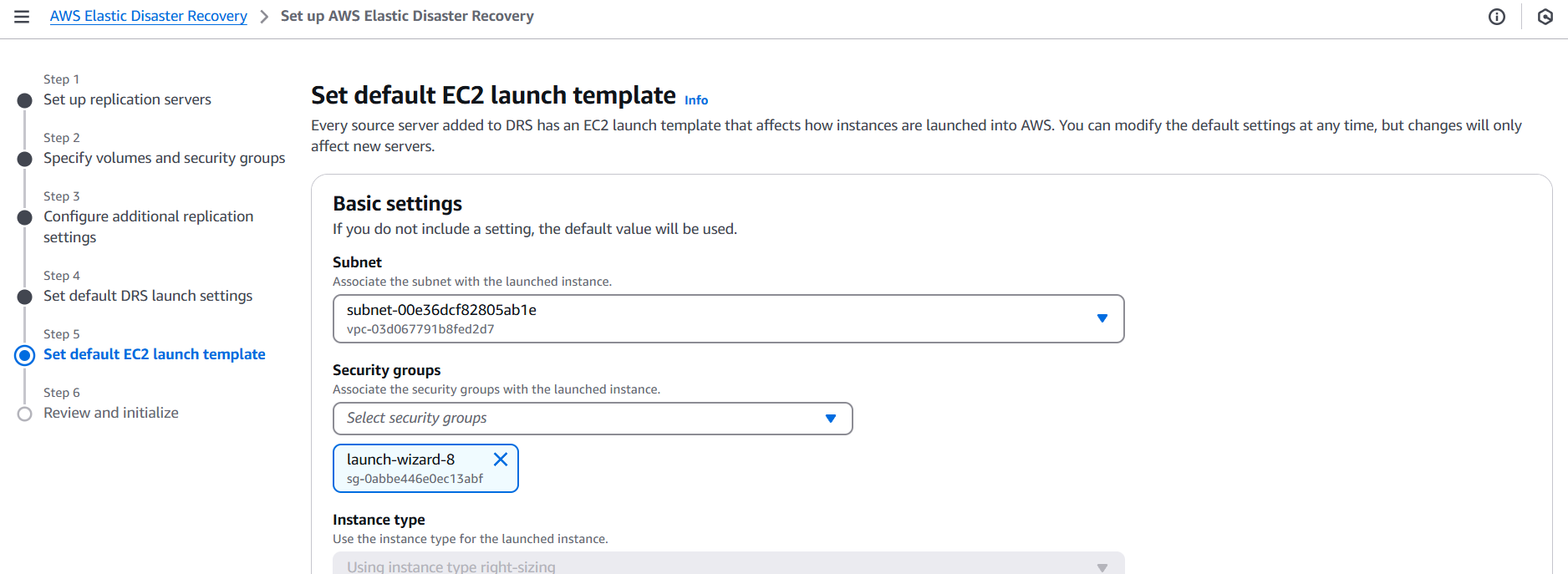
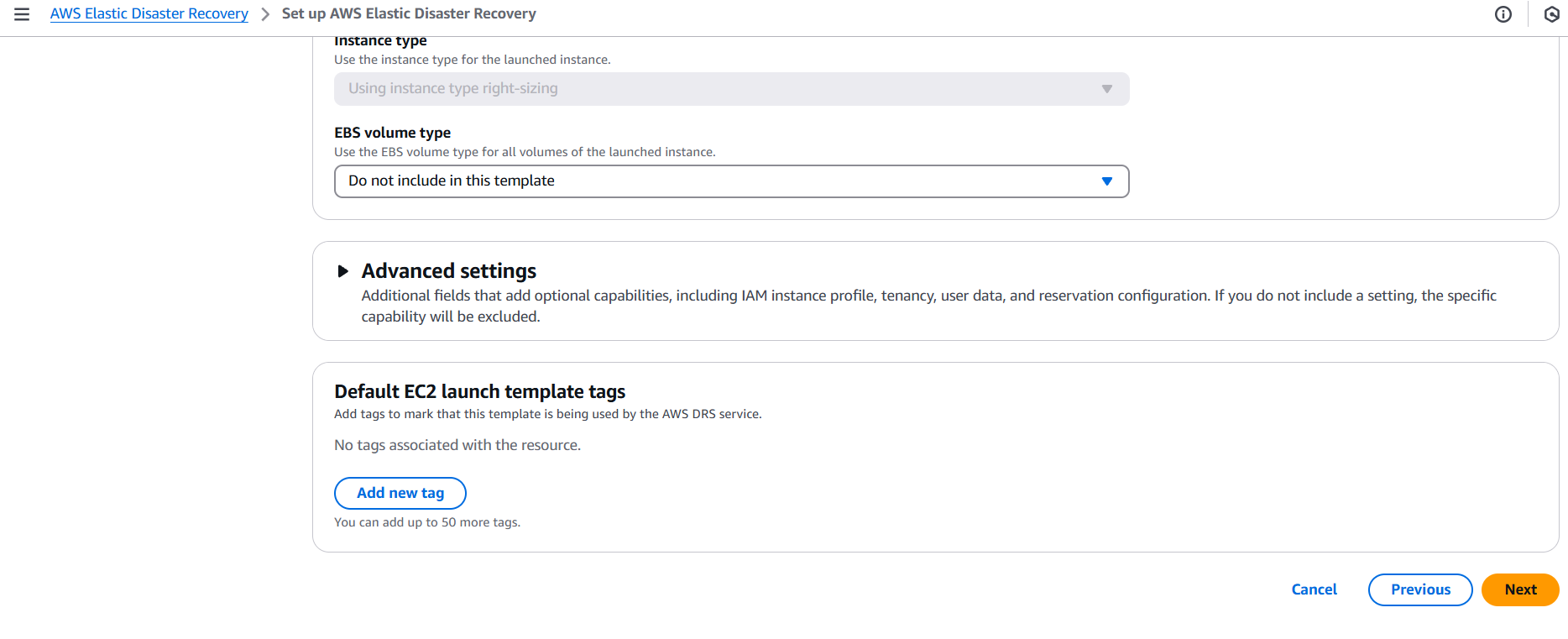
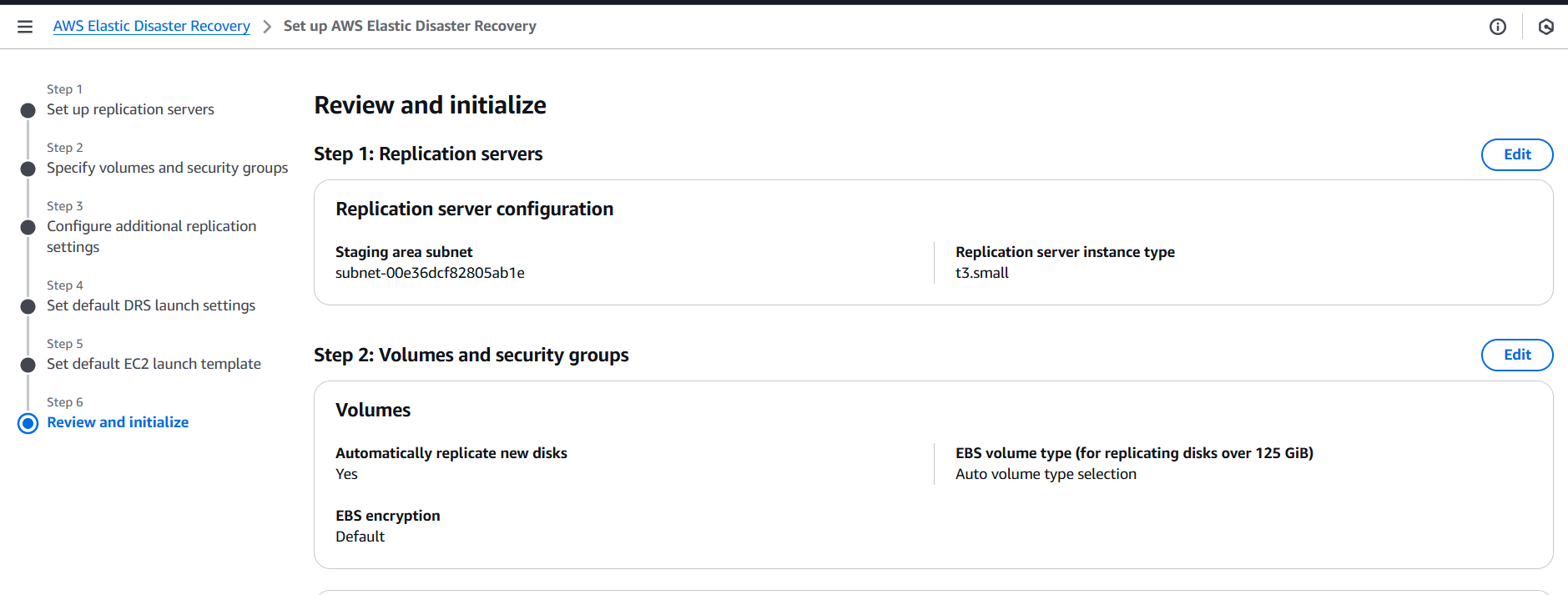
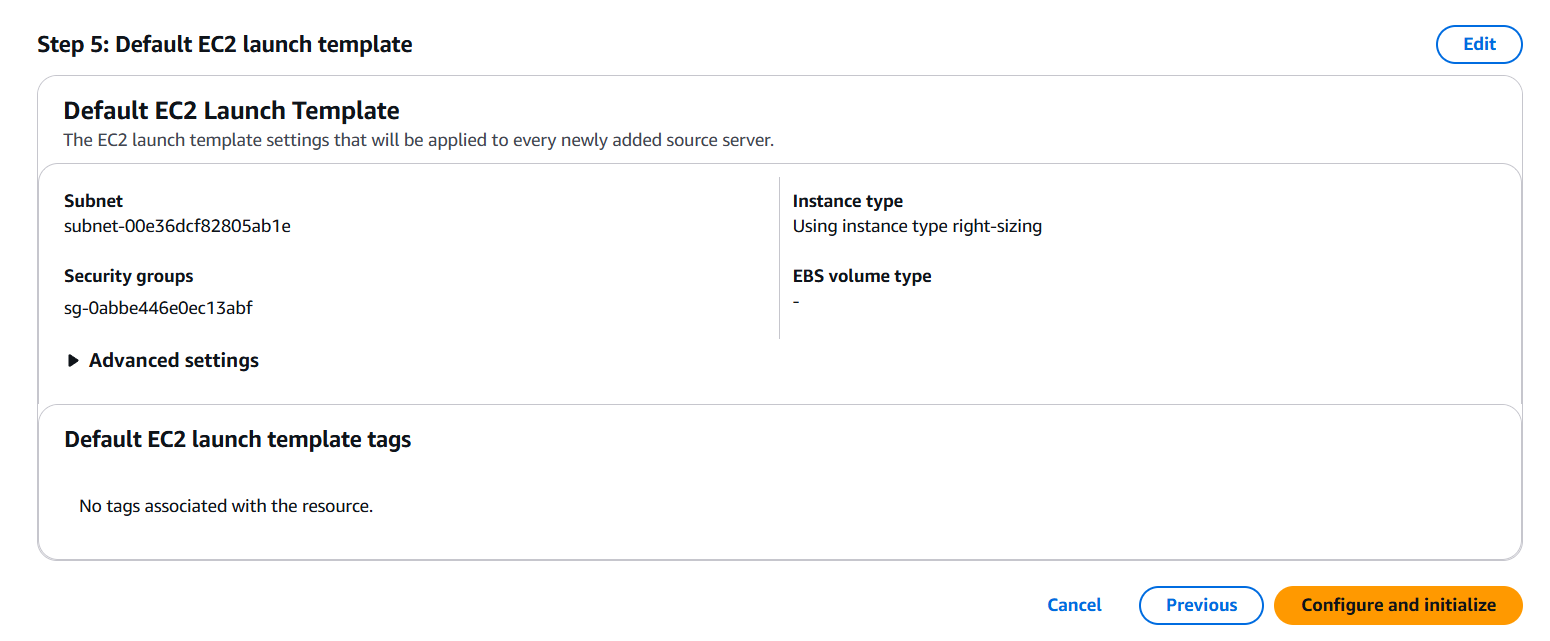
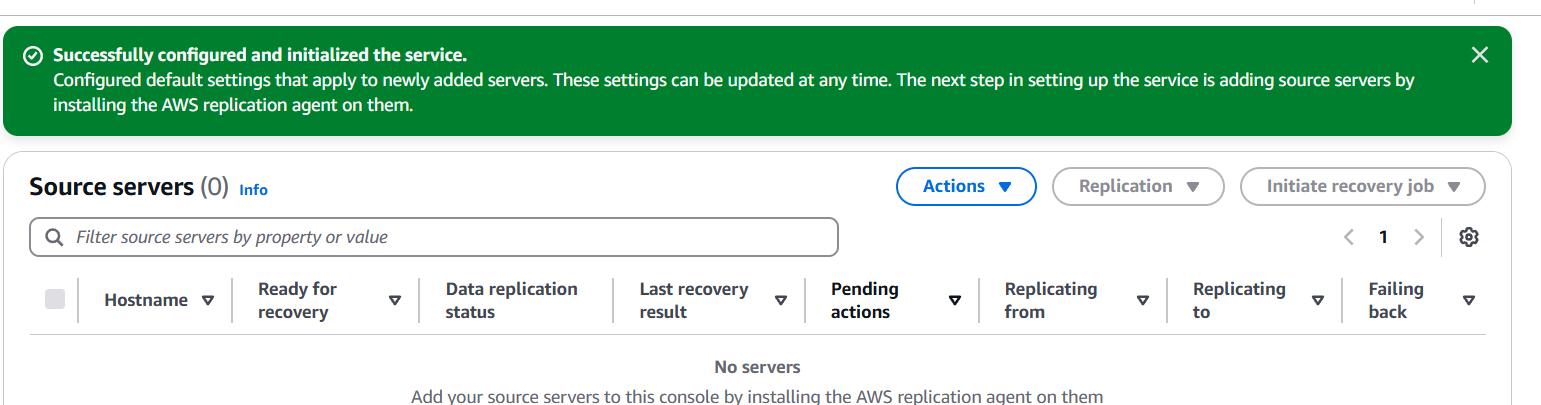

Securing your cloud environment is no longer optional—it’s a necessity. In this blog, we’ve walked through the essential steps to create, configure, and initialize AWS Endpoint Detection and Response (EDR), providing a solid foundation for endpoint protection within your AWS infrastructure. From enabling key services like GuardDuty and CloudTrail, to setting up IAM permissions and fine-tuning alert configurations, each step plays a critical role in building a responsive and resilient security posture.
By leveraging AWS EDR, you gain more than just visibility—you gain the ability to act swiftly when threats are detected. Automated detection, real-time monitoring, and intelligent alerting are all designed to minimize risks and reduce response times, giving your team the edge it needs in an increasingly hostile digital landscape.
As your cloud architecture grows, so should your security strategy. Fortunately, AWS EDR is designed to scale with your infrastructure, offering flexible integration with AWS-native services and third-party tools. Remember, setting up EDR is not a one-time task—it’s the first phase of a broader, ongoing effort to ensure endpoint security across your entire environment.
Whether you’re part of a small startup or a large enterprise, understanding how to implement EDR properly is a crucial step toward proactive cloud defense. With the right configuration and regular monitoring, you can rest easier knowing your endpoints are being actively protected.
Now that you’ve got the basics covered, you’re well on your way to building a safer, more secure AWS environment. Keep iterating, stay updated on AWS security best practices, and continue refining your EDR setup as new threats emerge. Security is a journey—and with AWS EDR, you’ve taken a major step in the right direction.

In today’s cloud-driven world, security and access control are more critical than ever, especially when using powerful platforms like Amazon Web Services (AWS). One of the most effective tools for identifying and auditing resource access within AWS is IAM Access Analyzer. This tool enables security teams, developers, and administrators to pinpoint which of their cloud resources—like IAM roles, S3 buckets, or KMS keys—are accessible from outside the account or organization. By automatically analyzing resource-based policies, IAM Access Analyzer plays a vital role in uncovering unintended data exposure and ensuring that the principle of least privilege is consistently enforced.
With the growing complexity of cloud infrastructure and multi-account AWS environments, organizations often struggle to maintain visibility into who has access to what. Traditional methods of manually auditing policies can be error-prone and time-consuming. This is where IAM Access Analyzer becomes indispensable. It automates the evaluation of permissions and highlights potential security risks in real-time. Whether you’re managing a single AWS account or overseeing a large organization using AWS Organizations, Access Analyzer can help you stay on top of your security game.
Despite its usefulness, many AWS users are either unaware of IAM Access Analyzer or unsure of how to configure and use it effectively. That’s why this step-by-step guide exists. It’s designed to walk you through everything from the basics of what IAM Access Analyzer is, to actually creating and using one in your own AWS environment. You don’t need to be a cloud security expert to follow along. Whether you’re a developer, a DevOps engineer, or just getting started with AWS, this guide will give you a solid understanding of how to implement Access Analyzer and interpret its findings.
Throughout this tutorial, we’ll also discuss real-world examples, use cases, and best practices for making the most of this powerful security feature. We’ll begin by explaining what IAM Access Analyzer does under the hood, then guide you through creating an analyzer using both the AWS Console and the AWS CLI. We’ll also cover how to read and respond to findings, and how to integrate those insights into your organization’s security workflows. By the end, you’ll not only know how to create an analyzer—you’ll know how to use it strategically to protect your AWS environment from unauthorized access.

Ready to dive in and take control of your AWS permissions visibility? Let’s get started.
IAMFullAccess, AccessAnalyzerFullAccess)MyOrgAccessAnalyzer).Current account or your AWS organization, depending on your analyzer type.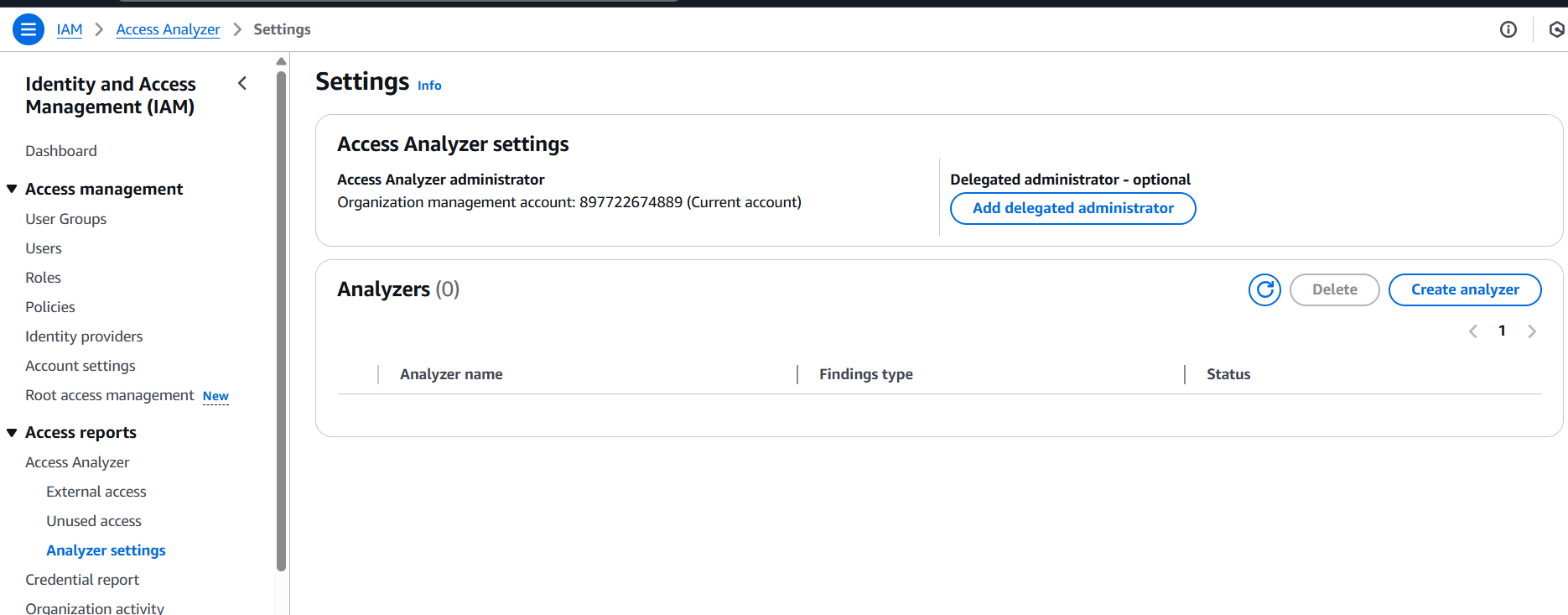
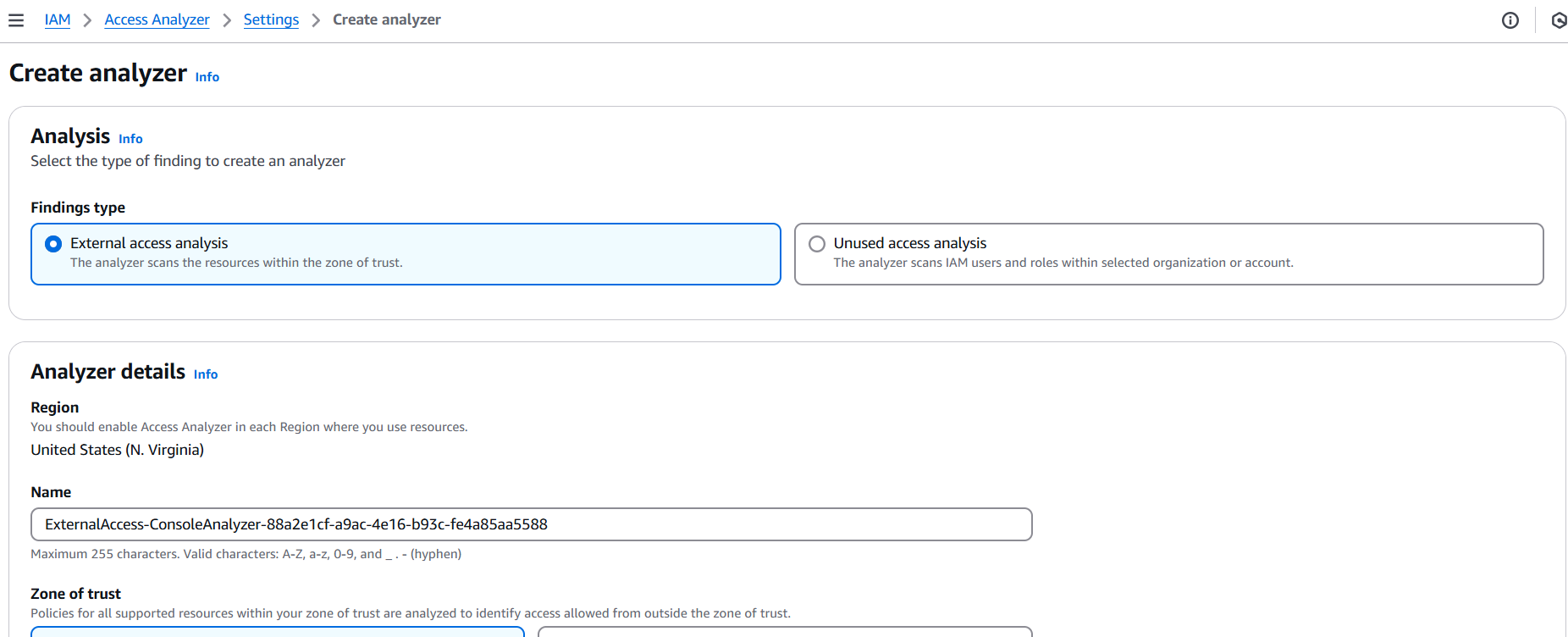
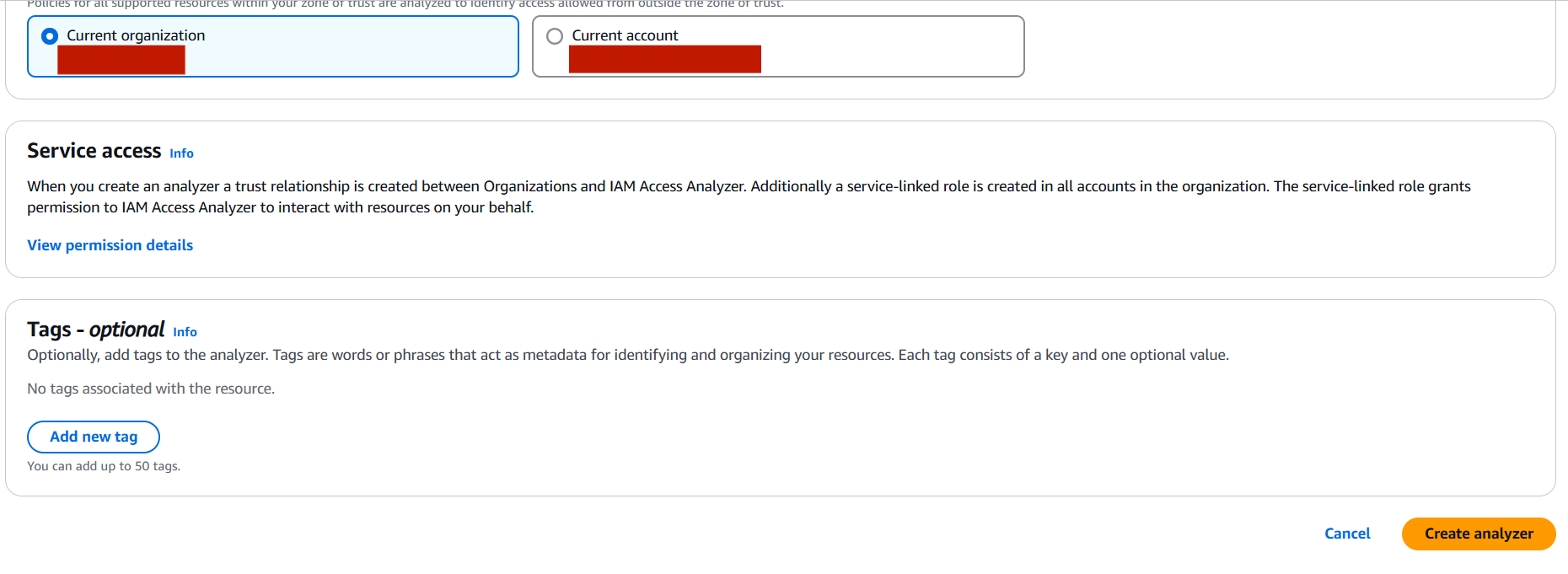
If you prefer CLI:
aws accessanalyzer create-analyzer \
  --analyzer-name MyAnalyzer \
  --type ACCOUNT
Securing your AWS environment doesn’t have to be overwhelming, and tools like IAM Access Analyzer make the process significantly easier. By following the step-by-step guide above, you’ve learned how to create an analyzer, understand its findings, and take action to tighten access to your resources. Whether you’re managing a personal AWS account or an enterprise-level cloud infrastructure, having visibility into external access is crucial for maintaining security and compliance.
IAM Access Analyzer does more than just identify risks—it empowers you to actively monitor and respond to policy misconfigurations and access issues before they become security incidents. The proactive use of Access Analyzer can help your team enforce the principle of least privilege, protect sensitive data, and align with industry best practices and regulatory standards.
Remember, security is not a one-time setup—it’s an ongoing effort. Make it a habit to regularly review Access Analyzer findings, archive or address unexpected access, and integrate these insights into your broader cloud governance strategy. As AWS continues to grow and evolve, so should your approach to securing it.
Now that you’ve seen how simple it is to get started, go ahead and put IAM Access Analyzer into action. Stay secure, stay aware, and keep building with confidence on AWS.