


What is AWS SQS?
Amazon SQS (Simple Queue Service) Dead Letter Queues (DLQs) are a feature that helps manage message processing failures in your messaging workflows. When messages in a standard SQS queue fail to be processed successfully after a certain number of attempts, they can be automatically sent to a DLQ.
DLQs can also be monitored for metrics like the number of messages and errors, which can help you maintain the health of your messaging system.

What is Terraform?
Terraform is an open-source Infrastructure as Code (IaC) tool developed by HashiCorp, that lets you build, change, and version cloud and on-prem resources safely and efficiently in human-readable configuration files that you can version, reuse, and share.
Now, Create SQS in Terraform using VScode.
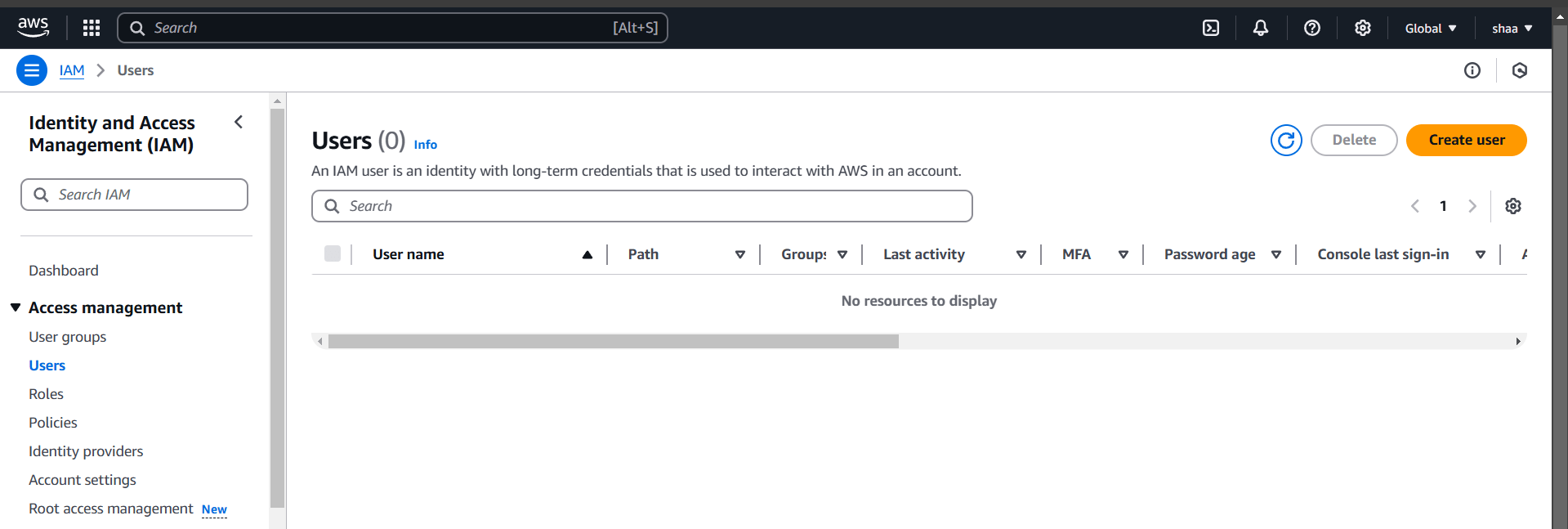
STEP 1: Navigate IAM and create Users.
- Click on create user.
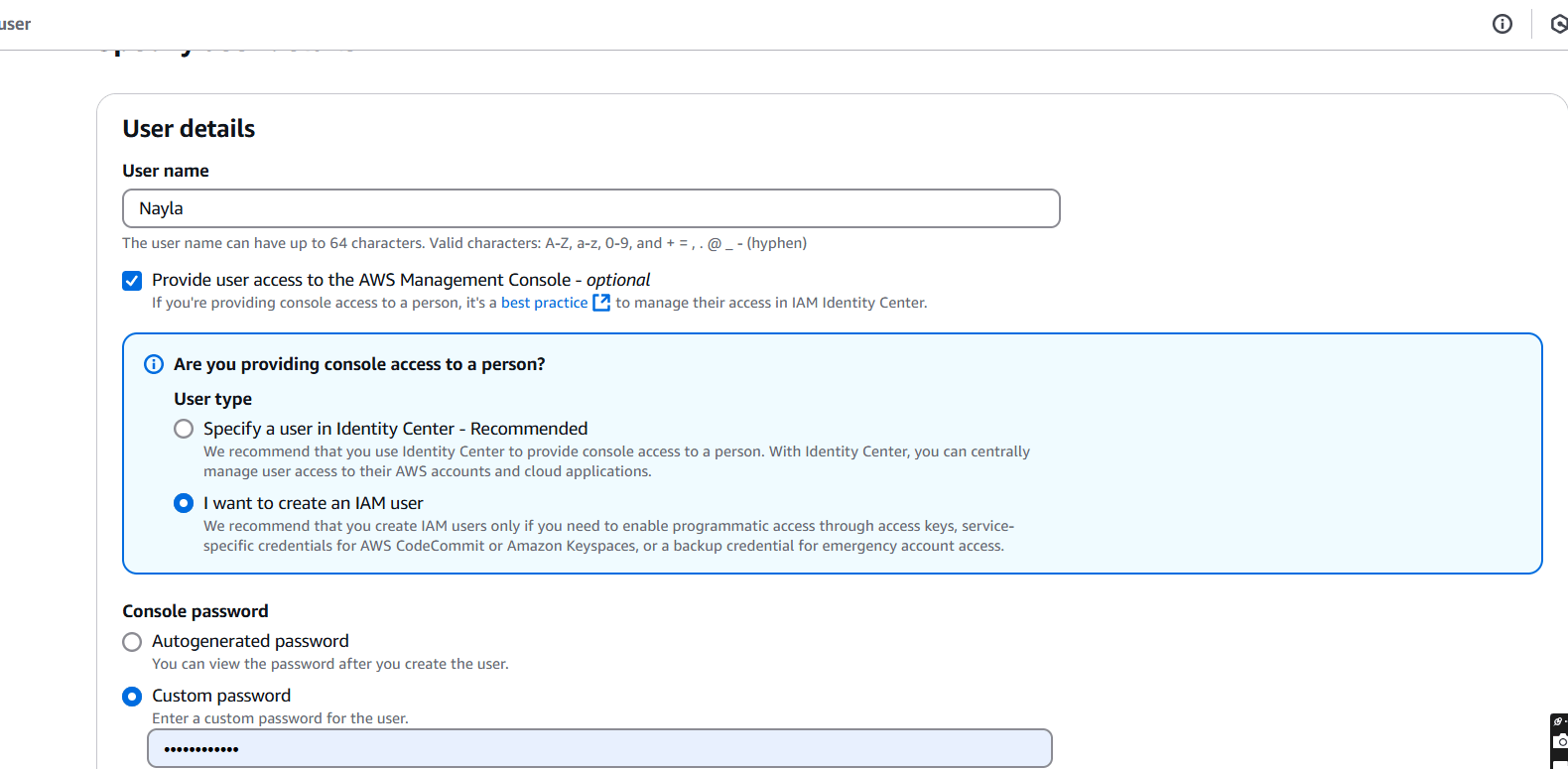
STEP 2: Enter the name and set password.
- Click on next button.
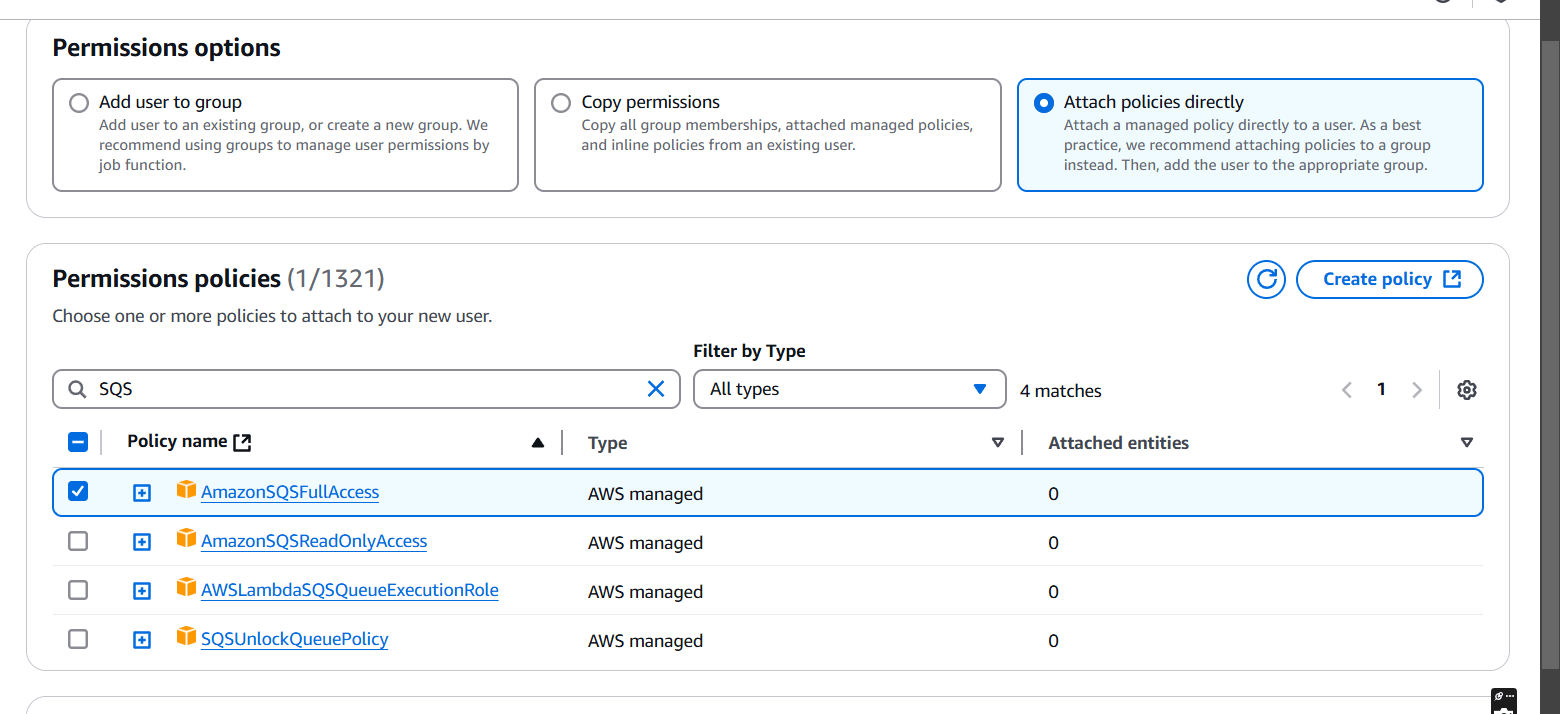
STEP 3: Select attach policies directly.
- Tick on Amazon SQS Fullaccess.
- Click create user.
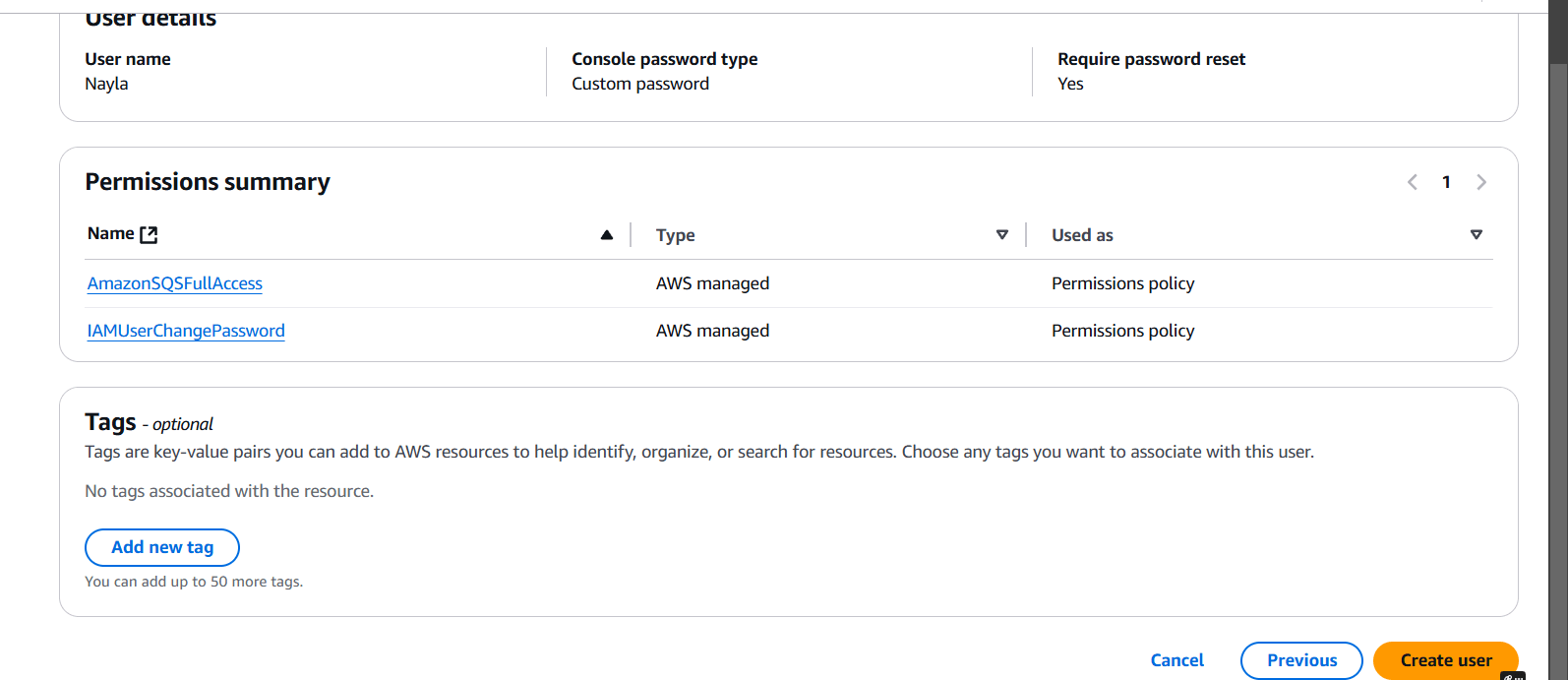
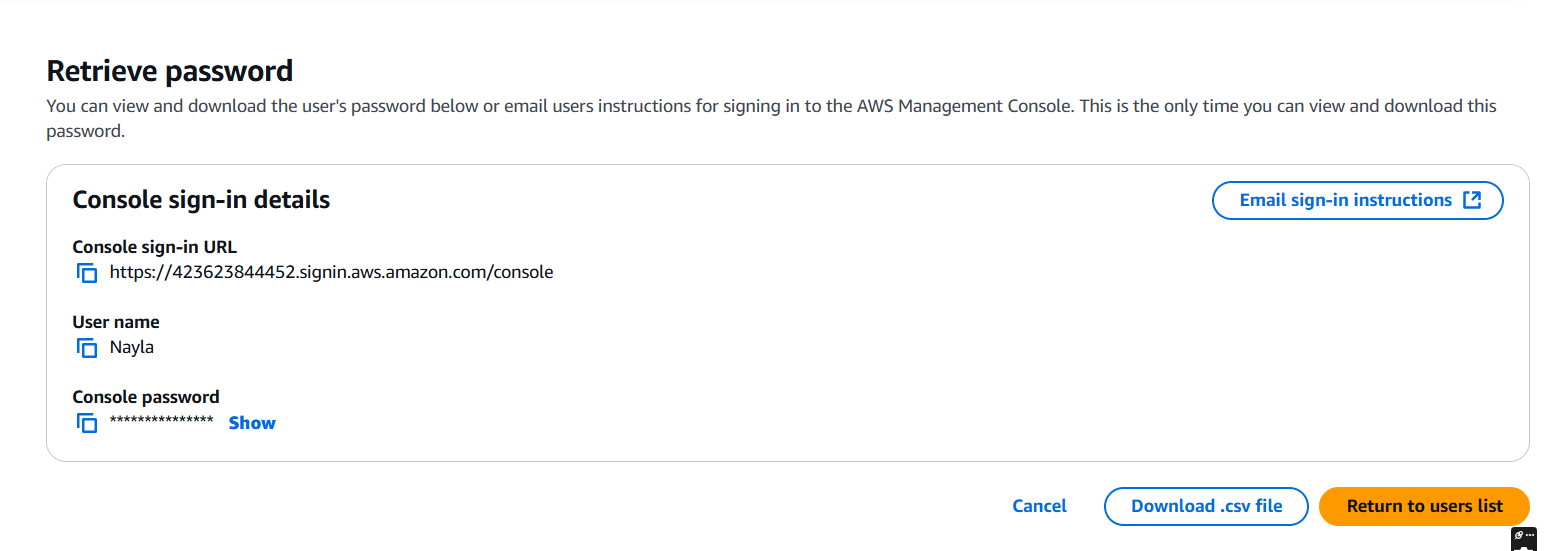
STEP 4: Click Return to user list.
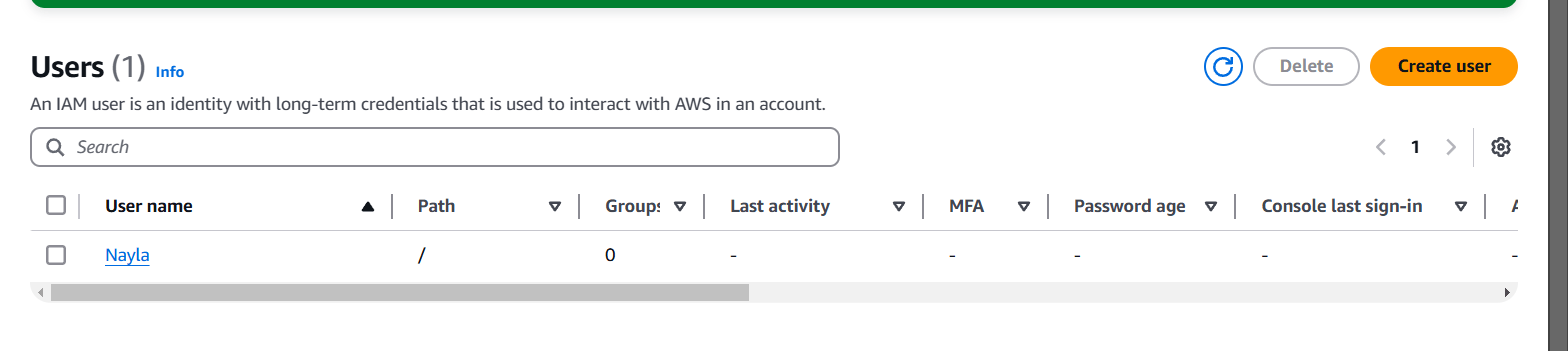
STEP 5: Click on your username.
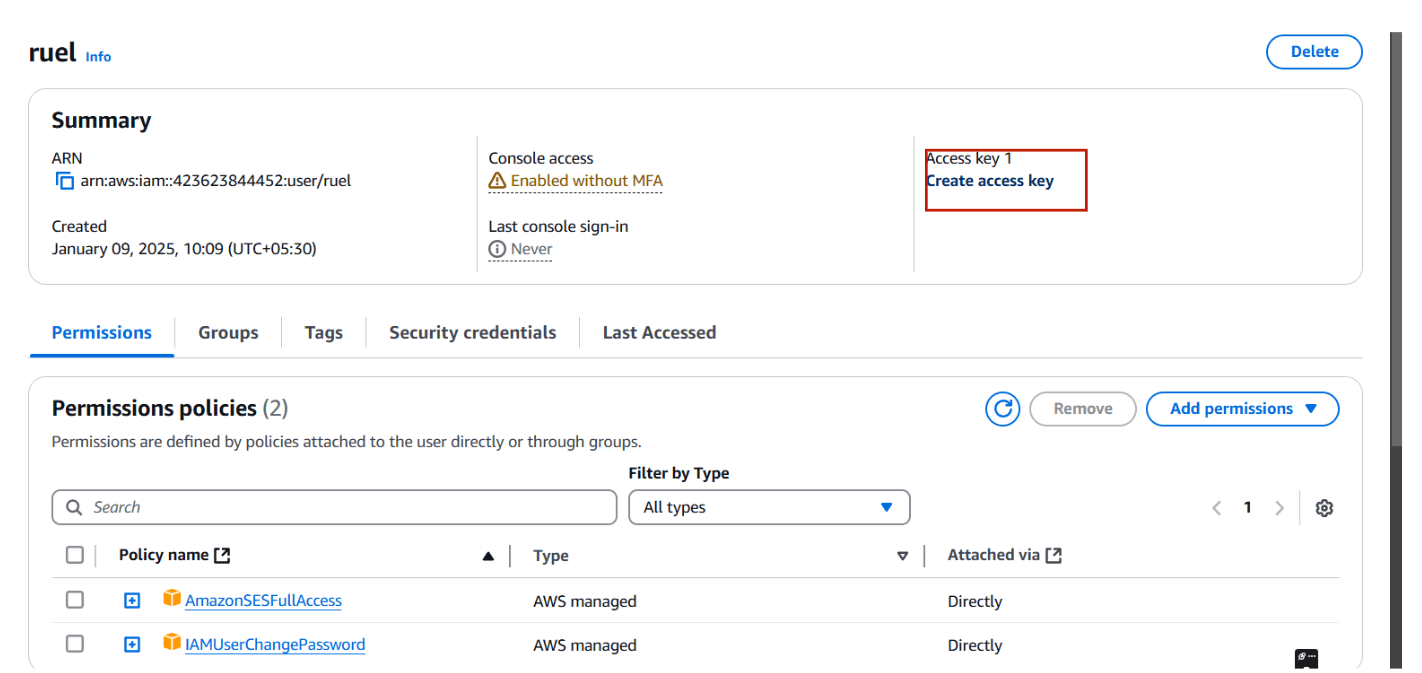
- Create access key.
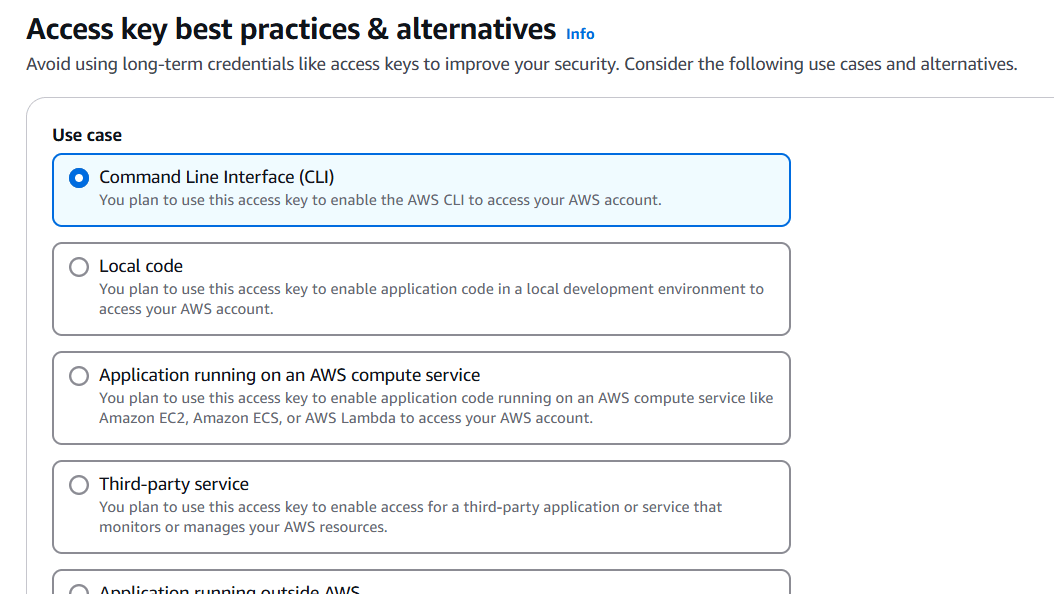
- Select CLI.
STEP 6: You will get a secret key and Access Key.
- If Download.csv file.
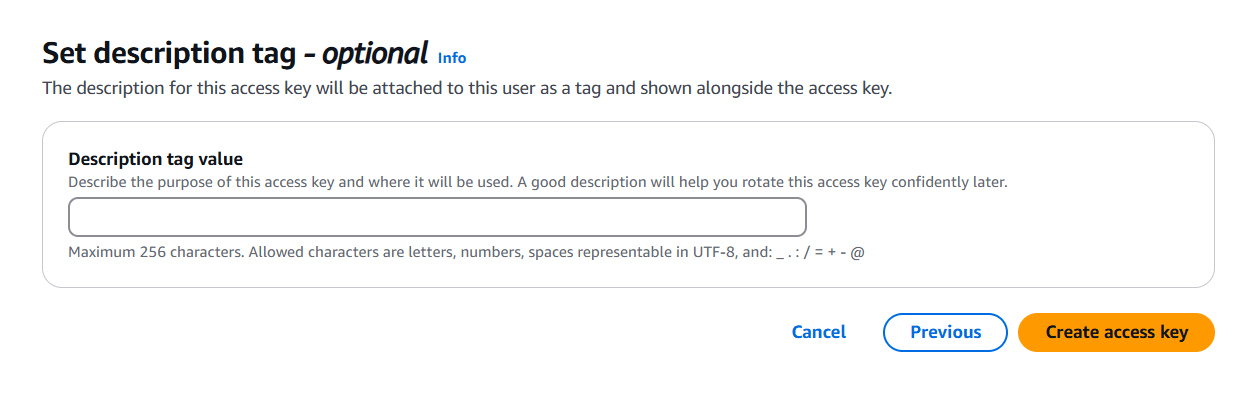
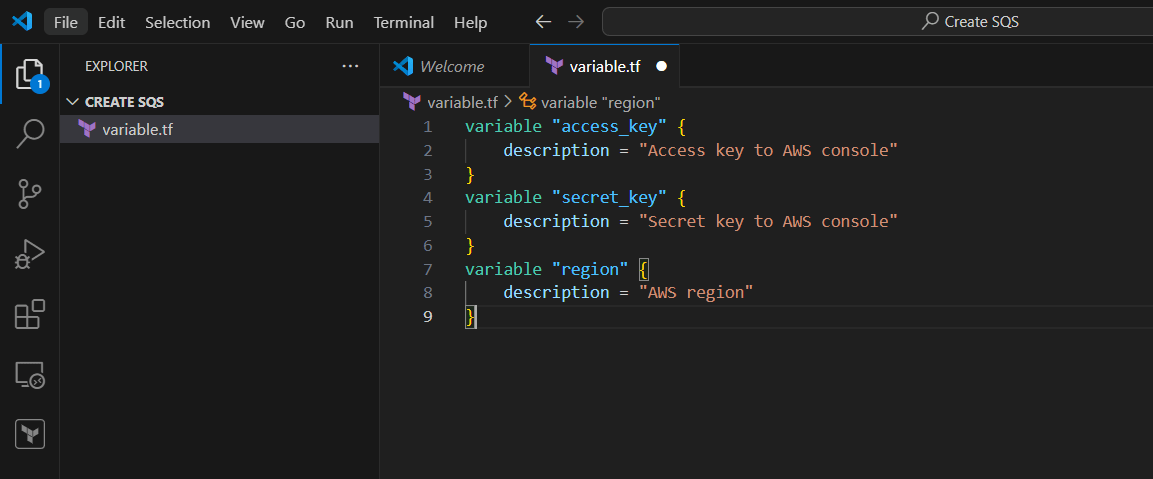
STEP 7: Go to VScode select your folder and create variable.tf file.
- Enter the following commands and save it.
variable "access_key" {
    description = "Access key to AWS console"
}
variable "secret_key" {
    description = "Secret key to AWS console"
}
variable "region" {
    description = "AWS region"
}
STEP 8: Next, Create terraform.tf file.
- Enter the command and save the file.
region = "us-east-1"
access_key = "<YOUR AWS CONSOLE ACCESS ID>"
secret_key = "<YOUR AWS CONSOLE SECRET KEY>"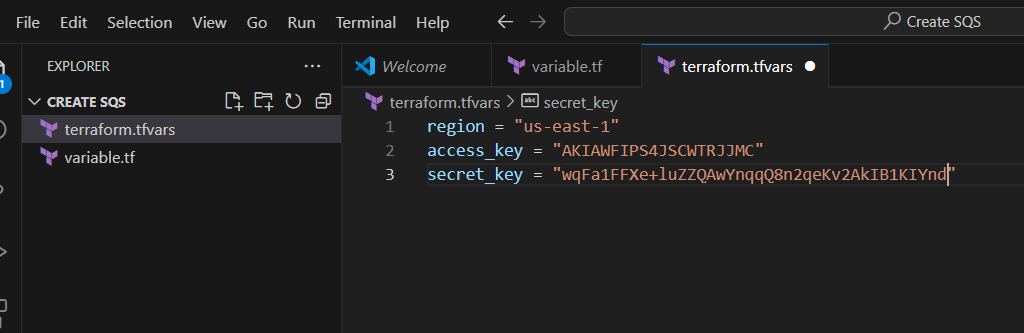
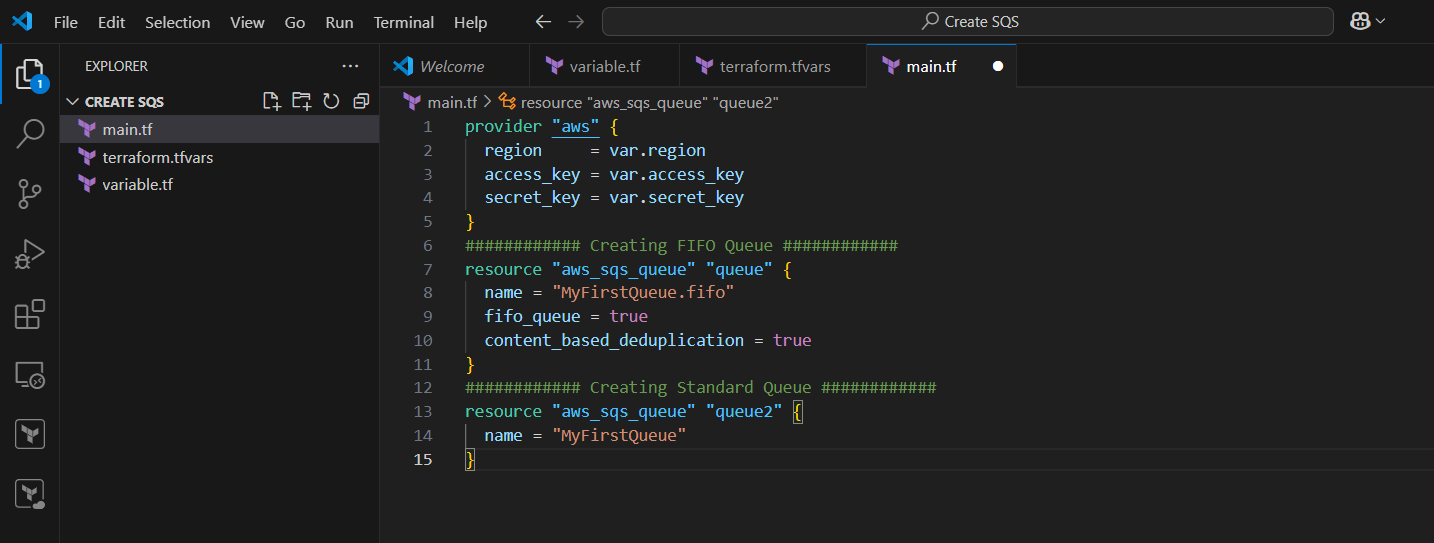
STEP 9: Create main.tf file.
provider "aws" {
  region     = var.region
  access_key = var.access_key
  secret_key = var.secret_key
}
############ Creating FIFO Queue ############
resource "aws_sqs_queue" "queue" {
  name = "MyFirstQueue.fifo"
  fifo_queue = true
  content_based_deduplication = true
}
############ Creating Standard Queue ############
resource "aws_sqs_queue" "queue2" {
  name = "MyFirstQueue"
}
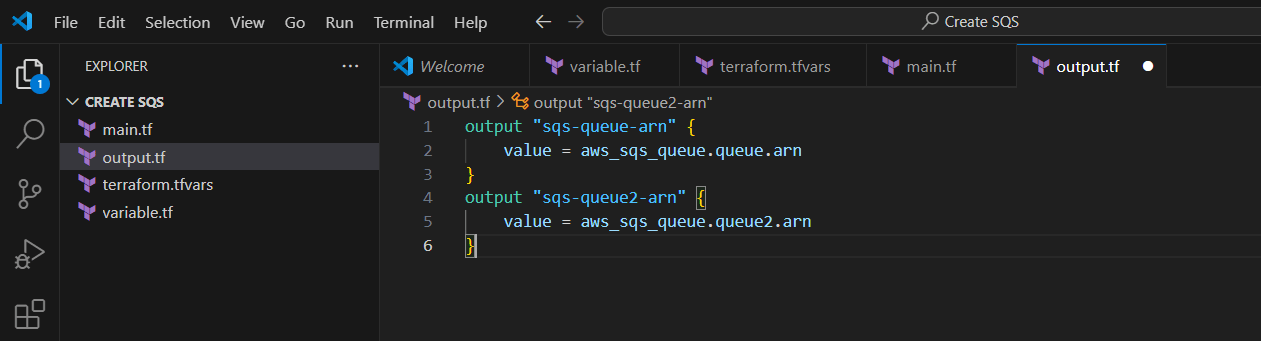
STEP 10: Create output.tf file.
output "sqs-queue-arn" {
    value = aws_sqs_queue.queue.arn
}
output "sqs-queue2-arn" {
    value = aws_sqs_queue.queue2.arn
}
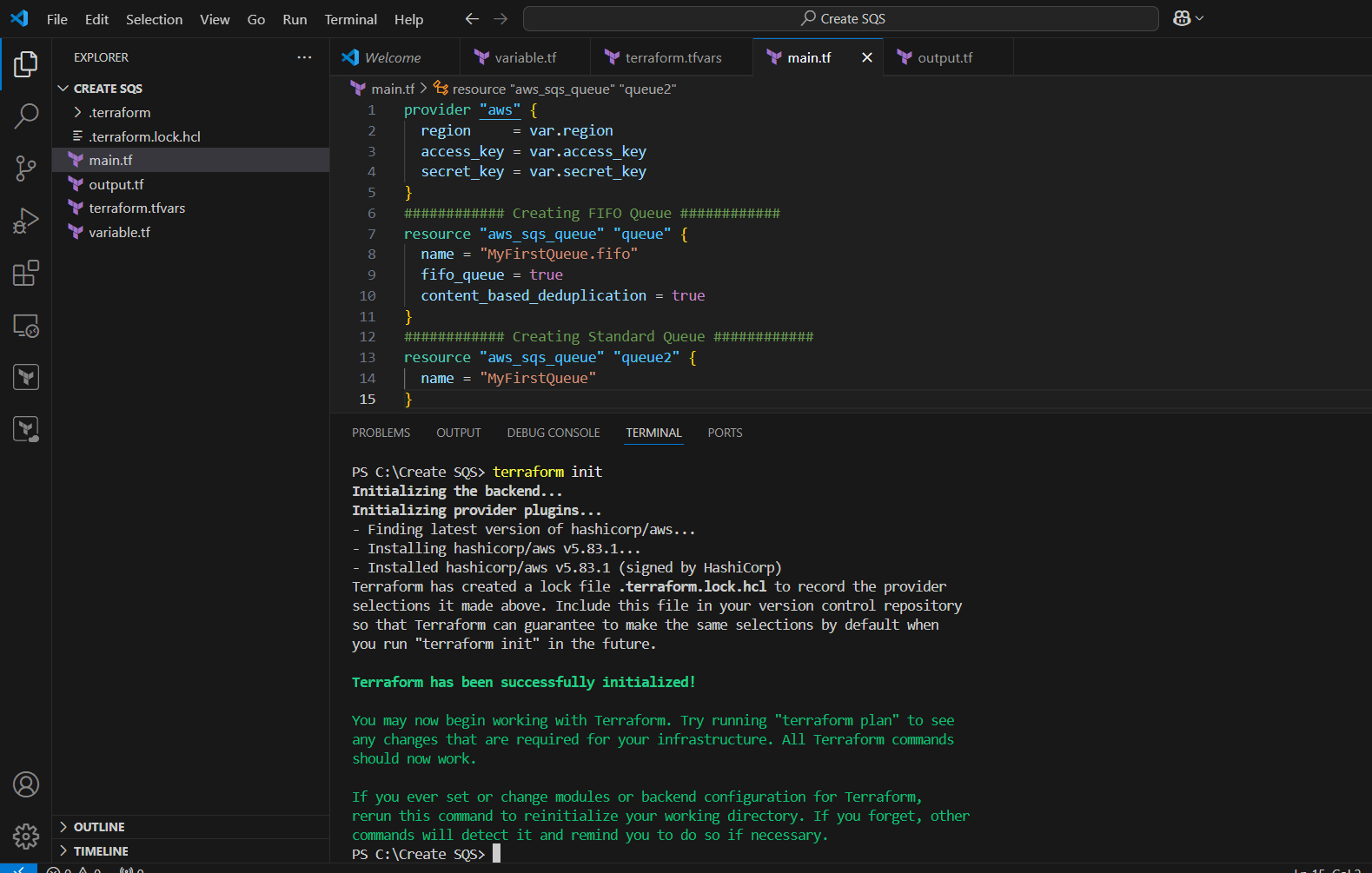
STEP 11: Open the terminal Enter terraform init.
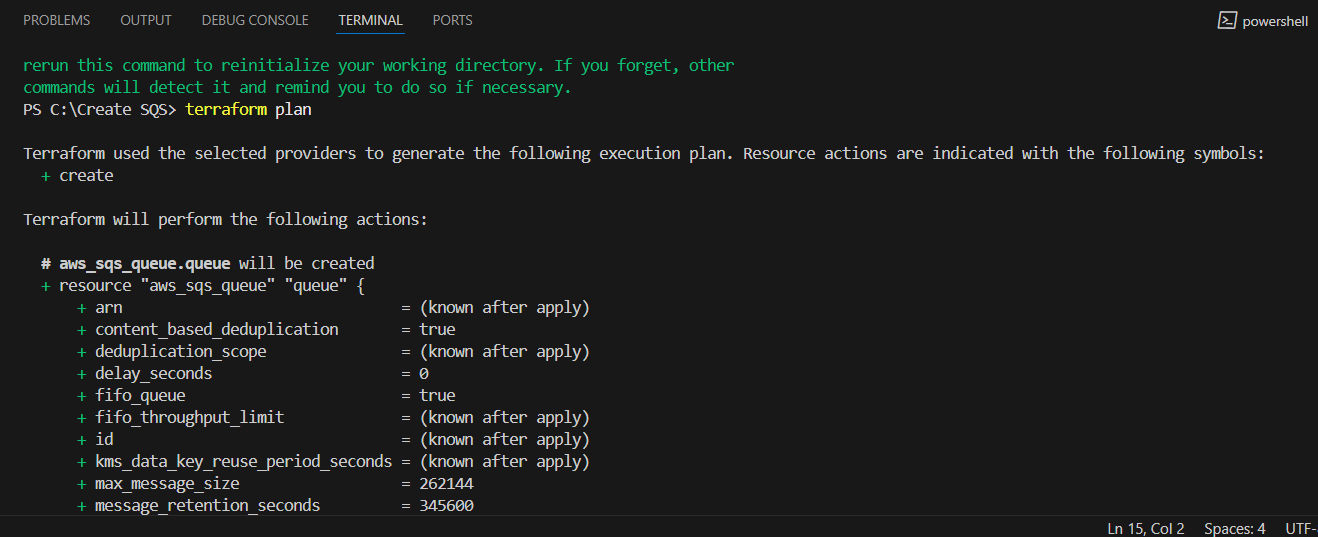
STEP 12: Next, Enter terraform plan command.
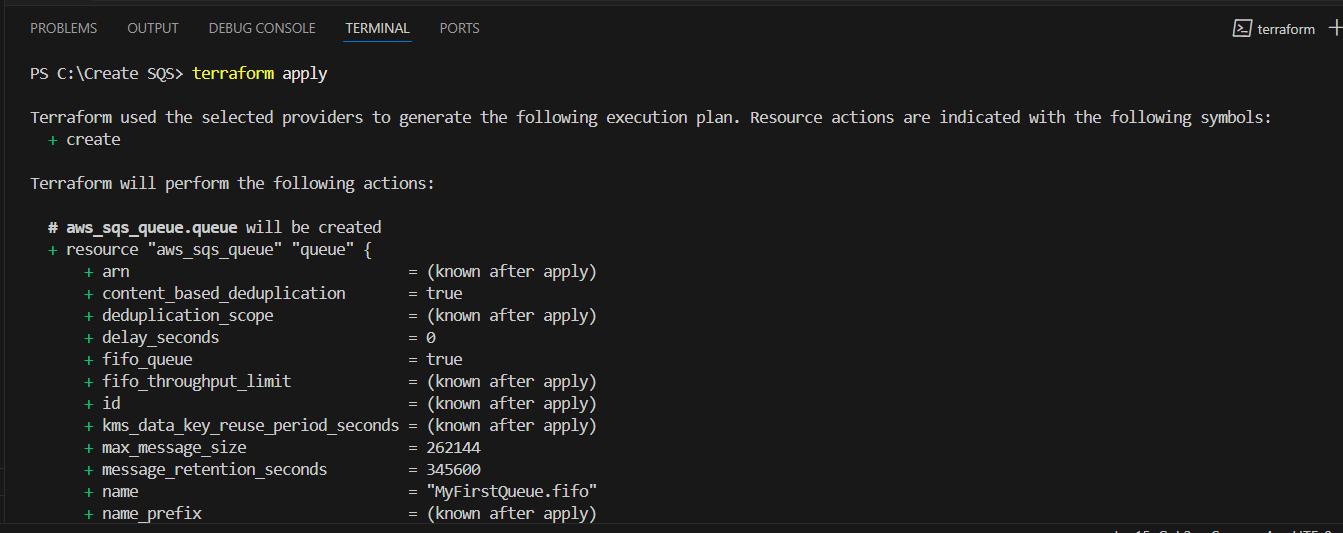
STEP 13: Enter terraform apply.
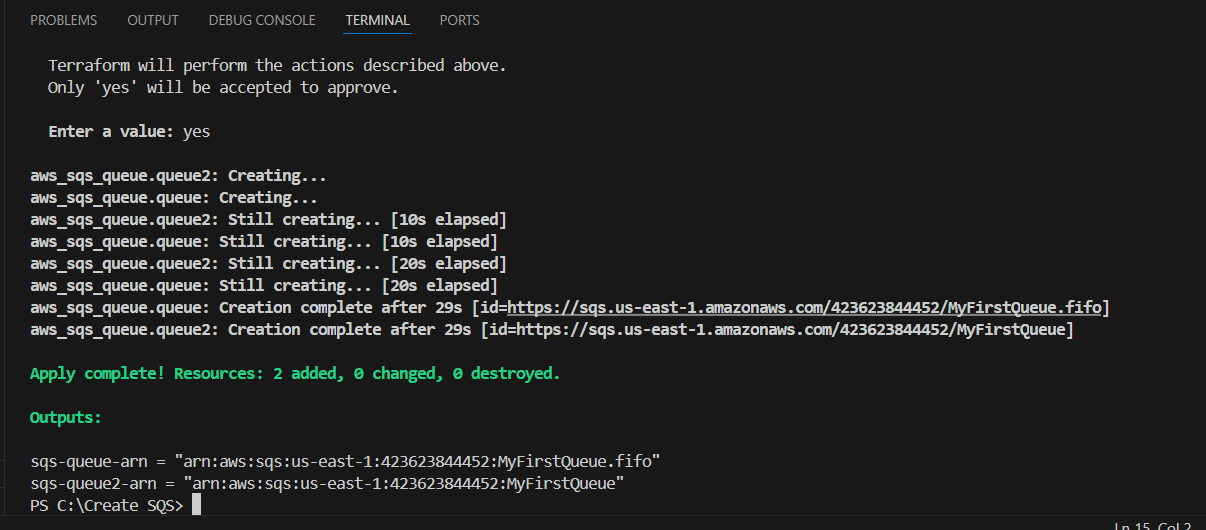
STEP 14: Go AWS SQS You can see two queues are created successfully.
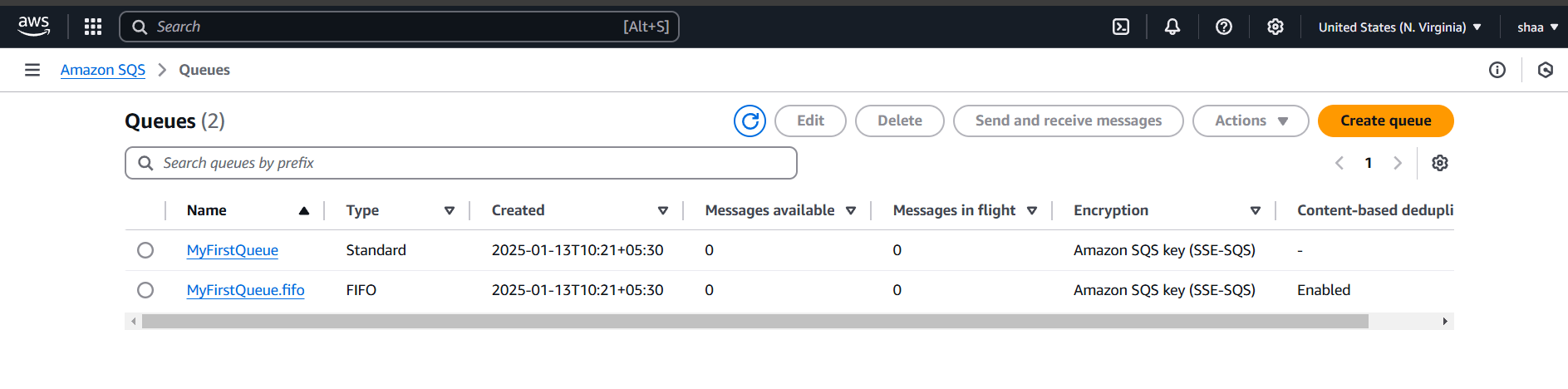
STEP 15: If you delete the Queue use the terraform destroy command.


Conclusion.
By following these steps, you’ve successfully created an SQS Queue using Terraform, enabling you to manage your message queues in a scalable and automated manner. Terraform’s infrastructure-as-code approach makes it easier to maintain, version, and automate your AWS resources, ensuring a streamlined workflow.
Add a Comment