


Introduction.
Amazon Web Services (AWS) S3 (Simple Storage Service) is a scalable, high-performance cloud storage service that allows businesses and developers to store and retrieve data from anywhere on the web. It is probably the most commonly used, go-to storage service for AWS users given the features like extremely high availability, security, and simple connection to other AWS Services. Includes features like versioning, lifecycle management, and replication (cross-region or same-region replication). S3 is designed for 99.999999999% (11 9s) of durability, meaning your data is safe and highly available.

Let’s begin creating a static website hosting setup on AWS S3.
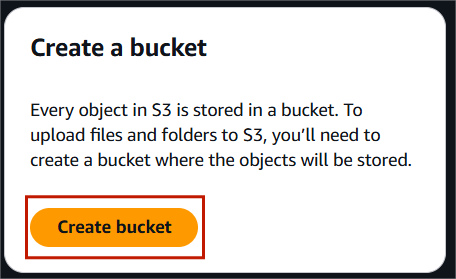
STEP 1: Navigate the S3 bucket and click on create bucket.
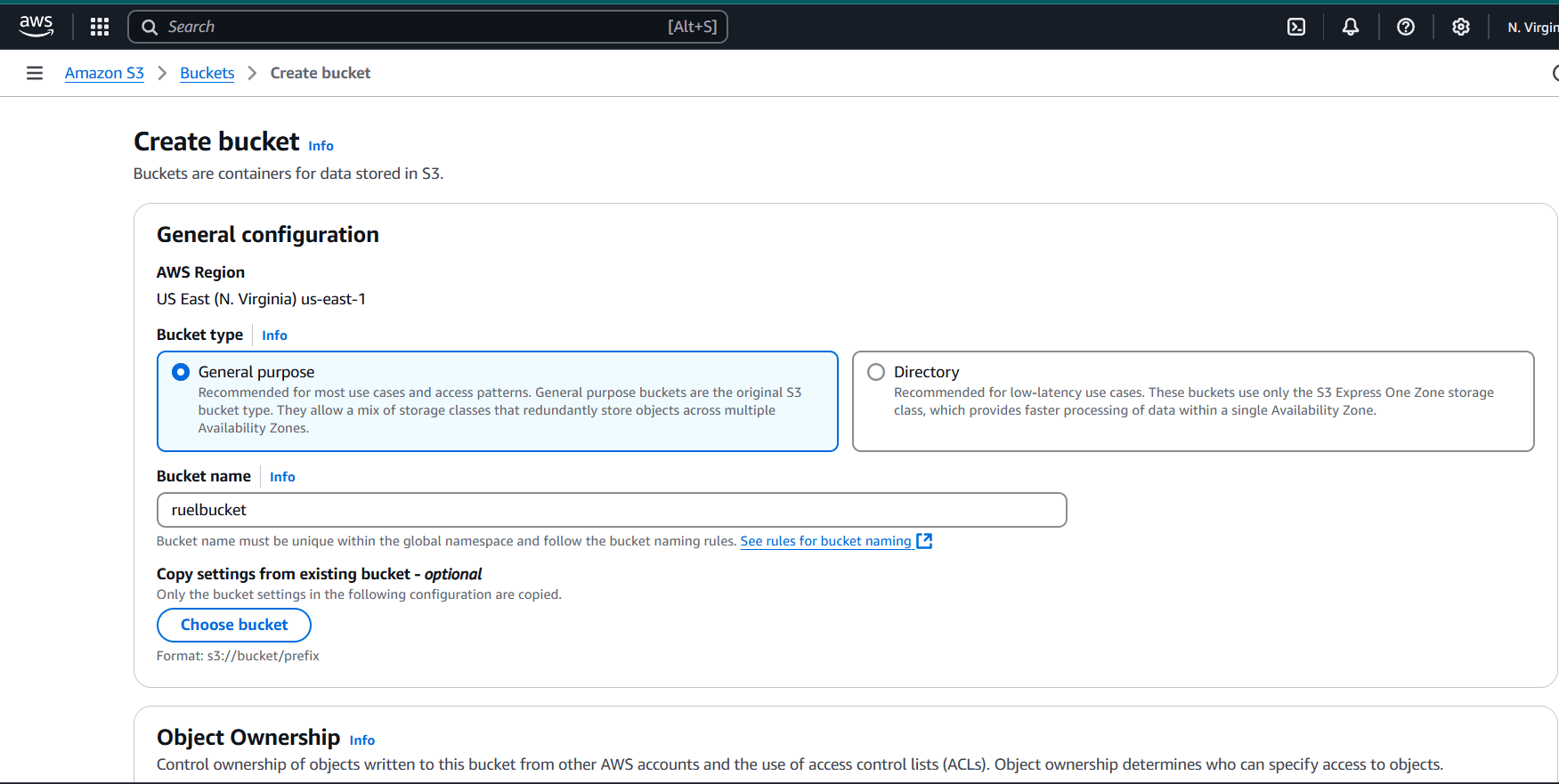
STEP 2: Bucket type : General purpose.
- Enter the bucket name.
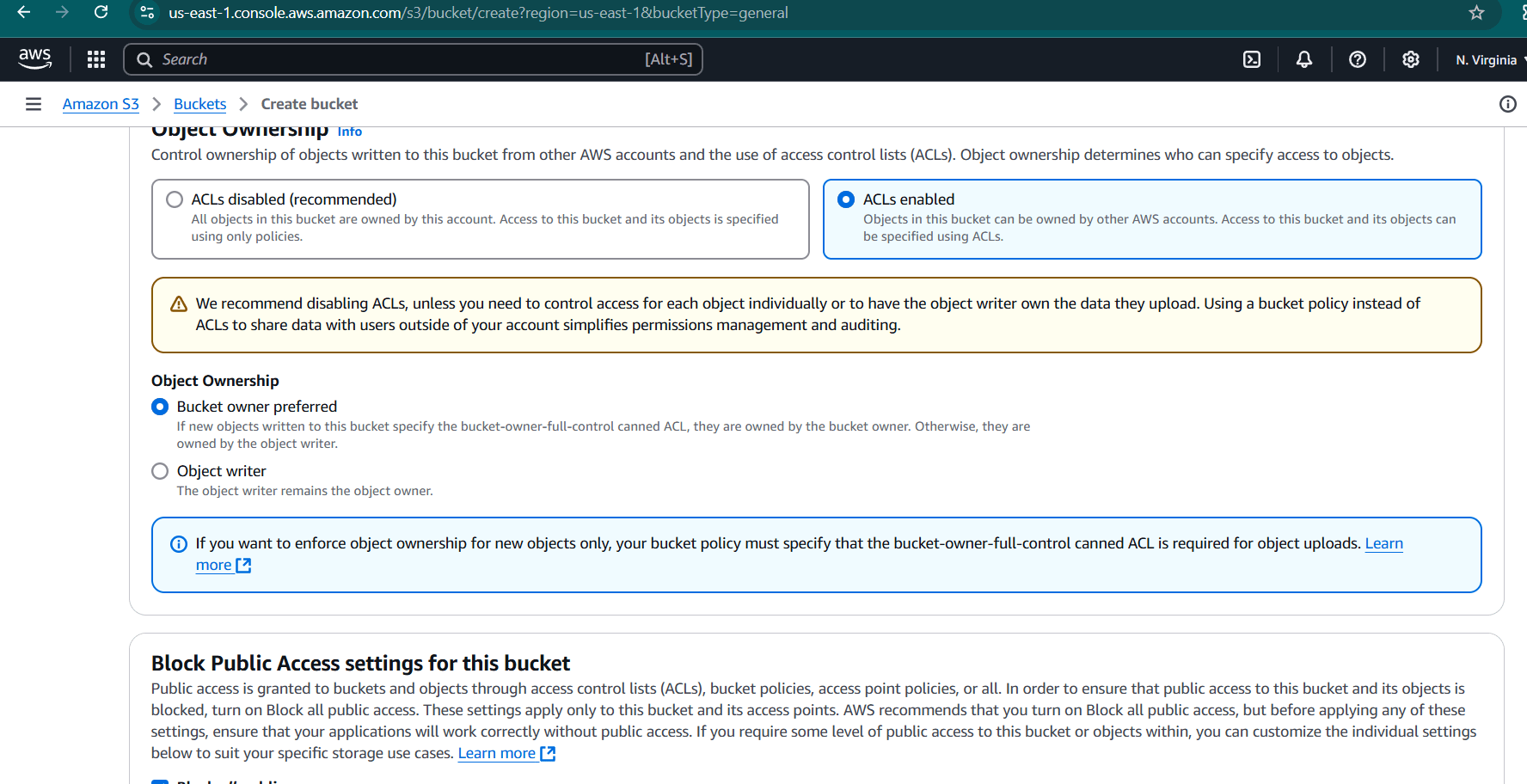
STEP 3: Object onwnership : ACLs enabled.
- Select the bucket owner preferred.
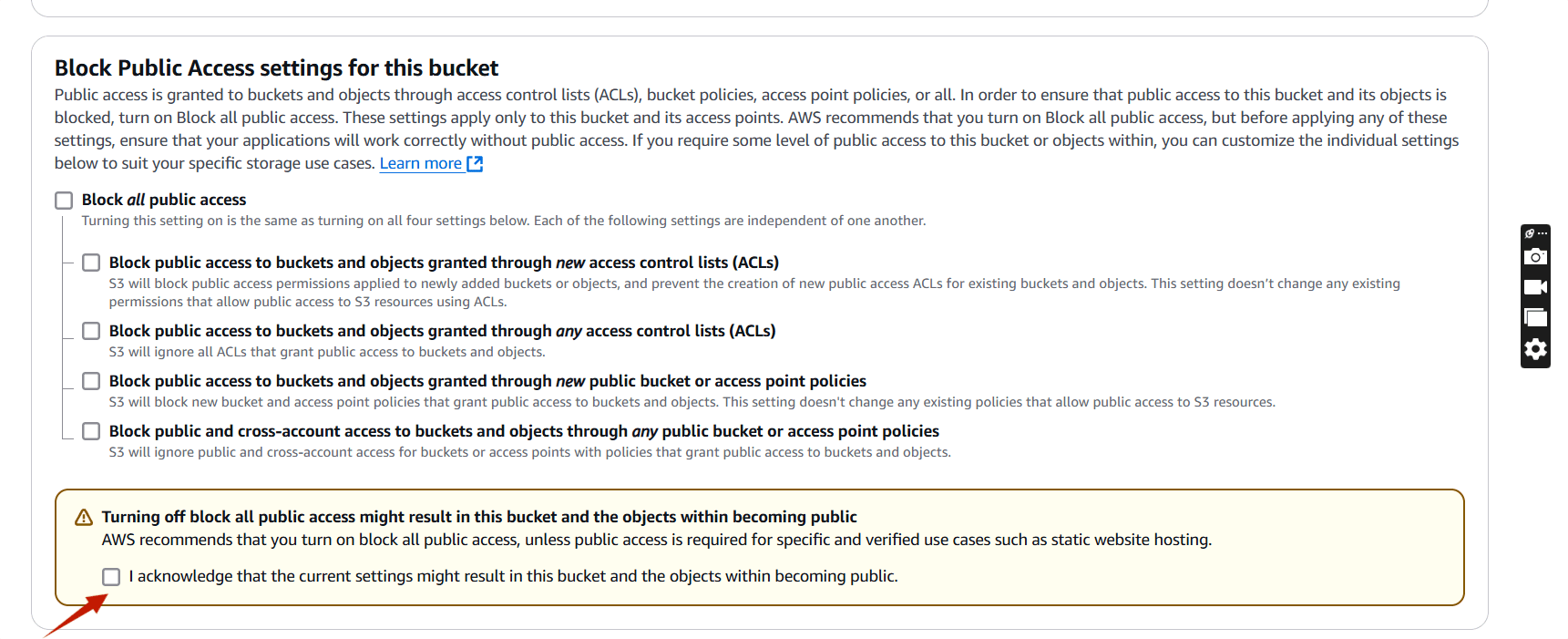
STEP 4: Place a tick on the marked.
STEP 5: Click on create bucket.
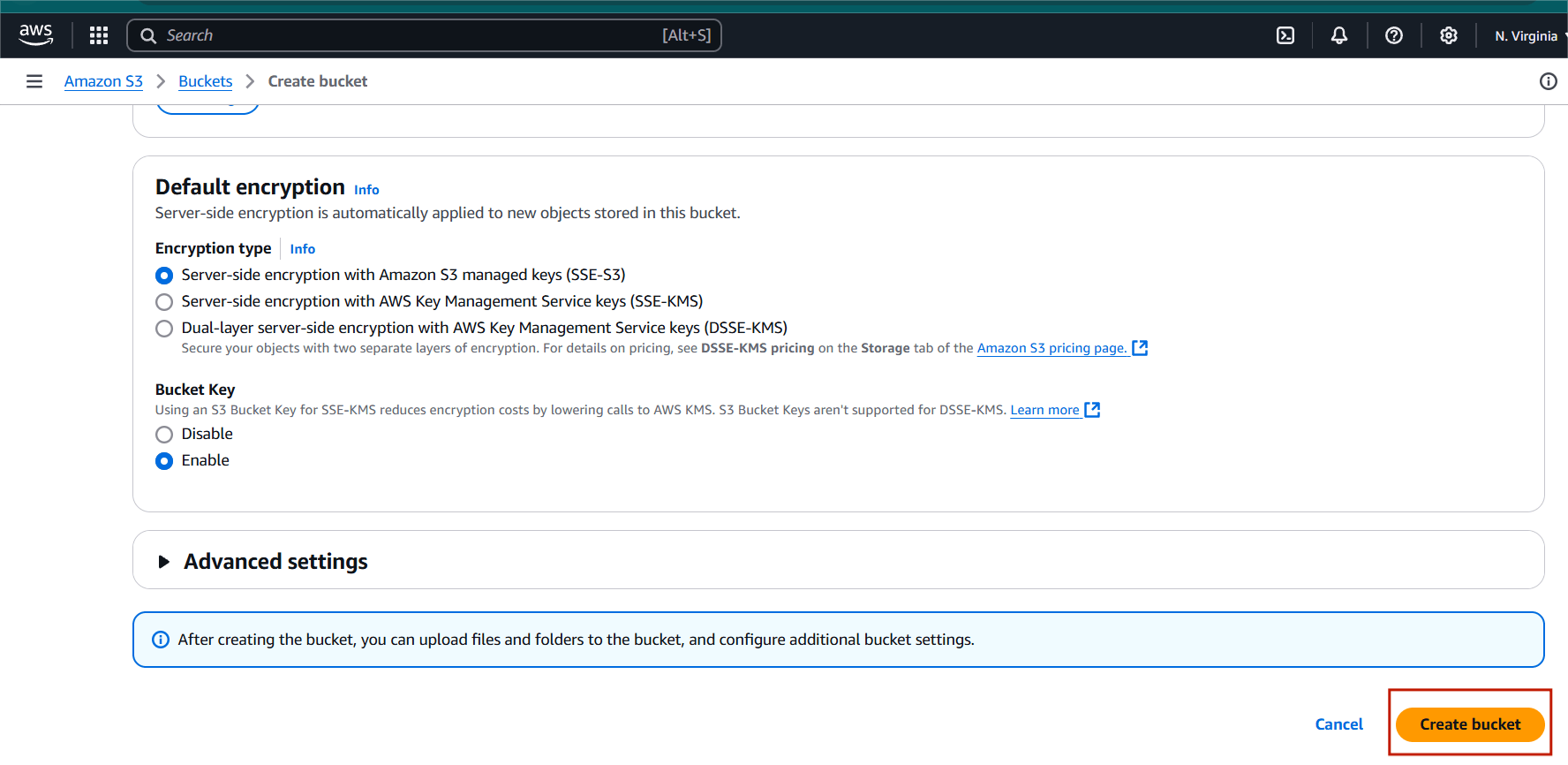
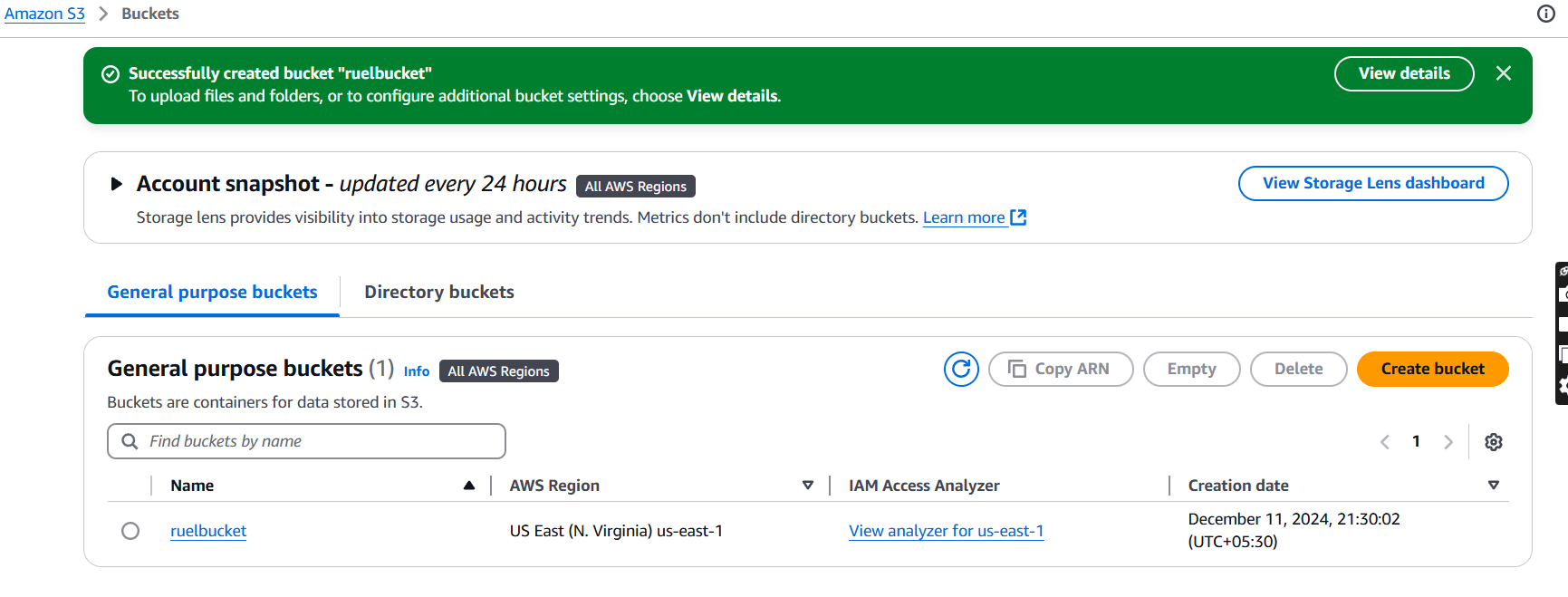
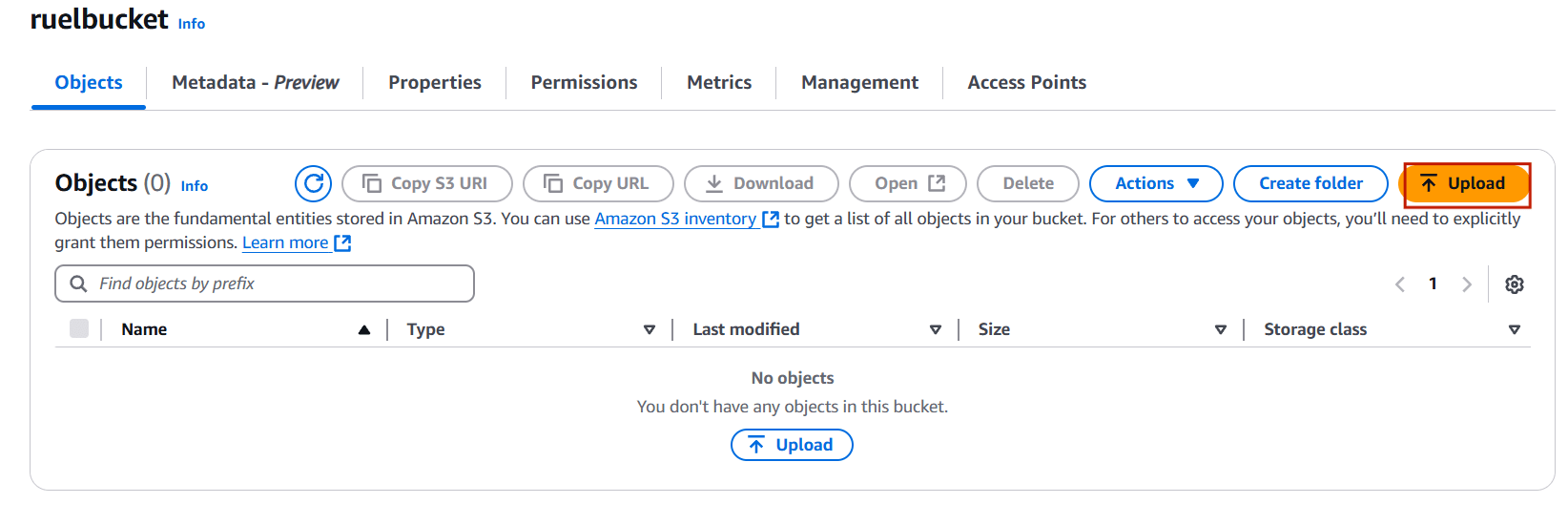
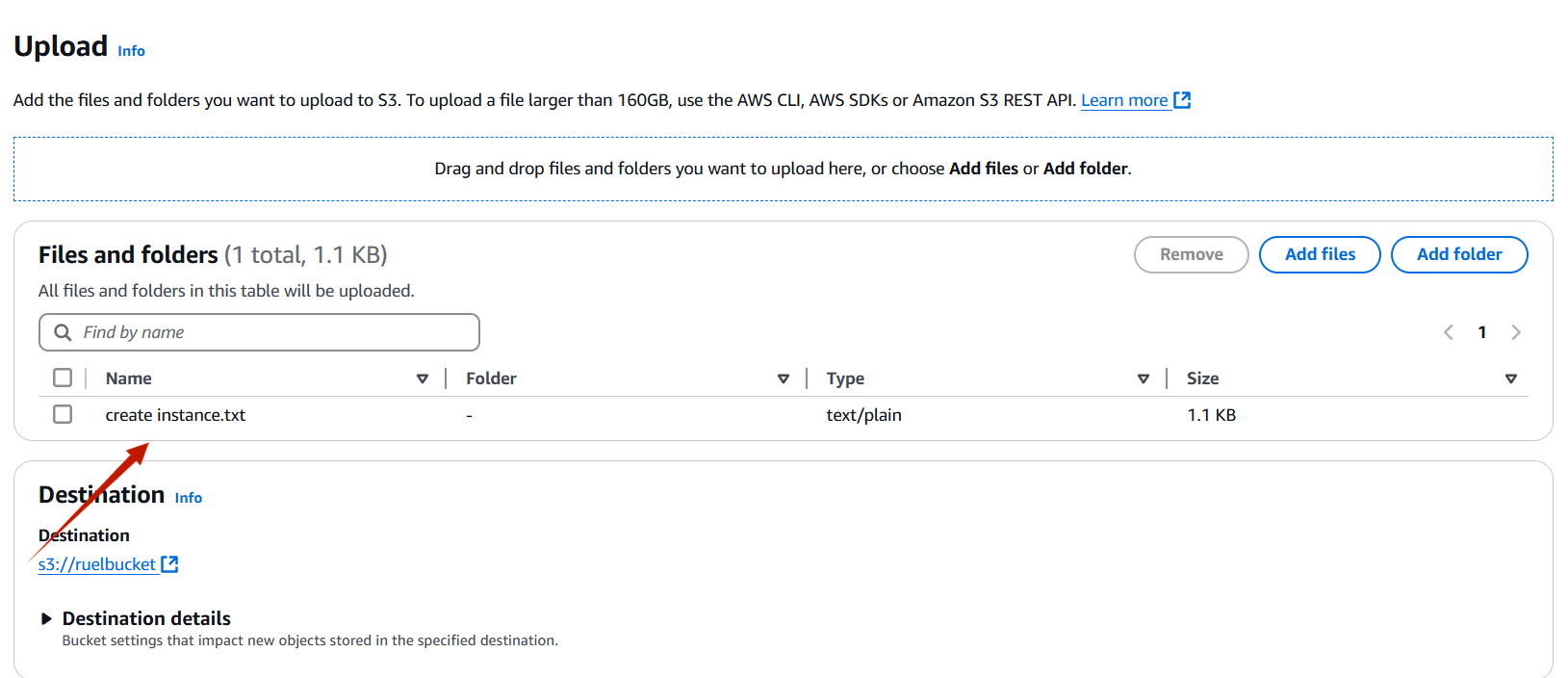
STEP 6: Select your bucket and upload the file.
- Click upload button.
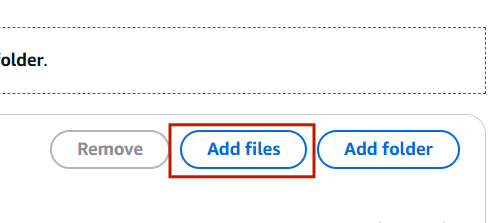
- Select the add file.
STEP 6: Add your file.
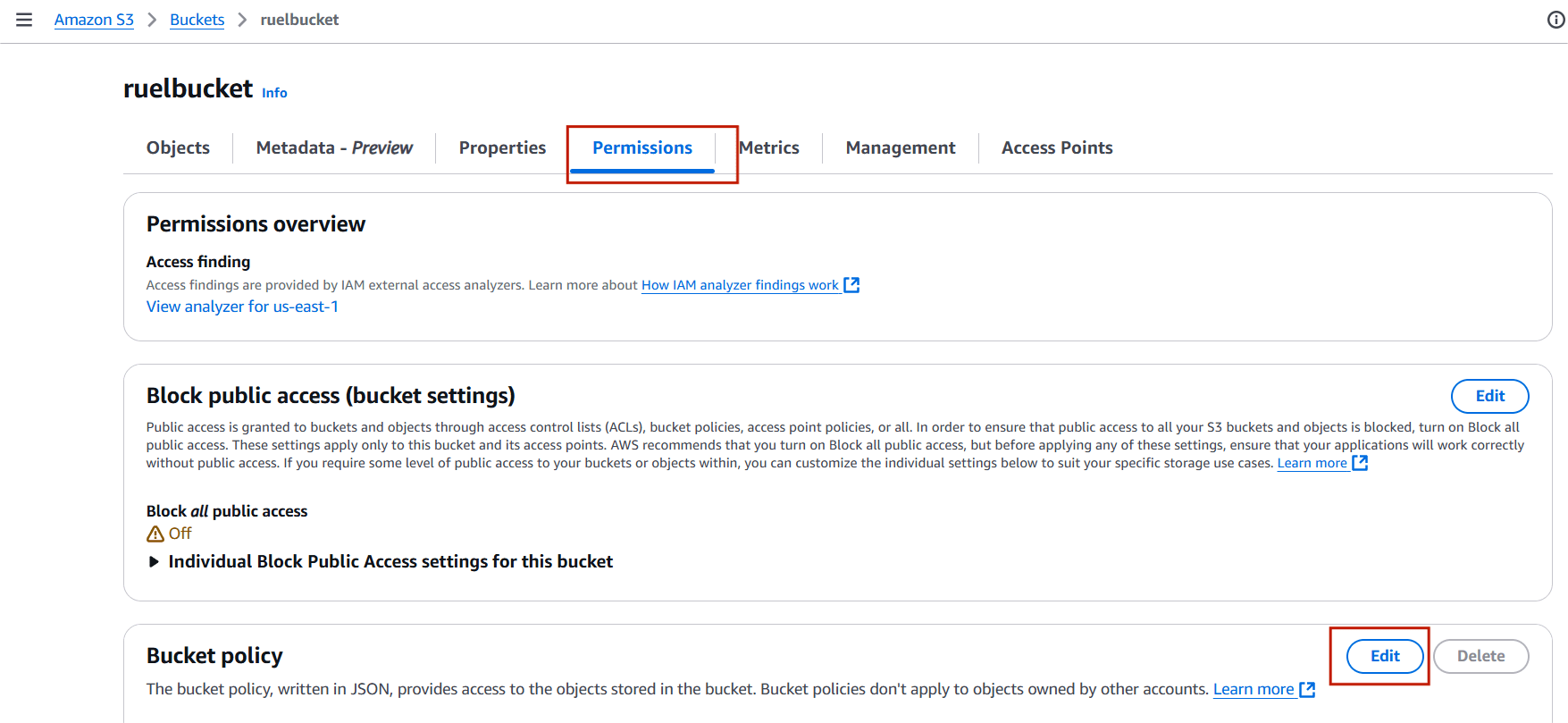
STEP 7: Click on permissions and Select the edit under bucket policy.
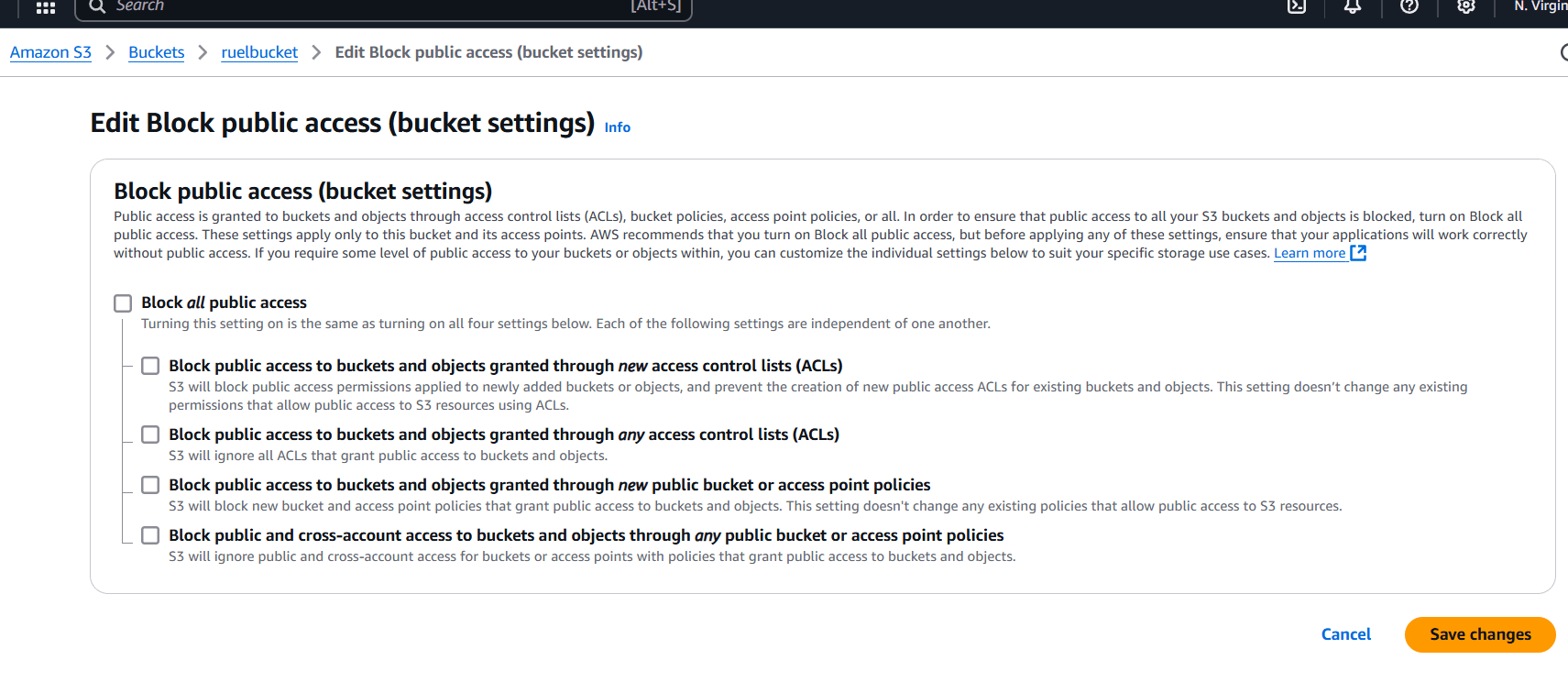
STEP 8: Uncheck Block all public access.
- Click on save changes.
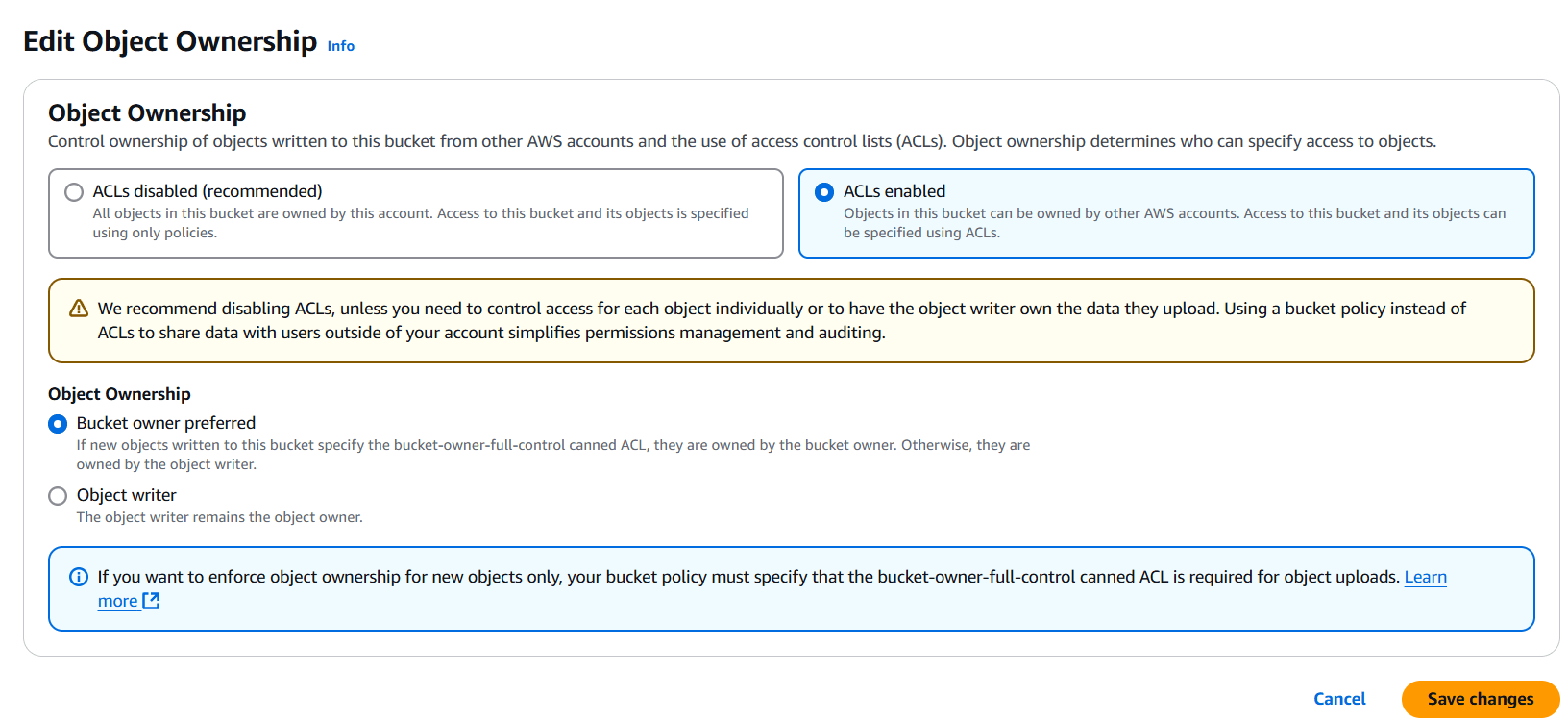
STEP 9: Next, Click on edit under object ownership.
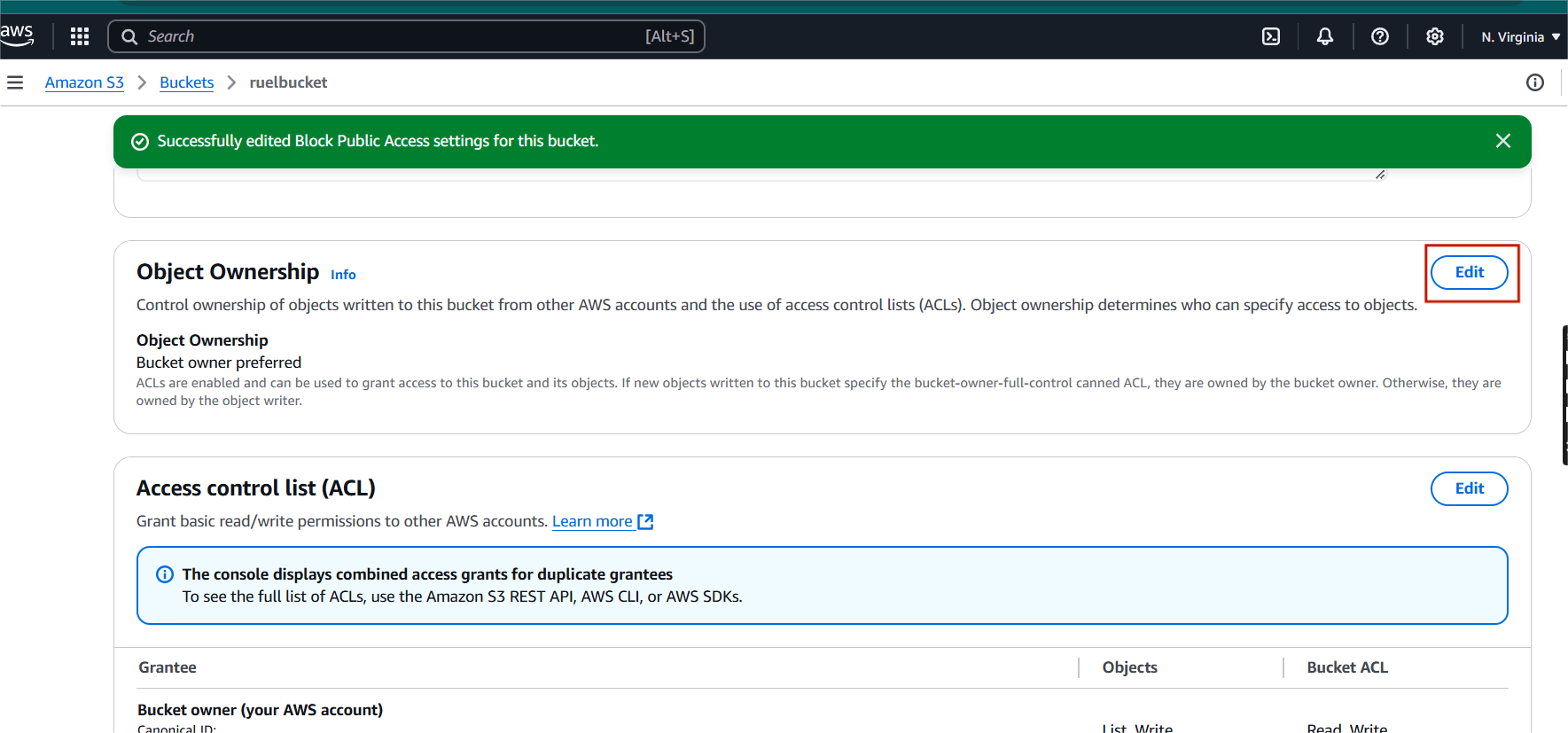
Step 10: Select ACLs enabled.
- Click on save changes.
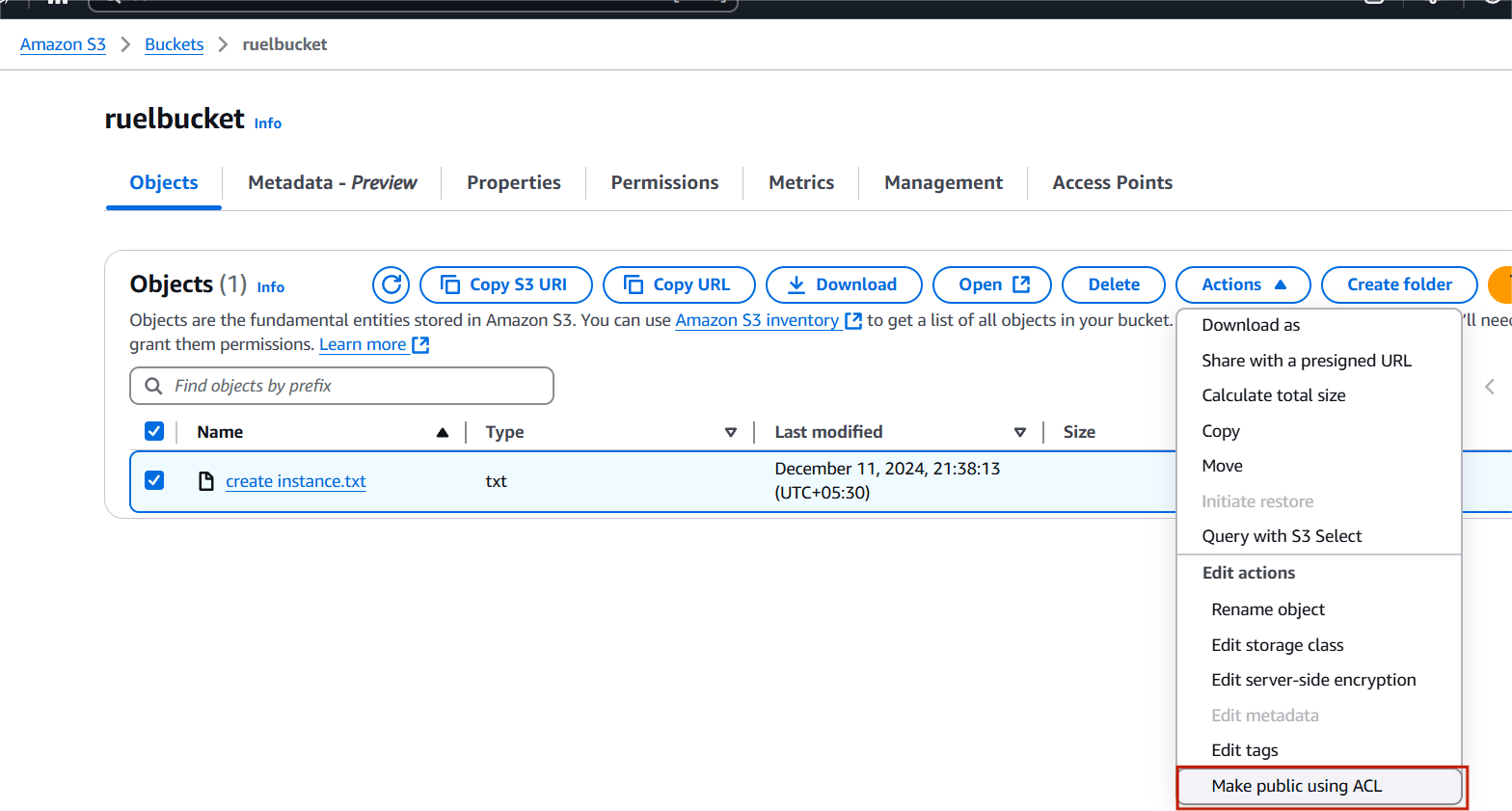
STEP 11: Select your code file and click on action button.
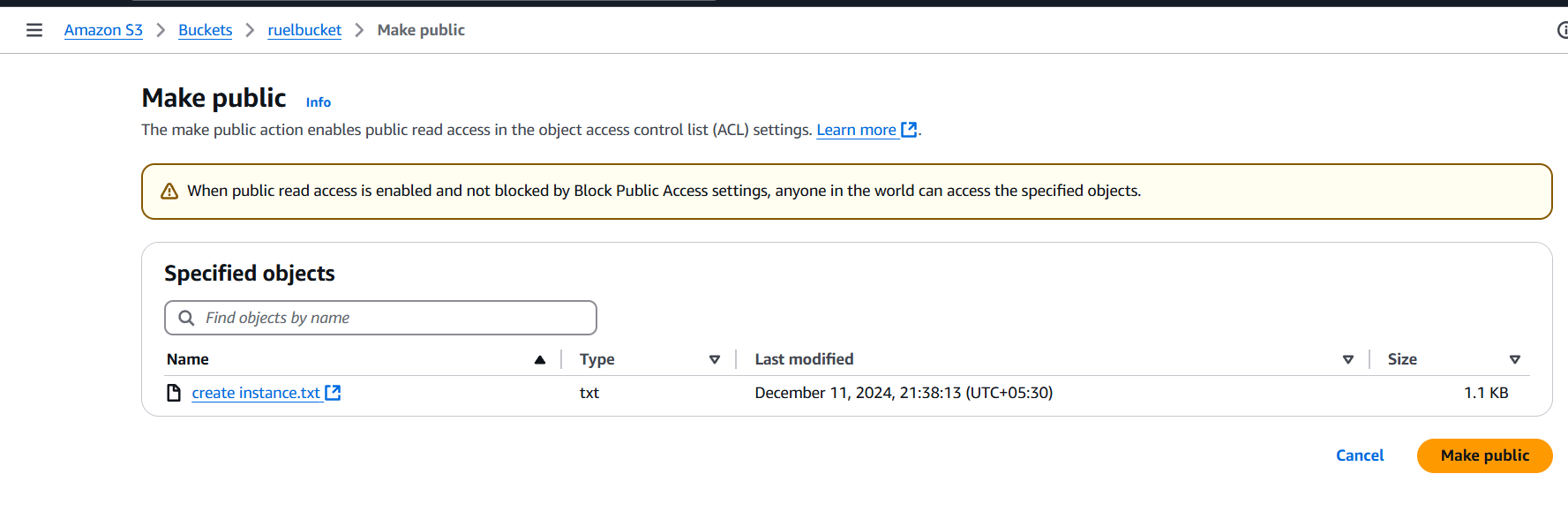
- Select make public using ACL.
- And click make changes.
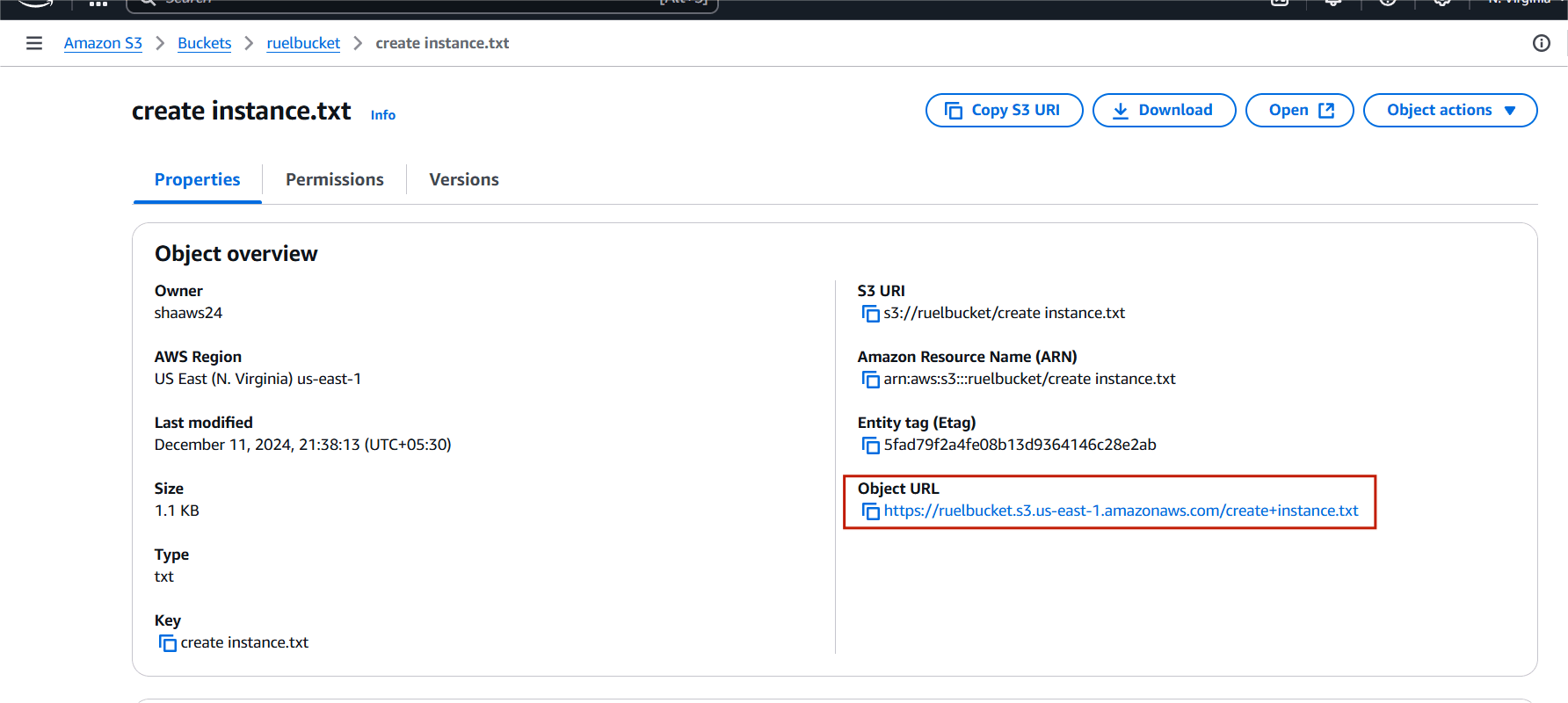
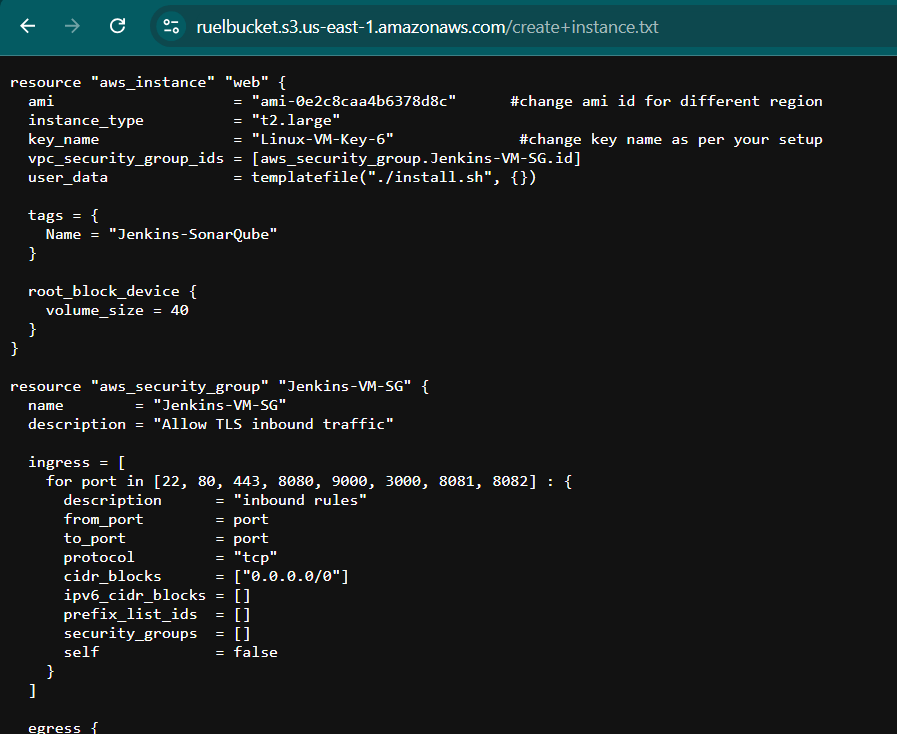
STEP 12: Copy your object URL and paste your browser.

STEP 13: You will see your code file on your browser.

Conclusion.
Well done! Your website is now available to the public. This guide has shown how easy it is to host a static website on AWS S3—an essential skill for any modern developer. S3 bucket Store backups and archive data with S3 Glacier for long-term storage. It’s Automatically moves data to the most cost-effective storage tier based on access patterns. Low-cost storage for data archiving and backup, with retrieval times ranging from minutes to hours.
Add a Comment